To connect Bluetooth headphones to a Windows 11 PC, put the headphones in pairing mode, open quick settings, select the arrow on the Bluetooth tile and pick the headphones under New devices.
This guide covers the quick settings, Settings and Swift Pair routes, the Windows 10 steps, making the headphones your default output, and fixes for headphones that will not pair, a greyed-out Bluetooth switch and connected headphones with no sound. Once paired, the headphones join the list of sound output devices Windows can play through.
How to connect Bluetooth headphones to Windows 11 PC
This is the fastest route and works on laptops and desktops alike. The headphones must be in pairing mode first, which usually means holding the power or Bluetooth button until a light flashes; the exact method is in the headphone maker's manual.
- Turn on the headphones and put them in pairing mode.
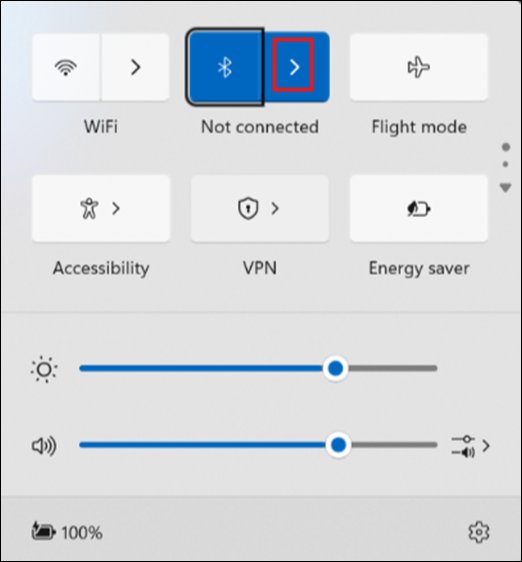
- On the PC, select the Network, Sound or Battery icon next to the time and date on the taskbar to open quick settings.
- Select the Bluetooth tile so it is highlighted, if Bluetooth is off.
- Select the Manage Bluetooth devices arrow on the Bluetooth tile.
- Select your headphones under New devices. Scroll past Your devices if the list is long.
- Follow any extra prompt, then select Done.
From now on the headphones reconnect on their own whenever Bluetooth is on and they are in range. If the Bluetooth tile is missing from quick settings, turn Bluetooth on in Windows 11 from Settings instead.
Quick settings, Settings or Swift Pair for Bluetooth headphones
| Your situation | Use this route | Why |
|---|---|---|
| First time pairing on Windows 11 | Quick settings Bluetooth tile | Fewest clicks, no need to open Settings |
| Headphones support Swift Pair | Swift Pair notification | Windows offers a Connect button as soon as the headphones are in pairing mode nearby |
| Headphones do not show up in quick settings | Settings > Bluetooth & devices with discovery set to Advanced | The Advanced setting lists every type of Bluetooth device |
| PC runs Windows 10 | Settings > Devices > Bluetooth & other devices | Windows 10 uses the Add Bluetooth or other device button |
| Headphones were paired before but no longer connect | Remove the device, then pair again | Clears a stale pairing record |
Does your PC have Bluetooth for headphones?
Most Windows 11 laptops have Bluetooth built in, but many desktop PCs do not. You can check whether your PC has Bluetooth before you start.
| Requirement | What to check | If it is missing |
|---|---|---|
| Bluetooth radio in the PC | A Bluetooth category in Device Manager, or a Bluetooth switch in Settings > Bluetooth & devices | Plug a USB Bluetooth adapter into a USB port |
| Bluetooth switched on | The Bluetooth tile in quick settings is highlighted | Select the tile or turn on the switch in Settings |
| Physical Bluetooth switch on some laptops | A slider or key on the laptop body | Switch it on |
| Airplane mode off | The Airplane mode tile in quick settings is not highlighted | Select the tile to turn airplane mode off |
| Headphones charged and in pairing mode | Pairing light flashing, per the maker's manual | Charge them; keep them plugged in to power while pairing if possible |
Pair Bluetooth headphones from Windows 11 Settings
Use Settings when quick settings does not list the headphones, or when you want to change the discovery setting at the same time.
- Put the headphones in pairing mode.
- Select Start > Settings > Bluetooth & devices.
- Make sure the Bluetooth switch is On.
- Select Add device.
- Select your headphones from the list of found devices.
- Select Done when Windows reports the device is ready.
If the headphones never appear, open Bluetooth & devices > Devices and set Bluetooth devices discovery to Advanced, then try again.
Connect Bluetooth headphones with Swift Pair in Windows 11
Swift Pair shows a notification when a supported Bluetooth device is nearby and in pairing mode. Not every headset supports it; the maker's spec sheet says whether yours does.
- Turn on the headphones and put them in pairing mode close to the PC.
- Select Yes if Windows asks whether to allow Swift Pair the first time.
- Select Connect on the notification that says a new Bluetooth device was found.
How to connect Bluetooth headphones to Windows 10
Windows 10 keeps Bluetooth under Devices rather than Bluetooth & devices, and pairing starts from a different button.
- Put the headphones in pairing mode.
- Select Start > Settings > Devices > Bluetooth & other devices.
- Switch Bluetooth to On.
- Select Add Bluetooth or other device.
- In the Add a device window, select Bluetooth.
- Select your headphones in the list and follow any prompts.
- Select Done when pairing finishes.
On Windows 10 you can also toggle Bluetooth from the Bluetooth tile in Action center. Apple earbuds pair through the same screens; only the button to hold differs when you connect AirPods to a Windows PC.
How to make Bluetooth headphones default in Windows 11
Windows usually switches audio to headphones as soon as they connect. If sound keeps coming from the laptop speakers, set the output yourself.
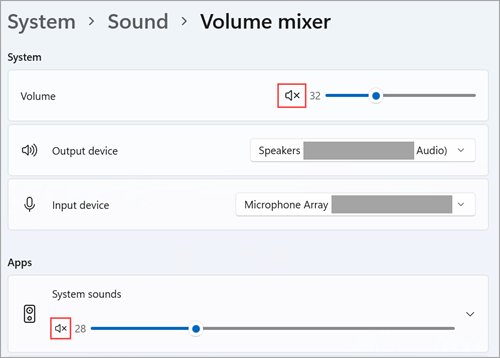
- Select the Sound icon on the taskbar and check that your headphones are the selected audio output.
- For a permanent setting, select Start > Settings > System > Sound.
- Under Output, select your Bluetooth headphones.
- To raise audio quality, open Settings > Bluetooth & devices > Devices, select the headphones and then Advanced sound properties.
- Under Output settings, set Format to 2 channels, 16 bit, 48000 Hz (DVD Quality).
Advanced sound properties only appears while the headphones are connected. If true wireless earbuds still sound flat or mono, you can re-pair the earbuds for stereo sound.
How to connect to Bluetooth Personal Area Network (BTPAN) in Windows 11
A Bluetooth Personal Area Network (BTPAN) shares internet from a phone or another computer over Bluetooth instead of Wi-Fi. It is not needed for headphones, but it uses the same pairing, and the other device must support a Bluetooth hotspot.
- Pair the Windows PC and the hotspot device over Bluetooth, using the steps above.
- On the hotspot device, turn on the hotspot and set it to share over Bluetooth.
- On the PC, select Start > Settings > Bluetooth & devices > Devices.
- Under Other devices, select the hotspot device to expand it.
- Next to Personal Area Network (PAN), select Join.
- In the Bluetooth Personal Area Network window, make sure Access Point is selected, then select Connect.
- Select OK when Connection successful appears.
To end the session, repeat the steps and select Disconnect PAN instead of Connect.
Check that Bluetooth headphones are connected in Windows 11
- Open quick settings and look at the Bluetooth tile: it should show the headphones' name or Connected.
- Open Settings > Bluetooth & devices and confirm the headphones are listed as connected.
- Select the Sound icon on the taskbar and confirm the headphones are the selected output.
- Play a video or song and listen in both ear cups.
How to remove or unpair Bluetooth headphones in Windows 11
Removing the headphones deletes the pairing, which is also the first fix for a pairing that has gone bad.
- Select Start > Settings > Bluetooth & devices > Devices.
- Select More options (the three dots) next to the headphones.
- Select Remove device, then Yes.
- To pair them again, put the headphones in pairing mode and select Add device.
Troubleshoot Bluetooth-enabled headphones not pairing
On Windows 11, start with the automated Bluetooth troubleshooter in the Get Help app, or select Start > Settings > System > Troubleshoot > Other troubleshooters and select Run next to Bluetooth. If it finds nothing, match your symptom below.
The headphones do not appear in the device list
Windows is showing only common device types, or the headphones are not discoverable.
- Put the headphones back into pairing mode and hold them close to the PC.
- Select Start > Settings > Bluetooth & devices > Devices.
- Under Device settings, set Bluetooth devices discovery to Advanced.
- Select Add device again.
The headphones are listed but will not connect
A stale pairing record from an earlier connection.
- Open Settings > Bluetooth & devices.
- Select More options (…) next to the headphones, then Remove device.
- Put the headphones in pairing mode.
- Select Add device and pick the headphones from the list.
The headphones will not enter pairing mode or drop out mid-pairing
A low battery stops some headphones from pairing or holding a connection.
- Charge the headphones fully.
- Turn them off and back on.
- Keep them connected to power and try pairing again.
Pairing worked on another device but not this PC
A temporary Bluetooth or system fault on the PC.
- In Settings > Bluetooth & devices, turn Bluetooth off and wait 10 seconds.
- Turn Bluetooth back on and pair again.
- If that fails, select Start > Settings > Windows Update > Check for updates and install what it finds.
- Restart the PC from Start > Power > Restart.
Bluetooth is greyed out on Windows 11
A missing or greyed-out Bluetooth switch means the PC's Bluetooth hardware has hit an error, usually in a driver or firmware from the PC maker. No headphones can connect until it is fixed.
The Bluetooth toggle is greyed out or missing in Settings and quick settings
The Bluetooth adapter is stuck and needs a full power cycle.
- Hold the Shift key.
- While holding Shift, select Start > Power > Shut down. Use Shut down, not Restart.
- Wait one minute after the PC turns off.
- Turn the PC back on and check the Bluetooth switch.
Bluetooth is still greyed out after a full shutdown
An outdated or damaged Bluetooth driver.
- Right-click Start and select Device Manager.
- Expand Bluetooth and find the adapter, whose name may include "Bluetooth" or "Radio".
- Right-click the adapter and select Update driver > Search automatically for drivers.
- Restart the PC if prompted.
Bluetooth disappeared after an update or driver change
Firmware on the PC needs an optional update from the PC maker.
- Select Start > Settings > Windows Update > Advanced options > Optional updates.
- Tick any available updates and select Download & install.
- Select Restart now when installation completes.
- If nothing is offered, check the PC maker's support site for a newer BIOS, UEFI or Bluetooth driver for your model.
Bluetooth turns off by itself
Airplane mode is on.
- Press Windows + A to open quick settings.
- Make sure Airplane mode is turned off.
Fix Bluetooth connection problems in Windows 11
Bluetooth headphones connect but no sound on PC
Audio is going to another output, or the headphones lack the A2DP profile for stereo music.
- Select Start > Settings > System > Sound and choose the headphones under Output.
- Open Bluetooth & devices > Devices, select the headphones, then Advanced sound properties.
- Set Format to 2 channels, 16 bit, 48000 Hz (DVD Quality).
- Check the headphone maker's specs to confirm the headset supports A2DP.
- If there is still no sound, remove and re-pair the headphones.
Bluetooth headphones keep disconnecting
Power saving switches the Bluetooth adapter off, or the Bluetooth service has stalled.
- Select the Battery icon on the taskbar and turn off Energy saver if it is on.
- Open Device Manager, expand Bluetooth and right-click the adapter, then select Properties.
- On the Power Management tab, clear Allow the computer to turn off this device to save power.
- Press Windows + R, type
services.mscand select OK. - Right-click Bluetooth Support Service and select Restart.
Bluetooth stopped working after upgrading to Windows 11
The installed Bluetooth driver was written for an earlier version of Windows.
- Open Device Manager and expand Bluetooth.
- Right-click the adapter and select Uninstall device > Uninstall.
- Select Start > Power > Shut down, wait a few seconds, and turn the PC back on.
- If Windows does not reinstall the driver, open Device Manager and select Action > Scan for hardware changes.
- If the problem remains, reinstall the Bluetooth driver using the latest version from the PC maker's website.
Headphones are sluggish or cut out near the PC
Interference from an unshielded USB 3.0 device close to the Bluetooth radio.
- Move the headphones closer to the PC.
- Move USB 3.0 drives or hubs away from the side of the PC with the Bluetooth radio, or unplug them while you test.
Bluetooth headphones on Windows 11 FAQ
How do I connect Bluetooth headphones to my laptop?
Put the headphones in pairing mode, open quick settings from the taskbar, select the arrow on the Bluetooth tile and choose the headphones under New devices. Windows 11 laptops and desktops use the same steps, and the headphones reconnect automatically afterwards.
Can I connect Bluetooth headphones to a PC without Bluetooth?
Yes, by adding a USB Bluetooth adapter. Plug the adapter into a USB port, let Windows install it, then pair the headphones from quick settings or Settings > Bluetooth & devices as you would with built-in Bluetooth.
Why won't my Bluetooth headphones connect to my PC?
The usual causes are headphones not in pairing mode, a low battery, a stale pairing record or an outdated Bluetooth driver. Charge the headphones, remove them in Settings > Bluetooth & devices, pair again, and update the Bluetooth driver in Device Manager if that fails.
How do I get Windows to recognize my Bluetooth headphones?
Put the headphones in pairing mode near the PC, then set Bluetooth devices discovery to Advanced in Settings > Bluetooth & devices > Devices. The Advanced setting shows every type of Bluetooth device, not only common ones, so the headphones should appear when you select Add device.
How do I make Bluetooth headphones the default in Windows 11?
Open Settings > System > Sound and select the headphones under Output. You can also select the Sound icon on the taskbar and pick the headphones there. Windows remembers the choice while the headphones stay connected.
Why are my Bluetooth headphones connected but there is no sound on my PC?
Audio is usually still going to the speakers. Choose the headphones under Output in Settings > System > Sound, then set the format to 2 channels, 16 bit, 48000 Hz in Advanced sound properties. Headphones without the A2DP profile cannot play stereo music.
How do I connect Bluetooth headphones to a Lenovo laptop?
A Lenovo laptop running Windows 11 pairs headphones the same way as any other PC: quick settings, the Bluetooth tile arrow, then the headphones under New devices. If Bluetooth is missing, check for a physical wireless switch and get the latest Bluetooth driver from Lenovo's support site.
Do Bluetooth headphones reconnect to Windows 11 automatically?
Yes. After the first pairing, the headphones and the PC connect on their own whenever Bluetooth is on and the two are in range. If they connect to a phone first, disconnect them there or select them again in quick settings on the PC.