When the Bluetooth toggle is missing in Windows 11, the Bluetooth hardware has usually hit a driver or firmware error, and a full shutdown followed by a driver update brings it back in most cases.
This guide covers the full-shutdown fix, driver and firmware updates, airplane mode, a greyed-out toggle, Bluetooth network (BTPAN) connections and general connection problems.
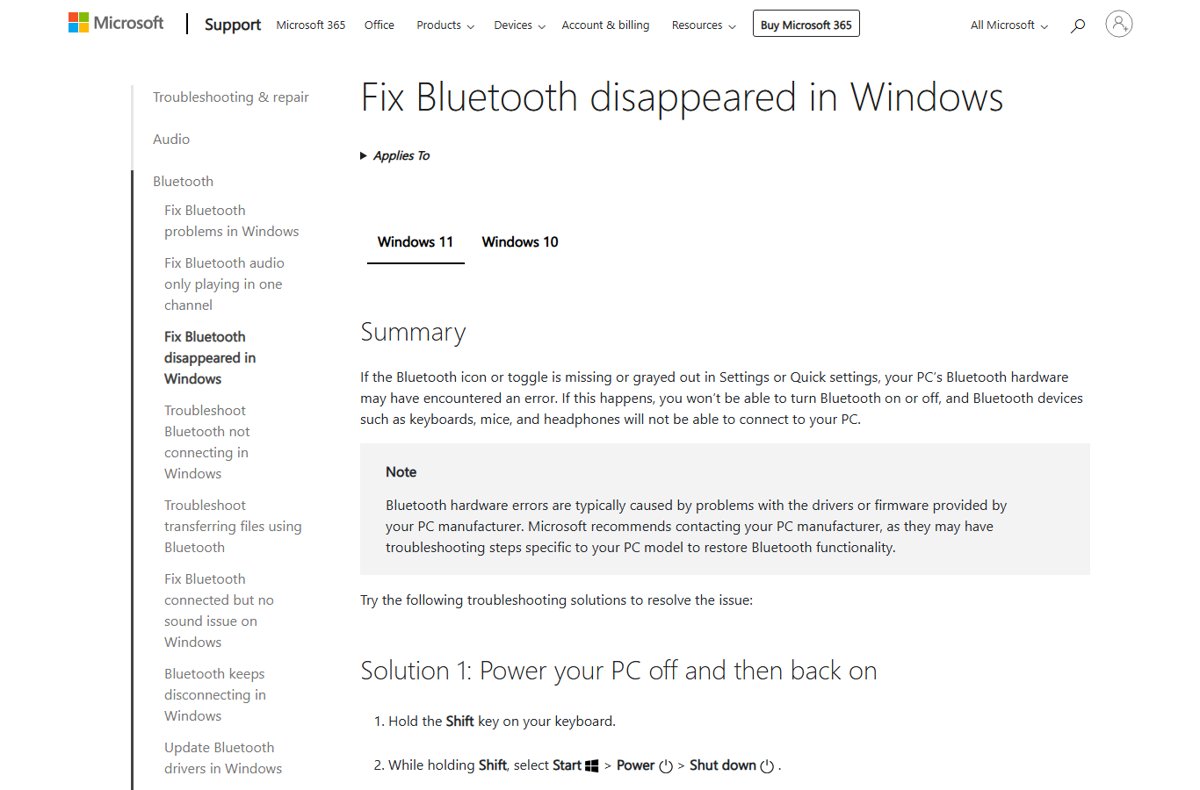
The toggle to turn Bluetooth on or off is missing
A restart does not always reset the Bluetooth radio, so Microsoft recommends a full power-off first.
- Hold the Shift key on your keyboard.
- While holding Shift, select Start > Power > Shut down.
- Wait 1 minute after the PC turns off.
- Turn the PC back on.
- Open Start > Settings > Bluetooth & devices and check that the Bluetooth switch is back.
Select Shut down, not Restart, so the Bluetooth hardware fully powers off.
Once the switch returns, you can turn Bluetooth on or off from Settings or quick settings as usual.
Why is my Bluetooth toggle not showing? Match the cause to the fix
| What you see | Likely cause | Fix to try |
|---|---|---|
| Toggle vanished after it worked before | Bluetooth hardware error after sleep or an update | Full shutdown with Shift held |
| Toggle missing and Bluetooth has a warning in Device Manager | Outdated or broken Bluetooth driver | Update or reinstall the driver |
| Toggle is visible but greyed out | Airplane mode is on, or the radio is in an error state | Turn off airplane mode, then shut down fully |
| No Bluetooth category in Device Manager at all | No Bluetooth adapter, or its driver is not installed | Check whether your PC has Bluetooth, then the manufacturer's driver page |
| Toggle only missing from quick settings | The Bluetooth tile was removed from quick settings | Use Settings > Bluetooth & devices instead, or add the tile back |
| Laptop with a physical wireless or Bluetooth switch | Hardware switch is off | Slide the switch to on |
Install the latest Bluetooth driver from Device Manager
Microsoft names an outdated or incompatible driver as one of the most common causes of Bluetooth problems.
- Right-click Start and select Device Manager.
- Expand Bluetooth and find your Bluetooth adapter; its name may include Bluetooth or Radio.
- Right-click the adapter and select Update driver.
- Select Search automatically for drivers and follow the prompts.
- Select Close, then restart the PC if Windows asks you to.
- Check Settings > Bluetooth & devices for the Bluetooth switch.
If Windows finds no newer driver, install the latest Bluetooth driver for your exact model from the PC manufacturer's support site.
Reinstall the Bluetooth adapter when the icon is gone
Use this when Bluetooth still appears in Device Manager but the toggle or icon is missing from Windows 11.
- Open Device Manager from taskbar search.
- Expand Bluetooth, right-click the Bluetooth adapter and select Uninstall device > Uninstall.
- Select Start > Power > Shut down.
- Wait a few seconds, then turn the PC back on so Windows reinstalls the driver.
- If the adapter does not return, open Device Manager and select Action > Scan for hardware changes.
Install optional firmware updates for Bluetooth in Windows Update
Some PC makers ship BIOS, UEFI or firmware fixes for Bluetooth as optional updates rather than automatic ones.
- Select Start > Settings > Windows Update.
- Select Advanced options > Optional updates.
- Tick any available updates and select Download & install.
- Select Restart now when installation finishes.
- Check whether the Bluetooth switch has returned.
If no optional updates appear, look for newer BIOS, UEFI or firmware updates on your PC manufacturer's support site for your model.
Bluetooth is greyed out on Windows 11
Bluetooth tile or switch is greyed out and will not toggle
Airplane mode turns off wireless radios, including Bluetooth.
- Press Windows + A to open quick settings.
- Make sure Airplane mode is turned off.
- Select the Bluetooth tile to turn it on.
Bluetooth stays greyed out with airplane mode off
The Bluetooth hardware is stuck in an error state that a normal restart does not clear.
- Hold Shift and select Start > Power > Shut down.
- Wait 1 minute, then turn the PC on.
- Update the Bluetooth driver in Device Manager if the switch is still greyed out.
- Run the Bluetooth troubleshooter in the Get Help app.
If airplane mode keeps coming back on, turn off airplane mode from Settings and check whether a keyboard key is toggling it.
How to connect to Bluetooth Personal Area Network (BTPAN) in Windows 11
A Bluetooth Personal Area Network shares a phone's or another computer's internet connection over Bluetooth instead of Wi-Fi.
Your PC needs working Bluetooth, and the other device must support hotspot sharing over Bluetooth.
- Turn on Bluetooth on both devices and pair them with each other.
- On the phone or other hotspot device, turn on the hotspot and set it to share over Bluetooth.
- On the PC, select Start > Settings > Bluetooth & devices > Devices.
- Under Other devices, select the hotspot device to expand it.
- Next to Personal Area Network (PAN), select Join.
- In the Bluetooth Personal Area Network window, make sure Access Point is selected and select Connect.
- Select OK when the Connection successful message appears.
To disconnect, repeat the same steps and select Disconnect PAN instead of Connect.
How to check Bluetooth is turned on this device
- Select Start > Settings > Bluetooth & devices.
- Confirm the Bluetooth switch shows On and the page reads Discoverable as followed by your PC name.
- Select the Network, Sound or Battery icon on the taskbar and check the Bluetooth tile is highlighted.
- Read the tile label: Connected, Not connected or a device name means Bluetooth is on.
Fix Bluetooth connection problems in Windows 11
Start with the automated Bluetooth troubleshooter in the Get Help app on Windows 11; it runs diagnostics and attempts common fixes.
Bluetooth device does not appear in the list
The device is off, out of range, or hidden by the default discovery setting.
- Turn the Bluetooth device off, wait a few seconds and turn it back on.
- Keep it within range and away from unshielded USB 3.0 devices.
- Open Start > Settings > Bluetooth & devices > Devices.
- Under Device settings > Bluetooth devices discovery, select Advanced.
Paired device will not connect
A stale pairing record or a radio glitch on the PC.
- Turn Bluetooth off in Settings > Bluetooth & devices, wait a few seconds and turn it back on.
- Go to Bluetooth & devices > Devices, select More options next to the device and select Remove device > Yes.
- Put the device in pairing mode and pair it again.
Bluetooth problems began after a Windows update
The installed driver was built for an earlier version of Windows.
- Open Device Manager, expand Bluetooth and right-click the adapter.
- Select Update driver > Search automatically for drivers.
- Restart if prompted, or install the manufacturer's latest driver if Windows finds none.
Windows troubleshooter is needed but Get Help is unavailable
Older builds use the Settings troubleshooter page instead.
- Select Start > Settings > System > Troubleshoot > Other troubleshooters.
- Next to Bluetooth, select Run and follow the instructions.
What the Bluetooth toggle does and the service behind it
| Item | What it is | What happens when it fails |
|---|---|---|
| Bluetooth switch in Settings | Turns the Bluetooth radio on or off from Bluetooth & devices | Missing when there is no adapter or its driver is not installed |
| Bluetooth tile in quick settings | The same on/off control on the taskbar flyout | May need to be added back to quick settings if removed |
| Bluetooth Support Service (bthserv) | Supports discovery and association of remote Bluetooth devices | Stopping it can stop installed devices working and block new pairings |
| Airplane mode | Turns off all wireless radios at once | Bluetooth appears greyed out until it is turned off |
Bluetooth toggle missing in Windows 11 FAQ
How do I get the Bluetooth toggle back?
Hold Shift and select Start > Power > Shut down, wait a minute and turn the PC on. If the toggle is still missing, update the Bluetooth driver in Device Manager and install any optional firmware updates from Windows Update.
Why is my Bluetooth toggle not showing?
The Bluetooth hardware has usually hit a driver or firmware error. Microsoft also notes that a missing switch can mean the PC has no Bluetooth adapter, or that the adapter's driver is not installed.
Why can't I toggle Bluetooth?
A greyed-out Bluetooth control usually means airplane mode is on or the radio is in an error state. Press Windows + A, turn off Airplane mode, and shut the PC down fully if the control stays greyed out.
How do I toggle Bluetooth on in Windows?
Select Start > Settings > Bluetooth & devices and switch Bluetooth On. You can also select the Network, Sound or Battery icon on the taskbar and select the Bluetooth tile.
Where is my Bluetooth toggle?
In Windows 11 it sits at the top of Start > Settings > Bluetooth & devices, and as a Bluetooth tile in quick settings, which opens from the Network, Sound or Battery icon on the taskbar.
How do I turn on Bluetooth if there is no option?
Check the PC's specifications first, because some devices have no Bluetooth. If it has an adapter, install the manufacturer's Bluetooth driver, then shut down fully and check Settings > Bluetooth & devices again.
Why is there no Bluetooth in Device Manager?
Either the PC has no Bluetooth adapter or Windows has not loaded a driver for it. Check under Other devices for an unknown device, then install the latest Bluetooth driver from your PC manufacturer.
Is Bluetooth turned on this device?
Open Settings > Bluetooth & devices. If the Bluetooth switch is On and the page shows Discoverable as followed by your PC name, Bluetooth is on. A highlighted Bluetooth tile in quick settings confirms it too.
What is the Bluetooth toggle?
It is the on/off switch for the PC's Bluetooth radio, found in Settings > Bluetooth & devices and as a tile in quick settings. Turning it off and on also resets Bluetooth, which can clear connection problems.
How do I make Windows check for Bluetooth hardware again?
Open Device Manager and select Action > Scan for hardware changes. Windows then looks for the Bluetooth adapter and reinstalls its driver, which is useful after you uninstall the adapter or after a full shutdown.