Yes, install Windows 11 KB5127648 on most PCs: it is the October 2026 security update, and it fixes the AC-3 audio crash and the black screen after sign-in that earlier updates caused.
Two problems stay open after it, so a few setups should plan first. PCs that rely on a USB Audio Class 1.0 device can still hit Code 10 errors, and some Remote Desktop hosts with Administrator protection reject non-admin users.
This article covers each known issue with its status and Microsoft's workaround, what the update fixes, who should wait, install failures, and how to uninstall or pause it. For the download links and the full change list, use the KB5127648 download and changelog article.
Should you install KB5127648 now?
Match your setup to a row. Microsoft released KB5127648 on October 13, 2026 for Windows 11 versions 24H2, 25H2 and 26H2, and it installs automatically through Windows Update.
| Your situation | What to do | Why |
|---|---|---|
| Home or work PC with no USB Audio Class 1.0 device and no Remote Desktop hosting | Install now | It carries the October security fixes and resolves the AC-3 and black screen issues. |
| Windows 11 24H2 Home or Pro | Install now, then plan an upgrade | Microsoft says October 2026 is the last update for these editions. |
| You hit the black screen after sign-in on Azure Virtual Desktop or FSLogix | Install now | KB5127648 is the update that resolves it, so the workaround is no longer needed. |
| Legacy apps or games crash when they play Dolby Digital (AC-3) audio | Install now | KB5127648 resolves the AC-3 decoding crash from the September 22 preview. |
| You depend on a USB Audio Class 1.0 interface or headset | Install, but keep the uninstall steps ready | The USB audio issue began with the September 8 update and is still only mitigated. |
| You run Remote Desktop hosts with Administrator protection for non-admin users | Test on one host first | Connections fail with error 0xC000000D after KB5124010 and later updates, including this one. |
| Always On VPN stuck on Connecting after September's update | Install now | KB5127648 fixes the protocol fallback failure and the "port is already in use" error. |
Every Windows 11 version got an update this month, and the October 2026 Update review explains which PC gets which package.
The three October 2026 packages
Microsoft shipped a separate cumulative update for each Windows 11 branch on October 13, 2026. KB5127648 is only for 24H2, 25H2 and 26H2, which share one package.
| Update | Windows 11 version | OS build | Known issues listed by Microsoft |
|---|---|---|---|
| KB5127648 | 24H2, 25H2 and 26H2 | 26100.9711, 26200.9711 and 26300.9711 | USB audio devices fail to start or produce no sound |
| KB5127646 | Windows 11 26H1 | 28000.3231 | USB audio devices fail to start or produce no sound |
| KB5126653 | Windows 11 23H2 | 22621.7652 | None currently known, per its KB page |
If your PC runs 23H2, the KB5126653 issues breakdown covers its File History fix and end-of-updates date. Newer Arm devices on 26H1 get KB5127646 instead, and its known problems and install advice are listed separately.
What are the known issues with KB5127648 on Windows 11 26H2?
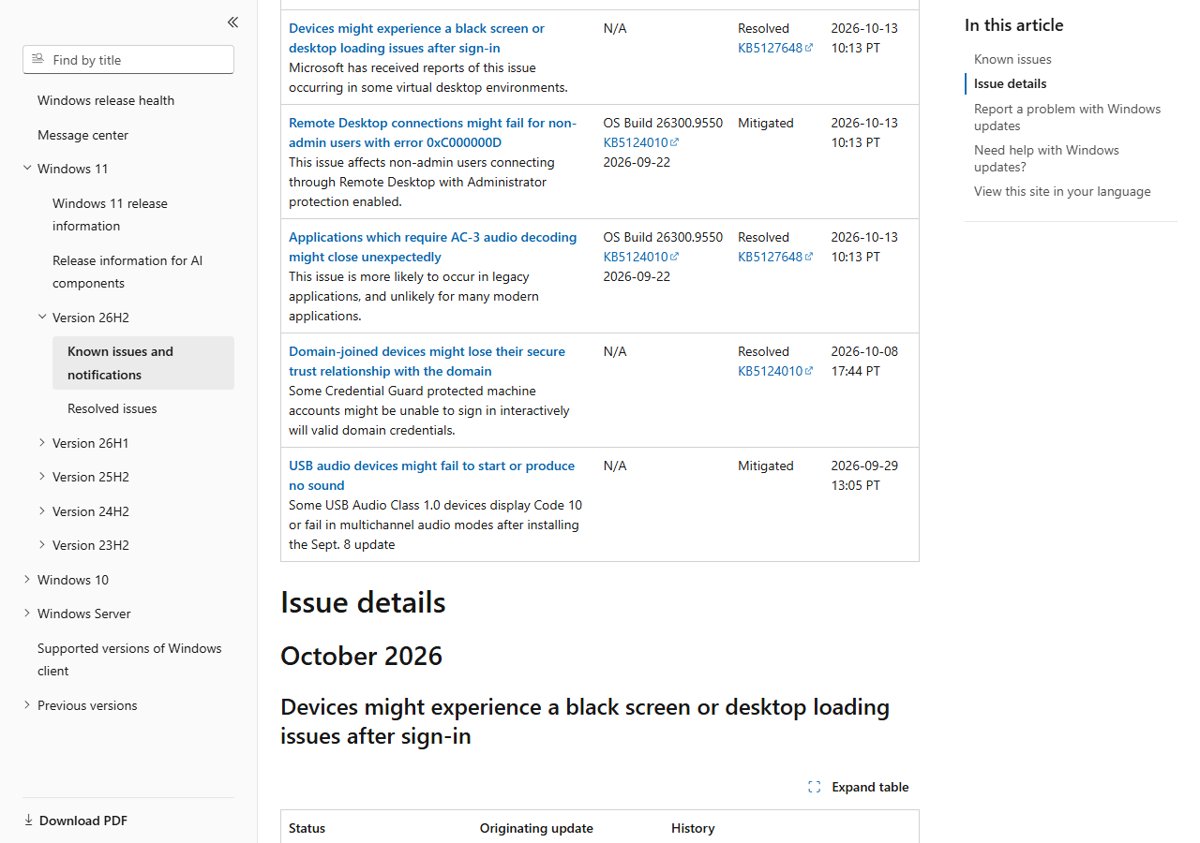
The Windows 11 26H2 release health page lists five issues touching this update cycle. Two remain open, and the same entries apply to 25H2 and 24H2.
The Windows 11 October 2026 Update issues roundup tracks the same list for 23H2 and 26H1 as well.
| Known issue | Started with | Status on October 14, 2026 | Who it affects |
|---|---|---|---|
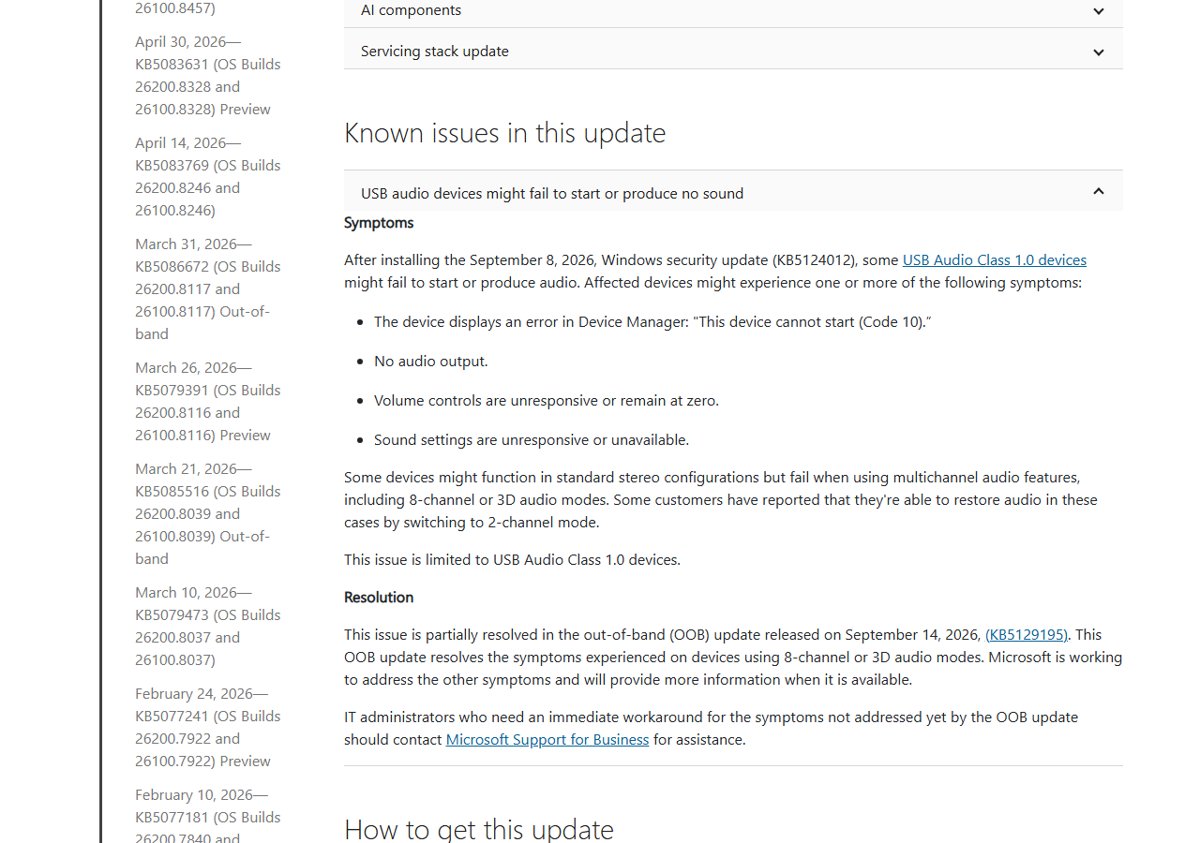
| USB audio devices fail to start or produce no sound (Code 10) | September 8, 2026 security update | Mitigated, partial fix in out-of-band KB5129195; still open | USB Audio Class 1.0 devices only |
| Remote Desktop connections fail for non-admin users with error 0xC000000D | KB5124010 (September 22 preview) and later | Mitigated; fix promised in a future update | Remote Desktop hosts with Administrator protection, mostly enterprise-managed |
| Applications that require AC-3 audio decoding close unexpectedly | KB5124010 and later | Resolved by KB5127648 | Mostly legacy apps, games and media players that use Windows' built-in decoder |
| Black screen or desktop loading issues after sign-in | Windows 11 26H2 and later updates | Resolved by KB5127648 | Mainly Azure Virtual Desktop hosts that use FSLogix |
| Domain-joined devices lose their secure trust relationship with the domain | Windows 11 26H2 | Resolved by KB5124010, so KB5127648 includes the fix | Credential Guard protected machine accounts with Machine Identity Isolation enforcement |
Earlier problems from the feature update itself sit in the Windows 11 26H2 known issues list.
KB5127648: What Microsoft fixed
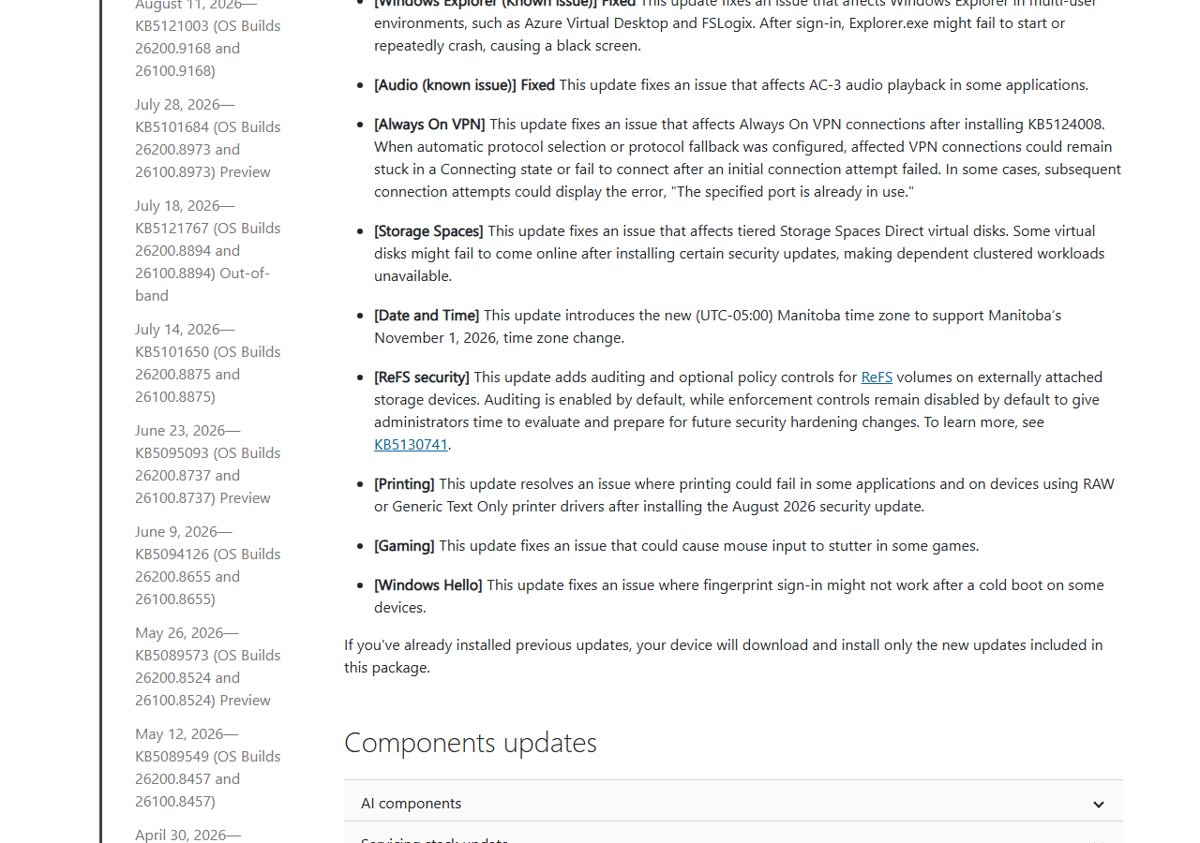
KB5127648 includes the improvements from KB5124008 (September 8), the out-of-band KB5129195 (September 14) and the KB5124010 preview (September 22). These are the fixes Microsoft lists as new in the October package.
| Area | What the fix does |
|---|---|
| Security updates | Patches the vulnerabilities listed in the Security Update Guide for October 2026. |
| Windows Explorer (known issue) | Stops Explorer.exe failing to start or crashing after sign-in in multi-user setups such as Azure Virtual Desktop and FSLogix. |
| Audio (known issue) | Fixes AC-3 audio playback in some applications. |
| Always On VPN | Fixes connections stuck in Connecting, or failing with "The specified port is already in use", when protocol fallback is configured. |
| Storage Spaces | Brings tiered Storage Spaces Direct virtual disks back online after certain security updates. |
| Printing | Fixes printing failures with RAW or Generic Text Only drivers that began with the August 2026 security update. |
| Gaming | Fixes mouse input stutter in some games. |
| Windows Hello | Fixes fingerprint sign-in failing after a cold boot on some devices. |
| Date and Time | Adds the (UTC-05:00) Manitoba time zone for Manitoba's November 1, 2026 change. |
Features from the September preview arrive too
Because KB5127648 includes the September 22 preview KB5124010, PCs that skipped that optional update now get its changes with the security update. Microsoft lists most of them under gradual rollout, so they reach devices in stages rather than all at once.
| Area | Change from KB5124010 | Rollout |
|---|---|---|
| File Explorer | Preview pane shows a Preview anyway button for downloaded HTML files and previews PDFs automatically | Gradual |
| Copilot key | Remap the key to Right Ctrl or the Context Menu key | Gradual |
| Accessibility | New Open apps maximized setting | Gradual |
| Bluetooth | LE Audio and shared audio improvements, plus a fix for a 0x139 crash during audio streaming | Gradual |
| Emoji | Emoji 17.0 support | Gradual |
| Touchpad | Single-finger scrolling and automatic edge scrolling on precision touchpads | Gradual |
| Settings | App versions shown in Installed apps; Printers & scanners reliability fixes | Gradual |
| Widgets | New Tips widget for the Widgets board or lock screen | Gradual |
| Windows Backup | PC-to-PC Migration removed in favour of Windows Backup | Gradual |
| Camera, File History, Secure Trust | Fixes for the built-in camera stopping, File History backups, and lost domain trust | Normal |
The Copilot key remap is the change most readers notice first.
Secure Boot and ReFS changes
| Change | What KB5127648 does | Action needed |
|---|---|---|
| Secure Boot certificates | Continues deploying the updated Secure Boot certificates to devices Microsoft's targeting data marks as ready | None on most PCs; deployment through Windows Update is ongoing |
| ReFS on external drives | Adds auditing and optional policy controls for ReFS volumes on externally attached storage (KB5130741) | Auditing is on by default; enforcement stays off so admins can prepare |
| Install media and boot.stl | Dynamic Update images need the boot.stl file used in Secure Boot validation | Admins updating images must include boot.stl, or media can fail with error 0xc0430001 |
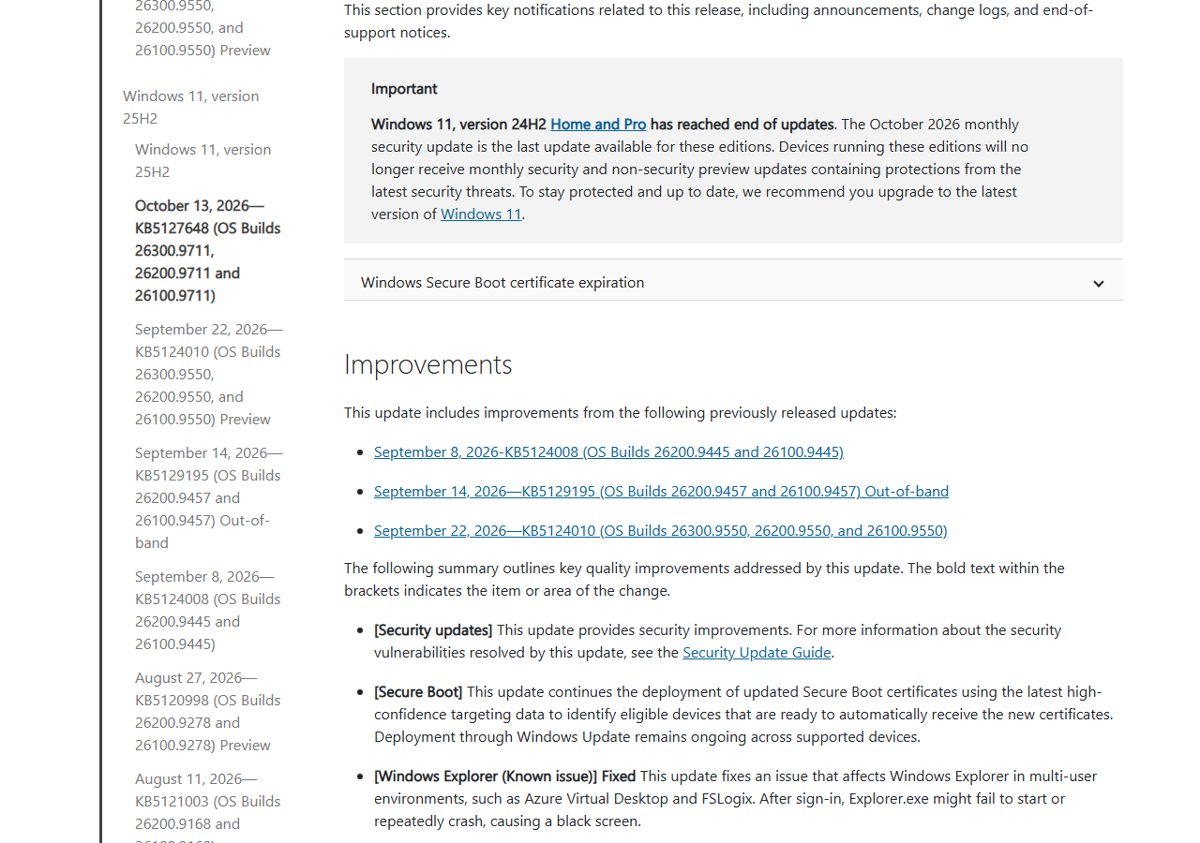
End of support for two groups: 24H2 Home and Pro, 23H2 Enterprise and Education
| Edition | Last update | What happens next |
|---|---|---|
| Windows 11 24H2 Home and Pro | KB5127648, October 2026 | No more monthly security or preview updates; Microsoft recommends upgrading to the latest Windows 11 version |
| Windows 11 23H2 Enterprise and Education | The November 2026 security update (November 10, 2026) | No more monthly security updates after that date |
If your PC runs 24H2 Home or Pro, install KB5127648 first, then upgrade from 24H2 Home or Pro to 25H2 or 26H2.
Deployment notes for admins
| Item | Detail from Microsoft |
|---|---|
| Delivery channels | Windows Update, Windows Update for Business, Microsoft Update Catalog and WSUS |
| Checkpoint update | The catalog serves KB5043080 alongside KB5127648; install KB5043080 first, or put both .msu files in one folder and let DISM apply them in order |
| Catalog size | 5062.9 MB for x64 and 4906.0 MB for Arm64, per entry |
| Servicing stack | KB5127647 (build 26100.9703) is included |
| AI components | Image Search, Content Extraction, Semantic Analysis and Settings Model move to 1.2608.951.0, on Copilot+ PCs only |
| Remote Desktop with Administrator protection | Microsoft's mitigation resets the User Account Control Type Of Admin Approval Mode policy, which turns Administrator protection off |
| USB audio escalation | Admins who need a workaround for symptoms the out-of-band update does not cover should contact Microsoft Support for Business |
Security baselines from the Microsoft Security Compliance Toolkit turn on Administrator protection by default for 24H2, 25H2 and 26H2. Check whether your Remote Desktop hosts use those baselines before you approve the update.
How to install KB5127648 from Windows Update
- Save your work and plug a laptop into power.
- Select Start > Settings > Windows Update.
- Select Check for updates and let Windows download and install KB5127648.
- Select Start > Power > Update and restart when Windows asks for a restart.
- Sign in and confirm your audio devices and VPN connect as before.
Turning on Get the latest updates as soon as they're available on the same page makes the PC an early recipient of optional changes. Leave it off if you prefer to wait.
How to check if KB5127648 is installed
- Right-click Start and choose Settings.
- Select System > About.
- Under Windows specifications, read the version and OS build.
- Confirm the build ends in .9711: 26100.9711 on 24H2, 26200.9711 on 25H2, or 26300.9711 on 26H2.
- For a second check, open Settings > Windows Update > Update history and look for KB5127648 under quality updates.
How to uninstall KB5127648
Remove the update only when it causes a problem you can tie to it. Microsoft warns that removing a security update carries risk, and that some updates cannot be uninstalled.
- Select Start > Settings > Windows Update.
- Under More options, select Update history.
- Under Related settings, select Uninstall updates.
- Find KB5127648 in the list and select Uninstall.
- Restart the PC, then pause updates so Windows does not reinstall it straight away.
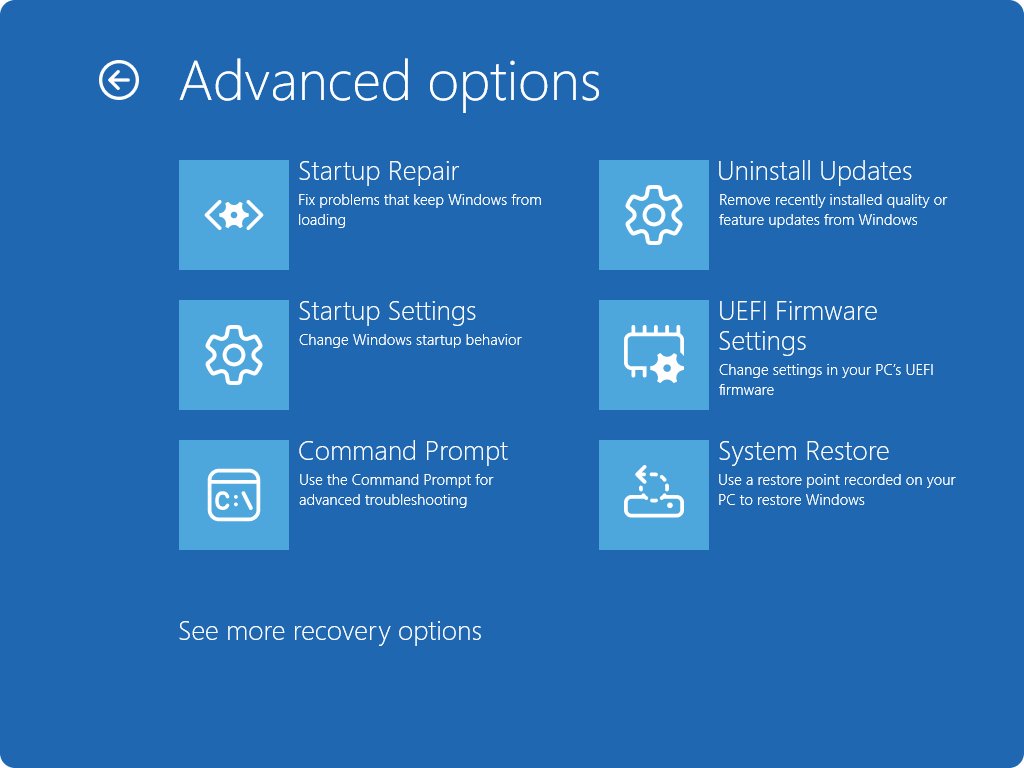
- If Windows will not start, open the Windows Recovery Environment and select Troubleshoot > Advanced options > Uninstall Updates > Uninstall latest quality update.
The same routine works for any Windows 11 patch, so you can remove a problem update the same way next month.
How to pause updates to delay KB5127648
Pausing delays KB5127648 without turning off automatic updates for good. Updates already in progress are cancelled when you pause.
- Select Start > Settings > Windows Update.
- Select Pick a date on the Pause updates control.
- Choose an end date up to 35 days from today.
- To extend, return to the same page and select a new end date, again up to 35 days ahead.
- When the pause ends, Windows checks for, downloads and installs the latest updates automatically.
Pausing is a short delay, not a block. For longer control on 26H2, the options to pause or stop updates compare each setting.
KB5127648 problems: Fixes for each known issue
USB audio device shows Code 10 or produces no sound
A known issue with USB Audio Class 1.0 devices that began with the September 8, 2026 update; Microsoft lists it as mitigated, not fixed.
- Open Device Manager and check the device for "This device cannot start (Code 10)."
- Confirm KB5127648 is installed, since it includes the September 14 partial fix for 8-channel and 3D audio modes.
- If sound is still missing, uninstall the latest update with the steps above and pause updates.
- Work through the full USB audio Code 10 fixes for driver steps and the Get Help troubleshooter.
Remote Desktop fails with error 0xC000000D for non-admin users
Hosts with Administrator protection reject non-admin connections after KB5124010 and later updates, with the message "The token that was passed to the function is invalid."
- Confirm the remote host has Administrator protection turned on.
- Have an IT administrator review Microsoft's mitigation, which resets the User Account Control Type Of Admin Approval Mode policy in Intune or Group Policy.
- Weigh that change against the protection it removes, and keep admin connections working in the meantime.
- Watch the Windows 11 release health page for the promised fix.
Black screen or desktop loading issues after sign-in
Explorer.exe failed to start or crashed in virtual desktop environments such as Azure Virtual Desktop with FSLogix; KB5127648 resolves it.
- Install KB5127648 on the affected host.
- Until it installs, press Ctrl + Shift + Esc to open Task Manager.
- Select Run new task, type
explorer.exe, and select OK.
Applications that require AC-3 audio decoding close unexpectedly
Apps relying on Windows' built-in Dolby Digital (AC-3) decoder crashed after KB5124010; KB5127648 resolves it.
- Install KB5127648 from Settings > Windows Update.
- Restart the PC.
- Open the game or media player that crashed and play the same audio again.
Domain-joined devices lose their secure trust relationship with the domain
Windows 11 26H2 began honouring Machine Identity Isolation enforcement settings, which need Windows Server 2025 domain controllers; KB5124010 disabled that enforcement.
- Install KB5127648, which includes the KB5124010 fix.
- Restart the device.
- If sign-in still fails, have an administrator reset the secure channel with
Test-ComputerSecureChannel -Repair -Credential (Get-Credential)in PowerShell.
KB5127648 failed to install: Error codes and fixes
These are Microsoft's general Windows Update fixes. Back up your files before you try the later steps.
Install fails with no clear reason
A stuck or corrupt update download, a missing restart, or unneeded external hardware. The built-in Windows Update troubleshooter catches most of these.
- Select Start > Settings > System > Troubleshoot > Other troubleshooters.
- Find Windows Update, select Run, and follow the on-screen instructions.
- Disconnect external drives and docks you do not need.
- Select Check for updates again and restart when asked.
Error 0x8007000d or 0x80248014
Corrupt files in the update cache, or the Windows Update service is not running.
- Press Win + R, type
services.msc, and press Enter. - Right-click Windows Update and select Stop.
- Delete everything inside
C:\Windows\SoftwareDistribution. - Right-click Windows Update again and select Start, then retry the update.
Error 0x800f0922
Not enough free disk space, or a VPN interfering with the download.
- Free up space on the system drive.
- Disconnect any VPN.
- Retry the update from Settings > Windows Update.
Error 0x80070057 or 0x80080005
Corrupted system files or an incorrect system configuration.
- Open Command Prompt as administrator.
- Run
DISM.exe /Online /Cleanup-image /Restorehealthand wait for "The restore operation completed successfully." - Run
sfc /scannowand wait until verification reaches 100%. - Retry the update. If DISM reports an error, a full DISM image repair with a repair source is the next step.
Error 0xC1900101
An incompatible driver blocks the update.
- Open Device Manager and expand Network adapters or Display adapters.
- Right-click the adapter and select Uninstall device.
- Restart the PC and retry the update.
- Install current drivers from the hardware maker's site afterwards.
Update stuck between 51% and 99%
Large downloads take time on slow connections, or the install stalled.
- Wait, then select Check for updates again.
- Run the Windows Update troubleshooter if the percentage does not move.
- As a last step, open Command Prompt as administrator and run
net stop bits,net stop wuauserv,ren %systemroot%\softwaredistribution softwaredistribution.bak,ren %systemroot%\system32\catroot2 catroot2.bak,net start bitsandnet start wuauserv, then restart.
KB5127648 FAQ
Should I install KB5127648?
Yes, on most PCs. KB5127648 is the October 2026 security update for Windows 11 24H2, 25H2 and 26H2, and it resolves the AC-3 audio crash and the black screen after sign-in. Test first only if you rely on USB Audio Class 1.0 hardware or host Remote Desktop with Administrator protection.
What are the KB5127648 known issues?
Microsoft lists USB audio devices that fail to start or produce no sound, with Code 10 on some USB Audio Class 1.0 devices. The release health page also shows Remote Desktop connections failing for non-admin users with error 0xC000000D on hosts that use Administrator protection.
Does KB5127648 cause USB audio problems?
The USB audio issue began with the September 8, 2026 security update, and KB5127648 still lists it as a known issue. Because the update is cumulative, a PC that skipped September gets the same change. Microsoft marks the issue as mitigated and is working on a fix.
Did the October patches fix the remaining USB audio bugs?
No. On October 14, 2026, Microsoft's KB5127648 page and the release health dashboard both still list USB audio devices failing to start as an open issue. The September 14 out-of-band update fixed only the 8-channel and 3D audio modes.
How do I uninstall KB5127648?
Open Settings > Windows Update > Update history, select Uninstall updates, choose KB5127648 and select Uninstall. If Windows does not start, use Windows Recovery Environment > Troubleshoot > Advanced options > Uninstall Updates > Uninstall latest quality update. Pause updates afterwards so it does not return immediately.
Why did KB5127648 fail to install?
Common causes are a corrupt update cache, low disk space, an incompatible driver or a stalled download. Run the Windows Update troubleshooter, clear the SoftwareDistribution folder, free up space, and run DISM and sfc /scannow before you retry the update.
Is KB5127648 the last update for Windows 11 24H2?
It is the last update for Windows 11 24H2 Home and Pro. Microsoft says these editions no longer receive monthly security or preview updates after October 2026 and recommends upgrading to the latest Windows 11 version.
Why does the Update Catalog download KB5043080 with KB5127648?
KB5043080 is the checkpoint cumulative update that KB5127648 builds on. Install KB5043080 first, or place both .msu files in one folder and let DISM install them in the correct order.
Does KB5127648 fix the Always On VPN problem?
Yes. KB5127648 fixes Always On VPN connections that stayed in a Connecting state or failed with "The specified port is already in use" after KB5124008, when automatic protocol selection or protocol fallback was configured.
Bottom line on KB5127648 issues
Install KB5127648 now on most Windows 11 24H2, 25H2 and 26H2 PCs, and test it first on Remote Desktop hosts with Administrator protection and PCs built around USB Audio Class 1.0 hardware. It closes October's security holes and fixes the AC-3, black screen, VPN, Storage Spaces and printing problems, while its two open issues affect narrow groups that can uninstall it or apply Microsoft's mitigation.






Windows 11 October 2026 Update issues - Techdows
[…] detail lives in the KB5127648 issues breakdown, the KB5126653 issues for 23H2 and the KB5127646 issues for […]