To make a background transparent in Paint on Windows 11, open the image, select Remove background in the toolbar, and save the result as a PNG file.
This guide covers whole-image and partial removal, erasing to transparency with layers, saving a transparent PNG, the same job in Word and PowerPoint, Restyle, the Paint AI policies and resetting Paint.
How to make background transparent in Paint
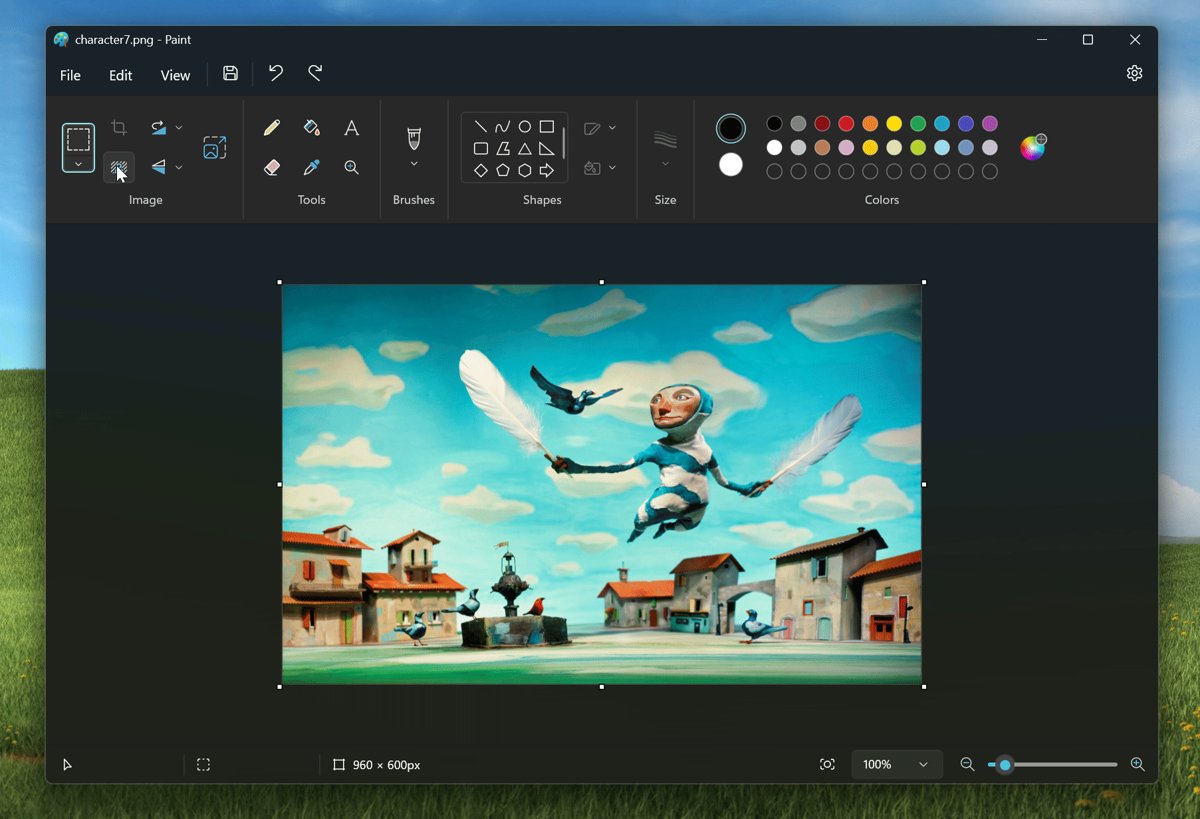
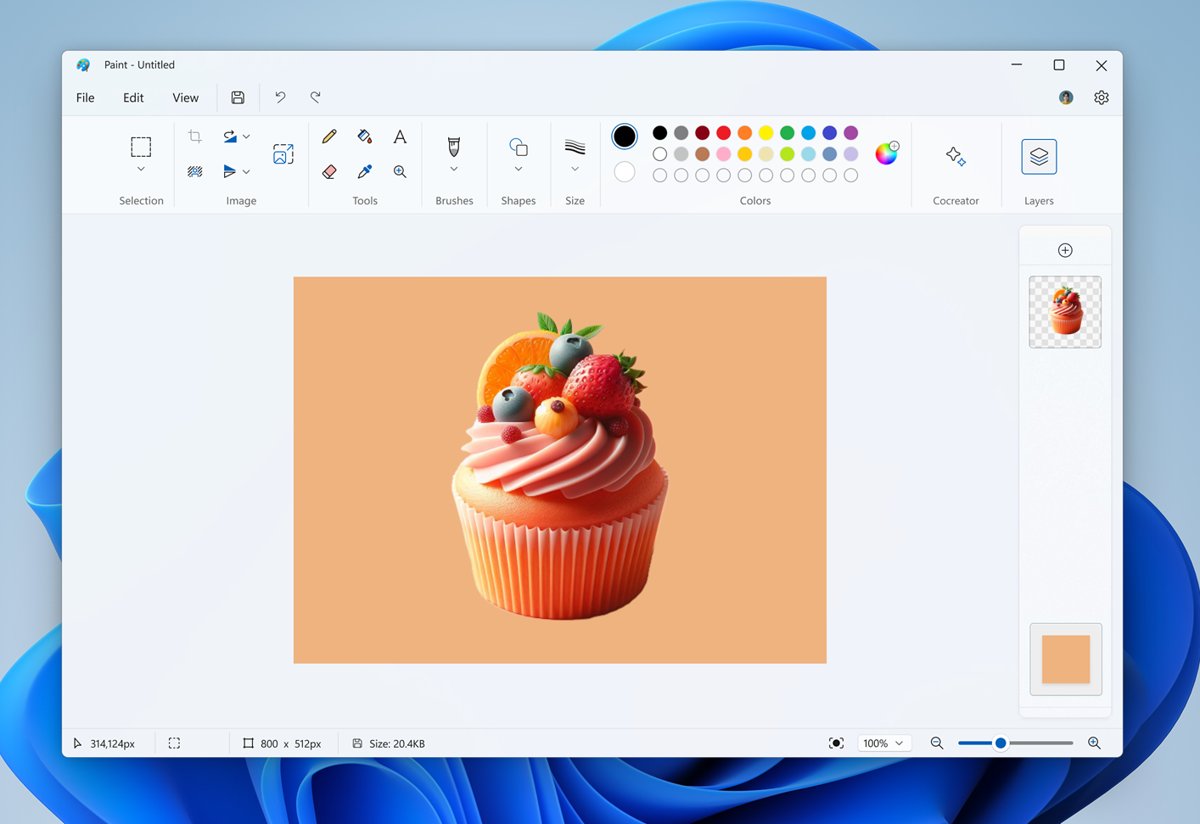
Background removal arrived in Paint version 11.2306.30.0, and transparency support with layers followed in version 11.2308.18.0. Any current Windows 11 Paint app has both, and one click detects the subject and cuts it out.
- Open Paint from the Start menu.
- Select File > Open, pick your image and select Open. You can also paste an image onto the canvas with Ctrl + V.
- Select Remove background in the toolbar.
- Wait a moment while Paint detects the subject. The removed area turns into a gray-and-white checkerboard, which marks transparency.
- Select File > Save as and choose the PNG format.
- Type a file name and select Save.
Keep the PNG file. A JPEG copy cannot store transparency, so the cut-out background would not survive in that format.
Make image background transparent with Paint tools
Paint gives you three ways to reach a transparent background. Pick the row that matches your image.
| Your image | Use this in Paint | Why |
|---|---|---|
| A clear subject on a busy or plain background | Remove background on the whole canvas | One click; Paint finds the subject for you |
| Several objects, and you only want one cut out | Rectangle select, then Remove background | Paint detects the subject inside the selection only |
| Leftover specks or edges after removal | Eraser on a single layer | Erasing removes pixels to transparency instead of painting them white |
| You want a new backdrop behind the subject | Layers panel | Put the backdrop on a lower layer and the cut-out on top |
| The picture lives in a Word or PowerPoint file | Office Remove Background | Works without leaving the document |
Make white background transparent in Paint
A logo or signature on white is the most common case. Removing the background from a selection keeps Paint focused on the part you want.
- Open the image in Paint.
- Select the Selection tool and choose rectangle select.
- Drag a rectangle around the logo, signature or object you want to keep.
- Select Remove background in the toolbar. Paint detects the subject inside the rectangle and removes the white around it.
- Zoom in and check the edges against the checkerboard pattern.
- Save the file as a PNG with File > Save as.
If white specks remain inside letters or between shapes, remove them with the eraser as described in the next section.
How to erase to a transparent background in Paint
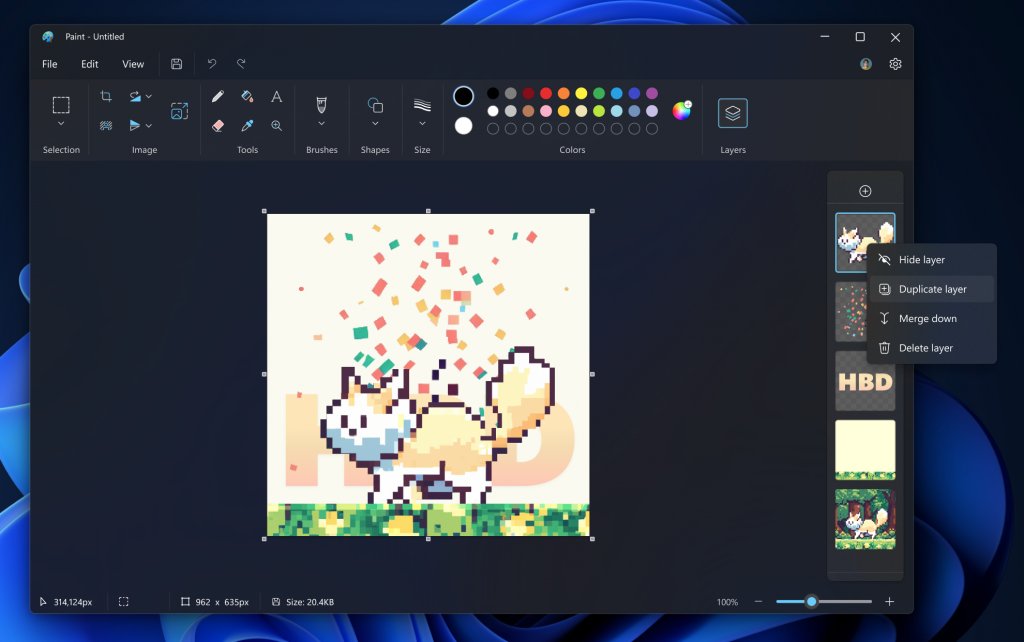
Since the layers update, the eraser no longer paints white. On a single layer, erasing removes content entirely and shows the checkerboard; with several layers, it reveals the layer underneath.
- Open the image in Paint and select Layers in the toolbar to open the Layers panel beside the canvas.
- Select the layer that holds the image you want to clean up.
- Select the Eraser tool and set a size that fits the area.
- Drag over the background areas you want gone. They turn into the checkerboard pattern.
- Hide other layers from the Layers panel if you want to see exactly what is left on this one.
- Save the result as a PNG.
Paint builds released to Windows Insiders from version 11.2605.61.0 also let you adjust how transparent the eraser is, which helps with soft edges.
How to save a transparent background in Paint as PNG
Paint can open and save transparent PNG files. Saving is where most transparent backgrounds get lost, so pick the format carefully.
- Check that the background shows the gray-and-white checkerboard, not white.
- Select File > Save as.
- Choose the PNG format.
- Pick a folder, type a file name and select Save.
- Insert the PNG into a document, slide or web page to confirm the background behind the subject shows through.
To put a new background behind the subject, add a layer, move it below the cut-out in the Layers panel, and fill it with a color or paste a picture onto it before you save.
Can I make background transparent in Paint?
Yes, in the Windows 11 Paint app. Each transparency feature arrived in a specific Paint version, and the AI image features need extra hardware.
| Paint feature | First Paint version | What it needs |
|---|---|---|
| Remove background (whole canvas or a selection) | 11.2306.30.0 | Current Paint from Microsoft Store |
| Layers and transparent canvas | 11.2308.18.0 | Current Paint from Microsoft Store |
| Open and save transparent PNG files | 11.2308.18.0 | Current Paint from Microsoft Store |
| Adjustable eraser transparency | 11.2605.61.0 (Windows Insider builds) | Windows Insider Paint build |
| Restyle | 11.2509.441.0 | Snapdragon-powered Copilot+ PC and a Microsoft account |
| Cocreator, sticker generator, object select | Copilot+ PC releases | Copilot+ PC, Microsoft account, internet connection |
If Remove background or Layers is missing, update Paint. Open Microsoft Store, go to Downloads or your library, and install the Paint update.
How to make background transparent in Word and PowerPoint
If the picture already sits in an Office document, Word, PowerPoint and Excel have their own Remove Background tool. It works in Office 2021, Office 2024 and Microsoft 365 on Windows.
- Select the picture in the document or slide.
- Select Picture Format > Remove Background. In some versions the tab is called Format.
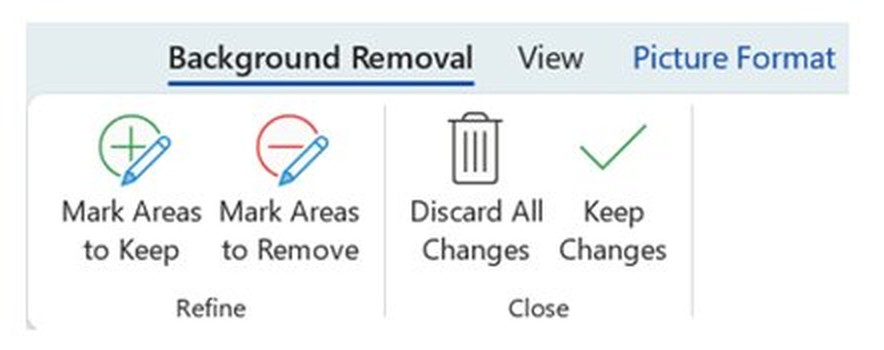
- Check the magenta area, which marks what Office will remove.
- Use Mark Areas to Keep or Mark Areas to Remove with the pencil to correct the selection.
- Select Keep Changes.
- To reuse the result outside the file, right-click the picture and select Save as Picture.
To fade a whole picture instead, select Picture Format > Transparency and pick a preset from 0% to 95%, or open Picture Transparency Options for the slider. Remove Background is grayed out for vector files such as SVG, WMF and DRW.
How to Restyle images in Paint app on Windows 11
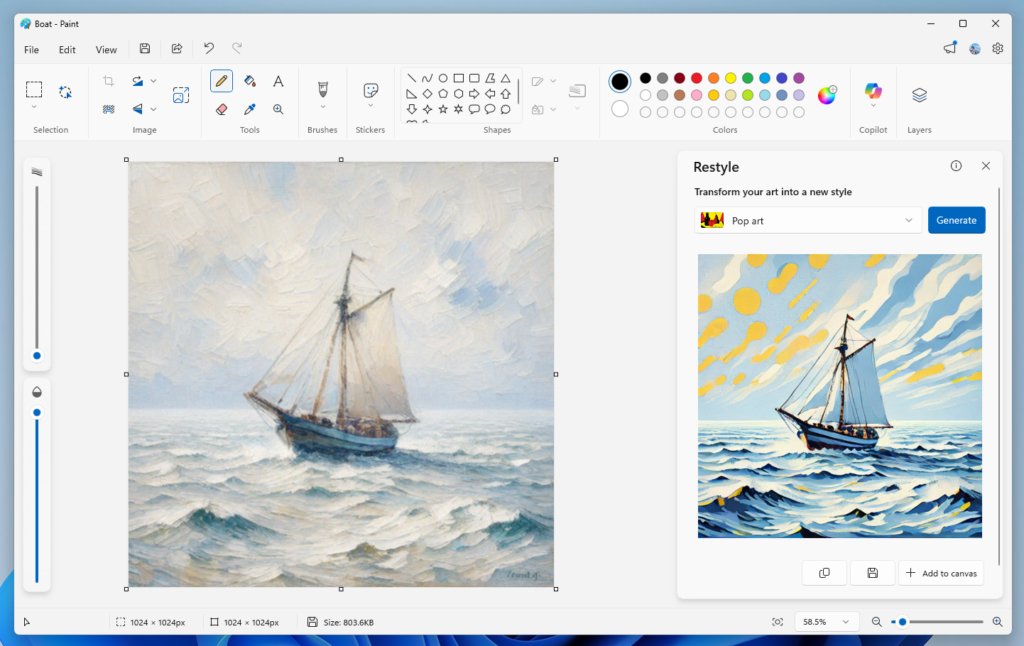
Restyle uses AI to change the art style of the image on the canvas. It arrived in Paint version 11.2509.441.0 and runs on Snapdragon-powered Copilot+ PCs; you also need to sign in with a Microsoft account.
- Open Paint and open or paste the image you want to restyle.
- Open the Copilot menu in the toolbar and select Restyle.
- Sign in with your Microsoft account if Paint asks.
- Choose a style from the preset list.
- Select Generate.
- When the restyled images appear, select Add to canvas, or copy or save one for later.
A restyled picture still has a background. Run Remove background on it afterwards if you want a transparent cut-out of the new version.
How to disable AI features in the Paint app in Windows 11
Windows has three settings for Paint in the Local Group Policy Editor: Disable Cocreator, Disable generative fill and Disable Image Creator. They apply to Windows 11 Pro, Enterprise and Education on version 22H2 build 22621.4870 or 24H2 build 26100.3360 and later.
- Press Windows + R, type
gpedit.mscand press Enter. - Go to Computer Configuration > Administrative Templates > Windows Components > Paint.
- Double-click Disable Cocreator, select Enabled and select OK.
- Repeat for Disable generative fill and Disable Image Creator.
- Close and reopen Paint. The disabled features are no longer accessible.
Each policy writes a DWORD under HKEY_LOCAL_MACHINE\Software\Microsoft\Windows\CurrentVersion\Policies\Paint: DisableCocreator, DisableGenerativeFill or DisableImageCreator, where 1 disables the feature and 0 (the default) allows it.
Restyle, the sticker generator, object select and Remove background have no policy of their own, so these settings leave them in place.
Reset MS Paint settings, position, resolution or size to default in Windows 11
If Paint opens in an odd window position, at a strange size, or with tools that no longer behave, reset the app from Settings. Try Repair first, because it is the lighter fix.
- Close Paint.
- Select Start > Settings > Apps > Installed apps.
- Find Paint, select the More (three-dot) icon next to it and choose Advanced options.
- Select Repair and reopen Paint to test it.
- If the problem stays, return to the same page and select Reset.
- Reopen Paint, which now starts with its default settings.
On Windows 10, the same buttons are under Start > Settings > Apps > Apps & features > Paint > Advanced options. If a reset does not help, uninstall Paint from Installed apps and install it again.
Make background transparent in Paint FAQ
Can I make background transparent in Paint?
Yes. The Windows 11 Paint app has a Remove background button since version 11.2306.30.0 and a transparent canvas with layers since version 11.2308.18.0. Remove the background, then save the image as a PNG to keep the transparency.
How do I make an image background transparent for free?
Use Paint, which comes with Windows 11 at no cost. Open the image, select Remove background in the toolbar, and save as PNG. Word and PowerPoint also have a Remove Background tool if you already own Office.
How do I make a white background transparent?
Draw a rectangle selection around the object in Paint and select Remove background. Paint removes the white around the subject inside the selection. Erase any white specks that remain, then save the file as a PNG.
How do I get a transparent background?
Remove the background and save in a format that stores transparency, such as PNG. A gray-and-white checkerboard in Paint shows the area is transparent. Saving as JPEG loses the transparency because that format cannot store it.
How do I put a transparent background behind an image?
Cut the subject out with Remove background, then open the Layers panel and add a layer below it. Fill or paste the new backdrop on that lower layer. Leave the lower layer empty if you want the backdrop to stay transparent.
How do I make the background transparent in Word?
Select the picture, then choose Picture Format > Remove Background. Adjust the magenta area with Mark Areas to Keep or Mark Areas to Remove, and select Keep Changes. Right-click the picture and select Save as Picture to keep a copy.
How do I make the background transparent in PPT?
PowerPoint uses the same Remove Background tool as Word. Select the picture, choose Picture Format > Remove Background, correct the selection and select Keep Changes. Use Picture Format > Transparency instead to fade the whole picture.
Can you save the cut images in Paint app?
Yes. After Remove background, select File > Save as and choose PNG so the cut-out keeps its transparent background. Paint can open the same PNG again later, and the transparent area still shows as a checkerboard.
Why is the Remove background button missing in Paint?
The button needs Paint version 11.2306.30.0 or later. Update Paint from the Downloads page or your library in Microsoft Store, then reopen it. Older Paint versions do not have background removal or layers.