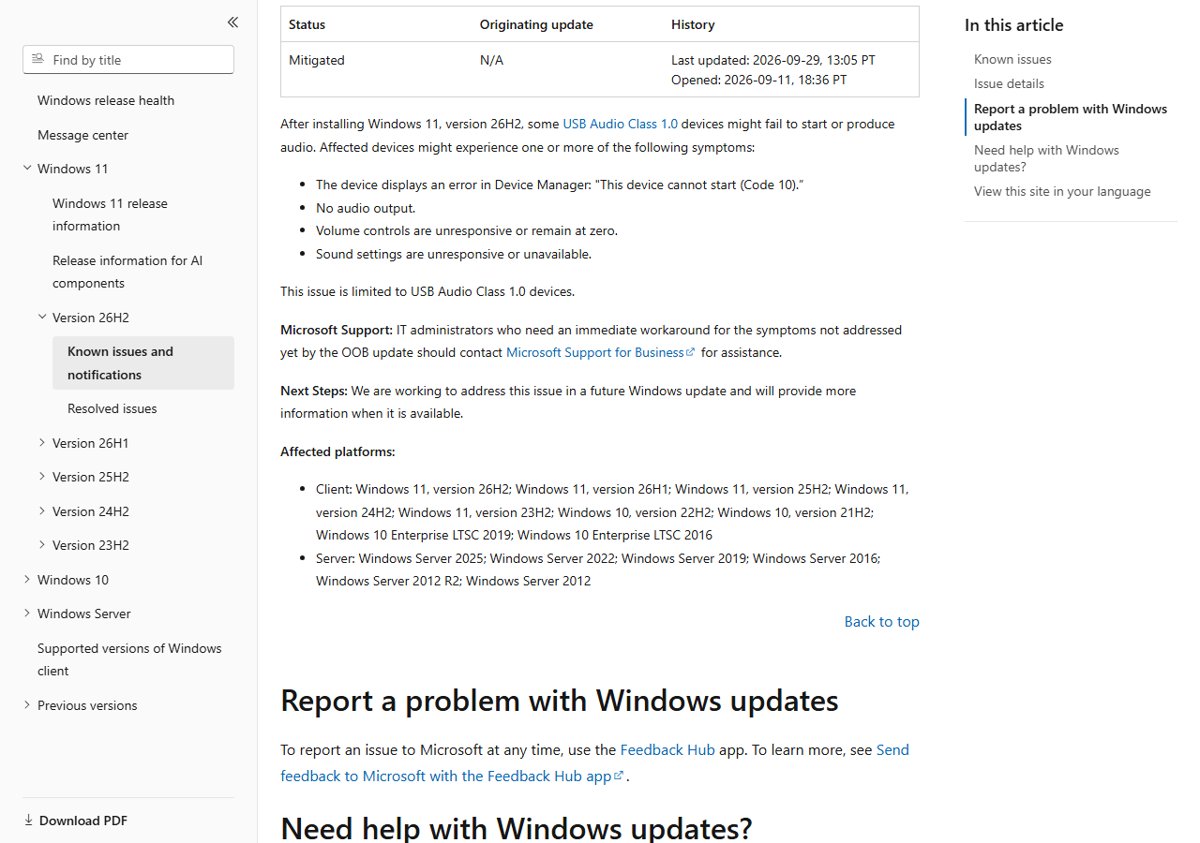
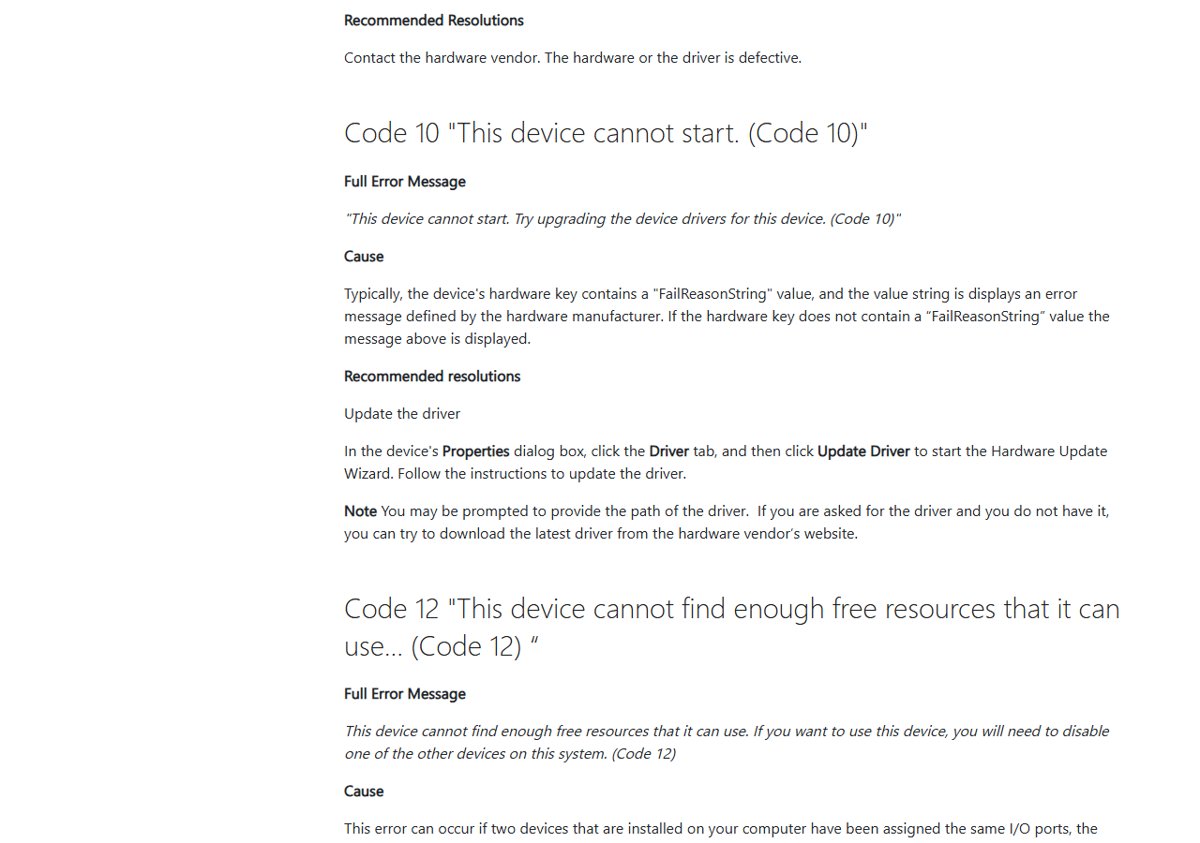
USB audio stops working after a Windows 11 update because of a known issue Microsoft confirmed in September 2026: some USB Audio Class 1.0 devices show "This device cannot start (Code 10)" in Device Manager, play no sound, or freeze the volume at zero.
This guide covers what Microsoft has confirmed, which Windows versions are affected, the official fixes in the order to try them, how to remove the update, and what to do when a fix does not hold.
How to fix USB audio not working after a Windows 11 update
Work through these steps in order and test the USB headset, DAC or speakers after each one. They follow Microsoft's own guidance for audio that stops after an update.
- Open Settings > Windows Update, select Check for updates, install everything offered and restart the PC.
- Press Start, type Device Manager and open it.
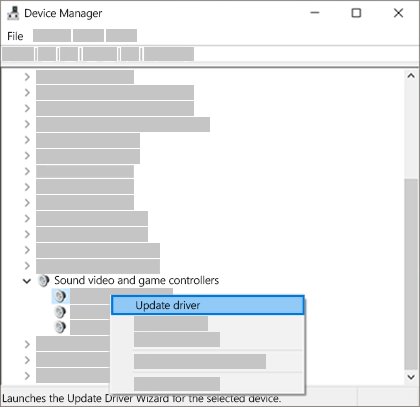
- Expand Sound, video and game controllers, right-click the USB audio device and select Update driver, then Search automatically for drivers.
- If that changes nothing, right-click the device again, select Properties, open the Driver tab and select Roll Back Driver.
- If the device still shows Code 10, right-click it, select Uninstall device, confirm, and restart so Windows reinstalls the driver.
- Plug the device into a different USB port and select it as the output from the Speakers icon on the taskbar.
Roll Back Driver is available only when a previous driver version exists. If every step fails, the cause is the Windows known issue itself, and the sections below cover your remaining options, including removing the update.
USB audio device cannot start (Code 10): Microsoft's known issue explained
Microsoft lists this problem on its Windows release health pages under the title "USB audio devices might fail to start or produce no sound". The October 13, 2026 security update KB5127648 still lists it under Known issues in this update, so installing the October update does not clear it.
| Detail | What Microsoft states |
|---|---|
| Devices affected | USB Audio Class 1.0 devices only. Microsoft says the issue is limited to that class. |
| Symptoms | "This device cannot start (Code 10)" in Device Manager; no audio output; volume controls unresponsive or stuck at zero; sound settings unresponsive or unavailable. |
| Multichannel symptom | Some devices work in stereo but fail in 8-channel or 3D audio modes. Some customers restored audio by switching to 2-channel mode. |
| Originating update | The September 8, 2026 security update (KB5122880 on 23H2, KB5124012 on 26H1); the 26H2 entry traces it to installing version 26H2 |
| Partial fix | The September 14, 2026 out-of-band updates (KB5129195 on 24H2 and 25H2, KB5129242 on 23H2, KB5129194 on 26H1) fixed the 8-channel and 3D audio symptom |
| Status | Mitigated, last updated September 29, 2026. The other symptoms are still being worked on for a future Windows update. |
| Business workaround | IT administrators who need an immediate workaround can contact Microsoft Support for Business |
Your PC is only hit by this issue if the device is a USB Audio Class 1.0 device. Built-in speakers, Bluetooth headsets and HDMI audio are outside its scope, so treat those as an ordinary driver problem.
Which Windows versions have the USB audio Code 10 bug
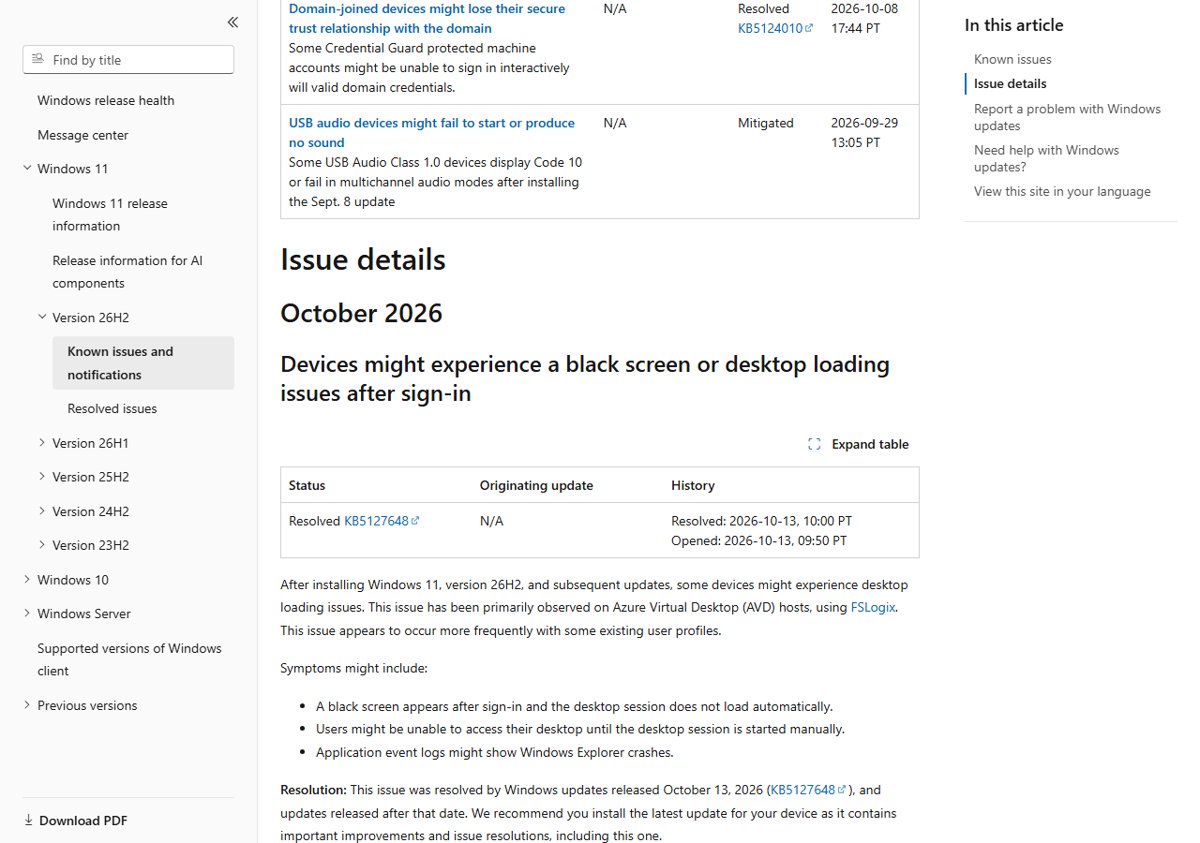
The release health entry lists the same affected platforms on every Windows 11 version page. If you are unsure which version you run, check your Windows version first.
| Windows version | Latest October 2026 update | USB audio issue listed |
|---|---|---|
| Windows 11, version 26H2, 25H2 and 24H2 | KB5127648 (builds 26300.9711, 26200.9711, 26100.9711) | Yes, in the KB page's known issues and on release health |
| Windows 11, version 26H1 | KB5127646 (build 28000.3231) | Yes, in the KB page's known issues and on release health |
| Windows 11, version 23H2 | KB5126653 (build 22621.7652) | Yes on release health; the KB page says Microsoft is not aware of issues with that update |
| Windows 10, version 22H2 and 21H2; Windows 10 Enterprise LTSC 2019 and 2016 | Not covered here | Yes, listed as affected platforms |
| Windows Server 2025, 2022, 2019, 2016, 2012 R2 and 2012 | Not covered here | Yes, listed as affected platforms |
The KB5127648 known issues on 24H2 and later, the KB5127646 issues on 26H1 and the KB5126653 issues on 23H2 each decide whether this month's update is safe for your version.
Which USB audio fix to try first
| What you see | Try this first | Why |
|---|---|---|
| Device Manager shows Code 10 on the USB audio device | Update the driver, then uninstall and reinstall the device | Microsoft's recommended resolution for Code 10 is a driver update |
| Sound worked in stereo but fails in 7.1, 8-channel or 3D mode | Install the latest update, or switch the device to a 2-channel format | The September 14 out-of-band update fixed this symptom |
| No sound right after Windows Update, no error code | Roll back the audio driver | Microsoft's first step when audio worked before an update |
| Volume stuck at zero or sound settings frozen | Restart the Windows Audio services, then restart the PC | Services that did not start correctly leave controls unresponsive |
| Nothing above helps and you need sound now | Uninstall the latest quality update | Microsoft's route for an update that causes errors, with a security trade-off |
Install the latest Windows 11 update for the USB audio fix
Microsoft's partial fix shipped in the September 14, 2026 out-of-band updates and is included in every later update, including the October 13 security update. Installing the latest cumulative update is the only way to get it.
- Select Start > Settings > Windows Update.
- Select Check for updates.
- If the status says Updates are available, select Install now, then pick the updates and select Install.
- Save your work and select Start > Power > Update and restart.
- After the restart, plug in the USB audio device and test sound.
The October update for 24H2, 25H2 and 26H2 is KB5127648 with its full list of changes. It fixes the multichannel symptom only; Code 10 and missing sound are still open.
Update or reinstall the USB audio driver in Device Manager
Microsoft's listed resolution for "This device cannot start (Code 10)" is to update the driver. If updating does not help, uninstalling the device forces Windows to reinstall the driver on the next restart.
- Select Start, type Device Manager and select it from the results.
- Expand Sound, video and game controllers. A USB device with Code 10 shows a warning icon.
- Right-click the USB audio device and select Update driver > Search automatically for drivers, then follow the prompts.
- If Windows says the best driver is installed, right-click the device again and select Uninstall device.
- Tick Attempt to remove the driver for this device if it appears, then select Uninstall.
- Select Action > Scan for hardware changes, or restart the PC, so Windows reinstalls the driver.
- If the device needs a vendor driver, get the latest one from the manufacturer's support site and install it.
To try the generic driver that ships with Windows, select Update driver > Browse my computer for drivers > Let me pick from a list of available drivers on my computer, choose the listed driver and select Next. The same Device Manager steps work for reinstalling Realtek audio drivers when built-in sound fails too.
Roll back the USB audio driver after a Windows update
Microsoft recommends a driver rollback when audio worked before Windows Update and stopped afterwards. This helps when the update also installed a newer driver for the device.
- Open Device Manager and expand Sound, video and game controllers.
- Right-click the USB audio device and select Properties.
- Select the Driver tab, then select Roll Back Driver.
- Follow the prompts and select Yes to confirm.
- Restart the PC and test the device.
If Roll Back Driver is greyed out, no previous driver is stored. Microsoft's next suggestion is to restore the PC from a system restore point created before the update.
Switch a USB headset to 2-channel mode when 7.1 or 3D audio fails
Microsoft notes that some customers restored sound on multichannel devices by switching to 2-channel mode. The September 14 out-of-band update resolved this symptom, so install the latest update first and use this as a stopgap.
- Type control panel in the taskbar search box and open it.
- Select Hardware and Sound, then Sound.
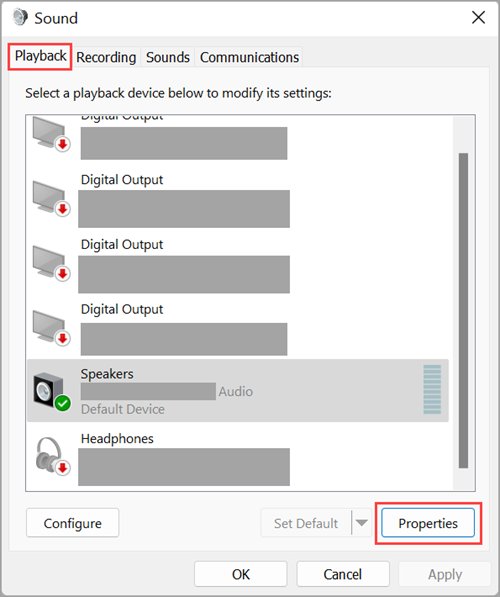
- On the Playback tab, right-click the USB audio device and select Properties.
- Open the Advanced tab and, under Default Format, pick a 2-channel format from the list.
- Select OK, then test playback in the app that failed.
- Turn off any 7.1, 8-channel or 3D mode in the device's own software until the issue is fixed.
Restart Windows Audio services when USB sound stops
When volume controls stay at zero or the sound settings page will not respond, the audio services may not have started correctly. Microsoft lists restarting them as a fix for audio that stops after an update.
- Select Start, type services.msc and press Enter.
- Right-click Windows Audio and select Restart, then select Yes if asked.
- Right-click Windows Audio Endpoint Builder and select Restart.
- Right-click Remote Procedure Call (RPC) and select Restart if the option is available.
- Test audio, then restart the PC if the controls still do not respond.
Once sound returns, you can manage sound settings in Windows 11 to set the USB device as the default output again.
Run the Windows 11 audio troubleshooter for USB sound problems
Microsoft suggests the automated audio troubleshooter in the Get Help app as the first stop on Windows 11. It runs diagnostics and attempts a fix on its own.
- Select Start > Settings > System.
- Scroll down and select Troubleshoot > Other troubleshooters.
- In the Audio row, select Run.
- Follow the prompts in Get Help and select the USB audio device when asked.
- Apply any fix it offers, then test sound.
The troubleshooter cannot repair the Windows known issue itself. It is still worth running because it catches a muted device, a wrong default output or a stopped service.
Uninstall the Windows 11 update that broke USB audio
Microsoft advises removing an update that causes errors, but warns you to understand the risks before uninstalling a security update. Microsoft traces the issue to the September 8 update, and the October update includes the September changes, so removing only the newest update does not take the PC back before September 8.
- Select Start > Settings > Windows Update.
- Under More options, select Update history.
- Under Related settings, select Uninstall updates.
- Select the most recent cumulative update, such as KB5127648, and select Uninstall.
- Restart the PC and test the USB audio device.
- If Windows will not start, open the Windows Recovery Environment and select Troubleshoot > Advanced options > Uninstall Updates > Uninstall latest quality update.
Some updates cannot be uninstalled. If you remove one, pause Windows updates so it does not reinstall straight away, and resume them once Microsoft ships a full fix. A broader walkthrough of rolling back a Windows 11 update covers the recovery options in more depth.
How to check USB audio works again after the fix
- Open Device Manager, right-click the USB audio device and select Properties.
- In the Device status area, confirm it says the device is working properly and no longer shows Code 10.
- Select the Speakers icon on the taskbar, then the arrow beside the volume slider, and confirm the USB device is listed and selected.
- Move the volume slider and play a sound; the level should change and audio should come from the USB device.
- Open Settings > Windows Update > Update history to confirm which quality update is installed.
USB audio still not working after the update: fixes by symptom
USB audio device cannot start (Code 10)
The driver failed to start, which matches the USB Audio Class 1.0 known issue.
- Update the driver from the device's Driver tab with Update Driver.
- Uninstall the device, then select Action > Scan for hardware changes.
- Install the manufacturer's latest driver if it offers one.
- If Code 10 remains, uninstall the latest quality update or wait for Microsoft's fix.
No audio after Windows update, but no error in Device Manager
A different output device was selected or the driver changed during the update.
- Select the Speakers icon, open the output list and pick the USB device.
- Check that the device is not muted in Volume mixer.
- Roll back the audio driver from Properties > Driver.
- Restart the Windows Audio and Windows Audio Endpoint Builder services.
Volume controls stuck at zero or sound settings unavailable
Microsoft lists both as symptoms of the USB audio known issue.
- Restart the Windows Audio services from services.msc.
- Unplug the USB device, restart the PC and plug it into a different USB port.
- Run the Audio troubleshooter from Settings > System > Troubleshoot > Other troubleshooters.
USB headset works in stereo but not in surround or 3D mode
This is the multichannel symptom fixed by the September 14, 2026 out-of-band update.
- Install the latest cumulative update from Settings > Windows Update.
- Until it installs, choose a 2-channel format under Default Format in the device's Advanced properties.
USB audio device missing from Device Manager
Windows did not detect the device or it is hidden.
- In Device Manager, select View > Show hidden devices.
- Select Action > Scan for hardware changes.
- Right-click the device and select Enable device if that option appears.
USB audio is one of several October 2026 update issues, and the others have their own workarounds.
USB audio Code 10 after Windows update FAQ
What does "This device cannot start (Code 10)" mean for a USB audio device?
Code 10 means Windows could not start the device's driver. Microsoft's recommended resolution is to update the driver from the device's Driver tab. After the September 2026 updates, Code 10 on a USB Audio Class 1.0 device matches a known Windows issue that a driver update alone does not always clear.
Why did my USB audio stop working after a Windows 11 update?
Microsoft confirmed that the September 8, 2026 security update and Windows 11 version 26H2 can stop some USB Audio Class 1.0 devices from starting or producing sound. Incompatible or partly installed audio drivers after an update can cause the same symptom on other devices.
Does the October 2026 update KB5127648 fix USB audio?
No. KB5127648 still lists "USB audio devices might fail to start or produce no sound" under its known issues. It carries the September 14 out-of-band fix for 8-channel and 3D audio, but Code 10, missing sound and frozen volume remain open. The October 2026 update review lists what it does fix.
Which Windows versions are affected by the USB audio issue?
Microsoft lists Windows 11 versions 26H2, 26H1, 25H2, 24H2 and 23H2, Windows 10 versions 22H2 and 21H2, Windows 10 Enterprise LTSC 2019 and 2016, and Windows Server 2012 through 2025. Only USB Audio Class 1.0 devices are affected.
Has Microsoft fixed the USB audio problem?
Only partly. The status is Mitigated as of September 29, 2026. The September 14 out-of-band update fixed failures in 8-channel and 3D audio modes, and Microsoft says it is working on the other symptoms for a future Windows update.
Should I uninstall the Windows update to get USB sound back?
Only if the driver steps fail and you need the device now. Uninstalling a security update leaves the PC without its protections, and removing the October update alone keeps the September change that started the issue. Pause updates afterwards and reinstall once Microsoft ships a full fix.
Does switching to 2-channel mode fix USB audio after the update?
It can for multichannel devices. Microsoft notes that some customers restored audio by switching to 2-channel mode when 8-channel or 3D modes failed. Installing the September 14 out-of-band update or any later update resolves that symptom properly.
Is every case of audio stopped working after Windows update this known issue?
No. The known issue covers USB Audio Class 1.0 devices only. Built-in speakers, HDMI and Bluetooth audio that stop after an update usually need the output device check, a driver rollback or a driver reinstall instead.
Bottom line: should you remove the update to fix USB audio Code 10?
Keep the latest update installed and fix the device with a driver update, rollback or reinstall first; uninstall the update only if the USB audio device is essential and nothing else works. Microsoft's partial fix ships in the latest updates, the remaining symptoms are still under investigation, and removing a security update trades a sound problem for missing protections.


Windows 11 26H2 known issues and how to fix them - Techdows
[…] regression that affects USB Audio Class 1.0 devices only. It also hits 25H2, 24H2, Windows 10 and Windows […]