To download all photos from iCloud to a Windows PC, install iCloud for Windows, turn on iCloud Photos, then right-click the iCloud Photos folder in File Explorer and choose Always keep on this device.
This guide also covers iCloud.com and Apple's Data & Privacy copy, how much space you need, how to keep a backup that iCloud deletions cannot touch, and fixes when photos stay as thumbnails.
How to download all iCloud photos to a PC with iCloud for Windows
This is the only route that pulls the whole library to the PC without picking photos by hand.
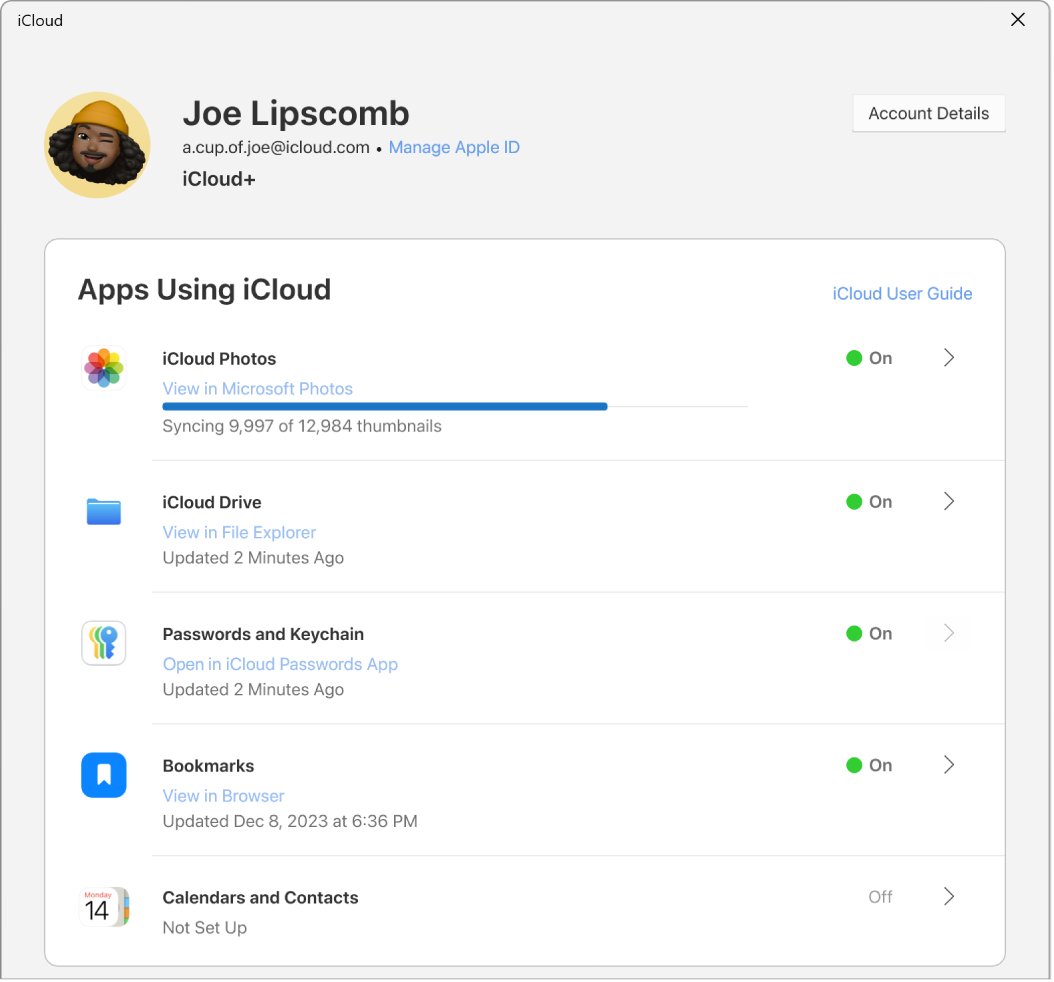
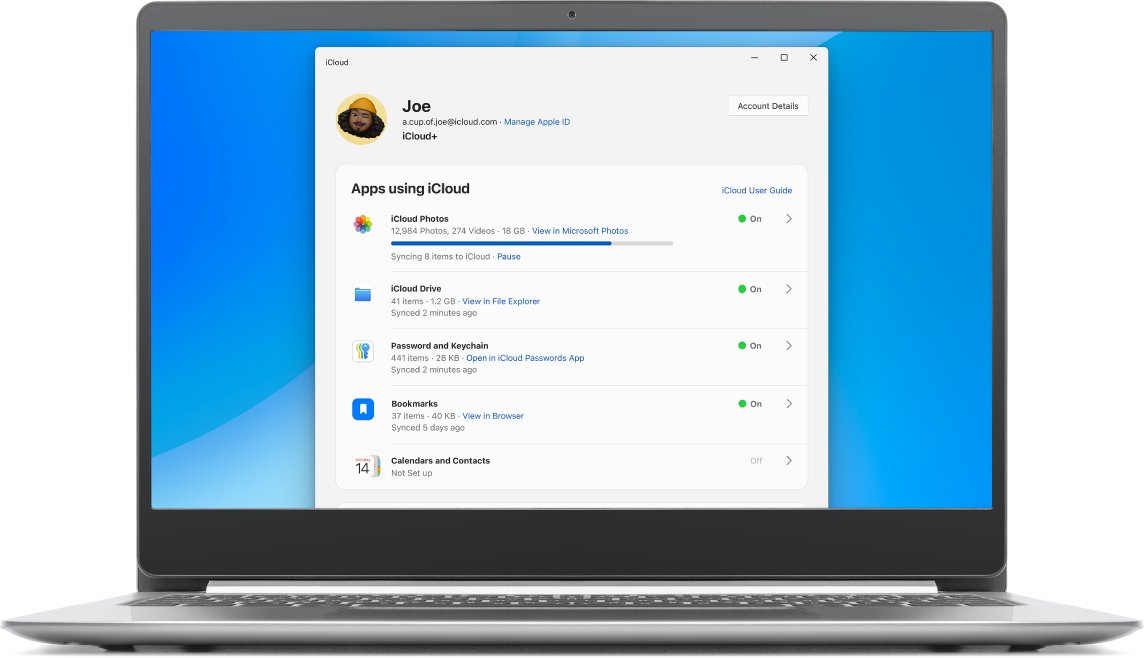
- Install iCloud for Windows from the Microsoft Store, open it, and sign in with the Apple Account your iPhone uses.
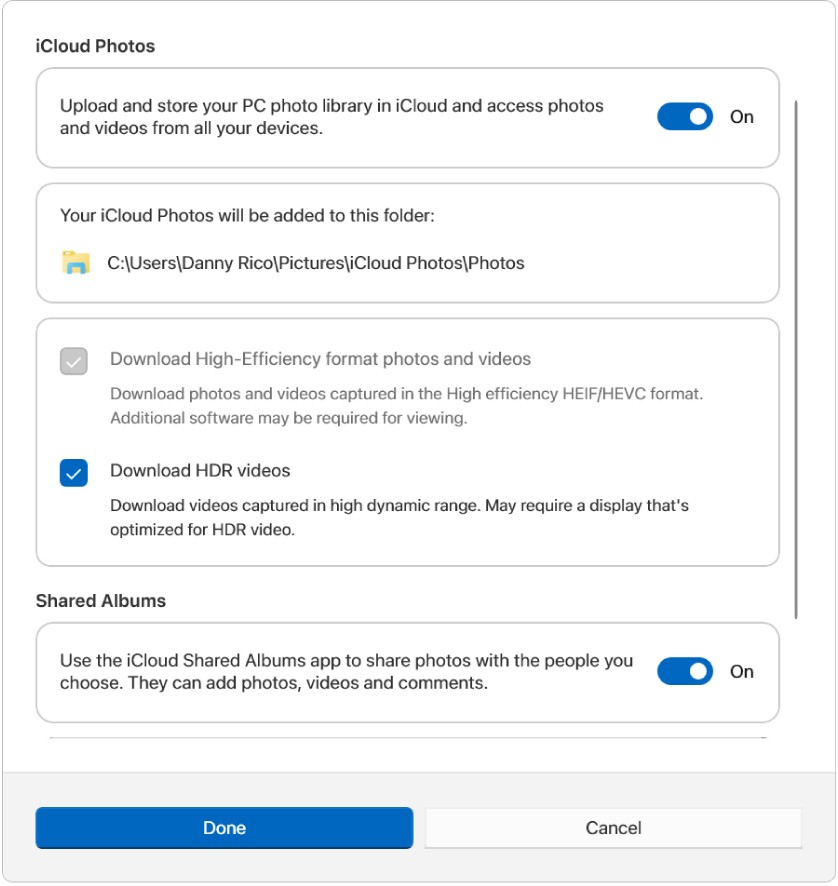
- Select the button to the right of iCloud Photos, turn on iCloud Photos, and select Done.
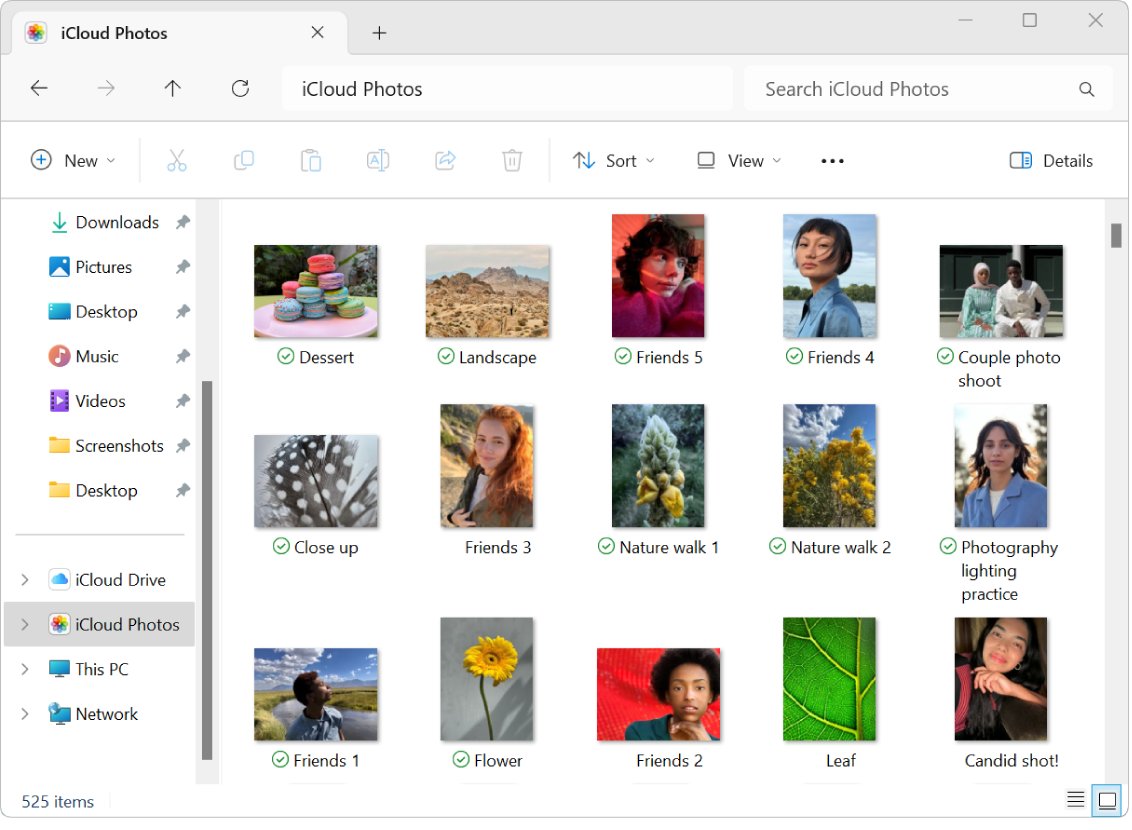
- Open File Explorer and select iCloud Photos in the Navigation pane (or open Pictures, then double-click iCloud Photos).
- Right-click the iCloud Photos folder and choose Always keep on this device.
- Wait until every file shows the downloaded icon instead of the cloud thumbnail icon.
- Copy the downloaded photos to a separate folder or drive so deletions on your iPhone cannot remove that copy.
You can get iCloud for Windows from the Microsoft Store listing Apple links to.
1. Understanding iCloud and its photo library management
iCloud Photos keeps one library in sync across your iPhone, iPad, Mac, iCloud.com and a Windows PC. A download to Windows is part of that sync, not a separate copy.
| How iCloud Photos behaves | What it means on a Windows PC |
|---|---|
| Photos upload to iCloud at full resolution | Your iCloud copy is the full-quality version, even if the iPhone keeps smaller ones |
| iCloud for Windows 11.1 and later downloads optimized versions automatically | Opening a photo, or pinning it, fetches the full version |
| Files show as thumbnails until downloaded | A thumbnail in File Explorer is not yet on your disk |
| Edits and deletions sync from other devices | A photo deleted on the iPhone is deleted from the PC, even if pinned |
| Edits made on the PC do not sync back | Upload an edited file as a new photo if you want it in iCloud |
| Shared Albums are separate from your library | Shared Album copies may not be full resolution |
2. Assessing your iCloud photo library and storage
Check the size of the library first, because every pinned photo lands on the C: drive.
- Open iCloud for Windows and scroll down to the storage bar graph.
- Hold the pointer over the Photos segment to see how much space photos use.
- Select Manage to see storage by app, with the largest at the top.
- Open File Explorer, select This PC, and compare the free space on the C: drive with the Photos figure.
- Free up space on C: before you pin the folder if the library is larger than the free space.
iCloud for Windows stores photos in C:\Users\[user name]\Pictures\iCloud Photos\Photos. Apple only lets you move the Shared Albums folder, and only to another folder on C:, so external drives are not an option for the synced library.
3. Preparing your Windows PC for downloading photos
| Requirement | Detail |
|---|---|
| Windows version | Windows 11 for the latest iCloud for Windows (version 15); Windows 10 still runs older versions |
| Windows 10 build | Build 18363 or later for full iCloud Photos support |
| HEIC and HEVC support | Install the HEVC decoder and HEIF plugin from the Microsoft Store to open iPhone photos and videos |
| An Apple device set up first | iCloud must already be set up on an iPhone, iPad, iPod touch or Mac |
| The same Apple Account | Sign in to iCloud for Windows with the account your iPhone uses |
| Advanced Data Protection | Needs iCloud for Windows 14.1 or later; 14.2 or later also needs your trusted Apple device nearby and any VPN turned off |
| Managed Apple Account | Not supported by iCloud for Windows; use iCloud.com |
| Browser for iCloud.com | Edge 130, Chrome 130 or Firefox 128 or later |
4. Downloading all photos from iCloud to Windows PC
There are three official ways to get photos off iCloud and onto a PC. They differ in how much of the library they can handle and whether the copy stays in sync.
| Your situation | Use this | Why |
|---|---|---|
| You want the whole library and it fits on C: | iCloud for Windows, pin the iCloud Photos folder | Downloads everything and keeps new photos coming |
| You only need some photos, or cannot install apps | iCloud.com in a browser | No software needed; downloads come as a .zip |
| You want a one-time full archive in original formats | Apple Data & Privacy copy | Apple packages photos and videos in their original formats |
| You use Advanced Data Protection | iCloud for Windows or iCloud.com | End-to-end encrypted data is left out of a Data & Privacy copy |
How to download photos from iCloud.com to a PC
Apple positions iCloud.com for downloading a few photos at a time, so use it for albums or recent shots rather than a large library.
- Go to icloud.com/photos in Edge, Chrome or Firefox and sign in with your Apple Account.
- Open Library or an album in the sidebar.
- Hold Ctrl and click each photo you want, or press Ctrl + A to select everything in the open album.
- Select the download button at the top of the page.
- To pick a file format first, open the menu next to it, select More Download Options, and choose the format.
- Open the downloaded .zip in your Downloads folder and extract it.
iCloud.com downloads use the most compatible format for your device unless you choose otherwise. To select multiple photos in iCloud on a phone instead, tap Select and then Select All.

How to request a copy of iCloud photos from Apple Data & Privacy
Apple can package every photo and video in your account in its original format. Availability varies by country or region.
- Go to Apple's Data & Privacy page at privacy.apple.com and sign in with your Apple Account.
- Select Request a copy of your data.
- On the next page, tick the photos and videos data, plus anything else you want to download.
- Select Continue; Apple first verifies that you are the account holder.
- Wait for Apple's notification that the data is ready, then download the files from the Data & Privacy page on your PC.
You have 14 days to download the files before Apple removes them and you need to request them again.
5. Tips for efficient downloading and organization
| Tip | Why it helps |
|---|---|
| Pin the whole iCloud Photos folder instead of single photos | One right-click downloads the entire library |
| Turn on Download High-Efficiency format photos and videos in iCloud for Windows 14.2 or later | Keeps HEIC/HEVC originals instead of converted copies |
| Turn on Download HDR videos if you shoot HDR on iPhone | Keeps the HDR version of video |
| Watch progress from the iCloud icon in the Notification Area | Shows the iCloud Photos sync status for uploads and downloads in progress; use Show hidden icons if it is not visible |
| Open photos in Microsoft Photos from iCloud for Windows | Select View in Microsoft Photos under iCloud Photos to browse by date |
| Copy finished downloads into dated folders outside iCloud Photos | Your own folders are never changed by iCloud sync |
How to check iCloud Photos download status in File Explorer
- Open File Explorer and select iCloud Photos in the Navigation pane.
- Look for the cloud thumbnail icon: those items are still only in iCloud.
- Look for the waiting or downloading icons: those are still in progress.
- Confirm every item shows the downloaded or pinned icon before you copy the folder elsewhere.
Right-click any photo: a checkmark next to Always keep on this device means it is pinned.
6. Troubleshooting common issues
iCloud Photos does not appear in File Explorer
iCloud Photos is off in iCloud for Windows, or the shortcut is missing from the Navigation pane.
- Open iCloud for Windows and confirm iCloud Photos is turned on.
- In File Explorer, open Pictures and double-click iCloud Photos.
- Sign out and back in to iCloud for Windows with the same Apple Account as your iPhone.
iCloud photos stay as thumbnails and will not download
Items are only downloaded when opened or pinned, or the download queue is still running.
- Double-click one thumbnail to test that downloads work.
- Right-click the iCloud Photos folder and choose Always keep on this device.
- Check progress from the iCloud icon in the Notification Area.
- Make sure the C: drive has enough free space for the library.
"We detected that you are using an older version of Windows"
Windows 10 is older than build 18363 or lacks HEIF and HEVC support.
- Update Windows 10 to build 18363 or later through Windows Update.
- Install the HEVC decoder and HEIF plugin from the Microsoft Store.
- Restart iCloud for Windows.
Duplicate photos on the PC
iCloud for Windows 7.x saves a video and a still image for each Live Photo, and photos edited on iPhone or Mac before download can appear twice.
- Update iCloud for Windows from the Microsoft Store.
- Delete the duplicate copies only from your own backup folder, not from iCloud Photos.
Photos not syncing from iPhone to the PC
iCloud Photos is off on the iPhone, or the phone is signed in to a different Apple Account.
- On the iPhone, open Settings > [your name] > iCloud > Photos and turn on Sync this iPhone.
- Confirm the iPhone and PC use the same Apple Account.
- If the iPhone still will not upload, fix photos not syncing with iCloud on the phone first.
7. Additional considerations
| Consideration | What to do |
|---|---|
| Deleting a photo on iPhone or iCloud.com deletes it from the PC, even when pinned | Keep a copy outside the iCloud Photos folder |
| In iCloud for Windows 14 or later, deleting on the PC also deletes from iCloud Photos | Free up space with Free up space, not Delete |
| Moving or deleting in Microsoft Photos (14.2 or later) syncs to every device | Organize your own backup folder, not the synced one |
| Shared Albums may not save at full resolution | Download originals from the owner's library where possible |
| Data & Privacy copies leave out end-to-end encrypted data | With Advanced Data Protection on, use iCloud for Windows or iCloud.com |
| The synced library must stay on the C: drive | Copy finished downloads to an external drive yourself |
8. Maintaining your photo library on Windows
Once the library is on the PC, keep the synced folder and your backup separate so one can never wipe out the other.
- Copy the fully downloaded iCloud Photos folder to a backup folder or external drive.
- Repeat the copy on a schedule, for example monthly, to pick up new photos.
- To reclaim C: space, right-click items in iCloud Photos and choose Free up space; they stay in iCloud.
- Turn on Windows Storage Sense if you want Windows to manage drive space automatically.
- Update iCloud for Windows from the Microsoft Store so edits and deletions keep syncing correctly.
If you also keep pictures in Google's service, the same backup-folder approach works when you download everything from Google Photos.
Download iCloud photos to PC FAQ
Can I download all photos from iCloud at once?
Yes. In iCloud for Windows, right-click the iCloud Photos folder in File Explorer and choose Always keep on this device to download the whole library. Apple's Data & Privacy page can also package every photo and video as a one-time copy in original formats.
Where are iCloud photos stored on my PC?
iCloud for Windows stores them in C:\Users\[user name]\Pictures\iCloud Photos\Photos. In File Explorer you reach the same folder by selecting iCloud Photos in the Navigation pane, or by opening Pictures and double-clicking iCloud Photos.
Does deleting photos from iCloud delete them from my PC?
Yes, for the synced iCloud Photos folder. A photo deleted on another device with iCloud Photos turned on is also deleted from the PC, even if it is pinned. Copies you made in a different folder are not affected.
Can I download iCloud photos to an external hard drive on Windows?
Not directly through iCloud for Windows, because the synced library stays on the C: drive and external drives are not supported. Download the photos first, then copy them to the external drive, or save iCloud.com and Data & Privacy downloads straight to it.
Why are my iCloud photos only thumbnails on my PC?
iCloud for Windows shows thumbnails until a photo is opened or pinned. Double-click a thumbnail to download that photo, or right-click the iCloud Photos folder and choose Always keep on this device to download the full library.
Do iCloud photos download in full resolution to a PC?
iCloud for Windows downloads optimized versions first and fetches the full versions when you open or pin them. iCloud.com uses the most compatible format unless you pick another under More Download Options, and a Data & Privacy copy keeps original formats.
Do I need iCloud for Windows to download iCloud photos?
No. You can sign in at icloud.com/photos in Edge, Chrome or Firefox, select photos, and download them as a .zip file. iCloud for Windows is only needed if you want the whole library to download and stay in sync.
How long do I have to download my data from Apple?
Apple keeps a Data & Privacy copy available for 14 days after it is ready. After that, the files are removed from the Data & Privacy page and you need to submit a new request to download your photos.