To delete photos from your iPhone but keep them in iCloud, turn off iCloud Photos on that iPhone first, because while it is on, Apple deletes a photo from every device and from iCloud at the same time.
This guide covers the two settings that keep your iCloud copies safe, how to save extra copies before you delete, and what to do when iPhone photos won't delete or disappear.
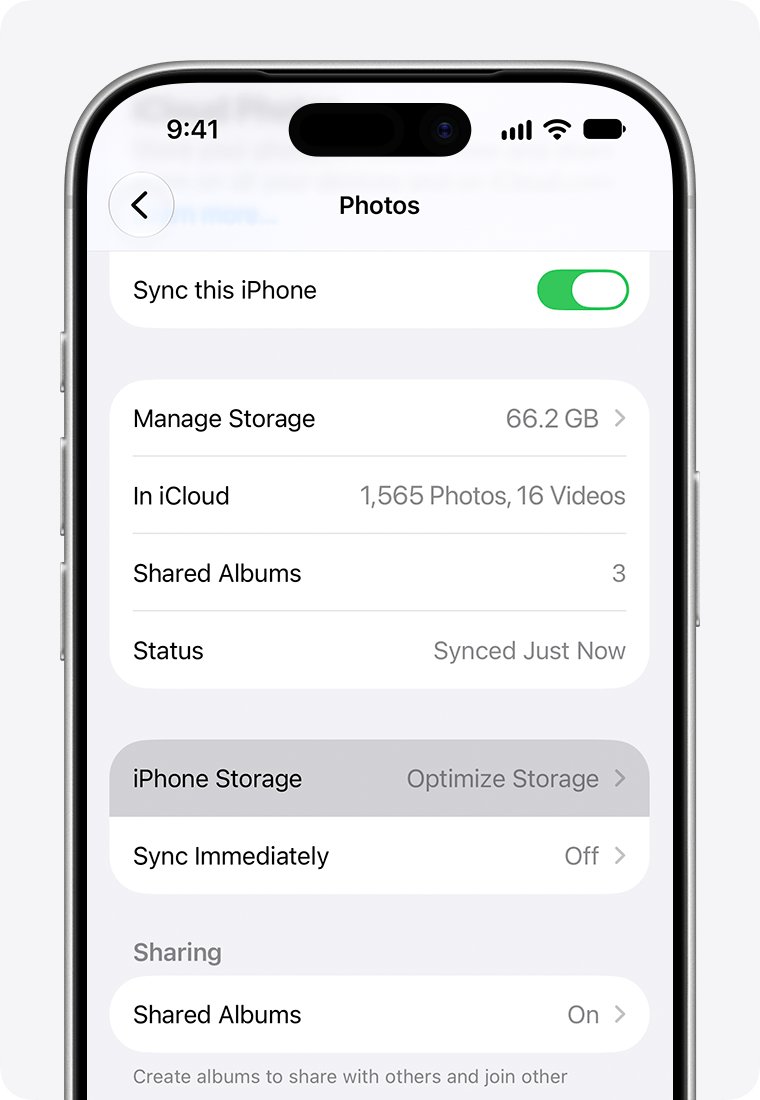
How to delete photos from iPhone only, not iCloud
Turning off iCloud Photos on one iPhone stops deletions on that iPhone from syncing. Your iCloud library and your other devices keep every photo.
- Open Settings and tap your name.
- Tap iCloud, then tap Photos under Saved to iCloud.
- Turn off Sync this iPhone.
- Tap Remove from iPhone to clear the iCloud photos from this iPhone, or Download Photos & Videos to keep a local copy you can delete from later.
- Open Photos, tap Select, choose the photos you no longer want on the iPhone and tap the Trash button.
- Check
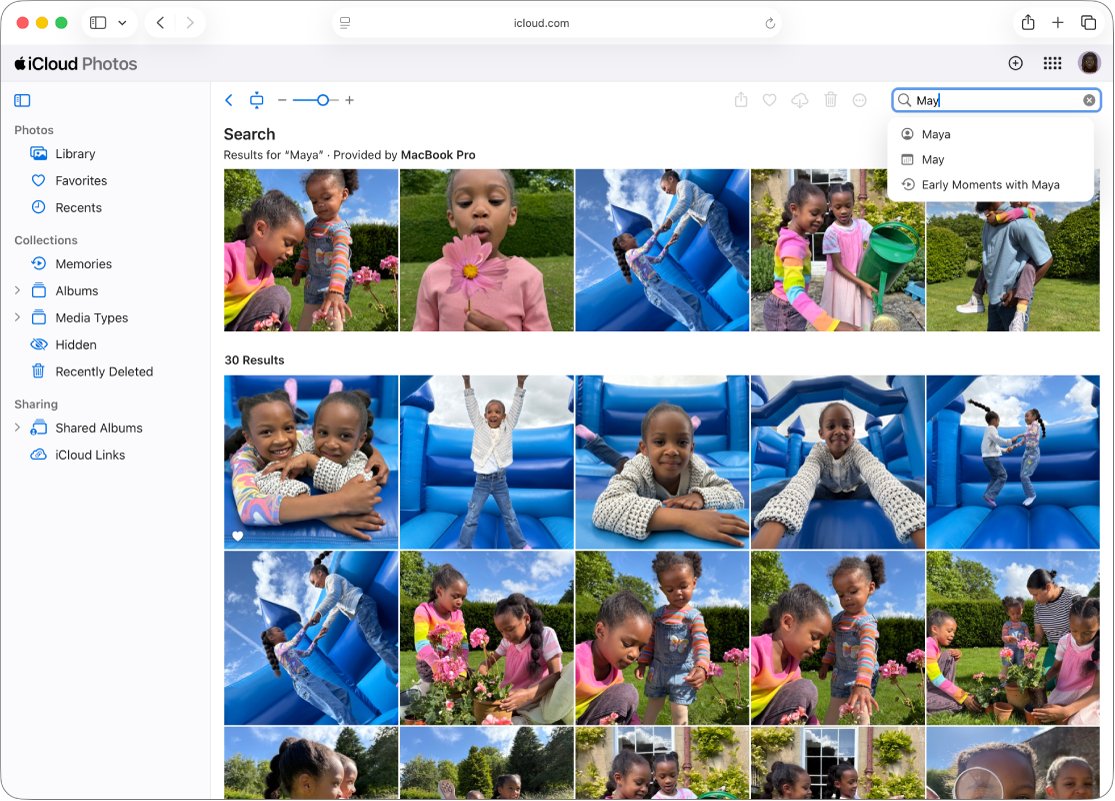
icloud.com/photoson a computer to see that the photos are still in iCloud.
While iCloud Photos is off on this iPhone, new photos you take here no longer upload to iCloud, and edits and deletions stop syncing in both directions.
If I delete pictures from my iPhone, are they deleted from iCloud?
Yes, when iCloud Photos is on. Apple states that a photo or video deleted on one device is deleted on every device signed in with the same Apple Account, and from iCloud.
| Your setup | What deleting a photo on the iPhone does | Where a copy survives |
|---|---|---|
| iCloud Photos on (Sync this iPhone on) | Deletes it from the iPhone, iCloud and every synced device | Recently Deleted for 30 days, then nowhere |
| iCloud Photos turned off on this iPhone only | Deletes it from this iPhone only | iCloud Photos and your other devices |
| iCloud Photos never used; photos sit in iCloud Backup | Deletes it from the iPhone library | Only in copies you saved elsewhere, such as a computer |
| Photo synced to the iPhone from a computer with Finder or iTunes | The Trash button is gray; the iPhone cannot delete it | The computer library it came from |
| Photo in an iCloud Shared Photo Library | Deletes it for everyone in the Shared Library | Recently Deleted of the person who added it, for 30 days |
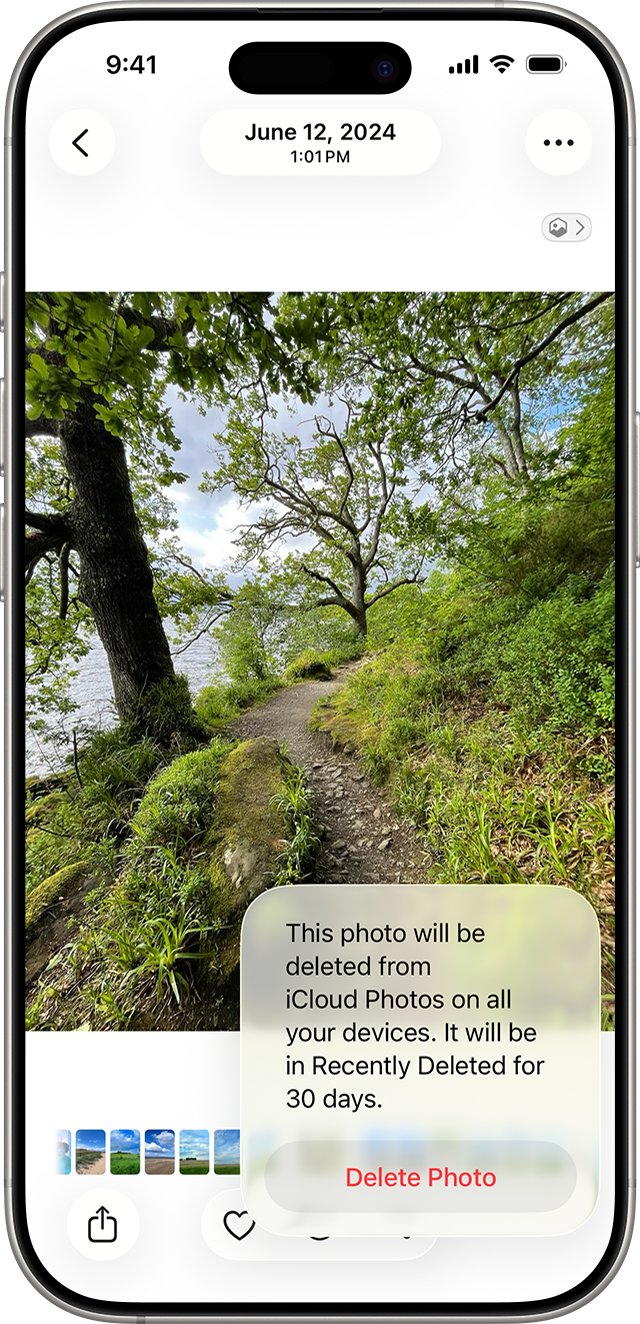
Delete photos from iPhone without losing them
Pick the route by what you actually want: free storage, a clean Camera Roll, or a separate copy you control.
| Your goal | Use this | Why |
|---|---|---|
| Free up iPhone storage and keep using iCloud Photos | Optimize iPhone Storage | The iPhone keeps space-saving versions; full-resolution originals stay in iCloud |
| Remove photos from this iPhone and keep them in iCloud | Turn off Sync this iPhone, then delete | Deletions on this iPhone stop syncing to iCloud |
| Keep a copy outside iCloud before deleting everywhere | Export Unmodified Originals or download from iCloud.com | You hold a full-resolution copy on a drive or computer |
| Remove photos a computer put on the iPhone | Stop syncing those albums in Finder | Synced photos can only be removed from the computer side |
Turn on Optimize iPhone Storage instead of deleting photos
If storage is the reason you want photos off the iPhone, Optimize Storage for Photos frees space without deleting anything. When the iPhone needs room, iCloud Photos optimizes the photos you open least first.
- Open Settings and tap your name.
- Tap iCloud.
- Under Saved to iCloud, tap Photos.
- Tap iPhone Storage, then choose Optimize Storage. In iOS 26 or earlier, just choose Optimize Storage.
- Leave the iPhone on Wi-Fi so it can replace originals with smaller versions over time.
Full-resolution originals stay in iCloud and download over Wi-Fi or cellular when you open them.
How to turn off iCloud Photos on iPhone without deleting photos
Apple gives two choices when you switch off iCloud Photos on one device. Both leave the photos in iCloud and on your other devices.
- Make sure the iPhone has enough free space if you want to keep local copies: Settings > General > iPhone Storage.
- Open Settings, tap your name, then tap iCloud.
- Under Saved to iCloud, tap Photos.
- Turn off Sync this iPhone.
- Select Download Photos & Videos to save a copy of the iCloud library on the iPhone.
- Or select Remove from iPhone to take the iCloud photos off this iPhone without saving a copy.
If you skip the download, the optimized versions on the iPhone are not original resolution, so only the iCloud copies are full size.
Save iPhone photos to a drive or computer before deleting
A second copy outside iCloud protects you if you delete everywhere by mistake. The iPhone can export originals to the Files app or an external drive, or you can transfer the photos to a computer over USB.
- Update the iPhone to the latest iOS and connect to Wi-Fi.
- In Photos, go to your Library.
- Tap Select and choose the photos and videos to keep.
- Tap the Share button, then tap Export Unmodified Originals.
- Tap the back arrow and pick a destination under Locations, such as an external storage device.
- Tap Save.
From a Mac or PC, go to icloud.com/photos, select up to 1,000 items and click the Download button. On a Mac, Photos > Settings > iCloud > Download Originals to this Mac keeps the full library locally.
How to delete photos from iPhone and iCloud at the same time
If you do want a photo gone everywhere, leave iCloud Photos on and delete it once. It moves to Recently Deleted on every device.
- Open Photos.
- Tap Select, then tap each photo or slide your finger across several.
- Tap the Trash button and confirm Delete Photo or Delete Video.
- To remove them permanently now, tap Collections, swipe up and tap Recently Deleted under Utilities.
- Tap View Album and unlock with Face ID or Touch ID.
- Tap Select, choose the items, tap the More button, then tap Delete and Delete from All Devices.
Items in Recently Deleted do not count toward your iCloud storage, and anything deleted from that album cannot be recovered.
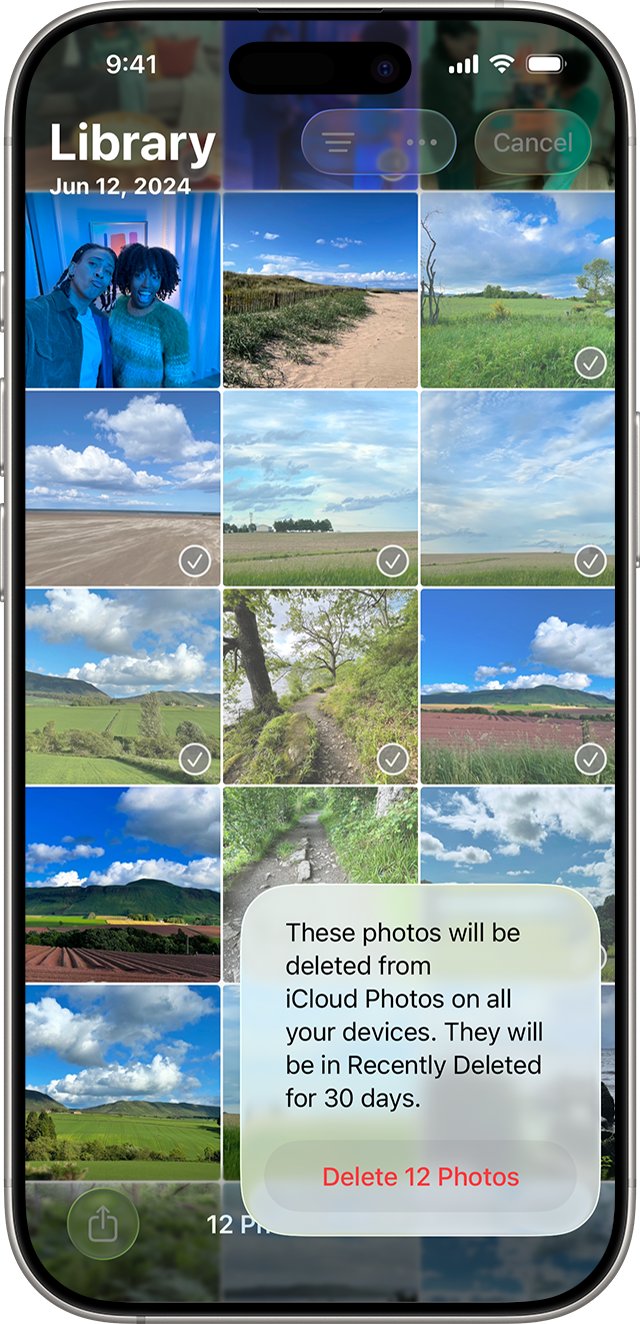
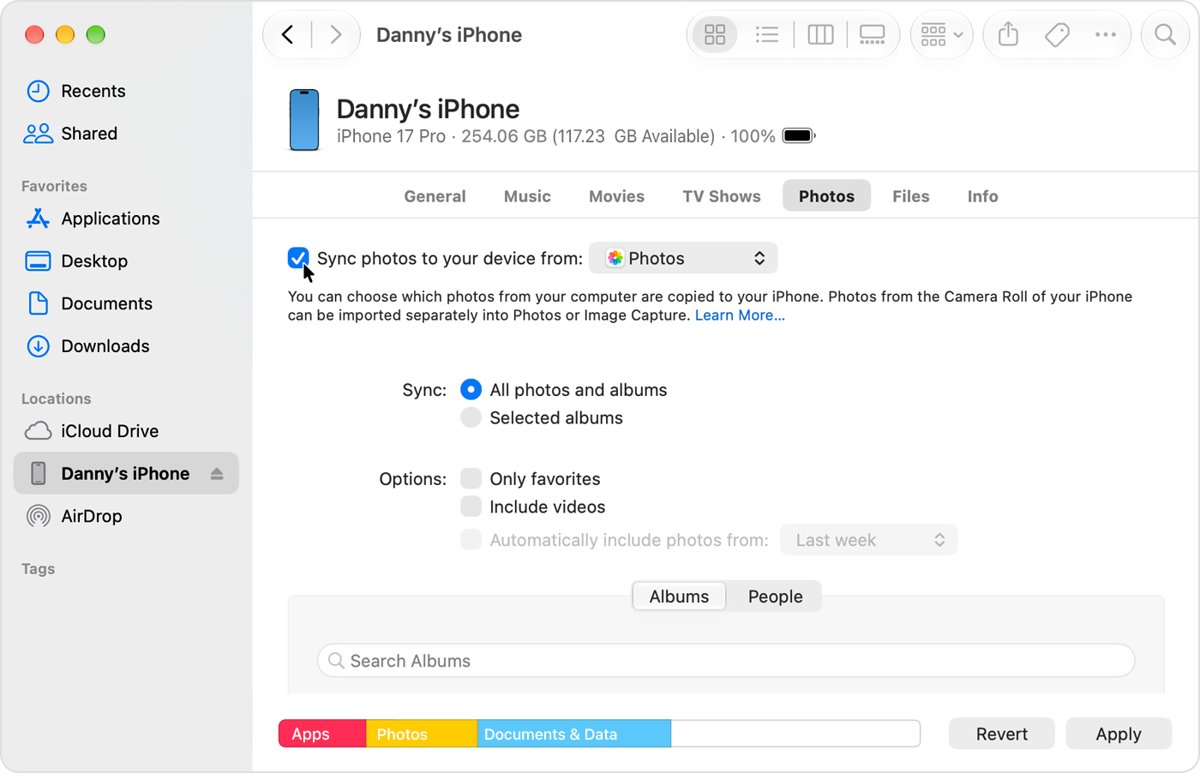
Delete photos synced from a computer on iPhone
Photos added by connecting the iPhone to a computer cannot be deleted in the Photos app; the Trash button stays gray. Remove them by stopping the sync on a Mac.
- Connect the iPhone to the Mac with a USB cable and unlock it.
- Open a Finder window and click the iPhone in the sidebar. Tap Trust on the iPhone if asked.
- Click the Photos tab.
- Choose Selected albums and deselect the albums you want off the iPhone, or deselect Sync Photos and click Remove photos to remove them all.
- Click Apply.
The photos stay in the Mac library they were synced from; only the iPhone copies go.
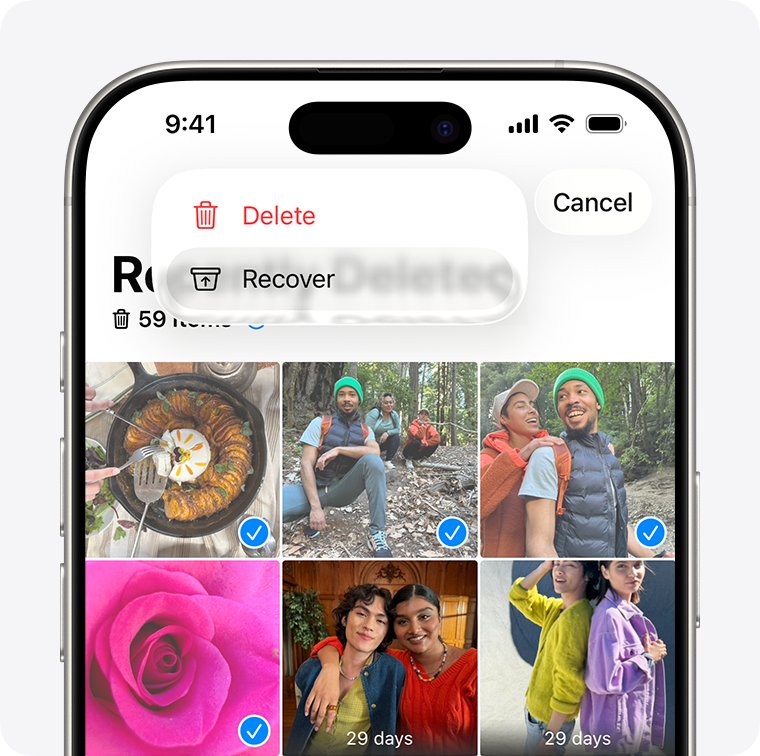
How to recover deleted photos from iCloud
Deleted photos stay in Recently Deleted for 30 days on the iPhone and on iCloud.com. You can also recover deleted iPhone photos from older backups if that window has passed.
- On the iPhone, open Photos, swipe up and tap Recently Deleted under Utilities.
- Tap View Album and unlock with Face ID or Touch ID.
- Tap Select, choose the photos, tap the More button, then tap Recover.
- On a computer, go to iCloud.com, sign in, click Photos and select Recently Deleted in the sidebar.
- Select a photo, then click Recover.
How to see if photos are still in iCloud
- On a Mac or PC, go to
icloud.com/photosand sign in with the same Apple Account. - Scroll to the dates of the photos you removed from the iPhone and check they are listed.
- On another Apple device with iCloud Photos on, open Photos and look for the same items.
- On the iPhone, open Settings > [your name] > iCloud > Photos and check that Sync this iPhone is still off.
If photos appear on iCloud.com but not on a device, check the iCloud Photos sync status on that device.
iPhone photos won't delete or disappeared
Can't delete pictures from iPhone: the Trash button is gray
The photos were synced to the iPhone from a computer, and only the computer can remove them.
- Connect the iPhone to the computer it syncs with.
- In Finder, open the iPhone's Photos tab.
- Deselect the albums, or deselect Sync Photos and click Remove photos, then click Apply.
iPhone not deleting photos from storage
Deleted items sit in Recently Deleted for 30 days and still use iPhone space until removed.
- Open Photos, swipe up and tap Recently Deleted.
- Tap View Album, unlock, tap Select, then More > Delete All.
- Check free space in Settings > General > iPhone Storage.
Why did my iPhone delete my photos everywhere?
iCloud Photos was on, so a deletion on one device removed the photos from iCloud and every other device.
- Open Recently Deleted on the iPhone or on iCloud.com within 30 days.
- Select the photos and tap Recover.
- Turn off Sync this iPhone before deleting from this iPhone next time.
Why did all my photos disappear on iPhone?
Someone deleted them from an iCloud Shared Photo Library, they were deleted on another device that uses iCloud Photos, or Duplicates were merged.
- Open Recently Deleted and recover anything you need within 30 days.
- For Shared Library photos, ask the person who added them to recover them; only they can.
- Check Recently Deleted after a Duplicates merge, since the extra copies move there.
Deleted photos are not in Recently Deleted
When you exceed your iCloud storage limit, the iPhone removes deleted photos immediately and skips Recently Deleted.
- Free iCloud space or upgrade your plan before deleting more photos.
- Save copies to a computer or drive first with Export Unmodified Originals.
If photos are missing from one device only, the cause is usually a paused upload; fix photos not syncing with iCloud on that device.
Delete photos from iPhone but not iCloud FAQ
Can I delete pictures from my iPhone and keep them in iCloud?
Yes, but only after you turn off Sync this iPhone in Settings > your name > iCloud > Photos. With iCloud Photos on, a photo deleted on the iPhone is deleted from iCloud and all your devices too.
How do I delete iPhone photos?
Open Photos, tap the photo and tap the Trash button, then Delete Photo. For several, tap Select, tap or swipe across the photos, then tap the Trash button and confirm. They stay in Recently Deleted for 30 days.
How to completely delete photos from iPhone?
Delete the photos, then open Photos > Collections > Recently Deleted, tap View Album, select them, tap More and choose Delete. Confirm Delete from All Devices. Items deleted from that album cannot be recovered.
Why won't my iPhone delete photos?
If the Trash button is gray, the photos were synced from a computer with Finder or iTunes. Stop syncing those albums from the computer, and the iPhone removes them on the next sync.
Why is my iPhone not deleting photos from storage?
Deleted photos stay in Recently Deleted for 30 days and still use space. Empty that album with Select > More > Delete All, then check Settings > General > iPhone Storage for the freed space.
Why did my iPhone delete my photos?
With iCloud Photos on, deleting on any device deletes everywhere, so a deletion on an iPad or Mac also removes it from your iPhone. Shared Library members and Duplicates merges can also remove items. Recover them from Recently Deleted within 30 days.
Does Optimize iPhone Storage delete photos?
No. Optimize Storage replaces full-resolution files on the iPhone with space-saving versions while iCloud keeps the originals. The originals download again over Wi-Fi or cellular when you open a photo.
What happens to my iCloud photos if I turn off iCloud Photos on my iPhone?
They stay in iCloud and on your other devices. You choose Download Photos & Videos to keep a copy on the iPhone, or Remove from iPhone. New photos, edits and deletions on that iPhone stop syncing.
Will deleting iPhone photos delete them from my iCloud backup?
If you do not use iCloud Photos, your photo library is part of iCloud Backup, so save the photos to a computer before you delete them. Apple suggests saving photos to your computer and then backing up the device.