Windows 11 24H2 Home and Pro reached end of updates on October 13, 2026, so move the PC to version 26H2 or 25H2 to keep getting monthly security fixes.
This guide shows which editions are affected, how to confirm your version, the upgrade routes Microsoft offers, and what changes if you stay on 24H2.
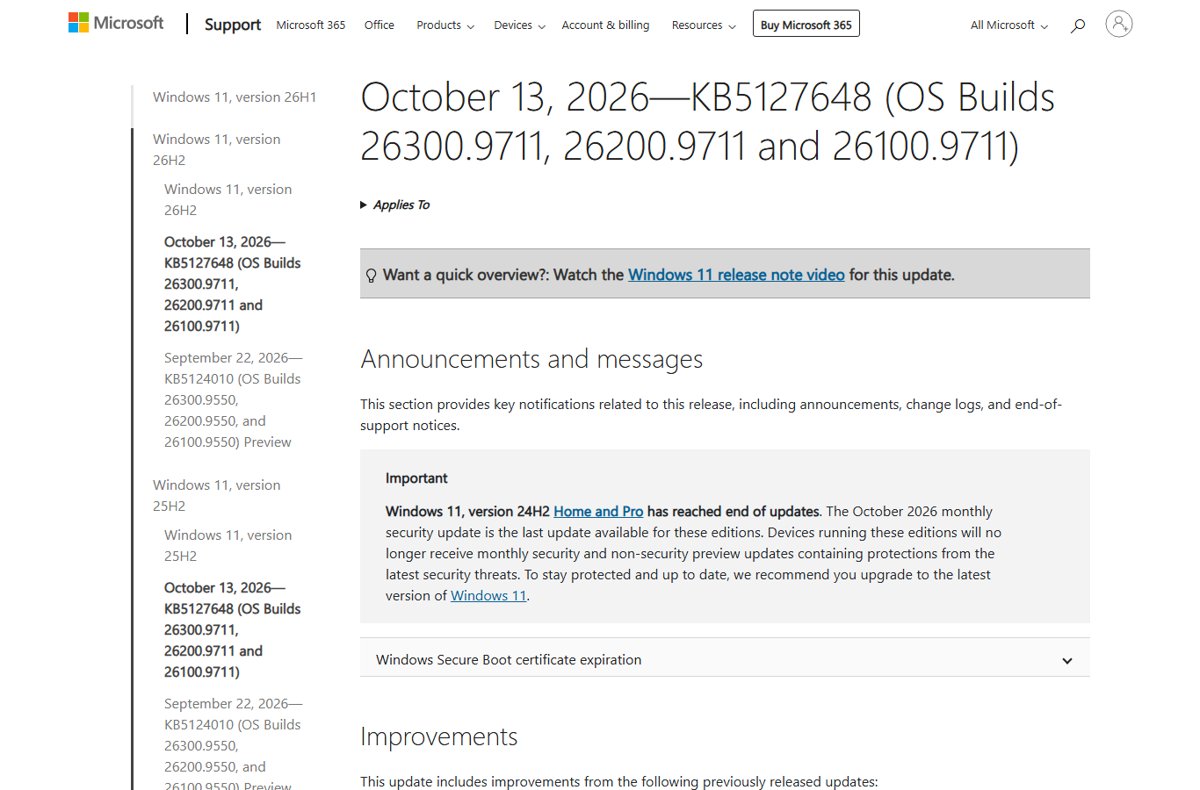
What to do now that Windows 11 24H2 Home and Pro updates have ended
Microsoft's release health page recommends moving 24H2 Home and Pro devices to Windows 11 26H2 or 25H2. Match your situation to a row and act on it this week.
| Your situation | What to do | Why |
|---|---|---|
| 24H2 Home or Pro, Windows Update offers 26H2 | Install 26H2 from Windows Update | An enablement package with a single restart; support runs to October 10, 2028 |
| 24H2 Home or Pro, no 26H2 offer yet | Turn on early updates, then use the Installation Assistant or ISO if the offer still does not appear | 26H2 reaches eligible PCs in phases over several months |
| 24H2 Home or Pro on an Arm PC | Wait for the Windows Update offer or use the Arm64 ISO | The Installation Assistant runs only on x64 processors |
| 24H2 Enterprise or Education | Plan the move; no deadline yet | These editions keep updates until October 12, 2027 |
| Already on 25H2 or 26H2 | Nothing to do now | 25H2 Home and Pro run to October 12, 2027; 26H2 to October 10, 2028 |
The October 2026 Update review sums up everything else Microsoft shipped on the same Patch Tuesday.
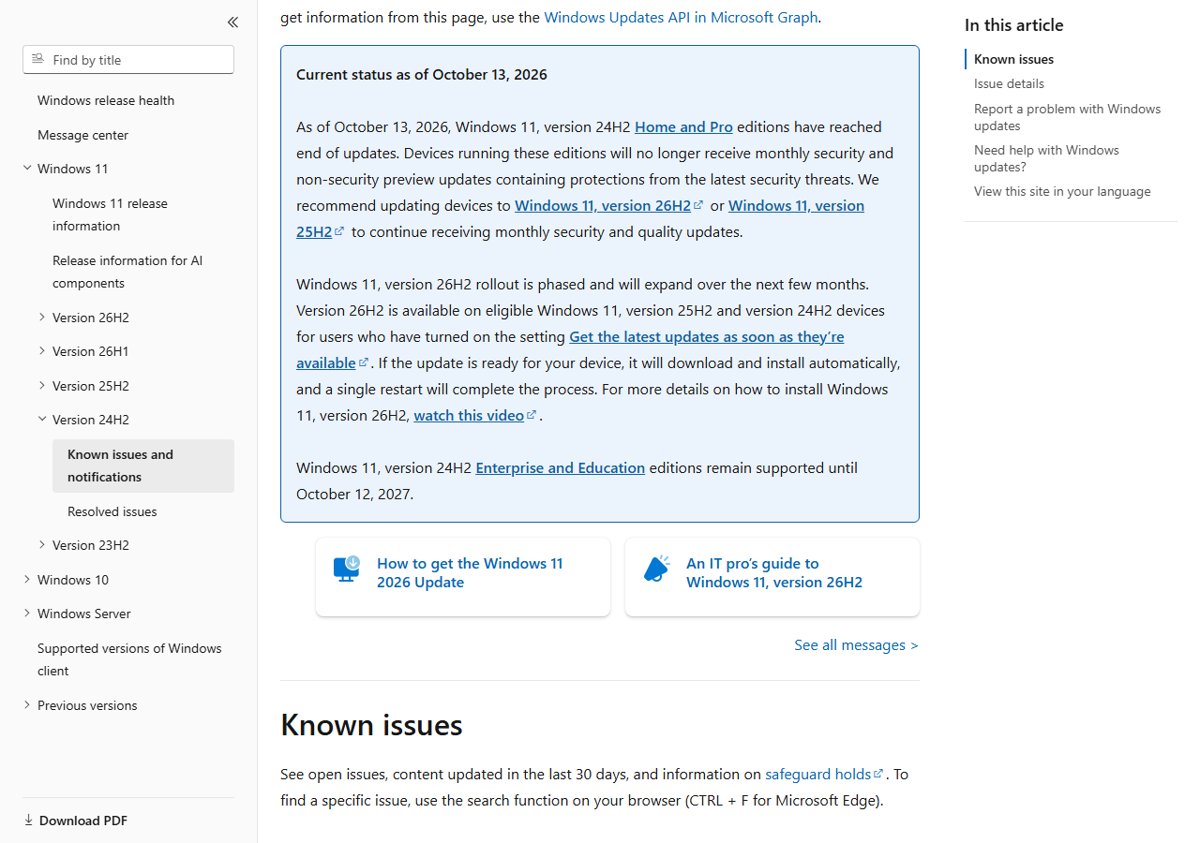
Windows 11 24H2 end of support date by edition
The end date depends on the edition, not just the version number. Home and Pro-family editions get 24 months per release; Enterprise and Education get 36 months.
| Windows 11 24H2 edition | End of updates | Status on October 14, 2026 |
|---|---|---|
| Home | October 13, 2026 | Ended |
| Pro, Pro Education, Pro for Workstations | October 13, 2026 | Ended |
| SE | October 13, 2026 | Ended; 24H2 was the last supported version for SE |
| Enterprise, Education, Enterprise multi-session | October 12, 2027 | Supported |
| IoT Enterprise (General Availability Channel) | October 12, 2027 | Supported |
| Enterprise LTSC 2024 (based on 24H2) | October 9, 2029 | Supported; no extended support |
| IoT Enterprise LTSC 2024 (based on 24H2) | Mainstream October 9, 2029; extended October 10, 2034 | Supported |
Dates for every other release sit in the full Windows 11 end of support dates table.
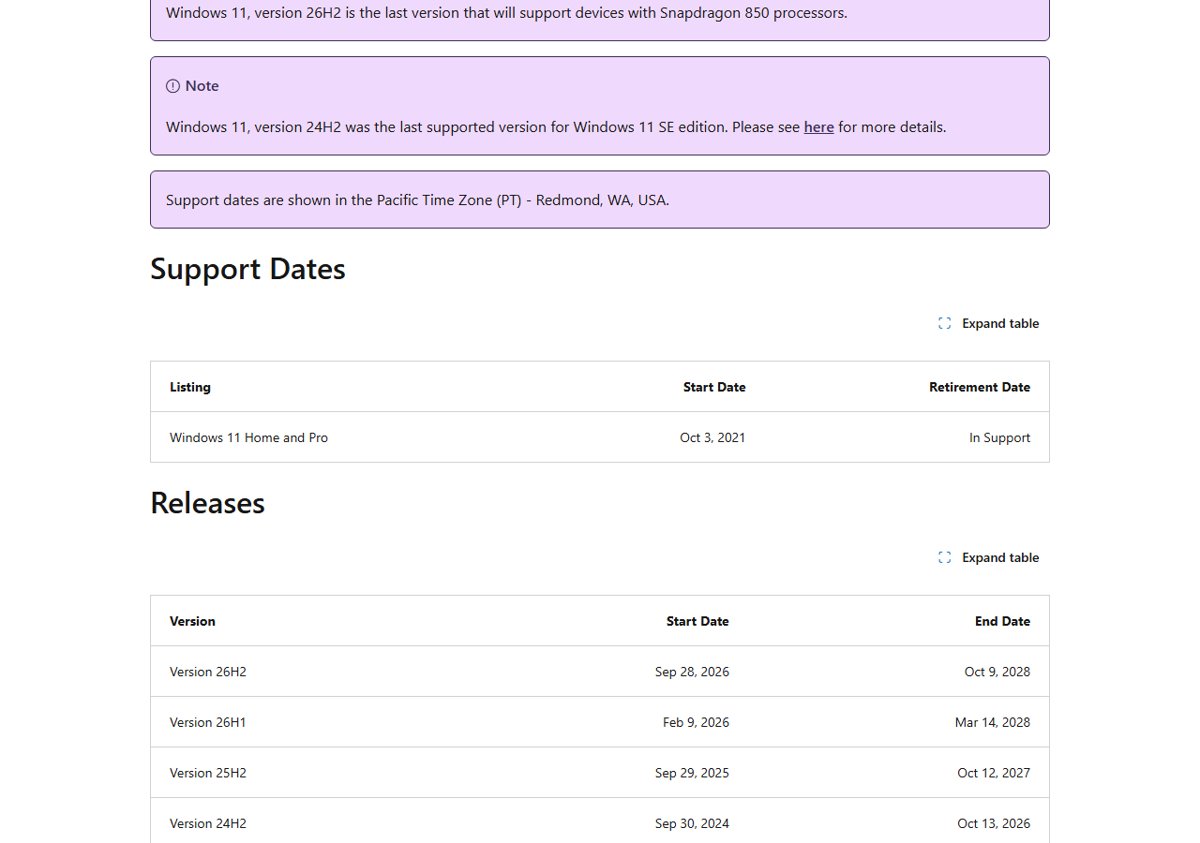
Is KB5127648 the last Windows 11 24H2 Home and Pro update?
Yes. Microsoft's KB5127648 release notes state that the October 2026 monthly security update is the last update available for 24H2 Home and Pro.
| Detail | KB5127648 on 24H2 |
|---|---|
| Release date | Tuesday, October 13, 2026 |
| 24H2 OS build after install | 26100.9711 |
| Update type | Monthly security update (2026-10 B), cumulative |
| Also includes | Fixes from KB5124008, out-of-band KB5129195 and the September 22 preview KB5124010 |
| Open known issue | USB audio devices might fail to start or produce no sound |
| What comes next for 24H2 Home and Pro | No further monthly security or non-security preview updates |
Install it even if you plan to upgrade soon, because it carries the final security fixes for 24H2. The KB5127648 download and change list has the offline installers, and the KB5127648 known issues explain who should hold off.
How to check if your PC runs Windows 11 24H2 Home or Pro
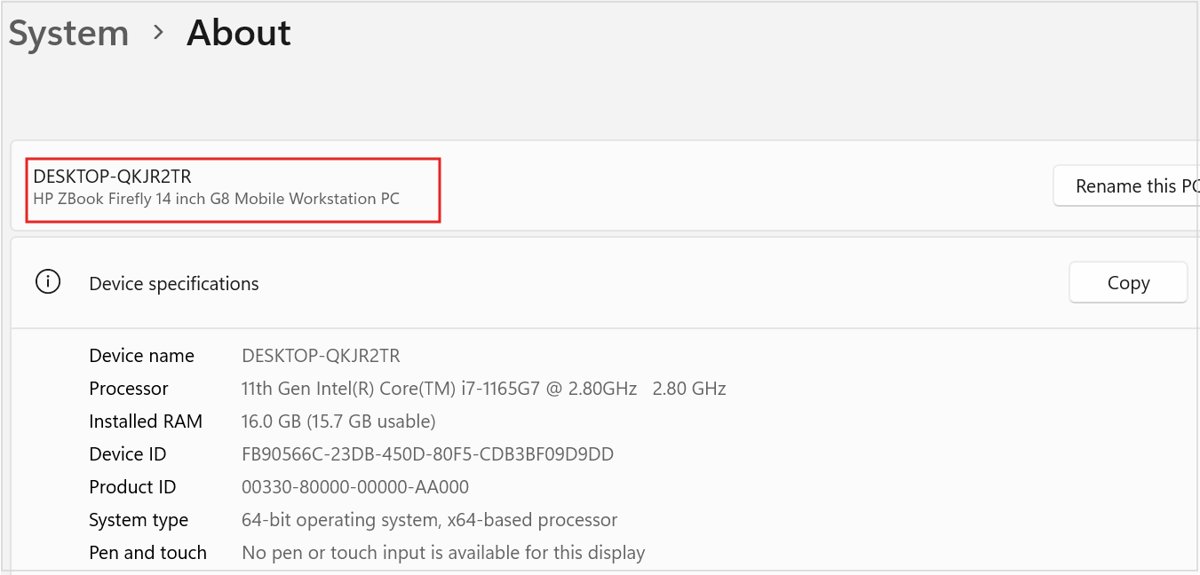
The edition and the version both matter, and Settings shows them on one page.
- Right-click Start and select Settings.
- Select System, then About.
- Under Windows specifications, read Edition and Version.
- Check OS build: 24H2 starts with 26100, 25H2 with 26200, and 26H2 with 26300.
- If Edition shows Home or Pro and Version shows 24H2, upgrade with one of the methods below.
The same page also shows whether you run 64-bit Windows on an x64 or Arm-based processor, which decides the upgrade tool you can use.
Windows 11 24H2 upgrade options: 26H2 or 25H2?
Both are supported targets. 26H2 gives the longer runway and installs the same way from 24H2.
| Target version | Home and Pro support ends | How it arrives from 24H2 | Best for |
|---|---|---|---|
| 26H2 (build 26300) | October 10, 2028 | Enablement package through Windows Update, or Installation Assistant and ISO | Most PCs; one move covers two years |
| 25H2 (build 26200) | October 12, 2027 | Recommended by Microsoft as an alternative target | PCs where you want the smaller change and plan another upgrade within a year |
| 26H1 (build 28000) | Not available | Not offered as an in-place update from 24H2 | Only new devices that shipped with it |
If you lean toward the older release, the 25H2 install options after 26H2's launch are laid out separately.
Upgrade Windows 11 24H2 to 26H2 through Windows Update
Microsoft delivers 26H2 to 24H2 PCs as a small enablement package because the two versions share one servicing branch.
- Select Start > Settings > Windows Update.
- Turn on Get the latest updates as soon as they're available.
- Select Check for updates and install KB5127648 if it is still pending.
- When the offer for Windows 11, version 26H2 appears, select its download and install option.
- Restart when prompted; a single restart completes the move.
Microsoft may place a safeguard hold on a PC with a known compatibility problem, so the offer can take weeks. The 26H2 upgrade walkthrough shows every screen along the way.
Upgrade Windows 11 24H2 with the Installation Assistant or an ISO
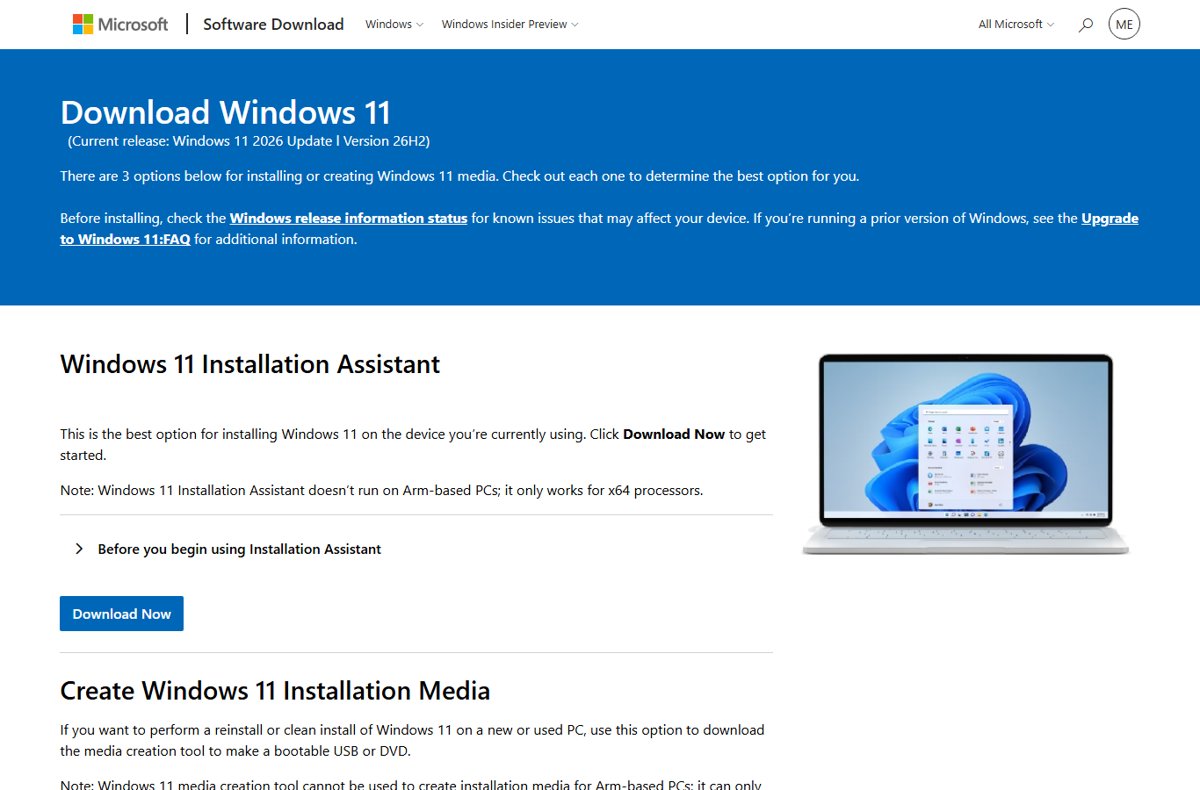
Microsoft's Download Windows 11 page currently serves the Windows 11 2026 Update, version 26H2. Use it when Windows Update has not offered the upgrade yet.
- Open Microsoft's Download Windows 11 page at microsoft.com/software-download/windows11.
- On an x64 PC, select Download Now under Windows 11 Installation Assistant and run the tool.
- For an ISO instead, choose Windows 11 (multi-edition ISO for x64 devices) under Download Windows 11 Disk Image (ISO) for x64 devices and select Confirm.
- On an Arm-based PC, use the separate Arm64 ISO link on the same page.
- Keep the PC plugged in and follow the prompts until Windows restarts on 26H2.
The multi-edition ISO uses your existing product key to unlock the correct edition. The Installation Assistant upgrade is documented screen by screen.
Check that Windows 11 24H2 moved to a supported version
- Go to Settings > System > About.
- Under Windows specifications, confirm Version reads 26H2 or 25H2.
- Confirm OS build starts with 26300 for 26H2 or 26200 for 25H2.
- Open Settings > Windows Update and select Check for updates to pull the latest monthly update for the new version.
A build of 26300.9711 or later means the PC is on 26H2 with the October 2026 security update; there are more ways to confirm 26H2 is installed.
What happens if you stay on Windows 11 24H2 Home or Pro
The PC keeps working, but it stops receiving protection against new threats.
| Area | After October 13, 2026 |
|---|---|
| Monthly security updates | No longer delivered to 24H2 Home and Pro |
| Non-security preview updates | No longer delivered |
| Technical assistance | Microsoft no longer provides it for an out-of-support version |
| Apps and new hardware | Still run for now, but vendors may drop support for older versions over time |
| Automatic feature update | Windows Update initiates a feature update on consumer and non-managed business devices approaching or past end of servicing |
| Home edition | Cannot defer feature updates, so it typically receives a newer version before the end date |
Blocking the upgrade now leaves the PC unpatched; the trade-offs are spelled out in what skipping 26H2 means.
Windows 11 24H2 upgrade not offered or failing: fixes
Windows 11 26H2 does not appear in Windows Update
26H2 rolls out in phases, and safeguard holds block PCs with a known compatibility issue.
- Turn on Get the latest updates as soon as they're available in Settings > Windows Update.
- Select Check for updates and install every pending update, including KB5127648.
- Check Microsoft's Windows release health page for a safeguard hold on your hardware.
- If no hold applies, use the Installation Assistant or ISO method above, or work through the missing 26H2 offer fixes.
The upgrade from 24H2 fails or rolls back
Low disk space, a pending update or a driver problem stops setup.
- Free drive space by deleting files you do not need, removing unused apps, or moving files to OneDrive or an external drive.
- Restart the PC, then select Check for updates again.
- Keep the PC plugged in and connected to the internet while the upgrade downloads.
- Retry with the Installation Assistant; if it still fails, go through the 26H2 install failure causes.
No sound from a USB audio device after the final 24H2 update
Microsoft lists USB audio devices failing to start or produce sound as a known issue in KB5127648.
- Confirm the symptom matches the known issue in Microsoft's KB5127648 release notes.
- Apply the steps in the USB audio Code 10 fix.
- Track status changes in the October 2026 Update issues roundup before you upgrade further.
Windows 11 24H2 end of support FAQ
When is Windows 11 24H2 end of support?
Windows 11 24H2 Home, Pro, Pro Education and Pro for Workstations reached end of updates on October 13, 2026. Enterprise, Education, Enterprise multi-session and IoT Enterprise keep receiving updates until October 12, 2027.
Is Windows 11 24H2 end of life?
For Home and Pro editions, yes. October 13, 2026 brought the last monthly security update, KB5127648. Windows 11 itself remains in support, so upgrading to 26H2 or 25H2 restores monthly updates.
When does Windows 11 Pro 24H2 support end?
Windows 11 Pro 24H2 support ended on October 13, 2026, the same day as Home. Pro Education and Pro for Workstations share that date because they follow the 24-month Home and Pro servicing timeline.
What does Windows 11 24H2 end of service mean?
End of service, or end of updates, means Microsoft stops releasing monthly security and non-security preview updates for that version. The PC keeps running, but new vulnerabilities stay unpatched until you upgrade.
When does Windows 11 24H2 Enterprise support end?
Windows 11 24H2 Enterprise and Education reach end of updates on October 12, 2027. Enterprise LTSC 2024, which is based on 24H2, is supported until October 9, 2029.
Can I upgrade from Windows 11 24H2 to 26H1?
No. Microsoft scopes 26H1 to new devices released in early 2026 and does not offer it as an in-place update from 24H2 or 25H2. Upgrade to 26H2 or 25H2 instead.
Does upgrading from 24H2 to 26H2 reset the support clock?
Yes. Installing 26H2 starts a new 24-month lifecycle for Home and Pro editions, ending October 10, 2028, and 36 months for Enterprise and Education, ending October 9, 2029. The full 26H2 servicing timeline lists each milestone.
What happens to Windows 11 SE on 24H2?
Microsoft's lifecycle page states that version 24H2 was the last supported version for Windows 11 SE. SE follows the Home and Pro timeline, so 24H2 SE devices stopped receiving updates on October 13, 2026.
Bottom line: should you leave Windows 11 24H2 now?
Yes. Install KB5127648, then move every 24H2 Home and Pro PC to Windows 11 26H2 as soon as Windows Update or the Installation Assistant allows. 24H2 Home and Pro will receive no further security fixes, while 26H2 installs from 24H2 as a small enablement package and keeps the PC supported until October 10, 2028.







Windows 11 KB5127646 issues: Should you install the update? - Techdows
[…] of affected PCs should upgrade from 24H2 Home or Pro to a supported version before the next Patch […]
Windows 11 26H2 end of support date and servicing timeline - Techdows
[…] is not the only date that matters this autumn. Windows 11 24H2 Home and Pro stop getting updates on October 13, 2026, two weeks after 26H2 […]