To compare two files in Notepad++, install the ComparePlus or Compare plugin from Plugins > Plugins Admin, open both files, and run the plugin from the Plugins menu to see the differences side by side.
This guide covers installing the plugin through Plugins Admin or by hand, comparing files with and without it, adjusting the comparison layout, removing the plugin, and fixing the problems that stop it from appearing.
How to compare two files in Notepad++
Notepad++ does not highlight differences between files on its own. A plugin does that job, and the official Plugin List offers two: Compare and ComparePlus.
- Open Notepad++ and select Plugins > Plugins Admin.
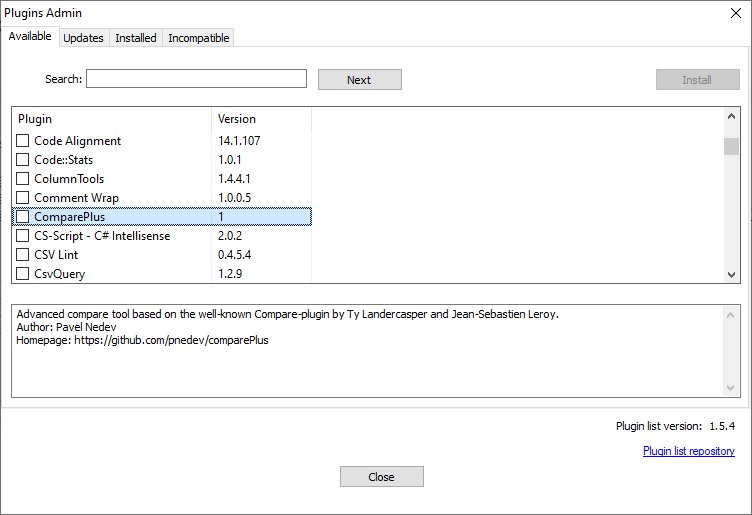
- On the Available tab, tick the box next to ComparePlus (or Compare).
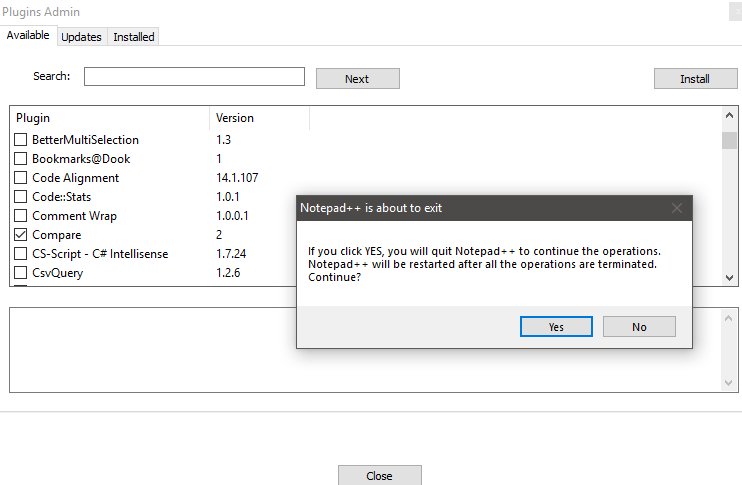
- Select Install and let Notepad++ restart.
- Open the two files you want to compare with File > Open, so each one has its own tab.
- Select the tab of the file you want to check against the other one.
- Open the Plugins menu, point to the plugin you installed, and run its compare command.
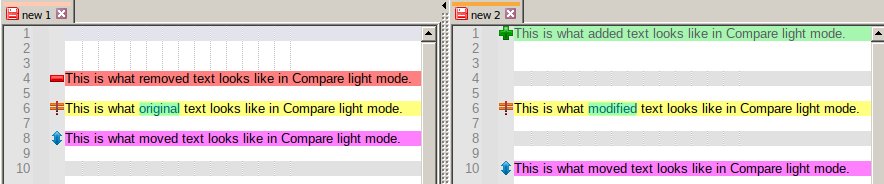
- Read the result: the two files appear in side-by-side views with the changed lines marked.
Ticking the box matters. Clicking a plugin's name in Plugins Admin only shows its description and does not enable the Install button.
Notepad++ Compare plugin vs ComparePlus
Both plugins are in the official Notepad++ Plugin List and both are maintained by Pavel Nedev. ComparePlus is the advanced fork, built on the original Compare plugin by Ty Landercasper and Jean-Sebastien Leroy.
| Your situation | Use this | Why |
|---|---|---|
| You want the most capable diff inside Notepad++ | ComparePlus (version 3.0.0 in the 64-bit Plugin List) | The Plugin List describes it as an advanced compare tool based on the original Compare plugin |
| You want the classic plugin that older tutorials show | Compare (version 2.0.2 in the 64-bit Plugin List) | It shows the differences between two files side by side |
| You cannot install plugins on this PC | Notepad++ dual view with Synchronize Vertical Scrolling | Built in, but you spot the differences by eye |
| You only need to know whether two text files differ | fc in Command Prompt |
Built into Windows and lists the differing lines |
| You want a list of lines that exist in only one file | Compare-Object in PowerShell |
Marks each line with <= or => to show which file it came from |
| You have Visual Studio Code installed | code --diff file1 file2 |
Opens VS Code's file difference editor |
Install only one of the two plugins at a time, so you always know which plugin's commands you are using in the Plugins menu.
Word files are not plain text, so compare two Word documents with Word's own Compare tool instead of a text editor.
Installing the Compare plugin in Notepad++
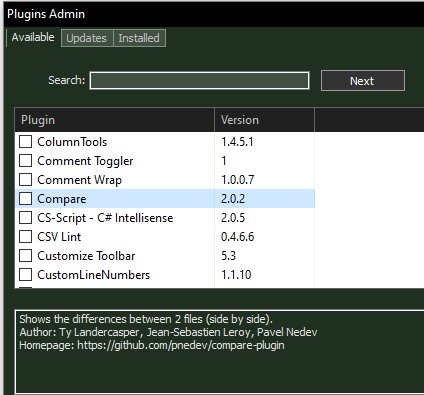
Plugins Admin is the built-in installer for plugins in the official Plugin List. It has five tabs: Available, Updates, Installed, Incompatible and Deactivated.
- Save any open work, because Notepad++ restarts during the install.
- Select Plugins > Plugins Admin.
- Stay on the Available tab and scroll to Compare or ComparePlus.
- Tick the checkbox beside the plugin name.
- Select Install, then confirm if Notepad++ asks to restart.
- After the restart, open the Plugins menu and check that the plugin now has its own entry.
If Notepad++ sits in a protected location such as the Program Files folder and the install fails, close it, right-click its shortcut, select Run as administrator, and repeat the steps. The Notepad++ manual says Plugins Admin can need elevated permission when you cannot write to the plugins folder.
How to install the Compare plugin in Notepad++ manually
Use a manual install when Plugins Admin cannot reach the Plugin List. Get the plugin release from the homepage listed for it in the Plugin List, and pick the build that matches your Notepad++ (32-bit, 64-bit or ARM64).
- Close Notepad++ completely.
- Right-click the plugin's DLL, select Properties, tick Unblock if it appears, then select Apply and OK.
- Open the Notepad++ install folder:
%PROGRAMFILES%\Notepad++for 64-bit,%PROGRAMFILES(x86)%\Notepad++for 32-bit, or your portable folder. - Open the
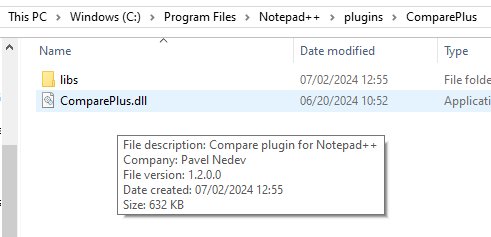
pluginsfolder and create a subfolder with exactly the DLL's name minus.dll, for exampleComparePlus. - Copy the DLL and any other files that came with it into that subfolder, approving the User Account Control prompt if Windows shows one.
- Start Notepad++ and open the Plugins menu to find the plugin.
The folder name must match the DLL name, so ComparePlus.dll belongs in plugins\ComparePlus\ComparePlus.dll. Settings > Import > Import plugin(s) only copies a single DLL, so it misses any extra files a plugin needs, and you must restart Notepad++ before the plugin shows.
Using Notepad++ to compare two files side by side without a plugin
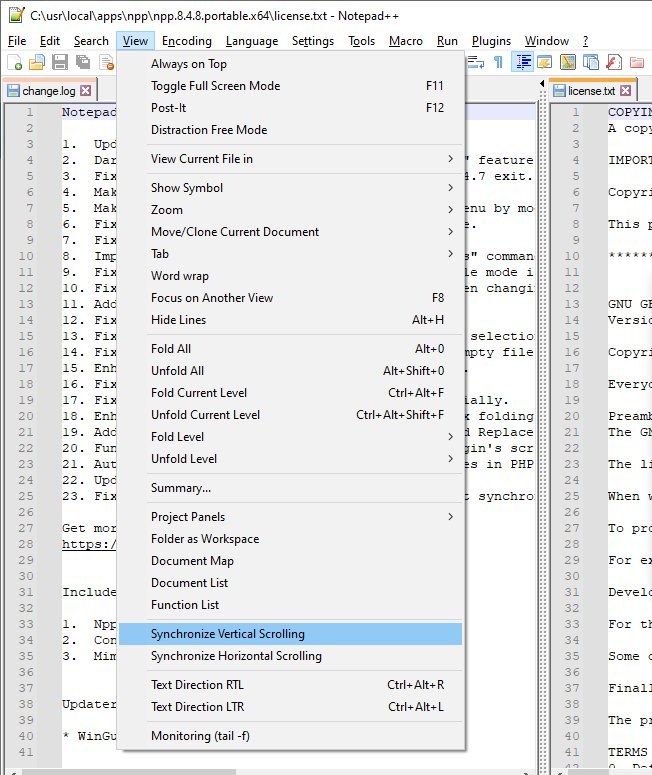
Notepad++ can show two files next to each other and scroll them together. It does not mark the differences, but it helps with short files or when plugins are blocked. The Notepad++ manual names synchronized scrolling as useful for comparing two files.
- Open both files in Notepad++.
- Select the tab of the second file.
- Select View > Move/Clone Current Document > Move to Other View, or right-click the tab and select Move to Other View.
- Select View > Synchronize Vertical Scrolling so both views scroll together.
- Select View > Synchronize Horizontal Scrolling as well if your lines are long.
- Scroll through either file and read the two views line against line.
You can also drag a tab from one view's tab bar into the other. To look at two parts of the same file, use Clone to Other View instead of Move to Other View.
Customizing the Compare plugin in Notepad++
The plugin's own options sit in its entry under the Plugins menu, where Notepad++ says installed plugins are used and configured. The layout of the comparison comes from Notepad++ itself, so you can change it with these settings.
| What you want | Where to change it | Effect |
|---|---|---|
| Plugin options | Plugins > the plugin's submenu | The settings the plugin exposes for its comparison |
| Files above and below instead of side by side | Right-click the dotted bar between the two views and select Rotate Right or Rotate Left | Cycles the second view through right, below, left and above |
| Both files zoom together | View > Zoom > Synchronize Across Views (Notepad++ 8.9.5 and later) | Zooming one view zooms the other; select it again to unlock |
| A newer plugin version | Plugins > Plugins Admin > Updates tab, tick the plugin, select Update | Installs the more recent version and restarts Notepad++ |
| Turn the plugin off without uninstalling it | Plugins Admin > Installed tab, tick the plugin, select Deactivate | Moves its files to a disabled folder and frees memory until you reactivate it |
Compare two text files with fc in Command Prompt
If you only need to know what changed, Windows has a file comparison command. Open Command Prompt in the folder that holds both files and run it.
fc /n file1.txt file2.txtCompares the two files line by line and adds line numbers to the output. Add /c to ignore letter case, /w to compress spaces and tabs, or /u for Unicode text files.
You should see: Identical files print FC: no differences encountered. Otherwise fc prints the differing lines from the first file, then the matching lines from the second file.
In PowerShell, type fc.exe instead of fc, because fc is an alias for Format-Custom there. If more than 100 consecutive lines differ, fc stops with Resynch failed. Files are too different.; raise the buffer with /lb followed by a number of lines.
Compare two files with PowerShell Compare-Object
Compare-Object reads both files with Get-Content and returns only the lines that are not in both.
Compare-Object (Get-Content -Path .\file1.txt) (Get-Content -Path .\file2.txt)The first file is the reference and the second is the difference. Add -IncludeEqual to list matching lines too, marked ==, or -CaseSensitive to treat case changes as differences.
You should see: Each output line shows => when it appears only in the second file and <= when it appears only in the first. No output means the files hold the same lines.
Notepad++ Compare plugin not showing in Plugins menu
The Install button stays grey in Plugins Admin
You clicked the plugin's name, which only shows its description.
- Tick the checkbox to the left of Compare or ComparePlus.
- Select Install.
The plugin installed but is missing from the Plugins menu
Notepad++ has not restarted, or the plugin was imported with Import plugin(s).
- Close every Notepad++ window.
- Start Notepad++ again and open Plugins.
- If it is still missing, check the subfolder name matches the DLL name under
plugins.
Plugins Admin fails to install or Windows denies access
Your account cannot write to the Notepad++ plugins folder in Program Files.
- Close Notepad++.
- Right-click the Notepad++ shortcut and select Run as administrator.
- Open Plugins > Plugins Admin and install the plugin again.
The Compare plugin is listed on the Incompatible tab
The installed version no longer works with your Notepad++ version.
- Open Plugins > Plugins Admin > Incompatible.
- Tick the plugin and select Remove.
- Install the current version from the Available tab, or check the plugin's homepage for a compatible release.
A manually installed plugin does not load
The DLL is still blocked by Windows, or its build does not match your Notepad++ architecture.
- Close Notepad++.
- Open the DLL's Properties, tick Unblock and select OK.
- Replace a 32-bit DLL with the 64-bit build, or the other way round, to match your Notepad++.
How to remove the Compare plugin from Notepad++
- Select Plugins > Plugins Admin.
- Open the Installed tab.
- Tick Compare or ComparePlus.
- Select Remove and let Notepad++ restart.
- Check the Available tab: the plugin returns there, ready to reinstall later.
To keep the plugin but stop it loading, select Deactivate instead of Remove, then use Activate on the Deactivated tab when you need it again.
Notepad++ compare two files FAQ
Does Notepad++ have a built-in compare feature?
No. Notepad++ can show two files side by side and scroll them together, but it does not mark the differences. To highlight changed lines, install the Compare or ComparePlus plugin from Plugins > Plugins Admin, which are both in the official Notepad++ Plugin List.
How do I install the Compare plugin in Notepad++?
Select Plugins > Plugins Admin, tick the box next to Compare or ComparePlus on the Available tab, and select Install. Notepad++ restarts and the plugin appears in the Plugins menu. If the install fails, run Notepad++ as administrator and try again.
What is the difference between Compare and ComparePlus?
Compare is the original plugin that shows the differences between two files side by side. ComparePlus is an advanced compare tool built on it by the same maintainer, Pavel Nedev. Both install from Plugins Admin, and you only need one of them.
Why is there no Compare option in the Notepad++ Plugins menu?
The plugin is not installed, or Notepad++ has not restarted since you installed it. Install Compare or ComparePlus from Plugins Admin, then close and reopen Notepad++. A plugin added with Import plugin(s) only shows after a full restart.
How do I view two files side by side in Notepad++?
Open both files, select the second file's tab, and choose View > Move/Clone Current Document > Move to Other View. Then turn on View > Synchronize Vertical Scrolling so both files scroll together. Right-click the bar between the views to rotate the layout.
How do I compare two text files without Notepad++?
Run fc file1.txt file2.txt in Command Prompt, or Compare-Object with Get-Content in PowerShell. Both are built into Windows. fc prints the differing lines, and Compare-Object marks each line that exists in only one file with <= or =>.
How do I uninstall the Compare plugin in Notepad++?
Open Plugins > Plugins Admin, go to the Installed tab, tick Compare or ComparePlus and select Remove. Notepad++ deletes the plugin files from its plugins folder and restarts. The plugin then appears on the Available tab again.