To create a Google Account, go to https://accounts.google.com/signup, select Create account, enter your name, birthday and gender, pick a Gmail address or use your existing email, set a password and select Next.
This guide covers the steps on a computer, Android, iPhone and iPad, accounts for a child and for a business, the security settings to turn on afterwards, and fixes for common sign-up errors.
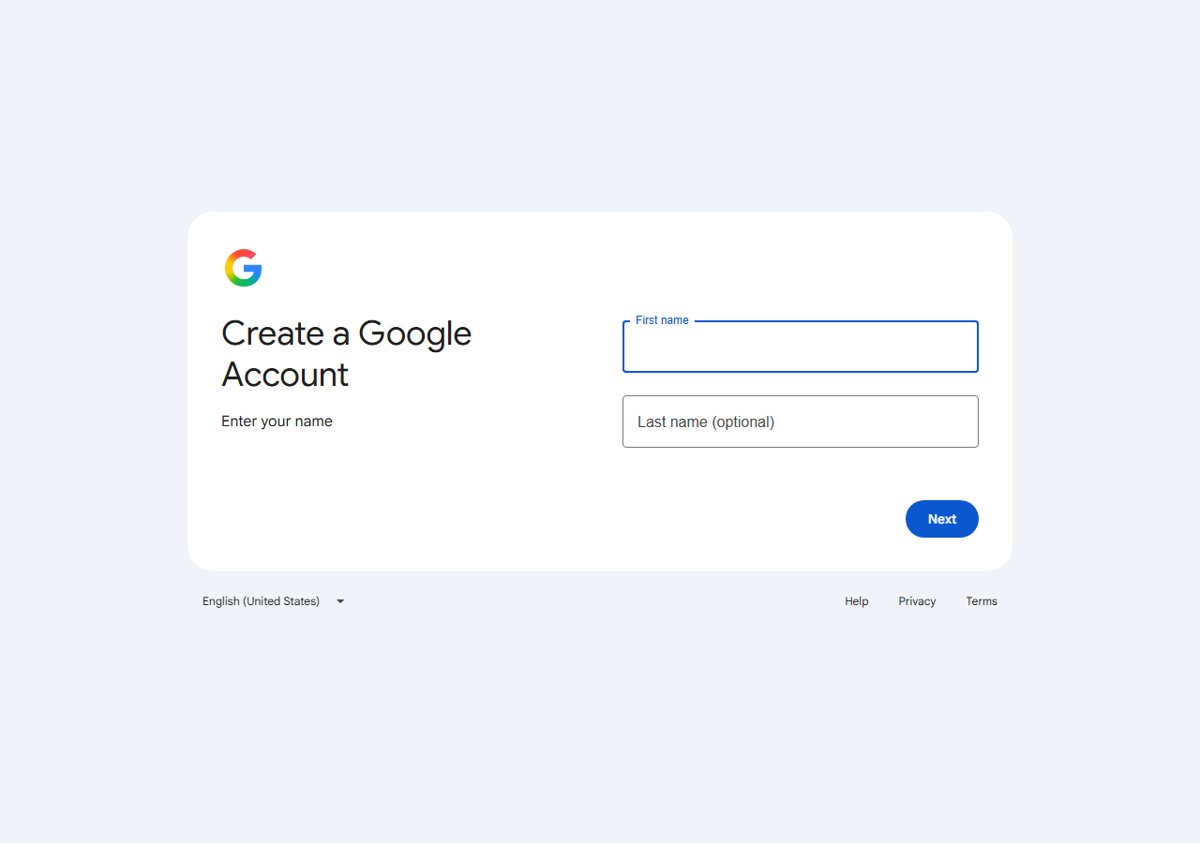
Create a Google Account on a computer, step by step
These steps work in any browser on a Windows PC, laptop, Mac or Chromebook. Google's own help page lists the same steps for Android, iPhone and iPad browsers.
- Open your browser and go to
https://accounts.google.com/signup, or select Create account on the Google sign-in page. - Choose who the account is for from the list: personal use, a child, or a business.
- Enter your first and last name, then add your birthday and gender when asked.
- Select one of the Gmail addresses Google suggests, create your own Gmail address, or choose Use your existing email to sign up with a non-Gmail address.
- In the Username field, enter the username you want if you are creating your own Gmail address.
- Enter your password, confirm it, and select Next.
- Add and verify a phone number if you want to, or if Google requires it, then select Next.
- Follow the remaining on-screen prompts until Google confirms the account is ready.
Add a recovery phone and recovery email straight after sign-up. Google says up-to-date recovery info makes it much more likely you get your account back if you forget your password.
What you need before creating a Google Account
Sign-up takes a few minutes if you have these ready. The age rule is the one that can close an account later, so check it first.
| Requirement | What Google asks for | Notes |
|---|---|---|
| Minimum age | 13 in the United States and most countries | Higher in some countries: 14 in Spain, Italy and Chile; 15 in France; 16 in Germany, Ireland and the Netherlands |
| Name, birthday and gender | Entered during sign-up | Your birthday decides whether the age rule applies to you |
| An email address | A new Gmail address, or an existing address from another provider | An existing address needs a verification code sent to that inbox |
| A password | Any mix of letters, numbers and symbols (ASCII characters only) | It cannot be a weak password such as password123, or start or end with a blank space |
| A phone number | Optional in the form, but sometimes required | Google uses phone verification to confirm you are a real person and to stop spammers |
| A second email address | Not required to sign up | Keep one ready to add as a recovery email once the account exists |
If Google learns an account holder may be under the minimum age, the owner has 14 days to update the account to meet the requirement, or Google disables it.
Which kind of Google Account should you create?
Google offers two account types at the start of sign-up, for yourself or to manage a business. A child's account is a third route that needs a parent's consent.
| Your situation | Create this | Why |
|---|---|---|
| You want Gmail and access to YouTube, Drive and the Play Store | A personal account with a new Gmail address | One sign-in covers Google's products, and your email ends in @gmail.com |
| You want to keep using Outlook, Yahoo or another email address | A personal account with Use your existing email | You get a Google Account without a Gmail inbox; you can add Gmail to it later |
| Your child is under 13 (or the age in your country) | A child's account supervised with Family Link | Google requires parental consent for this account |
| You run a business and want Google Business Profile | A Google Account created to manage a business | Google says a business account makes Business Profile easier to set up and can turn on business personalization |
| You need email at your own domain and admin controls for staff | Google Workspace | Every Workspace plan includes custom business email such as [email protected], with a 14-day trial |
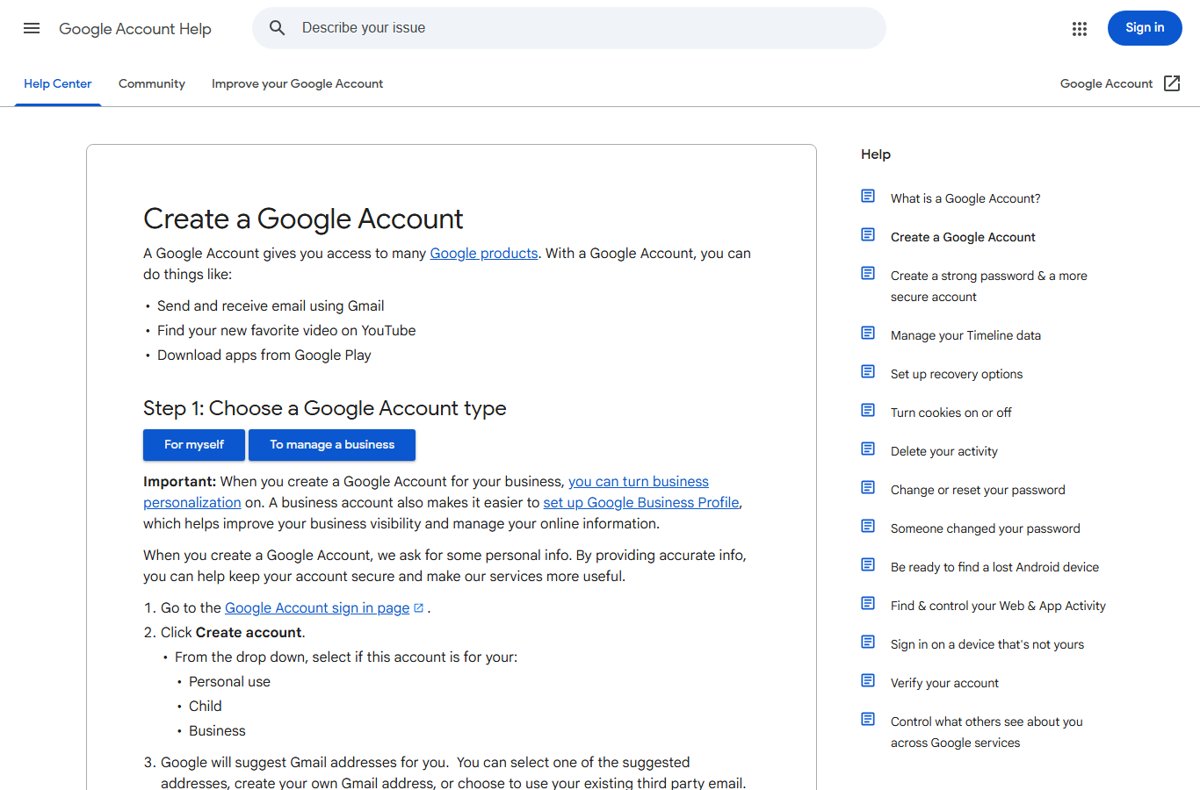
Google Account vs Gmail address, and tips for choosing a good Gmail username
A Gmail address is not the same thing as a Google Account. Gmail is one service inside the account, which is why you can create an account without a Gmail address at all.
Pick the Gmail username carefully. Google lets you add a new @gmail.com address only once every 12 months, up to three extra addresses.
| Question | What Google says |
|---|---|
| What is a Google Account? | The sign-in that gives you access to many Google products; Gmail is one of them |
| Do I need Gmail to have a Google Account? | No. You can use a non-Gmail email address to create one instead |
| How long can a Gmail username be? | 6 to 30 characters |
| Which characters are allowed? | Letters (a-z), numbers (0-9) and periods (.) |
| Which characters are blocked? | Ampersand (&), equals sign (=), underscore (_), apostrophe ('), dash (-), plus sign (+), comma (,), brackets (<, >), and two or more periods in a row |
| Do periods make a name different? | No. Gmail ignores dots, so mail sent to your address with extra dots still reaches you |
| Why is a username refused? | It is already in use, very close in structure to an existing username, used before and deleted, or reserved by Google to prevent spam or abuse |
| Can I change the address later? | You may be able to switch to another @gmail.com address, once every 12 months, up to four addresses in total |
Choose a name you would be happy to give an employer or a bank. Adding periods to a taken name does not help, because Gmail treats the dotted and undotted versions as one address.
Create a Google Account with your existing email (Outlook, Yahoo or work address)
This route gives you a Google Account that signs in with the email address you already use. Google sends a code to that inbox, so you must be able to open it.
- Go to the Google Account sign-in page and select Create account.
- From the list, select For my personal use.
- Enter your basic info.
- Select Use your existing email.
- Enter your current email address, for example your Outlook.com address, and select Next.
- Open that inbox, copy the verification code Google sent, and enter it.
- Select Next, then follow the on-screen instructions to create a password and finish.
To add a Gmail inbox later, add Gmail to the Google Account instead of creating a second account.
Create a Google Account on Android
On a new Android phone, the setup wizard asks you to sign in and offers Create account there. On a phone that is already set up, start from Settings.
Settings labels differ by phone maker and Android version; Google lists Users & accounts, Passwords, passkeys & autofill and Manage accounts as alternatives.
- Open the Settings app.
- Tap Passwords & accounts, or the accounts entry your phone shows instead.
- Under Accounts, tap Add account.
- Tap Google, and enter your phone's pattern, PIN or password if asked.
- On the sign-in screen, tap Create account and choose who the account is for.
- Enter your name, birthday and gender, choose a Gmail address or Use your existing email, then set a password.
- Tap Next, verify a phone number if asked, and follow the prompts to finish.
Once added, the account's email, contacts and calendar sync to the phone, and you can get apps from Google Play. When you type your password on mobile, the first letter is not case sensitive.
Create a Google Account on iPhone or iPad
An iPhone or iPad uses the same web sign-up as a computer. Open it in Safari, Chrome or any other browser on the device.
- Open Safari or Chrome and go to
https://accounts.google.com/signup. - Tap Create account if the sign-in page appears, and choose who the account is for.
- Enter your name, then add your birthday and gender.
- Tap a suggested Gmail address, create your own, or tap Use your existing email.
- Enter a username in the Username field if you are creating your own address.
- Enter and confirm your password, then tap Next.
- Add and verify a phone number if asked, then tap Next and finish the prompts.
Create a Google Account for a child with Family Link
Parents can create a Google Account for a child under 13, or the applicable age in their country. The parent must be 18 or older (or the appropriate age locally), have a Google Account and live in the same country as the child.
Google requires parental consent. One consent option is a credit card, which gets a temporary authorization that Google says is removed within 48 hours.
| Where you start | Steps | Notes |
|---|---|---|
| Family Link app on the parent's phone | Open Family Link, select your child's profile at the top left, tap Add child, and follow the on-screen instructions | No app yet? Start at https://families.google.com/familylink/setup/ |
| The child's Android device during setup | When asked to sign in, tap Create account (or More options > For my child), enter the child's name, birthday, gender, email and password, then sign in with your own account to consent and choose settings | Needs Android 5.0 or later |
| A web browser | Go to https://accounts.google.com/signup, enter the child's name, desired email and birthday, sign in with your own account, and pick a consent method |
Google says this takes about 15 minutes |
Supervision does not end automatically at 13. Google emails the parent and child, and children under 18 need parent approval to stop supervision.
Create a Google Account for work or a business
A business Google Account is still a normal Google Account, created with the business option at sign-up. Choose Google Workspace instead when you need staff email on your own domain.
- Go to
https://accounts.google.com/signupand select Create account. - Choose the option to manage a business rather than the personal option.
- Enter your details, choose a Gmail address or your existing business email, and set a password.
- Select Next and complete phone verification if asked.
- To change business recommendations later on Android, open Settings > Google > Manage your Google Account > People & sharing > Business personalization.
- For custom email and admin controls, start a Google Workspace trial at
https://workspace.google.com; Google says you can sign up with a personal Gmail or business email, or verify your domain for more features.
Business personalization lets Google recommend products such as Google Business Profile, Google Workspace, Merchant Center and Analytics. You can turn it off at any time.
Sign in to your new account and add a second one
Signing in on a fresh browser tab proves the username and password work. You can keep more than one Google Account signed in and switch between them.
- Go to
https://accounts.google.com/signin, enter your new email address and select Next. - Enter your password and select Next.
- Open
https://myaccount.google.comand confirm your name and email appear at the top. - To add another account, select your profile image or initial at the top right and choose Add account.
- Follow the instructions to sign in to the second account.
- To switch, select your profile image again and pick the account you want.
Each account keeps its own settings. In many cases, your default account is the one you signed in with first.
Secure your new Google Account: settings to turn on first
Do these while the account is new and you still remember every detail. Recovery info is what gets you back in when a password is forgotten or stolen.
| Setting | Where to find it | What it does |
|---|---|---|
| Recovery phone | https://myaccount.google.com > Security & sign-in > under How you sign in to Google, Recovery phone |
Sends codes, blocks someone else from using your account, and alerts you to suspicious activity |
| Recovery email | Security & sign-in > Recovery email | Helps you get back in if locked out; use an address you check regularly, not the one you sign in with |
| 2-Step Verification | Security & sign-in > Turn on 2-Step Verification, then follow the on-screen steps | Asks for a second step after your password; Google recommends prompts over typed codes |
| Passkey | https://myaccount.google.com/signinoptions/passkeys > Create a passkey > Create a passkey, then unlock your device |
Signs you in by unlocking your device instead of typing a password; needs Windows 10, macOS Ventura, Android 9, iOS 16 or later |
| Security Checkup | https://myaccount.google.com/security-checkup |
Gives personalized security recommendations for the account |
| Privacy Checkup | https://myaccount.google.com/privacycheckup |
Reviews most privacy and data settings in one place |
A new recovery phone or 2-Step Verification number can take up to 7 days for Google to trust. Use a unique password of at least 12 characters, as Google recommends, and keep your browser and apps updated.
Fix it when Google won't let you create an account
Match the message or behaviour you see to a heading below. None of these limits can be skipped; each fix works within Google's verification.
The username is already taken or not allowed
The name is in use, too close to an existing one, used before and deleted, reserved by Google, or breaks the character rules.
- Select one of the Gmail addresses Google suggests.
- Or add letters or numbers to your name, keeping it 6 to 30 characters long.
- Remove any underscore, dash, plus sign or other blocked character.
- Do not rely on adding periods, because Gmail ignores dots in an address.
- If you already use another email address, select Use your existing email instead.
Google asks for a phone number and you want to create the account without a phone
The phone field is optional, but Google sometimes requires phone verification to confirm you are a real person.
- Enter a mobile number you can receive a text or call on.
- If you have no mobile, choose the phone call option; Google says a home phone works for calls.
- Enter the code Google sends and select Next.
- There is no supported way to skip the check when Google requires it.
You did not receive the verification code
Messages can be delayed in densely populated places or when a carrier has issues.
- Wait a few minutes before requesting another code.
- Check the number you typed, including the country code.
- Choose the phone call option instead of a text message.
- For an existing-email sign-up, check that inbox's spam or junk folder for the code.
"This phone number has been used too many times" or "cannot be used for verification"
To protect against abuse, Google limits how often one number can be used for verification.
- Use a different phone number that you can receive the code on.
- Enter the new code and continue sign-up.
The page keeps returning to sign-in, or says cookies are turned off
Google needs cookies turned on to use your account.
- In Chrome, select More (three dots, top right) > Settings.
- Select Privacy and security > Third-party cookies.
- Choose Allow third-party cookies.
- Reload
https://accounts.google.com/signupand start again.
The new account was disabled for age
Google learned the account holder may be under the minimum age for their country.
- Act within 14 days of Google's notice, or the account is disabled.
- If the birthday was entered wrongly, follow Google's on-screen steps to update the account.
- If the user really is under age, have a parent create a supervised account with Family Link.
Frequently asked questions
Where do I create a Google Account?
Go to accounts.google.com/signup in any browser, or select Create account on the Google sign-in page. On Android, you can also start from Settings > Passwords & accounts > Add account > Google, then tap Create account.
How do I create a Google Account on a PC or laptop?
Open any browser on the PC and go to accounts.google.com/signup. Enter your name, birthday and gender, choose a Gmail address or your existing email, set a password and select Next. Verify a phone number if Google asks.
Can I create a Google Account without a phone?
The phone number field is optional, so many sign-ups finish without one. Google sometimes requires phone verification to confirm you are a real person, and there is no supported way to skip it then. A home phone can receive the call option.
Can I create a Google Account without Gmail?
Yes. Google says you do not need a Gmail address to create a Google Account. Select Use your existing email during sign-up, enter the address you already have, and confirm it with the code Google sends to that inbox.
How do I create a Google Account with my Outlook email?
Select Create account, then For my personal use, and enter your basic info. Select Use your existing email, type your Outlook address and select Next. Enter the code Google sends to your Outlook inbox, then create a password.
How do I create a Google Account for my child?
Use the Family Link app and tap Add child, set up the child's Android device and choose For my child, or sign up at accounts.google.com/signup. You sign in with your own account and give parental consent. It applies to children under 13 or the local age.
Can I create a Google Account for work or a business?
Yes. Choose the business option at sign-up to get a Google Account that makes Google Business Profile easier to set up. For email at your own domain and admin controls, sign up for Google Workspace, which has a 14-day trial.
Why can't I create a Google Account?
The usual causes are a username that is taken or reserved, a phone number already used too many times for verification, a verification code that never arrived, cookies turned off, or being under the minimum age, which is 13 in most countries.
Why should I create a Google Account?
A Google Account gives you access to many Google products with one sign-in. On Android, it syncs your email, contacts and calendar and lets you get apps from Google Play. It also works with your existing email if you do not want Gmail.
Can I have more than one Google Account?
Yes. Create each account separately, then select your profile image at the top right of a Google page and choose Add account to sign in to the next one. Each account keeps its own settings, and you switch from the same menu.



How To Create ID.me Account 2025 (Step-By-Step) - Techdows
[…] you need a fresh personal inbox for this, see how to create a Google account. Avoid a work email you could lose when you change […]
How To Use Google Messages! (Complete Beginners Guide) - Techdows
[…] Account; QR code pairing is no longer available in the US. If you do not have an account yet, create a Google Account […]
How to Create New Spotify Account if You Already Have One - Techdows
[…] to use a new Gmail address as the login? Set one up first with How to Create a Google Account: A Step-by-Step Guide, then come back to the sign-up […]
How to Set Up an Etsy Seller Account in 2025 (Create Your Etsy Seller Account) - Techdows
[…] becomes your seller account when you open a shop. If you need an email address to register with, create a Google account first and use its Gmail […]
How to Use Google Classroom: A Quick Start Guide - Techdows
[…] you do not have an account yet, follow How to Create a Google Account: A Step-by-Step Guide […]
How to Activate Twitch Account - Techdows
[…] a fresh address for the account first? How to Create a Google Account: A Step-by-Step Guide covers that […]
How to Sign into YouTube TV Without a Google Account - Techdows
[…] The address you entered is now the Google Account name, and no Gmail address is created alongside it. A longer walkthrough sits in How to Create a Google Account: A Step-by-Step Guide. […]
How to See My Google Reviews? – Simple Guide - Techdows
[…] reviews stay on this list until you delete them. If you have no Google account yet, create a Google account first; reviews always need a signed-in […]
How to create a Google account without a phone number - Techdows
[…] If the screen says phone verification is required instead of optional, see the section on what to do when Google requires a number anyway. The full sign-up walkthrough, including usernames and passwords, is in how to create a Google Account. […]
How do I use Google Input Tools on my Windows 11/10 PC? - Techdows
[…] input tools work in a browser only, not in the Gmail mobile app. You need a Google account, so create a Google account first if you do not have […]
How to make a Google account your default: step-by-step guide - Techdows
[…] you need a second account to add, create a new Google account […]