To use Google Classroom, sign in at classroom.google.com with your school or personal Google Account, then either create a class as a teacher or join one with the class code your teacher gives you.
This guide covers both roles: setting up a class, posting announcements, assignments and quizzes, turning in work, grading, the gradebook, the mobile app and the fixes for the most common sign-in and class code problems.
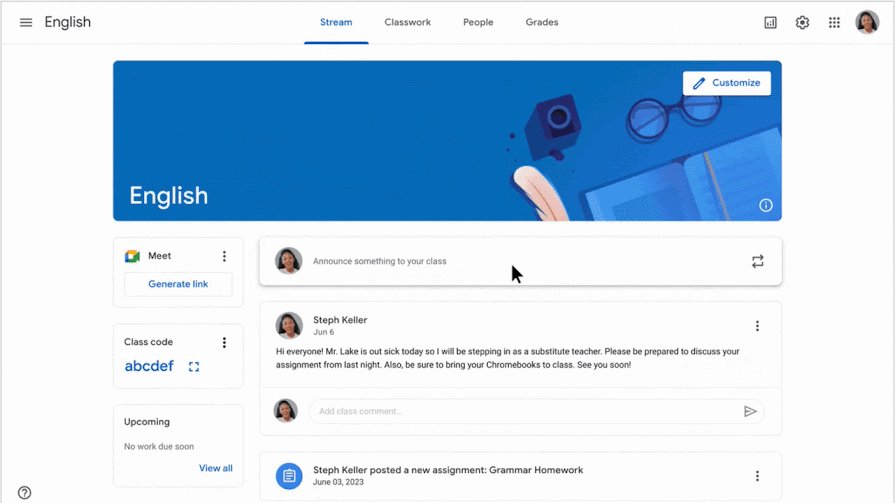
The fastest way to start using Google Classroom
Every Classroom task starts from the same sign-in. Pick the teacher or student branch in the last steps.
- Go to classroom.google.com and click Go to Classroom or Sign In.
- Enter your email address, click Next, then enter your password and click Next.
- Review the welcome message and click Accept.
- If you use a school account, select I'm A Student or I'm A Teacher, then click Get Started.
- Teachers: click Add at the top of the Classes page, select Create class, enter a class name and click Create.
- Students: click Join class at the top, enter the class code from your teacher and click Join.
The role choice appears only for Google Workspace for Education accounts. Personal Google Account users skip it.
What Google Classroom Is For
Google Classroom is a class hub where teachers hand out and grade work and students turn it in online. Each class is organised into a few pages, and each page does one job.
| Page | What it holds | Who uses it |
|---|---|---|
| Stream | Announcements, the class code at the top, and the Meet link when the teacher shows it | Teachers and students |
| Classwork | Assignments, quiz assignments, questions and materials, grouped by topic | Teachers create; students open and turn in |
| People | The teacher and student lists, plus Invite students and Invite teachers | Teachers manage; students see classmates |
| Grades | The gradebook: every student against every graded item | Teachers only |
| Calendar | Due dates for assignments and questions across classes | Teachers and students |
| Settings | Class code, invite codes, Meet link, overall grade calculation | Teachers only |
What You Need Before You Start
You need a Google Account and a web browser or the Classroom app. The type of account decides what you can do, so sign in with the right one before you create or join anything.
If you do not have an account yet, create a Google account first.
| Account type | Looks like | Who uses it | What to know |
|---|---|---|---|
| Google Workspace for Education (school account) | [email protected] | Schools; created by the school's IT administrator | Up to 1,000 members and 50 teachers per class. Your admin may need to verify you as a teacher before you can create classes. |
| Personal Google Account | [email protected] | Tutoring, homeschooling and other non-school settings | Anyone over 13 can create a class. Classes hold up to 250 members, and there are limits on creating classes and inviting students. |
| Google Workspace account | [email protected] | Businesses and other organisations running Workspace | Works with Classroom; a personal account can join its classes only if the organisation allows it. |
| Account managed by a parent | A child's Google Account | Children | Can't create or teach classes. Google says children 13 and under should use Classroom with a Workspace for Education or Workspace for Nonprofits account. |
Accounts do not mix freely. A personal account can't join a class created by a school (Education) domain, and school classes can't accept personal accounts.
How Teachers Create a Class
- Go to classroom.google.com, click Sign In and sign in with your school or personal Google Account.
- At the top of the Classes page, click Add > Create class.
- Enter the class name. It can't contain a URL.
- Optionally fill in Section (a short description or class time), Subject, Room and Level(s).
- Click Create. Classroom generates a class code automatically and shows it at the top of the class stream.
- To change the banner, open the class, click Customize, pick a gallery image with Select photo or use Upload photo, choose a colour under Select theme color, and click Save.
If Create class is missing, your account can only join classes. Switch accounts or ask your Workspace administrator to verify you as a teacher.
How Students Join a Class
Teachers can send a class link, an email invite or a class code. A link or invite needs only a click; the code works like this. After you join on one device, you are enrolled on all your devices.
- On your computer, go to classroom.google.com.
- Check the account: click your Profile picture at the top right and select or add the account your teacher expects.
- At the top, click Join class.
- Enter the class code from your teacher. Codes are 6 to 8 letters and numbers with no spaces or symbols.
- Click Join. The class card now appears on your Classes page.
You enter the code only once. After you join, the class stays on your list and you never need the code again.
How Teachers Add Students and Co-Teachers
Pick the invite method that suits the class. All three end with the student enrolled.
- Invite link: on the class card, click More > Copy invite link, then paste the link into an email to students.
- Email invite: open the class, click People > Invite students, enter a student's or group's email address and click Invite.
- Class code: open the class and click Settings. Under General, copy the code next to Class code, or click Display class code and Full screen to project it.
- Co-teacher: open the class, click People > Invite teachers, enter the teacher's email address, select the match and click Invite.
- The co-teacher accepts from the invitation email or in Classroom before they appear on the People page.
Co-teachers can do everything the primary teacher can, except delete the class, remove the primary teacher or mute another teacher. A class holds at most 50 teachers.
Posting Announcements and Materials
Announcements are posts with no work attached and appear on the Stream. Materials are reference items such as a syllabus or slides and live on Classwork.
- Open the class. On the Stream page, click Announce something to your class and type the message.
- To reach more classes, click the down arrow next to For and select them. To target certain students, click All students to deselect and pick names.
- Click Add to attach a File, Google Drive item, YouTube video, Link or recording, then click Post.
- For a material, click Classwork > Create > Material, enter a title and description, and click Add for attachments.
- Click Post, or click the arrow next to Post and choose Schedule or Save draft.
Students who turn on notifications get an email for each new announcement.
Creating Assignments
- Open the class and click Classwork > Create > Assignment.
- Enter a title and instructions.
- Choose the classes or students (up to 100 at once), the points (100 by default, or Ungraded), a due date and time, and a topic.
- Click Add or a create button to attach a Drive file, YouTube video, link, uploaded file, or a new Docs, Slides, Sheets, Drawings or Forms file.
- For each attachment, choose Students can view file, Students can edit file or Make a copy for each student.
- Optionally add a rubric, a grade category, or originality reports.
- Click Assign to post now, or click the arrow next to Assign and choose Schedule or Save draft.
Make a copy for each student works only with Docs, Sheets and Slides files and only before you post. It gives every student a personal copy with their name in the title.
Creating Quizzes and Questions
A quiz assignment attaches a blank Google Forms quiz to the post. A question collects a short answer or a multiple-choice pick directly in Classroom.
- Quiz: click Classwork > Create > Quiz assignment and enter the title and instructions.
- Optionally turn on Locked mode on Chromebooks and Grade importing, then open the attached Blank Quiz form to write the questions.
- Click Assign to post the quiz.
- Question: click Classwork > Create > Question and type the question.
- Keep Short answer, or open that menu and pick Multiple choice and add options with Add option.
- Set the toggles such as students can reply to each other or see the class summary, then click Ask, or use the arrow for Schedule or Save draft.
Grade importing needs the quiz to be the only attachment, one response per student, students in your domain, and the form collecting email addresses. A form added as a plain link can't import grades.
How Students Complete and Submit Work
You submit with Turn in or Mark as done, depending on the assignment. Work turned in after the due date is recorded as late.
- Sign in at classroom.google.com, open the class and click Classwork.
- Click the assignment, then View instructions.
- If your teacher attached a document with your name in the title, click it and do the work in that copy.
- To add your own work, under Your work click Add or create and pick Google Drive, Link, File, or a new Docs, Slides, Sheets or Drawings file.
- Optionally type a note to your teacher under Private comments and click Post.
- Click Turn In (or Mark as done) and confirm. For a quiz, answer the form and click Submit.
- To fix something before the due date, click Unsubmit, make the change and turn it in again.
Grading and Giving Feedback
- Open the class, click Classwork, choose the assignment and click the number above Turned in or Assigned.
- Open the Student Work tab.
- Next to each student's name, enter the grade. It saves automatically as a draft.
- Add a private comment to a student for feedback before you return the work.
- Check the box next to each student whose work is ready, click Return and confirm.
- To grade many at once, use the arrow next to Return for Bulk grade or Mark as complete.
Students can't edit files attached to an assignment until you return it. You can return work with or without a grade.
Understanding the Gradebook
Open the gradebook with Open gradebook on a class card or the Grades tab inside a class. Only teachers see this page; students get a grade when you return their work.
| What you see or set | What it means |
|---|---|
| Red entry | Missing work |
| Green entry | Turned-in work or a draft grade that has not been returned |
| Black entry | Returned work |
| More > View submission on a cell | Opens that student's work |
| More > Return on a cell | Returns the grade to the student |
| Tab / Enter in a cell | Saves the draft and moves to the next cell / next row |
| Settings > Overall grade calculation: No overall grade | No overall grade is calculated or shown to students |
| Total points | Points earned divided by points possible; you can show it to students |
| Weighted by category | Category weights that must add up to 100%, such as Homework and Tests |
Using Google Drive, Calendar, and Meet with Classroom
Classroom builds on other Google apps automatically. You do not install or link anything.
| App | What Classroom does with it | Where to open it |
|---|---|---|
| Google Drive | Work you create in Classroom saves to the class's Drive folder. Submitted student work stays there even if a student leaves the class. | Open folder on the class card, or Classwork > Class Drive folder |
| Google Calendar | Assignments and questions with due dates appear on the class calendar. Items assigned to individual students show only in the Classroom calendar. | Calendar in Classroom's menu, or Classwork > Google Calendar |
| Google Meet | Each class can have a Meet link for video lessons. Only teachers and co-teachers can create, show, hide or reset it, and your admin must enable Meet. | Class Stream > Meet > Generate link, or Settings > General > Generate Meet link |
| Google Forms | Quiz assignments attach a Forms quiz, and grades can import back to Classroom. | Classwork > Create > Quiz assignment |
Using Google Classroom on Mobile
The Classroom app for Android and iPhone or iPad uses the same classes as the website. These steps are for Android.
- Install the Google Classroom app from your phone's app store and tap its icon.
- Tap Get Started, then Add another account.
- Enter your email address, tap Next, enter your password and tap Next.
- Tap Accept on the welcome message, then I agree for the Terms of Service.
- On a school account, choose I'm A Student or I'm A Teacher. Personal accounts skip this step.
- Open a class to see its stream and classwork, or join a new one with its class code.
Some features are web-only: the Classroom Calendar page and the overall grade settings are set up on a computer.
How to check your class is working
- Teachers: open People and confirm each invited student and co-teacher is listed, not still pending.
- Open Classwork and check that each posted item shows a count under Assigned, not a draft or scheduled label.
- Open Grades: every student should have a row, and missing work shows in red after the due date.
- Students: open the class, click Classwork > the assignment, and check the status reads Turned in.
- Once the teacher returns work, the grade appears on the assignment and the attached files are editable again.
Best Practices for Teachers
| Practice | How to do it in Classroom | Why it helps |
|---|---|---|
| Use your school account | Sign in with [email protected] rather than a personal account | Higher class limits and students on the same domain can join |
| Organise by topic | Give each assignment a topic on Classwork | Students find work by unit instead of scrolling the stream |
| Schedule ahead | Arrow next to Assign or Post > Schedule | A week of work posts on its own |
| Set grading once | Settings > Overall grade calculation and grade categories | The gradebook totals correctly from the first assignment |
| Use per-student copies | Make a copy for each student on Docs, Sheets or Slides templates | Each student edits their own file, and you can watch progress before they turn it in |
| Protect the class code | Settings > Manage invite codes > Reset invite codes if a code leaks | Stops people outside the class from joining |
| Keep guardians informed | Invite guardians to email summaries (school accounts) | Guardians get daily or weekly summaries of missing and upcoming work |
Best Practices for Students
| Practice | How | Why it matters |
|---|---|---|
| Sign in with the right account | Check the profile picture before you click Join class | Most join and code errors come from the wrong account |
| Check the Calendar | Open Calendar in Classroom | Due dates from every class appear in one place |
| Turn in before the due date | Click Turn In early | Anything turned in after the due date is recorded as late |
| Unsubmit only when needed | Unsubmit, edit, then turn in again before the deadline | Resubmitting after the due date marks the work late, even if the first submission was on time |
| Ask privately | Use Private comments on the assignment | Only you and your teacher see the conversation |
| Turn on notifications | Enable Classroom email notifications | You get an email for each new announcement |
Common Google Classroom Problems and Fixes
The class code doesn't work
The student is signed in with the wrong account, or the code was mistyped or reset.
- Click your Profile picture and switch to the account your teacher expects, usually the school account.
- Re-enter the code exactly: 6 to 8 letters and numbers, matching capital letters, with no spaces.
- Teachers: in Settings, check that invite codes are enabled, or reset the code and share the new one.
Create class is missing or you can't create a class
The account is set to student-only, or your Workspace admin has not verified you as a teacher.
- Check which account you are signed in with at the top right.
- Switch to your school teacher account, or ask your Google Workspace administrator to verify you as a teacher.
- On a personal account, check whether you have hit the limit on classes you can create.
You can't sign in to Classroom
The wrong account type is signed in, or the password is forgotten.
- Sign out, then sign back in with the correct school, personal or Workspace account.
- For a forgotten school password, ask your teacher or admin to reset it.
- For a personal account, use Google's account recovery.
The Turn in button doesn't work
A problem with the attached file, or the teacher's Drive storage is full.
- Copy your work into a new document.
- Remove the original attachment from the assignment.
- Attach the new document and click Turn In again.
- If it still fails, tell your teacher; they can check whether the class Drive storage is full.
Students can't be invited to the class
Domain restrictions, invitation limits, or no permission to view a group's members.
- Check that the students use accounts your domain accepts; school classes can't take personal accounts.
- Send the invite link or class code instead of an email invite.
- For group invites, confirm you can view the group's members, or ask your admin.
You can't create or join a Meet video meeting
Meet is not enabled for the school or there is a service problem.
- Ask your Workspace administrator whether Meet is turned on for your account.
- Check the Google Workspace Status Dashboard for an outage.
- Teachers: confirm the class Meet link has been generated and made visible to students.
Quick Start Checklist
Work down the list once and the class is ready for its first week.
| Step | Teacher | Student |
|---|---|---|
| 1. Account | Sign in with your school account (or personal, for tutoring) | Sign in with the account your teacher named |
| 2. Class | Add > Create class, then Customize the theme | Join class and enter the code, or click the invite |
| 3. People | Share the code or link; add co-teachers from People | Confirm the class card appears on Classes |
| 4. Grading | Set Overall grade calculation and categories | Open Calendar to see due dates |
| 5. First post | Post a welcome announcement and one assignment | Open the assignment with View instructions |
| 6. Submit and return | Grade on Student Work and click Return | Click Turn In before the due date |
Frequently Asked Questions
How does Google Classroom work?
Teachers create a class and post announcements, materials, assignments and quizzes on it. Students join with a code, link or email invite, turn in work online, and receive grades and feedback when the teacher returns it. Files are stored in the class's Google Drive folder.
How do I use Google Classroom step by step?
Sign in at classroom.google.com, choose student or teacher if asked, then create a class with Add > Create class or join one with Join class and the class code. After that, open Classwork to find or post assignments, and use Turn In or Return to finish them.
How do I use Google Classroom on a PC or laptop?
Open classroom.google.com in a web browser and sign in with your Google Account. There is nothing to install on a PC or laptop. Some teacher settings, such as the Classroom calendar page and overall grade calculation, are available only on the computer version.
How do I use Google Classroom for students?
Join the class with the code or link from your teacher, then open Classwork, click an assignment and select View instructions. Add your work under Your work, add a private comment if needed, and click Turn In before the due date.
Can I use Google Classroom for homeschooling?
Yes. Google lists homeschooling and tutoring as uses for a personal Google Account, and anyone over 13 can create a class with one. Personal-account classes are limited to 250 members, and personal accounts can't join school-domain classes.
How do I use Google Classroom as a parent?
Parents do not join the class itself. A teacher or school admin can invite you to guardian email summaries, which you accept from the invitation email. The summaries arrive daily or weekly and list missing work, upcoming work and class announcements, but not grades.
Can I use Google Classroom for my business?
Yes. Classroom accepts Google Workspace accounts from businesses and other organisations, such as [email protected], as well as personal Google Accounts. Personal accounts can join classes from a business Workspace domain only if that organisation allows it.
Can I use Google Classroom without a Gmail account?
Yes. Classroom accepts school accounts such as [email protected] and Workspace accounts such as [email protected], not only Gmail addresses. What you need is a Google Account of some kind, and the class must accept that account type.
How do I use Google Classroom to teach online?
Post lessons as materials and assignments on Classwork, and add a Google Meet link for live lessons from the class Stream with Generate link. Your school admin must have Meet enabled, and only teachers and co-teachers can create or reset the class meeting link.
How do I use a PowerPoint in Google Classroom?
Attach it to an assignment, announcement or material with Add > File to upload it, or with Google Drive if it is already there. You can also create a new Google Slides file from the assignment and let each student get their own copy.
Why can't I use my camera in Google Classroom?
Recording video inside an assignment is available only with Google Workspace for Education Plus or the Teaching and Learning Add-on. For live video, Meet must be enabled by your school admin, and your teacher must make the class Meet link visible.
What are the advantages of Google Classroom?
It works with any Google Account type the class accepts, keeps every class's work in one Stream and Classwork page, saves files to Google Drive automatically, puts due dates on a shared calendar, and lets teachers grade and return work without paper. Guardians can get email summaries on school accounts.