On a Windows 11 or Windows 10 PC, you use Google Input Tools through the Google Input Tools extension in Chrome, inside Gmail and Google Docs, or on Google's online typing page.
Google no longer offers the old Windows desktop app, so this guide covers the browser routes, the built-in Windows keyboards that replace the desktop app in Word and other programs, and fixes for the common problems.
Using Google Input Tools on Windows 11/10
The Chrome extension is the closest thing to the old desktop app, because it works in text boxes on any web page you open in Chrome.
- Open Chrome and go to the official Google Input Tools Chrome page, then select Download Chrome Extension.
- On the Chrome Web Store page, select Add to Chrome, then select Add extension to approve its permissions.
- Select the Google Input Tools icon to the right of the address bar and choose Extension options.
- In the list on the left, double-click each input tool you want, such as Hindi transliteration, so it moves to the list on the right.
- Select the extension icon again and pick the input tool from the drop-down menu. The icon turns fully coloured when a tool is on.
- Click into any text box on a web page and start typing. If nothing changes, refresh the page.
Select Turn off in the same menu to go back to normal typing.
What is Google Input Tools?
Google Input Tools is Google's set of typing aids for writing in a language other than the one printed on your keyboard. It covers more than 80 languages and input methods, and it remembers your corrections in a custom dictionary.
| Input tool | What it does | Coverage |
|---|---|---|
| Transliteration | Turns Latin letters into the target script by sound, so "namaste" becomes नमस्ते | More than 20 languages |
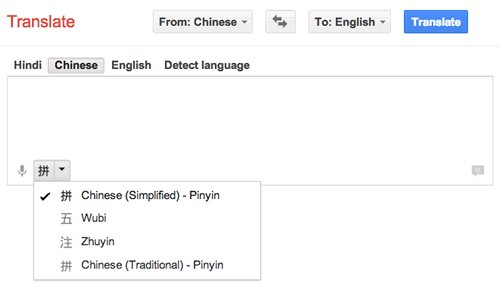
| Input method (IME) | Converts keystrokes into characters, for example Chinese Pinyin, Wubi, Zhuyin and Cangjie | Chinese, Japanese and other IME languages |
| Virtual keyboard | Shows an on-screen keyboard in the target layout that you click or type on | More than 100 keyboards for over 70 languages |
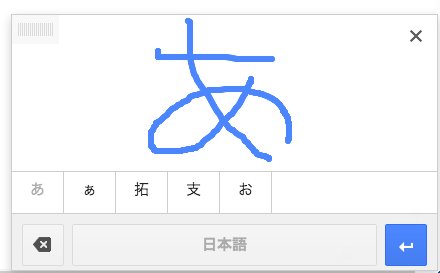
| Handwriting | Lets you draw characters with a mouse or trackpad and pick the match | More than 50 languages |
Google Input Tools for Windows download: is the desktop app still available?
No. Google's former Windows page at google.com/inputtools/windows/ now returns a "404 Not Found" error, and the Get Google Input Tools list on Google's own site offers only the Chrome extension, Google services and Android.
The product home page still mentions Windows, but there is no Windows installer anywhere on it. Any Windows setup file offered on a third-party download site does not come from Google, so leave it alone.
| Version | Status on Google's site | How to get it |
|---|---|---|
| Windows desktop app | No longer offered; the Windows page returns 404 | Not available from Google |
| Chrome extension | Offered | Chrome Web Store, linked from google.com/inputtools/chrome/ |
| Online page | Offered | google.com/inputtools/try/ in any browser |
| Google services | Offered | Built into Gmail, Google Docs, Drive, Translate, Search and YouTube |
| Android | Offered | Google Play, linked from the online page |
Why use Google Input Tools?
| Reason | What it means on a Windows PC |
|---|---|
| Type a script without learning its layout | Transliteration lets you spell words by sound on a standard English keyboard |
| Fuzzy spelling is accepted | Both "namaste" and "nemaste" offer नमस्ते as a candidate |
| Type on a borrowed or foreign keyboard | The virtual keyboard shows the layout of your own language on screen |
| Write characters you cannot spell | Handwriting input matches a character you draw with the mouse |
| Nothing to install in Gmail or Docs | Input tools are part of those services once you turn them on |
How does Google Input Tools work?
Each tool shows a list of candidates as you type, and you choose one to place it in the text box. The keys below are the same in the extension, Gmail and Docs.
| Action | Transliteration | Pinyin IME | Handwriting |
|---|---|---|---|
| Insert the first candidate | Space or Enter | Space inserts the highlighted candidate | Enter or Space |
| Pick another candidate | Click it or type its number | Click it or type its number | Click the character |
| Move through candidates | Up/Down arrows; Page Up/Page Down for the next page | Left/Right arrows; Up/Down flip pages | Not applicable |
| Type the Latin letters as-is | Turn the tool off with Shift | Press Enter | Switch to another tool |
Google Input Tools Chrome extension vs Windows keyboard: which to use
| Your situation | Use this | Why |
|---|---|---|
| You type mostly on websites in Chrome | Chrome extension | Works in input boxes on any web page |
| You type in Gmail or Google Docs | Built-in input tools | Nothing extra to install |
| You need a few lines quickly on any browser | Online page at google.com/inputtools/try/ | No install and no sign-in |
| You type in Microsoft Word, Notepad or other desktop apps | A Windows keyboard layout, such as an Indic Phonetic keyboard | The extension only works inside Chrome, and the desktop app is gone |
| You need Hindi, Bangla, Tamil, Marathi or another supported Indian language system-wide | Windows Indic Phonetic keyboard | Phonetic typing like Google's transliteration, with no extra software |
Google Input Tools keyboard shortcuts in Chrome
These shortcuts belong to the Chrome extension and save trips to the toolbar icon.
| Shortcut | What it does |
|---|---|
| Shift | Turns the current tool on or off (transliteration and IMEs only) |
| Alt + Shift | Switches to the next tool in your list; after the last tool it turns the extension off |
| Ctrl + G | Switches between the two most recently used input methods |
| Shift (Chinese IMEs) | Switches between English and Chinese mode |
| Shift + Space (Chinese IMEs) | Switches between single-byte and double-byte characters |
| Ctrl + . (Chinese IMEs) | Switches between single-byte and double-byte punctuation |
Leveraging the Google transliteration website (Input Tools online)
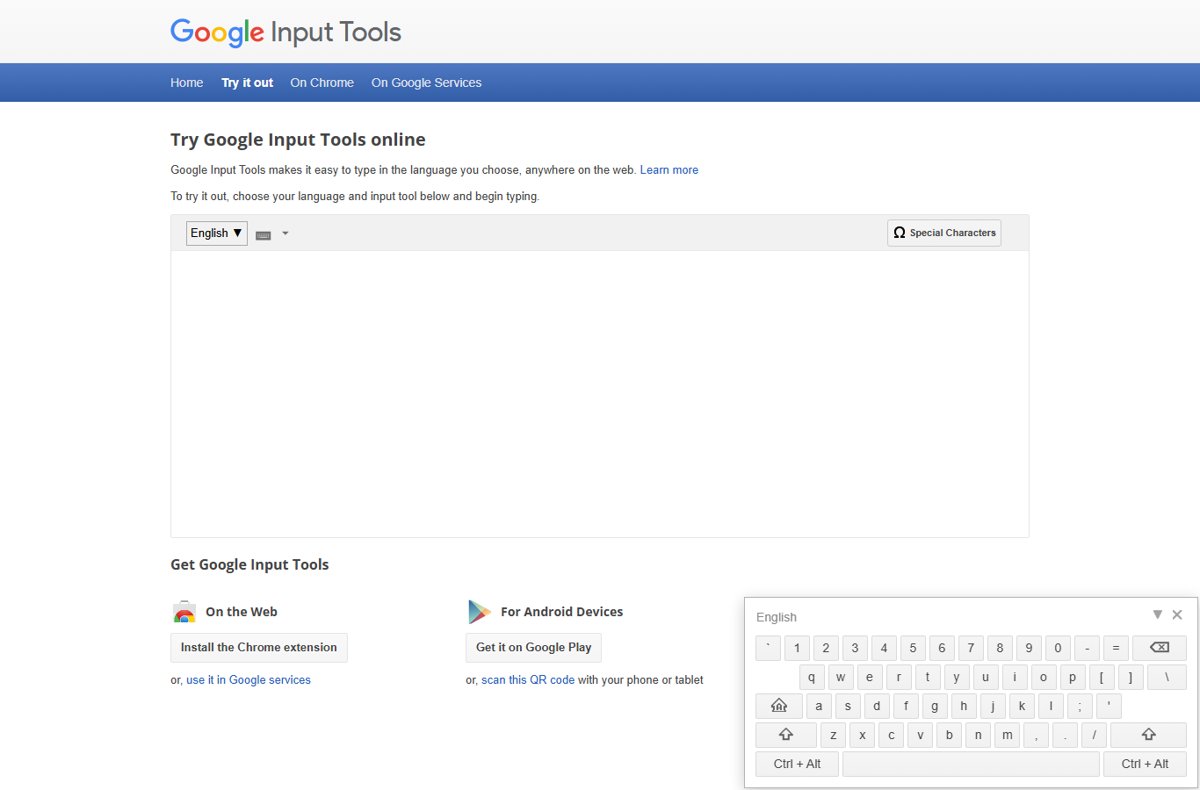
Google's online page replaces the old transliteration site and works in Chrome, Edge or any other browser on Windows.
- Open Try Google Input Tools online in your browser.
- Choose your language from the language menu above the text box.
- Choose the input tool, such as transliteration, a virtual keyboard or handwriting.
- Type in the text box and pick a candidate for each word.
- Select the finished text, press Ctrl + C, then paste it into Word, Notepad or any other app with Ctrl + V.
How to enable Google Input Tools in Gmail
Gmail input tools work in a browser only, not in the Gmail mobile app. You need a Google account, so create a Google account first if you do not have one.
- Open Gmail in your browser and click Settings at the top right.
- Click See all settings.
- In the Language section, check the box next to Enable input tools.
- Click Edit tools, select the input tools you want, and click Ok.
- Click Save Changes at the bottom of the page.
- Back in your inbox, click Select input tool in the bar below Settings and pick your tool.
How to use Google Input Tools in Google Docs
Docs shows the Input tools menu once the document uses a non-Latin language such as Hindi or Chinese.
- Open the document in Google Docs.
- Click File > Language and choose the language you need.
- Click the down arrow next to the Input tools menu in the toolbar, or press Ctrl + Alt + Shift + K.
- Choose phonetic input, keyboard input or handwriting input.
- Type the word phonetically in Latin letters and click the best match, or draw characters in the handwriting panel at the bottom right.
In Google Sheets, set the language through File > Spreadsheet settings and pick the matching locale instead.
Manual setup of input languages on Windows
Windows has its own keyboards for most languages, and they work in every app, including Word. The steps below are for Windows 11; Windows 10 has the same options in a slightly different Settings layout.
- Select Start > Settings > Time & language > Language & region.
- If your language is not listed, select Add a language next to Preferred languages, choose it, select Next, then Install.
- Select the … next to the language and choose Language options.
- Under Keyboards, select Add a keyboard next to Installed keyboards and pick the layout, for example Hindi Phonetic.
- Select the input language icon in the taskbar's system tray, or press Windows key + Space, to switch to the new keyboard.
Indic Phonetic keyboards cover Hindi, Bangla, Tamil, Marathi, Punjabi, Gujarati, Odia, Telugu, Kannada and Malayalam. They transliterate by sound like Google's tool, so typing "namaste" suggests नमस्ते.
How to use Google Input Tools in MS Word
Google Input Tools cannot type into desktop Microsoft Word on Windows any more, because the extension works only inside Chrome and the desktop app is discontinued. Use a Windows keyboard in Word, or type in Google's online page and paste.
- Add the keyboard for your language as shown in the previous section.
- Open your document in Word and click where you want to type.
- Press Windows key + Space until the taskbar shows your language's keyboard.
- Type the word by sound and pick a suggestion from the candidate list.
- Press Windows key + Space again to switch back to English.
How to check Google Input Tools is working
- In Chrome, check that the Google Input Tools icon is fully coloured rather than grey.
- Click a search box on any web page and type "namaste" with Hindi transliteration selected.
- Confirm a candidate list appears and that pressing Space inserts नमस्ते.
- In Gmail or Docs, confirm the input tools icon shows in the toolbar and turns darker grey when a tool is on.
Additional tips for effective usage
| Tip | How it helps |
|---|---|
| Keep only the tools you use in the extension's selected list | Alt + Shift then cycles through fewer tools |
| Reorder selected tools in Extension options | Your most-used tool comes up first |
| Type your best guess of the pronunciation | Transliteration uses fuzzy matching, so close spellings still work |
| Use number keys to choose candidates | Faster than reaching for the mouse |
| Minimise the on-screen keyboard with the arrow at its top right | Frees up space while the tool stays on |
| Use Ctrl + G when writing in two languages | Jumps straight between your last two methods |
Troubleshooting common issues with Google Input Tools
Google Input Tools does nothing on a web page
The page was open before the tool was turned on, or the tool is off.
- Select the extension icon and confirm a tool is selected and the icon is coloured.
- Refresh the page and click into the text box again.
- Press Shift once in case the tool was toggled off.
Cannot install or add the Google Input Tools extension
Chrome does not allow adding extensions in Incognito or Guest mode, and work or school PCs may block some extensions.
- Close the Incognito or Guest window and open a normal Chrome window.
- Install the extension from the Chrome Web Store again.
- On a managed PC, ask your administrator to allow it.
Input tools menu missing in Google Docs
The document language is Latin-based, or the file is a Word file open in Office editing mode.
- Click File > Language and choose a non-Latin language.
- If the file is a .docx, convert it to Google Docs format first.
Handwriting input is missing in a work or school Google account
In Google Workspace, handwriting needs an admin setting turned on.
- Ask your administrator to turn on access to additional services without individual control in the Admin Console.
Windows says "IME is not ready yet" after adding an Indic Phonetic keyboard
The keyboard dictionary is still downloading through Windows Update.
- Select Start > Settings > Time & language > Language & region.
- Select the … next to the Indic language and choose Language options.
- Under Language features, select Download next to Basic typing.
Windows key + Space does not switch keyboards
Only one keyboard layout is installed.
- Add a second keyboard as shown in the manual setup section.
- Press Windows key + Space again.
The Google Input Tools Windows download page shows a 404 error
Google no longer offers the Windows desktop app.
- Install the Chrome extension, or use the online page at google.com/inputtools/try/.
- For desktop apps, add a Windows keyboard for your language instead.
Best practices for using Google Input Tools
| Practice | Reason |
|---|---|
| Get the extension only from the link on google.com/inputtools/chrome/ | That link goes to Google's own Chrome Web Store listing |
| Review the permissions before you select Add extension | The extension needs access to the pages you type on |
| Avoid setup files from download sites | Google publishes no Windows installer, so any file claiming to be one is not Google's |
| Turn the tool off before typing passwords | Transliteration would change what you type |
| Pick a Windows keyboard for desktop apps | It works in every program and survives browser changes |
How to turn off or remove Google Input Tools in Chrome
- To pause it, select the extension icon and choose Turn off.
- To disable it, open Chrome and select More > Extensions > Manage extensions.
- Turn off the switch on the Google Input Tools card, or select Remove to uninstall it.
- To remove a Windows keyboard, open Language options for its language, select the … next to the keyboard, and choose Remove.
Google Input Tools for Windows FAQ
Can I use Google Input Tools on Windows 11?
Yes, through a browser. Install the Google Input Tools extension in Chrome, turn on input tools in Gmail or Google Docs, or use the online page at google.com/inputtools/try/. The standalone Windows desktop app is no longer offered by Google.
How do I download Google Input Tools for PC?
Google offers no Windows download now; its former Windows page returns a 404 error. On a PC, add the Chrome extension from the link on google.com/inputtools/chrome/ instead. Setup files on third-party download sites do not come from Google.
How do I install Google Input Tools?
Open google.com/inputtools/chrome/ in Chrome, select Download Chrome Extension, then select Add to Chrome and Add extension. Open the extension's Extension options page and double-click the input tools you want to add to your list.
How do I enable Google Input Tools?
In Chrome, select the extension icon and pick an input tool so the icon turns coloured. In Gmail, open Settings, See all settings, check Enable input tools in the Language section, choose tools and click Save Changes.
How do I use Google Input Tools in MS Word?
You cannot type into desktop Word with Google Input Tools any more, because the desktop app is gone and the extension only works in Chrome. Add a Windows keyboard such as Hindi Phonetic instead, or type on Google's online page and paste into Word.
Does Google Input Tools work in Google Docs?
Yes. Set the document language with File, then Language, and choose a non-Latin language. The Input tools menu then appears in the toolbar, and Ctrl + Alt + Shift + K opens it on a PC.
Can I use Google Input Tools in Microsoft Edge?
Edge can add extensions from the Chrome Web Store after you select Allow extensions from other stores. Google documents the Input Tools extension for Chrome only, so Chrome is the supported choice. The online page and Gmail input tools work in Edge as websites.
Is there a Google Input Tools website?
Yes. Google's online page at google.com/inputtools/try/ lets you choose a language and input tool and type in a box without installing anything. Copy the result into any app with Ctrl + C and Ctrl + V.
How many languages does Google Input Tools support?
Google says the tools cover more than 80 languages and input methods. Transliteration covers over 20 languages, virtual keyboards over 70 languages, and handwriting over 50 languages, with Google's supported languages page listing each one.
Bottom line: should you use Google Input Tools on Windows 11/10?
Use the Google Input Tools Chrome extension for web pages and the built-in input tools in Gmail and Docs, and add a Windows keyboard for Word and other desktop apps. Google has dropped the Windows desktop app, so the browser routes are the only official Google Input Tools on a PC, while Windows keyboards cover every other program.
To read or translate printed text instead of typing it, use Google Lens on your PC.


![How to remove Yahoo from your Chrome, Firefox, or Edge browser? [Easy steps]](https://techdows.com/wp-content/uploads/2026/10/How-to-remove-Yahoo-from-your-Chrome-Firefox-or-Edge-browser-Easy-steps-600x338.jpg)