OneNote for Windows 10 reached end of support on October 14, 2025, and is now read-only, so sync every notebook and move to the OneNote app on Windows to keep editing.
The steps below cover the in-app switch, the manual migration, restoring unsynced sections from backup, removing the old app, and the scripted route for work and school devices.
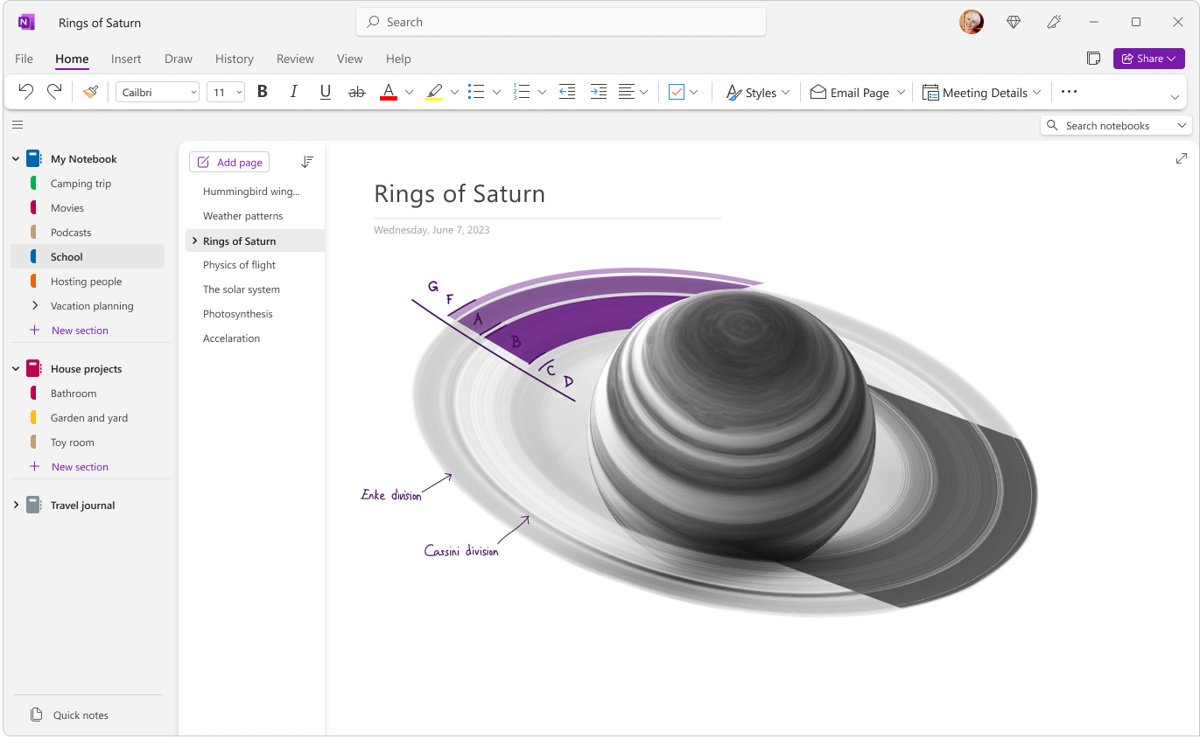
How to migrate from OneNote for Windows 10 to OneNote on Windows
Microsoft's preferred route is the migration dialog built into OneNote for Windows 10. It only works on the latest version of the old app, so update it first.
- Open the Microsoft Store and install any pending update for OneNote for Windows 10.
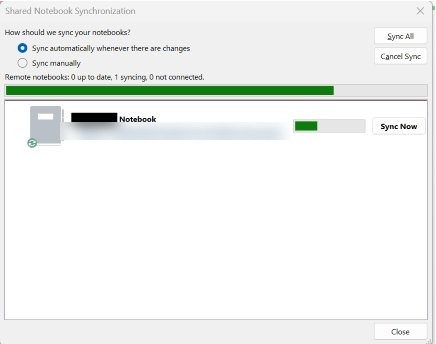
- Open OneNote for Windows 10 and wait for every notebook to finish syncing.
- Select Switch Now on the InfoBar at the top of the app.
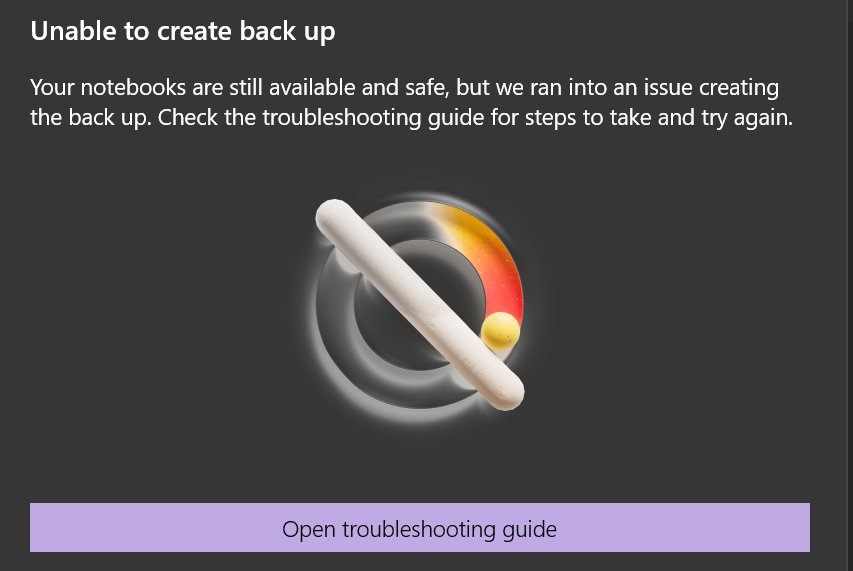
- If a backup dialog appears, let it finish. It only appears when a notebook still has unsynced content.
- Open OneNote (the app on Windows) from the Start menu, or install it from the Microsoft Store if it is missing.
- Sign in with the same Microsoft, work or school accounts you used in the old app.
- Open each notebook you had open before and check that your latest pages are there.
If you have Microsoft 365 installed, OneNote is usually already on the PC. Otherwise you can download OneNote for Windows free from the Microsoft Store, where it appears first when you search for OneNote.
OneNote for Windows 10 end of support background
Windows has carried two OneNote apps for years, and only one of them is retired. The names are close enough that many people do not know which one they use.
| OneNote for Windows 10 | OneNote (OneNote on Windows) | |
|---|---|---|
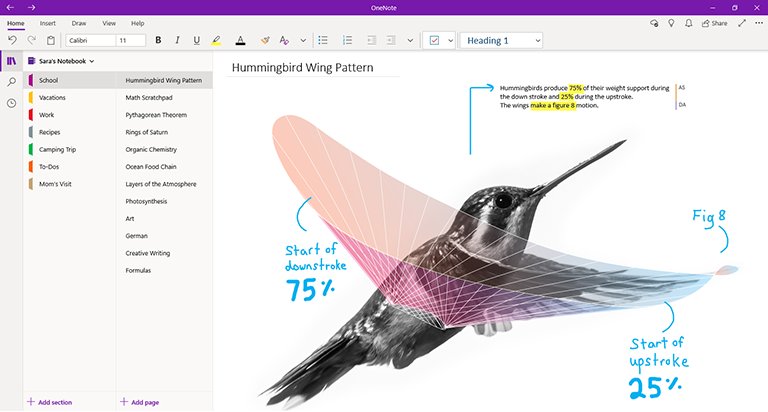
| Also known as | The pre-installed Windows 10 app | Formerly OneNote 2016 and OneNote 2013 |
| Status | End of support since October 14, 2025, read-only | Supported, receives feature and security updates |
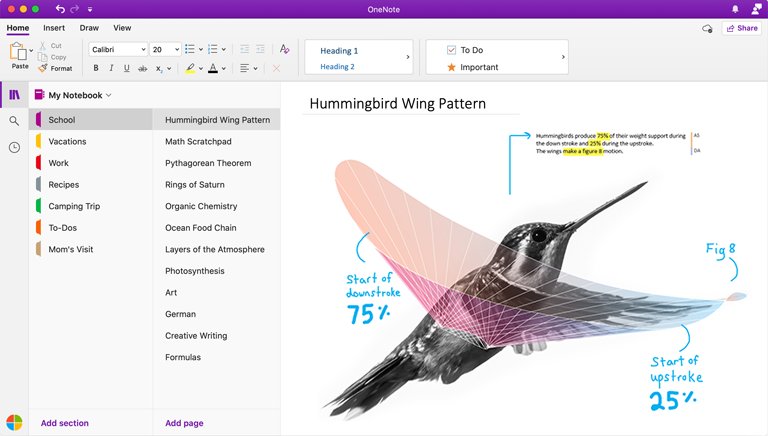
| Interface | Small single-line ribbon, no File menu | Full Office ribbon with a File menu |
| Where it comes from | Pre-installed on Windows 10, no longer included on new Windows 11 devices | Microsoft 365, Office 2019 and later, or free from the Microsoft Store |
| Notebook storage | Cloud notebooks only | Cloud notebooks and local notebooks on your hard drive |
| Price | Free | Free, with premium features in Microsoft 365 |
What's changing — the core facts about OneNote for Windows 10
The old app was not removed from PCs. It stays installed where it already was, but it stopped being a working notebook app on the end of support date.
| What changed | Detail |
|---|---|
| End of support date | October 14, 2025 |
| Editing and syncing | No longer supported, the app opens in read-only mode |
| Viewing and copying | You can still open existing notebooks, read them and copy content out |
| Updates and help | No bug fixes, security updates or technical support |
| Unsynced changes | Backed up automatically and accessible in OneNote on Windows |
| Automatic removal | None, the app is not uninstalled for you |
| New installs | Only people who already had it installed keep access |
Why Microsoft is doing this with OneNote for Windows 10
Microsoft has moved OneNote on Windows to a single app instead of maintaining two apps with different features.
| Reason Microsoft gives | What it means for you |
|---|---|
| One OneNote experience on Windows | The same design and navigation as OneNote on other devices |
| Enhanced security | Updates arrive through the Microsoft 365 security framework |
| Improved performance | The supported app gets ongoing quality updates |
| New features land in one place | Copilot, the Text Pen, Ink Gestures and Loop components arrive in OneNote on Windows only |
| Admin control | OneNote on Windows supports Group Policy, while OneNote for Windows 10 never did |
How to tell which version of OneNote you have
The File menu is the quickest giveaway. The old app never had one.
- Open OneNote from the Start menu.
- Look at the top-left of the window for a File menu.
- If File is there, you already use OneNote on Windows.
- If there is no File menu, you use OneNote for Windows 10, and the title bar also shows that name.
- To check for both, type onenote in the Start menu search and look for two separate entries.
The practical impact for everyday users
For most home users the change costs one install and a sign-in. Notebooks saved to OneDrive come across intact, including tags, ink and attachments.
| Your situation | What happens | What to do |
|---|---|---|
| All notebooks synced to OneDrive | Everything appears in OneNote on Windows after sign-in | Sign in and open the notebooks |
| Some pages show a warning icon | Those changes never reached the cloud and will not appear automatically | Sync again, or restore them from the backup folder |
| Several accounts (personal, work, school) | Each account's notebooks only show after you sign in to it | Add every account in OneNote on Windows |
| Still opening the old app out of habit | You can read notes but cannot edit them | Pin OneNote on Windows and uninstall the old app |
| Fonts look smaller in the new app | The default layout is denser | Turn on Optimize for compatibility |
Step-by-step migration for power users (detailed)
Use the manual route when the Switch Now prompt does not appear, or when you want to control each stage yourself.
- In OneNote for Windows 10, go to Settings (gear icon) > Accounts and confirm you are signed in to every account that holds notebooks.
- Right-click each notebook in the left pane, select Sync, then Sync This Notebook or Sync All Notebooks.
- Wait until no notebook shows a warning icon and the status reads Up to date.
- Go to View > Misplaced Sections and file any misplaced sections into a notebook so they sync too.
- Install OneNote on Windows from the Microsoft Store, launch it, and sign in with the same accounts.
- Open notebooks from the recent list, or go to File > Open, pick your OneDrive or SharePoint account and select each notebook.
- Go to File > Info > View Sync Status and confirm every notebook shows Up to date.
- Review your sections and pages for anything missing before you remove the old app.
How to check OneNote sync status after migrating
A notebook that opens is not proof that it synced. The sync status window shows whether OneNote on Windows has every change.
- In OneNote on Windows, select File > Info.
- Select View Sync Status.
- Check that every notebook in the list shows Up to date.
- Open the most recent pages you edited in the old app and compare their content.
- If anything is missing, restore it from the backup folder using the steps in the troubleshooting section below.
How to change fonts and spacing in OneNote on Windows
OneNote on Windows uses tighter spacing by default, which makes old notes look small. One option restores the familiar layout.
- In OneNote on Windows, select File > Options.
- Select General.
- Turn on Optimize for compatibility.
- Select OK and restart OneNote.
How to uninstall OneNote for Windows 10
Uninstalling deletes the app's local data, including any changes that never synced. Remove it only after your notes show up in OneNote on Windows or OneNote on the web.
- Open Settings > Apps > Installed apps on Windows 11, or Settings > Apps > Apps & features on Windows 10.
- Find OneNote for Windows 10 in the list.
- On Windows 11, select … next to it and choose Uninstall. On Windows 10, select the app and select Uninstall.
- Confirm the prompt.
The app's package name is Microsoft.Office.OneNote, and it can also be removed from PowerShell with the commands to uninstall the built-in OneNote app.
Enterprise and education: projectizing the migration
Microsoft publishes a sample PowerShell migration script for organizations. It must be customized and tested before deployment, and it only works on the final OneNote for Windows 10 build, 16001.14326.22094.0.
- In Microsoft Intune, go to All Services > Apps | Monitor > Monitor > Discovered apps and search for Office.OneNote.
- Treat any version starting with
16001as OneNote for Windows 10, and list the devices below16001.14326.22094.0for an update first. - Deploy OneNote on Windows. It installs with Microsoft 365 Apps, Office LTSC 2024, Office LTSC 2021 and Office 2019 unless your configuration excludes it.
- Update outdated devices to the latest OneNote for Windows 10 build, for example with
WinGet download 9wzdncrfhvjl --skip-license. - Customize the sample script so it closes the old app, runs
onenote-uwp://backup:and checksUWPBackUpStatus.jsonfor a completed backup. - Copy the backups out of the app's sandbox folder before uninstalling, because that folder is deleted with the app.
- Uninstall OneNote for Windows 10 per user, not per device, so shared PCs do not lose another user's unsynced notes.
After the script runs, users open OneNote on Windows, sign in and open their notebooks. Missing sections are reached through File > Open Backups. Settings can then be managed with Group Policy on domain-joined devices, or Cloud Policy with Microsoft 365 Apps for enterprise.
What can go wrong — risks and mitigation
Data loss during this move comes from one source: content that never synced. Every risk below traces back to it.
| Risk | Mitigation |
|---|---|
| Unsynced pages are left behind | Sync every notebook and clear warning icons before switching |
| The backup fails during the switch | Free up disk space, sync again, then select Switch Now again |
| The old app is removed too early | Uninstall only after the sync status shows Up to date in the new app |
| Misplaced or open sections are skipped | File them into a notebook from View > Misplaced Sections |
| A shared PC loses another user's notes | Uninstall per user, never per device |
| The migration script runs untested | Test it in a controlled group, especially the Remove-AppxPackage step |
OneNote for Windows 10 migration backup failed or notes missing
Match what you see to the closest symptom below.
Backup failed during migration from OneNote for Windows 10
OneNote could not finish backing up unsynced changes, often because the notebook is not synced or the drive is low on space.
- In OneNote for Windows 10, right-click any notebook with a warning icon and select Sync This Notebook.
- Delete unneeded files, empty the Recycle Bin, or move large files to OneDrive.
- Select Switch Now on the InfoBar to restart the migration.
- If it still fails, copy each page with a warning icon and paste it into the right section in OneNote on Windows.
Notes missing after migrating to OneNote on Windows
The missing content was not synced, so it sits in a local backup instead of the cloud notebook.
- In OneNote on Windows, select File > Info > Open Backups.
- In File Explorer, go to
%userprofile%\Documentson Windows 11, or%AppData%\Local\Packages\Microsoft.Office.OneNote_8wekyb3d8bbwe\LocalCacheon Windows 10. - Open the Backup or Backup_UserInitiated folder, and use the most recently modified one if both exist.
- Sort by Date modified and double-click the newest
.onefile. It opens under Open Sections. - Right-click the section tab or page, select Move or Copy, and choose the destination notebook.
Notebooks do not appear in OneNote on Windows
Each account's notebooks only show after you sign in to that account.
- Sign in to every personal, work and school account you used in the old app.
- Select File > Open and choose the OneDrive or SharePoint location.
- Select the notebook to open it.
onenote-uwp://backup: command fails in the migration script
The onenote-uwp protocol is not linked to OneNote for Windows 10 on that device.
- Set OneNote for Windows 10 as the default app for the
onenote-uwpprotocol. - Review
UWPBackupStatus.json,UWPSyncStatus.jsonand the migration log in the user's backup folder. - Rerun the script with a longer wait if the backup status is empty.
Copilot, AI features and what's coming to OneNote
None of the AI features reached OneNote for Windows 10. They are part of the supported OneNote apps, and some need a paid license.
| Feature | What it does | Where it works |
|---|---|---|
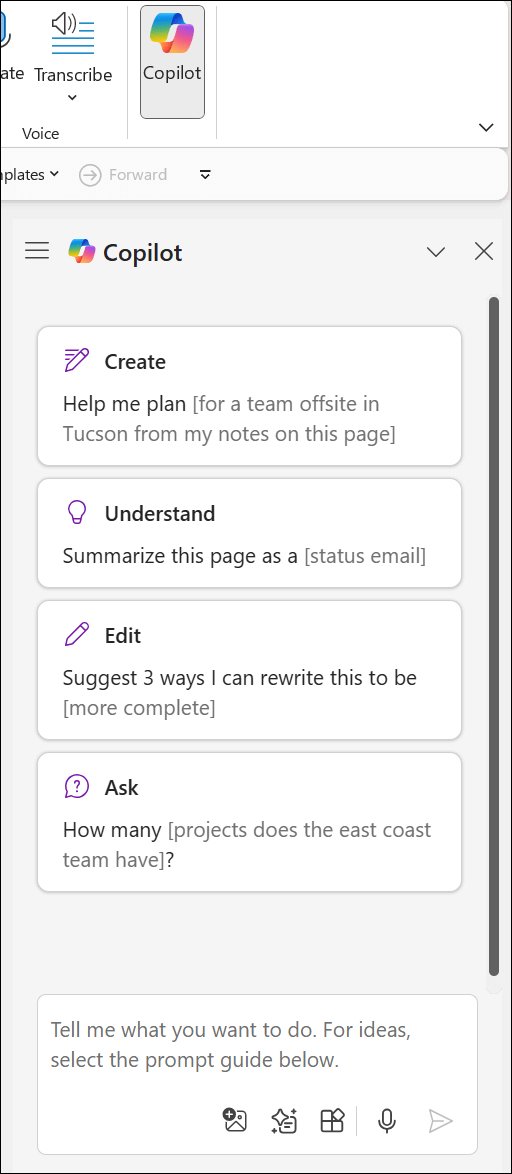
| Copilot in OneNote | Summarizes notes, builds task lists, rewrites text, drafts plans and suggests ideas | OneNote on Windows, Mac, iPad and the web with a Microsoft 365 Copilot license; OneNote on Windows only with an eligible Microsoft 365 subscription |
| Copilot pane and on-canvas icon | Opens from the Copilot button on the Home tab, or the icon on the page | OneNote for Microsoft 365 |
| Text Pen and Ink Gestures | New ink tools for writing and editing by hand | OneNote on Windows |
| Loop components | Embed interactive content from other apps in a page | OneNote on Windows, rolling out |
| Dictation and transcription | Capture speech and conversations as notes | OneNote on Windows |
Copilot is not available in OneNote when Windows Information Protection is turned on for the device. Microsoft also says Copilot is still rolling out to OneNote for the web.
Alternatives and contingency plans
Your notebooks live in OneDrive or SharePoint, so any supported OneNote app can open them while you sort out the Windows install.
| Option | When it helps |
|---|---|
| OneNote on Windows | The full replacement, with local notebooks and the most settings under File > Options |
| OneNote for the web | Check that a notebook synced, or edit on a PC where you cannot install apps |
| OneNote for Mac, iPad, iPhone and Android | Keep editing on another device while the Windows PC is being migrated |
| OneNote for Windows 10 in read-only mode | Read and copy old pages while you confirm the move |
| Manual copy and paste | Rescue individual unsynced pages when a backup fails |
Once the notebooks are in the new app, these OneNote tips for note-taking help with the features the old app lacked.
Timetable and recommended deadlines
The end of support date has passed, so the remaining deadline is your own. Move before the next time you need to edit a note.
| Date | What happened |
|---|---|
| March 2020 | OneNote installs alongside Word, Excel and PowerPoint with Office 2019 and Microsoft 365 |
| Through fall 2025 | OneNote for Windows 10 still available to download from the Microsoft Store |
| October 14, 2025 | End of support, the app becomes read-only |
| Now | Sync, switch, confirm sync status, then uninstall the old app |
This is separate from the Windows release lifecycle, even though Windows 10's own end of support fell on the same day. The Windows 11 end of support dates follow their own schedule.
OneNote for Windows 10 end of support FAQ
Will I lose any data when I migrate from OneNote for Windows 10?
No, not if your notebooks synced. Cloud notebooks keep their sections, pages, tags, ink and attachments in OneNote on Windows. Content that never synced does not appear automatically, but it can be restored from the backup folder.
Can I still use OneNote for Windows 10 after October 14, 2025?
Only to read. The app opens your existing notebooks in read-only mode, so you can view and copy notes but cannot create, edit or sync content. It also receives no security updates or technical support.
Is OneNote on Windows free?
Yes. OneNote on Windows is free to download from the Microsoft Store and runs on Windows 10 and Windows 11. A Microsoft 365 subscription adds premium features, and some Copilot features need a Microsoft 365 or Copilot license.
Will OneNote for Windows 10 be removed automatically?
No. Windows does not uninstall it for you, and it stays on PCs that already had it. Remove it yourself from Settings > Apps once your notes appear correctly in OneNote on Windows.
Can I switch back to OneNote for Windows 10 after migrating?
Installing OneNote on Windows does not remove the old app, so you can still open it. Since end of support it is read-only, so switching back only lets you view notes, not edit or sync them.
What if I have multiple accounts in OneNote for Windows 10?
Sign in to each of them in OneNote on Windows. The new app supports several accounts at once, and each account's synced notebooks become available after you sign in to it.
Where are OneNote for Windows 10 backups stored?
Open them from File > Info > Open Backups in OneNote on Windows. Look for a Backup or Backup_UserInitiated folder, where each .one file is one section of a notebook.
Can I keep notebooks on my PC instead of OneDrive?
Yes, in OneNote on Windows. It is the only OneNote version that supports local notebook storage on your hard drive as well as cloud storage. OneNote for Windows 10 only worked with cloud notebooks.
Final considerations for IT decision-makers
Finish the move to OneNote on Windows now and remove OneNote for Windows 10 per user once backups are confirmed. The old app is read-only and unpatched, so every week it stays installed is a week users can open a stale copy of their notes. OneNote on Windows already ships with Microsoft 365 Apps, takes Group Policy or Cloud Policy, and carries Copilot. The only real exposure is unsynced content, which the backup check and per-user uninstall handle.