To create an ID.me account, select the ID.me button on the site that needs it, choose Create a wallet, confirm your email, add multi-factor authentication and verify your identity once.
This guide covers each screen in order, the IRS, VA and Social Security routes, discount sign-up, the no-smartphone options and fixes for the problems people hit most.
The fastest way to create an ID.me account
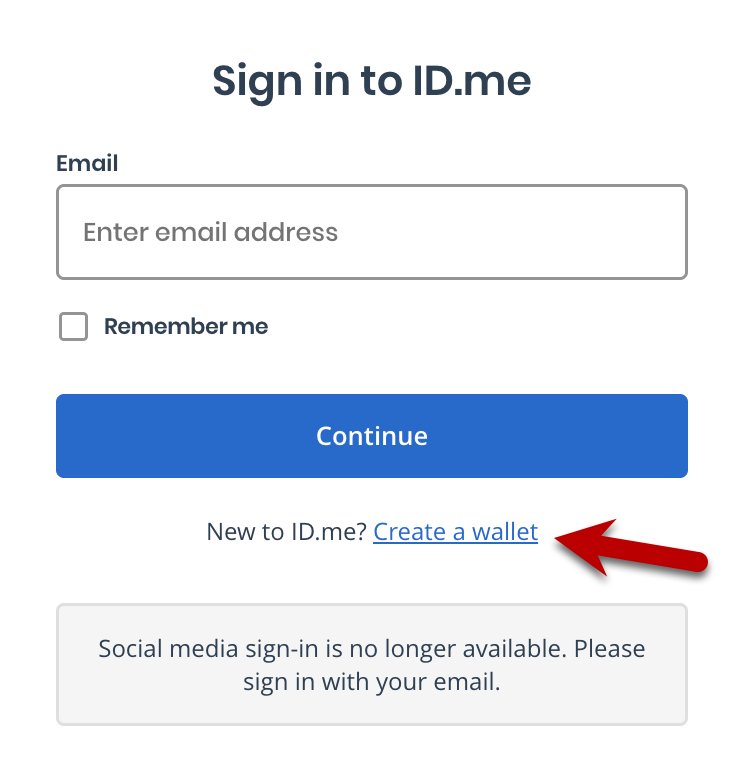
ID.me now calls an account a wallet, so the button reads Create a wallet rather than "create an account". The whole setup, including identity verification, runs in one sitting when you have your ID and phone ready.
- Open the website of the agency or company that asked for ID.me, such as IRS.gov or VA.gov.
- Select its Sign in with ID.me or Verify with ID.me button.
- Select Create a wallet, enter your personal email address and a strong password, then select Create wallet.
- Open the email from [email protected] and select Confirm your email.
- Set up at least one multi-factor authentication (MFA) method when prompted.
- Choose Self-Service, photograph your photo ID, record the video selfie and enter your Social Security number.
- Select Allow to share your verified identity with the site and finish signing in.
What Is ID.me?
ID.me is a private sign-in and identity verification service. Government agencies and retailers accept one ID.me wallet, so you verify once and reuse the same login.
| Question | Answer |
|---|---|
| What you create | An ID.me Wallet: an email, a password and at least one MFA method. |
| What verification adds | A one-time check that your photo ID, selfie and personal details belong to you. |
| Who uses it | The IRS requires it for its online account and tools; VA.gov accepts it alongside Login.gov; my Social Security and many other agencies offer it as a sign-in option. |
| Where you manage it | wallet.id.me, the official My Wallet page. |
| How many wallets you can verify | One. ID.me allows only one verified wallet per person. |
| Official web address | www.id.me. ID.me sites always end in .me, never .com. |
Before You Start: What You Need to Create an ID.me Account
Creating the wallet only needs an email and a phone or app for MFA. Verifying your identity is the part that needs documents, so gather them first.
| Item | What ID.me and the agencies ask for | Needed for |
|---|---|---|
| Basic account information | A personal email address you control long term (not shared), and a password of at least 8 characters with one uppercase letter, one lowercase letter and one number | Creating the wallet |
| Two-factor authentication access | A phone that receives texts or calls, the ID.me Authenticator app, a passkey-capable device or a security key | Creating the wallet |
| Identity documents | A U.S. driver's license, state ID, passport, passport card or permanent resident card | Verification |
| Social Security number | Your SSN; the IRS also accepts an ITIN | Verification |
| A device with a camera | A smartphone with a front-facing camera for Self-Service | Verification |
| Age | 18 or older for IRS accounts and in-person verification | IRS and in-person routes |
If you need a fresh personal inbox for this, create a Google account first, and avoid a work email you could lose when you change jobs.
Step 1: Go to the ID.me Website or Partner Sign-In Page
Start on the site that needs ID.me. That way the finished wallet connects straight to the service you came for.
| You need ID.me for | Where to start | What to select |
|---|---|---|
| IRS online account, transcripts, IP PIN | The IRS tool on irs.gov | Sign in or create account, then the ID.me option |
| VA benefits and health care | The VA.gov sign-in page | The ID.me option to create an account |
| my Social Security | ssa.gov/myaccount | The ID.me sign-in option |
| State unemployment or another agency | That agency's own website | Its Sign in with ID.me or Verify with ID.me button |
| Military, teacher, nurse or student discounts | The store's checkout or the ID.me discount page | Verify with ID.me |
Type the agency address yourself instead of following a link in a text or email. The IRS states that it never calls, emails or texts you asking you to sign in.
Step 2: Enter Your Email Address and Create a Password
- On the ID.me screen, select Create a wallet.
- Enter your personal email address and check it for typos.
- Enter a password with at least 8 characters, including an uppercase letter, a lowercase letter and a number.
- Avoid common phrases, birthdays, parts of your email address or a password you use elsewhere.
- Select Create wallet.
If ID.me says the email is already in use, you already have a wallet. Sign in with it instead of creating a second one.
Step 3: Confirm Your Email Address
- Open your inbox and find the message from [email protected].
- Select Confirm your email in that message.
- If the button does not work, copy the 6-digit code from the email and enter it on the ID.me confirmation screen.
- Return to the ID.me tab and follow the on-screen prompt to continue.
The link expires 15 minutes after it is sent. If you requested several emails, use the newest one.
Step 4: Set Up Multi-Factor Authentication
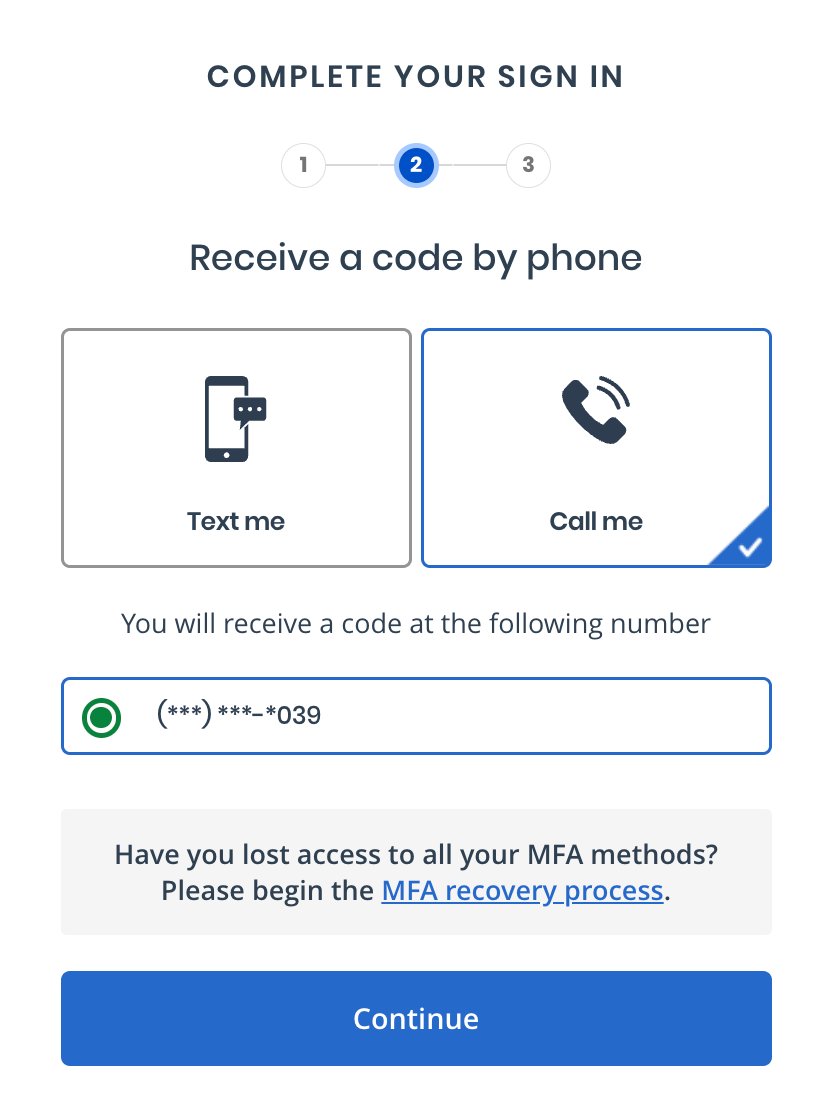
ID.me asks for an MFA method every time you sign in, and it recommends setting up at least two so a lost phone does not lock you out. Its own strength ratings are below.
| MFA option | How it works | ID.me rating | Pick it if |
|---|---|---|---|
| Passkey | Face, fingerprint or device PIN | Very strong | Your phone or computer supports passkeys |
| Code generator | Six-digit rotating code in the ID.me Authenticator app | Strong | You want a method that works without cell signal |
| Push notification | Approve the sign-in in the ID.me Authenticator app | Moderately secure | You want one-tap approval |
| Text message or phone call | A 6-digit code sent by text or voice call | Fairly secure | You have no smartphone app access |
| Security key | Tap a physical USB key | Very strong | You already own a hardware key |
| NFC security key | Tap a YubiKey 5 NFC to your phone (needs the Authenticator app) | Very strong | You own an NFC key and use the app |
Add a second method from the list before you move on. A phone number change is the most common reason people lose access later.
Step 5: Start Identity Verification
After MFA, ID.me offers the verification routes the partner allows. Match your situation to a row.
| Your situation | Choose | Why |
|---|---|---|
| Smartphone with a camera and a U.S. photo ID | Self-Service | The IRS says it usually takes 5-10 minutes |
| Self-Service rejected you or your legal name changed | Short video call with an agent | ID.me routes failed Self-Service attempts here |
| No smartphone, or ID documents other than those listed | Verify identity on a video call | Accepts uploaded documents and works without a phone |
| You prefer to verify face to face | In-person verification at a retail location | Only when the agency offers it; you must be 18 or older |
Step 6: Upload Photos of Your Identity Document
Self-Service needs a live photo taken during the flow. Photos already saved on your phone are not accepted on this route.
- If you started on a computer, enter your phone number and open the link in the text from ID.me.
- Select Allow when the browser asks for camera access.
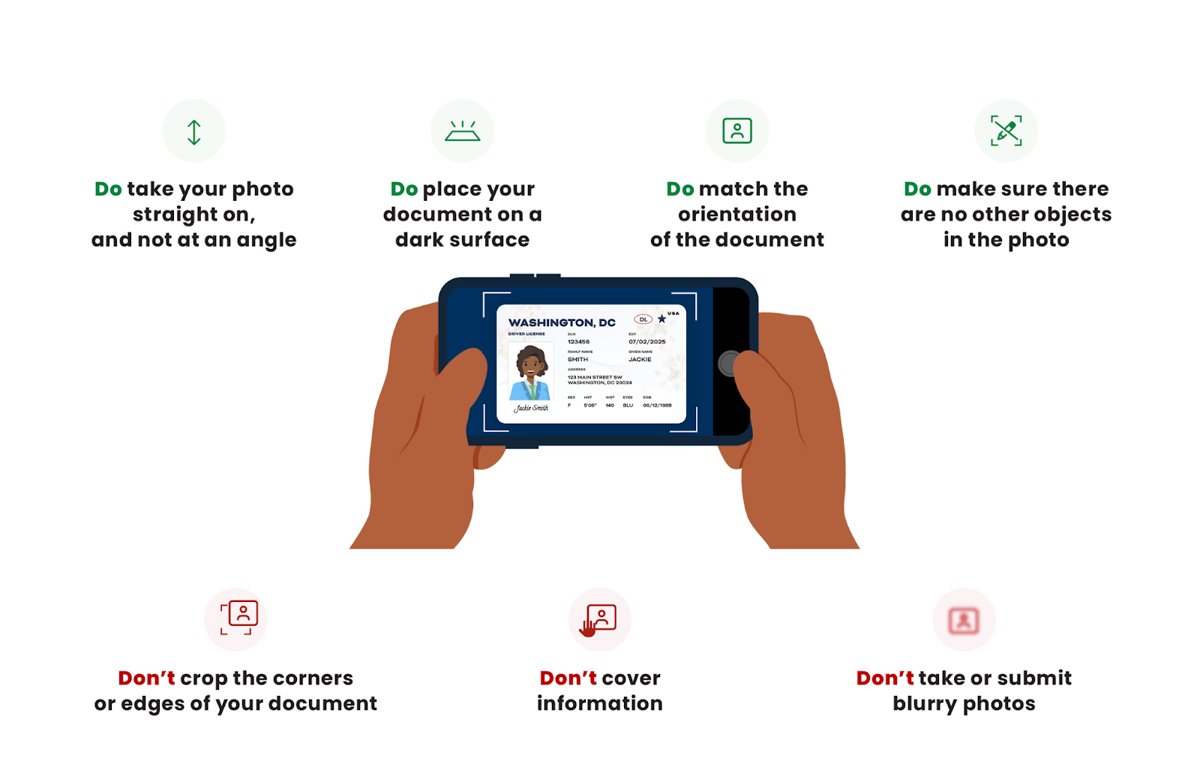
- Place the ID on a dark, plain surface with nothing else around it.
- Hold the phone directly above the ID and match its orientation.
- Keep all four corners in frame, the text sharp and no glare, shadow or blur.
- Capture the front, then the back if prompted.
Step 7: Take a Selfie or Video Selfie
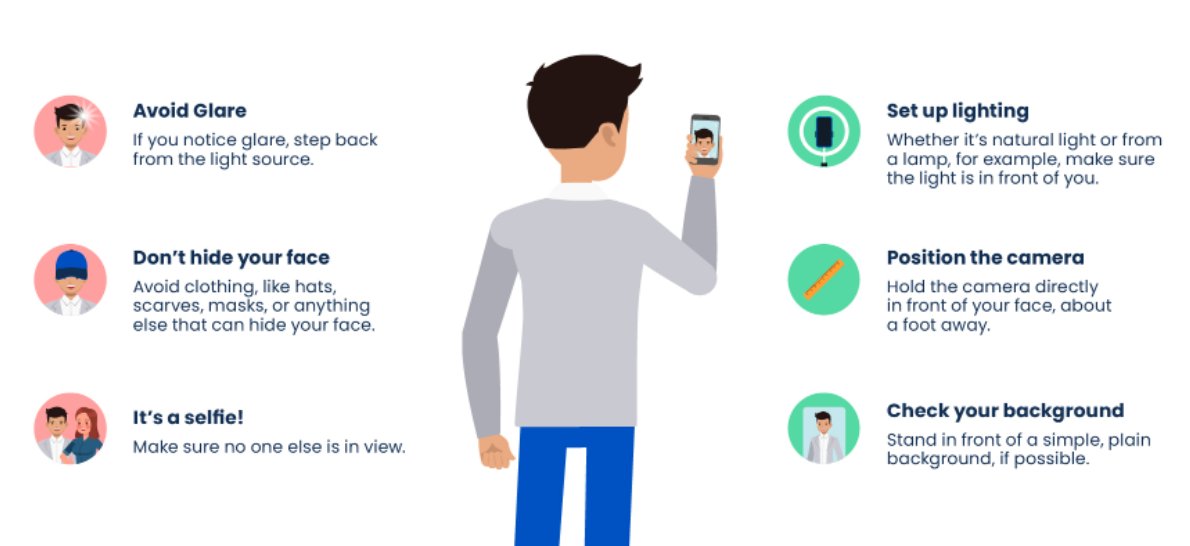
The video selfie confirms that your face matches the photo on your ID.
- Follow the on-screen instructions to start recording your video selfie.
- Face the camera in even light so the recording is clear.
- If you see Something went wrong, select Try again and record it again.
- After repeated failures ID.me shows We couldn't capture your video selfie and offers a Video Chat Agent instead.
Step 8: Enter Your Personal Information
ID.me checks the details you type against the ID you just photographed. Enter them exactly as they appear on your documents.
- Enter your phone number.
- Enter your Social Security number (or ITIN for IRS services).
- Enter your current U.S. address.
- If asked, photograph the front and back of your Social Security card.
- Review each field for typos before you continue, then submit.
Type your SSN only into the ID.me screen you reached from the agency's own website. ID.me never asks for your password or MFA codes by phone, text or email.
Step 9: Complete a Video Call If Needed
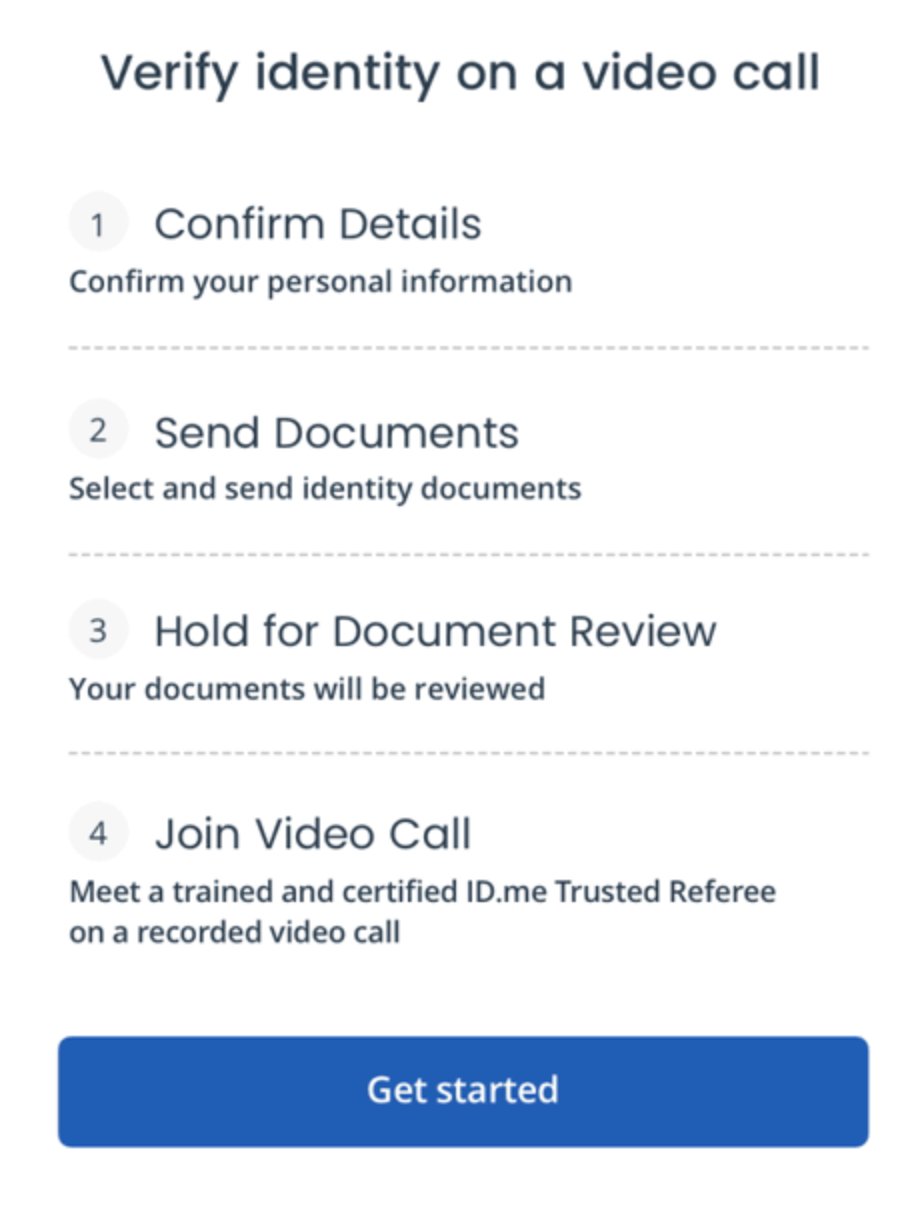
The extended video call needs two primary documents, or one primary and one secondary document. An agent reviews the uploads before the call starts.
- Select Verify identity on a video call.
- Enter and confirm your personal information, including your Social Security number.
- Choose your primary and secondary documents, then upload photos or take them through a text link.
- Wait for document approval; the estimated wait time shows in the same window.
- To come back later, select Save & Exit or Schedule an appointment (up to 10 days ahead).
- Join the call and show the agent your physical documents.
A same-day appointment is at least two hours from the current time. Interpreters are available for over 240 languages.
Step 10: Return to the Partner Website
Verification is not finished until you share the result with the site that sent you. This consent screen is also your review step.
- Go back to the agency or store website and sign in with your ID.me email and password.
- Complete your MFA prompt.
- Review the information ID.me will share on the consent screen.
- Select Allow to submit your verification to that site.
- Confirm you land in your IRS, VA, Social Security or store account.
How to check your ID.me verification worked
- Go to wallet.id.me and sign in.
- Open My IDs and confirm your verified identity or community ID is listed.
- Open Sign In & Security and check the list of websites with access to your wallet.
- Confirm the agency or store you allowed appears in that list.
- Sign in to the partner site again; it should open without asking you to verify.
How to Create an ID.me Account for Discounts
Discounts use community verification, which proves a group membership rather than your full legal identity. Supported groups include military, veterans, nurses, teachers, first responders, students, government and hospital employees, medical providers and alumni.
- Pick an offer on the ID.me discount page, or open a store that shows the ID.me button at checkout.
- Select Verify with ID.me.
- Sign in to your wallet or select Create a wallet and finish Steps 2-4 above.
- Choose your community, such as Teacher or Military.
- Pick a verification method, for example I am licensed by my state or a document upload.
- Enter the requested details and approve sharing with the store.
You verify each community once. Community verifications do expire, and ID.me prompts you to reverify from My IDs.
How to Manage Your ID.me Account After Setup
Every setting lives at wallet.id.me. The tabs split the jobs as follows.
| Task | Tab | What to do there |
|---|---|---|
| Update your sign-in and security settings | Sign In & Security | Add or remove MFA methods and change your password |
| Review connected services | Sign In & Security | See which websites have access and remove any you no longer use |
| Keep your information current | Profile | Update your name, address and email addresses, including a secondary email |
| Renew a community ID | My IDs | Reverify an expired military, teacher or other community status |
| Check recent activity | Overview | Review wallet activity and user logins with access to your wallet |
| Close the wallet | Sign In & Security | Use the close account option |
Troubleshooting Common ID.me Account Problems
You did not receive the confirmation email
The message went to spam, the link expired after 15 minutes, or the address has a typo.
- Check your spam and junk folders for mail from [email protected].
- Add [email protected] to your contacts.
- Select Resend my verification, waiting 5 minutes between requests.
- Use the newest email, or enter its 6-digit code by hand.
- If you misspelled the address, start over and enter it again carefully.
Your MFA code or photo link text never arrives
The phone number is wrong, the phone has no data, or it is blocking ID.me messages.
- Select Resend my verification code, or Call me to get the code by voice.
- For the photo link, select Send it again on the waiting screen.
- Check the phone number shown on screen.
- Turn the phone off and back on, and confirm it has mobile data or Wi-Fi.
- Restart verification on your smartphone instead of a computer.
Your document upload fails
The photo is blurry, cropped or has glare, or the document type is not accepted.
- Retake the photo on a dark, plain surface with all four corners visible.
- Remove glare by moving away from direct light.
- Confirm the ID is a valid driver's license, state ID, passport, passport card or permanent resident card.
- If it still fails, switch to Verify identity on a video call and upload other documents.
Your selfie does not match or will not upload
Camera permission, an outdated browser or poor lighting.
- Allow camera access in your browser and device settings.
- Update your browser, clear its cache and cookies, or try a different browser.
- Select Try again and record in even light.
- After repeated failures, connect with a Video Chat Agent.
You already have an ID.me account
ID.me allows one verified wallet per person, so it flags a second one.
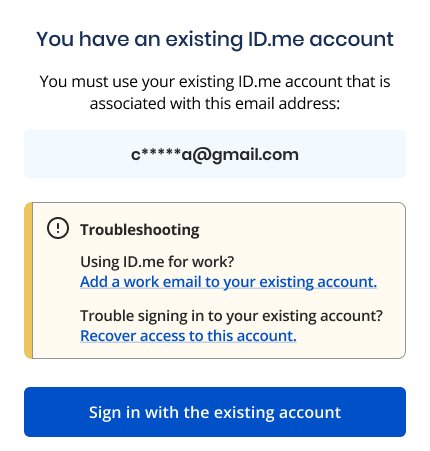
- Read the email hint on the You have an existing ID.me Wallet screen.
- Select Sign in with the existing wallet and use that email and password.
- If you see Merge wallets and recognise the email, select it and follow the prompts.
- If you do not recognise the email hint, contact ID.me Support.
You forgot your password
Social sign-in (Google, Apple, Facebook, DS Logon) is no longer supported, so you need your ID.me password.
- Open the ID.me sign-in page, enter your email and select Continue.
- Select Forgot password?, re-enter your email and select Continue.
- Open the email titled ID.me – Your password reset link; it can take up to 10 minutes.
- Select the reset button or enter the 6-digit code within 15 minutes.
- Enter the new password twice, select Continue and complete MFA.
Security Tips for Using ID.me Safely
Scammers pose as ID.me to get into wallets. These are the signs ID.me itself tells users to check.
| Check | Genuine ID.me | Treat as a scam |
|---|---|---|
| Website | www.id.me and wallet.id.me | Any ID.me page ending in .com |
| Email sender | An @id.me address such as [email protected] | @idme.com, @id.com or other .com senders |
| Password and MFA codes | Entered only on the ID.me sign-in screen | Anyone asking you to read them out |
| Phone calls | Always a live ID.me Support person | Automated calls claiming to be ID.me |
| Agency contact | You start from irs.gov, va.gov or ssa.gov yourself | A call, text or email urging you to sign in to get a transcript or update your profile |
If you think someone used your details to create or sign in to a wallet, report it to ID.me Support through help.id.me. Block the scammer's number or email address.
How Long Does ID.me Verification Take?
| Route | Typical time | Source |
|---|---|---|
| Creating the wallet (email, password, MFA) | A few minutes; the confirmation link must be used within 15 minutes | ID.me Help Center |
| Self-Service verification | Usually 5-10 minutes | ID.me IRS help page |
| Verification for VA | About 10 minutes | VA.gov |
| Video call | Document review plus a live wait shown on screen; appointments up to 10 days ahead | ID.me Help Center |
| In-person at a retail location | Result emailed within 24 hours of the visit | ID.me Help Center |
Can You Create an ID.me Account Without a Smartphone?
Yes. The wallet itself needs only an email and an MFA method, and text or voice-call codes work on a basic phone.
| Step | Without a smartphone |
|---|---|
| Create the wallet | Works on any computer browser |
| MFA | Text message or phone call codes, or a USB security key |
| Self-Service verification | Not available; it needs a smartphone with a front-facing camera |
| Video call verification | Available; ID.me lists it for people without a smartphone and accepts uploaded document photos |
| In-person verification | Available where the agency offers it; bring 2-3 identity documents and your QR or 25-character code |
Frequently Asked Questions
How do I create an ID.me account for the IRS?
Open the IRS tool you need on irs.gov and select Sign in or create account, then the ID.me option. Create a wallet, confirm your email, add MFA and verify with your photo ID and SSN or ITIN. You must be 18 or older.
How do I create an ID.me account for the VA?
Go to the VA.gov sign-in page and choose the ID.me option to create an account. VA recommends ID.me over Login.gov if you live abroad, have no SSN, no current state ID, or a phone plan in someone else's name.
How do I create an ID.me account and verify it at the same time?
Start from the partner site's ID.me button. After you create the wallet and set up MFA, ID.me moves straight into verification: photo of your ID, video selfie, then your personal details, and finally Allow to share the result.
How do I create a new ID.me account if I already have one?
You cannot have two verified wallets. ID.me shows You have an existing ID.me Wallet with an email hint; sign in with that wallet instead. The IRS notes that trying to create an account is the easiest way to learn whether one exists.
How long does it take to create an ID.me account?
Creating the wallet takes a few minutes. Self-Service verification usually takes 5-10 minutes according to ID.me's IRS page, and VA estimates about 10 minutes. Video call and in-person routes take longer because they depend on queues or appointments.
Can I use one ID.me account for the IRS, VA and Social Security?
Yes. You verify once, then sign in with the same ID.me email and password wherever ID.me is accepted. Each new site asks you to select Allow to share your verified identity.
How do I create an ID.me account for unemployment?
Go to your state unemployment agency's own website and select its ID.me button, then follow the same wallet, MFA and verification steps. If you already have a verified wallet from the IRS or VA, sign in with it.
Can I sign in to ID.me with Google or Apple?
No. ID.me no longer supports signing in with Google, Apple, Facebook, DS Logon or other social accounts. Use the email and password on your wallet, and reset the password with Forgot password? if needed.