To insert a PDF into Excel, select a cell, go to Insert > Object in the Text group, choose Create from File, browse to the PDF and click OK.
This guide covers embedding the PDF as a page or an icon, linking it, adding a page as an image on Windows and Mac, importing PDF tables into cells, and what to do when the PDF won't insert.
Step by step tutorial: How to insert PDF into Excel
These steps embed the PDF in the workbook in the Excel desktop app on Windows. By default, Excel shows the file's first page on the sheet.
- Open the workbook and click the cell where you want the PDF to appear.
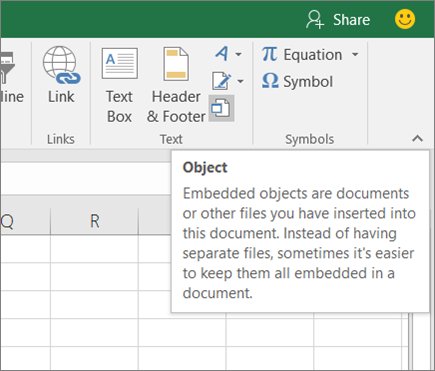
- Select the Insert tab, then click Object in the Text group.
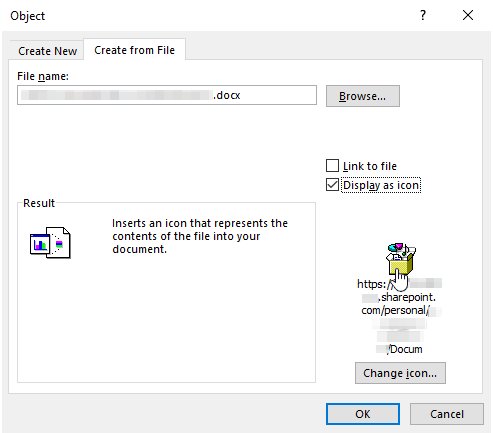
- In the Object dialog box, select the Create from File tab.
- Click Browse, select the PDF and click Open (or Insert).
- Leave Display as icon and Link to file cleared to embed a preview of the first page.
- Click OK.
To see or read the PDF from the sheet, Adobe Acrobat or Adobe Reader needs to be installed on the PC. On Windows 11, check which app is set to open PDF files before you insert one.
Ways to insert a PDF into an Excel spreadsheet
| What you want | Use this | Why |
|---|---|---|
| The PDF stored inside the workbook | Insert > Object > Create from File | The file travels with the workbook and opens with a double-click |
| A small icon instead of a page preview | Display as icon in the Object dialog | Keeps the sheet tidy, useful when the workbook is viewed online |
| A smaller workbook that shows the latest PDF | Link to file in the Object dialog | Excel stores only the file's location |
| One page as a picture | Insert > Screenshot > Screen Clipping | Captures exactly the page or part you need |
| The PDF's tables as editable cells | Data > Get Data > From File > From PDF | Power Query reads the tables into rows and columns |
How to insert PDF into Excel as an icon
An icon takes less room than a page preview and opens the full PDF when someone double-clicks it.
- Click the cell where the icon should go.
- Select Insert > Object in the Text group.
- Select Create from File, then click Browse and pick the PDF.
- Select the Display as icon check box.
- Click OK, then double-click the icon to check that the PDF opens.
How to link a PDF file in Excel
A linked PDF stays outside the workbook. Keep the workbook and the PDF on a SharePoint site, a mapped network drive or a similar location that won't change.
- Click the cell where you want the link.
- Select Insert > Object in the Text group.
- Select Create from File and click Browse.
- Pick the PDF, then select the Link to file check box.
- Click OK.
If you move the PDF to another location, the link no longer works. Reinsert it from the new location.
How to insert PDF into Excel as image
An image is the way to show one specific page, a chart or a table from the PDF on the sheet. Excel's Screenshot tool captures any open window that isn't minimized.
- Open the PDF and scroll to the page you want. Keep its window open, not minimized.
- In Excel, click the cell where the image should go.
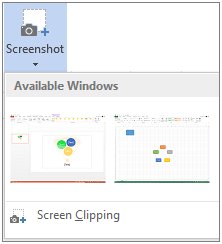
- On the Insert tab, in the Illustrations group, click Screenshot.
- Click Screen Clipping.
- When the screen turns white and the pointer becomes a cross, press and hold the left mouse button and drag over the part of the page you want.
- Release the button. Excel inserts the clip as a picture you can move and resize.
Only one screenshot is added at a time, so repeat the steps for each page.
How to insert a PDF into Excel on Mac
On a Mac, capture the PDF page with the macOS screenshot shortcuts, then insert the saved image.
- Open the PDF on the page you want.
- Press Shift + Command + 4 and drag the crosshair over the area to capture. Shift + Command + 5 opens the Screenshot app instead.
- Find the screenshot in the Desktop folder, where macOS saves it by default.
- In Excel, click the cell where the image should go.
- Select Insert > Pictures > Picture from File, pick the screenshot and insert it.
How to import PDF data into Excel
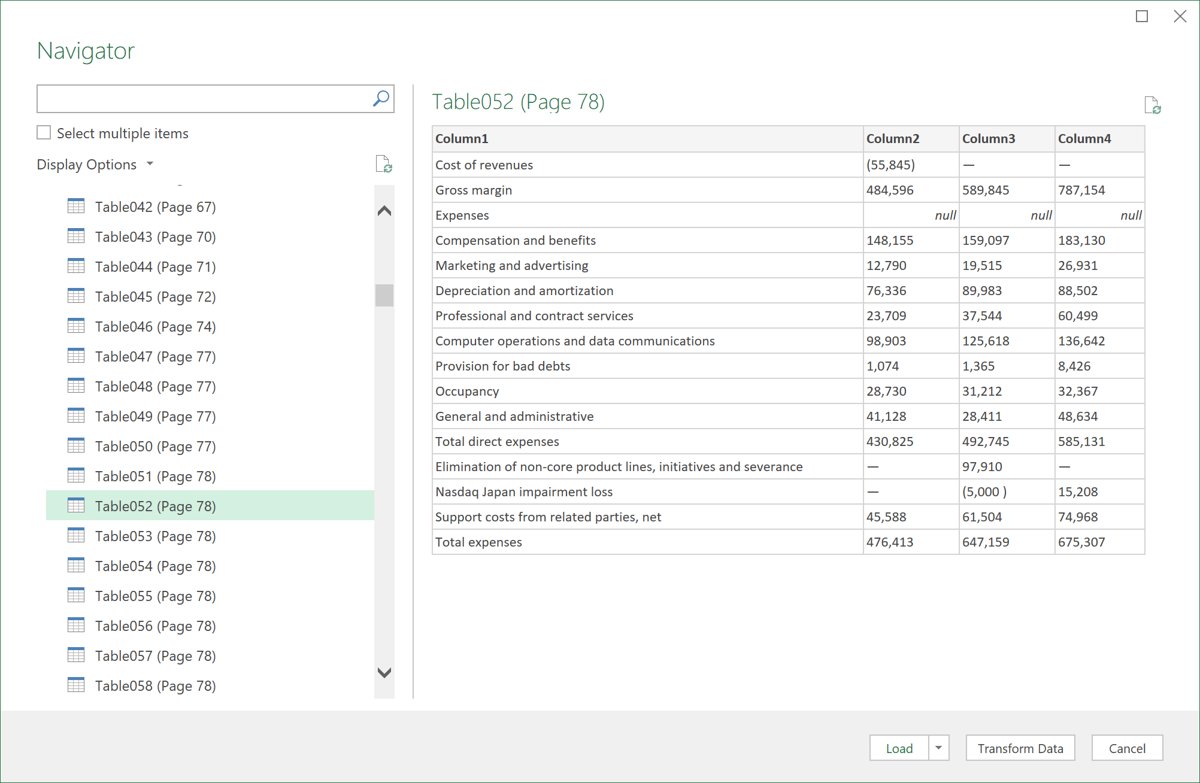
When you need the numbers rather than a picture of them, Power Query reads the tables in a PDF into worksheet cells. The PDF connector requires .NET Framework 4.5 or higher on Windows.
- Select Data > Get Data > From File > From PDF.
- Select the PDF file and click Open.
- In Navigator, select the tables you want to import.
- Select Load > Load to put the data straight on a sheet, or Load > Load To to choose where it goes.
- Select Transform Data instead if you want to clean the data in Power Query first.
Once the table is in cells, you can sort it, filter it or look up values with VLOOKUP like any other range.
Embedded vs linked PDF in Excel
| Embedded PDF | Linked PDF | |
|---|---|---|
| Where the PDF lives | Inside the workbook | In its original location |
| Workbook size | Grows, because the whole file is stored | Stays small, only the location is stored |
| Updates | Not updated when the original changes | Can update when the source file changes |
| If the PDF is moved | No effect | The link stops working |
| Best for | Sending the workbook to someone | Shared drives and SharePoint sites |
How to move and resize a PDF in an Excel sheet
- Click the inserted PDF once to select it.
- Drag it anywhere on the worksheet, such as next to the cells it relates to.
- Drag a corner handle to make the preview or icon larger or smaller.
- Double-click the object to open the PDF in its source program.
Tips: How to insert PDF into Excel
| Tip | Why it helps |
|---|---|
| Click the target cell before inserting | The object is placed at the cell you selected |
| Use an icon for workbooks viewed online | An icon suits workbooks that are read on screen and not printed |
| Link instead of embed for shared work | Embedding can make co-authoring less efficient and conflicts more likely |
| Turn AutoSave back on afterwards | Inserting an object disables AutoSave for the workbook |
| Use Screen Clipping for a single page | An embedded PDF only previews its first page |
| Import tables when you need the data | Get Data > From PDF puts the tables in cells you can calculate with |
Working in Google Docs instead of Excel? You can add a PDF to a Google Doc with a different set of steps.
Why can't I insert a PDF into Excel
The PDF inserts but you can't see or open it
No PDF program is installed to display it, and Excel lists only installed programs that support OLE.
- Install Adobe Acrobat or Adobe Reader from Adobe's website.
- Delete the blank object from the sheet.
- Insert the PDF again with Insert > Object > Create from File.
A linked PDF no longer opens
The PDF was moved or renamed after it was linked.
- Move the PDF back to its original folder, or find its new location.
- Delete the old linked object.
- Insert it again with Link to file selected, using a location that won't change.
AutoSave turned off after inserting the PDF
Inserting any object into a workbook disables AutoSave.
- Save the workbook manually with Ctrl + S after inserting the PDF.
- For shared workbooks, insert a link to the PDF instead of embedding it.
Get Data doesn't find tables in the PDF
The PDF connector only returns tables it can identify in the file.
- Select Transform Data in Navigator and check each listed page or table.
- Clean misaligned rows in Power Query Editor before loading.
- If the page holds no real table, insert it as an image with Screen Clipping instead.
Insert PDF into Excel FAQ
Can you insert a PDF into Excel?
Yes. In the Excel desktop app, select Insert > Object > Create from File, browse to the PDF and click OK. Excel embeds the file and shows its first page, or an icon if you select Display as icon.
How do I insert a PDF into an Excel cell?
Click the cell first, then use Insert > Object > Create from File. The PDF lands at that cell as an object on top of the grid, and you can drag it into place and resize it with its corner handles.
Can I insert multiple PDFs into Excel?
Yes. Repeat Insert > Object > Create from File for each PDF, clicking a different cell each time. Showing each one as an icon keeps a sheet with several PDFs readable.
Will inserting a PDF into Excel make my file size much larger?
An embedded PDF is stored inside the workbook, so the file grows with it. Linking the PDF with Link to file keeps the workbook small because Excel stores only the file's location.
Can I edit the PDF once it's inserted into Excel?
Not inside Excel. You can move and resize the object, and double-clicking it opens the PDF in its source program. The source program, or another program that can edit PDFs, must be installed.
Can I insert a specific page of a PDF into Excel?
Not as an object, because an embedded PDF previews its first page. Open the PDF on the page you want and use Insert > Screenshot > Screen Clipping to place that page as a picture.
Can I search the text within the inserted PDF from Excel?
The embedded PDF isn't worksheet text. To work with its contents, import the tables with Data > Get Data > From File > From PDF, which loads them into cells.
How do I insert a PDF into Excel in Office 365?
Excel for Microsoft 365 uses the same steps as other desktop versions: Insert > Object in the Text group, Create from File, Browse, then OK. It also has Data > Get Data > From PDF for importing tables.