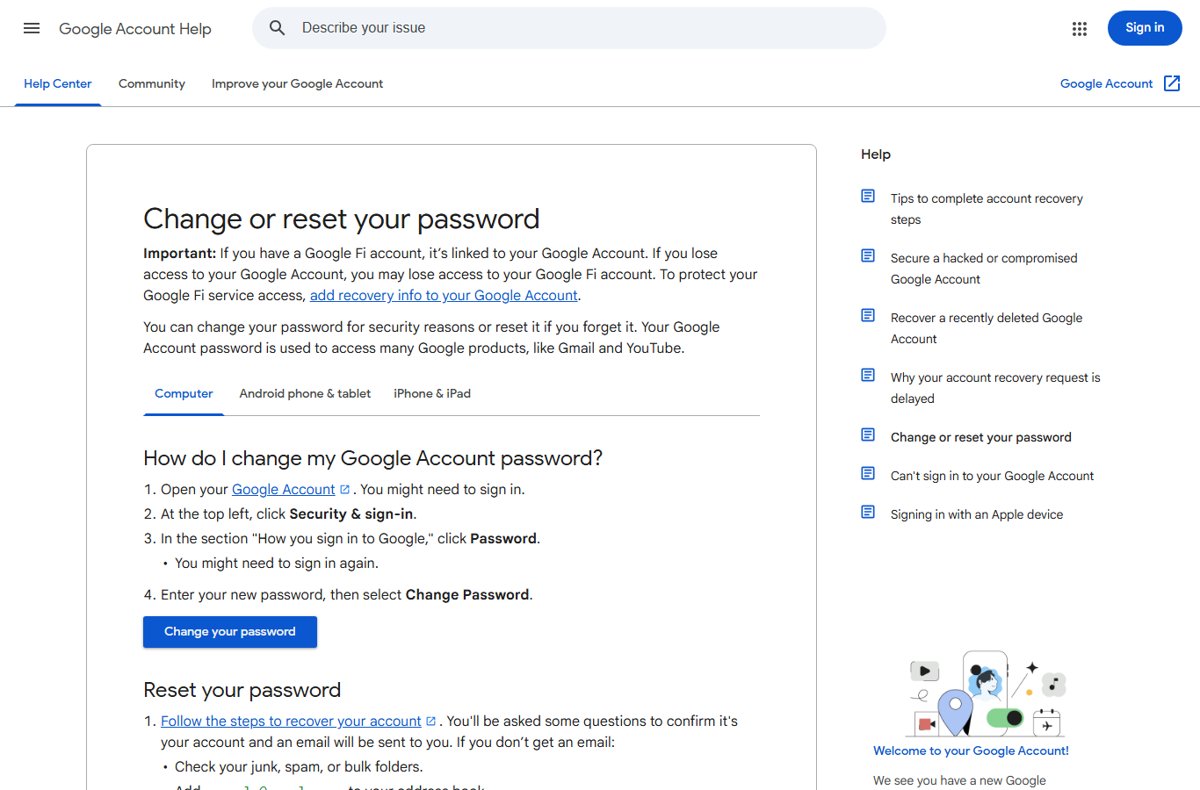
To change your Gmail password, open myaccount.google.com, select Security & sign-in, click Password, enter the new password and select Change Password.
Your Gmail password is your Google Account password, so this guide covers the steps on a computer, Android, iPhone and iPad, password rules, what changes afterwards, and how to reset a forgotten one.
How to change your Gmail password on a desktop computer
These steps work in any browser on Windows, macOS, ChromeOS or Linux, including a laptop.
- Go to myaccount.google.com and sign in to the Google Account you use for Gmail.
- Click Security & sign-in at the top left.
- Under How you sign in to Google, click Password. Google may ask you to sign in again.
- Type your new password.
- Select Change Password.
In Gmail itself, the same page opens when you click your profile picture at the top right and choose Manage your Google Account.
Change Gmail password on laptop, Android, iPhone or iPad
| Your device | Start here | Then |
|---|---|---|
| Windows PC, Mac or laptop | myaccount.google.com in a browser | Security & sign-in > Password |
| Android phone or tablet | Settings > Google > your name > Manage your Google Account | Security & sign-in > Password |
| iPhone or iPad | Gmail app > profile picture > Manage your Google Account | Personal info > Password |
| Forgot the current password | Google account recovery | Confirm it is you, then set a new password |
| Outlook still uses the old password | Change it at Google first | Enter the new password when Outlook asks |
How to change your Gmail password on an Android device
On Android the Google Account settings are built into the phone's Settings app, so you do not need to open Gmail.
- Open the Settings app on your phone or tablet.
- Tap Google, then your name, then Manage your Google Account.
- Tap Security & sign-in.
- Under How you sign in to Google, tap Password. Sign in again if asked.
- Enter the new password, then tap Change Password.
How to change your Gmail password on an iPhone or iPad (iOS)
The steps are the same on every current iPhone, including the iPhone 16 and iPhone 17, and on iPad. If Gmail is not installed, open myaccount.google.com in Safari instead.
- Open the Gmail app.
- Tap your profile picture or initial at the top right.
- Tap Manage your Google Account.
- Tap Personal info.
- Under Other info and preferences for Google services, tap Password.
- Type your new password and tap Next.
Tips for creating a strong, secure password
Google rejects a password you have already used on the account. These are Google's own rules and recommendations.
| Rule | What Google advises |
|---|---|
| Length | At least 12 characters; longer passwords are stronger |
| Characters | Any mix of letters, numbers and symbols (ASCII only); accented characters are not supported |
| Avoid | Obvious choices such as password123, a password used before on this account, or a leading or trailing space |
| Personal details | Skip nicknames, children's or pets' names, important dates, your street or phone number |
| Patterns | Skip simple words, sequences such as 1234 and keyboard runs such as qwerty |
| Reuse | Use a different password for email than for banking and other important accounts |
| Memorability | Build it from a phrase, such as the first letters of each word in a sentence |
| Storage | Save it in Google Password Manager or another trusted password manager |
What to do after changing your password (and if you forget)
A password change signs you out of your Google Account everywhere, with a few exceptions.
- Sign in to Gmail again on each phone, tablet and computer that asks for your password.
- Note that devices you use to verify sign-ins stay signed in, as do some third-party apps and smart home devices with account access.
- Open Security & sign-in and check Manage devices; remove any device you do not recognise.
- Remove app access you no longer want at myaccount.google.com/permissions.
- Secure your account further: add or update a recovery phone number and recovery email, and turn on 2-Step Verification.
- Change the password on any other site that used the same one, for example when you change your PayPal password.
Update your new Gmail password in Google Password Manager
Google Password Manager saves passwords to your Google Account when you are signed in to Chrome or an Android device, so an old Gmail password saved there keeps autofilling until you replace it. When you enter the new password on a site, Chrome asks to save it; select Save or Update.
| Device | Where saved passwords live | What to do |
|---|---|---|
| Chrome on a computer | More (three dots) > Passwords and autofill > Google Password Manager | Search for google.com, open the entry, select Edit and enter the new password |
| Android phone or tablet | Settings app > search for Password Manager > Password Manager | Open the google.com entry and replace or delete the old password |
| iPhone or iPad (iOS) | Chrome app, after you sign in to Gmail with the new password | Tap Save when Chrome offers to save it |
| Any browser | passwords.google.com | View and use passwords saved to your Google Account, and edit the old Gmail entry |
When you are not signed in to Chrome, it stores passwords only on that device, so update the old entry on each such device separately. Google Password Manager also notifies you about compromised passwords, which helps you spot other accounts that still use the old Gmail password.
What to do if you forget your Gmail password
If you cannot sign in to change the password, reset it through Google account recovery, Gmail's standard recovery procedure. Recovery works best when a recovery phone number and email are already on the account.
- Start Google account recovery from the Google sign-in page.
- Answer the questions Google asks to confirm the account is yours.
- Open the recovery email Google sends. If it is missing, check spam, junk and bulk folders and add [email protected] to your contacts.
- Request another email from the recovery steps if needed, and check every address you might have used.
- Choose a new password that you have not used before on this account.
How to change Gmail password in Outlook
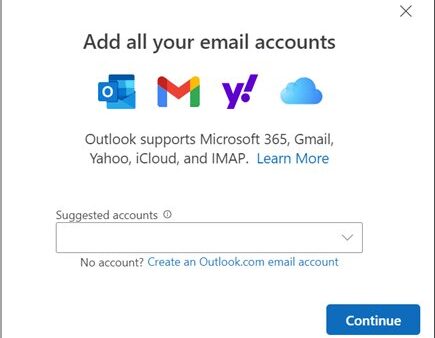
Outlook cannot change a Gmail password. Microsoft states that third-party accounts such as Gmail change their password on the provider's website.
- Change the password at myaccount.google.com using the desktop steps above.
- Open Outlook on your PC.
- Enter the new Gmail password when Outlook asks for the updated password.
- Repeat on any other mail app that syncs the same Gmail account.
Why can't I change my Gmail password?
Gmail is forcing me to change my password
A Google security alert flagged an unusual sign-in or a security change you did not make.
- Change the password immediately from myaccount.google.com, not from a link in an email.
- Open Security & sign-in > Review security events and select No, it wasn't me for anything unfamiliar.
- Turn on 2-Step Verification and run Password Checkup at passwords.google.com.
- Remove unfamiliar Gmail filters and forwarding rules.
The new password is rejected
It was used before on this account, is too weak, or contains accented characters or a leading or trailing space.
- Pick a password of 12 or more characters you have never used on this account.
- Use only ASCII letters, numbers and symbols, with no space at the start or end.
Google asks for the current password and you do not know it
Changing the password requires you to sign in again first.
- Complete Google account recovery from the sign-in page.
- Set the new password at the end of recovery.
Outlook or another mail app keeps asking for the password
The app still stores the old Gmail password.
- Enter the new password in the app's prompt.
- Sign in again on each device that was signed out.
Change Gmail password FAQ
Can I change my Gmail password?
Yes. Your Gmail password is your Google Account password. Change it at myaccount.google.com under Security & sign-in > Password, or from Manage your Google Account in the Gmail app or Android Settings.
How do I change my Gmail password on my phone?
On Android, open Settings > Google > your name > Manage your Google Account > Security & sign-in > Password. On iPhone, open Gmail, tap your profile picture, then Manage your Google Account > Personal info > Password.
Can I change my Gmail password on my iPhone?
Yes. Open the Gmail app, tap your profile picture, tap Manage your Google Account, then Personal info and Password. Type the new password and tap Next. Safari and myaccount.google.com work if Gmail is not installed.
How do I change my Gmail password if I forgot it?
Start account recovery from the Google sign-in page and answer the questions that confirm the account is yours. Google sends a recovery email, after which you set a new password you have not used on the account before.
Does changing my Gmail password sign me out of other devices?
Yes, mostly. Google signs you out everywhere except devices you use to verify sign-ins and some third-party apps and smart home devices with account access. You sign in again with the new password.
Why is Gmail making me change my password?
A change request usually follows a Google security alert, such as an unusual sign-in or a security change you did not make. Change the password from myaccount.google.com and review your recent security events.
Can I change my Gmail password in Outlook?
No. Change it on Google's website first. Outlook then asks for the updated password the next time it connects, and you type the new one there.
How long should a Gmail password be?
Google recommends at least 12 characters, using any mix of ASCII letters, numbers and symbols. Accented characters are not supported, and a password cannot start or end with a space.