To use clip art in Word for Office 365, select Insert > Pictures > Online Pictures, search for a word, filter the results by Type > Clipart and select Insert; Microsoft 365 no longer ships a built-in clip art gallery.
This guide covers that Bing-powered route, the stock images and icons Microsoft offers in its place, the paths for Word for Mac, Word 2016 and Word for the web, and how to resize and wrap clip art once it is in the document.
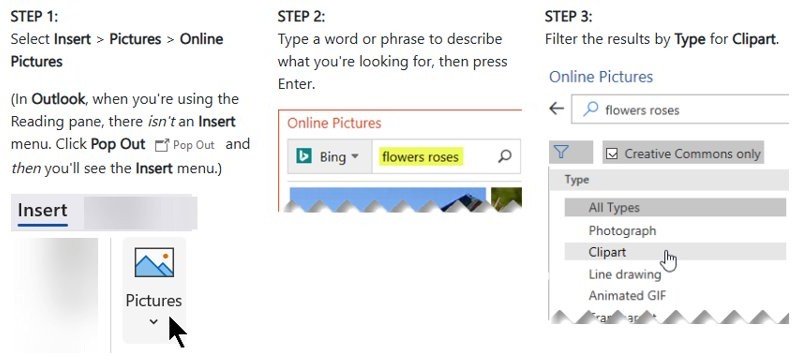
Step by step tutorial on using Microsoft Word clip art in Office 365
These steps work in Word for Microsoft 365 on Windows and also in PowerPoint and Excel. The search runs through Bing, so you need an internet connection.
- Click in the document where you want the clip art to go.
- Select the Insert tab, then Pictures > Online Pictures.
- Type a word or phrase that describes the image, such as apple or school bus, and press Enter.
- Select the filter and, under Type, choose Clipart so only drawings appear.
- Leave Creative Commons only selected in the licensing filter if you plan to share or publish the document.
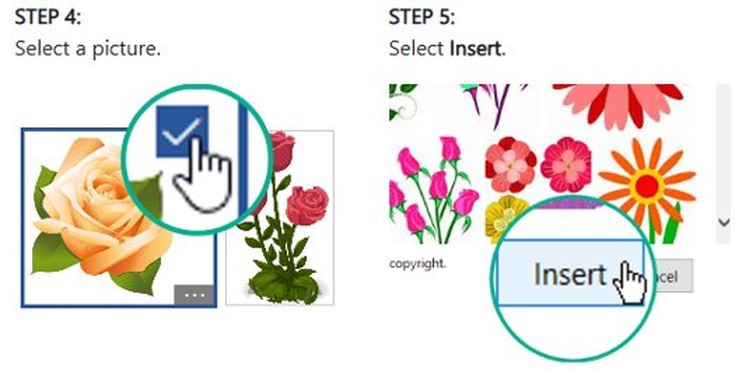
- Select one or more images. A check mark appears on each one you pick.
- Select Insert. The clip art lands at the cursor.
If the Insert tab is not visible, show the ribbon in Word first, then repeat the steps.
Clip art option in MS Word: online pictures, stock images or icons
Word for Microsoft 365 has three places that now do the job the old Clip Art gallery did. Each suits a different kind of image.
| What you want | Where to find it in Word | Licence |
|---|---|---|
| Classic cartoon-style drawings | Insert > Pictures > Online Pictures, Type > Clipart | Varies per image; you must respect copyright |
| Photos, cutout people or stickers | Insert > Pictures > Stock Images | Royalty-free library for Microsoft 365 subscribers |
| Simple symbols you can recolour | Insert > Icons | Free to use, no royalty or copyright to worry about |
| A picture of something on your screen | Insert > Screenshot > Screen Clipping | Your own capture of what is on screen |
What is clip art in Microsoft Word
Clip art is ready-made artwork you drop into a document instead of drawing or photographing it yourself. Older versions of Office shipped a Clip Art gallery; Microsoft 365 replaced it with online and stock content.
| Type | What it is | Available in Word |
|---|---|---|
| Online clip art | Drawings found through Bing in Online Pictures | Yes, Windows and Mac |
| Stock images | High-resolution photographs | Yes |
| Cutout people | Photos of people with transparent backgrounds | Yes |
| Stickers | Whimsical, animation-style drawings | Yes |
| Icons | Symbols you can rotate, colour and resize with no loss of quality | Yes, from Insert > Icons |
| Illustrations and cartoon people | Matching drawings and mix-and-match cartoon figures | Listed in the stock library; the full sets are aimed at PowerPoint |
How to insert stock images in Word as clip art
Stock images are Microsoft's own replacement for traditional clip art. Microsoft 365 subscribers get the full library; Office 2021 and Office for the web users without a subscription see part of it.
- Click where you want the image.
- Select Insert > Pictures > Stock Images.
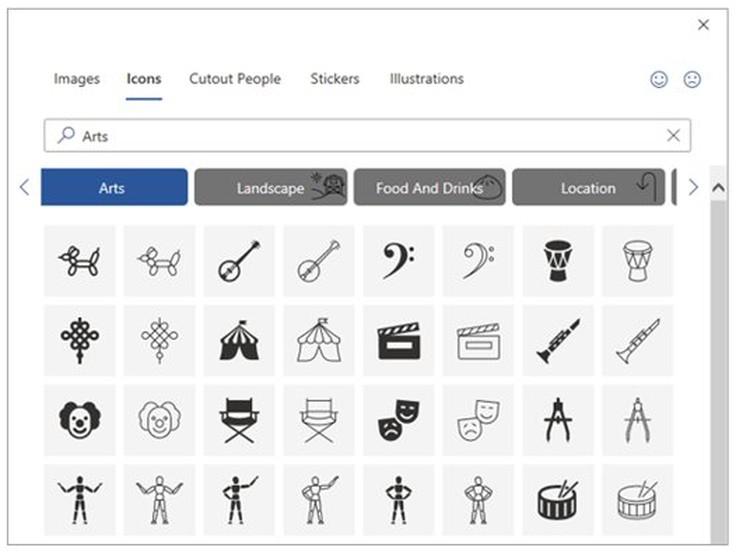
- Choose a collection: Images, Icons, Cutout People, Stickers, Illustrations or Cartoon People.
- Type a word in the search box at the top of the collection to narrow the results.
- Select one or more items.
- Select Insert.
If you only see part of the library, sign in to Word with the account that holds your subscription. You can install and activate Microsoft 365 on the same PC to get the full set.
How to insert icons in Word
Icons are scalable drawings, so they stay sharp at any size. Microsoft states they are free to use with no royalty or copyright concerns.
- Select Insert > Icons.
- Scroll the gallery, choose a category in the pane on the left, or search with the box near the top left.
- Select an icon. Select several before the next step to insert them together.
- Select Insert at the lower right.
- To recolour an icon, right-click it, choose Fill and pick a colour.
Where is clip art in Microsoft Word for Mac, Word 2016 and Word for the web
The menu path depends on which version of Word you run.
| Word version | Path to clip art | Then |
|---|---|---|
| Word for Microsoft 365 (Windows) | Insert > Pictures > Online Pictures | Filter Type > Clipart, select, Insert |
| Word for Mac | Insert > Pictures > Online Pictures | Open the filter, choose Clipart under Type, select Insert at the bottom of the pane |
| Word 2016 (Windows) | Insert > Online Pictures | Select Filter > Type > Clipart, then Insert |
| Word for the web | Insert > Pictures > Stock Images | Pick a collection, select images, Insert |
| Outlook reading pane | Select Pop Out first | The Insert menu then appears |
How to edit clip art in Word: resize, wrap text and recolour
Inserted clip art behaves like any picture. Word places it in line with text by default, which is why it may refuse to move freely.
- Select the clip art to show its sizing handles.
- Drag a corner handle to resize it, or set exact measurements in the Size group on the Picture Format tab.
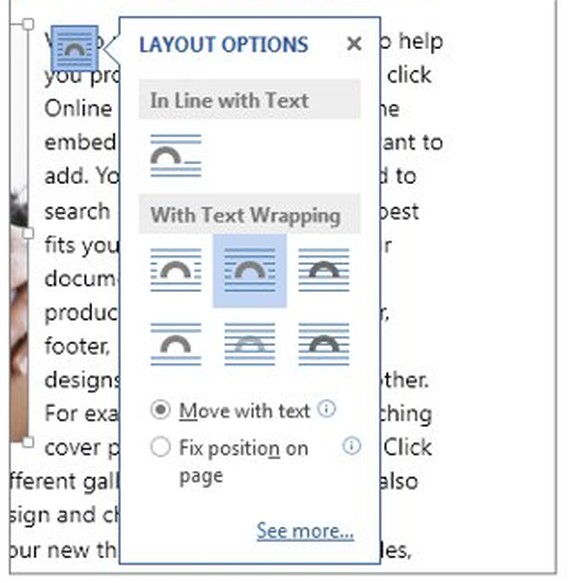
- Select the Layout Options icon next to the image.
- Choose Square under With Text Wrapping so text flows around it, then select Move with text.
- Or choose In Front of Text and Fix position on page to pin it to one spot.
- To nudge it slightly, hold Ctrl and press an arrow key.
- For icons, open the Graphics Format tab and use Graphics Fill or Graphics Outline to change colours.
If you cannot select a picture that sits behind text, open Home > Select > Selection Pane and pick it from the list.
How to insert screen clipping in Word
Screen Clipping grabs part of another open window and drops it straight into the document. Only windows that are not minimised can be captured.
- Open the window you want to capture, then switch back to Word.
- Click where the image should go.
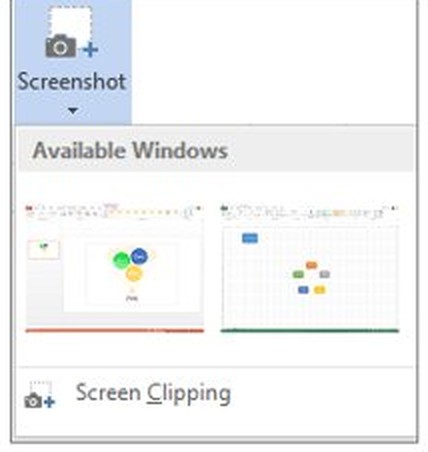
- Select Insert and, in the Illustrations group, select Screenshot.
- Select Screen Clipping.
- When the screen turns white and the pointer becomes a cross, drag to select the area you want.
- Release the mouse. The clipping is added to the document, ready to edit on the Picture Format tab.
Pros of using clip art in Word
| Advantage | Why it helps |
|---|---|
| Built into the Insert tab | No separate image site or download is needed |
| Licence filter in Online Pictures | Creative Commons only narrows results to reusable images |
| Free icons with no royalty | Safe for flyers, reports and slides you share |
| Icons scale without blurring | They stay sharp from a bullet point to a poster |
| Stock images included with Microsoft 365 | Professional photos and stickers at no extra cost to subscribers |
| Layout and colour tools | Wrap text, resize and recolour without leaving Word |
Cons of using clip art in Word
| Drawback | What to do about it |
|---|---|
| No offline clip art gallery any more | Connect to the internet, or use icons and pictures saved on your PC |
| Bing results carry mixed licences | Keep Creative Commons only on and check the image source before publishing |
| Full stock library needs a subscription | Sign in with a Microsoft 365 account, or use Online Pictures |
| Some stock collections are PowerPoint-focused | Use Icons and Stickers in Word |
| Many images make a large file | Compress pictures from the Picture Format tab before sharing |
Can you use Microsoft Word clip art for commercial purposes?
Use Icons and Stock Images for anything you sell or publish, and treat Bing clip art from Online Pictures as unlicensed until you have checked the image's own licence. Microsoft says its icons carry no royalty or copyright concerns and the stock library is royalty-free, but for pictures found through Bing you are responsible for respecting copyright. The Creative Commons only filter helps, yet each Creative Commons licence has its own terms, such as attribution or non-commercial use.
Microsoft Word clip art FAQ
Where is clip art in Microsoft Word?
In Word for Microsoft 365, clip art is under Insert > Pictures > Online Pictures. Search for a term, then filter the results by Type > Clipart. Word 2016 uses Insert > Online Pictures instead.
What is clip art in Microsoft Word?
Clip art is ready-made artwork you insert instead of creating it. Microsoft 365 no longer includes the old gallery, so Word finds clip art through Bing in Online Pictures and offers stock images, stickers and icons in its place.
How do I use clip art in Word?
Select Insert > Pictures > Online Pictures, type a search word, choose Clipart under Type, select an image and select Insert. Then use the Layout Options icon to wrap text around it.
Is clip art available in all Office 365 applications?
The Online Pictures route works in Word, PowerPoint and Excel. OneNote uses Insert > Picture > From Online, and in Outlook you select Pop Out in the reading pane to reach the Insert menu.
Can I edit the clip art once it is inserted?
Yes. Select it to use the Picture Format tab for size, cropping and effects. Icons open the Graphics Format tab instead, where Graphics Fill and Graphics Outline change their colours.
Can I resize the clip art?
Yes. Drag a corner handle to resize it in proportion, or set exact measurements in the Size group on the Picture Format tab. Icons keep their quality at any size because they are vector images.
Is there a limit to how many clip art images I can use?
Microsoft does not publish a limit on the number of images per document. Each image adds to the file size, so compress pictures before emailing a document that holds a lot of clip art.
Can I use clip art for commercial purposes?
Icons and stock images from Microsoft are royalty-free for Microsoft 365 users. Bing clip art from Online Pictures is not licensed by Microsoft, so check each image's own licence before using it commercially.
How do I screen clip on Word?
Select Insert > Screenshot > Screen Clipping, then drag across the part of the screen you want. The capture comes from the first window in the Available Windows gallery, so open that window just before you start.