Sign in to Twitch on the web, open https://www.twitch.tv/activate, and enter the code your TV app shows to activate the account on that device.
This page covers account creation, email verification, device activation, security settings and the fixes for a code Twitch refuses.
The fastest way to activate Twitch on a device
The device displays the code. The code is typed on a phone or computer, never on the TV.
- Open the Twitch app on your TV, console or streaming stick and start the log-in flow.
- Leave the activation code on screen. Twitch device codes are eight characters long.
- On a phone or computer, open https://www.twitch.tv/activate.
- Select Log in and sign in as the Twitch account you want on that device.
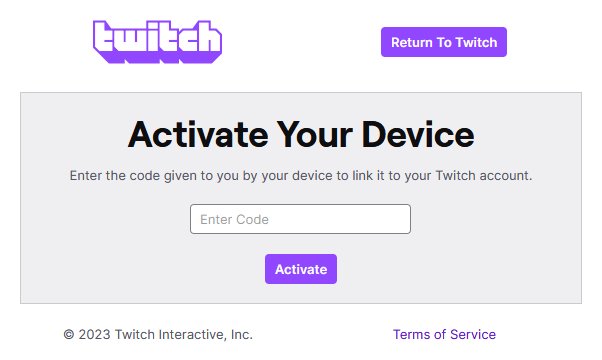
- Type the code into the field under Activate Your Device, then select Activate.
- Watch the TV. The app checks with Twitch every few seconds and leaves the code screen on its own.
The page states the job plainly: enter the code given to you by your device to link it to your Twitch account.
Which activation route fits your situation
| Your situation | Use this | Why |
|---|---|---|
| A TV, console or stick is showing a code | twitch.tv/activate | The code links that device to whichever account the browser is signed in as |
| No Twitch account yet | The Sign Up tab on twitch.tv, then activate | A code has nothing to link to until the account exists |
| Account made but never verified | Open the verification email first | Twitch's own instructions say to verify before going further |
| Signed in as the wrong account | Log out on the web, sign in again, request a fresh code | Activation follows the browser session, not the TV |
| Amazon Prime perks missing on the device | Link the Amazon account to Twitch | Prime perks on Twitch need both accounts connected |
What You Need Before Activating Twitch
| What you need | Why it matters |
|---|---|
| A Twitch account | Activation links a device to an account; there is nothing to link without one |
| A supported device with the Twitch app | The code is generated by the app on the device, not by the website |
| A second device for entering the activation code | twitch.tv/activate is a web page, and the TV app only displays the code |
| A stable internet connection | The device keeps checking with Twitch until the authorisation arrives |
| Access to your email | Twitch sends a verification message when the account is created |
How to Create or Sign In to a Twitch Account
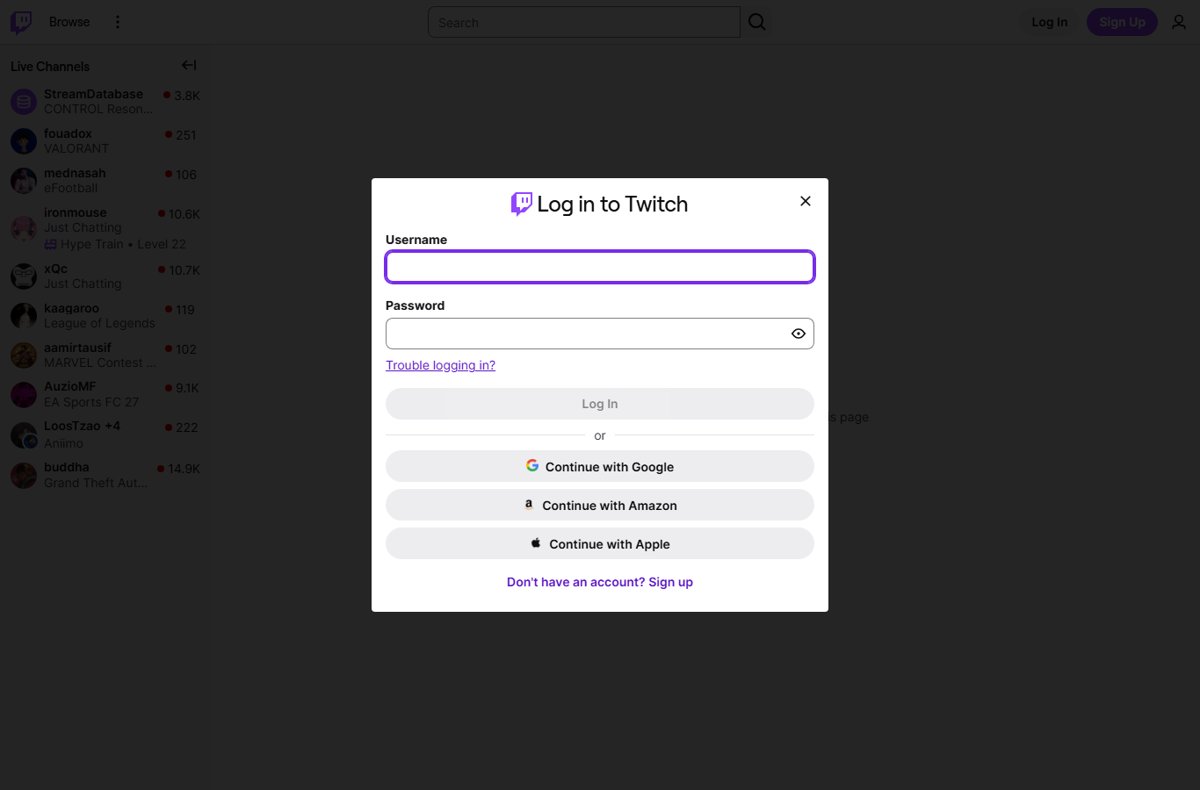
Do this before touching the code. The activation page refuses to do anything for a signed-out visitor.
- Open https://www.twitch.tv on a phone or computer.
- Select Sign Up to create an account, or Log In if you already have one.
- Complete the sign-up form and submit it.
- Open the verification email Twitch sends and finish verification before going any further.
- Return to twitch.tv and check that the profile icon in the top corner shows your account.
The Twitch mobile app signs in to the same account as the website, so either one can hold the session you activate from.
Need a fresh address for the account first? How to Create a Google Account: A Step-by-Step Guide covers that sign-up.
How to Activate Twitch on a Streaming Device
Every device that shows a code uses the same page. The wording on the TV changes; the destination does not.
- Open the Twitch app on the device and start the log-in flow.
- Read the eight-character code off the screen and keep it visible.
- On a second device, sign in at twitch.tv, then open https://www.twitch.tv/activate.
- Type the code exactly as the TV shows it, with no space before or after it.
- Select Activate.
- Return to the device. It picks up the authorisation without a restart.
A code that has been sitting on screen for half an hour is already stale. Cancel the log-in on the device and start it again to get a new one.
How to Verify Your Twitch Account by Email or Phone
Twitch sends a verification message as soon as an account is created, and its developer documentation tells new account holders to open that email and verify before doing anything else.
- Open the inbox for the address used at sign-up.
- Open the message from Twitch.
- Select the verification link inside it.
- Return to https://www.twitch.tv and sign in.
- Open Security and Privacy at https://www.twitch.tv/settings/security and set up two-factor authentication under the Security section.
Twitch requires two-factor authentication on any account that registers a developer application, so the setting is worth turning on even for a viewing-only account.
What the Twitch activation code actually is
| Property | What Twitch documents |
|---|---|
| Length | Eight characters, shown by the device |
| Where it is entered | https://www.twitch.tv/activate, on a browser that is already signed in |
| Lifetime | 1,800 seconds — 30 minutes — in Twitch's documented device-code response |
| How the device notices | It polls Twitch roughly every five seconds until the authorisation lands |
| What it links | The device to whichever Twitch account holds the browser session |
| What it does not do | It never creates an account and never changes a password |
How to check the activation worked
- Look at the device: the code screen closes and the signed-in home screen loads.
- Open the account area in the TV app and confirm the username matches the one you signed in with.
- On the web, open https://www.twitch.tv/settings/connections and look for the device among your connected apps and devices.
- If that page answers You must be logged in to view this page, sign in first and open it again.
A device that still shows a code after a successful activation was linked to a different account. Sign out on the web and repeat with the right one.
How to connect your Amazon account to Twitch
Prime perks on Twitch — one channel subscription a month, exclusive emoticons, expanded chat colours and the Prime chat badge — need the two accounts linked.
- Sign in to Twitch on the web.
- Open the Prime Member Perks page on Twitch.
- Select Connect.
- Sign in to your Amazon account.
- Sign in to your Twitch account and select Confirm.
Selecting Disconnect on the same Prime Member Perks page unlinks the two accounts again.
How to switch Twitch accounts or sign a device back out
- On the web, open the profile menu in the top corner and log out.
- Open https://www.twitch.tv/login and sign in as the other account.
- Cancel the log-in on the TV app and start it again so it issues a fresh code.
- Open https://www.twitch.tv/activate and enter the new code.
- Remove the old link at https://www.twitch.tv/settings/connections by disconnecting the entry for that device.
Closing an account outright is a separate request on every platform; How to Close a Twitter Account? shows how different that job is from signing a device out.
Troubleshooting Twitch Activation Problems
The activation code does not work
Device codes expire. Twitch's documented device-code response gives them 1,800 seconds.
- Cancel the log-in on the device and start it again to generate a new code.
- Type the code by hand instead of pasting it, so no space is carried across.
- Enter it within the 30-minute window rather than leaving it on screen.
- Check every character against the TV before selecting Activate.
Twitch activated, but the wrong account is signed in
The code attaches to whichever account holds the browser session, not to the TV.
- Log out of Twitch on the web.
- Sign in again as the account you want on the device.
- Request a fresh code from the device and enter it at https://www.twitch.tv/activate.
twitch.tv/activate asks you to log in
The activation page only works for a signed-in session.
- Select Log in on the activation page.
- Sign in with your Twitch username and password.
- Complete two-factor authentication if the account has it turned on.
- Enter the device code once the page shows Activate Your Device.
The verification email never arrived
The account stays unverified until that message is opened, and it may have been filtered.
- Search the inbox for messages from Twitch.
- Check the spam and junk folders.
- Confirm the address you typed at sign-up has no typo.
- Contact Twitch Support at https://help.twitch.tv if nothing arrives.
Activation still does not work
Something in the browser session is blocking the hand-off rather than the code itself.
- Open https://www.twitch.tv/activate in a different browser.
- Clear cookies for twitch.tv and sign in again.
- Turn off browser extensions that block scripts for the length of the activation.
- Restart the device's Twitch app so it requests a new code.
- Open a ticket with Twitch Support at https://help.twitch.tv.
Security Tips After Activating Your Twitch Account
The account that watches streams is also the account that holds channel subscriptions and creator tools, so the password guards payments as well as chat.
- Set a password used on Twitch and nowhere else.
- Open Security and Privacy at https://www.twitch.tv/settings/security.
- Turn on two-factor authentication under the Security section.
- Open https://www.twitch.tv/settings/connections and read through the apps and devices listed there.
- Disconnect anything under Other Connections you no longer use, including devices you have sold or returned.
Review that list again after every activation. A shared TV in a rented flat keeps the session until someone removes it.
Frequently Asked Questions
How do I log into Twitch?
Open twitch.tv and select Log In, then enter your username and password. Pages such as twitch.tv/settings/connections answer "You must be logged in to view this page" until that session exists, and twitch.tv/activate behaves the same way.
How do I make a Twitch account?
Open twitch.tv and select Sign Up, complete the form, then open the verification email Twitch sends. Twitch's documentation tells new account holders to verify that email before doing anything else with the account.
What is a Twitch account?
A Twitch account is the single identity that follows channels, holds chat privileges, carries subscriptions and authorises devices. Activation on a TV links that hardware to the account rather than creating a separate one for the device.
How do I set up a Twitch account on a new device?
Sign in at twitch.tv on a phone or computer, open the Twitch app on the new device, then enter the eight-character code it shows at twitch.tv/activate. The device finishes on its own within seconds.
How do I switch Twitch accounts?
Log out on the web, sign in as the other account, then cancel and restart the log-in on the device so it issues a fresh code. Enter that new code at twitch.tv/activate.
How do I connect accounts to Twitch?
Amazon links from the Prime Member Perks page on Twitch: select Connect, sign in to Amazon, then sign in to Twitch and select Confirm. Other apps appear under Other Connections at twitch.tv/settings/connections.
How do I reactivate a Twitch account?
Try signing in at twitch.tv/login first, since a session that simply expired needs nothing more. An account that was disabled or deactivated is handled by Twitch Support at help.twitch.tv, not by the activation page.
How do I deactivate a Twitch account?
Deactivation is an account request handled through Twitch Support at help.twitch.tv. Entering or removing a device code at twitch.tv/activate only changes which hardware is linked and never closes the account itself.
Do I need a phone number to create a Twitch account?
Twitch's published sign-up instructions describe an email address and a verification message sent to it. A phone number belongs to two-factor authentication, which is set up separately under Security and Privacy at twitch.tv/settings/security.
Bottom Line
Sign in on the web first, then enter the device code at twitch.tv/activate inside its 30-minute window. Almost every failed activation is one of two things: a signed-out browser, or a code that expired while it sat on the TV. Both are fixed by starting the log-in on the device only once the web session is ready.