To make a Google account your default, sign out of every Google account in the browser, then sign in to the account you want as the default first, because Google usually treats the first account you sign in with as the default.
This guide covers that web fix plus Chrome profiles, Gmail, Drive, Calendar, YouTube, Meet, Android, iPhone, Microsoft Edge and shared computers, and what to do when the default keeps changing back.
The fastest way to make a Google account default on the web
This works in Chrome, Edge, Firefox, Safari and any other browser, because the default is set by sign-in order, not by a setting.
Before you sign out, make sure each account has a recovery phone or email set up so you can get back in.
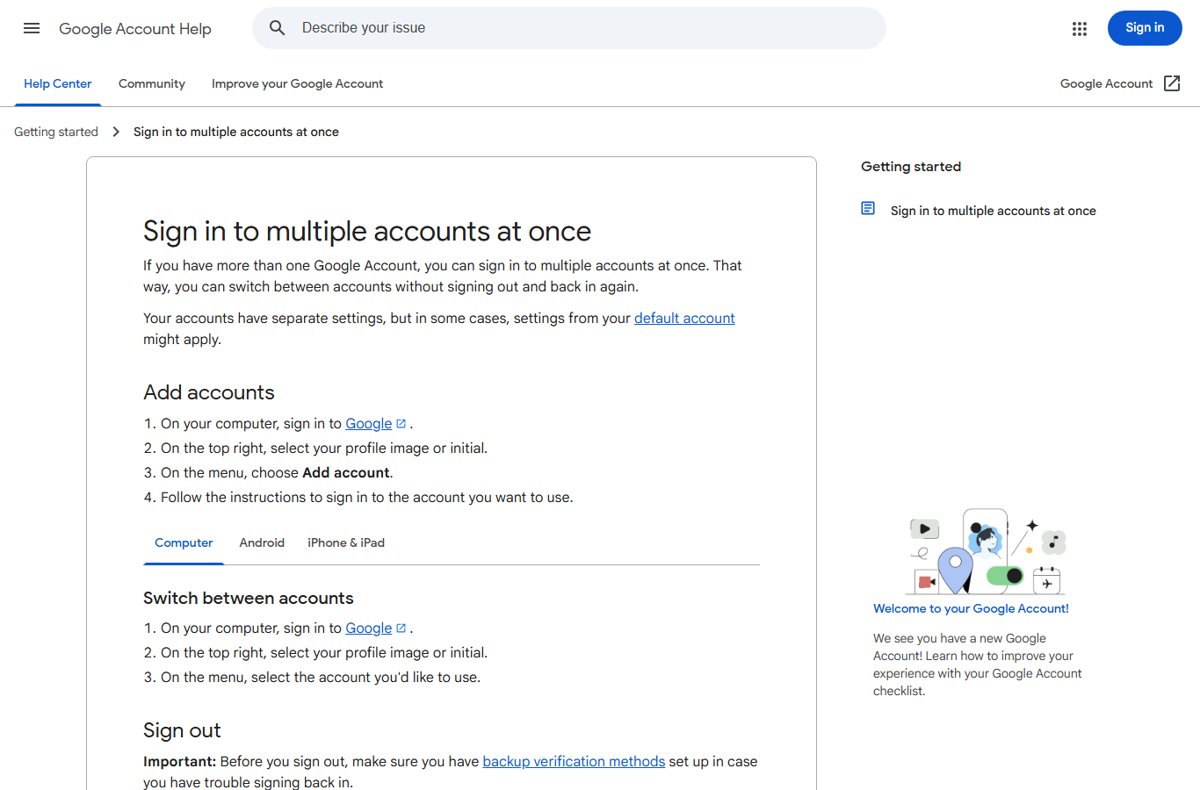
- Go to www.google.com in your browser.
- At the top right, select your profile image or initial.
- Choose Sign out of all accounts.
- Select Sign in and sign in to the account you want as the default. This must be the first account you sign in to.
- To use your other accounts too, select your profile image again, choose Add account and sign in to each one.
- Repeat these steps in every other browser you use, since each browser keeps its own sign-in order.
If you need a second account to add, create a new Google account first.
What “default Google account” actually means
There is no Make default button for Google accounts on the web. Google's own help states that in many cases the default account is the one you signed in with first.
| Where you are | What decides the default | What the default controls |
|---|---|---|
| Browser on a computer (Chrome, Edge, Firefox, Safari) | The first account signed in during that browser session | Which account opens when you visit Gmail, Drive, Calendar or a shared link in a new window |
| Chrome with several profiles | The account signed in to each profile | Each profile has its own default, bookmarks, history and passwords |
| Android phone or tablet | Varies by operating system and app | Each Google app lets you pick the signed-in account from your profile picture |
| iPhone or iPad | Varies by app | Google apps and Chrome keep their own account choice |
| Settings when Google cannot tell which account you use | The default account | Web & App Activity and Ads Personalization settings may come from the default account |
| Google Play country | Your account's payment info | Play may show content from the default account's country if several accounts are signed in |
Recommended default Google account setups for common situations
| Your situation | Use this setup | Why |
|---|---|---|
| Personal and work or school accounts on one computer | A separate Chrome (or Edge) profile per account | Each profile keeps one account as its default and never mixes history, passwords or bookmarks |
| Two personal accounts, occasional switching | Sign-in order in one browser, then switch from the profile menu | Quickest setup; the first account stays the default |
| Family computer shared by several people | One Chrome profile per person | Each person opens their own profile and lands in their own account |
| Public or borrowed computer | Chrome Guest mode | Nothing is saved and browsing activity is deleted when you close it |
| Phone with several Google accounts | Add all accounts in device Settings, pick the account inside each app | Android and iOS apps do not share one default |
| You want mail to go out from another address | Gmail Send mail as with Make default | Changes the From address without changing which account is signed in |
How to make a Google account default in Chrome
Chrome gives you two options. Option 1 is the sign-in order fix above, which changes the default Google account on websites. Option 2 is Chrome profiles, which is the more reliable way to keep work, school and personal accounts apart.
- Open Chrome on your computer.
- At the top right, select Profile, then Add Chrome profile.
- Sign in with the Google account you want this profile to use. The profile name becomes the account name.
- Choose a name, photo and color scheme so you can tell profiles apart.
- To switch Chrome profiles later, select Profile at the top right and choose the profile you want.
- To pick a profile every time Chrome starts, select Profile, then Manage Chrome profiles under Other Chrome profiles, and check Show on startup.
With a profile per account, the account signed in to that Chrome profile is always the default inside that window, so Gmail and Drive open in the right place.
How to make a Google account default in Microsoft Edge
Edge follows the same sign-in order rule for Google sites. For a permanent split, give each Google account its own Edge profile.
- Select the Profile icon in the upper-right corner of Edge.
- Select Set up a new profile.
- Choose Personal or Work or school.
- Select Start without your data or Sign in to sync data, then Confirm and start browsing.
- In the new Edge window, go to www.google.com and sign in to the Google account you want as the default for that profile.
- To switch later, select the Profile icon and choose the other profile. It opens in a new window.
How to make a Google account default in Gmail
Two different things get called the Gmail default. The first is which inbox opens first, which follows the default account. The second is the From address on new mail, which you set in Gmail settings.
- To make the right Gmail inbox open first, sign out of all accounts and sign in to that account first, as in the fastest method above.
- To change the default Send mail as address, open Gmail on your computer.
- At the top right, click Settings, then See all settings.
- Click the Accounts and import or Accounts tab.
- In the Send mail as section, next to the address you want, click Make default.
- To send replies to that address too, click Edit info next to your address, click Specify a different reply to address, add the address and click Save Changes.
The address must already be added and confirmed under Send mail as. Google has announced that from January 2027 Gmail will stop supporting Send as for third-party addresses such as @yahoo.com or @outlook.com; Workspace aliases and other Gmail addresses you own are not affected.
How to make a Google account default in Google Drive, Docs, Sheets, and Slides
Drive, Docs, Sheets and Slides have no separate default setting. They open in the browser's default account, so set the default for Drive with the sign-in order fix, then switch per tab when needed.
- Sign out of all accounts and sign in to the account you want Drive to open with first.
- Open drive.google.com and check the profile image at the top right.
- To work in another account in one tab, select your profile image and choose that account from the menu.
- If a shared file shows a "You need access" page, select your profile image and switch to the account the file was shared with.
- If the file was shared with an account you do not use, ask the owner to share it with your current account instead.
How to make a Google account default in Google Calendar
Calendar opens with the browser's default account, just like Gmail. Events you create go to the calendars of the account shown at the top right.
- Sign out of all accounts on www.google.com, then sign in to the account whose calendar you want first.
- Open calendar.google.com and confirm the profile image at the top right.
- To view a different account's calendar, select your profile image and choose the other account from the menu.
- Before you save a new event, check the calendar name in the event details so the event lands in the right account.
- For a permanent split between work and personal calendars, open each account in its own Chrome profile.
How to make a Google account default on Android
Android has no single default Google account for every app. Google notes that on mobile the default can vary by operating system and app, so you add every account to the device, then pick the account inside each app.
- To check which Google accounts are on the phone, open the Settings app and tap Passwords & accounts (on some phones Users & accounts or Manage accounts).
- To add an account, tap Add account, then Google, and follow the on-screen instructions.
- In Gmail, Drive, Calendar or another Google app, tap your profile picture at the top right and choose the account you want that app to use.
- To change the Google Play Store account, open the Play Store, tap your profile picture or initial, tap the Down arrow and select an account.
- To remove an account you no longer want as an option, go back to Passwords & accounts, tap the account, then Remove account and confirm with Remove account.
Removing an account from the phone also removes its email, contacts and settings from that device, but it does not delete the account. To delete the Google account permanently, you need a separate step.
How to make a Google account default on iPhone and iPad
On iPhone and iPad, each Google app and Chrome keeps its own account choice. The Apple Mail app handles Gmail separately through iOS Settings.
- In the Gmail app, tap Profile at the top right in the search bar, then Add another account and Google to add the account.
- To pick the account a Google app uses, tap your profile picture in that app and choose the account.
- In Chrome for iPhone or iPad, tap your account at the top right and choose a different account to switch. If you do not see it, tap New tab first.
- To add a Google account to Apple Mail, go to Settings, tap Apps, then Mail, then Mail Accounts and Add Account.
- In Apple Mail, choose the account to send from when you compose a message.
- In Safari, use the sign-in order fix: sign out of all accounts on www.google.com and sign in to the default account first.
How to make a Google account default for YouTube
YouTube has two layers: the Google account signed in to the browser, and the channel used inside that account. Fix the account with the sign-in order, then set the default channel.
- To switch the account in a browser, click your profile picture at the top right of youtube.com and click Switch account.
- Click the account or channel you want to use.
- To set the default channel for that Google account, switch to the channel first, then go to your advanced account settings.
- Under Default Channel, check the option to use this channel when you sign in to your account, and click Save.
- In the YouTube app on Android, iPhone or iPad, tap your profile picture, tap Accounts at the top and tap the channel you want.
If a channel you manage is missing from the list, go to studio.youtube.com to switch channels, or make sure your Google account is a manager of that channel's Brand Account.
How to make a Google account default in Google Meet and Chat
Meet and Chat follow the browser's default account on the web. On Android, Meet can also be added as its own account type in device settings.
- Set the default for Meet and Chat with the sign-in order fix: sign out of all accounts, then sign in to the account you meet from first.
- Before joining a meeting from a link, check the profile image at the top right of the Meet page.
- If it shows the wrong account, select the profile image and choose the correct account from the menu, then open the link again.
- For work meetings, open Meet and Chat from a Chrome profile signed in to the work account so every link opens there.
How to make a Google account default on a shared or public computer
On a family computer, give each person their own Chrome profile so each profile has one default account. On a public or borrowed computer, do not sign in to a regular profile at all; use Guest mode.
- On a public computer, open Chrome, select Profile at the top right and choose Open Guest profile.
- Sign in to your Google account in the Guest window.
- When you finish, close the Guest window, or select Profile and choose Close guest. Your browsing history, cookies and site data are deleted.
- If you signed in outside Guest mode, go to myaccount.google.com, select your profile picture, choose Sign out of all accounts, then Remove an account and remove yours from the sign-in page.
- On a family computer, select Profile, then Add Chrome profile, and create one profile per person.
Anyone with access to the computer can switch to any Chrome profile on it, so share a device only with people you trust.
How to check which Google account is the default
- Open a new browser window (not a new tab in an existing window).
- Go to mail.google.com in that new window without choosing an account.
- Check the profile image at the top right. The inbox that loads belongs to the default account, and it should be the one you signed in to first.
- Open drive.google.com in the same way. Drive should open in the same account.
- Repeat the check in each Chrome or Edge profile, since every profile has its own default.
Troubleshooting: why your default Google account keeps changing
The wrong account becomes the default again after a restart
Another account was signed in first, often by a synced app, a work sign-in page or another browser.
- Sign out of all accounts on www.google.com.
- Sign in to the account you want as the default before any other.
- Add the other accounts afterwards with Add account.
- If it keeps happening, move the other account into its own Chrome profile.
You are using multiple browser profiles
Each Chrome or Edge profile keeps its own sign-in, so a link can open in a profile with a different default.
- Check the profile name or picture at the top right of the window.
- Select Profile and switch to the profile signed in to the account you want.
- Open the link again from that profile's window.
Google Play shows apps or prices for the wrong country
Several accounts from different countries are signed in, and Play uses the default account's country.
- Open the Play Store and tap your profile picture or initial.
- Tap the Down arrow and select the account whose country you need.
- Browse the store again after switching.
A shared Docs or Drive link says you need access
The file was shared with a different account than the one currently open.
- Select your profile image on the page.
- Switch to the account the file was shared with.
- If that account is not signed in, choose Add account and sign in, or ask the owner to share with your current account.
You cannot sign back in after signing out of all accounts
The account lacks a working recovery phone or email.
- Go to the Google sign-in page and enter the account's email address.
- Follow the account recovery prompts Google shows for that account.
- If you no longer have the old phone, recover the account without that phone instead.
Default Google account: frequently asked questions
How do I make a Google account default?
Sign out of all accounts on www.google.com, then sign in to the account you want as the default first. Add your other accounts afterwards with Add account. Google usually treats the first account signed in during a browser session as the default.
How do I make a Google account default on Edge?
In Edge, sign out of all Google accounts on www.google.com, then sign in to your preferred account first. For a lasting setup, create a separate Edge profile from the Profile icon with Set up a new profile, and sign in to one Google account per profile.
How do I make a Google account primary?
Google does not have a primary account switch on the web. The primary or default account is the one you sign in to first, so sign out of every account and sign in to the one you want as primary before any others.
How does a Google account work when several are signed in at once?
Each account keeps its own settings, and you switch between them from the profile image at the top right of any Google page. When Google cannot tell which account you are using, such as in a new window, it may apply the default account's settings.
How do I make a Google account default on a laptop?
A laptop works like any computer: open your browser, sign out of all accounts on www.google.com, then sign in to your chosen account first. Do this in every browser on the laptop, since each browser keeps its own sign-in order.
Can I change the default Google account without signing out?
No. Switching accounts from the profile menu changes the account in that tab only, not the default. To change the default, sign out of all accounts and sign back in with the new default first, or use a separate Chrome profile for each account.
How do I change the default Send mail as address in Gmail?
Open Gmail on a computer, click Settings, then See all settings, and open the Accounts and import or Accounts tab. In the Send mail as section, click Make default next to the address you want new messages to come from.
How do I change the Google Play Store account?
Open the Google Play Store app, tap your profile picture or initial at the top right, tap the Down arrow and select the account you want. On the Google Play website, tap your profile icon, then Switch account, and choose the account.
Quick reference: the default Google account rule that usually works
Sign in to the account you want as the default first, and give any account you use daily for a different purpose its own Chrome or Edge profile. The first account signed in during a browser session is usually the default, and a separate profile is the only setup that keeps each account's default fixed after restarts, updates and new windows.