If you can’t log in to Gmail from an old iMac, the browser or Mail app is usually too old for Google’s sign-in, so use a current supported browser or re-add Gmail in Apple Mail with Sign in with Google.
This guide covers how to check your macOS version, which browsers each version can still run, Apple Mail fixes, app passwords, and account recovery.
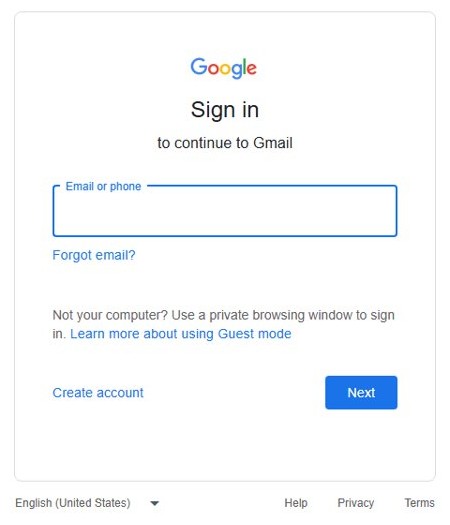
How to log in to Gmail on an old iMac
Google blocks sign-ins from some browsers to protect accounts, and it notes that some old browser versions might not be supported. These steps get most old iMacs back into Gmail.
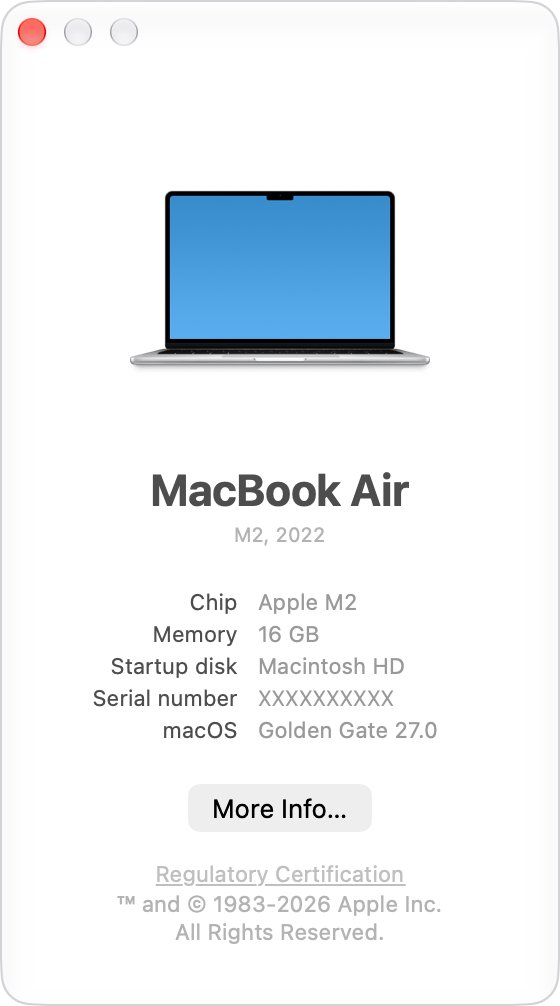
- Choose Apple menu > About This Mac and note the macOS name and version.
- If the iMac runs macOS 10.15 Catalina or later, install the current Firefox from firefox.com.
- If it runs macOS 13 Ventura or later, you can use the current Chrome or the latest Safari instead.
- Make sure the browser has cookies and JavaScript turned on.
- Go to gmail.com and sign in with your Gmail address and password.
- Complete the 2-Step Verification prompt on your phone if Google asks for one.
If the iMac is older than macOS 10.15, read the browser table below before you install anything. The direct Gmail login page works the same way once the browser is supported.
Gmail browser support by macOS version
Gmail works best in the newest and last prior version of Chrome, Firefox, Safari and Edge. On an old iMac, the macOS version decides which of those you can still install.
| macOS on your iMac | Browsers that list it as supported | What to do |
|---|---|---|
| macOS 13 Ventura or later | Current Chrome, current Firefox, latest Safari for that macOS | Update the browser and sign in |
| macOS 10.15 Catalina to macOS 12 Monterey | Current Firefox (needs macOS 10.15 or later); Chrome needs macOS 13 Ventura | Install Firefox and sign in |
| macOS 10.12 Sierra to macOS 10.14 Mojave | Firefox ESR 115 lists these versions; current Firefox and Chrome do not | Upgrade macOS if the iMac is compatible, or use Firefox ESR 115 |
| OS X 10.11 El Capitan or earlier | None of the current Chrome, Firefox or Firefox ESR 115 requirements list it | Upgrade macOS if possible, or use Gmail on another device |
Safari cannot be updated on its own. Apple delivers new Safari versions only through macOS updates, so an iMac stuck on an old macOS keeps an old Safari.
Find out which macOS your iMac is using
- Click the Apple menu in the upper-left corner of the screen.
- Choose About This Mac.
- Read the macOS name and version number in the window that opens.
- Click the version number if you also need the build number.
- Compare the version with Apple's list of the latest macOS releases to see whether a later one exists for your iMac.
Use Firefox to log in to Gmail on an old Mac
Firefox supports older macOS versions than Chrome does. The current release needs macOS 10.15 or later, and Firefox ESR 115 lists macOS 10.12 to 10.15.
- Open Safari on the iMac and go to firefox.com.
- Download Firefox for macOS and follow Mozilla's install prompts.
- Open Firefox from the Applications folder.
- Go to gmail.com in Firefox.
- Enter your Gmail address and password, then complete any verification step.
If Firefox uses a Strict privacy setting, Google says you may need to allow www.google.com in the site list before sign-in works.
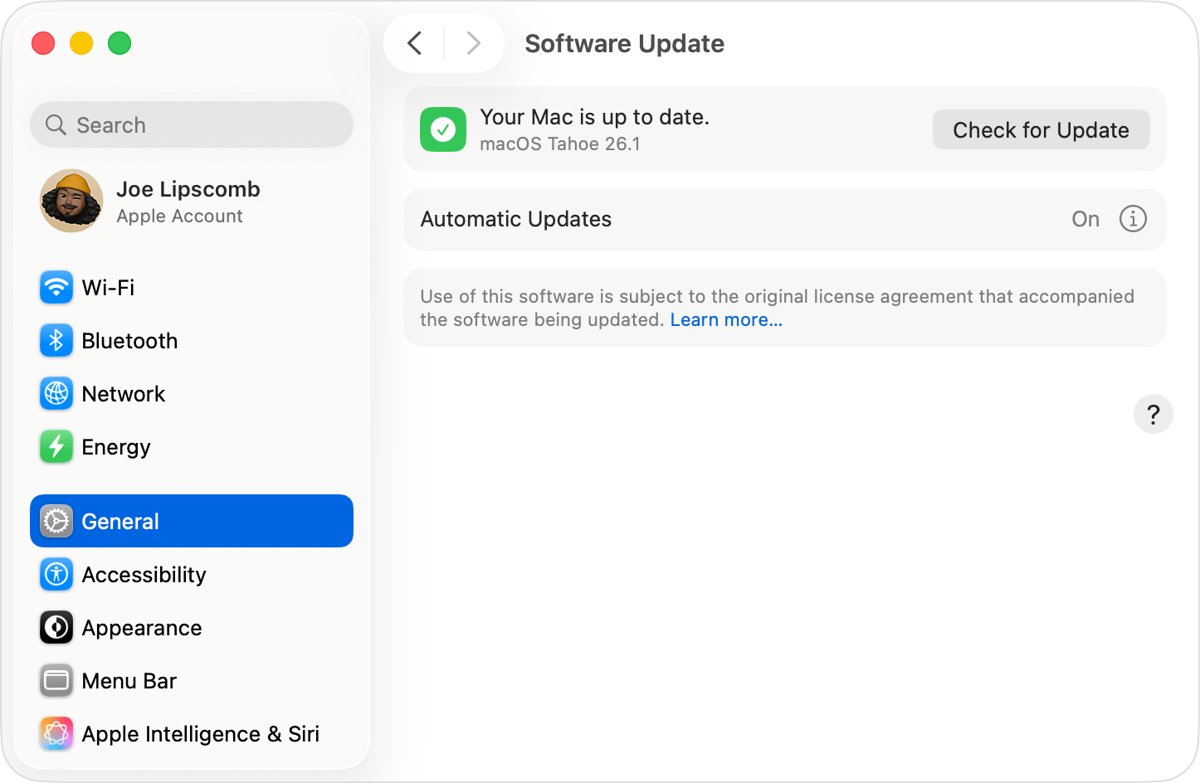
Update Safari on an old iMac
Safari is part of macOS. When Gmail says Safari is out of date, the only way to get a newer Safari is a macOS update or upgrade.
- Choose Apple menu > About This Mac to see the current macOS version.
- Check Apple's macOS compatibility list to see whether your iMac model supports a later macOS.
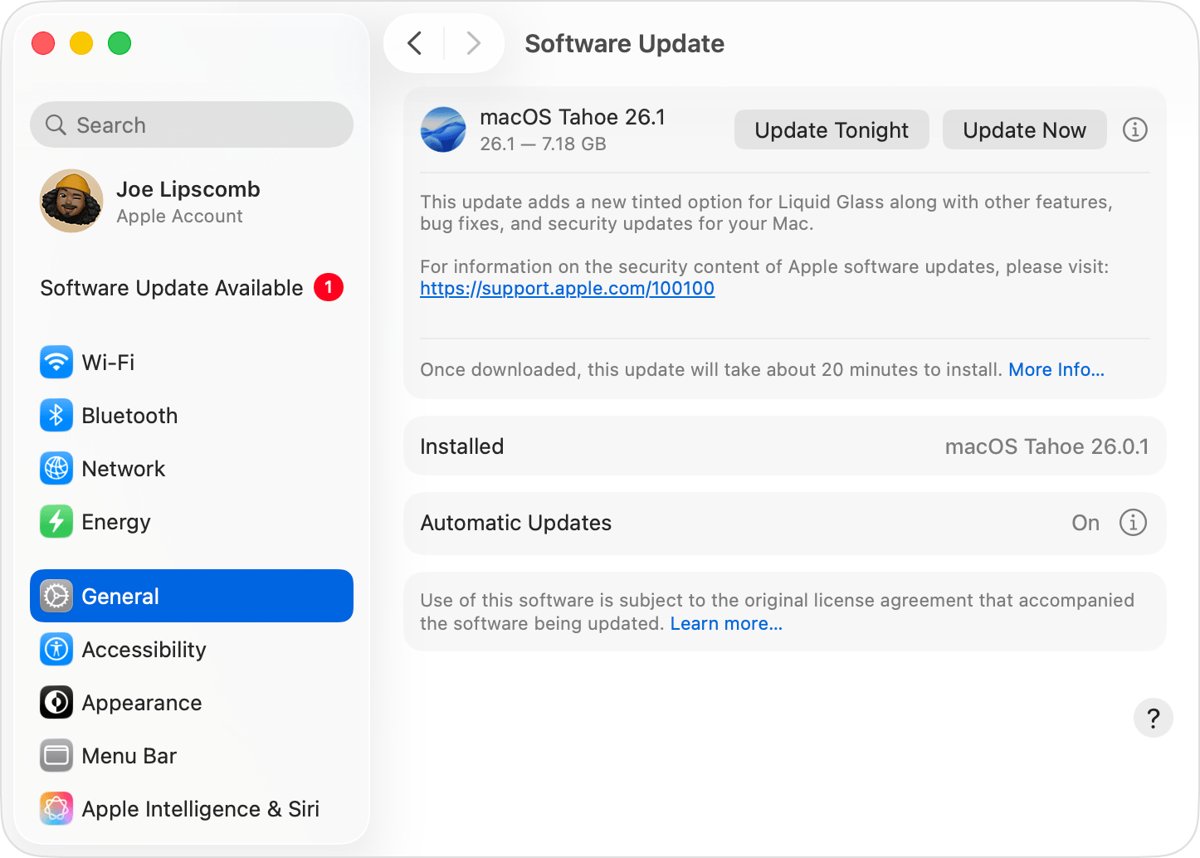
- If it does, open Software Update and install the update or upgrade it offers.
- Restart the iMac and open Safari.
- Go to gmail.com and sign in again.
If no later macOS is offered for your iMac, Safari will not get newer either, so use Firefox from the table above.
Turn on JavaScript and cookies for Gmail login
Gmail needs cookies and JavaScript in any browser. Google also stops sign-ins from browsers that have JavaScript turned off or unsupported extensions added.
- In Chrome, click More > Settings at the top right.
- Click Privacy and security > Site Settings.
- Click JavaScript and select Sites can use Javascript.
- Turn off browser extensions you do not need, then try gmail.com again.
- In Safari or Firefox, open the browser's help pages for the JavaScript and cookie settings.
Gmail not working in Apple Mail on an old Mac
Gmail no longer supports apps that ask only for your Google username and password. Old setups show errors such as Invalid username, Invalid password or Unable to log in.
- Before you remove the account, copy any messages stored only on the Mac to a mailbox under On My Mac.
- In Mail, choose Mail > Preferences (or Settings on newer macOS), then click Accounts.
- Select the Gmail account and click the Remove button.
- If Mail sends you to Internet Accounts, select the Gmail account there and remove it.
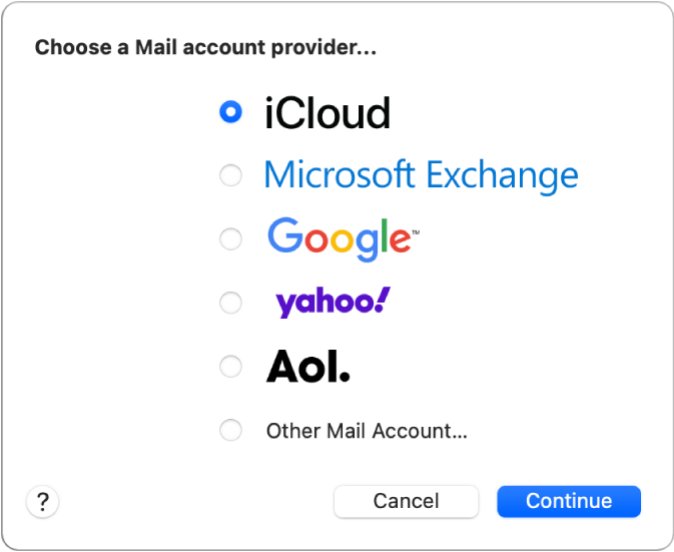
- Choose Mail > Add Account and select Google.
- Sign in on Google's page, approve access for Mail, and make sure the Mail checkbox is selected.
Removing the account deletes its messages from the Mac only. Copies stay on Gmail's servers and download again. Google notes that you may need to remove the account and add it again to switch to Sign in with Google.
Use a Gmail app password on an old Mac Mail app
If an old Mail app does not offer Sign in with Google, Google allows an app password instead. It is a 16-digit passcode and only works when 2-Step Verification is on.
- Sign in to your Google Account in a supported browser on any device.
- Select Security & sign-in, then under How you sign in to Google select Turn on 2-Step Verification if it is off.
- Open Google's Sign in with app passwords help page and select Create and manage your app passwords.
- Create an app password for the iMac and copy the 16-digit passcode.
- In Mail on the iMac, enter that passcode in place of your Google password.
- Click Get Mail and check that new messages arrive.
Google says app passwords are not recommended in most cases. The option is missing for work or school accounts, accounts with Advanced Protection, and accounts that use only security keys for 2-Step Verification.
How to upgrade macOS on an old iMac for Gmail
A newer macOS brings a newer Safari and lets you install current Chrome or Firefox. Apple publishes which computers each macOS version supports, and you can download older macOS versions when the newest one will not run on your iMac.
- Choose Apple menu > About This Mac and note the macOS version.
- Open Apple's page Find out which macOS your Mac is using and check the compatibility lists for later versions.
- Back up the iMac before any upgrade.
- Use Software Update to download and install the newest compatible macOS.
- After the upgrade, update your browser and sign in to Gmail.
Can’t log in to Gmail on Mac: errors and causes
Can't get to the Gmail login page
The browser is too old, or JavaScript or cookies are blocked.
- Check the macOS version and install a browser the table above lists for it.
- Turn on JavaScript and cookies.
- If the browser uses a High or Strict privacy setting, allow www.google.com in its site list.
Apple Mail says Invalid password for Gmail
Mail is signing in with only a username and password, which Google no longer accepts.
- Remove the Gmail account from Mail.
- Add it again with Mail > Add Account > Google.
- If Google sign-in is not offered, use an app password with 2-Step Verification on.
Can't login to Gmail, too many attempts or forgotten password
The password is wrong or verification codes are not reaching you.
- Go to Google's account recovery page and enter your Gmail address.
- Answer the questions as best you can.
- Reset the forgotten Gmail password when prompted, using one you have not used before.
Can't log in to a work or school Gmail account
The organization controls sign-in and app password options.
- Contact the account administrator.
- Ask whether your account may sign in from the iMac's browser or Mail app.
Wrong guesses do not lock you out of Google's recovery process, and there is no limit on attempts. If you changed the recovery phone or email, Google says the change can take up to 7 days to apply.
Gmail login on old iMac FAQ
Why can't I login to my Gmail on an old Mac?
Google blocks sign-ins from some browsers, and old browser versions might not be supported. On an old iMac, Safari only updates with macOS, so install a current browser the Mac can run, such as Firefox on macOS 10.15 or later, and sign in again.
Why can't I log in to Gmail in Apple Mail?
Gmail no longer supports apps that sign in with only your username and password. Remove the Gmail account from Mail and add it again with the Google option, which uses Sign in with Google. Use an app password if that option is missing.
What browser works with Gmail on an old iMac?
Gmail works best in the newest and last prior version of Chrome, Firefox, Safari and Edge. Current Firefox needs macOS 10.15 or later, Chrome needs macOS 13 Ventura or later, and Firefox ESR 115 lists macOS 10.12 to 10.15.
Can't get to the Gmail login page on Mac?
Turn on JavaScript and cookies in the browser, because Gmail needs both. Then turn off unneeded extensions and allow www.google.com if the browser uses a strict privacy setting. If the page still fails, the browser version is too old.
Can't login to Gmail, too many attempts?
Use Google's account recovery page instead of guessing at the sign-in screen. Wrong guesses do not kick you out of account recovery, and there is no limit to the number of attempts.
Do I need an app password for Gmail on a Mac?
Usually not. Google recommends Sign in with Google, which the Google option in Apple Mail uses. An app password is a 16-digit passcode for apps without that option, and it needs 2-Step Verification turned on.
Can I update Safari without updating macOS?
No. Apple includes Safari with macOS, so a later Safari arrives only through a macOS update or upgrade. If your iMac cannot run a later macOS, use another supported browser for Gmail.
Why can't I log in to Gmail with the right password?
With 2-Step Verification on, an old app may reject your normal password and show a password incorrect error. Google suggests trying an app password in that case, or adding the account again with Sign in with Google.