To enable or disable tamper protection on a home PC, open Windows Security, go to Virus & threat protection > Manage settings, and slide the Tamper Protection toggle; on work devices, Intune or the Microsoft Defender portal controls it instead.
This guide covers the Windows Security toggle, the Intune policy, the Defender portal switch, Configuration Manager, why the registry and Group Policy cannot change it, the PowerShell status check, and the errors people hit when the toggle will not move.
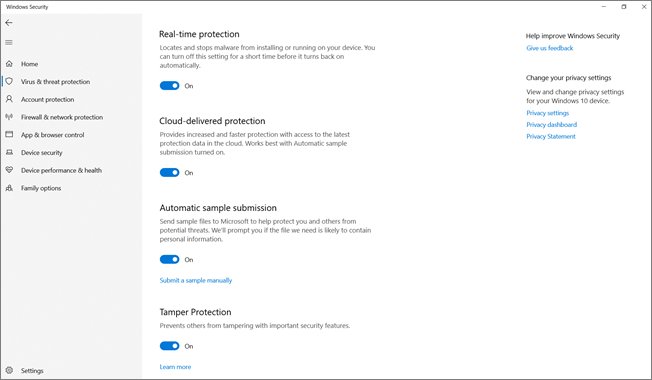
Disable tamper protection in Windows Security
The Windows Security app is the only local switch for tamper protection on Windows 11 and Windows 10. You need administrator rights on the PC, and the device must not be managed by a security team.
- Search the Start menu for Security and select Windows Security.
- Select the Virus & threat protection tile, or the shield icon on the left.
- Under Virus & threat protection settings, select Manage settings.
- Slide the Tamper Protection toggle to Off to disable it.
- Make the change that tamper protection was blocking, such as a Defender setting another tool needs to edit.
- Return to the same page and slide Tamper Protection back to On to enable it again.
Tamper protection is on by default for home users, so the toggle normally starts in the On position. Leave it off only for as long as the change takes.
What is tamper protection in Windows 11/10
Tamper protection is a Microsoft Defender Antivirus feature that stops malware, scripts and other tools from switching off key security settings. It does not stop you from viewing those settings, and it keeps working when Defender runs in passive mode next to another antivirus.
| Setting | What tamper protection does while it is on |
|---|---|
| Virus and threat protection | Stays enabled |
| Real-time protection | Stays turned on |
| Behavior monitoring | Stays turned on |
| Antivirus protection, including IOfficeAntivirus (IOAV) | Stays enabled |
| Cloud protection | Stays enabled |
| Security intelligence updates | Keep installing |
| Automatic actions on detected threats | Keep running |
| Windows Security notifications | Stay visible |
| Archived files | Are still scanned |
| Antivirus exclusions | Cannot be added or modified |
| Defender settings in the registry | Edits are blocked |
Tamper protection sits alongside other Windows Security hardening such as Exploit Protection in Windows 11, which guards running apps rather than Defender's own settings.
Turn tamper protection on or off for your organization using Intune
Microsoft recommends Intune for managed fleets. You need an Intune license, an account with Endpoint Security Manager permissions, and devices onboarded to Microsoft Defender for Endpoint. Co-managed devices are not supported for this setting.
- Sign in to the Microsoft Intune admin center at intune.microsoft.com.
- Go to Endpoint security, then select Antivirus under Manage.
- Select Create policy.
- Set Platform to Windows and Profile to Windows Security Experience.
- On the Configuration settings tab, find Tamper protection (device) in the Defender section.
- Select On to enable tamper protection, or Off to disable it for the assigned devices.
- Assign the policy to the whole organization or to chosen user or device groups, and exclude any groups that should keep a different setting.
- Finish the wizard to create the policy.
An Intune policy wins over the Defender portal switch and over anything a local administrator sets in Windows Security. Devices also need DisableLocalAdminMerge set to true for the Intune route.
Turn tamper protection on or off in the Microsoft Defender portal
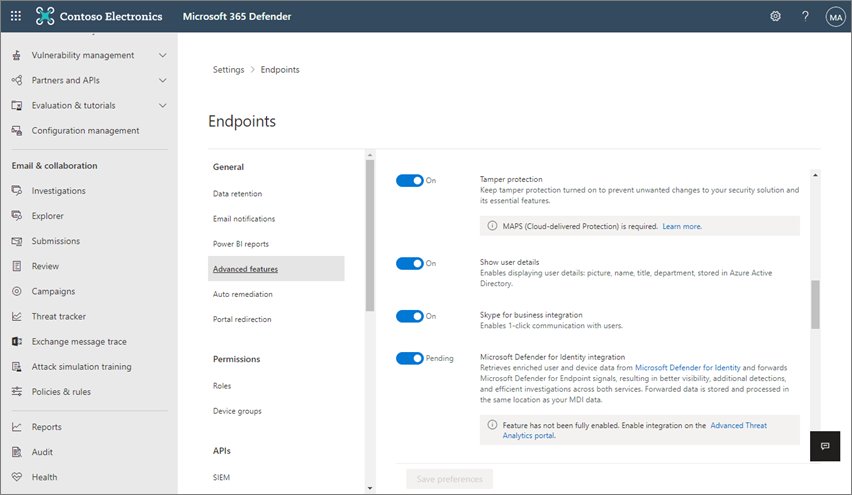
The Defender portal switch sets tamper protection for the whole tenant. It needs Defender Antivirus platform 4.18.2010.7 or later, engine 1.1.17600.5 or later, and cloud-delivered protection turned on.
- Open the Microsoft Defender portal at security.microsoft.com with a Security Administrator or equivalent role.
- Go to the Advanced features page for endpoints at security.microsoft.com/preferences2/endpoints.
- Find the Tamper protection toggle in the list.
- Slide it to On to enable tamper protection across the tenant, or Off to disable it.
Tamper protection is already on by default for new Defender for Endpoint deployments. If Intune manages the setting, the Intune policy keeps control and the portal switch only locks protected settings to their secure defaults.
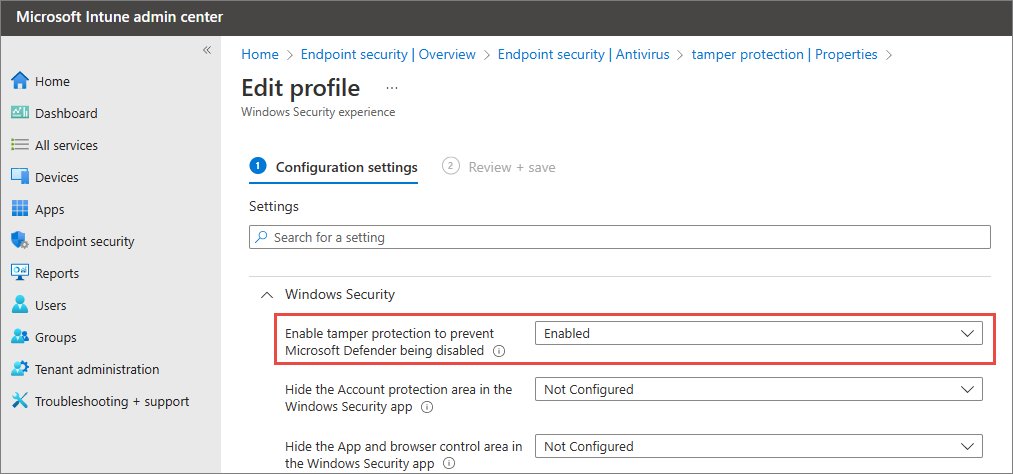
Configure tamper protection with Configuration Manager tenant attach
Configuration Manager cannot set tamper protection on its own. Devices must be tenant-attached so the policy can be deployed from the Intune admin center to device collections.
- Set up tenant attach between Configuration Manager and the Intune admin center.
- In the Intune admin center, go to Endpoint security > Antivirus and select Create policy.
- Set Platform to Windows (ConfigMgr) and Profile to Windows Security experience (ConfigMgr).
- On the Configuration settings tab, set Enable tamper protection to prevent Microsoft Defender from being disabled to Enabled.
- Assign the policy to the device collections you want to protect.
Registry changes to disable or enable tamper protection
Microsoft documents no registry value that turns tamper protection on or off. While it is on, attempts to change Microsoft Defender Antivirus settings through the registry are blocked, so a REGEDIT edit either fails or is silently undone.
The registry is still useful for reading state. Microsoft's own exclusion check tells you to view these values only and never change them.
| Registry location | Value | What it tells you |
|---|---|---|
| HKLM\SOFTWARE\Microsoft\Windows Defender\Features | TPExclusions | 1 = antivirus exclusions are tamper protected; 0 = they are not |
| HKLM\SOFTWARE\Microsoft\Windows Defender | ManagedDefenderProductType | 6 = managed only by Intune; 7 = managed by Configuration Manager |
| HKLM\SOFTWARE\Microsoft\SenseCM | EnrollmentStatus | With product type 7: 4 = Configuration Manager only; 3 = co-managed, which is not supported for protected exclusions |
Old registry tricks such as DisableAntiSpyware no longer work either. Microsoft removed that setting, ignores it on devices onboarded to Defender for Endpoint, and lists it among the settings tamper protection guards.
No Group Policy object for tamper protection
There is no Group Policy setting for tamper protection. Microsoft supports four ways to configure it, and Group Policy is not one of them. When tamper protection is on, Group Policy changes to protected Defender settings can look successful while tamper protection blocks them.
| Tool | Can it change tamper protection? | Who it suits |
|---|---|---|
| Windows Security app | Yes, on one device | Home PCs and unmanaged devices with a local administrator |
| Microsoft Intune | Yes, per group of users or devices | Organizations that manage devices with Intune |
| Microsoft Defender portal | Yes, tenant-wide | Defender for Endpoint customers without Intune |
| Configuration Manager | Only through tenant attach and an Intune policy | On-premises fleets synced with the Intune admin center |
| Group Policy | No | Use it for other Defender settings, not tamper protection |
| PowerShell | Only while the device is in troubleshooting mode | Temporary changes on a managed device |
| Registry Editor | No | Reading status values only |
For a permanent Group Policy change to a protected setting, adjust the tamper protection policy or exclude those devices from it in Intune or Configuration Manager.
How to turn on troubleshooting mode in Microsoft Defender for Endpoint
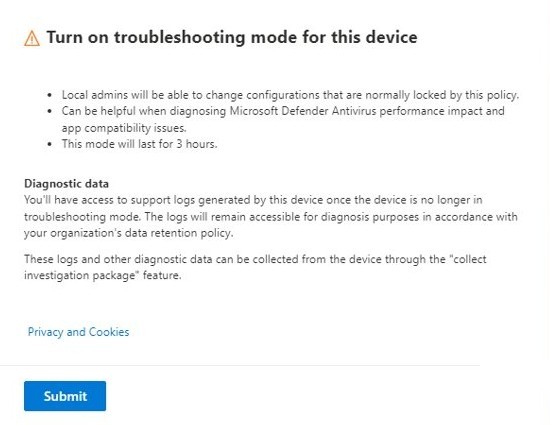
Troubleshooting mode is the supported way to switch tamper protection off on a device your organization manages. It lets a local administrator change locked Defender settings for a limited time, then puts everything back.
- Sign in to the Microsoft Defender portal with the Security Administrator role or a custom role with the core security settings and detection tuning permissions.
- Open the Device inventory page at security.microsoft.com/machines.
- Select anywhere in the device's row except the check box.
- On the device page, select More options (…), then Turn on troubleshooting mode.
- Select Submit in the confirmation flyout.
- Wait until the device page shows that troubleshooting mode is active, which can take up to 15 minutes.
- On the device, turn off Tamper Protection in Windows Security or with the PowerShell command below.
Troubleshooting mode ends on its own after four hours and is capped at eight hours per device in a 24-hour window. The device must be online, needs Defender platform 4.18.2203 or later, and receives notifications when the mode starts and ends.
Disable tamper protection cmd and PowerShell command
No Command Prompt or PowerShell command changes tamper protection during normal operation. The one exception is a device that is already in Defender for Endpoint troubleshooting mode.
Set-MpPreference -DisableTamperProtection $trueRun it in PowerShell opened with Run as administrator on a Windows device in troubleshooting mode. It switches tamper protection off until troubleshooting mode expires.
You should see: Running Get-MpComputerStatus | Select-Object IsTamperProtected returns False.
You do not need to switch it back on. When troubleshooting mode expires, tamper protection returns to its previous policy-managed state.
How to tell if tamper protection is on with PowerShell
Windows Security does not show tamper protection status on Windows Server 2016, Windows Server 2019, Windows Server 2012 R2 with the modern unified solution, or Windows 10 versions 1709, 1803 and 1809. PowerShell reports it on all of them.
Get-MpComputerStatus | Select-Object IsTamperProtected, RealTimeProtectionEnabledReads the live Defender status. IsTamperProtected shows tamper protection, and RealTimeProtectionEnabled shows real-time protection.
You should see: True means the setting is enabled; False means it is disabled.
On Windows Server 2016, also trust this output over the Windows Security app, which can show the wrong real-time protection status while tamper protection is on.
Windows Server disable tamper protection
| Windows Server version | How to change tamper protection | How to check it |
|---|---|---|
| Windows Server 2016 and Windows Server 2019 | Intune or the Defender portal; troubleshooting mode for a temporary change | PowerShell, because Windows Security does not show the status |
| Windows Server 2012 R2 (modern unified solution) | Intune or the Defender portal after onboarding | PowerShell |
| Windows Server 2022 and later | Intune or the Defender portal; troubleshooting mode needs build 20348.617 or later on Server 2022 | PowerShell |
| Azure Stack HCI OS 23H2 and later | Intune or the Defender portal | PowerShell |
Servers must be onboarded to Defender for Endpoint first. Until then, Intune and the portal show tamper protection as Not applicable.
Can't enable tamper protection in Windows Security
Tamper protection, this setting is managed by your administrator
An Intune policy or the Defender portal controls tamper protection, and both override the Windows Security toggle.
- Ask your IT team which Intune Antivirus policy or portal setting applies to the device.
- Have them change Tamper protection (device) in that policy, or exclude the device's group from it.
- For a one-off change, ask them to put the device in troubleshooting mode instead.
Unable to turn on tamper protection on a home PC
The toggle needs administrator rights on the device.
- Sign out and sign back in with an administrator account.
- Open Windows Security > Virus & threat protection > Manage settings.
- Slide Tamper Protection to On.
Tamper protection is preventing changes
Tamper protection blocked an edit to a protected Defender setting and logged Event ID 5013, which names the setting.
- Open Event Viewer and go to Applications and Services Logs > Microsoft > Windows > Windows Defender > Operational.
- Find event 5013 to see which setting was blocked.
- Change that setting in Windows Security on a home PC, or through troubleshooting mode on a managed device.
Tamper protection shows Not applicable in Intune or the portal
The device is not onboarded to Microsoft Defender for Endpoint yet.
- Onboard the device to Defender for Endpoint.
- Wait for onboarding to complete, then check the device again in Intune or the portal.
- Run
Get-MpComputerStatus | Select-Object IsTamperProtectedon the device to confirm the new state.
Group Policy changes to Microsoft Defender are ignored
Tamper protection blocks Group Policy edits to protected settings even when the policy appears to apply.
- Use troubleshooting mode for a temporary change on one device.
- For a lasting change, edit the tamper protection policy or exclude the devices in Intune or Configuration Manager.
- Reapply the Group Policy after the exclusion takes effect.
Windows Defender Offline scan vs full scan vs quick scan explained
Once tamper protection is back on, a scan confirms nothing slipped in while it was off. Microsoft Defender Antivirus offers four scan types, and they differ in depth and time.
| Scan type | What it checks | When to use it |
|---|---|---|
| Quick scan | Locations where malware registers to start with Windows, such as registry keys and startup folders, plus mounted USB drives | Regular or on-demand checks; Microsoft's recommended default |
| Full scan | A quick scan first, then every mounted fixed disk and, if configured, removable and network drives | After you install or re-enable Defender; can take hours or days |
| Custom scan | Only the files, folders or drives you pick | A USB drive or one suspicious folder |
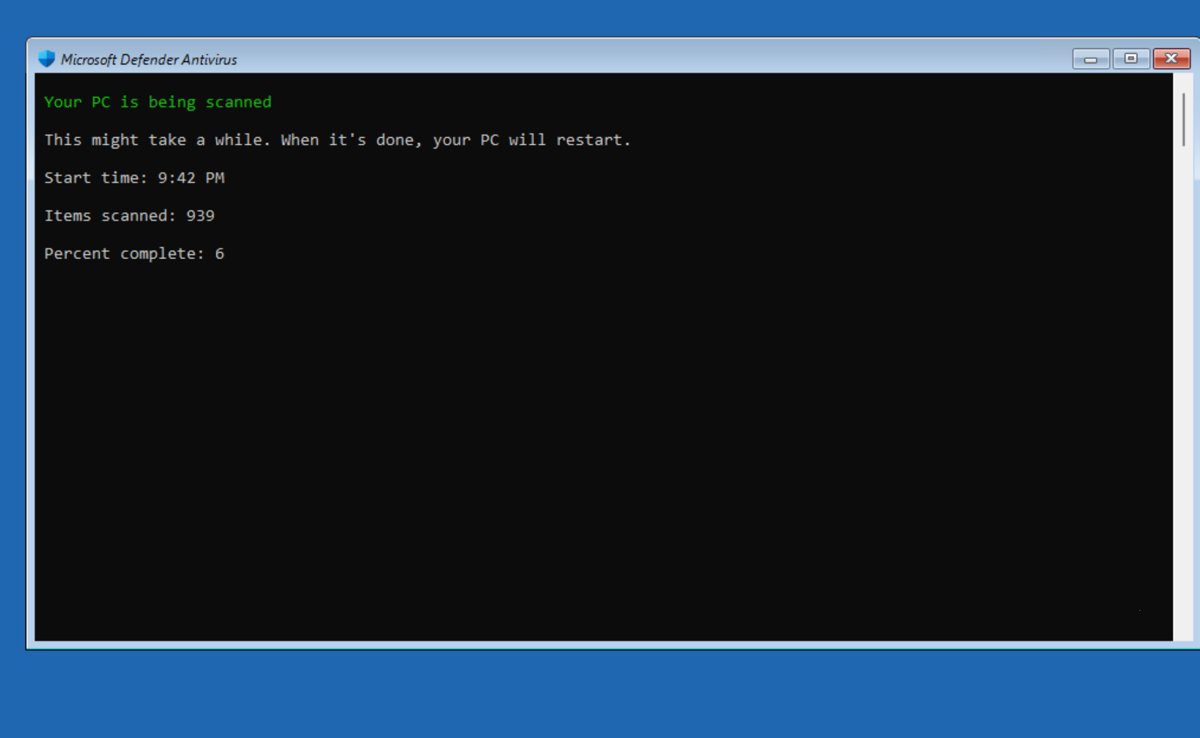
| Microsoft Defender Offline scan | Runs outside Windows after a restart to catch rootkits and boot-record malware | A suspected infection; takes about 15 minutes and restarts the PC |
Start any of them from Windows Security > Virus & threat protection > Scan options. A Microsoft Defender full scan suits a PC that had protection off, while the Microsoft Defender Offline scan needs Windows RE enabled and BitLocker suspended first.
Is it safe to turn off tamper protection?
Turn tamper protection off only for the specific change it is blocking, then turn it back on straight away. Attackers try to disable security features first so they can install malware unseen. With tamper protection off, real-time protection, cloud protection and exclusions can all be changed by any process with admin rights.
Tamper protection FAQ
How do I disable tamper protection in Windows 11?
Open Windows Security, select Virus & threat protection, select Manage settings under Virus & threat protection settings, and slide Tamper Protection to Off. You need administrator rights, and the toggle only works on a PC that your organization does not manage.
How do I enable tamper protection?
Use the same page in Windows Security and slide Tamper Protection to On. In an organization, set Tamper protection (device) to On in an Intune Antivirus policy, or switch on Tamper protection on the Advanced features page of the Microsoft Defender portal.
Why can't I enable tamper protection?
The usual cause is that an Intune policy or the Defender portal manages the setting, which overrides Windows Security. A standard user account also cannot change it. On managed devices that are not onboarded to Defender for Endpoint, the setting shows as Not applicable.
Can I disable tamper protection from cmd?
Not during normal operation. Set-MpPreference -DisableTamperProtection $true works only in elevated PowerShell on a device that is already in Defender for Endpoint troubleshooting mode. On a home PC, use the Tamper Protection toggle in Windows Security.
Can you turn off tamper protection with REGEDIT?
No. Microsoft documents no registry value for switching tamper protection, and while it is on, edits to Defender settings in the registry are blocked. Use Windows Security, Intune, the Defender portal or troubleshooting mode instead.
How do I disable tamper protection on Windows Server?
Onboard the server to Microsoft Defender for Endpoint, then change tamper protection through Intune or the Defender portal. For a temporary change, use troubleshooting mode. Windows Security on Windows Server 2016 and 2019 does not show the status, so check it with Get-MpComputerStatus.
What does tamper protection is preventing changes mean?
It means tamper protection blocked an edit to a protected Microsoft Defender setting, and Defender logged Event ID 5013 naming that setting. Change the setting after turning tamper protection off in Windows Security, or through troubleshooting mode on a managed device.
Does tamper protection turn back on by itself?
After troubleshooting mode expires, yes: tamper protection returns to its previous policy-managed state without any action. On a home PC switched off in Windows Security, it stays off until you slide the toggle back to On.