OneDrive shows Sync pending when a file it is waiting on cannot upload yet, and the fix is to find that file (often a hidden or temporary .TMP file), deal with it, then reset OneDrive if the status still sticks.
This guide covers the folder, file and taskbar versions of the error, plus the related PST upload, offline and 0x8007016A problems on Windows 11 and Windows 10.
Fix OneDrive sync pending error
Work down this list and check the status after each step. Most stuck folders clear at step 2 or 3.
- Select the OneDrive cloud icon in the notification area to see which files are open, syncing or waiting.
- Close any file that is still open in an app, then wait a minute for OneDrive to pick it up.
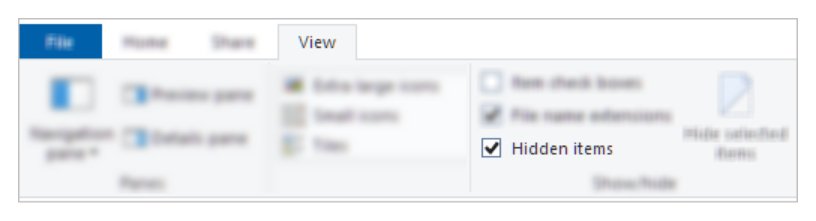
- In File Explorer, select View > Show > Hidden items and look in the pending folder for a hidden or .TMP file.
- Move, rename or delete the file that is holding the folder up, as described in the sections below.
- If the taskbar icon itself says Sync pending, delete the Office Document Cache.
- If nothing changes, reset OneDrive. You will not lose files; OneDrive runs a full sync afterwards.
When the status shows across your whole OneDrive rather than one folder, the problem is usually wider. The general OneDrive not syncing fixes cover sign-in, storage and app issues.
What causes sync pending error in OneDrive?
Sync pending means OneDrive has queued a change but cannot finish it. The cause is almost always one file, not the whole account.
| Cause | What you see | Fix |
|---|---|---|
| A hidden file in the folder | Folder says Sync pending, but every visible file looks done | Show hidden items, or copy the files into a new folder |
| A temporary .TMP file | A .tmp file shows Sync pending; TMP files never sync | Rename, move, delete or upload it manually |
| An empty folder | A new, empty folder shows Sync pending | Put a file into it |
| A file open in an app | The status clears only after you close the app | Close the file |
| Office Document Cache problems | The OneDrive taskbar icon shows Sync pending | Delete the Office Document Cache |
| Large Outlook .pst files | Uploads stall on the Outlook Files folder | Move the .pst file out of OneDrive |
| Invalid name or character | One file never uploads | Rename it without " * : < > ? / \ | |
| Storage full | New files stop uploading | Free up space or add storage |
OneDrive folder shows sync pending but no file is visible
If no visible file is pending, the file blocking the folder is probably hidden, so show hidden files and folders first.
- Open the folder in File Explorer.
- On Windows 11, select View > Show > Hidden items. On Windows 10, select the View tab and tick Hidden items.
- Look for a faded icon with a Sync pending status and move, rename or delete it if it is not needed.
- If there are no hidden files, create a new folder inside OneDrive.
- Copy all the files from the pending folder into the new folder.
- Delete the old pending folder once the new one shows as synced.
An empty folder can show Sync pending until you put a file into it. That is normal and clears on its own.
OneDrive TMP files stuck on sync pending
Temporary .TMP files never sync to OneDrive, so they keep a folder pending for as long as they sit in it. Apps create them while they work, so do not delete one unless you are sure the app is finished with it.
- Save and close the app that created the file.
- Rename the file and give it a new extension, such as .temp.
- If Windows says the file is in use, restart the PC and try the rename again.
- Or move the file to a folder outside OneDrive.
- Or upload it manually at onedrive.com if you need a copy in the cloud.
- Delete the file only if you know no app still needs it.
OneDrive taskbar icon stuck on sync pending
When the OneDrive icon in the taskbar shows Sync pending rather than one folder, Microsoft points to the Office Document Cache. It holds copies of Office files you open from OneDrive, and a damaged cache can stall sync. Microsoft recommends a clean boot first, which needs admin rights.
- Close all Office apps.
- Select Start and type Microsoft Upload Center.
- Select Microsoft Upload Center in the search results.
- In the Upload Center, select Settings.
- Select Delete cached files and confirm.
- Restart the PC normally. OneDrive resyncs automatically.
Newer Microsoft 365 installs may not list Upload Center. If the search finds nothing, skip to the OneDrive reset.
How to reset OneDrive to fix sync pending
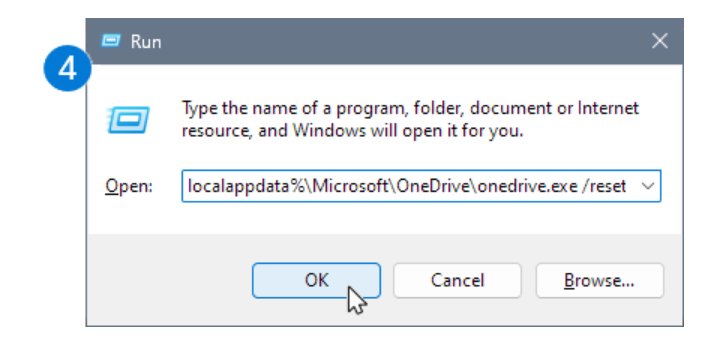
A reset disconnects your sync connections, deletes OneDrive's local database file and rebuilds it. Your files stay on the PC and in the cloud. Press Windows + R, paste this command and select OK.
%localappdata%\Microsoft\OneDrive\onedrive.exe /resetResets the OneDrive sync app for the current user. If Windows says it cannot find the file, run C:\Program Files\Microsoft OneDrive\onedrive.exe /reset instead, then C:\Program Files (x86)\Microsoft OneDrive\onedrive.exe /reset.
You should see: The OneDrive icon disappears, then comes back after a minute or two. If it does not, select Start, type OneDrive and open the app. OneDrive then runs a full sync.
If you had chosen to sync only some folders, choose them again once the sync finishes. Microsoft also suggests running wsreset.exe from the same Run box first; it resets the Microsoft Store cache. The Store version of OneDrive is reset from Start > apps:onedrive > App settings > Reset.
Unlink and re-link OneDrive when sync is pending
Unlinking disconnects the PC from the cloud for a short while without deleting anything. Changes you make while unlinked sync once you sign back in.
- Select the OneDrive cloud icon, then Help and Settings > Settings.
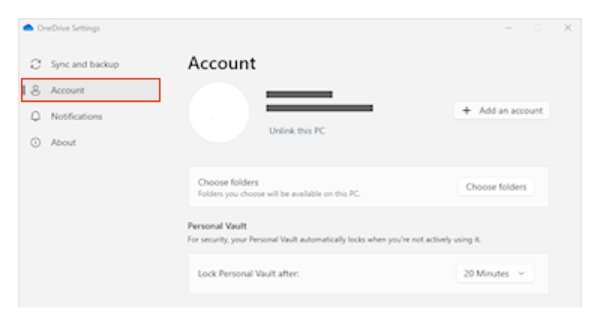
- Go to the Account tab, select Unlink this PC, then Unlink account.
- Press Windows + R, enter %localappdata%\Microsoft\OneDrive\settings and select OK.
- Delete the PreSignInSettingsConfig.json file.
- Press the Windows key, type OneDrive, open the app and sign in.
- When OneDrive says the folder already exists, select Use this folder.
Unable to upload PST files to OneDrive [Fix]
OneDrive supports Outlook .pst files, but it syncs them less often than other files. A large .pst that Outlook keeps open can also leave OneDrive on Processing changes or A file is in use. The fix is to keep the .pst outside OneDrive.
- Close Outlook and wait for OneDrive to finish syncing.
- In File Explorer, open C:\Users\[username]\OneDrive\Documents\Outlook Files.
- Copy the .pst file to a folder outside OneDrive, such as C:\My Outlook Files, and give the copy a new name.
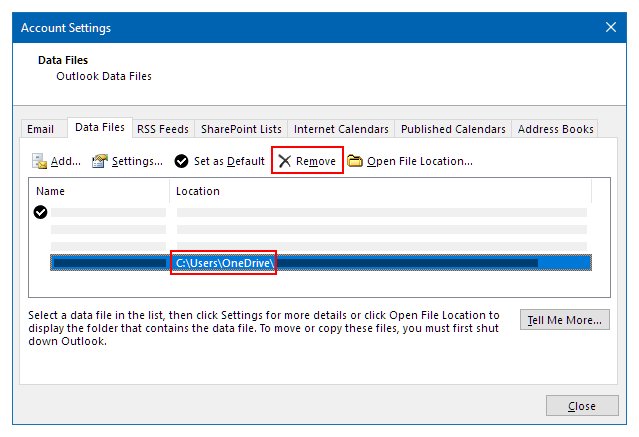
- Open Outlook and select File, then Account Settings.
- On the Email tab, choose the account, select Change Folder, then New Outlook Data File, and pick the renamed copy.
- On the Data Files tab, select the file in OneDrive, then Remove and Yes.
- Close Outlook before you move or delete the old OneDrive copy.
If the .pst is not in that folder, right-click the account in Outlook and select Data File Properties > Advanced to see its full path. You cannot remove a default data file until you set another one as default. Any single file over 250 GB will not sync.
OneDrive is showing offline on Windows 11
A greyed-out OneDrive icon with a line through it means you are not signed in or setup is not complete. A missing icon usually means OneDrive is not running at all.
The OneDrive icon is grey with a line through it
OneDrive is signed out, often after a password change.
- Select the grey OneDrive icon.
- Sign in with your Microsoft account when prompted.
- Wait for the icon to turn white or blue.
There is no OneDrive icon in the taskbar
OneDrive is hidden in the overflow area or not running.
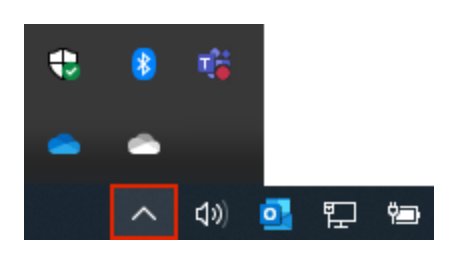
- Select the Show hidden icons arrow next to the notification area.
- If the cloud is not there, select Start, type OneDrive and open the app.
- Install the latest OneDrive app from Microsoft if it will not open.
OneDrive says it is offline but the PC has internet
OneDrive lost its connection or the service has a problem.
- Open another website to check the connection.
- Select the OneDrive icon, then View online to test OneDrive.com.
- Restart OneDrive: select Help and Settings > Quit OneDrive, then open it again from Start.
- Reset OneDrive if it still stays offline.
OneDrive error 0x8007016A, the cloud file provider is not running
Error 0x8007016A appears when Files On-Demand cannot reach the OneDrive sync app, so online-only files will not open, copy or delete. Microsoft's fix is to update, switch Files On-Demand off, reset and switch it back on.
Error 0x8007016A: The cloud file provider is not running
The OneDrive sync app has stopped or its Files On-Demand link to Windows is broken.
- Select Start > Settings > Windows Update > Check for updates and install what is offered.
- Open OneDrive Settings, go to Sync and back up and expand Advanced settings.
- Under Files On-Demand, select Download all files (older versions show a Save space and download files as you use them box to untick).
- Reset OneDrive with the command above.
- After the reset, return to Advanced settings and select Free up disk space to turn Files On-Demand back on.
Download all files fetches everything in your OneDrive, so make sure the drive has room first. Microsoft notes Files On-Demand might not be compatible with some third-party antivirus tools.
Why is OneDrive not opening on startup?
If OneDrive does not start with Windows, nothing syncs until you open it, so files sit at Sync pending. Turn its startup entry back on.
- Select Start > Settings > Apps > Startup.
- Find Microsoft OneDrive in the list and set the toggle to On.
- Or press Ctrl + Shift + Esc, open the Startup apps tab, select OneDrive and choose Enable.
- Restart the PC and check that the cloud icon appears in the notification area.
On a work PC, an admin policy called DisableFileSyncNGSC can stop OneDrive from starting at all. Only your IT admin can change that policy.
How to check OneDrive sync status in File Explorer
- Open your OneDrive folder in File Explorer.
- Switch to Details view so the Status column shows.
- Look for a white cloud (online-only), a green outline tick (available on this device) or a solid green tick (always kept on this device).
- Circular arrows mean sync is still in progress; a red circle with a white cross means the file cannot sync.
- Select the OneDrive cloud icon in the taskbar. It should say your files are up to date.
The full OneDrive icons meaning list explains every other status you might see.
OneDrive sync pending but not syncing
OneDrive files stuck on sync pending after a pause
Sync was paused and has not resumed.
- Select the OneDrive cloud icon, then Help and Settings.
- Select Resume syncing.
One file says sync pending and never uploads
The name has a blocked character or is a reserved name.
- Select the file and press F2.
- Remove any of these characters: " * : < > ? / \ |, and any leading or trailing spaces.
- Avoid reserved names such as CON, PRN, AUX, NUL, .lock, desktop.ini or names starting with ~$.
New files stay on sync pending while old ones are fine
Your Microsoft storage is full, so OneDrive cannot upload new files.
- Sign in at onedrive.com and check how much storage you have left.
- Delete or move large files you no longer need, then empty the OneDrive recycle bin online.
- Or buy more storage from your Microsoft account.
A folder stays pending even after you remove the stuck file
OneDrive is still holding the old state for that folder.
- Select Help and Settings > Pause syncing and choose a duration.
- Move one file out of the folder to a location outside OneDrive.
- Select Resume syncing, wait for sync to finish, then move the file back.
OneDrive sync pending FAQ
Why is my OneDrive sync pending?
OneDrive shows Sync pending when a change is queued but cannot finish. The usual cause is one file: a hidden file, a temporary .TMP file, a file still open in an app, or a name with a blocked character.
How do I fix sync pending on OneDrive?
Close open files, show hidden items and deal with any .TMP file in the folder. If the taskbar icon says Sync pending, delete the Office Document Cache, then reset OneDrive with onedrive.exe /reset if nothing changes.
How long does OneDrive sync pending last?
It should clear within minutes once the blocking file is fixed. If a folder stays pending for hours, the file holding it up will not sync on its own, so look for hidden or temporary files.
Will resetting OneDrive delete my files?
No. Resetting OneDrive disconnects your sync connections and rebuilds its local database, but it does not delete files on your PC or in the cloud. OneDrive runs a full sync afterwards, which can take a while.
Why is an empty OneDrive folder showing sync pending?
Empty folders can show Sync pending until you put a file into them. Add a file and the status should change to synced, or delete the folder if you do not need it.
How do I fix sync errors in OneDrive?
Select the OneDrive icon to see which file has the error, then rename, move or close it. If errors persist, unlink and re-link the PC under Settings > Account, or reset OneDrive.
Can OneDrive sync Outlook PST files?
Yes, but OneDrive syncs .pst files less often than other files, and an open .pst can block sync. Microsoft recommends moving Outlook data files out of OneDrive to a normal folder on the PC.
Why does a .tmp file in OneDrive say sync pending?
Temporary .TMP files do not sync to OneDrive, so they stay pending. Close the app that made it, then rename, move or delete the file once you are sure the app no longer needs it.