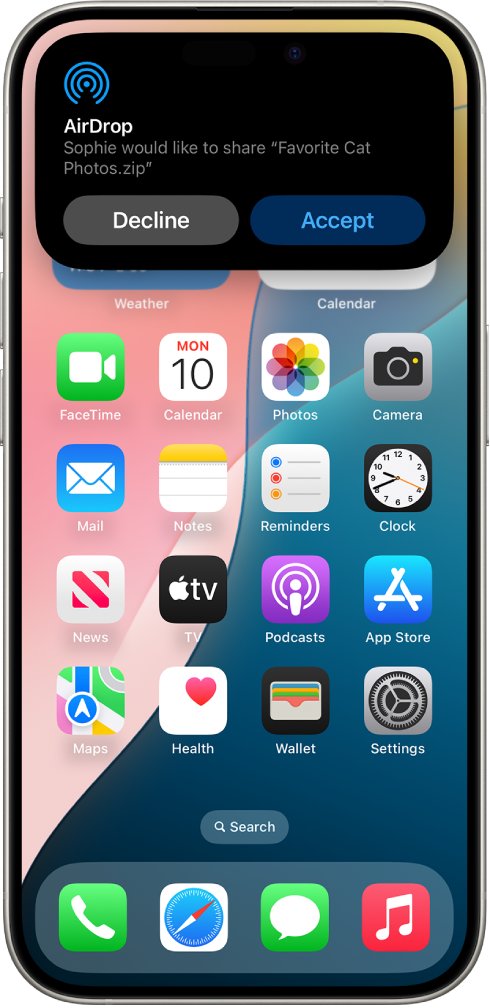
To get rid of the AirDrop notification at the top of your iPhone screen, tap Accept or decline the request, or swipe the banner up to dismiss it, and then set AirDrop to Receiving Off in Control Center so new requests stop.
If the notification is an AirDrop connection in the Dynamic Island, a transfer is still running. The sections below cover each kind of AirDrop alert, the Bring Devices Together prompt, and what to do when the notification stays stuck.
How to dismiss the AirDrop notification on iPhone
Every incoming AirDrop item arrives as a notification you can accept or decline. Answering it is the quickest way to make it leave the top of the screen.
- Look at the AirDrop notification at the top of the screen.
- Tap Accept to save the item, or decline it if you don't want it.
- If the banner appeared while you were using another app, tap it to view it, then swipe up to dismiss it.
- Open Control Center by swiping down from the top-right corner of the screen.
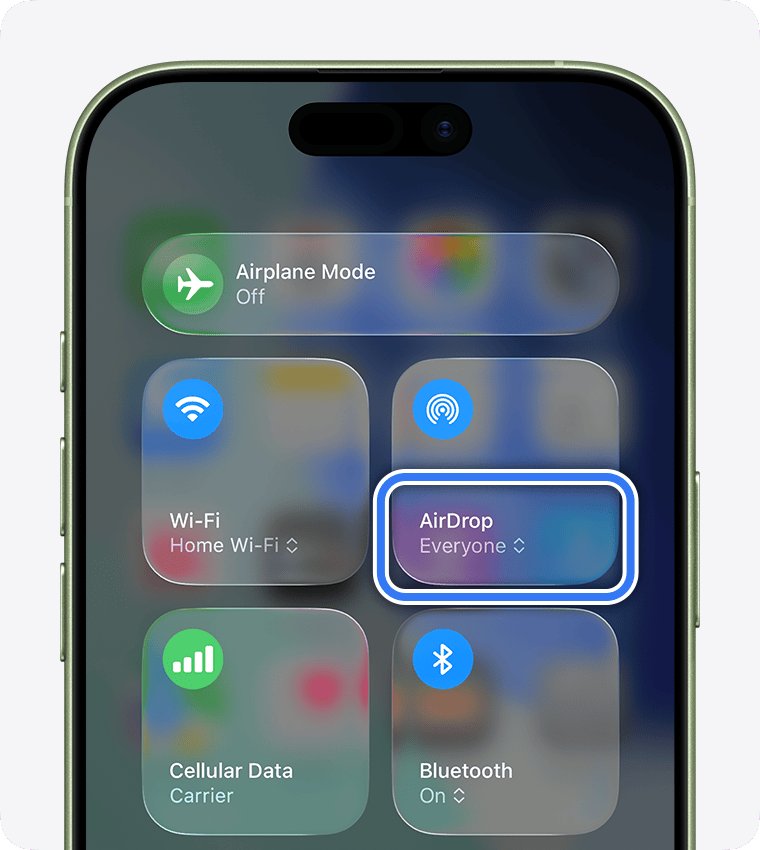
- Touch and hold the top-left group of controls, tap the AirDrop button, then tap Receiving Off.
On iPhone SE, open Control Center by swiping up from the bottom edge of the screen instead.
What is the AirDrop notification at the top of my iPhone?
Several different AirDrop alerts appear at the top of the screen. Match what you see to a row before you change any settings.
| What you see | What it means | How to get rid of it |
|---|---|---|
| A banner with Accept | Someone nearby is sending you an item | Accept or decline it, then set AirDrop to Receiving Off or Contacts Only |
| An AirDrop connection in the Dynamic Island | A transfer is in progress as a Live Activity | Let it finish, or swipe the expanded activity up to make it smaller |
| NameDrop or AirDrop appears when your iPhone is near another one | Bring Devices Together starts sharing when two iPhones touch | Turn off Bring Devices Together in Settings |
| A prompt to Get AirDrop Code | A sender not in your contacts needs a code (iOS 26.2 or later) | Ignore the request, or share the code only with someone you know |
| An old AirDrop alert in Notification Center | A finished request left in your notification list | Swipe left on it and tap Clear |
How to stop AirDrop requests on iPhone
Strangers can only send you AirDrop requests while your iPhone is set to Everyone for 10 Minutes. Contacts Only limits requests to people in your contacts, and Receiving Off blocks them all.
- Swipe down from the top-right corner to open Control Center.
- Touch and hold the top-left group of controls, the one with Wi-Fi and Bluetooth.
- Tap the AirDrop button.
- Tap Receiving Off to stop all requests, or Contacts Only to allow only your contacts.
Items you send between your own devices signed in to the same Apple Account are accepted automatically, so they don't need a request.
Turn off Bring Devices Together on iPhone
NameDrop and the AirDrop prompt that appears when you hold two iPhones close together are part of Bring Devices Together. NameDrop is on by default.
- Open the Settings app.
- Tap General.
- Tap AirDrop.
- Turn off Bring Devices Together.
To cancel a NameDrop that has already started, move the two devices apart or lock your iPhone before the transfer completes.
AirDrop in Dynamic Island won't go away
On iPhone models with the Dynamic Island, an AirDrop connection shows there as a Live Activity whenever the iPhone is unlocked. It stays while the transfer is running.
- Touch and hold the AirDrop activity in the Dynamic Island to see its detail.
- Swipe the expanded activity up to collapse it and make the Dynamic Island smaller.
- Wait for the transfer to finish; the activity is tied to the transfer, not to a setting.
- If you left Wi-Fi or Bluetooth range, remember the transfer continues over the internet.
- To stop AirDrop using cellular data away from Wi-Fi, go to Settings > General > AirDrop and turn off Use Cellular Data.
If several activities are running, tap the one you want to view to switch between them.
How to clear AirDrop notifications from Notification Center
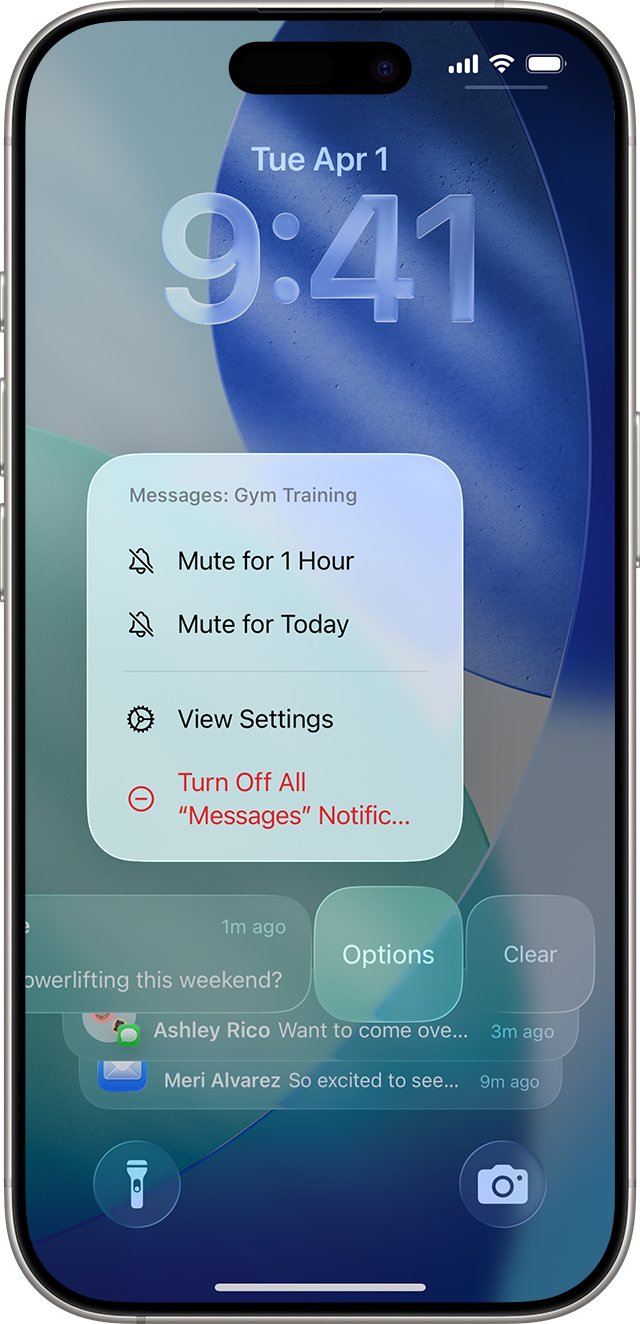
Old AirDrop alerts can sit in Notification Center long after the transfer. You can open Notification Center on iPhone from any screen to clear them.
- Swipe down from the top-left corner of the screen to open Notification Center.
- On the Lock Screen, swipe up from the middle of the screen instead.
- Swipe left on the AirDrop notification.
- Tap Clear, or Clear All for a group.
- To clear everything at once, tap the clear button at the top of Notification Center, then tap Clear.
AirDrop Everyone for 10 Minutes: why the setting changes back
Each AirDrop receiving option decides who can make a notification appear on your screen.
| AirDrop setting | Who can send you requests | What happens over time |
|---|---|---|
| Receiving Off | Nobody | Stays off until you change it |
| Contacts Only | People in your contacts whose Apple Account email or phone number is on their contact card | Stays set |
| Everyone for 10 Minutes | Any nearby Apple device | After 10 minutes it reverts to Contacts Only, or to Receiving Off if you're not signed in to an Apple Account |
If you shared an AirDrop code with someone, they can keep sending to you for 30 days. To stop that early, open Contacts, find them in your Other Known list and select Forget This Person.
How to tell if AirDrop is turned off on iPhone
- Open Control Center.
- Touch and hold the top-left group of controls.
- Tap the AirDrop button and check that Receiving Off is selected.
- Open Settings > General > AirDrop and check that Bring Devices Together is off if you turned it off.
AirDrop notification stuck on iPhone screen
The AirDrop notification stays after the transfer ends
The Live Activity or banner didn't clear, or the iPhone touch screen stopped responding.
- Lock and unlock the iPhone, then check the Dynamic Island again.
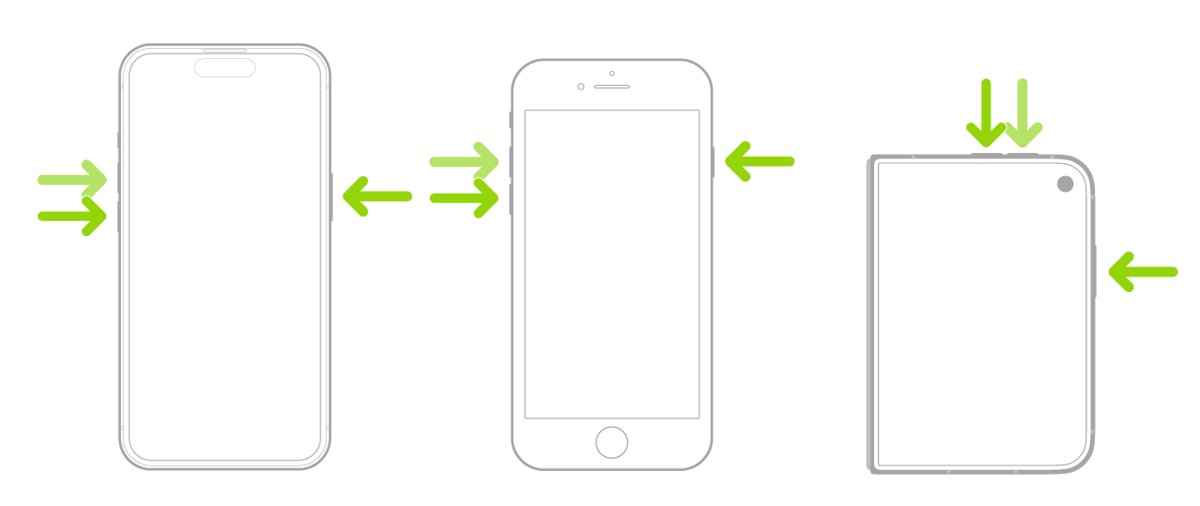
- If it is still there, press and quickly release the volume up button.
- Press and quickly release the volume down button.
- Press and hold the side button, then release it when the Apple logo appears.
AirDrop keeps popping up when someone is near my iPhone
Bring Devices Together starts NameDrop or AirDrop when two iPhones are held close.
- Go to Settings > General > AirDrop.
- Turn off Bring Devices Together.
Unknown people keep sending AirDrop requests
AirDrop was left on Everyone for 10 Minutes, or a sender is on your Other Known list.
- Set AirDrop to Receiving Off or Contacts Only in Control Center.
- Open Contacts, find the sender in the Other Known list, and select Forget This Person.
- Never tap Accept on an item from a name you don't recognise.
If AirDrop stops working altogether after these changes, you can fix AirDrop not sending files by checking Wi-Fi, Bluetooth and receiving settings.
AirDrop notification on iPhone FAQ
Can I turn off AirDrop completely on iPhone?
Yes. Open Control Center, touch and hold the top-left group of controls, tap the AirDrop button and choose Receiving Off. Nobody can send you AirDrop requests until you change the setting again.
Why does AirDrop pop up when my iPhone is near another iPhone?
Bring Devices Together starts NameDrop or an AirDrop transfer when two iPhones on iOS 17 or later are held close. Turn it off in Settings > General > AirDrop if you don't want the prompt.
Why does my iPhone ask for an AirDrop code?
With iOS 26.2 or later, a sender who isn't in your contacts must use an AirDrop code. You tap Get AirDrop Code and tell them the code, so ignore the request if you don't know the sender.
Why does AirDrop show in the Dynamic Island?
The Dynamic Island shows Live Activities such as an AirDrop connection while a transfer is running and the iPhone is unlocked. It goes away when the transfer ends, and you can swipe the expanded view up to shrink it.
Does AirDrop use cellular data?
It can. If you leave Wi-Fi or Bluetooth range during a transfer, AirDrop continues over the internet and cellular charges may apply. Turn off Use Cellular Data in Settings > General > AirDrop to prevent it.
Why did my AirDrop setting change back to Contacts Only?
Everyone for 10 Minutes is temporary. After 10 minutes it reverts to Contacts Only if you're signed in to an Apple Account, or to Receiving Off if you're not.
Where do AirDrop files go on iPhone?
Most items are saved in the app they were sent from, so a photo lands in Photos. Some items are saved in the Files app instead, where you can find downloads on iPhone alongside other saved files.