To use your phone camera as a webcam in Windows 11, link an Android phone under Settings > Bluetooth & devices > Mobile devices, turn on Use as connected camera, and then pick the phone from the camera list in any video app.
This guide covers the requirements, linking the phone, choosing it in Teams, Zoom, Discord, Google Meet and OBS Studio, turning it off again, and fixes for the problems that stop the stream.
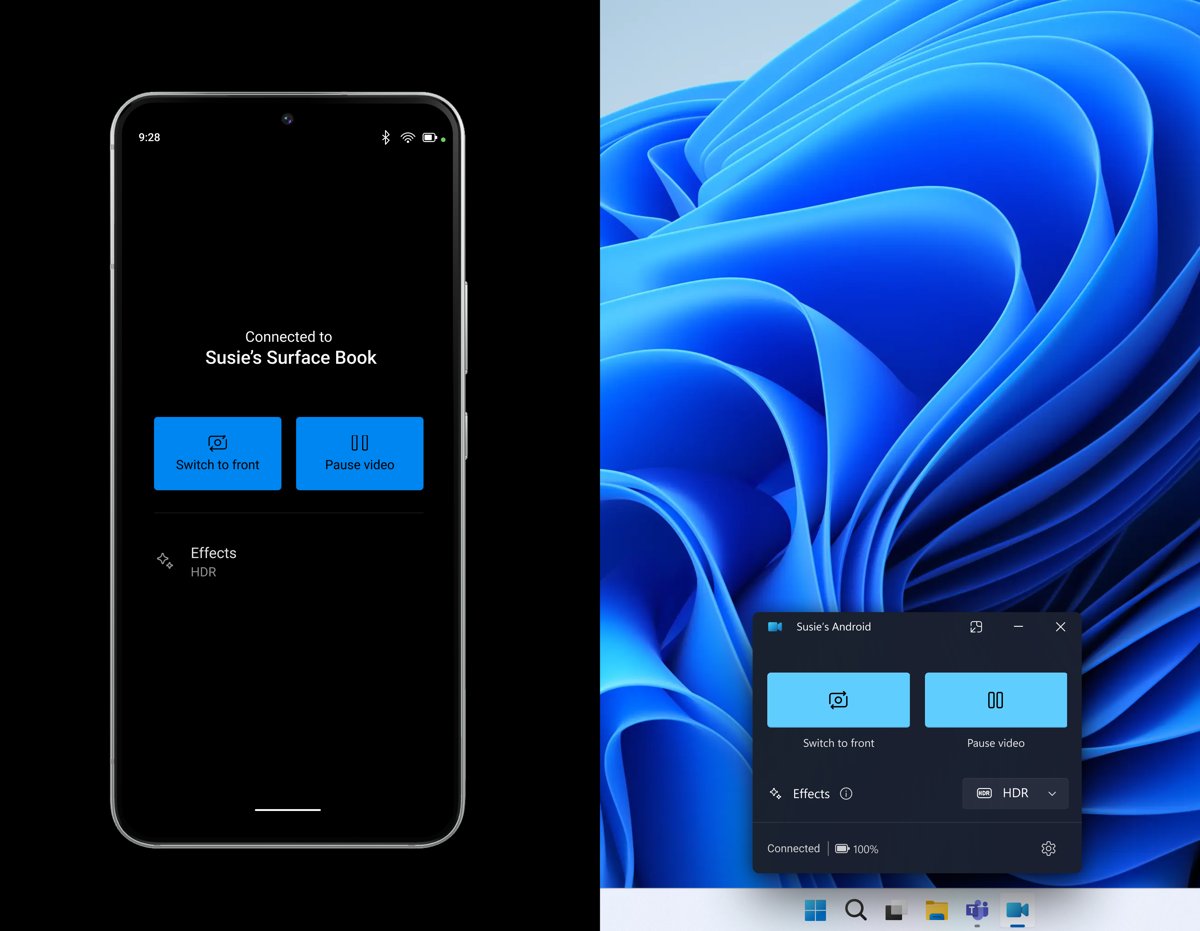
Use phone camera as webcam using Phone Link app in Windows 11
The connected camera feature works with an Android phone that is already linked to your PC through Phone Link and the Link to Windows app.
Once it is on, Windows treats the phone like any other webcam, so you do not need a separate webcam app on the PC.
- On your PC, open Settings.
- Select Bluetooth & devices.
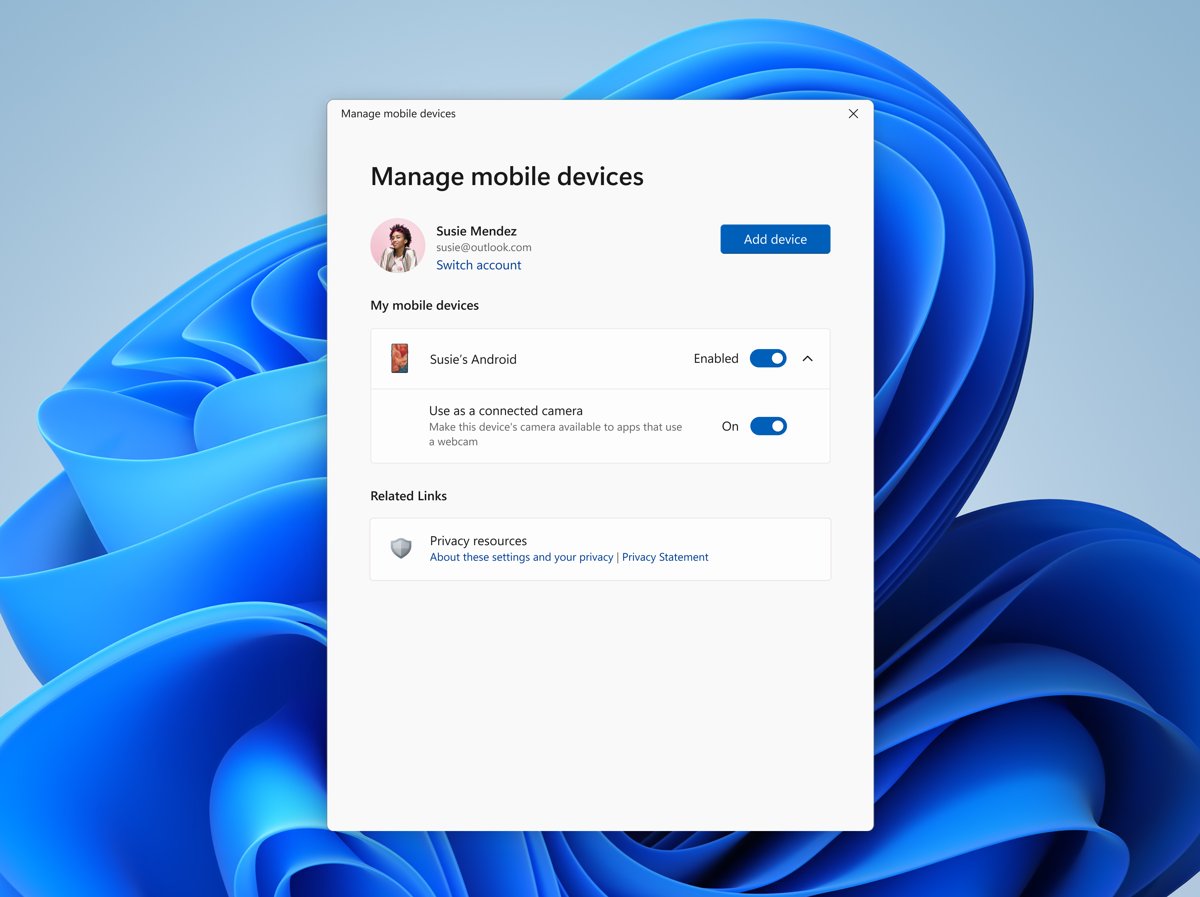
- Scroll down and select Mobile devices.
- If your phone is not listed yet, select Add device and link it (the full linking steps are in the next section).
- Select Manage devices, find your phone, and turn on Use as connected camera.
- Open the video app you want to use, such as Microsoft Teams or the Camera app, and pick your phone from its camera list.
- On the phone, grant the camera permission when Link to Windows asks for it.
The video now comes from your phone. Rotate the phone to switch between landscape and portrait framing.
Phone Link connected camera requirements
Microsoft lists separate minimum versions for linking a phone and for using it as a camera, so an older Link to Windows build can link but still hide the camera option.
| Item | Minimum for the connected camera | Where to check it |
|---|---|---|
| PC operating system | Windows 11 | Settings > System > About |
| Phone | Android 10 or later | Android Settings > About phone |
| Link to Windows app on the phone | Version 1.24022.0 or later | Open Link to Windows, tap Settings, then Check for updates |
| Network | Phone and PC on the same Wi-Fi network | Wi-Fi settings on both devices |
| Account | The same Microsoft account on the PC and in Link to Windows | Link to Windows > Linked Account |
| iPhone | Not supported for the connected camera | Microsoft documents this feature for Android only |
Link to Windows comes preinstalled on some Samsung, HONOR, OPPO, ASUS and vivo phones. On other phones, install it from the Google Play Store or open www.aka.ms/yourpc in the phone's browser.
How to link an Android phone to Windows 11 for the connected camera
Skip this section if your phone already appears under Mobile devices. For texts, calls and photo sync on the same link, set up Phone Link afterwards.
- Keep the phone and PC near each other, turned on, and connected to the same Wi-Fi network.
- On the PC, open Settings > Bluetooth & devices > Mobile devices.
- Turn on Allow this PC to access content and capabilities from your mobile devices if it is off.
- Select Add device. A window with a QR code appears on the PC.
- Scan the QR code with the phone's camera and follow the prompts in Link to Windows.
- Grant the permissions Link to Windows asks for, then tap Done.
- Back on the PC, confirm the phone now appears under Mobile devices.
Phone Link connected camera settings in Windows 11
Three different Settings pages, from the linked device to the camera permissions for apps, control whether the phone camera reaches your apps. Each row below is one switch that can block it.
| What it controls | Settings path | Set it to |
|---|---|---|
| Phone offered as a webcam | Settings > Bluetooth & devices > Mobile devices > Manage devices > your phone | Use as connected camera on |
| PC allowed to use linked phones | Settings > Bluetooth & devices > Mobile devices | Allow this PC to access content and capabilities from your mobile devices on |
| Camera list, preview and image controls | Settings > Bluetooth & devices > Cameras | Phone listed under Connected cameras and not under Disabled cameras |
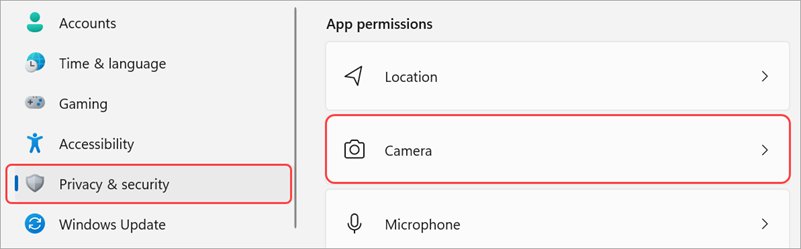
| Apps allowed to use any camera | Settings > Privacy & security > Camera | Camera access, Let apps access your camera and Let desktop apps access your camera on |
How to see the phone camera in Windows 11 camera settings
The Cameras page in Settings shows a live preview, which tells you whether the phone stream reaches Windows before you open a meeting.
- Open Settings > Bluetooth & devices > Cameras.
- Look for your phone's name in the Connected cameras list.
- Select the phone to open its page with a camera preview.
- Allow the camera permission on the phone if Link to Windows asks for it.
- Check that the preview shows the phone's view. A black placeholder with a white icon means the phone still needs permission (see the fixes below).
- Adjust Brightness or Contrast under Basic settings if those controls appear for the phone.
If the phone is missing from Connected cameras, go back to Mobile devices and make sure Use as connected camera is on. For built-in webcam basics, turn on the camera in Windows 11 first.
How to use phone camera as webcam for Teams
Microsoft Teams lists the phone in its camera dropdown once the connected camera is on.
- Open Teams on your desktop and select Settings and more.
- Select Settings > Devices.
- Under the video settings, open the Camera dropdown and choose your phone.
- Watch the preview on the same page to check the framing.
- Under Audio settings, select Make a test call to see the camera, mic and speaker working together.
- On the phone, allow camera access if Link to Windows asks for it.
Teams also offers Adjust brightness and Soft focus on the same page, which help when the phone sits in a dim room.
How to use phone camera as webcam for Zoom, Discord and Google Meet
Every Windows video app reads the same camera list, so the phone shows up next to the built-in webcam. Microsoft's own advice is to change the camera from inside the app's settings.
| App | Where to pick the phone | What to watch for |
|---|---|---|
| Zoom desktop app | The camera list in Zoom's video settings | Close other apps that hold the camera before you join |
| Discord desktop app | The camera list in Discord's voice and video settings | Discord is a desktop app, so Let desktop apps access your camera must be on |
| Google Meet in a browser | The camera list in Meet's settings, after the browser asks for camera permission | Allow the browser to use the camera when it prompts |
If an app shows a blurred or replaced background that hides you, turn off its background effect. Microsoft notes that the background setting inside the app causes this, not the phone.
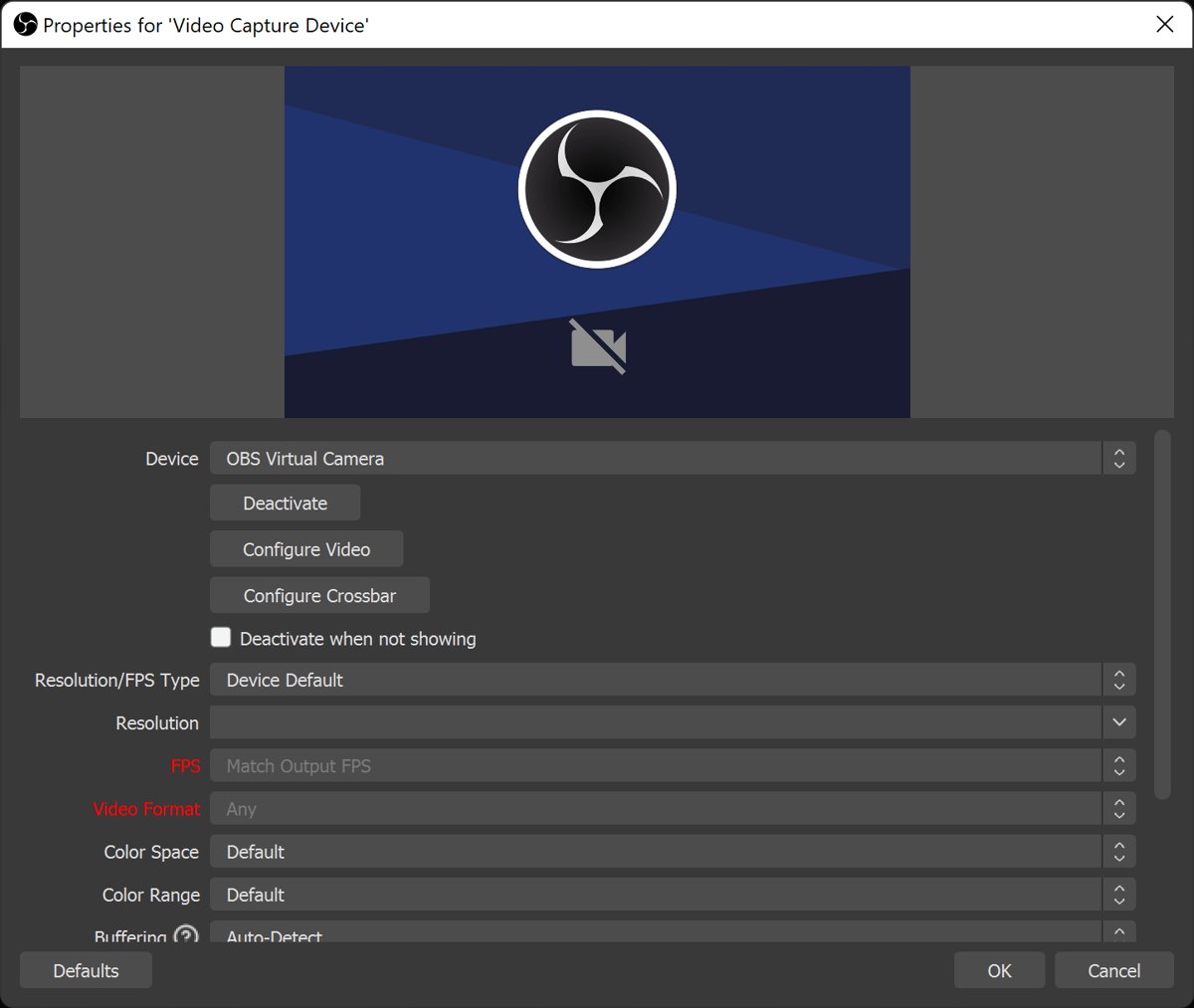
How to use phone camera as webcam on PC OBS
OBS Studio captures the phone through the same source it uses for a USB webcam.
- Turn on Use as connected camera in Windows Settings first.
- Open OBS Studio and select the scene you want to use.
- Add a Video Capture Device source to the scene.
- Open the source's properties.
- Choose your phone from the Device dropdown.
- If the preview stays blank, set Resolution/FPS Type to Custom and pick a resolution and frame rate the camera supports.
Can I use iPhone camera as webcam on PC?
Not through Phone Link. Microsoft documents the connected camera for Android 10 or later only, and the iPhone link in Phone Link covers messages, calls and notifications.
| Phone and computer | Built-in webcam option | Requirements |
|---|---|---|
| Android phone + Windows 11 PC | Phone Link connected camera | Android 10 or later, Link to Windows 1.24022.0 or later |
| iPhone + Windows PC | None from Microsoft or Apple | Phone Link for iPhone does not include the camera feature |
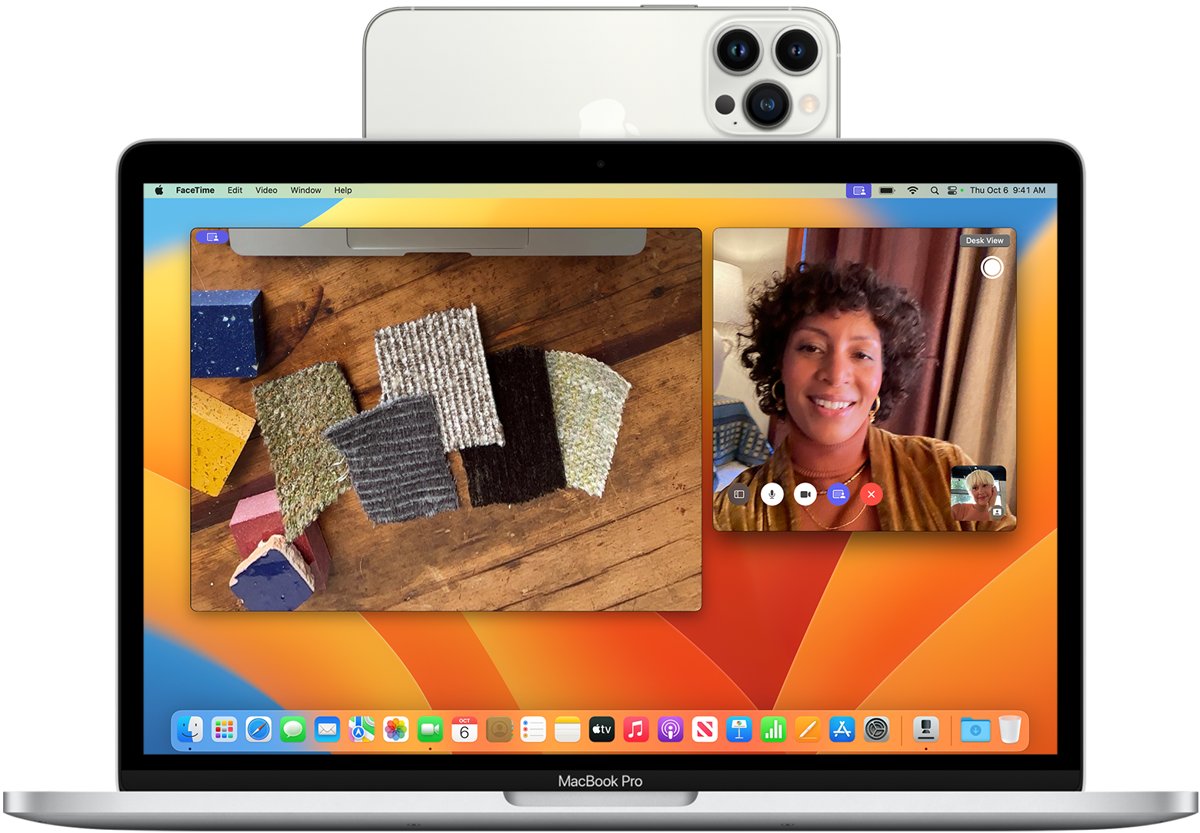
| iPhone + Mac | Apple Continuity Camera | iPhone XR or later on iOS 16, a Mac on macOS Ventura 13 or later, same Apple Account |
| Android phone + Windows 10 PC | None from Microsoft | The connected camera needs Windows 11 |
How to turn off phone as webcam in Windows 11
Turning the toggle off removes the phone from every app's camera list without unlinking the phone from Phone Link.
- Open Settings > Bluetooth & devices > Mobile devices.
- Select Manage devices.
- Under your phone, turn off Use as connected camera.
- To pick a different webcam for one call only, change the camera inside that app instead.
- To block the phone camera for every app, open Settings > Bluetooth & devices > Cameras, select the phone, and select Disable (this needs administrator rights).
A disabled camera moves to the Disabled cameras list, where Enable brings it back.
Troubleshoot Phone Link app problems & issues on Windows PC
Most connected camera failures come from a missing permission on the phone, an outdated Link to Windows app, or a connection problem between the two devices.
The phone does not appear as a camera option
The connected camera toggle is off, or the phone or app is below the minimum version.
- Open Settings > Bluetooth & devices > Mobile devices > Manage devices and turn on Use as connected camera.
- Check that the phone runs Android 10 or later.
- Open Link to Windows on the phone, tap Settings, then Check for updates, and install version 1.24022.0 or later.
- Close and reopen the video app so it reloads its camera list.
No permission request appears on the phone
The camera prompt is waiting in a separate window on the PC, or the camera permission is off on the phone.
- Look at the video preview. A black placeholder with a white icon means the PC is waiting for the phone.
- Check the taskbar for a new window with a camera icon that lists your phone's name, and follow its prompts.
- On the phone, open Settings, find Link to Windows in the apps list, and turn on the camera permission.
- If the stream does not resume, select the refresh button in that window on the PC.
Phone screen is not rotating when you flip it
Rotation is locked on the phone.
- Check whether screen rotation is locked on the phone.
- Unlock rotation if it is on.
- Turn the phone to switch the video between landscape and portrait.
Video is blocked by a background
A background effect inside the video app is covering the image.
- Open the video app's effects or background settings.
- Turn the background effect off.
- Check the preview again before you rejoin the call.
Phone and PC will not connect
Different Microsoft accounts, battery optimization on the phone, or a router that isolates Wi-Fi devices.
- Sign in to Link to Windows and the PC with the same Microsoft account.
- Turn off Battery saver on the phone.
- In Android Settings, open Apps > Link to Windows > Battery and stop the system from optimizing it.
- Connect both devices to the same private Wi-Fi network rather than a public hotspot.
- If they still do not see each other, turn off AP Isolation in your router's advanced wireless settings.
An Update Required page blocks Phone Link
Phone Link on the PC or Link to Windows on the phone is older than the minimum version.
- On the PC, open Phone Link, go to Settings > About, and select Update if one is offered.
- On the phone, open Link to Windows, tap Settings, then Check for updates.
- If the page stays, wait a few minutes, restart the phone, and reopen Phone Link on the PC.
Apps say no camera is found even though the phone is listed
Windows camera privacy settings block the app.
- Open Settings > Privacy & security > Camera.
- Turn on Camera access.
- Turn on Let apps access your camera and the switch for the app you use.
- Turn on Let desktop apps access your camera for Zoom, Discord, OBS Studio and other desktop apps.
- Close the other apps that may hold the camera and try again.
If Phone Link itself will not start on the PC, reinstall the Phone Link app and link the phone again.
If the built-in webcam also fails, run the Camera troubleshooter under Settings > System > Troubleshoot > Other troubleshooters, then reset the Camera app and webcam drivers if it still shows nothing.
Phone camera as webcam FAQ
Can I use my phone camera as a webcam?
Yes. On Windows 11, an Android phone running Android 10 or later can act as a webcam through Phone Link. Link the phone under Settings > Bluetooth & devices > Mobile devices, then turn on Use as connected camera.
Can I use iPhone camera as webcam on PC?
Not through Phone Link. Microsoft's connected camera feature supports Android phones only. Apple's Continuity Camera turns an iPhone into a webcam, but it works with a Mac on macOS Ventura 13 or later, not with a Windows PC.
How to use phone camera as webcam on laptop?
A Windows 11 laptop works the same way as a desktop. Link your Android phone in Settings > Bluetooth & devices > Mobile devices, turn on Use as connected camera, and pick the phone in your video app's camera list.
How to use phone camera as webcam on PC wired?
Phone Link's connected camera runs over the Wi-Fi link between the phone and PC, and Microsoft documents no USB cable mode for it. Keep both devices on the same private Wi-Fi network for the steadiest stream.
How to use phone camera as webcam for Zoom?
Turn on Use as connected camera in Windows Settings, then open Zoom's video settings and choose your phone from the camera list. Allow the camera permission on the phone when Link to Windows asks for it.
How to use phone camera as webcam on Discord?
Enable the connected camera in Windows Settings, then choose the phone in Discord's voice and video settings. Discord is a desktop app, so Let desktop apps access your camera must be on under Privacy & security > Camera.
Can I use phone camera as webcam on Windows 10?
Not with Phone Link. Microsoft lists Windows 11 as a requirement for the connected camera feature, even though Phone Link itself runs on Windows 10 for messages, calls and photos.
Why is my camera in use?
Another app is holding the camera. Close apps such as Skype, the Camera app or a browser tab with a video call, then reopen your meeting app. Restarting the PC releases a camera that stays stuck.
How to use phone camera as webcam on PC OBS?
Add a Video Capture Device source in OBS Studio, open its properties, and pick your phone from the Device dropdown. Turn on Use as connected camera in Windows Settings first, or the phone will not be listed.