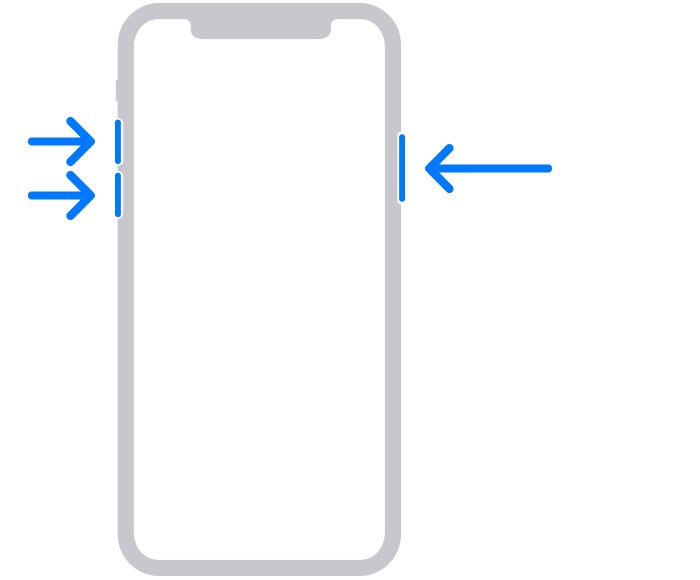
Force restart your iPhone first: press and release volume up, press and release volume down, then hold the side button until the Apple logo appears.
If that fails, the steps below cover a drained battery, a display that is on but blacked out, heat, liquid, a stuck Apple logo and the point where the phone needs Apple service.
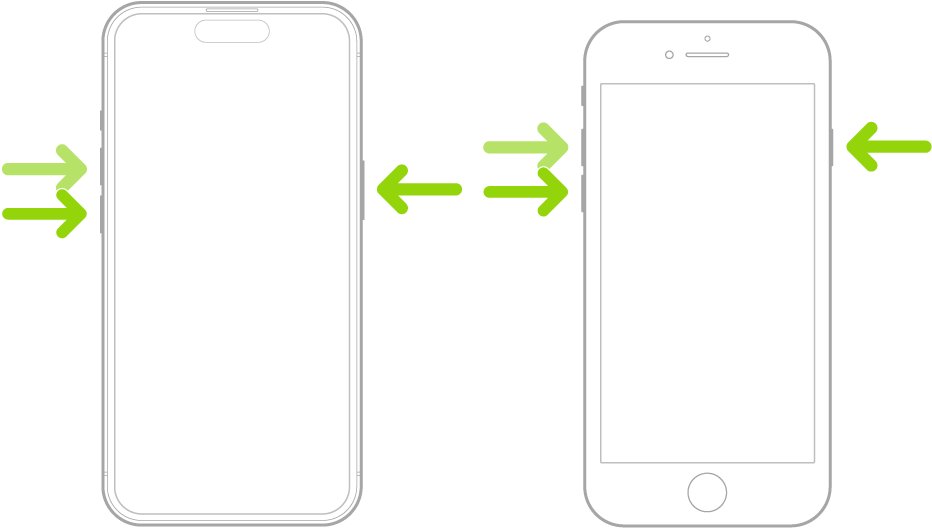
1. Force-restart the iPhone
A force restart fixes a frozen iPhone whose screen stays black even though the phone still has charge.
It does not erase anything on the phone. The button sequence depends on your model.
| Your iPhone | Force restart buttons | Release when |
|---|---|---|
| iPhone 8 or later, and iPhone SE (2nd generation and later) | Press and quickly release volume up, press and quickly release volume down, then press and hold the side button | The Apple logo appears |
| iPhone 7 and iPhone 7 Plus | Press and hold the side button and volume down together | The Apple logo appears |
| iPhone 6s or earlier, and iPhone SE (1st generation) | Press and hold the side (or top) button and the Home button together | The Apple logo appears |
Keep holding the side button even if nothing happens at first. Apple notes the logo can take longer than 10 seconds to appear. You can also force restart any iPhone model with the same sequences.
Which iPhone black screen fix matches your symptoms?
| What you see or hear | Most likely cause | Go to |
|---|---|---|
| Completely black, no sound, no vibration | Frozen software or a flat battery | Force restart, then charge it for an hour |
| Black screen with a low-battery icon | Battery too drained to start | Charge for 30 minutes or until it starts |
| Black screen but the phone rings, vibrates or speaks | Screen Curtain, Zoom Low Light or very low brightness | Check for a nearly invisible display |
| Screen dimmed or went black while hot, or during navigation | Temperature protection | Let it cool down |
| Black after a drop in water or a spill | Liquid exposure | Dry it before charging |
| Apple logo for several minutes, then black, then logo again | Failed update or damaged iOS | Recovery mode |
| Nothing works after all of the above | Display or other hardware fault | Apple service |
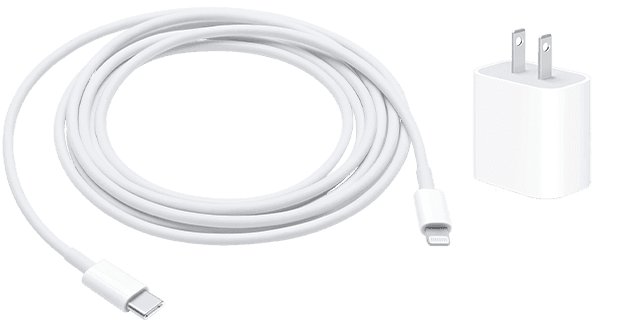
2. Charge it for an hour
A fully drained battery leaves the screen black and ignores the buttons until it has some charge back.
Apple's own guidance is one hour on the charger before you try again. The iPhone is findable message on a dead screen means the same thing: the phone shut down and needs that hour on a wall charger.
- Check the cable and USB power adapter for breaks, frayed sections or bent prongs, and swap out anything damaged.
- Remove any lint or debris from the charging port on the bottom of the iPhone.
- Plug the iPhone firmly into a wall outlet, not a laptop USB port or a hub.
- Leave it charging for one hour without pressing any buttons.
- If a low-battery icon appears, keep it plugged in for at least 30 more minutes or until it starts.
- Force restart the iPhone while it is still connected to power.
- If nothing appears, try a different cable, adapter and outlet, then charge for another half hour.
A red battery icon is a good sign: the display and charging circuit both work, and the phone only needs time.
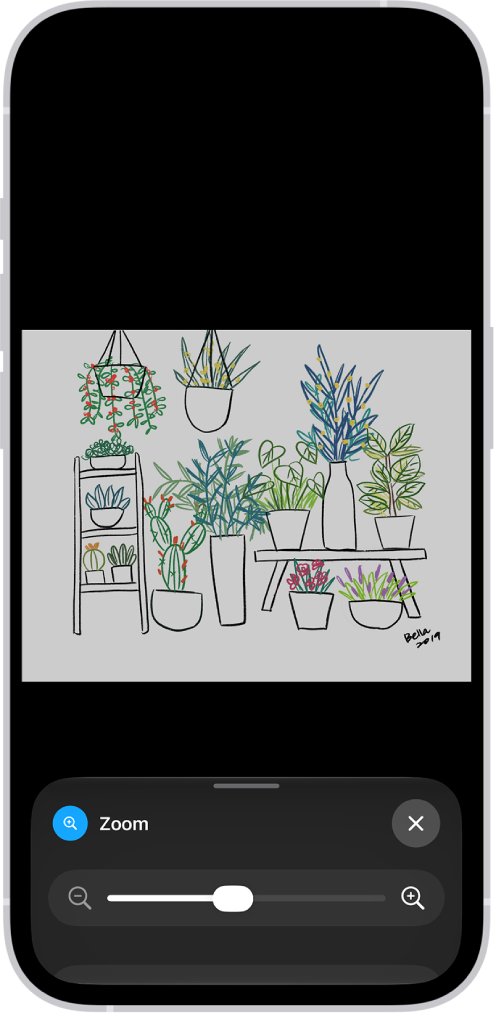
3. Check whether the iPhone is running with a nearly invisible display
If the phone rings, vibrates or talks to you while the screen stays black, the display is often on but deliberately blanked.
VoiceOver's Screen Curtain keeps the screen contents active while the display is black. Zoom's Low Light filter and minimum brightness can make it look off in daylight. When Zoom leaves the screen magnified with inverted colors instead, it is usually the prank known as the iPhone Moo virus.
- Listen for spoken feedback when you touch the screen. If VoiceOver speaks, triple-tap the screen with three fingers to turn Screen Curtain off.
- If VoiceOver and Zoom are both on, quadruple-tap with three fingers instead.
- Ask Siri to turn off VoiceOver if you prefer to leave the gestures alone.
- Double-tap the screen with three fingers to switch Zoom off if the view looks magnified or very dark.
- Open Control Center and drag the brightness slider all the way up.
- Go to Settings > Accessibility > Zoom > Zoom Filter and choose None if Low Light is selected.
- Go to Settings > Accessibility > Display & Text Size and turn off Reduce White Point.
VoiceOver changes how every gesture works, so a double tap opens an item that a single tap only selects.
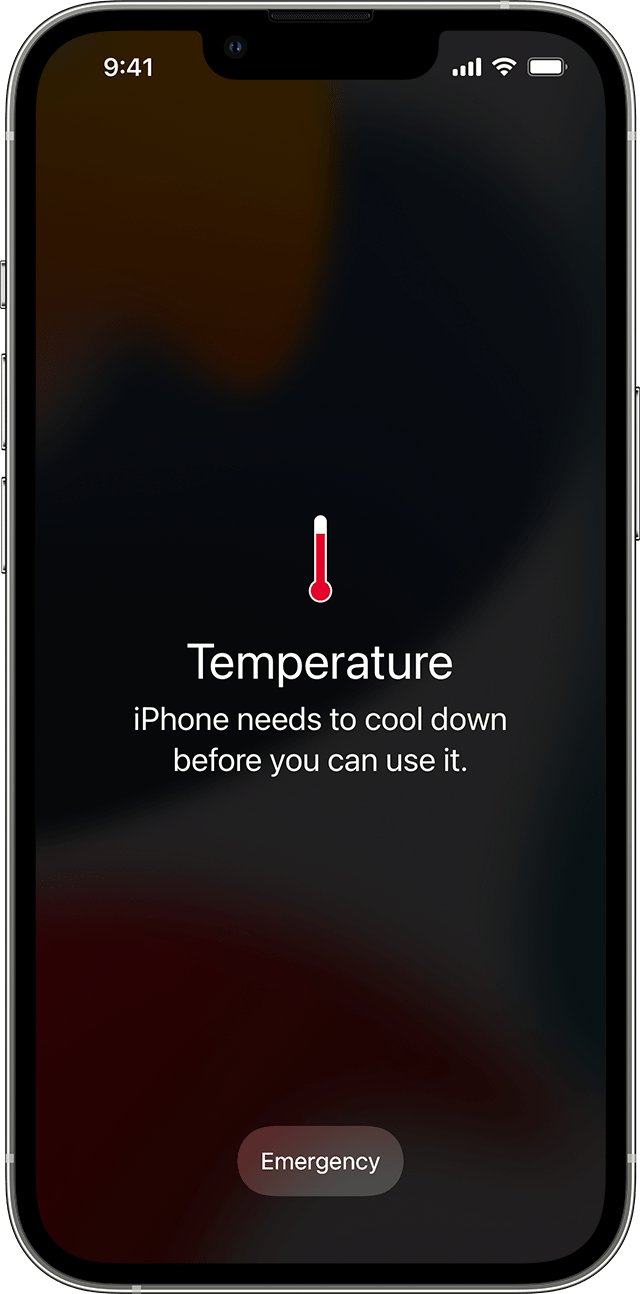
4. Let an overheated iPhone cool down
When the inside of an iPhone runs above its normal range, iOS dims the display or turns it black to protect the components.
Apple designs iPhone for use between 32º and 95º F (0º to 35º C). Cold below that range can make it shut off or stop charging.
- Unplug the charger and take the iPhone off any wireless charging pad.
- Turn the iPhone off if a temperature warning screen appears.
- Move it out of direct sunlight and out of a parked car.
- Leave it in a cooler room until it feels close to room temperature.
- Turn it on again, and only then reconnect the charger.
During navigation, the alert Temperature: iPhone needs to cool down turns the display off on purpose. Turn-by-turn audio continues, and the screen lights up for each turn.
5. Remove accessories, the case, and screen protector
A faulty Lightning or USB-C accessory can stop the screen from responding, and a case or screen protector can stop the screen from responding.
- Disconnect every Lightning or USB-C accessory, including adapters, docks and car chargers.
- Remove the case.
- Peel off any screen protector.
- Wipe the screen with a soft, lint-free cloth to remove debris or water.
- Force restart the iPhone.
- If the screen works now, reconnect one accessory at a time and try a different outlet, cable or charger for the one that caused it.
If the screen lights up but ignores your fingers, work through the unresponsive iPhone touch screen fixes next.
6. Deal with liquid exposure safely
Water resistance on iPhone 7 and later is not permanent and wears down over time. Liquid damage is not covered under the Apple warranty.
Charging a wet iPhone can damage it, so drying comes first.
- Unplug every cable and accessory straight away.
- If the liquid was not plain water, rinse the affected area with tap water.
- Wipe the iPhone with a soft, lint-free cloth.
- Tap it gently against your hand with the charging port facing down to shake out water.
- Leave it in a dry spot with airflow. A fan blowing cool air into the port helps.
- Wait at least 5 hours before you charge it with a cable or connect an accessory.
- Force restart it once it is dry.
Do not open the SIM tray until the iPhone is dry. iPhone XS, XS Max, XR and later warn you if there is liquid in the port when you connect a cable.
7. Use recovery mode if it is stuck on the Apple logo
Use recovery mode when the Apple logo stays on screen for several minutes with no progress bar, or the phone keeps cycling between the logo and black.
You need a Mac with Finder or a Windows PC with the Apple Devices app, plus a USB cable.
- Update your Mac, or install the latest Apple Devices app on your PC.
- Connect the iPhone to the computer with a USB cable.
- Open Finder on the Mac, or the Apple Devices app on the PC.
- On iPhone 8 or later, press and release volume up, press and release volume down, then hold the side button until the Connect to computer screen appears.
- On iPhone 7, hold the side button and volume down together. On iPhone 6s or earlier, hold the Home and side (or top) buttons together.
- Select the iPhone on the computer and choose Update first.
- Choose Restore only if Update fails, because Restore reinstalls iOS and erases all your data.
If the download takes more than 15 minutes, the iPhone leaves the Connect to computer screen. Let the download finish, then repeat the button steps.
How to tell your iPhone screen is working again
- Confirm the Apple logo appears and is followed by the Lock Screen, not another black screen.
- Unlock the iPhone and check that touches respond in one tap, without spoken feedback.
- Plug in the charger and check that the Lock Screen shows it charging, with no Charging On Hold message.
- Leave the screen on for a few minutes and watch for dimming or a temperature warning.
- If you used recovery mode, finish setup and confirm your apps and photos are there.
When the iPhone black screen needs service
Some black screens are hardware faults that no reset can fix. These are the cases where Apple directs owners to service.
| Situation | What it points to | Next step |
|---|---|---|
| Still black after a force restart and an hour of charging | Display, battery or logic board fault | Book a repair through Apple Support |
| A button is stuck, so you cannot force restart or enter recovery mode | Button hardware | Book a repair |
| Recovery mode cannot update or restore the iPhone | Hardware or storage fault | Book a repair |
| Phone rings but the screen stays black with Screen Curtain and Zoom off | Display failure | Screen repair |
| Black screen after liquid exposure, even when dry | Liquid damage, not covered by warranty | Paid repair, unless consumer law applies |
Apple's iPhone repair page shows estimated out-of-warranty prices per model and books an Apple Store, Apple Authorized Service Provider or mail-in repair. The one-year warranty covers manufacturing issues, not accidental damage.
iPhone screen black but phone is on: fixes by symptom
Black iPhone screen but the phone is on and rings
Screen Curtain is on, or the display has failed while the phone keeps running.
- Triple-tap the screen with three fingers to turn off Screen Curtain.
- Ask Siri to turn off VoiceOver.
- Double-tap with three fingers to turn off Zoom.
- If the screen stays black, book a screen repair through Apple Support.
Screen going black on iPhone while you use it
Temperature protection, very low brightness, or a Zoom filter.
- Move the iPhone out of the sun and stop charging it.
- Drag the brightness slider in Control Center to the top.
- Set Settings > Accessibility > Zoom > Zoom Filter to None.
iPhone screen completely black and it will not turn on
A drained battery or frozen software.
- Force restart it with the button sequence for your model.
- Charge it from a wall outlet for one hour.
- Force restart again while it is still plugged in.
- Swap the cable and adapter, charge another 30 minutes, then book service if it stays black.
iPhone shows the Apple logo, then a black screen
A failed update or damaged iOS.
- Connect it to a Mac or PC.
- Enter recovery mode with the button sequence for your model.
- Choose Update, and use Restore only if Update fails.
iPhone black screen advice to avoid
| Avoid | Why | Do this instead |
|---|---|---|
| Charging a wet iPhone | Charging while wet can damage it | Wait at least 5 hours after it is dry |
| A hair dryer or other heat source on a wet phone | Apple warns against external heat | Air-dry it with a fan blowing cool air |
| Pushing a cotton swab or paper towel into the port | It can damage the connector | Tap it gently, port facing down |
| Choosing Restore before Update in recovery mode | Restore erases all your data | Try Update first |
| Using a frayed cable or bent adapter | Damaged accessories can fail to charge the iPhone or harm it | Use an undamaged cable and wall adapter |
| Leaving the phone in a parked car | Car interiors exceed the 113º F storage limit | Keep it with you or in the shade |
iPhone black screen FAQ
How do I turn on an iPhone with a black screen?
Force restart it. On iPhone 8 or later, press and release volume up, press and release volume down, then hold the side button until the Apple logo appears. If nothing happens, charge it for an hour and try again.
Why is my iPhone screen black but the phone still rings?
The phone is running but the display is blanked or broken. VoiceOver's Screen Curtain blacks out the display on purpose; a three-finger triple tap turns it off. If the screen stays black after that, the display needs repair.
How long should I charge an iPhone with a black screen?
Charge it for one hour from a wall outlet, then force restart it. If a low-battery icon appears, give it another 30 minutes or until it starts. Try a different cable and adapter before booking service.
Will a force restart erase my iPhone?
No. A force restart only restarts the iPhone, and your apps, photos and settings stay in place. Only choosing Restore in recovery mode erases the iPhone.
What should I do if my iPhone went black after getting wet?
Unplug it, wipe it with a lint-free cloth and tap it with the port facing down. Let it air-dry, and wait at least 5 hours before charging it with a cable. Liquid damage is not covered by the Apple warranty.
Why does my iPhone screen go black when it gets hot?
iOS dims or blacks out the display when the inside of the phone is too hot, to protect its components. Turn it off, move it somewhere cooler and wait. Apple rates iPhone for use between 32º and 95º F.
Does recovery mode delete everything on my iPhone?
Only if you choose Restore, which reinstalls iOS and erases all your data. Recovery mode also offers Update, which Apple tells you to try first. Use Restore only when Update fails.
Can a screen protector cause a black iPhone screen?
It can stop the screen from responding to touch, so Apple lists removing cases and screen protectors as a fix. If the display shows no light at all, start with a force restart and charging instead.
The bottom line on fixing a black iPhone screen
Force restart first, charge for an hour second, and check for Screen Curtain if the phone still makes sounds. Those three steps clear most black screens without data loss. Recovery mode comes next, and a screen that stays black after all of them needs Apple service.







Charger plugged in but iPhone is not charging? Here’s how to fix it - Techdows
[…] fully drained iPhone can sit on the charger with a black iPhone screen for a while before it shows anything. That looks like a charging fault, but it is often just an […]