To change the main display in Windows 11, open Settings > System > Display, select the monitor you want, and turn on Make this my main display.
This guide covers the Settings route, how to tell which monitor is which, the display modes that allow a main display, the Windows 10 steps, and fixes when the option is greyed out.
How to change main display on Windows 11
The main display is the one that holds the taskbar clock, the Start menu and your desktop icons by default.
Your monitors must be in Extend mode for Windows to let you pick one as main.
- Right-click an empty part of the desktop and select Display settings, or open Start > Settings > System > Display.
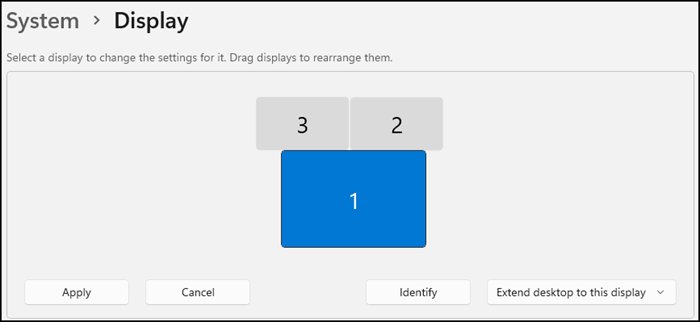
- Select Identify to show the number Windows has given each monitor.
- Select the numbered box for the monitor you want as your main display.
- Scroll down and expand Multiple displays.
- Tick Make this my main display.
- Watch the taskbar and desktop icons move to that monitor.
Windows key + P display modes and the main display
Press Windows key + P to open the display mode list, and press it again to cycle through the options.
Only one of the four modes gives you two separate desktops to choose a main display from.
| Mode | What you see | Can you choose a main display? |
|---|---|---|
| PC screen only | Things on one display only | No, only one screen is active |
| Duplicate | The same thing on all your displays | No, both screens show one desktop |
| Extend | Your desktop across multiple screens, with items movable between them | Yes, this is the mode to use |
| Second screen only | Everything on the second display only | No, the second screen is the only one active |
A laptop that uses its built-in screen as main while extending to a monitor needs Extend; a closed-lid desk setup often runs on Second screen only instead.
Identify which monitor is display 1 and display 2
Windows numbers each monitor it detects, and the numbers do not always match how the monitors sit on your desk.
Matching number to screen first stops you making the wrong monitor main.
- Open Start > Settings > System > Display.
- Select Identify at the top of the display layout.
- Read the large number that appears on each physical screen.
- If a connected monitor has no box in the layout, expand Multiple displays and select Detect.
- For a wireless display that is missing, select Connect under Multiple displays.
Arrange displays in Windows 11 to match your desk
The arrangement controls where the pointer crosses from one screen to the next, so set it after you choose the main display.
- In Display settings, select and drag each numbered box to match where the monitor sits physically.
- Line up the top or bottom edges if your monitors are the same height on the desk.
- Select Apply when the layout matches.
- Move the pointer across each screen edge to test the layout.
- Under Multiple displays, tick Remember window locations based on monitor connection so windows return to the right screen when you reconnect.
Tick Minimize windows when a monitor is disconnected as well if you undock a laptop often and want windows tidied away from the missing screen.
Show the taskbar only on the main display in Windows 11
By default, the taskbar can appear on every monitor, which makes the main display harder to spot.
Turning it off leaves the taskbar on the main display only.
- Right-click the taskbar and select Taskbar settings.
- Expand Taskbar behaviors.
- Clear Show my taskbar on all displays to keep the taskbar on the main display only.
- Tick it again if you want a taskbar on every monitor.
How to change main display in Windows 10
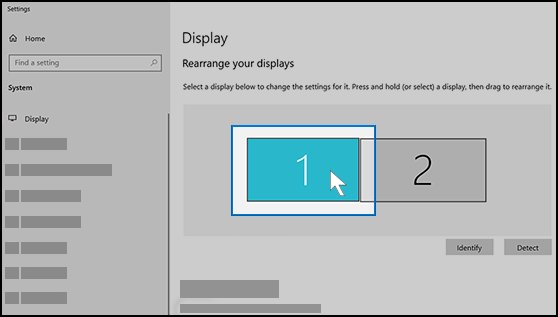
Windows 10 uses the same checkbox, but the display options sit directly on the Display page.
You can also change other Windows 10 display settings, such as brightness and resolution, on the same page.
- Right-click the desktop and select Display settings.
- Select Identify to match numbers to screens.
- Select the monitor you want as main.
- Set the Multiple displays list to Extend these displays if it shows Duplicate these displays.
- Tick Make this my main display.
Windows 11 main display: confirm the change took effect
- Look for the taskbar with the clock and system tray: it now sits on the new main display.
- Press the Windows key and check that Start opens on that monitor.
- Check that your desktop icons have moved to the same screen.
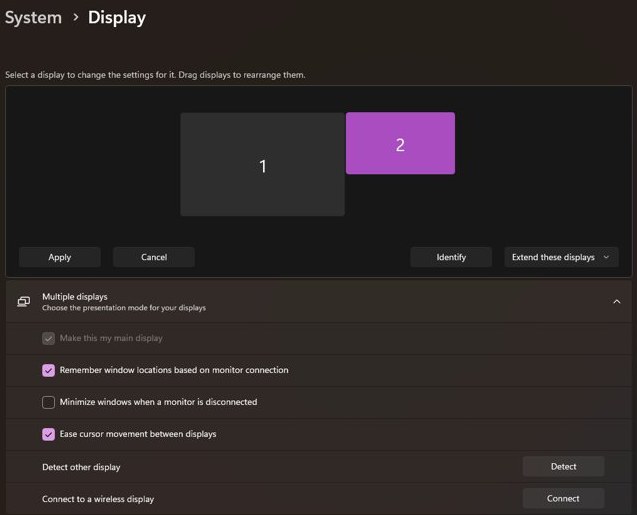
- Open Settings > System > Display, select the monitor and confirm Make this my main display is ticked and greyed out.
A greyed-out tick on the selected monitor is normal: it means that screen is already the main display.
Can't change main display in Windows 11
Make this my main display is greyed out
The selected monitor is already the main display, or your monitors are not in Extend mode.
- Select Identify and make sure you selected the other monitor's box, not the current main one.
- Press Windows key + P and choose Extend.
- Return to Settings > System > Display, select the monitor and tick Make this my main display.
The second monitor does not show up in Display settings
Windows has not detected the screen, often because of a loose cable, dock or adapter.
- Check the cable at both ends, and set the monitor's input to the port you are using.
- Open Settings > System > Display, expand Multiple displays and select Detect.
- Disconnect docks and adapters and connect the monitor directly to test it.
- Try a different cable or another video port such as HDMI or DisplayPort.
- If the monitor is still missing, work through the steps to fix a second monitor not detected.
Main display setting stops working after an update
The graphics driver is stuck or the new driver has a problem.
- Press Windows logo key + Ctrl + Shift + B to reset the graphics driver.
- Restart the PC from Start > Power > Restart.
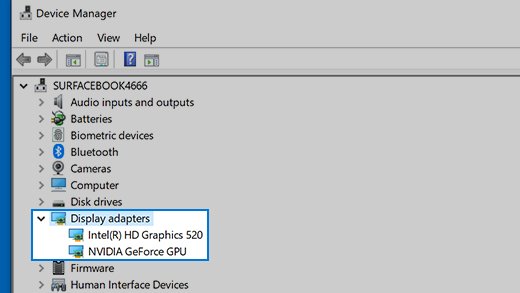
- Open Device Manager, expand Display adapters, right-click your adapter, select Properties > Driver and select Roll Back Driver.
- If there is no roll back option, select Uninstall device, restart, then right-click the adapter and choose Update driver.
A third monitor will not extend
The graphics card may not support more monitors, or a splitter is duplicating one signal.
- Remove any display splitter, because a splitter sends the same signal to every screen.
- Check with the graphics card or PC maker how many displays it supports.
- Use a docking station or a USB-C display adapter if the PC has only one video output.
Tips for changing the main display on Windows 11
| Tip | Why it helps |
|---|---|
| Run Identify before you tick the box | Display numbers often differ from the left-to-right order on your desk |
| Make the largest or sharpest monitor main | Start, notifications and most new windows open there |
| Set each monitor's resolution separately | Select a display, then pick the (Recommended) option under Display resolution for that screen |
| Turn on Remember window locations based on monitor connection | Windows puts windows back on the right screen when you re-dock |
| Use cables of the same connection type where possible | Microsoft's Surface guidance ranks USB-C, then DisplayPort, then HDMI, DVI and VGA for adapters |
| Arrange displays to match your desk after the change | The pointer then moves between screens where you expect |
On a laptop with one monitor, set up multiple monitors on Windows 11 first, then choose which screen is main.
Frequently asked questions
How do I change my main display in Windows 11?
Open Settings > System > Display, select the monitor you want, expand Multiple displays and tick Make this my main display. The taskbar, Start menu and desktop icons move to that monitor straight away.
How do I change the main display in Windows 10?
Right-click the desktop, select Display settings, choose the monitor, set Multiple displays to Extend these displays and tick Make this my main display. The steps match Windows 11, but the options sit directly on the Display page.
Why can't I change the main display in Windows 11?
The option only works when monitors are extended. Press Windows key + P and choose Extend, then select the other monitor in Display settings. If the box is ticked and greyed out, that monitor is already main.
Why is Make this my main display greyed out?
It is greyed out when the selected monitor is already the main display, or when the screens are duplicated. Select the other monitor's box after pressing Identify, and switch to Extend mode with Windows key + P.
Will changing the main display affect my desktop icons?
Yes. Desktop icons and the taskbar clock move to the new main display. Icons may also rearrange if the new monitor has a different resolution, so check their layout after the change.
Can I revert to my previous main display setting?
Yes. Open Settings > System > Display, select the original monitor and tick Make this my main display again. Windows switches back immediately with no restart.
Can I have multiple monitors with different resolutions?
Yes. Each monitor keeps its own resolution and display scale setting. Select a display in Settings > System > Display, then choose its resolution under Display resolution, usually the option marked Recommended.
Do I need special cables to connect multiple monitors?
You need a cable or adapter that matches each monitor's input, such as HDMI, DisplayPort or USB-C. A PC with one video output needs a docking station or USB-C adapter for a second external monitor; a splitter only duplicates.
Why is my second monitor not detected?
A loose cable, the wrong monitor input or a faulty dock are the usual causes. Check the connection, then open Settings > System > Display > Multiple displays and select Detect, and try another cable or port.