To turn iPhone display brightness back up when you cannot see the screen, move into a dark room, open Control Center and drag the brightness slider up.
If the screen is still unreadable, VoiceOver can find the slider for you, and the sections below cover settings that keep the display dim even at full brightness.
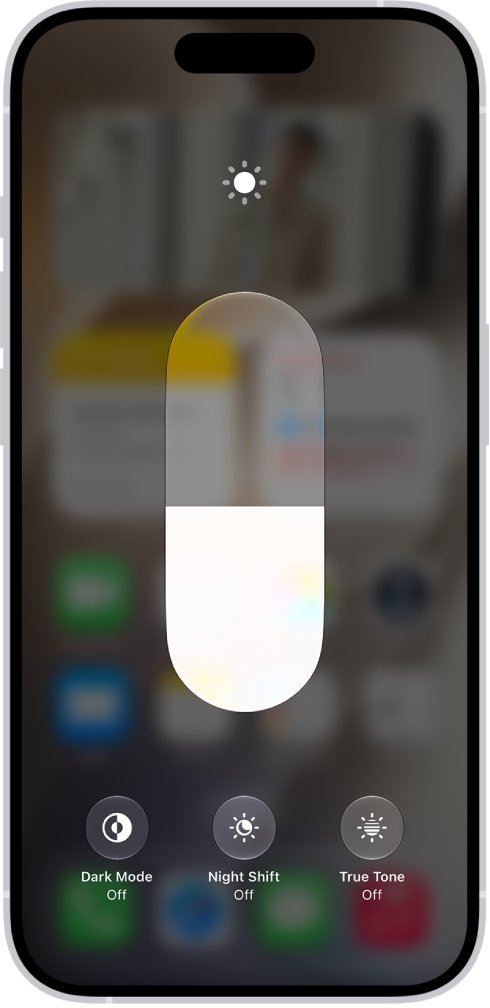
How to turn iPhone brightness back up from Control Center
Even at its lowest setting the display still gives off some light. In a dark room or under a blanket, the faint image is far easier to make out.
- Move somewhere dark so the dim screen stands out.
- Unlock the iPhone with Face ID or your passcode.
- Open Control Center: on an iPhone with Face ID, swipe down from the top-right corner; on iPhone SE, swipe up from the bottom.
- Find the brightness slider among the controls.
- Drag the slider up until the screen is comfortable to read.
- Close Control Center by swiping up from the bottom center, or press the Home button on iPhone SE.
Ways to fix an iPhone screen that is too dark to see
| Your situation | Use this | Why |
|---|---|---|
| You can just make out the screen in the dark | Control Center slider | Two gestures, no menus |
| You cannot see anything at all | VoiceOver, turned on by Siri | VoiceOver speaks each control so you can find the slider by sound |
| Brightness is full but the screen still looks dim | Turn off Reduce White Point or the Zoom Low Light filter | These filters darken the screen on top of the brightness setting |
| The screen is black but sounds and touches still work | Turn off VoiceOver Screen Curtain | Screen Curtain blacks out the display while the iPhone stays active |
| The phone is hot and the screen dimmed by itself | Let the iPhone cool down | iPhone dims or blacks out the display to protect itself from heat |
Turn up iPhone brightness with VoiceOver when the screen is black
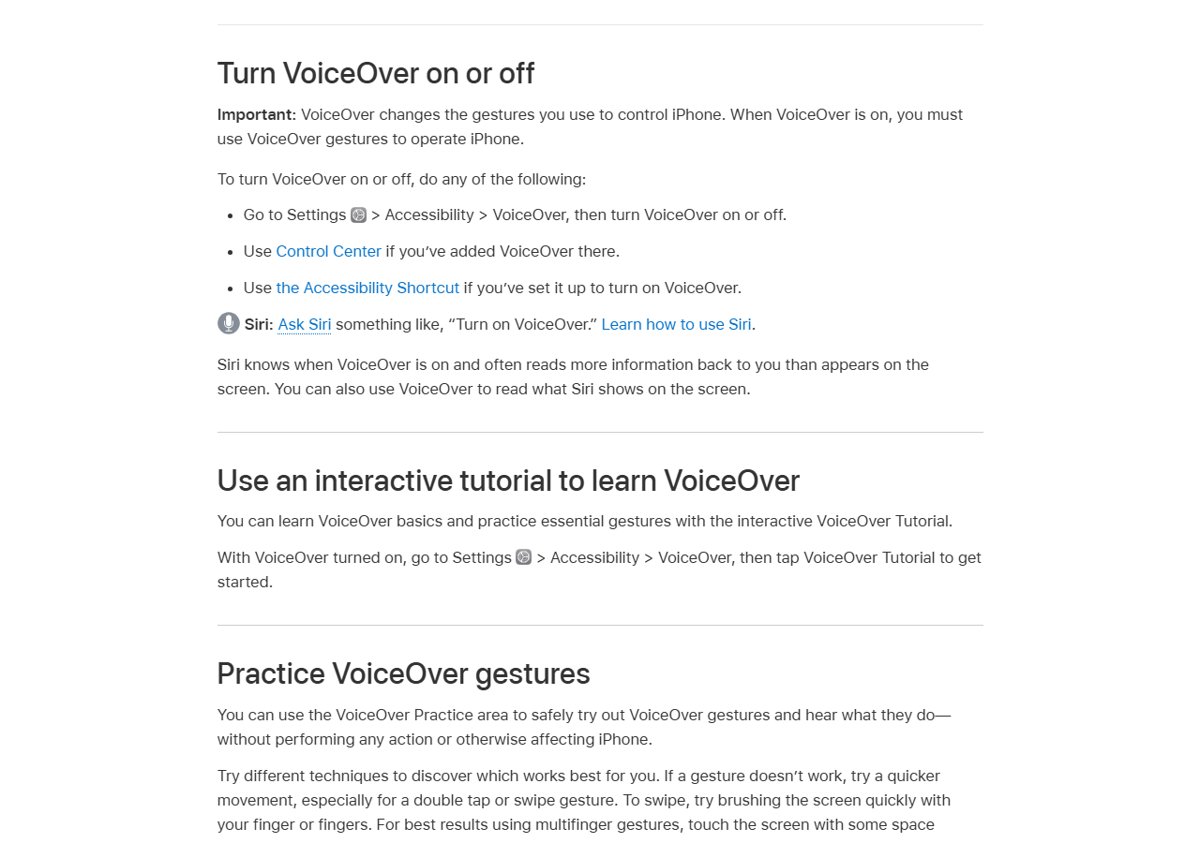
VoiceOver reads out every item you touch, so you can raise brightness without seeing anything. Siri needs an internet connection to turn it on.
- Press and hold the side button (or the Home button on iPhone SE) to activate Siri.
- Ask Siri to turn on VoiceOver.
- Go to Settings > Display & Brightness, or open Control Center if you can manage the swipe.
- Drag one finger slowly over the screen until VoiceOver speaks the brightness slider, then lift your finger to select it.
- Swipe up with one finger several times to raise the brightness, or double-tap and hold until you hear three rising tones, then drag up.
- Ask Siri to turn off VoiceOver once you can see again.
VoiceOver changes how taps work: tap selects an item and double-tap activates it. Turning VoiceOver off restores normal gestures.
Change brightness in Settings > Display & Brightness
Use this once you can see a little, or when Control Center is hard to reach in an app.
- Open the Settings app.
- Tap Display & Brightness.
- Drag the brightness slider to the right.
- Check that Light is selected if you prefer a brighter overall look than Dark Mode.
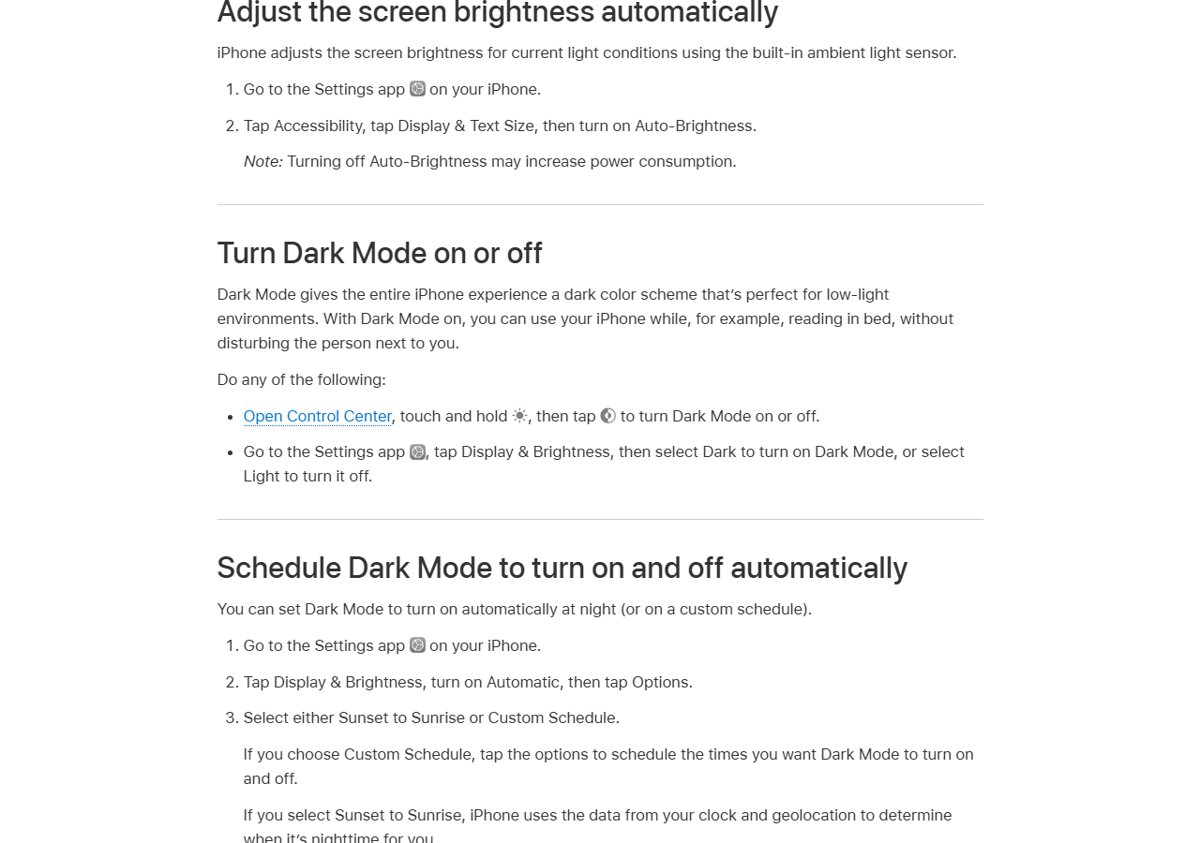
Turn on Auto-Brightness on iPhone
Auto-Brightness uses the ambient light sensor to set brightness for the room you are in. With it on, a bright room pushes the screen brighter again.
- Open the Settings app.
- Tap Accessibility, then tap Display & Text Size.
- Turn on Auto-Brightness.
Apple notes that turning Auto-Brightness off may increase power consumption.
iPhone display brightness not working or not changing
Brightness is at maximum but the screen is still dim
Reduce White Point or a Zoom filter darkens the display on top of the brightness setting.
- Go to Settings > Accessibility > Display & Text Size.
- Turn off Reduce White Point.
- Go to Settings > Accessibility > Zoom and check Zoom Filter.
- Choose None if Low Light is selected.
Display brightness does not change when you drag the slider
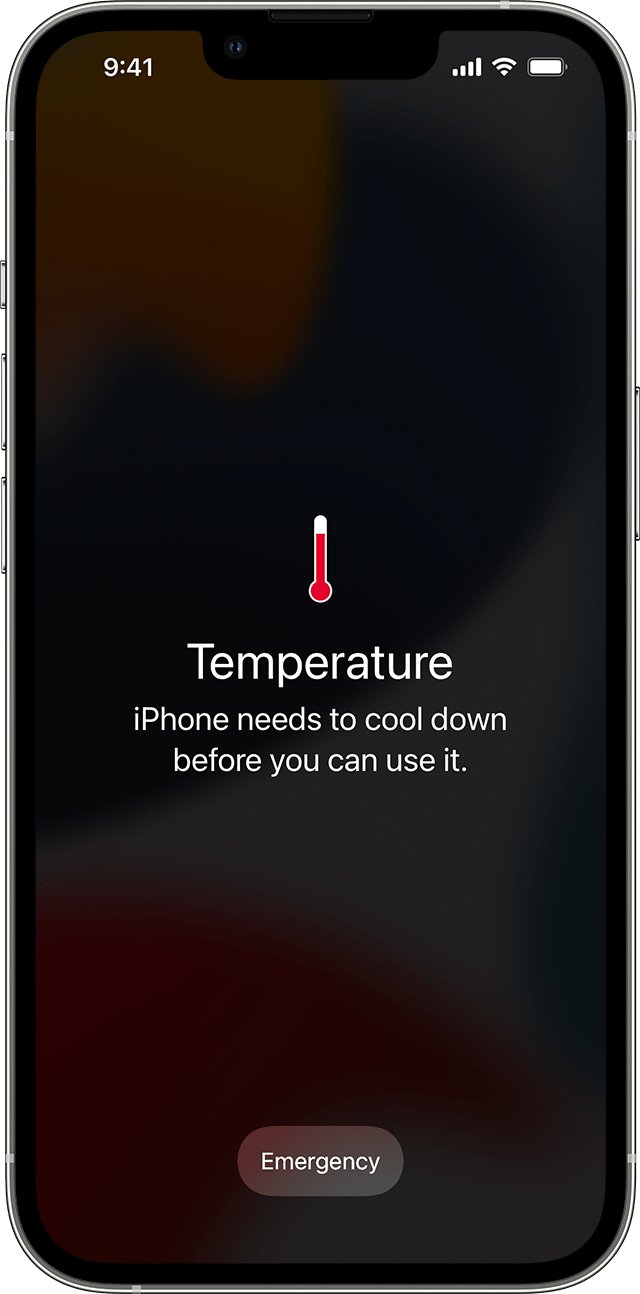
The iPhone is too warm and is limiting the display to cool down.
- Move the iPhone out of direct sunlight or a hot car.
- Stop games, navigation or camera use for a while.
- If a temperature warning appears, turn off the iPhone and let it cool in a cooler place.
- Try the brightness slider again once the phone feels normal.
The screen is black but the iPhone still responds
VoiceOver Screen Curtain is on, which keeps the display black while the iPhone runs.
- Triple-tap the screen with three fingers to turn Screen Curtain off.
- If both VoiceOver and Zoom are on, quadruple-tap with three fingers instead.
- Ask Siri to turn off VoiceOver if you do not need it.
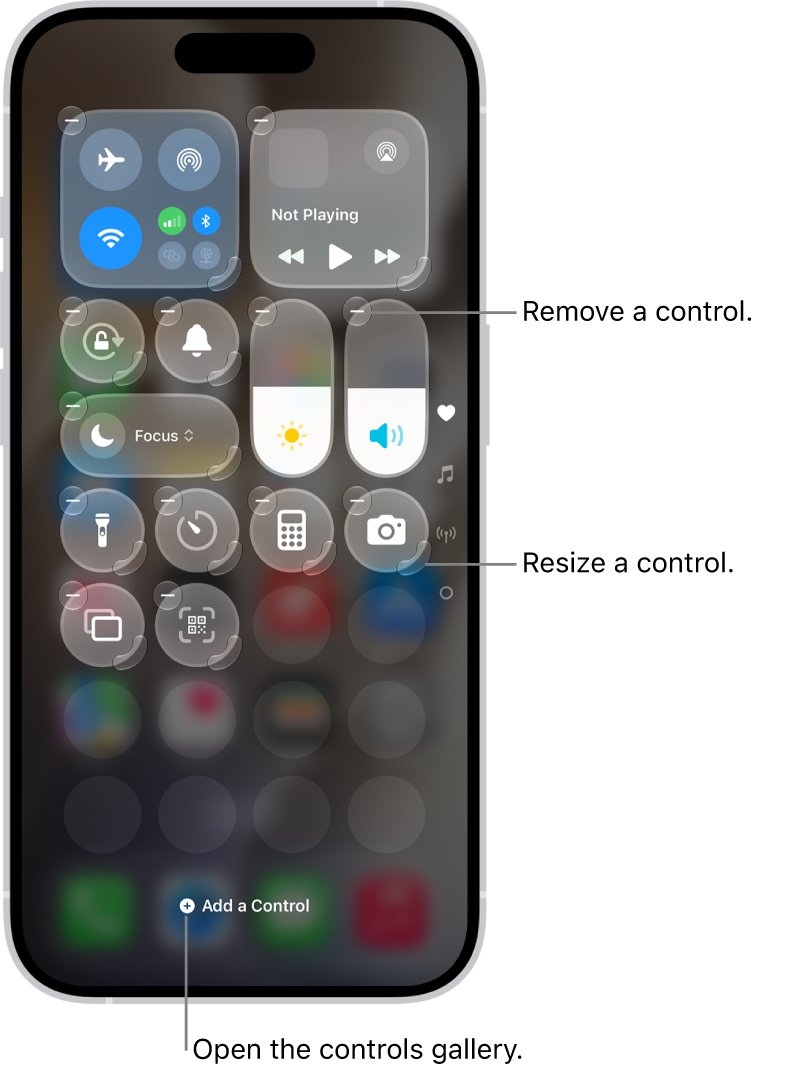
Display brightness setting not showing in Control Center
The brightness control was removed or Control Center is blocked inside apps.
- Open Control Center, tap the edit button in the top-left corner, then tap Add a Control.
- Add the brightness control back and close Control Center.
- If Control Center will not open inside an app, go to Settings > Control Center and turn on Access Within Apps.
Colors look dark or tinted rather than dim
Night Shift, Dark Mode or a color filter changes the look of the screen.
- Go to Settings > Display & Brightness and select Light.
- Tap Night Shift and turn off Scheduled if you do not want warmer colors.
- Go to Settings > Accessibility > Display & Text Size > Color Filters and turn off Color Filters.
Set up the iPhone Accessibility Shortcut before it happens again
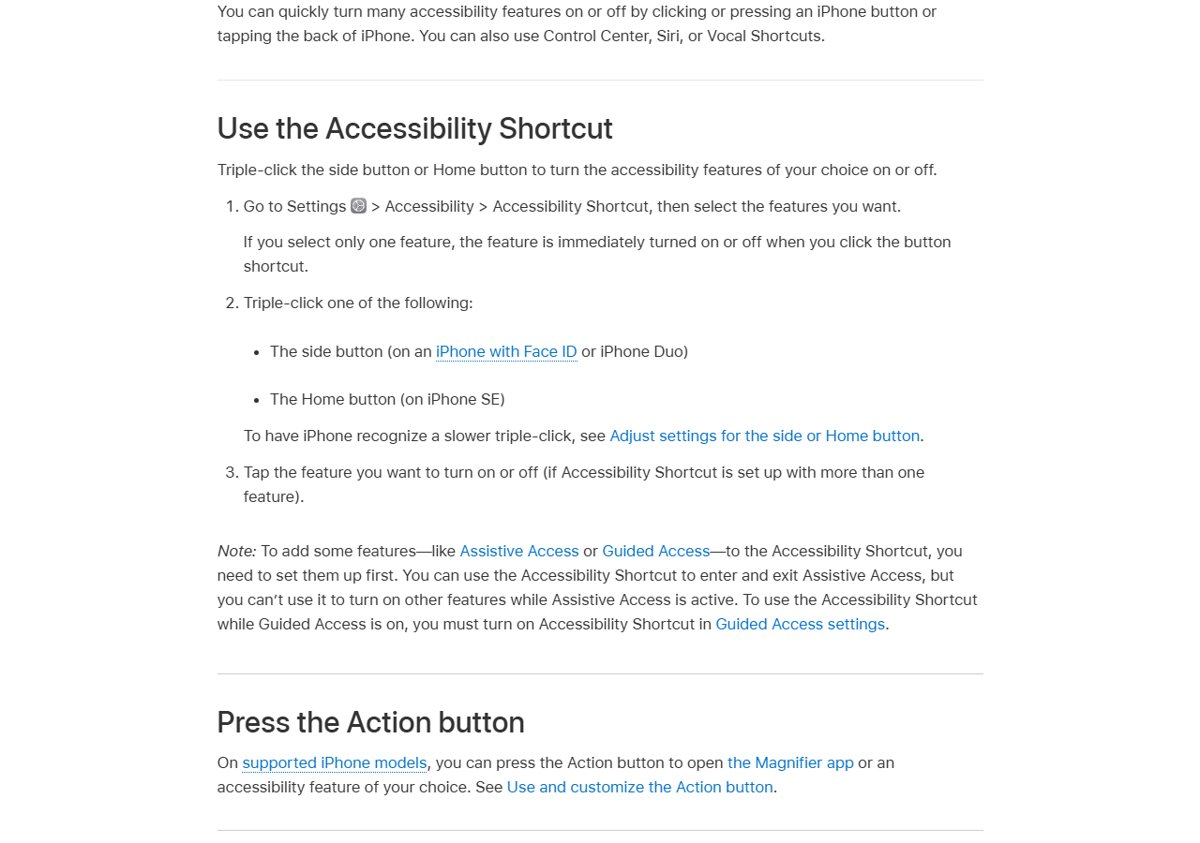
A triple-click shortcut lets you switch on a recovery tool without seeing the screen. Set it up now while the display is readable.
- Go to Settings > Accessibility > Accessibility Shortcut.
- Select VoiceOver so a triple-click turns it on or off.
- Test it: triple-click the side button (or the Home button on iPhone SE).
- Triple-click again to turn VoiceOver off.
If you pick only one feature, the triple-click toggles it immediately with no menu to read.
Check iPhone brightness is back to normal
- Open Control Center and confirm the brightness slider is well above the bottom.
- Open Settings > Display & Brightness and check the slider matches.
- Step into normal room light and confirm the screen is readable.
iPhone screen brightness all the way down FAQ
Why can't I find the brightness display setting on iPhone?
Brightness sits in two places. Open Control Center and drag the brightness slider, or go to Settings > Display & Brightness and drag the slider there. Auto-Brightness is separate, under Settings > Accessibility > Display & Text Size.
Why is my display brightness not changing on iPhone?
An iPhone that is too warm dims the display to protect itself, so the slider may seem to do nothing. Let the phone cool down out of the sun. Also check that Reduce White Point and the Zoom Low Light filter are off.
Why is my iPhone screen dim even at full brightness?
Reduce White Point tones down bright colors, and the Zoom Low Light filter darkens the whole screen. Turn off Reduce White Point in Settings > Accessibility > Display & Text Size, then set Zoom Filter to None in Settings > Accessibility > Zoom.
Why is my iPhone screen black but still working?
VoiceOver Screen Curtain keeps the display black while the iPhone stays active. Triple-tap the screen with three fingers to turn it off. Heat can also dim the display or turn it black until the phone cools down.
How do I turn up brightness if I can't see my iPhone screen at all?
Hold the side button to activate Siri and ask it to turn on VoiceOver. Open Settings > Display & Brightness, drag a finger until VoiceOver speaks the brightness slider, then swipe up to raise it. Turn VoiceOver off afterward.
Why is the brightness slider not showing in Control Center?
The brightness control may have been removed when Control Center was customized. Open Control Center, tap the edit button in the top-left corner, tap Add a Control, and add it back. Inside apps, Access Within Apps must also be on.
Does turning off Auto-Brightness use more battery?
It can. Apple notes that turning off Auto-Brightness may increase power consumption, and that a dimmer screen extends battery life. Leaving Auto-Brightness on lets the ambient light sensor raise and lower brightness for you.