You can factory reset an iPhone without Face ID by entering your device passcode in Settings > General > Transfer or Reset iPhone > Erase All Content and Settings.
If you also forgot the passcode, or Stolen Device Protection demands Face ID, the lock screen, a computer in recovery mode, or iCloud.com can erase the iPhone instead.
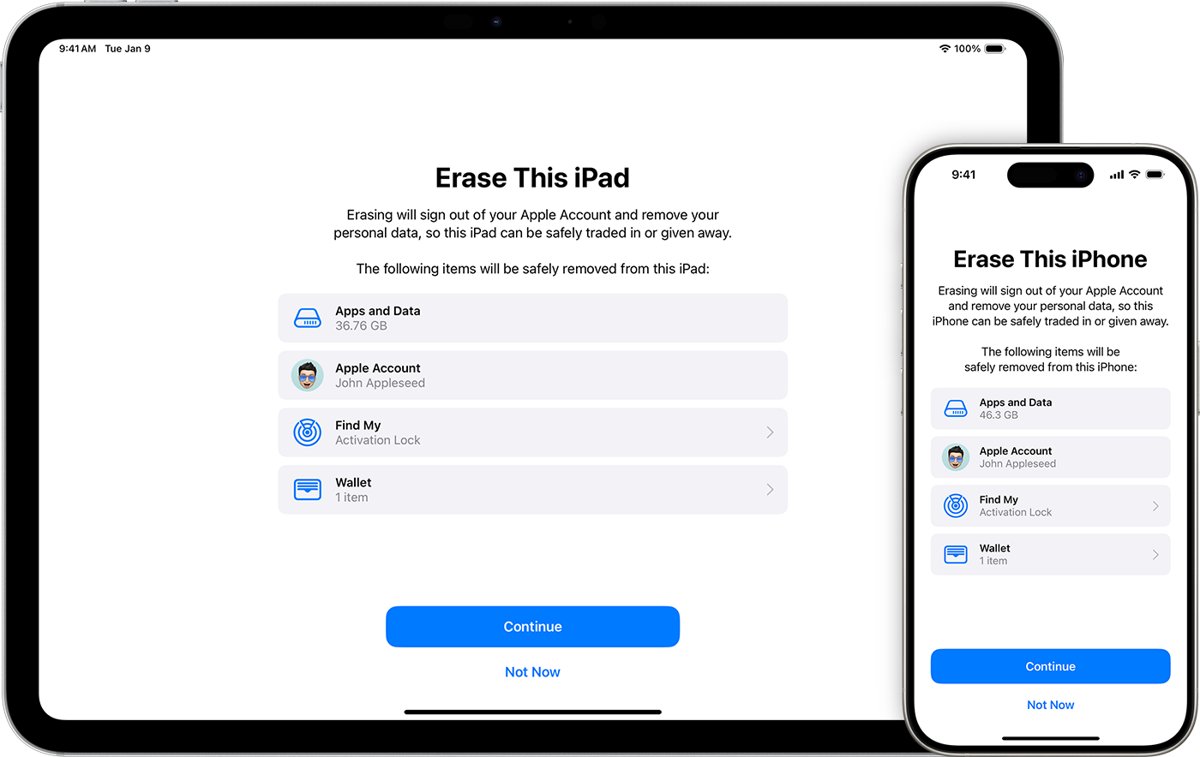
Factory reset iPhone without Face ID using the passcode
Face ID is never the only way into Erase All Content and Settings. When Face ID fails, the iPhone asks for the passcode instead, unless Stolen Device Protection is active away from a familiar location.
- Back up the iPhone first if you want to keep your photos, messages and apps.
- Open the Settings app.
- Tap General, then tap Transfer or Reset iPhone.
- Tap Erase All Content and Settings.
- Enter your device passcode when asked.
- Enter your Apple Account password if Find My is on, so the iPhone can turn off Activation Lock.
- Tap Erase iPhone to confirm and wait for the Hello screen.
Erasing the iPhone turns off Find My and Activation Lock. Content stored in iCloud stays in iCloud, so you can restore it after setup. The same menu is used to factory reset an iPad.
Ways to reset an iPhone when Face ID is not working
| Your situation | Use this | What you need |
|---|---|---|
| Face ID fails but you know the passcode | Erase All Content and Settings in the Settings app | Device passcode and Apple Account password |
| Settings insists on Face ID away from home | Go to a familiar location, or use iCloud.com or a computer | Stolen Device Protection is the reason |
| You forgot the passcode and see iPhone Unavailable | Forgot Passcode? on the lock screen | iOS 15.2 or later, Find My on, Wi-Fi or cellular, Apple Account password |
| Forgot Passcode? does not appear | Recovery mode with a Mac or Windows PC | A computer, a charging cable and up to 60 minutes |
| The iPhone is lost, stolen or out of reach | Erase This Device in Find Devices on iCloud.com | Your Apple Account sign-in |
Reset iPhone from the lock screen with Forgot Passcode
This route needs neither Face ID nor the passcode. It works on iOS 15.2 or later when Find My was turned on and the iPhone is online.
- Enter the passcode on the lock screen until the iPhone Unavailable screen appears.
- Tap Forgot Passcode? in the bottom corner when it shows.
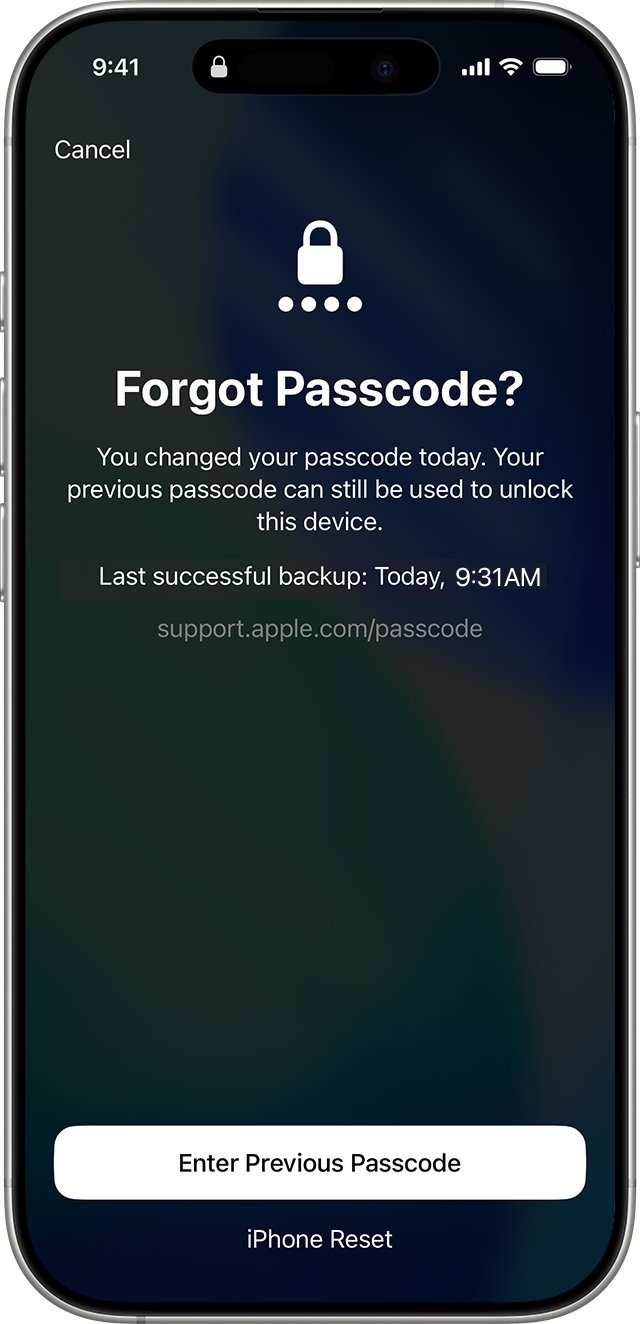
- If you changed your passcode in the last 72 hours, tap Enter Previous Passcode and type the old one instead of erasing.
- Otherwise tap Start iPhone Reset on the Security Lockout screen.
- Enter your Apple Account password to sign out of the iPhone.
- Tap Erase iPhone. With an eSIM on iOS 17 or later, choose whether to keep or delete the eSIM.
- Follow the setup screens after the restart and set a new passcode.
On iOS 15.2 and iOS 16 the button is labelled Erase iPhone instead of Forgot Passcode?. With an eSIM on iOS 16 or earlier, ask your carrier for a QR code to set up the eSIM again before you erase.
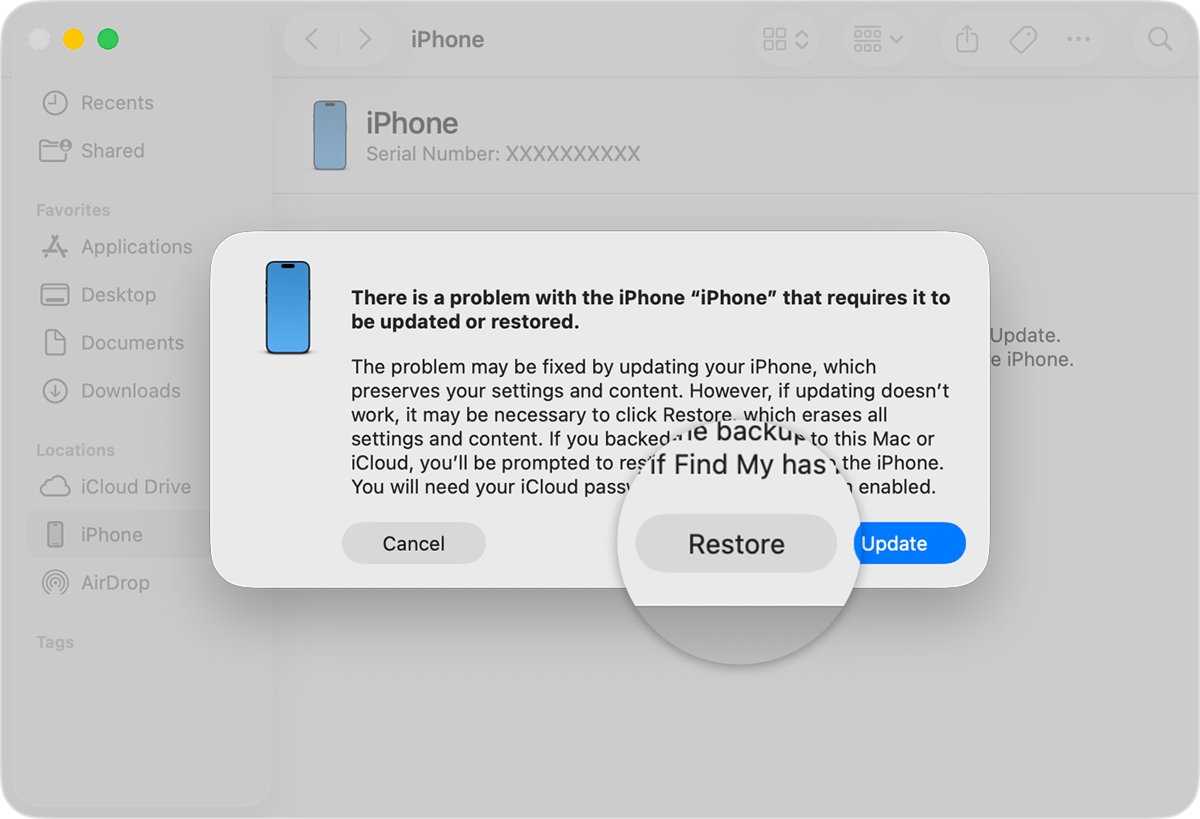
Factory reset iPhone with recovery mode on a Mac or PC
Recovery mode erases the iPhone from a computer when the lock screen option is missing. Use a Mac with Finder or a Windows PC with the Apple Devices app from the Microsoft Store.
- Press and hold the side button and the Volume down button until the power off slider appears, then drag it to turn off the iPhone.
- Connect the cable to the computer, plug it into the iPhone, and immediately hold the side button.
- Keep holding the side button through the Apple logo until the image of a computer and a cable appears.
- On a Mac, open Finder and select the iPhone under Locations. On Windows, open Apple Devices, select the iPhone and choose General.
- Select Restore when you see the option to Restore or Update.
- Wait for the software download and restore to finish, then disconnect the iPhone when the Hello screen appears.
If the download takes longer than 15 minutes, the iPhone leaves recovery mode. Let the download finish, turn the iPhone off and enter recovery mode again. The force restart button combinations differ on older models.
Erase iPhone remotely from Find Devices on iCloud.com
Use this when the iPhone is lost, stolen or with someone else. The erase starts as soon as the iPhone is online.
- Go to icloud.com/find on any browser and sign in with your Apple Account.
- Select the iPhone in the list of devices.
- Select Erase This Device.
- Follow the onscreen instructions. Add a phone number or message if the iPhone is lost.
- Wait for the confirmation email sent to your Apple Account address.
Activation Lock stays on after a remote erase, so the iPhone still needs your Apple Account and password to be set up again. If the iPhone is offline, select Stop Erase Request to cancel before it reconnects.
Why iPhone asks for Face ID to erase all content and settings
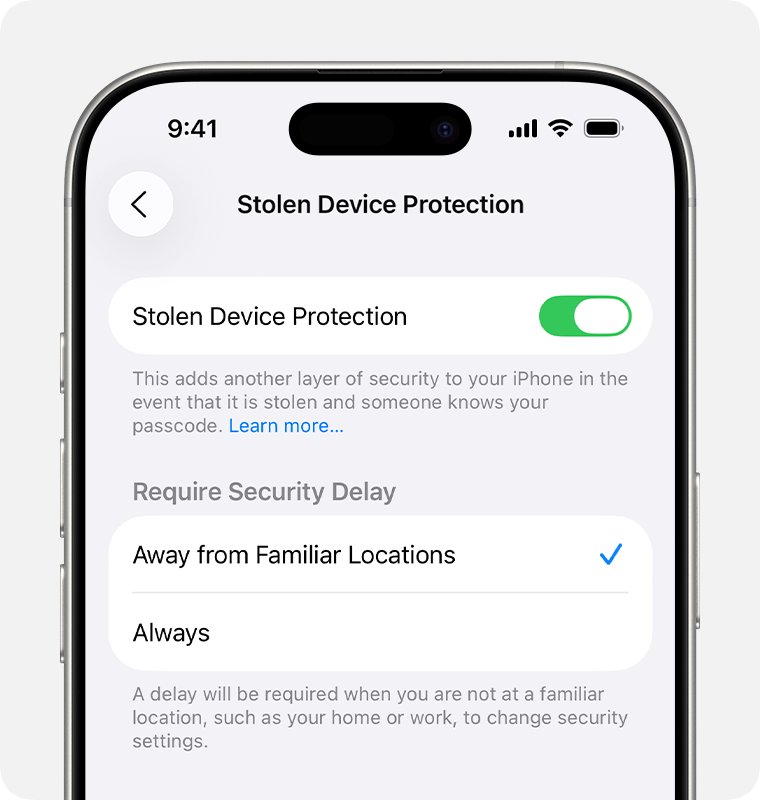
Stolen Device Protection, available in iOS 17.3 and later, makes some actions require Face ID with no passcode fallback when the iPhone is away from familiar places such as home or work.
| Action | Away from a familiar location | At home or work |
|---|---|---|
| Erase All Content and Settings | Face ID only, no passcode | Passcode works |
| Sign out of your Apple Account | Face ID, one-hour delay, Face ID again | Passcode works |
| Change your passcode or reset all settings | Face ID, one-hour delay, Face ID again | Passcode works |
| Add or remove Face ID | Face ID, one-hour delay, Face ID again | Passcode works |
| "Always" set under Require Security Delay | Face ID required everywhere | Face ID required everywhere |
If Face ID is broken, take the iPhone to a familiar location and use the passcode. With Always selected, use iCloud.com or recovery mode instead. Turn off Stolen Device Protection in Settings > Face ID & Passcode before you sell or trade in the iPhone.
Factory reset iPhone without Apple ID password
Every reset route above erases the iPhone, but none removes Activation Lock without the Apple Account password. Activation Lock turns on with Find My and asks for that password before anyone can reactivate the phone.
Reset your Apple Account password before you erase the iPhone, rather than after. After an erase, a phone linked to an account you cannot sign in to stays locked at setup. If you bought the iPhone used, ask the previous owner to remove it from their account; do not accept a used iPhone that shows the iPhone Locked to Owner screen.
Check the iPhone factory reset is complete
- Look for the Hello screen after the restart. That screen means the iPhone is erased.
- Start setup. If the iPhone asks for an Apple Account and password, Activation Lock is still on and the owner must sign in.
- If the passcode lock screen or your Home Screen appears instead, the iPhone was not erased. Repeat one of the methods above.
How to reset Face ID in iPhone
If you only need Face ID working again, a full factory reset is unnecessary. Reset Face ID on its own and enrol your face again.
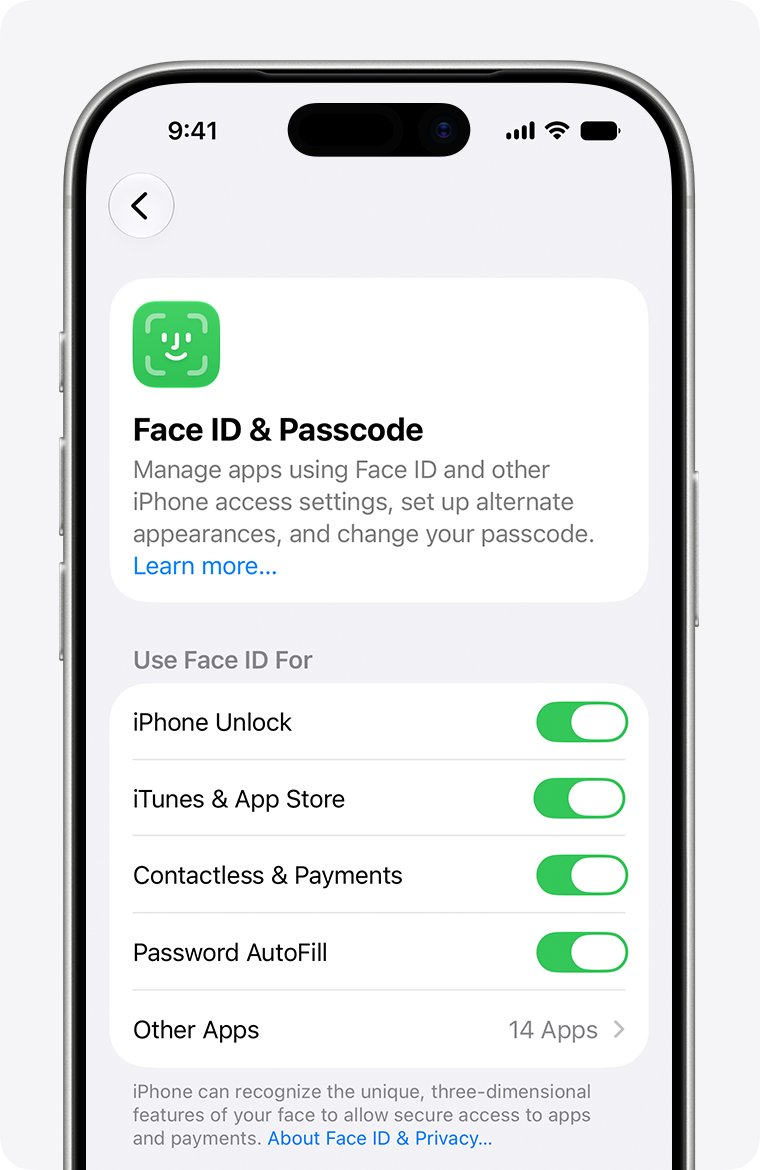
- Open the Settings app and tap Face ID & Passcode.
- Enter your device passcode.
- Tap Reset Face ID.
- Tap Set up Face ID and follow the prompts to scan your face.
- Add an alternate appearance in the same screen if you often look very different, for example with heavy makeup.
Face ID reset not working on iPhone
iPhone Face ID stopped working
Something covers the TrueDepth camera or your face, or the software is out of date.
- Update the iPhone to the latest iOS version.
- Check Settings > Face ID & Passcode that Face ID is set up and turned on for the feature you use.
- Remove a case or screen protector that covers the TrueDepth camera, and clean the top of the screen.
- Hold the iPhone at arm's length or closer, with your eyes, nose and mouth visible.
- Restart the iPhone, enter the passcode, and try Face ID again.
iPhone won't let me reset Face ID
Stolen Device Protection puts a one-hour Security Delay on removing Face ID away from familiar locations.
- Go home or to work, where the delay does not apply by default.
- Or wait out the one-hour delay and confirm again when asked.
- Tap Reset Face ID again in Settings > Face ID & Passcode.
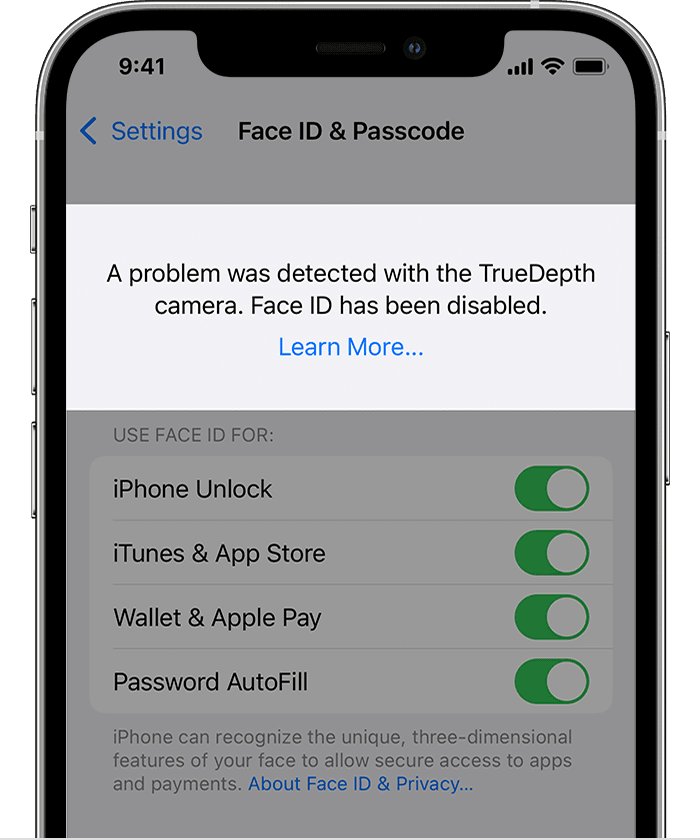
"A problem was detected with the TrueDepth Camera. Face ID has been disabled."
iOS diagnostics found a fault in the TrueDepth camera, and its lasers were disabled for safety.
- Update the iPhone to the latest iOS version.
- Try to set up Face ID again.
- If it still fails, book a repair through Apple Support. Use the passcode and the methods above until then.
Forgot Passcode? does not appear on the iPhone Unavailable screen
The iPhone is offline, Find My is off, or iOS is older than 15.2.
- Connect the iPhone to Wi-Fi or check that cellular data is active.
- If the button still does not show, use recovery mode with a computer.
iPhone will not stay in recovery mode
The software download took longer than 15 minutes.
- Let the download finish on the computer.
- Turn off the iPhone and enter recovery mode again.
- Select Restore again. If the buttons do not respond, the iPhone needs service.
Factory reset iPhone without Face ID FAQ
How do I reset my iPhone without Face ID?
Go to Settings > General > Transfer or Reset iPhone > Erase All Content and Settings and enter your passcode instead of using Face ID. If Stolen Device Protection insists on Face ID, do it at home or work, or erase the iPhone from iCloud.com or recovery mode.
How do I reset a phone without Face ID or the passcode?
Enter wrong passcodes until iPhone Unavailable appears, then tap Forgot Passcode? and Start iPhone Reset. This needs iOS 15.2 or later, Find My turned on, an internet connection and your Apple Account password. Without that option, use recovery mode on a Mac or Windows PC.
How do I reset Face ID in iPhone?
Open Settings, tap Face ID & Passcode, enter your passcode, then tap Reset Face ID. Tap Set up Face ID to scan your face again. Resetting Face ID removes only your face data and does not erase anything else on the iPhone.
How do I reset facial ID on iPhone if it keeps failing?
Update iOS, remove anything covering the TrueDepth camera, and restart the iPhone before resetting Face ID. If setup keeps asking you to position your face in the frame, or an alert says Face ID has been disabled, the TrueDepth camera needs service.
Can I factory reset an iPhone without the Apple ID password?
You can erase it with recovery mode, but Activation Lock then asks for the Apple Account and password during setup. Reset the Apple Account password first, or ask the previous owner to remove the iPhone from their account.
Why can't I reset Face ID on my iPhone?
Stolen Device Protection adds a one-hour Security Delay to adding or removing Face ID when the iPhone is away from familiar locations. Wait out the delay, or make the change at home or work. A TrueDepth camera fault can also block Face ID setup.
Does erasing an iPhone delete my iCloud data?
No. Erase All Content and Settings removes data stored on the iPhone, including Apple Pay cards, photos and apps, but content saved in iCloud stays there. Sign back in after setup to restore it, or restore from a backup.