An iPad that taps, scrolls or opens apps on its own usually stops ghost touching after a restart, a clean screen, an unplugged charger and the case or screen protector removed.
This guide covers each of those fixes, iPadOS updates, the touch settings that change how the screen responds, a settings reset, recovery mode and when the screen needs repair.
How to stop iPad ghost touching
Apple lists four steps for a screen that is too sensitive or responds intermittently to touch. Work through them in this order and test the screen after each one.
- Restart the iPad.
- Make sure the screen is clean and free of any debris or water.
- Disconnect any Lightning or USB-C accessories, including the charging cable.
- Remove the case and any screen protector.
- Use the iPad for a few minutes and watch for stray taps.
If the ghost touching stops after you unplug an accessory, the problem is that accessory or its power source. Try a different outlet, cable or charger before you plug it back in.
What causes ghost touching on iPad?
Ghost touching means the screen registers touches you did not make. The cause decides the fix, so match what you see to a row.
| What you notice | Likely cause | Fix to try |
|---|---|---|
| Stray taps only while the iPad is charging | The outlet, cable or charger | Unplug it, then try a different outlet, cable or charger |
| Taps start after a new case or screen protector | Pressure or a film on the glass | Remove the case and screen protector |
| Taps near smudges, crumbs or wet patches | Debris or water on the screen | Turn the iPad off and clean the screen |
| Random glitches after an app freezes | A software hang | Restart or force restart the iPad, then update iPadOS |
| Taps ignored or delayed rather than added | Touch Accommodations settings turned on | Check or reset Touch Accommodations |
| Ghost touches continue after every fix | Screen hardware | Set up service with Apple |
Restart or force restart a glitching iPad
A normal restart is the first fix Apple lists. Use a force restart when the ghost touches stop you from dragging the power off slider.
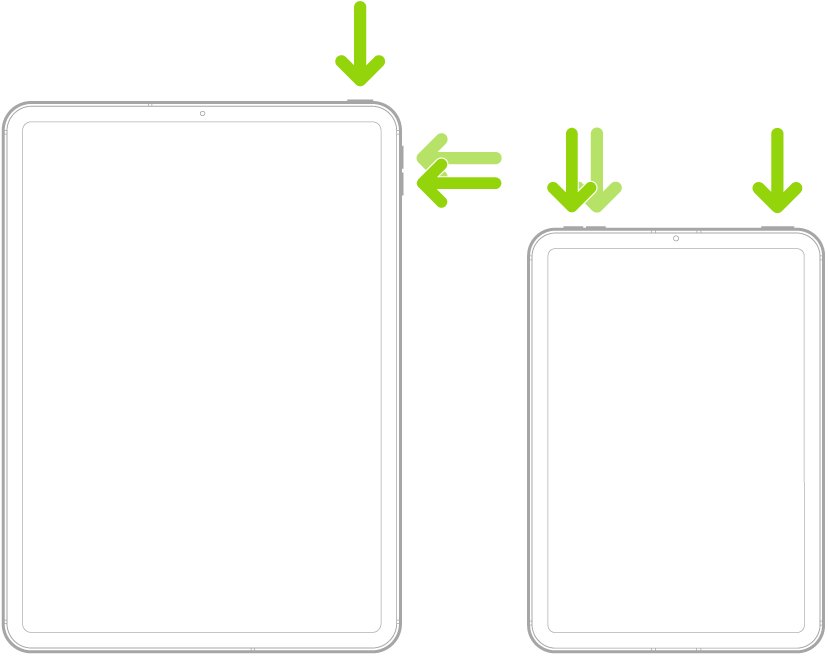
- On an iPad without a Home button, press and hold either volume button and the top button until the power off slider appears.
- On an iPad with a Home button, press and hold the top button until the power off slider appears.
- Drag the slider, then wait 30 seconds for the iPad to turn off.
- Press and hold the top button until you see the Apple logo.
- If the slider cannot be dragged, force restart: press and quickly release the volume button nearest the top button, then the one farthest from it, then hold the top button until the Apple logo appears.
- On a Home button iPad, force restart by holding the top button and the Home button together until the Apple logo appears.
In iPadOS 18 and later you can also turn the iPad off from Control Center: swipe down from the top-right corner and hold the Power button.
How to clean an iPad screen without damaging it
Oil, crumbs and water drops can all register as touches. Apple's cleaning advice protects the oleophobic coating on the glass.
- Unplug all cables from the iPad.
- Turn the iPad off with the power off slider.
- Wipe the screen with a soft, lint-free cloth to remove oil.
- For stubborn marks, use a soft, slightly damp, lint-free cloth and keep moisture out of the openings.
- Dry the screen fully before you turn the iPad back on.
Do not use window cleaners, household cleaners, compressed air, aerosol sprays, solvents, ammonia, abrasives or cleaners containing hydrogen peroxide. An iPad Pro (M4) with nano-texture glass has its own cleaning instructions from Apple.
iPad ghost touching while charging
A charger or cable that misbehaves can make the screen respond intermittently, so this fix is a test of the power source.
- Unplug the Lightning or USB-C cable from the iPad.
- Disconnect any other accessory plugged into the port, such as a hub or keyboard adapter.
- Use the iPad on battery for a few minutes.
- If the ghost touching stops, plug the iPad into a different wall outlet.
- If the taps come back, swap in a different cable, then a different charger.
- Keep using the cable and charger combination that leaves the screen calm.
Update iPadOS to fix iPad glitching
Software updates carry bug fixes, so install the latest iPadOS once the screen calms down enough to use Settings.
- Back up the iPad with iCloud or your computer.
- Plug the iPad into power and connect to Wi-Fi.
- Open Settings and tap General.
- Tap Software Update to see the installed version and whether an update is available.
- Tap Download and Install and follow the onscreen instructions.
- Tap Automatic Updates afterwards and turn on Automatically Install to stay current.
If ghost touches make Settings unusable, update from a computer instead: the Finder on a Mac with macOS Catalina or later, or the Apple Devices app or iTunes on a Windows PC.
Check Touch Accommodations settings on iPad
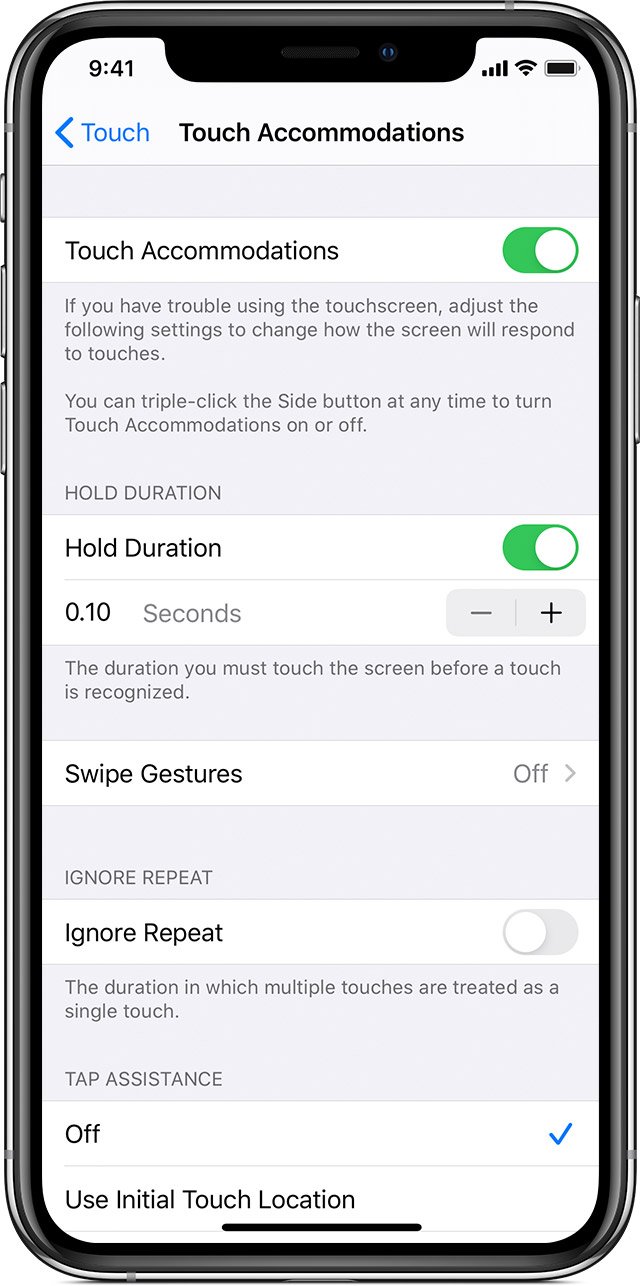
Touch Accommodations changes how the screen responds to taps, swipes and other gestures. If it was turned on by accident, the screen can feel erratic, with taps ignored or registered in the wrong place.
- Open Settings and tap Accessibility.
- Tap Touch, then tap Touch Accommodations.
- Check whether Hold Duration, Ignore Repeat or a Tap Assistance option is on.
- Tap Reset Touch Accommodations to return them to their defaults, or turn off the options you did not set.
- Go back to Touch and turn off Tap to Wake if touches keep waking the iPad from sleep.
- Turn off Shake to Undo if an undo prompt keeps appearing on its own.
Ignore Repeat treats several quick touches as one, which helps when the iPad counts one tap as many. Hold Duration ignores taps shorter than the time you set, so leave it off unless you need it.
How to reset all settings on iPad
Apple suggests this when restarting has not helped with a system feature. It returns settings to factory defaults without deleting photos, messages, apps or documents.
- Open Settings and tap General.
- Tap Transfer or Reset iPad.
- Tap Reset, then tap Reset All Settings.
- Enter your passcode if asked and confirm.
- Rejoin Wi-Fi and pair Bluetooth accessories again after the iPad restarts.
The reset clears accessibility settings, Bluetooth pairings, Display & Brightness settings, Face ID or Touch ID settings, the Home Screen layout and wallpaper, and VPN configurations. Do not pick Erase All Content and Settings here, which factory resets the iPad and wipes it.
Restore iPad in recovery mode
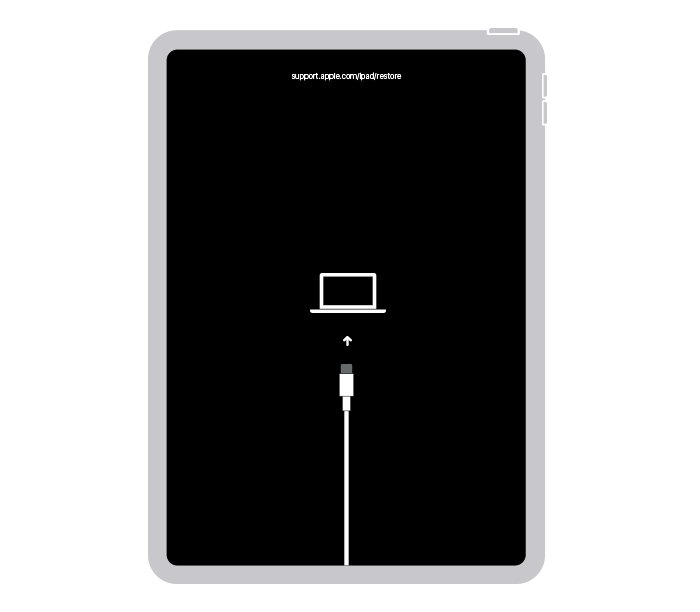
Use recovery mode when the iPad sticks on the Apple logo or will not finish an update. You need a Mac, or a PC with the latest Apple Devices app or iTunes.
- Connect the iPad to the computer with a USB cable.
- Open the Finder on a Mac, or the Apple Devices app on a PC.
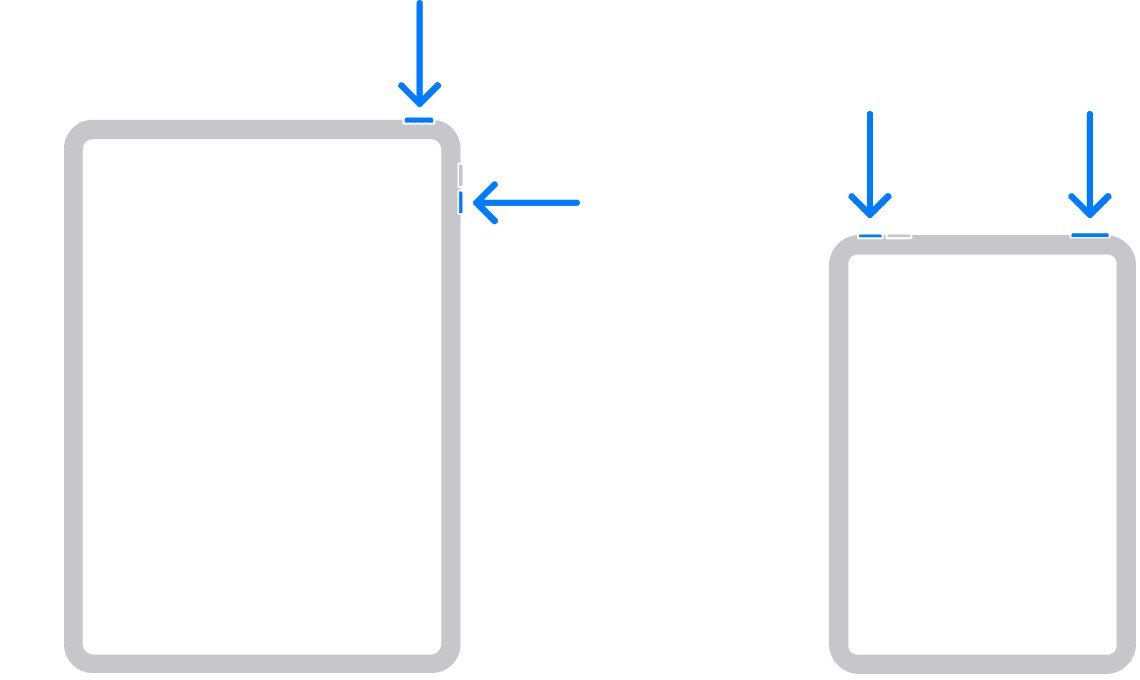
- On an iPad without a Home button, press and quickly release the volume button closest to the top button, then the one farthest from it, then hold the top button until the recovery mode screen appears.
- On an iPad with a Home button, hold the Home and top buttons together, release the top button when the iPad turns off, and keep holding Home until the recovery mode screen appears.
- Choose Update first if you have not tried updating yet.
- Choose Restore only if Update fails, because Restore reinstalls iPadOS and erases all your data.
If the download takes more than 15 minutes, the iPad leaves recovery mode. Let the download finish, then repeat the button steps.
How to tell the iPad ghost touching has stopped
- Unlock the iPad and leave it on the Home Screen without touching it for a few minutes.
- Watch for apps opening, pages scrolling or icons jiggling on their own.
- Repeat the test with the charger plugged in, if it was the trigger before.
- Put the case back on and test again, then add the screen protector last.
- Stop at the accessory that brings the ghost touches back and replace it.
iPad acting up: other symptoms and fixes
iPad not responding to anything
The system is frozen, so taps and the power off slider do nothing.
- Force restart the iPad with the button sequence for your model.
- Release the top button when the Apple logo appears.
- Update iPadOS once the iPad starts normally.
iPad glitching so bad it cannot be used
Ghost touches keep opening apps before you can reach Settings.
- Unplug every accessory and remove the case and screen protector.
- Force restart the iPad.
- If the glitching continues, update or restore it from a computer in recovery mode.
iPad sluggish or slow to respond to taps
Hold Duration or Tap Assistance makes the iPad wait before it accepts a touch.
- Open Settings > Accessibility > Touch > Touch Accommodations.
- Turn off Hold Duration and the Tap Assistance option, or tap Reset Touch Accommodations.
- Restart the iPad if it still feels slow.
iPad not coming on after a restart
The battery may be flat, or iPadOS cannot finish starting up.
- Charge the iPad with a working cable and wall outlet.
- Force restart it while it stays plugged in.
- If it stops at the Apple logo, use recovery mode and choose Update.
iPad not working properly after every fix
The touchscreen hardware is faulty or damaged.
- Back up the iPad if it still turns on.
- Set up service with Apple Support or an Apple Authorized Service Provider.
iPad ghost touching FAQ
How do I fix iPad problems like ghost touching?
Restart the iPad, clean the screen, unplug any Lightning or USB-C accessory and remove the case and screen protector. If the stray taps continue, update iPadOS, then reset all settings or restore it in recovery mode.
Why is my iPad acting up on its own?
Stray taps usually come from a charger or cable, a case or screen protector, debris or water on the glass, or a software hang. If none of the fixes help, the touchscreen may need service.
Why is my iPad glitching so bad?
A frozen app or system hang can make the screen jump and register touches you did not make. Force restart the iPad, then install the latest iPadOS update from Settings > General > Software Update.
Why is my iPad not doing anything when I tap?
The iPad is frozen, or Touch Accommodations is set to ignore short taps. Force restart it first, then check Settings > Accessibility > Touch > Touch Accommodations for Hold Duration.
Why is my iPad sluggish?
An outdated iPadOS version, a stuck app or Touch Accommodations timers can all make an iPad feel slow. Restart it, install the latest update, and turn off Hold Duration if it is on.
Why is my iPad not working properly while charging?
Apple notes that a screen can respond intermittently while a Lightning or USB-C accessory is connected. Unplug it, and if the screen works, try a different outlet, cable or charger.
Can a screen protector cause ghost touching on iPad?
Yes. Apple lists removing cases and screen protectors as a step for a screen that is too sensitive or responds intermittently. Test the iPad without it before you buy a replacement.
Does Reset All Settings delete my data?
No. Reset All Settings returns settings to factory defaults but keeps your photos, messages, apps and documents. It does remove Wi-Fi details, Bluetooth pairings, accessibility settings and the Home Screen layout.
Is there a problem with iPads and ghost touching?
Ghost touching is a symptom, not a single known fault. Apple's support steps cover accessories, cleaning, cases and restarts, and a screen that still misbehaves after them needs a service check.
How do I troubleshoot my iPad when the screen keeps tapping itself?
Remove the variables one at a time: restart, clean, unplug, then remove the case and protector. Test after each step so you know which one fixed it, then update iPadOS.
Is iPad ghost touching a hardware problem?
Treat ghost touching as a hardware fault only after a restart, a clean screen, no accessories, no case or protector, an iPadOS update and a recovery mode restore have all failed. Most triggers Apple lists are external or software, and each one costs nothing to rule out, while a screen repair needs an Apple service appointment.
While you wait for service, you can lock the iPad screen from touch so stray taps do not leave the app you are using.