The 'Moo virus' on iPhone is usually built-in features switched on together: double-tap the screen with three fingers to turn off Zoom, then turn off Smart Invert or Classic Invert and remove the shortcut automation that plays the moo.
This guide covers each setting that causes the zoomed screen, the inverted colors and the sound, plus how to stop them coming back.
Fix the iPhone Moo virus zoomed-in screen and inverted colors
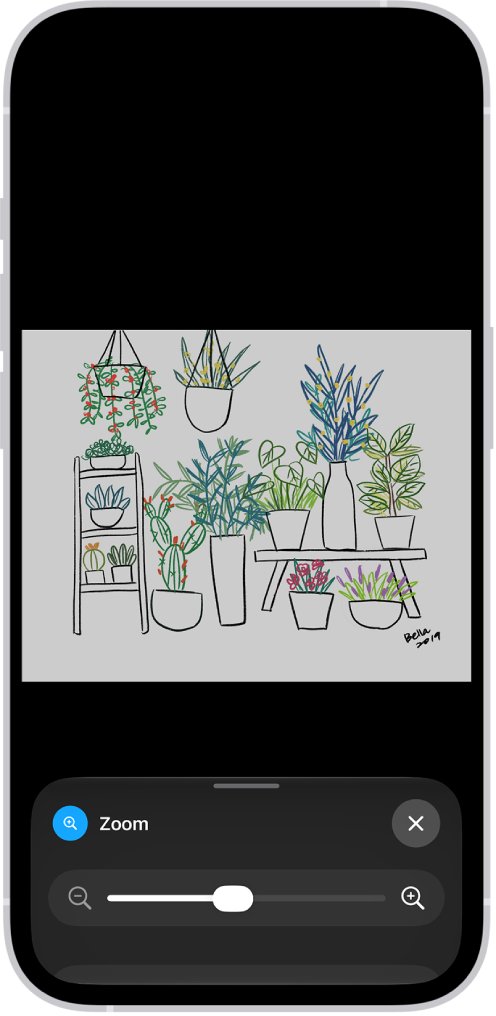
Start with Zoom, because a magnified screen makes every other setting hard to reach. Zoom also has its own Inverted filter, so colors can stay inverted even after Display settings look normal.
- Double-tap the screen with three fingers to turn off Zoom.
- If the screen is still magnified, triple-click the side button (or the Home button on iPhone SE) and tap Zoom if a menu appears.
- Open Settings > Accessibility > Zoom and turn off Zoom.
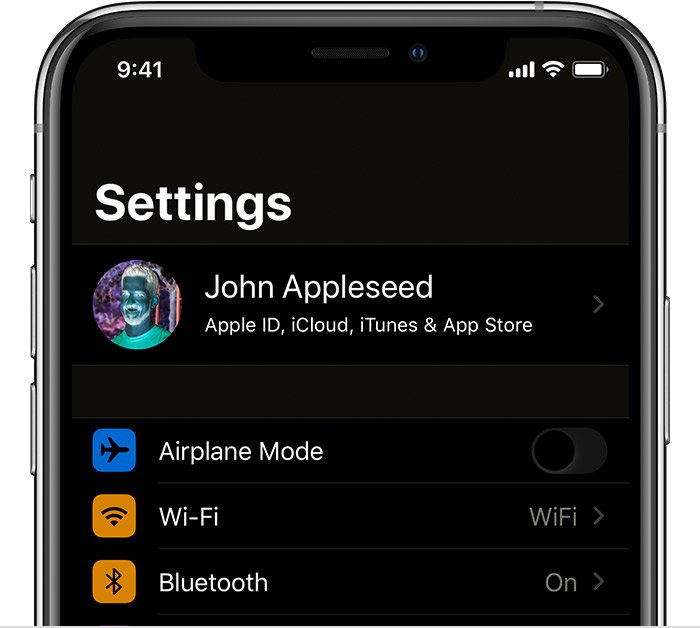
- Go back to Accessibility > Display & Text Size.
- Turn off Smart Invert and Classic Invert.
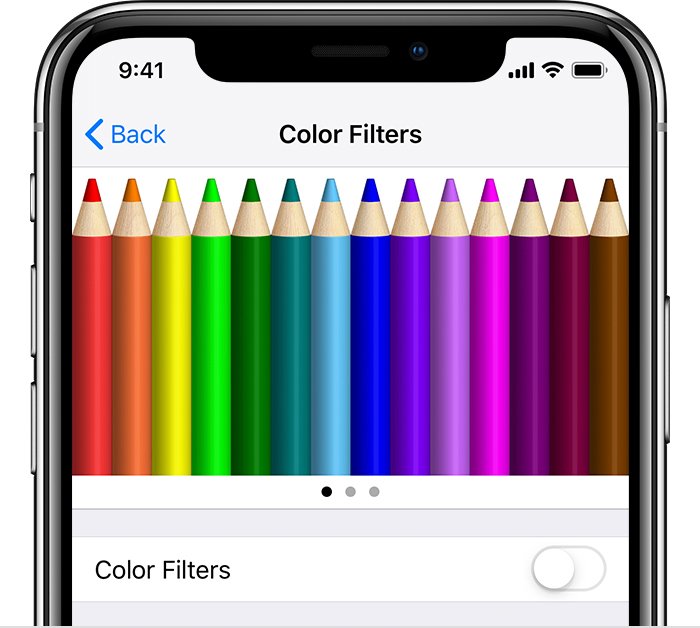
- Tap Color Filters and turn off Color Filters if it is on.
The screen now shows normal size and normal colors. Next, find what keeps playing the moo sound.
Is the Moo virus on iPhone a real virus?
Every symptom matches a standard iOS feature that someone, often a friend with your phone, switched on as a prank.
| Symptom | Feature behind it | Where to turn it off |
|---|---|---|
| Screen stuck zoomed in | Zoom (Full Screen or Window Zoom) | Three-finger double-tap, or Settings > Accessibility > Zoom |
| Colors inverted or negative | Smart Invert, Classic Invert or the Zoom Inverted filter | Accessibility > Display & Text Size, or Zoom > Zoom Filter |
| Gray or tinted screen | Color Filters or Zoom Grayscale filter | Display & Text Size > Color Filters |
| Mooing sound plays by itself | A shortcut automation that runs on a trigger | Shortcuts app > Automation |
| Effects return after a tap on the back | Back Tap set to an action or shortcut | Accessibility > Touch > Back Tap |
| Effects return after pressing the side button | Accessibility Shortcut | Accessibility > Accessibility Shortcut |
Stop the mooing sound on iPhone from a Shortcuts automation
Shortcuts automations run on events such as a time of day, opening an app, connecting a charger or a battery level. Some can run without asking and without a notification, so a moo can seem to come from nowhere.
- Open the Shortcuts app.
- Tap Automation to list every shortcut that has an automation trigger.
- Look for any automation you did not create, or one that plays a sound.
- Tap that shortcut and remove its automation trigger, such as Time of Day or App.
- Delete the shortcut itself if you do not use it.
Automations are specific to each device, so check the Shortcuts app on the iPhone that makes the sound.
Turn off Zoom filter inverted on iPhone
Zoom keeps its own filter setting: None, Inverted, Grayscale, Grayscale Inverted or Low Light. If colors stay inverted with Smart Invert off, this filter is the cause.
- Open Settings > Accessibility > Zoom.
- Tap Zoom Filter.
- Choose None.
- Turn off Zoom if you do not need it.
Turn off Back Tap and the Accessibility Shortcut on iPhone
A prank often ties the effects to Back Tap or the triple-click so they return the moment you pick the phone up. Clear both.
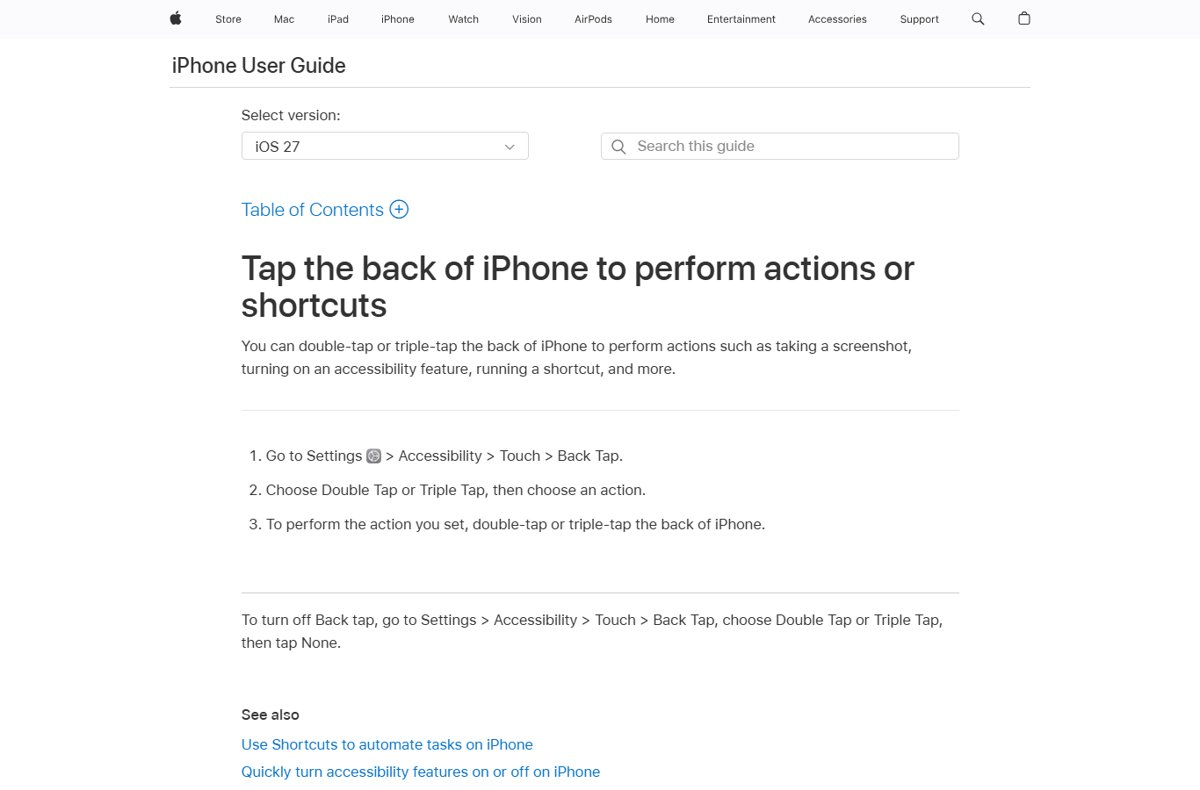
- Open Settings > Accessibility > Touch > Back Tap.
- Tap Double Tap and choose None.
- Tap Triple Tap and choose None.
- Go back to Accessibility > Accessibility Shortcut.
- Deselect Zoom, Smart Invert, Classic Invert and any other feature you do not use.
Check the iPhone Moo prank is gone
- Tap the back of the iPhone twice, then three times, and confirm nothing changes.
- Triple-click the side button and confirm Zoom or inverted colors do not switch on.
- Open the Shortcuts app, tap Automation and confirm no unknown automation is listed.
- Leave the phone for an hour, open a few apps and confirm no moo plays.
iPhone still zoomed in or inverted after the Moo virus fix
The screen is too zoomed in to reach Settings
Full Screen Zoom is magnifying everything.
- Double-tap the screen with three fingers to turn Zoom off.
- If you need to move around while zoomed, drag the screen with three fingers.
- Triple-tap with three fingers and drag the Zoom Level slider down.
Colors flip back to inverted later
Back Tap, the Accessibility Shortcut or an automation turns the setting back on.
- Set Back Tap Double Tap and Triple Tap to None.
- Remove invert options from Accessibility Shortcut.
- Remove any unknown automation in the Shortcuts app.
Screen looks warm or dim, not inverted
Night Shift or Reduce White Point is on, not a prank.
- Open Settings > Accessibility > Display & Text Size.
- Turn off Reduce White Point.
- Check Night Shift in Settings > Display & Brightness.
If the display goes fully dark instead, work through the iPhone black screen fix. If taps stop registering while zoomed, try the steps to fix an unresponsive iPhone touch screen.
iPhone Moo virus FAQ
Few searches exist for this prank, so these questions follow the symptoms people describe.
What is the momo or Moo virus on a phone?
On iPhone it is a prank, not malware. Someone turns on Zoom, inverted colors and a shortcut automation that plays a sound. Each one is a normal iOS setting you can turn off in Settings and the Shortcuts app.
How do I unzoom my iPhone screen?
Double-tap the screen with three fingers. To stop it permanently, open Settings, tap Accessibility, tap Zoom and turn Zoom off. Also remove Zoom from the Accessibility Shortcut so a triple-click cannot turn it back on.
Why are my iPhone colors inverted?
Smart Invert, Classic Invert or the Zoom Inverted filter is on. Turn off both invert options in Settings > Accessibility > Display & Text Size, then set Zoom Filter to None in Settings > Accessibility > Zoom.
Why does my iPhone make a mooing sound?
A Shortcuts automation is the likely source, because automations can run on triggers such as a time of day or opening an app. Open the Shortcuts app, tap Automation and remove any automation you did not create.
Can an automation run without me knowing?
Yes. Some personal automations can run without asking for confirmation, and when set that way they do not notify you when they trigger. Review the Automation list in the Shortcuts app to find them.
Do I need to reset my iPhone to remove the Moo virus?
No. Turning off Zoom, the invert settings, Back Tap actions and the unknown automation removes every symptom. A reset or restore is not needed for settings someone changed on purpose.