To reset a Firestick remote, unplug the Fire TV for 60 seconds, hold Left, Menu and Back together for 12 seconds, remove the batteries, then plug the Fire TV back in and re-insert the batteries.
Those steps cover most Alexa Voice Remotes; the Basic Edition Remote and the Alexa Voice Remote (1st Generation) use different button combinations, both listed below with pairing and TV-control fixes.
How to reset your Firestick remote (step by step)
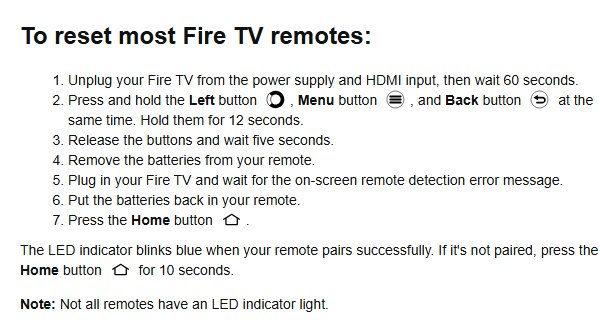
This is Amazon's reset for most Fire TV remotes, including current Alexa Voice Remotes. It clears the remote's pairing and then pairs it again from scratch.
- Unplug the Fire TV Stick from its power supply and from the HDMI input, then wait 60 seconds.
- Press and hold Left, Menu and Back at the same time for 12 seconds.
- Release the buttons and wait five seconds.
- Remove the batteries from the remote.
- Plug the Fire TV back in and wait for the on-screen remote detection error message.
- Put the batteries back in the remote.
- Press the Home button. If the remote does not pair, press and hold Home for 10 seconds.
The LED on the remote blinks blue when pairing succeeds. Not every remote has an LED, so on older models watch for the confirmation message on screen instead.
Which reset method should you use?
Match the remote in your hand to a row. A remote with a microphone button and a Menu button (three lines) uses the standard reset; a remote with no microphone button is the Basic Edition.
| Your remote or problem | Use this | Why |
|---|---|---|
| Alexa Voice Remote (2nd generation or newer), Alexa Voice Remote Enhanced, Pro or 2024 release | Left + Menu + Back for 12 seconds | Amazon's reset for most Fire TV remotes |
| Alexa Voice Remote (1st Generation) | Left + Menu for 12 seconds | This model resets without the Back button |
| Basic Edition Remote (no microphone button) | Home + three presses of Menu, then nine presses of Menu | It uses a separate sequence that ends with a 40-second Home hold |
| Remote works but volume, power or mute do not | Equipment Control in Settings | The remote is fine; the TV profile is wrong |
| New or replacement remote, original remote lost | Re-pair at the remote detection screen | A reset is not needed for a remote that was never paired |
Reset instructions for other Firestick remote models: Basic Edition Remote
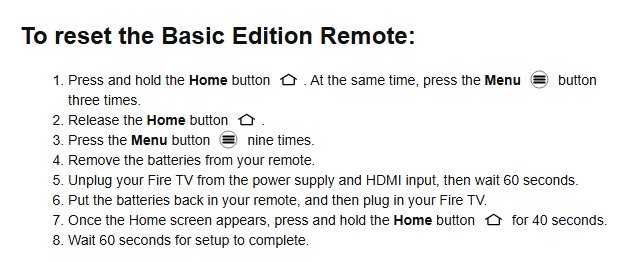
The Basic Edition Remote has no microphone button and does not respond to the Left, Menu and Back combination. Count the Menu presses carefully, because the sequence depends on them.
- Press and hold Home, and while holding it, press Menu three times.
- Release Home.
- Press Menu nine times.
- Remove the batteries from the remote.
- Unplug the Fire TV from power and HDMI, then wait 60 seconds.
- Put the batteries back in and plug the Fire TV back in.
- When the Home screen appears, press and hold Home for 40 seconds.
- Wait 60 seconds for setup to finish.
Reset the Alexa Voice Remote (1st generation)
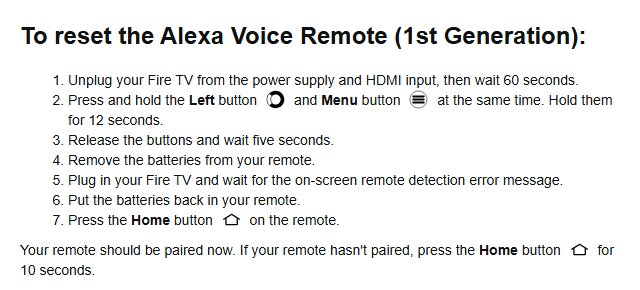
- Unplug the Fire TV from power and HDMI, then wait 60 seconds.
- Press and hold Left and Menu at the same time for 12 seconds.
- Release the buttons and wait five seconds.
- Remove the batteries from the remote.
- Plug in the Fire TV and wait for the on-screen remote detection error message.
- Put the batteries back in and press Home.
- If the remote has not paired, press and hold Home for 10 seconds.
Reset Firestick remote to Firestick: pair a new or second remote
A replacement remote only needs pairing, not a reset. Check Amazon's compatibility list first, because not every remote works with every Fire TV device.
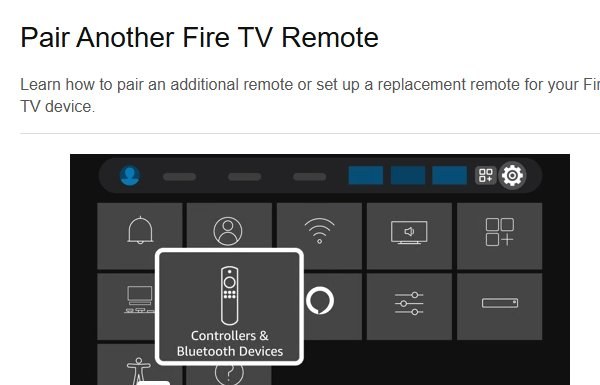
- With a working remote, open Settings from the Fire TV menu.
- Select Controllers & Bluetooth Devices, then Amazon Fire TV Remotes.
- Select Add New Remote and insert batteries in the new remote; it should appear in the list.
- Without a working remote, unplug the Fire TV, plug it back in and wait for the remote detection error message.
- Insert the batteries in the new remote; it should pair on its own.
- If either route stalls, press and hold Home on the new remote for 10 seconds.
One Fire TV holds up to seven paired controllers. Remove one under Amazon Fire TV Remotes before adding an eighth.
Reset Firestick remote to control TV volume and power
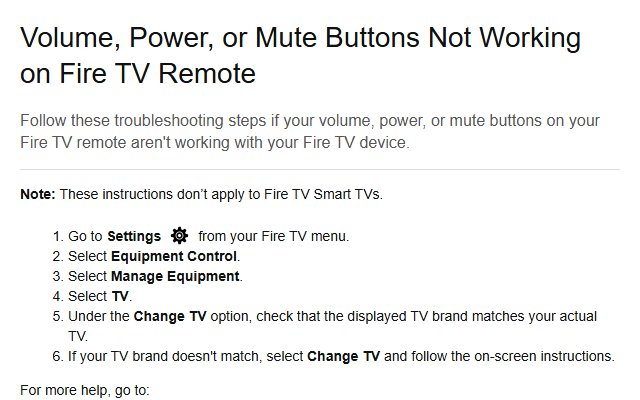
When navigation works but the volume, power or mute buttons do nothing, the remote is paired correctly and only the TV profile is wrong. These steps do not apply to Fire TV Smart TVs.
- Open Settings from the Fire TV menu.
- Select Equipment Control.
- Select Manage Equipment, then TV.
- Under Change TV, check that the TV brand shown matches your TV.
- If it does not match, select Change TV and follow the on-screen prompts.
Check the Firestick remote is paired after the reset
- Watch the remote LED: a blue blink means pairing succeeded.
- Look for the pairing confirmation message in the lower-right corner of the screen.
- Open Settings > Controllers & Bluetooth Devices > Amazon Fire TV Remotes and confirm the remote is listed.
- Test every button, including the microphone, volume and power keys, not only the arrows.
Why Firestick remotes stop working in the first place
| Cause | What you notice | Fix |
|---|---|---|
| Weak or wrong batteries | Delayed or missed presses, pairing fails | Fit a new pair of alkaline batteries |
| Lost Bluetooth pairing | No response at all, remote detection message on screen | Hold Home for 10 seconds, or run the full reset |
| Remote too far from the Fire TV | Pairing fails during setup | Stay within 10 feet (3 m) of the Fire TV |
| Seven controllers already paired | New remote never appears in the list | Remove an old controller first |
| Wrong TV brand in Equipment Control | Arrows work, volume and power do not | Change the TV in Equipment Control |
| Remote not compatible with the device | A new remote will not pair at all | Check Amazon's remote compatibility list |
When a reset is actually the right fix
A reset clears the remote's pairing, so it is the right tool only when the remote and Fire TV have stopped talking. Try the lighter fixes first, in this order.
| Situation | Try first | Reset needed? |
|---|---|---|
| Remote stopped responding after working fine | Press and hold Home for 10 seconds | Only if Home does not reconnect it |
| Presses are slow or random | New alkaline batteries | Only if fresh batteries do not help |
| "Pairing failed" message during setup | Move within 10 feet, remove batteries for 30 seconds, hold Home | Yes, if those steps fail |
| Only volume, power or mute fail | Equipment Control > Change TV | No |
| Brand-new replacement remote | Pair it at the remote detection screen | No |
How to keep the remote from losing its pairing again
- Replace both batteries at once with a new pair of alkaline batteries as soon as presses start lagging.
- Use the remote within 10 feet (3 m) of the Fire TV, especially while pairing.
- Keep the paired controller count below seven by removing old remotes and game controllers you no longer use.
- Install the Fire TV app on your phone and pair it, so you always have a backup remote on the same Wi-Fi network.
Still not working after the reset?
If you also own an Apple TV, note that its Apple TV remote reset uses different buttons, and pairing a Roku remote works differently again, so the steps here will not carry over.
Firestick remote not working after reset
The reset cleared the pairing but the remote never re-paired.
- Hold the remote within 10 feet of the Fire TV.
- Press and hold Home until the on-screen prompt to start appears, about 10 seconds.
- Remove the batteries, wait 30 seconds, put them back and hold Home again.
- Unplug the Fire TV, wait five seconds and plug it back in.
"Pairing failed" on screen
Weak batteries or too many paired controllers.
- Fit a new pair of alkaline batteries and hold Home again.
- Remove an old controller if seven are already paired.
- Pair the remote through the Fire TV app on your phone instead.
Firestick remote does not control the TV
Equipment Control is set to the wrong TV brand.
- Open Settings > Equipment Control > Manage Equipment > TV.
- Select Change TV and follow the prompts for your TV brand.
Frequently asked questions
How do I reset my Firestick remote?
Unplug the Fire TV for 60 seconds, hold Left, Menu and Back together for 12 seconds, release and wait five seconds, then remove the batteries. Plug the Fire TV back in, re-insert the batteries when the remote detection message appears and press Home.
How do I factory reset a Firestick remote?
The remote has no separate factory reset. The Left, Menu and Back reset, or the Home and Menu sequence on a Basic Edition Remote, clears its pairing and returns it to an unpaired state. Pair it again by pressing Home at the remote detection screen.
How do I reset a Firestick remote to the TV?
Open Settings, select Equipment Control, then Manage Equipment and TV. Check the brand under Change TV and, if it is wrong, select Change TV and follow the prompts. This restores volume, power and mute control. It does not apply to Fire TV Smart TVs.
How do I reset a Firestick remote to the Firestick?
Unplug the Fire TV, plug it back in and wait for the remote detection error message, then put the batteries in the remote. It should pair on its own. If it does not, press and hold Home for 10 seconds.
Does resetting the Firestick remote delete my apps or account?
No. Resetting the remote only clears its pairing with the Fire TV. Your apps, sign-ins, settings and any Fire Stick PIN you set stay on the Fire TV device. Only a factory reset of the Fire TV itself erases them.
How do I know which Firestick remote model I have?
A remote without a microphone button is the Basic Edition Remote. Remotes with a microphone button are Alexa Voice Remotes. Amazon's help pages show the button layout for each release, such as the Alexa Voice Remote (3rd Generation), Enhanced and 2024 release.
How many remotes can one Firestick pair with?
Amazon allows up to seven paired controllers per Fire TV device, counting remotes and game controllers together. If seven are already paired, remove one under Controllers & Bluetooth Devices before pairing another remote.
Can I reset a Firestick remote without a working remote?
Yes. The reset uses only the remote's own buttons and the Fire TV power cable. To pair a replacement without the original, restart the Fire TV, wait for the remote detection message and insert the new remote's batteries.
Quick summary
Hold Home for 10 seconds first, then run the Left + Menu + Back reset with the Fire TV unplugged for 60 seconds if the remote still will not respond. Most remotes only lose their pairing, which Home fixes in seconds; the full reset is for remotes that refuse to re-pair, and Basic Edition and 1st-generation remotes need their own button sequences.