To fix an unresponsive touch screen on iPhone, force restart it with the hardware buttons: on iPhone 8 or later, press and release Volume Up, press and release Volume Down, then hold the side button until the Apple logo appears.
If touch still fails after the restart, work through the accessory, cleaning, update, reset and recovery mode steps below, in that order, before you book a repair.
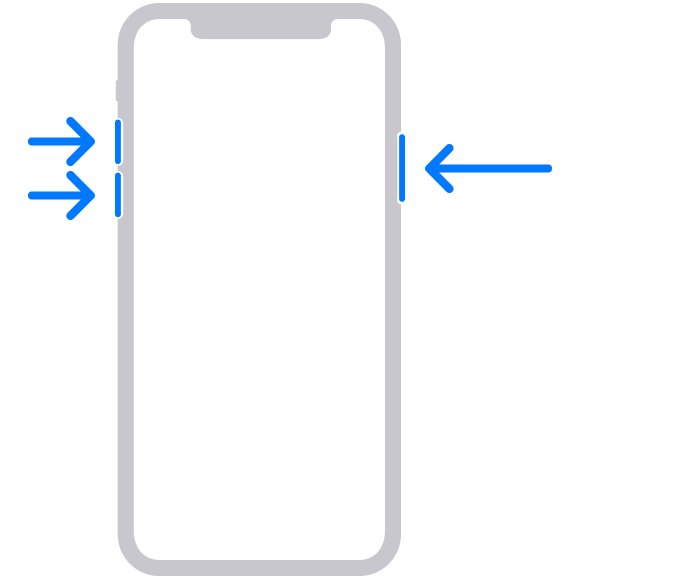
Force restart your iPhone when the touch screen is not responding
A force restart uses only the buttons, so it works when the screen ignores every tap. It does not delete photos, apps or messages.
Find your model in the table and press the buttons in the order shown.
| Your iPhone | Press these buttons | Release when |
|---|---|---|
| iPhone 8, iPhone SE (2nd generation) or later, including every Face ID iPhone | Press and quickly release Volume Up, press and quickly release Volume Down, then press and hold the side button | The Apple logo appears, which can take longer than 10 seconds |
| iPhone 7 and iPhone 7 Plus | Press and hold the side button and Volume Down together | The Apple logo appears |
| iPhone 6s, iPhone SE (1st generation) and earlier | Press and hold the Home button and the side or top button together | The Apple logo appears |
On iPhone 8 and later, press the two volume buttons quickly, one after the other, before you hold the side button. Release the side button only when the Apple logo shows.
iPhone touch screen not working: which fix matches your symptom
Start at the row that describes your iPhone. Every fix above the reset rows keeps your data.
| What you see | Try this first | Data at risk? |
|---|---|---|
| Screen frozen in every app, buttons still work | Force restart for your model | No |
| Screen too sensitive, or responds only some of the time | Clean the screen, unplug accessories, remove the case and screen protector | No |
| Touch fails only while charging or with an accessory plugged in | Unplug it, then try a different outlet, cable or charger | No |
| Only one app ignores taps | Close the app, update it, then delete and redownload it | Data stored only in that app |
| Taps register late, twice or in the wrong place | Check Touch Accommodations and update iOS | No |
| Problem returns after every restart | Reset All Settings | No; settings return to defaults |
| Screen still dead and you cannot reach Settings | Recovery mode with a computer, then choose Update | No with Update; Restore erases everything |
| Cracked glass, liquid exposure or no response at all after these steps | Apple service | Back up first if you still can |
Check for obvious physical or accessory issues on your iPhone
Apple lists accessories as a cause of a screen that responds intermittently or is too sensitive. A faulty charger or cable can make touch behave oddly while it is plugged in.
- Look at the display in good light for cracks, chips or lifted glass. A cracked screen is a hardware fault, so skip ahead to the repair section.
- Check whether the iPhone has been near water or another liquid recently. If it has, dry the outside and stop troubleshooting until it is inspected.
- Disconnect every Lightning or USB-C accessory, including chargers, adapters and headphones.
- Tap and swipe across the screen to test it with nothing plugged in.
- If the screen works after you remove an accessory, plug the iPhone into a different outlet with a different cable or charger.
- Reconnect your accessories one at a time and test after each, so you know which one to replace.
Clean the screen and remove screen protectors or cases
Dirt, debris or water on the glass can stop the screen from reading your finger. A thick, bubbled or badly fitted screen protector can do the same, and so can a case that presses on the edges of the display.
- Unplug all cables and turn the iPhone off.
- Take off the case and peel off the screen protector.
- Wipe the screen with a soft, slightly damp, lint-free cloth, such as a lens or microfiber cloth.
- Keep moisture out of the openings and do not use compressed air.
- To disinfect, use a 70 percent isopropyl alcohol wipe, a 75 percent ethyl alcohol wipe or Clorox Disinfecting Wipes, then wipe again with a slightly damp cloth.
- Dry your hands, turn the iPhone on and test the screen with no case or protector fitted.
Avoid bleach, hydrogen peroxide and abrasive cleaners. Apple warns that they wear down the oil-repellent coating on the glass and can scratch it.
If touch works without the protector, replace it with a new one and refit it carefully, or leave the screen bare.
Update iOS and problematic apps
Software bugs can make touch input lag or stop in specific places. Apple's first app fix after a restart is checking for updates to the app and to iOS. Apple fixed one such touch bug on iPhone 16 Pro models in iOS 18.0.1, so update first for iPhone 16 Pro Max screen problems.
- Back up the iPhone, plug it into power and connect to Wi-Fi.
- Open Settings, tap General, then tap Software Update.
- If an update is listed, tap Download and Install and follow the onscreen instructions.
- When the iPhone restarts, open the App Store.
- Tap your profile photo or the My Account button at the top of the screen.
- Tap App Updates, then tap Update next to the problem app, or tap Update All.
If the update does not appear, a VPN or proxy connection can block the update servers. Turn the VPN off and check again, or update with a Mac or PC.
Free up storage and close glitching apps
When one app freezes, close it and reopen it. A nearly full iPhone also has no room for the iOS update in the previous step, so check storage at the same time.
- On iPhone X or later, swipe up from the bottom of the Home Screen and pause in the middle. On iPhone SE, iPhone 8 or earlier, double-click the Home button.
- Swipe left or right to find the frozen app, then swipe up on its preview to close it.
- Open the app again and test the screen inside it.
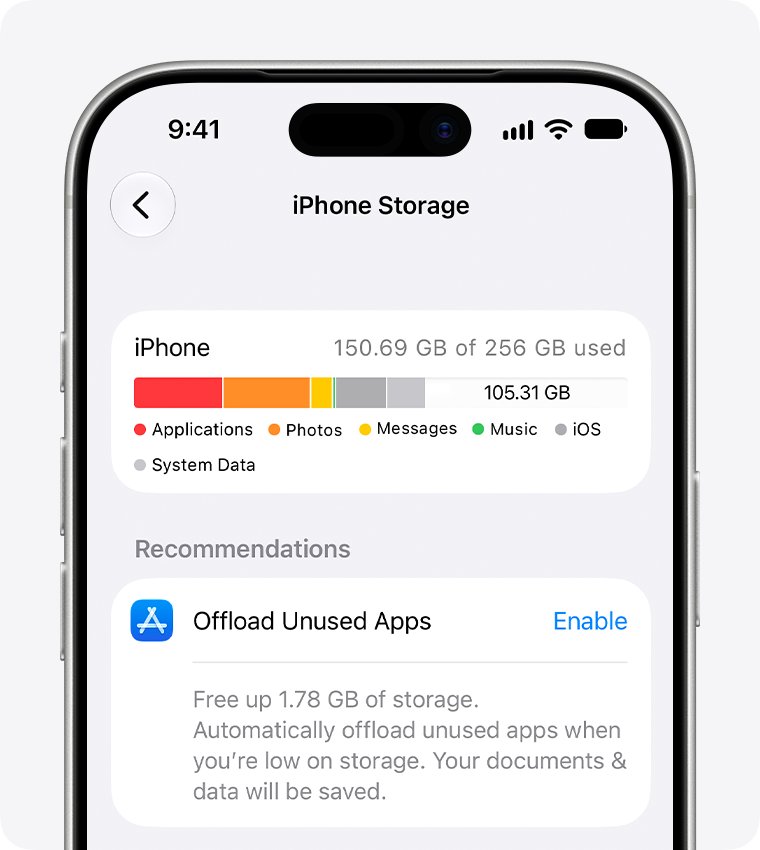
- Open Settings, tap General, then tap iPhone Storage.
- Tap Show All under the recommendations and turn on the ones that suit you, or tap an app to Offload App or Delete App.
- If one app still ignores taps, delete it and download it again from the App Store.
Close an app only when it is unresponsive. Apple notes that closing every app does not make an iPhone faster or save battery.
Offloading keeps the app's documents and data. Deleting an app can remove data stored only inside it.
Reset Touch Accommodations when iPhone taps register wrong
Touch Accommodations change how long a touch must last and which point of a tap counts. If someone turned on Hold Duration or Ignore Repeat, quick taps and swipes are ignored and the screen looks broken.
Use these steps when the screen responds, but late, twice or in the wrong place.
- Open Settings and tap Accessibility.
- Tap Touch, then tap Touch Accommodations.
- Turn off Hold Duration, Ignore Repeat and Tap Assistance if you did not set them up on purpose.
- Tap Recalibrate Touch Accommodations, or tap Reset Touch Accommodations to return them to defaults.
- Go back to Touch and tap Haptic Touch if touch-and-hold menus open too fast or too slow.
- Choose Fast or Slow and test it on the image at the bottom of the screen.
Back up your iPhone before you reset or restore it
Reset All Settings keeps your data, but erasing or restoring the iPhone deletes everything on it. Make a backup while the screen still works well enough to tap through Settings.
- Connect the iPhone to Wi-Fi.
- Open Settings, tap your name, then tap iCloud.
- Tap iCloud Backup.
- Tap Back Up Now and stay on Wi-Fi until it finishes.
- Check the date and time under Back Up Now to confirm the backup is current.
Reset settings or restore the iPhone
Damaged or wrong settings can cause problems that survive a restart. Reset All Settings clears them, including Accessibility and Display & Brightness settings, without deleting photos, messages, apps or documents.
Erase the iPhone only if the reset does not help and your backup is current.
- Open Settings and tap General.
- Tap Transfer or Reset iPhone, tap Reset, then tap Reset All Settings.
- After the restart, reconnect to Wi-Fi, pair Bluetooth devices and set up Face ID or Touch ID again, then test the screen.
- If the problem continues, return to Transfer or Reset iPhone and tap Erase All Content and Settings.
- Tap Continue, then choose whether to keep or delete your eSIM. Deleting it means your carrier must reactivate your plan.
- Enter your passcode, wait for the backup to finish, then enter your Apple Account password.
- Wait for the Hello screen, test touch during setup, then restore your backup.
If touch already fails during the Hello setup screens, before any of your data or apps are back, the fault is unlikely to be software. Book a repair.
Reinstall iOS in recovery mode when the iPhone screen will not respond
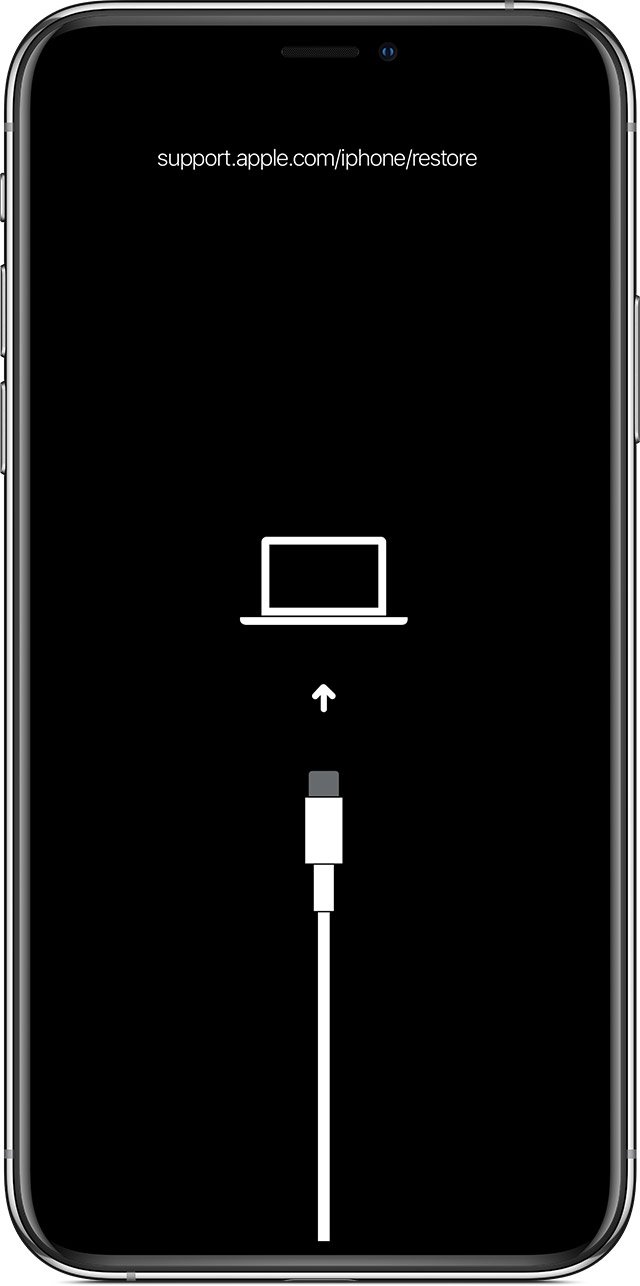
When you cannot tap through Settings at all, a Mac or PC can reinstall iOS. Recovery mode uses only the buttons, and choosing Update keeps your personal data.
- Update your Mac, or install the latest Apple Devices app on a Windows PC.
- Connect the iPhone to the computer with a USB cable and open Finder or Apple Devices.
- On iPhone 8 or later, including iPhone SE (2nd generation and later): press and quickly release Volume Up, press and quickly release Volume Down, then hold the side button until the "Connect to computer" screen appears.
- On iPhone 7 or 7 Plus, hold the side button and Volume Down together until that screen appears. On iPhone 6s or earlier, hold Home and the side or top button.
- Find the iPhone on the computer and click Update.
- Choose Restore only if Update fails. Restore reinstalls iOS and erases all your data.
If the download takes longer than 15 minutes, the iPhone can leave the recovery screen. Let the download finish, then repeat the button sequence.
Test whether the iPhone touch screen works again
Test the whole screen, not just the middle. Edge and corner faults are easy to miss with a single tap.
- Swipe up from the bottom edge and confirm the Home Screen or app switcher opens.
- Touch and hold an app icon in each corner of the Home Screen and confirm its menu opens.
- Open Notes, start a new note and type a line using every row of the keyboard.
- Open Settings > Accessibility > Touch > Haptic Touch and use the test image at the bottom of the screen.
- Plug in your charger and repeat one test to confirm touch still works while charging.
- Refit your case, and a new screen protector if you use one, then test once more.
iPhone unresponsive to touch: fixes by symptom
The iPhone is unresponsive to touch and the screen is black
The battery is usually too drained to start, or the restart sequence was too slow.
- Charge the iPhone for one hour.
- Repeat the force restart sequence for your model.
- If a low-charge battery icon appears, keep charging for 30 minutes or until it starts.
- If it still will not turn on, set up service with Apple.
The phone screen is too sensitive or responds only some of the time
Debris, water, an accessory, a case or a screen protector is interfering with the display.
- Restart the iPhone.
- Clean the screen and dry any water on it.
- Disconnect Lightning or USB-C accessories, then try a different outlet, cable or charger.
- Remove the case and screen protector and test again.
Only part of the iPhone screen responds to touch
A screen protector, a case pressing on the edge or damage to the display.
- Remove the case and screen protector.
- Clean the dead area with a soft, slightly damp, lint-free cloth.
- Force restart the iPhone and test the same area again.
- If the same zone stays dead after a reset, book a repair, since a fixed dead area points to hardware.
Touch stops working in one app only
The app has frozen or has a bug, not the screen.
- Close the app from the app switcher and open it again.
- Restart the iPhone.
- In the App Store, tap your profile, tap App Updates and update the app.
- Delete the app and download it again. Data stored only in the app can be lost.
- If it still fails, contact the app developer.
The Restore screen appears and touch does nothing
A software update or restore was interrupted.
- Connect the iPhone to the computer with its cable and keep it connected.
- Force restart the iPhone with the sequence for your model.
- If the Restore screen returns, open Finder or Apple Devices.
- Click Update, not Restore, to reinstall iOS and keep your data.
When to contact Apple Support or visit a repair center for an iPhone screen
Stop troubleshooting and arrange service when the glass is cracked, the iPhone was exposed to liquid, a dead zone survives a reset, or touch fails on the Hello setup screen after an erase. Apple also lists a button that does not work or sticks as a reason for service, because it blocks force restart and recovery mode. Cracked glass needs a screen replacement, the only lasting way to fix a cracked phone screen.
Back up first if the screen still allows it, and note which steps you already tried.
| Question | What Apple states |
|---|---|
| Where can I get it repaired? | Any Genius Bar or Apple Authorized Service Provider in person, or by mail with a prepaid shipping box |
| Does the warranty cover it? | The Apple Limited Warranty covers manufacturing issues for one year from purchase; it does not cover accidental damage |
| What does a screen repair cost? | Apple shows an out-of-warranty estimate per model; for iPhone 18 Pro, screen damage is listed at $379 |
| Is the repair guaranteed? | Service and parts are guaranteed for 90 days or the rest of the Apple warranty, whichever is longer |
| How do I track a repair? | Sign in to My Support or the Apple Support app with your Apple Account |
Apple inspects the iPhone to set the final fee, and Apple Authorized Service Providers can set their own prices.
Unresponsive iPhone touch screen FAQ
How do I fix an unresponsive touch screen on my iPhone?
Force restart the iPhone with the buttons for your model first. If touch still fails, clean the screen, unplug accessories, remove the case and screen protector, update iOS, then try Reset All Settings. Book a repair if none of that helps.
How do I force restart my iPhone if the touch screen is not responding?
On iPhone 8 or later, press and release Volume Up, press and release Volume Down, then hold the side button until the Apple logo appears. On iPhone 7, hold side and Volume Down. On iPhone 6s or earlier, hold Home and the side or top button.
Does a force restart delete anything on an iPhone?
No. A force restart only restarts the software, so photos, messages, apps and settings stay on the iPhone. It is the safest first step for a frozen or unresponsive screen.
Can a screen protector or case make my iPhone touch screen stop working?
Yes. Apple lists removing cases and screen protectors as a fix for a screen that responds intermittently or is too sensitive. Take both off and test the bare screen before you try a reset.
What should I do if only part of my iPhone screen responds to touch?
Remove the case and screen protector, clean that area and force restart the iPhone. If the same zone stays dead after a Reset All Settings, the display is the likely fault, so arrange service with Apple or an Apple Authorized Service Provider.
Why does my iPhone screen stop responding to touch while charging?
A faulty charger, cable or outlet can upset the touch screen. Apple advises disconnecting Lightning or USB-C accessories and, if the screen then works, trying a different outlet, cable or charger.
Will resetting my iPhone fix an unresponsive touch screen?
Reset All Settings fixes problems caused by wrong or damaged settings and keeps your data. Erasing the iPhone fixes software faults only. If touch still fails on the Hello setup screen after an erase, the problem is hardware.
How do I fix an unresponsive iPhone when I cannot tap anything?
Use the buttons. Force restart it first. If that does not help, connect it to a Mac or PC, enter recovery mode with the button sequence for your model, and choose Update, which reinstalls iOS and keeps your data.
When should I stop troubleshooting and get the iPhone repaired?
Stop when the glass is cracked, the iPhone was exposed to liquid, a dead area survives a reset, or recovery mode cannot update or restore it. Apple's warranty covers manufacturing faults for one year but not accidental damage.
Do these steps fix an unresponsive touchpad or a Windows touchscreen?
No. These steps are for iPhone only. A Windows laptop needs its own fixes, such as checking drivers and settings to fix a Windows touchscreen or fix a Windows 11 touchpad.
Bottom line: which iPhone touch screen fix to try first
Force restart first, then remove accessories, the case and the screen protector, update iOS, and try Reset All Settings before you erase anything or pay for a repair. Those steps keep your data and cover the software and accessory causes Apple lists. A screen that still fails on the Hello setup screen after an erase, or one with cracks or liquid exposure, needs Apple service.