To debloat Windows 11, uninstall the preinstalled apps you do not use from Settings > Apps > Installed apps, turn off unneeded startup apps, and remove leftover Store packages with PowerShell or, on Enterprise and Education, the Remove Default Microsoft Store packages from the system policy.
This guide covers each built-in method, where third-party debloat tools fit, how to check what is left, and how to get a removed app back.
Debloat Windows 11 by uninstalling preinstalled apps in Settings
The Settings app removes most preinstalled consumer apps in two clicks each and is the safest place to start. Some apps are built into Windows and cannot be uninstalled.
- Select Start > Settings > Apps > Installed apps.
- Sort or scroll the list and find an app you do not use.
- Select More (the three dots) next to the app, then select Uninstall.
- Confirm with Uninstall and repeat for each app you want gone.
- For a desktop program that does not uninstall here, open Control Panel > Programs > Programs and Features, right-click it and select Uninstall or Uninstall/Change.
You can also uninstall from the Start menu: select Start > All apps, right-click the app and select Uninstall.
Best way to debloat Windows 11 for your edition
| Your situation | Use this | Why |
|---|---|---|
| Windows 11 Home or Pro, a few unwanted apps | Settings > Apps > Installed apps | Supported, reversible from the Microsoft Store, no commands |
| Slow sign-in or many tray icons | Settings > Apps > Startup | Stops apps launching at sign-in without removing them |
| Apps that Settings will not remove | PowerShell Get-AppxPackage and Remove-AppxPackage | Microsoft's own cmdlets remove Store app packages by name |
| Windows 11 Enterprise or Education, version 24H2 or later | Debloat Windows 11 using Group Policy | Removes chosen Store apps for every new profile and blocks reinstallation |
| You are considering Win11Debloat or FlyOOBE | Use the built-in methods above first | Third-party scripts make bulk system changes that Microsoft does not support |
| A brand-new install you want lean from day one | Apply the removal policy before OOBE, or uninstall right after setup | The policy runs during the out-of-box experience on supported editions |
Turn off startup apps in Windows 11
Startup apps do not take disk space, but they load at every sign-in and run in the background. Turning them off is the debloat step with the most visible effect on boot time. Windows can also notify you when apps add to startup, so new entries do not slip back in unnoticed.
- Select Start > Settings > Apps > Startup.
- Review the list; each app shows whether it starts automatically when you sign in.
- Turn off the toggle for each app you do not need at sign-in.
- Alternatively, press Ctrl + Shift + Esc, open the Startup apps page in Task Manager, select an app and select Disable.
- Restart the PC and confirm the apps no longer start.
Remove clutter from the Windows 11 Start menu
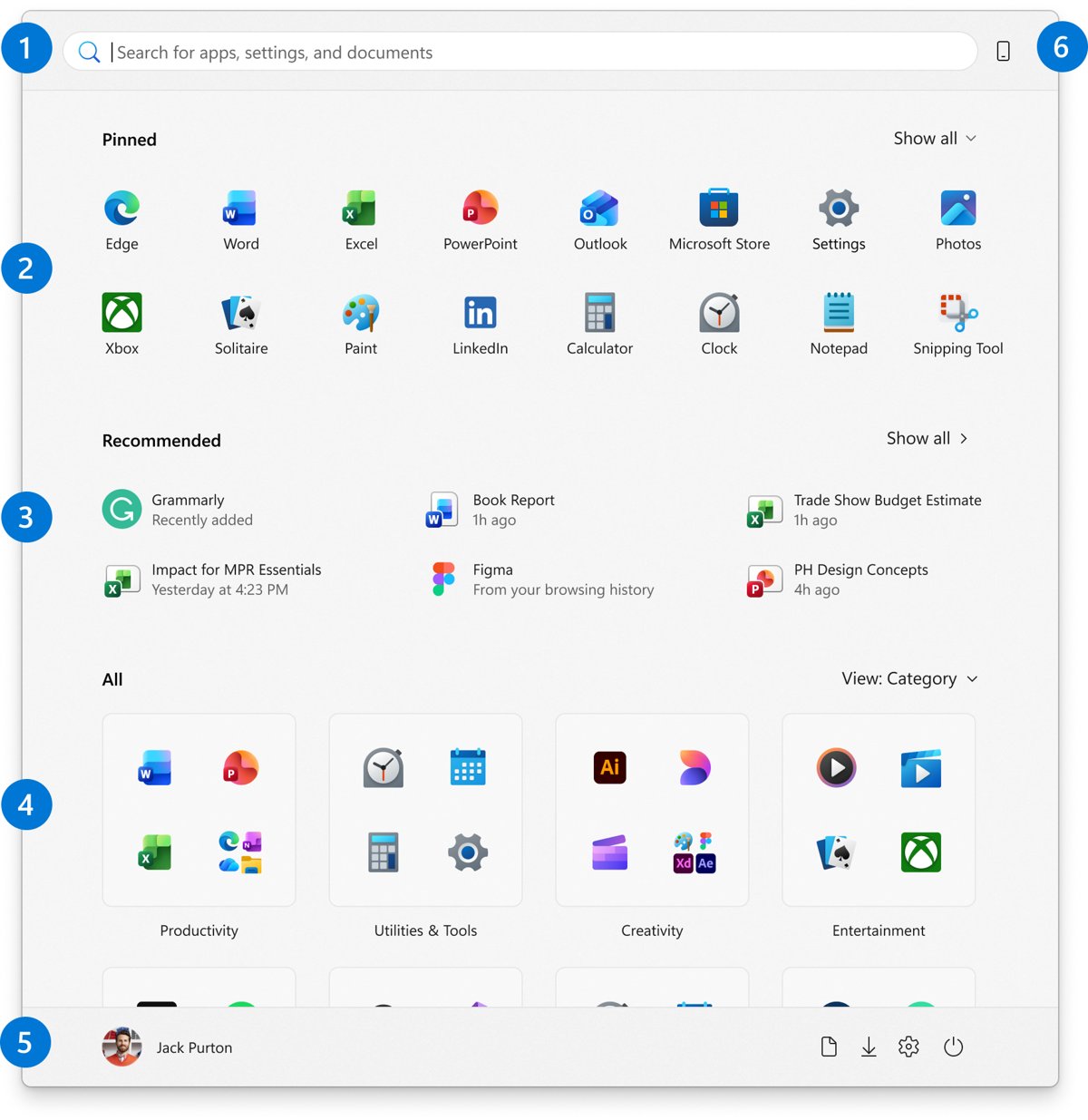
A large share of what people call bloat is pinned app shortcuts and recommendations in Start. Unpinning removes them from view without uninstalling anything.
- Open Start, right-click a pinned app or shortcut you do not want, and select Unpin from Start.
- Right-click the bottom of the Start menu and select Start settings.
- Turn off the recommendation providers you do not want in the Recommended section.
- Turn off every provider to collapse the Recommended section entirely.
- Drag remaining pins onto each other to group them into folders.
Remove built-in apps with PowerShell in Windows 11
PowerShell reaches Store app packages that Settings hides or cannot remove. Find the package name first, then pass it to Remove-AppxPackage. Removing an app also removes its local data.
Get-AppxPackage *BingWeather* | Remove-AppxPackageGet-AppxPackage finds installed app packages whose name matches the wildcard, here the Weather app, and pipes them to Remove-AppxPackage, which removes the package from the current user account. Run Get-AppxPackage on its own first to see the exact package names, and replace BingWeather with the app you want removed. Add -AllUsers to Remove-AppxPackage, in an administrator PowerShell window, to remove the package for every account on the PC.
You should see: The command returns to the prompt with no error, and running Get-AppxPackage *BingWeather* again returns nothing.
Never remove packages that Get-AppxPackage -AllUsers marks with IsPartOfSystem set to True; those are system components.
Debloat Windows 11 using Group Policy
Windows 11 version 24H2 and later include a policy that removes selected preinstalled Microsoft Store apps and blocks their reinstallation. Microsoft documents it for Enterprise and Education editions only, on domain-joined or managed devices, and you set it in the Local Group Policy Editor.
- Press Win + R, type
gpedit.mscand press Enter. - Go to Computer Configuration > Administrative Templates > Windows Components > App Package Deployment.
- Double-click Remove Default Microsoft Store packages from the system.
- Select Enabled.
- Under Options, check the apps to remove; a curated list of consumer apps is preselected.
- To remove other packaged apps, add each package family name on its own line under Specify additional package family names to remove.
- Select OK, then sign out and back in, or create a new user profile, for the removal to apply.
The static list includes apps such as Bing News, Bing Weather, Microsoft Solitaire Collection, Sticky Notes, the Xbox apps, Clipchamp, Copilot, Teams and To Do. Find a package family name with Get-AppxPackage *Notepad* | Select-Object PackageFamilyName, replacing Notepad with the app.
Debloat Windows 11 using Win11Debloat
Win11Debloat is a community PowerShell script hosted on GitHub, not a Microsoft tool. It removes apps and changes privacy, AI and interface settings in bulk from one menu.
Use the Settings, PowerShell and Group Policy methods in this guide instead of running Win11Debloat on a PC you depend on. The script downloads and runs code from a third-party site with administrator rights, and its bulk changes are not supported by Microsoft, so a removed component or changed policy can break features or updates with no official way back. If you still use it, back up the PC first and remove apps only, not system components.
Debloat Windows 11 using FlyOOBE
FlyOOBE, formerly Flyby11, is a third-party utility best known for installing Windows 11 on hardware that does not meet the minimum system requirements. It also has a page for removing preinstalled apps by their package names.
Skip FlyOOBE for debloating and remove apps through Settings or PowerShell instead. Its main purpose is bypassing Windows 11 hardware requirements, which Microsoft does not support, and it lists apps by system package names, which makes it easy to remove a component you need. The built-in tools reach the same apps with a supported way to reinstall them.
Debloat Windows 11 using install workaround
Install workarounds rely on choices during Windows Setup, such as a specific region setting, to skip promotional apps. Microsoft does not publish these as supported options, and a clean install still includes the inbox apps.
For a lean new install, apply the Remove Default Microsoft Store packages policy before the out-of-box experience on Enterprise or Education, or uninstall the unwanted apps in Settings right after setup on Home and Pro. Microsoft documents that the removal policy runs during the out-of-box experience and at sign-in, while setup tricks are undocumented and can change with any release. Apps also return after a factory reset unless the device gets the policy again.
Check which apps are left after debloating Windows 11
Get-AppxPackage -AllUsers | Select Name, IsPartOfSystemRun this in an administrator PowerShell window. It lists every app package installed for any account, with a column showing whether each one is part of the system. Run it before and after debloating, or before and after signing in once the policy is set, to compare.
You should see: The apps you removed no longer appear in the Name column. Settings > Apps > Installed apps also no longer lists them.
On Enterprise and Education, keys under HKEY_LOCAL_MACHINE\SOFTWARE\Policies\Microsoft\Windows\Appx\RemoveDefaultMicrosoftStorePackages confirm the removal policy reached the device, and gpresult /h report.html lists RemoveDefaultMicrosoftStorePackages under computer policies.
Reinstall apps removed by debloating Windows 11
- For an app removed in Settings or PowerShell, open the Microsoft Store, search for the app and select Get or Install.
- For an app removed by policy, open
gpedit.mscand go to Computer Configuration > Administrative Templates > Windows Components > App Package Deployment. - Open Remove Default Microsoft Store packages from the system and deselect the app, or delete its package family name from the additional list.
- Run
gpupdate /forcefrom an administrator command prompt. - Install the app from the Microsoft Store.
Deselecting an app in the policy does not reinstall it by itself; it only lifts the block so the Store install can complete. If the Store itself was removed, reinstall the Microsoft Store app first.
Debloat Windows 11 not working? Fixes by symptom
An app has no Uninstall option in Settings
Some apps cannot be uninstalled from Settings, and some are built into Windows.
- Open Control Panel > Programs > Programs and Features and try Uninstall there.
- For a Store app, use
Get-AppxPackageandRemove-AppxPackagein PowerShell. - If the package is part of the system, leave it installed.
The Group Policy removal does nothing
The edition or version is unsupported, or the policy has not applied yet.
- Confirm the PC runs Windows 11 Enterprise or Education, version 24H2 or later.
- Check the policy sits under Computer Configuration, not User Configuration.
- Run
gpupdate /force, then sign out and back in or create a new user profile.
Removed apps came back after a reset or upgrade
A factory reset reinstalls the inbox apps, and the policy is not active during setup until the device receives it again.
- Re-enroll or domain-join the device straight after the reset so it receives the policy.
- On Home and Pro, uninstall the apps again from Settings > Apps > Installed apps.
A grey placeholder tile appears in Start
Someone tried to reinstall an app that the removal policy blocks.
- Right-click the placeholder and remove it from Start.
- To allow the app again, deselect it in the policy, run
gpupdate /force, then install it from the Store.
An app reinstall fails with an error
The removal policy still lists the app.
- Deselect the app in Remove Default Microsoft Store packages from the system or delete its package family name.
- Run
gpupdate /forceand install the app again.
Debloat Windows 11 FAQ
What does debloat Windows 11 mean?
Debloating Windows 11 means removing preinstalled apps, shortcuts and startup items you do not use. The aim is a cleaner Start menu, fewer background processes and less disk use, while keeping the system components Windows needs to run and update.
Is it safe to debloat Windows 11?
Yes, when you use the built-in methods: uninstalling apps in Settings, turning off startup apps and removing Store packages by name. The risk comes from bulk scripts that remove system components or change policies, which can break features or updates.
What is the best way to debloat Windows 11?
For Home and Pro, uninstall unwanted apps in Settings > Apps > Installed apps and turn off startup apps, then use PowerShell for anything Settings misses. On Enterprise and Education 24H2 or later, the Remove Default Microsoft Store packages policy is the most thorough supported method.
Can I debloat Windows 11 without PowerShell?
Yes. Settings removes most preinstalled consumer apps, Settings > Apps > Startup stops apps loading at sign-in, and Start settings hides recommendations. On Enterprise and Education, the Group Policy editor removes Store apps without any commands.
Can I debloat Windows 11 with built-in Microsoft tools?
Yes. Settings, Control Panel, Task Manager and the PowerShell Appx cmdlets all ship with Windows. On Windows 11 version 24H2 and later, Enterprise and Education also get the Remove Default Microsoft Store packages from the system policy.
Does the Group Policy debloat option work on Windows 11 Home or Pro?
Microsoft documents policy-based in-box app removal for Windows 11 Enterprise and Education, version 24H2 or later, only. On Home and Pro, uninstall apps in Settings or with Remove-AppxPackage in PowerShell instead.
Will Windows updates reinstall apps I removed?
On Enterprise and Education, the removal policy runs again at sign-in after an OS upgrade and blocks reinstallation while the app stays selected. A factory reset reinstalls the inbox apps until the device receives the policy again.
Can I undo debloating if something breaks?
Yes. Reinstall a removed app from the Microsoft Store. If the removal policy blocked it, deselect the app in the policy, run gpupdate /force, then install it. Back up the PC before any bulk change so you can restore it.
Does debloating Windows 11 remove Microsoft Edge?
No. The methods in this guide target optional preinstalled apps, and Edge is not on the Remove Default Microsoft Store packages list. Set a different default browser in Settings if you prefer another one.