To print Google Maps directions, open Google Maps on a computer, get directions, choose a route, click Print, pick Print including maps or Print text only, and click Print again.
This guide covers saving directions as a PDF, printing from an iPhone, iPad or Android phone, multi-stop routes, printing a map on its own, and fixes when nothing prints.
Step by step tutorial: How to print Google Maps directions
The Print option sits in the directions panel of Google Maps in a computer browser.
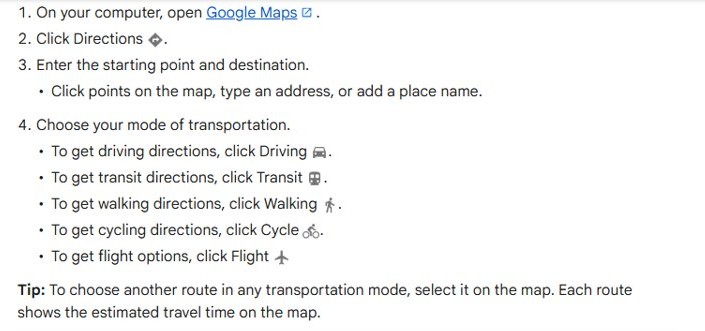
- On your computer, open Google Maps in your browser.
- Click Directions.
- Enter the starting point and destination by typing an address, adding a place name or clicking points on the map.
- Choose your mode of transportation, such as Driving, Transit, Walking or Cycle.
- Choose a route. The best route shows in blue and the others in gray.
- Click Print.
- Select Print including maps or Print text only.
- Click Print, then pick your printer in the print window and confirm.
Printing works for walking, transit and cycling routes too. Pick the mode in step 4 before you choose the route.
Print including maps vs print text only
| If you want | Choose | Why |
|---|---|---|
| Turn-by-turn steps with map images to follow on paper | Print including maps | Adds maps to the printed directions, so you can see each turn |
| The shortest printout that saves ink | Print text only | Prints just the written steps, distances and times |
| A file to keep, email or open offline | Either option, then Save as PDF in the print window | Creates a PDF instead of paper |
| Directions on your phone, not on paper | Send to phone | Sends the route to a signed-in device or your email |
How to save Google Maps directions as a PDF
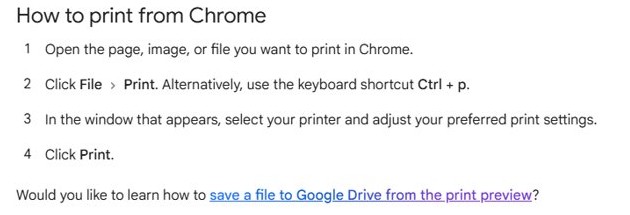
Chrome and other browsers can send the print job to a PDF file instead of a printer. On Windows, the Microsoft Print to PDF printer does the same from any browser.
- Get directions and choose a route in Google Maps on your computer.
- Click Print, then select Print including maps or Print text only.
- Click Print to open the browser's print window.
- In Chrome, set the destination to Save as PDF.
- Click Save, then choose a folder and file name.
In Chrome you can also pick Save to Google Drive as the destination if the Save to Google Drive extension is installed. You may have to open See more to find it.
How to print Google Maps directions from an iPhone or iPad
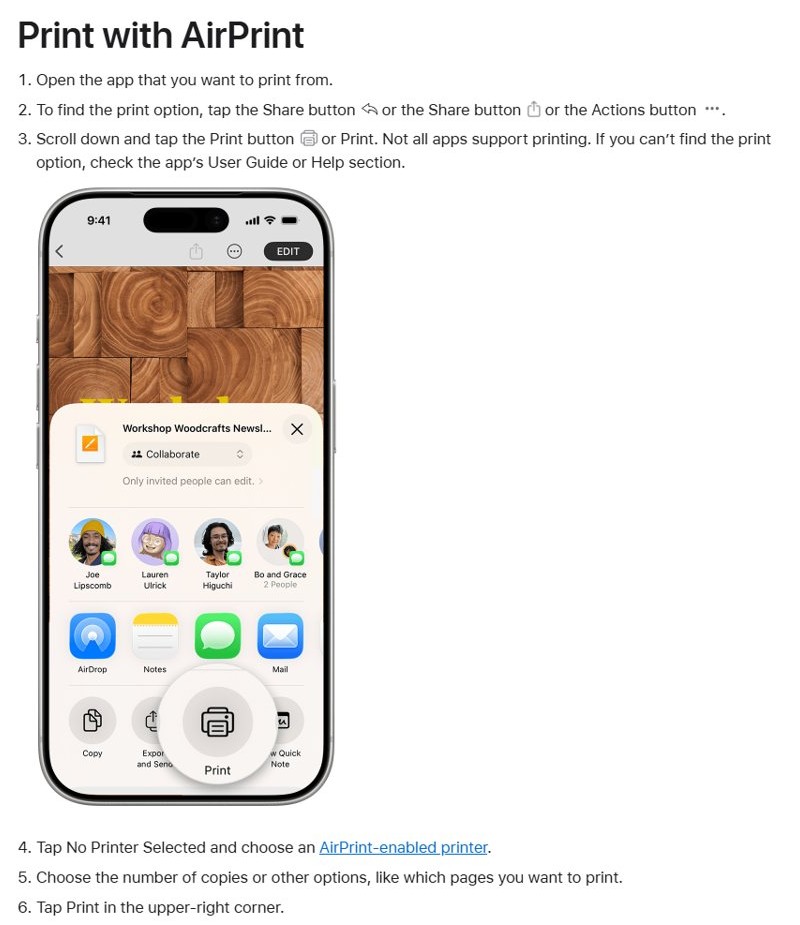
An iPhone or iPad prints through AirPrint. The printer must support AirPrint and be on the same Wi-Fi network as the device.
- Open Google Maps directions for your route in the Chrome app.
- At the top right, tap Share.
- Tap View more, then Print.
- Tap No Printer Selected and choose your AirPrint printer.
- Choose the number of copies and the pages you want.
- Tap Print.
In Safari or another app, the same Print option sits in the Share or Actions menu. Not every app supports printing, so switch to a browser if you cannot find it.
How to print Google Maps directions from Android
Chrome on Android prints to a printer that can receive data over Wi-Fi or a mobile network.
- Open Google Maps directions for your route in the Chrome app.
- At the top right, tap More, then Share.
- Select Print.
- At the top, select a printer, or tap Save as PDF to keep a file instead.
- Tap the Down arrow to change any print settings.
- Tap Print.
Phone printouts follow what the browser shows on screen. For the cleanest turn-by-turn layout, print from a computer or send the route to a computer and use the Print button there.
How to print a map without turn-by-turn directions
To print only a map, skip the directions panel and print the browser page.
- Open Google Maps and move the map to the area you want.
- Zoom in or out until the whole area fits the window.
- Press Ctrl + P on Windows or Command + P on a Mac.
- Select the printer, or Save as PDF, and set the layout.
- Click Print.
Custom maps with your own pins are built in Google My Maps, which has its own share, download and print options.
How to print directions with multiple stops
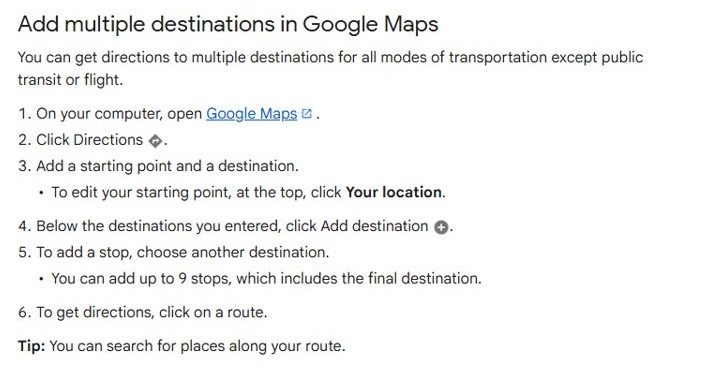
Google Maps on a computer takes up to 9 stops, including the final destination. Multiple stops work for every mode except public transit and flights.
- Click Directions and add a starting point and the first destination.
- Below the destinations, click Add destination.
- Choose the next stop and repeat until every stop is in the list.
- Drag a destination to change the order of stops.
- Click a route, then click Print and choose a print option.
- Click Print to finish.
A multi-stop route cannot be sent with Send to phone, so printing or saving a PDF is the way to take it with you. You can also measure the distance between stops before you print.
Tips for printing Google Maps directions
Set the route up the way you will drive it before you print, because paper cannot reroute.
- Open Options in the directions panel and tick Tolls or Highways to avoid them.
- Click the map scale at the bottom right to switch between miles and kilometers.
- Click Leave now and choose Depart at or Arrive by to plan around a set time on a single-destination route.
- Click Details under a route, then Expand, to check each step before printing.
- Pick the route you want on the map so the printout matches it.
Tips for better Google Maps printouts
| Goal | What to do |
|---|---|
| Fewer pages | Choose Print text only, or print only the page range you need in the print window |
| Readable maps | Choose Print including maps and print in color if your printer supports it |
| A backup copy | Save as PDF as well as printing, so you can reprint or open it on a phone |
| Directions in another language | Change the Google Maps language first, then print |
| Up-to-date steps | Print close to your departure, since roads and closures change |
Spanish directions, for example, come from switching the Google Maps language before you click Print.
Example: Printing driving directions for a road trip
This walk-through prints a three-stop driving trip with maps and keeps a PDF copy.
- Click Directions, choose Driving, and enter your home address as the starting point.
- Add the first city as a destination, then click Add destination for the second city and the final stop.
- Open Options and tick Tolls if you want a toll-free route.
- Choose the route, click Print and select Print including maps.
- In the print window, set the destination to Save as PDF and save the file.
- Open the print window again, pick your printer and click Print.
- Check the printout lists every stop in order with distances and times.
Troubleshooting: What to do if Google Maps will not print
There is no Print button
Print appears in the directions panel only after you get directions and choose a route.
- Click Directions and enter both locations.
- Click a route on the map or in the list.
- Look for Print in the directions panel.
The print window opens but nothing prints
The wrong printer or Save as PDF is selected as the destination.
- Open the destination list in the print window.
- Select your printer, or add the printer in Windows 11 if it is not listed.
- Click Print and check the printer queue, then cancel any stuck print job that blocks it.
The printout has no maps
Print text only was selected.
- Click Print in Google Maps again.
- Select Print including maps.
- Click Print.
The iPhone or iPad cannot find the printer
The printer does not support AirPrint or is on a different network.
- Connect the device and printer to the same Wi-Fi network.
- Check with the printer maker that the model supports AirPrint.
- Tap No Printer Selected again and choose the printer.
Send to phone is missing
Directions with multiple destinations cannot be sent to a phone.
- Remove the extra stops to send a single-destination route.
- Or print the multi-stop route, or save it as a PDF and open it on the phone.
Frequently asked questions about printing Google Maps directions
How do I print out directions from Google Maps?
On a computer, click Directions, enter both locations, choose a route and click Print. Select Print including maps or Print text only, then click Print and choose your printer.
How do I print Google Maps directions in Spanish?
Change the Google Maps language to Spanish first, then get directions and click Print. The printed steps follow the language Google Maps is set to when you print.
How do I print directions from Google Maps on my phone?
Open the directions in the Chrome app. On Android, tap More, then Share, then Print. On iPhone or iPad, tap Share, then View more, then Print, and pick an AirPrint printer.
Can I print directions for walking or public transportation?
Yes. Choose Walking or Transit before you pick a route, then click Print. Transit routes cannot have multiple stops, so print each leg separately if you need more than one destination.
Can I print Google Maps directions without the map?
Yes. After you click Print, select Print text only. The printout lists the written turn-by-turn steps without map images, which saves ink and paper.
What if I need to change my route after I've printed the directions?
Edit the route in Google Maps, such as adding a stop or avoiding tolls, and print again. A printout does not update, so reprint whenever the route changes.
How many stops can I print in Google Maps directions?
Up to 9 stops, including the final destination, on Google Maps for computers. Multiple stops work for driving, walking and cycling but not for public transit or flights.
Why won't my Google Maps directions print?
Usually no route is selected, so the Print button is missing, or the print window points at Save as PDF instead of your printer. Choose a route, click Print and select the printer.