To install pending Windows updates, open Settings > Windows Update, select Check for updates, then Download & install, and restart when Windows asks.
This guide covers the Windows 11 and Windows 10 steps, what each pending status means, and twelve fixes for updates that stay stuck.
How to install pending updates in Windows 11
Most pending updates finish with these steps and one restart. Save your work first, because the restart closes open apps.
- Select Start > Settings > Windows Update.
- Select Check for updates so Windows pulls the latest list.
- Select Download & install next to any update that is waiting.
- Wait for the download and install progress to finish on the same page.
- Select Restart now, or open Start > Power and select Update and restart.
- Return to Settings > Windows Update after sign-in and check for updates again, because more may be waiting.
How to install pending updates in Windows 10
Windows 10 keeps Windows Update inside the Update & Security category, so the path is one level deeper.
- Select Start > Settings > Update & Security > Windows Update.
- Select Check for updates.
- Select Download and install under any listed update that is not installing on its own.
- Wait until Windows reports that a restart is required.
- Select Restart now, or select Schedule the restart to pick a time outside your working hours.
- After sign-in, return to the same page and check for updates once more.
Important Windows 10 support note: support ended on October 14, 2025, so a Windows 10 PC only receives security updates if it is enrolled in Extended Security Updates (ESU) on version 22H2. Without ESU, nothing new arrives even when every fix below works.
Which fix installs a stuck pending update?
| What you see | Start with | Why |
|---|---|---|
| Restart required or Pending restart | Fix 1: restart the PC | The update is installed and only needs a reboot to finish |
| Updates are paused until a date | Fix 2: resume updates | Nothing installs while a pause is active |
| Pending download that never moves | Fix 3: connection, power and metered settings | Windows holds some downloads on metered networks |
| Error mentions space, or 0x800f0922 / 0x80070002 | Fix 4: free up storage | Major upgrades need 16 GB (32-bit) or 20 GB (64-bit) free |
| Pending install for hours with no error | Fixes 5 and 6: troubleshooter and service check | The update service may be stopped or confused |
| Same update fails again and again | Fixes 7, 8 and 9: cache reset, DISM/SFC, update history | Corrupt cache or system files block every retry |
| One KB will not install through Settings | Fix 10: install the KB manually | The Microsoft Update Catalog bypasses the Windows Update download |
| Feature update missing or failing | Fixes 11 and 12: Installation Assistant or installation media | Both reinstall Windows in place and keep your files |
Before you start: quick prerequisites and safety checks
Two checks solve a large share of stuck updates before any repair: restart once, and confirm the PC is online and plugged in. Then run through the rest of this list. If the download or install freezes at one percentage, fix Windows Update when it is stuck by restarting, running the troubleshooter and clearing the cache.
| Check | Why it matters | How to do it |
|---|---|---|
| Back up your data | Microsoft asks you to back up personal files before any update repair | Copy files to a USB drive with File Explorer, or back up Documents, Pictures and Desktop to OneDrive |
| Administrator account | Some updates need administrator access to install | Sign in with an administrator account, or ask the person who has one |
| Power and internet | An interrupted download or install restarts from scratch | Plug in the charger and confirm the network in Settings > Network & internet |
| Free storage | Upgrades need 16 GB free on 32-bit Windows or 20 GB on 64-bit | Check Settings > System > Storage |
| Correct date and time | A wrong clock can interfere with Windows Update | Turn on Set time automatically and Set time zone automatically in Time & language > Date & time |
| Unneeded external hardware | Docks and extra drives can block an update | Unplug anything not needed for basic use |
What does “Pending install” mean in Windows Update?
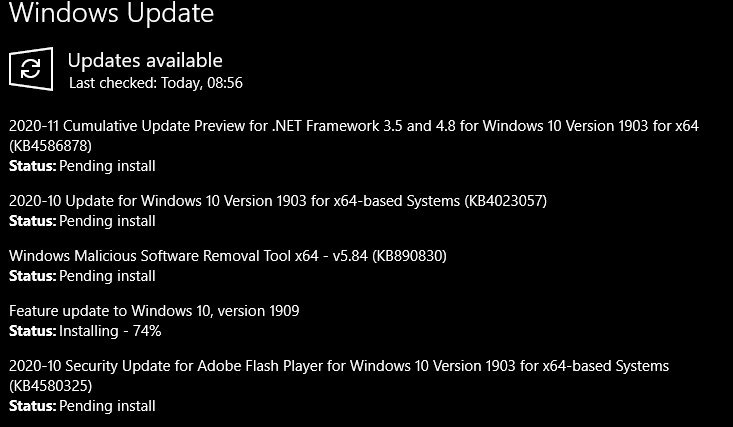
Pending install means the update has finished downloading but has not started installing. Windows is waiting for a trigger: your click, a scheduled install time, or a restart.
The difference between Windows Update pending download vs. pending install is where the files are. Pending download means they are still on Microsoft's servers; pending install means they are already on the PC and need no more data.
| Status wording | What it means | Common reason it waits | What to do |
|---|---|---|---|
| Pending download | The update is listed but its files are not on the PC yet | Metered connection, paused updates, weak network | Turn off Metered connection on a network with no data cap, then select Download & install |
| Pending install | The files are downloaded and waiting to install | Waiting for you, active hours, or an earlier update's restart | Select Download & install or the install button next to the update |
| Pending restart / Restart required | The install ran and needs a reboot to finish | The restart has not happened yet | Select Restart now or Update and restart |
| Paused | Updates are on hold until the date shown | A pause of up to 35 days is active | Resume updates on the Windows Update page |
Install updates using the Windows Update screen tools
The Windows Update page and the Power menu carry every control needed to finish a pending update without a command line.
- Open Settings > Windows Update and review the Available updates list on Windows 11.
- Select Download & install for anything not yet installing.
- Select Restart now when it appears, or select Schedule the restart to choose a time.
- Select Advanced options > Optional updates to see driver updates that do not install on their own, tick the ones you need, and select Download and install.
- Select Advanced options > Active hours to set the hours when Windows should not restart.
1. Restart your PC to complete pending updates
Many updates only finish during a restart. Microsoft's own instruction is to restart from the Power menu after saving your work.
- Save your work and close open apps.
- Select Start > Power.
- Select Update and restart if it is offered, otherwise select Restart.
- Leave the PC on and plugged in while Windows shows the update progress screen.
- Sign in and open Settings > Windows Update to confirm nothing is still waiting.
2. Resume Windows updates if they are paused
Nothing new installs while updates are paused. Windows 11 allows a pause of up to 35 days, and the page shows the date updates resume.
- On Windows 11, select Start > Settings > Windows Update.
- Look for a message that updates are paused until a date.
- Select the button to resume updates at the top of the page.
- On Windows 10, open Start > Settings > Update & Security > Windows Update > Advanced options and pick the earliest resume date in the Pause updates dropdown.
- Select Check for updates and install what appears.
Microsoft states you can resume updates manually at any time. Once the pause limit is reached, the latest updates must install before you can pause again.
3. Check your internet connection and power
A device on battery or on a dropped connection stops downloads. A network marked as metered also stops some Windows updates from installing automatically.
- Plug the laptop into a power source.
- Select Start > Settings > Network & internet > Wi-Fi and confirm you are connected.
- Select your Wi-Fi network and check the Metered connection switch.
- Turn Metered connection off if the network has no data cap. For wired networks, the same switch is under Network & internet > Ethernet.
- Disconnect any VPN, then return to Windows Update and select Check for updates.
If Metered connection is greyed out, your organization controls it and IT support has to change it. Cellular connections are metered by default.
4. Make sure Windows has enough free storage
Microsoft lists the free space needed for a major upgrade as at least 16 GB on a 32-bit OS and 20 GB on a 64-bit OS. Error 0x800f0922 can point to low space.
- Select Start > Settings > System > Storage and read the free space on the C: drive.
- Select Temporary files and remove the items you no longer need.
- Uninstall apps you do not use from Settings > Apps > Installed apps.
- Move large personal files to an external drive or OneDrive.
- On a device with a small drive, insert a USB drive when Windows Update asks for extra space.
- Return to Windows Update and select Check for updates.
5. Run the Windows Update troubleshooter
On Windows 11, Microsoft recommends the automated Windows Update troubleshooter first. It runs diagnostics and attempts to fix most update problems.
- On Windows 11, select Start > Settings > System.
- Select Troubleshoot, then Other troubleshooters.
- Find Windows Update and select Run.
- Follow the on-screen instructions until the troubleshooter finishes.
- On Windows 10, open Start > Settings > Update & Security > Troubleshoot, then select Windows Update under Get up and running.
- Restart the PC and check for updates again.
6. Check the Windows Update service
If the Windows Update service is stopped, updates sit at pending forever. Error 0x80248014 can mean the service is not running.
- Press Win + R, type
services.mscand press Enter. - Scroll to Windows Update and read its Status column.
- If it is not running, right-click Windows Update and select Start.
- If it is running but updates still hang, right-click it, select Stop, wait a few seconds, then select Start.
- Close Services and select Check for updates in Settings.
7. Reset the Windows Update cache
Corrupt files in the update cache cause errors such as 0x8007000d. Renaming the cache folders makes Windows download clean copies.
Search for Command Prompt, select Run as administrator, select Yes, then type each command and press Enter, letting each one finish first.
net stop bits
net stop wuauserv
ren %systemroot%\softwaredistribution softwaredistribution.bak
ren %systemroot%\system32\catroot2 catroot2.bak
net start bits
net start wuauserv
The first two lines stop the Background Intelligent Transfer Service and the Windows Update service. The ren lines rename the SoftwareDistribution and catroot2 folders so Windows rebuilds them. The last two lines start both services again.
You should see: Each net command reports that the service stopped or started successfully, and ren returns to the prompt without an error. Close Command Prompt and restart the PC.
The no-command alternative: stop Windows Update in services.msc, delete everything inside C:\Windows\SoftwareDistribution, then start the service again.
8. Repair Windows system files with DISM and SFC
Damaged system files make the same update fail on every attempt. Errors 0x80070057 and 0x80080005 can point to this. Open Command Prompt with Run as administrator and run DISM first, then SFC.
DISM.exe /Online /Cleanup-image /Restorehealth
sfc /scannow
DISM repairs the Windows image that system files are restored from. SFC then scans protected system files and replaces damaged copies.
You should see: DISM ends with “The restore operation completed successfully” or “The operation completed successfully”. SFC must reach 100% verification before you close the window and run Windows Update again.
If DISM shows no confirmation message, run the command again.
9. Check Windows Update history for failed updates
Update history tells you which update keeps failing and its KB number. That number is what you search for in the next fix.
- On Windows 11, select Start > Settings > Windows Update > Update history.
- On Windows 10, select Start > Settings > Update & Security > Windows Update > View update history.
- Scan the list for entries that failed to install.
- Note the KB number and any error code shown with the failed entry.
- Match the error code against the table in the error-code section below, then retry the install.
A single cumulative update can fail on many PCs at once, so check the error code before repeating the same retry. If an update installs but then causes problems, you can uninstall the problematic update from the same history page.
10. Manually install a specific KB update
The Microsoft Update Catalog lists updates, drivers and hotfixes for every supported Windows version. Microsoft aims it at advanced users and administrators.
- Open the Microsoft Update Catalog at
catalog.update.microsoft.com. - Type the KB number from your update history into the search box and press Enter.
- Pick the entry that matches your Windows version and architecture, such as x64 or Arm64.
- Select Download, then select the file link in the pop-up window to save it.
- Double-click the downloaded
.msufile to install it. - Restart when the installer asks.
On Windows 11 version 24H2 and later, some cumulative updates depend on earlier checkpoint updates. The Catalog download pop-up lists those files, and Microsoft says to install them in the order shown.
11. Use the Windows 11 Installation Assistant
Use the Windows Update Assistant route when a feature update is missing or keeps failing in Settings. The Installation Assistant needs a Windows 10 or 11 licence, Windows 10 version 2004 or later, 9 GB of free space, and an x64 PC.
- Open
microsoft.com/software-download/windows11in your browser. - Select Download Now under Windows 11 Installation Assistant.
- Run the downloaded assistant and approve the administrator prompt.
- Select Accept and Install.
- Select Restart Now when the files are ready.
- Leave the PC on while it restarts several times.
Arm-based PCs cannot use the assistant.
12. Repair Windows using installation media
On Windows 11, try Fix problems using Windows Update first. It reinstalls the current version of Windows and keeps your apps, files and settings.
This option needs Windows 11 version 22H2 or later with the February 2024 optional update or newer. Managed work or school PCs may not show it.
- Select Start > Settings > System > Recovery.
- Under Fix problems using Windows Update, select Reinstall now.
- Choose whether the PC may restart automatically 15 minutes after the install, then select OK.
- If the option is missing or fails, create installation media from Microsoft's software download page.
- Connect the media, open it in File Explorer and run
setup.exe. - Select Change what to keep, choose Keep personal files and apps, then select Next.
- Select Install and let the PC restart several times.
Install updates offline using an ISO or feature update path
A PC with a slow or capped connection can update from a Windows 11 ISO downloaded on another network. The multi-edition ISO from Microsoft's download page upgrades in place.
| Offline route | What it installs | Best for |
|---|---|---|
Microsoft Update Catalog .msu file |
One cumulative or security update by KB number | A single failed monthly update |
Windows 11 ISO, mounted, then setup.exe |
The full current feature update, keeping files and apps | A missing or failed feature update |
| Bootable USB from the media creation tool | An in-place upgrade or a clean install | A PC that will not finish any update |
| Windows Update for Business policies | Updates on a schedule set by the organization | Managed business PCs, set by IT |
If your PC is managed by WSUS, Intune or Group Policy
Work and school PCs often take updates from the organization, not straight from Microsoft. Policies can defer updates, set restart deadlines, or point Windows Update at an internal WSUS server.
| Sign you see | What it means | What to do |
|---|---|---|
| A notice on the Windows Update page that your organization manages some settings | A policy controls when updates install | Ask IT before forcing an update |
| Metered connection switch greyed out | The organization sets the network type | Ask IT support to change it |
| Fix problems using Windows Update missing | Managed update policies remove this option | Use the IT department's repair process |
| Update installs but restart waits for a deadline | Restart policies are set by IT through Group Policy or Intune | Restart manually from Start > Power to finish sooner |
How to check if a Windows update installed successfully
To verify updates actually installed, check two places: the installed updates list and the Windows build number. Both change after a successful install and restart.
- Open Settings > Windows Update > Update history (Windows 10: View update history).
- Find the KB number and confirm the entry shows it installed, with the date.
- Open Settings > System > About and read the OS build under Windows specifications.
- Return to Windows Update, select Check for updates, and confirm nothing is still pending.
- For a command-line check, open PowerShell and run
Get-HotFix, which lists installed updates with their KB number and install date.
What to do if Windows Update is stuck at 0% or 100%
Windows Update is stuck at 0%
The download has not started, usually from a connection, space or service problem.
- Restart the PC so no other app blocks the update.
- Confirm the connection in Settings > Network & internet > Wi-Fi.
- Check free space against the 16 GB / 20 GB minimum.
- Run the Windows Update troubleshooter, then check for updates again.
Windows Update is stuck at 100%
The install finished but cannot complete until a restart, or another app is holding it.
- Save your work and select Start > Power > Update and restart.
- Leave the PC plugged in until it returns to the sign-in screen.
- If it stays at 100% after a restart, reset the update cache and try again.
Windows Update got to 51-99% and will not complete
A large update on a slow connection can sit at one percentage for a long time.
- Give it time; download speed and update size set the duration.
- If the percentage does not change, select Check for updates again.
- Run the Windows Update troubleshooter if it still does not move.
Why is Windows Update stuck on pending install?
Windows updates get stuck for a handful of repeat reasons: a missed restart, a pause, a metered network, low space, a stopped service, or a software conflict.
Pending install never changes
Windows waits for active hours to end, or an earlier update needs a restart first.
- Restart from Start > Power.
- Select the install button next to the update on the Windows Update page.
- Check the Windows Update service in
services.msc.
A pending update is not appearing
Updates are paused, a safeguard hold blocks the feature update on your hardware, or the update is optional.
- Resume updates if a pause date is shown.
- Open Advanced options > Optional updates for drivers and other optional items.
- If Windows Update says the feature update is not ready for your device, wait for Microsoft to release it rather than forcing it.
Pending updates refuse to install because of software or network conflicts
A VPN, a third-party driver, a startup app or external hardware can block the install.
- Disconnect the VPN and unplug docks and extra drives.
- Update third-party drivers from the hardware maker's website.
- For error 0xC1900101, open Device Manager, expand Display adapters or Network adapters, right-click the adapter, select Update driver, then Search automatically for drivers.
- Perform a clean boot so Windows starts with a minimal set of drivers and startup programs, then retry the update.
Fix common Windows Update error codes
Match the code from update history to a row. These are the common failure points Microsoft lists, with the fix that targets each cause.
| Error code | Likely cause | Fix to try |
|---|---|---|
| 0x8007000d | Corrupt files in the update cache | Troubleshooter, then reset the Windows Update cache |
| 0x800705b4 | Update took too long or was interrupted | Check the connection, then restart |
| 0x80240034 | Incomplete update or connection issue | Check the Windows Update service, run the troubleshooter |
| 0x800f0922 | Not enough disk space, or .NET Framework or component issues | Free up 16 GB / 20 GB, disconnect any VPN |
| 0x80070057 or 0x80080005 | Corrupted files or wrong system configuration | Run sfc /scannow, then the troubleshooter |
| 0xC1900101 | Incompatible driver | Update or reinstall network and display drivers, clean boot |
| 0x80248014 | Update database problem or service not running | Troubleshooter, then start the Windows Update service |
| 0x80070005 | Access denied or missing permissions | Install from an administrator account |
| 0x80070002 | Update failed to install | Restart, run the troubleshooter, check free space |
Keep automatic updates enabled without getting stuck
Automatic updates stay on by default. These settings keep them flowing while stopping restarts at bad times.
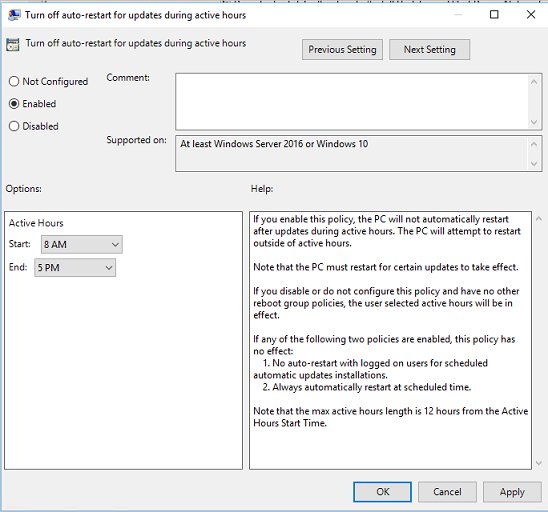
- Open Settings > Windows Update > Advanced options > Active hours and set the hours you use the PC.
- Restart within a day or two whenever Windows shows a restart is required, so later updates are not held behind it.
- Keep at least 20 GB free on the system drive of a 64-bit PC.
- Turn on Get the latest updates as soon as they're available on the Windows Update page if you want non-security improvements early.
Since July 28, 2026, Windows 11 groups drivers, .NET and firmware updates with the monthly security update, typically released on the second Tuesday, so most months need only one restart.
Official Microsoft sources for Windows Update help
- Install Windows Updates — Settings path for Windows 11 and 10
- Troubleshoot problems updating Windows — Troubleshooter, cache reset, error codes, DISM and SFC
- Windows Update: FAQ — Update history, pausing and restarts
- Fix issues by reinstalling the current version of Windows — Fix problems using Windows Update
- Microsoft Update Catalog — Manual KB downloads
Pending Windows updates FAQ
How do I force pending Windows updates to install?
Open Settings > Windows Update, select Check for updates, then Download & install next to each waiting update. Restart from Start > Power with Update and restart. If an update still will not move, run the Windows Update troubleshooter or install its KB file from the Microsoft Update Catalog.
Why does Windows Update say Pending install?
Pending install means the update has downloaded but has not started installing. Windows is waiting for you to select the install button, for active hours to end, or for an earlier update's restart. Selecting install and restarting usually clears it.
Why does Windows Update say Restart required?
Restart required means the update has installed and needs a reboot to finish. Select Restart now on the Windows Update page, or Update and restart from the Power menu. Until you restart, the fix is not active and later updates may queue behind it.
Can I use my PC while Windows updates are downloading?
Yes, the download and much of the install run in the background while you keep working. Only the restart interrupts you, and Windows tries to schedule it outside the active hours you set in Advanced options.
Should I turn off my PC while Windows is updating?
No. Keep the PC on and plugged in until the update screen finishes and you reach sign-in. Microsoft advises keeping the device connected to power and the internet during update and reinstall work, because an interrupted install can fail and need repeating.
Does Windows 10 still receive updates?
Only through Extended Security Updates. Windows 10 support ended on October 14, 2025, and PCs on version 22H2 enrolled in ESU still receive security updates. Other Windows 10 PCs no longer get new fixes from Windows Update.
Can Windows updates be permanently disabled?
No. Windows 11 lets you pause updates for up to 35 days, and after the pause limit the latest updates must install before you can pause again. Microsoft Defender security intelligence updates and emergency out-of-band fixes still install right away, and long-held updates eventually install on their own.
Can I manually download Windows updates?
Yes. Search the KB number in the Microsoft Update Catalog, select Download, save the file and double-click it to install. Microsoft aims the Catalog at advanced users and administrators; everyone else should use Settings > Windows Update.
How long do pending Windows updates take to install?
It depends on connection speed, network settings and update size. A monthly update usually finishes in one restart, while a feature update takes longer and restarts the PC several times. If a percentage stops moving for a long period, check for updates again or run the troubleshooter.
The bottom line on pending Windows updates
Why installing pending Windows updates matters: security fixes only apply after the install and restart complete, and later updates queue behind an unfinished one. On Windows 11, updates released from July 28, 2026 hold drivers, .NET and firmware updates for one combined restart with the monthly security update, so a skipped restart delays several fixes at once.
Start with Check for updates, Download & install, and a restart from the Power menu; move to the troubleshooter, cache reset and DISM/SFC only if that fails. Most pending updates are waiting on a click or a restart, not a fault. The repair steps fix the rest, and Fix problems using Windows Update or an in-place install from media covers the cases where Windows Update itself is broken, without losing files.






