Convert an MBR system disk to GPT for Windows 11 with Microsoft's built-in MBR2GPT.exe: run mbr2gpt /validate, then mbr2gpt /convert, then switch the PC's firmware from Legacy BIOS to UEFI boot. The tool keeps your files, but the change cannot be undone, so take a full backup first.
Below are the disk checks, the three conversion routes and who each suits, the exact MBR2GPT commands, the firmware changes after conversion, and fixes for the errors that stop it.
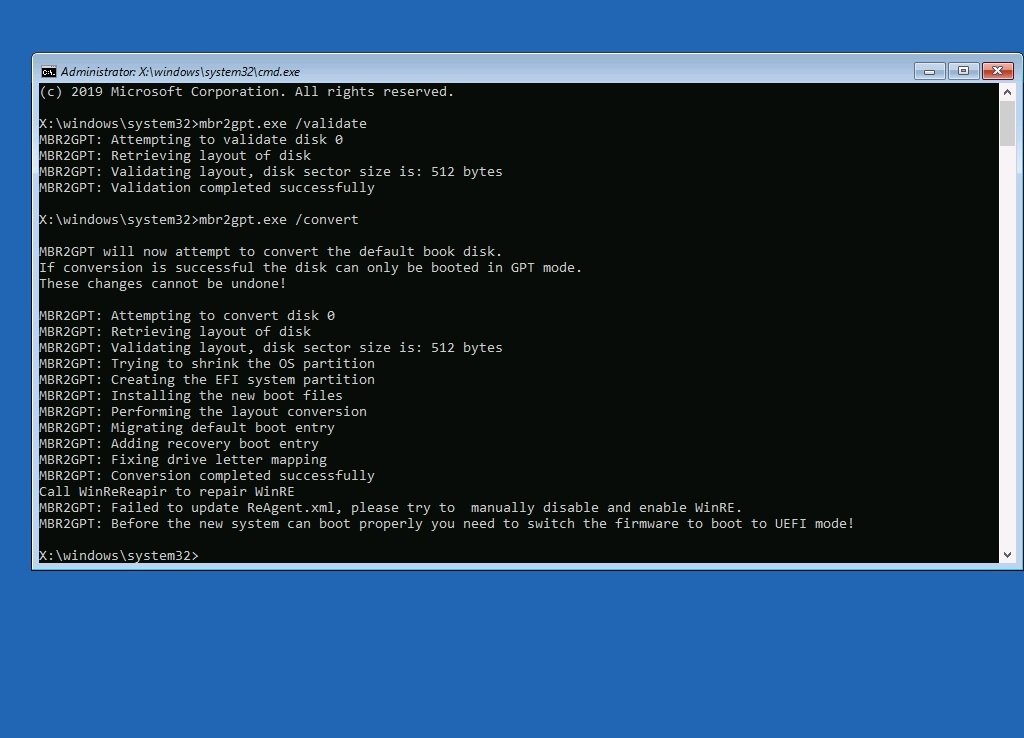
Fastest safe way to convert MBR to GPT for Windows 11
This route keeps Windows, apps and files in place. It runs from inside Windows 10 or Windows 11, so no boot media is needed.
- Back up your files and, ideally, the whole disk to an external drive.
- If the drive uses BitLocker, open Manage BitLocker and turn it off, or suspend it with
manage-bde -protectors -disable C:. - Search for Command Prompt in Start, right-click it and select Run as administrator.
- Run
mbr2gpt /validate /disk:0 /allowFullOSand wait for Validation completed successfully. - Run
mbr2gpt /convert /disk:0 /allowFullOSand wait for Conversion completed successfully. - Restart, open the firmware setup, and change the boot mode from Legacy or CSM to UEFI.
- Turn on Secure Boot in the firmware, save, and boot into Windows.
Replace 0 with your system disk number if Windows is not on disk 0. Leaving /disk out makes MBR2GPT pick the system disk automatically.
Background / overview
MBR and GPT are two ways of recording where partitions sit on a disk. The firmware reads that record first, so the partition style and the boot mode have to match.
| Term | What it means for a Windows 11 upgrade |
|---|---|
| MBR (Master Boot Record) | The older partition style, read by Legacy BIOS firmware at startup |
| GPT (GUID Partition Table) | The partition style introduced with UEFI; the default when Windows initializes a new disk |
| UEFI | The modern firmware interface; Windows 11 needs UEFI firmware that is Secure Boot capable |
| Legacy BIOS / CSM | A compatibility boot mode that only starts Windows from an MBR disk |
| EFI system partition (ESP) | A small FAT32 partition, about 100 MB, that holds the UEFI boot files |
| MBR2GPT.exe | Microsoft's converter in Windows\System32; it changes MBR to GPT without deleting data |
Why MBR vs GPT still matters in 2026
Many PCs that shipped with Windows 7 or early Windows 10 still boot in Legacy mode from an MBR disk. They fail the Windows 11 firmware check even when the hardware is UEFI capable.
| Fact | Why it blocks or allows Windows 11 |
|---|---|
| Windows 11 requires UEFI, Secure Boot capable firmware | A PC booting in Legacy BIOS mode fails this requirement |
| Windows does not boot UEFI from an MBR disk | Switching the firmware to UEFI alone leaves an MBR disk unbootable |
| Secure Boot works only in UEFI mode | Secure Boot cannot be turned on until the disk is GPT and the PC boots UEFI |
| Windows 10 support ended on October 14, 2025 | Older MBR-based Windows 10 PCs now need this conversion to move to Windows 11 |
What MBR is and its practical limits
The MBR sits in the first sector of the disk and stores a small partition table plus the boot code that Legacy BIOS runs.
| MBR limit | Practical effect |
|---|---|
| Four partition table entries | More than four partitions needs an extended partition holding logical drives |
| No volumes larger than 2 TB | Space beyond 2 TB on a large disk cannot be used in one volume |
| One copy of the partition table | Damage to sector 0 can make every partition unreadable |
| Boots only through Legacy BIOS or CSM | Rules out Secure Boot and the Windows 11 firmware requirement |
What GPT is and why Windows 11 requires it
GPT came with the UEFI specification. Windows 11 does not ask for GPT by name; it asks for UEFI, and Windows only boots UEFI from a GPT disk.
| GPT feature | What it gives you |
|---|---|
| Up to 128 partitions in Windows | No extended or logical partitions needed |
| Primary and backup partition tables | A damaged header can be rebuilt from the copy at the end of the disk |
| CRC32 checksums on the header | Corruption is detected instead of read as valid |
| Volumes larger than 2 TB | Large drives are usable as one volume |
| Protective MBR in sector 0 | Old MBR-only tools see one partition instead of an empty disk |
| Required for UEFI boot of Windows | Unlocks UEFI mode, Secure Boot and the Windows 11 firmware check |
Check whether your disk is MBR or GPT
Check before converting. A disk that already shows GPT needs only the firmware change, not MBR2GPT.
| Tool | How to open it | Where the partition style shows |
|---|---|---|
| Disk Management | Right-click Start > Disk Management, or run diskmgmt.msc |
Right-click the disk number > Properties > Volumes tab > Partition style |
| PowerShell | Open PowerShell as administrator and run Get-Disk | ft -Auto |
Partition Style column reads MBR or GPT |
| DiskPart | Run diskpart, then list disk |
An asterisk (*) in the Gpt column means GPT; blank means MBR |
Note the disk number of the Windows disk in the same view. MBR2GPT needs that number for the /disk switch.
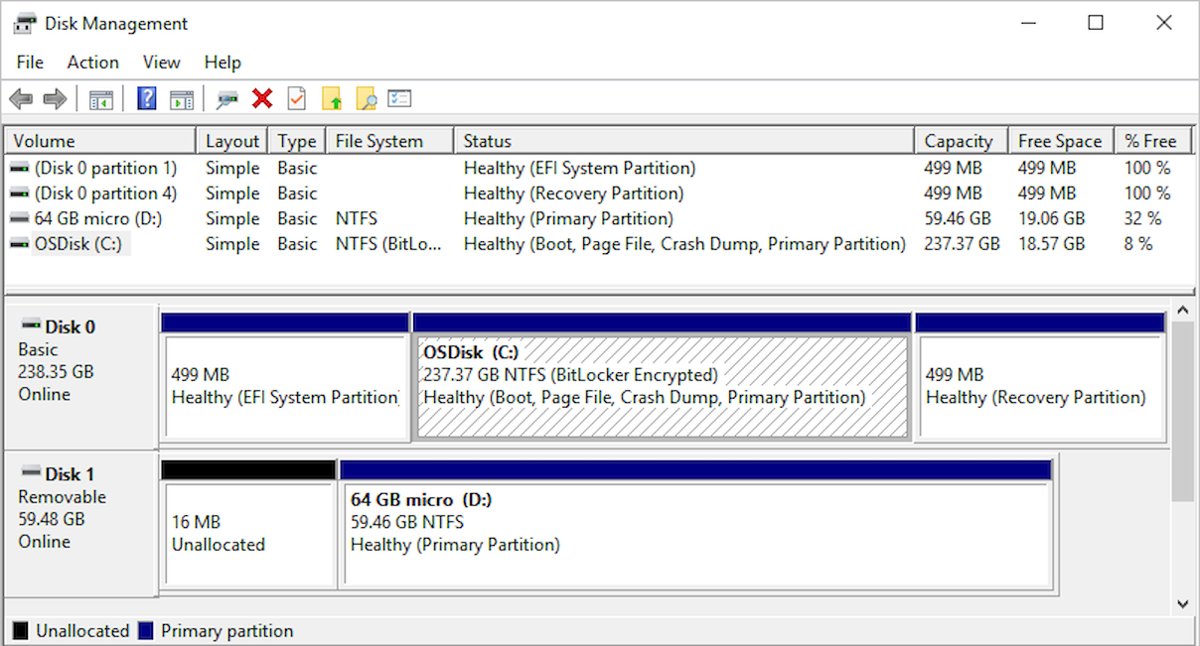
Three ways to convert MBR to GPT — and who they’re for
| Your situation | Use this | Why |
|---|---|---|
| Windows system disk with data you want to keep | B. MBR2GPT | Microsoft-supported, keeps every partition and file |
| Empty disk, a data disk, or a clean Windows 11 install | A. DiskPart clean + convert gpt | Fastest, but erases the whole disk |
| MBR2GPT refuses the layout and you will not reinstall | C. A third-party partition manager | Can edit layouts MBR2GPT rejects; not supported by Microsoft |
| Disk already shows GPT | No conversion | Switch the firmware to UEFI and enable Secure Boot |
A. DiskPart + clean (destructive) — the blunt instrument
DiskPart's convert gpt works only on an empty disk, so clean deletes every partition first. Use it for a data disk or right before a clean install from Windows 11 setup media.
- Copy everything you need off the disk; this method erases all of it.
- Open Command Prompt as administrator, or press Shift + F10 in Windows Setup.
- Type
diskpartand press Enter. - Type
list diskand note the number of the target disk. - Type
select disk 1, replacing1with the target disk number. - Type
cleanto remove all partitions on that disk. - Type
convert gpt, thenexit.
Selecting the wrong disk number wipes the wrong drive. Check the size in list disk before running clean.
B. MBR2GPT (Microsoft’s supported non‑destructive tool)
MBR2GPT converts only the system disk, the one Windows boots from. By default it runs from Windows PE; the /allowFullOS switch lets it run inside Windows, where it shrinks the Windows partition to make a new EFI system partition.
- Confirm the disk is MBR and the PC firmware supports UEFI.
- Back up the disk and turn off or suspend BitLocker.
- Open an elevated Command Prompt in Windows, or a Windows PE command prompt.
- Run the validate command: add
/allowFullOSin Windows, leave it out in Windows PE. - Run the convert command with the same switches.
- Switch the firmware to UEFI before the next boot.
Microsoft does not officially support offline conversion of disks running Windows 7, 8 or 8.1. Upgrade to a supported Windows version first, then convert.
C. Third‑party partition managers (non‑destructive, GUI)
Several partition tools offer a graphical MBR to GPT option. They are not supported by Microsoft, so judge any of them against the points below before letting it rewrite a boot disk.
| Check | Why it matters |
|---|---|
| The vendor documents system-disk conversion, not only data disks | Converting a data disk is easy; making Windows boot afterwards is the hard part |
| It creates an EFI system partition and UEFI boot files | Without them the PC has no UEFI boot entry after the switch |
| Downloaded only from the vendor's own site | Bundled installers from download portals add unwanted software |
| You have a full image backup first | A failed GUI conversion leaves the same broken disk as a failed MBR2GPT run |
The practical, safe playbook — recommended order of operations
Run the five stages in this order. Each one either confirms you can continue or tells you to stop before anything is changed.
| Stage | What you do | Stop if |
|---|---|---|
| 1) Confirm | Check partition style and firmware support | The disk is already GPT, or the PC has no UEFI mode |
| 2) Back up | Image the disk and copy your files | The backup did not finish |
| 3) Convert | Run MBR2GPT validate, then convert | Validation fails |
| 4) Fix layout | Remove the layout problem or reinstall | The disk still fails validation |
| 5) Post-conversion | Switch to UEFI, enable Secure Boot, recheck Windows 11 | Windows does not start in UEFI mode |
1) Confirm the real problem
A failed Windows 11 check is not always an MBR problem. The processor, TPM 2.0 and Secure Boot are separate requirements, and converting the disk fixes none of them.
- Compare the PC against the Windows 11 requirements: UEFI with Secure Boot, TPM 2.0, a supported 64-bit processor, 4 GB RAM and 64 GB storage.
- Open Windows Security > Device security > Security processor details to confirm a TPM is present.
- Check the partition style with
Get-Disk | ft -Auto. - Open the firmware setup and confirm it offers a UEFI boot mode.
- Convert only if the disk is MBR and the firmware supports UEFI.
2) Back up — full system image + user files
MBR2GPT states that its changes cannot be undone. A full disk image is the only way back if the conversion or the first UEFI boot fails.
- Connect an external drive with enough free space for the whole Windows disk.
- Create a full system image of the disk with the imaging tool you trust.
- Copy your personal folders separately, or sync them with Windows Backup or OneDrive.
- Create a Windows recovery drive by searching Recovery Drive in Start.
- Save your BitLocker recovery key somewhere that is not on this PC.
3) Try Microsoft’s MBR2GPT first (if the disk is the system disk and meets prerequisites)
MBR2GPT checks the disk before it writes anything. Validation fails, and nothing changes, unless every condition in the table holds.
| MBR2GPT prerequisite | How to meet it |
|---|---|
| Disk uses MBR | Confirm in Disk Management or Get-Disk |
| At most three primary partitions | Delete or merge an extra partition you do not need |
| No extended or logical partitions | Move data off logical drives and delete them |
| One active partition that is the system partition | Normal for a standard Windows install |
| Free space for the GPT tables: 16 KB + 2 sectors at the front, 16 KB + 1 sector at the end | Shrink the last partition slightly in Disk Management |
| A default OS entry in the BCD store | Run Startup Repair if Windows boot entries are damaged |
All partition types recognized by Windows, or mapped with /map |
Map unknown types or remove those partitions |
| BitLocker protection suspended | Suspend or turn off BitLocker first |
4) If MBR2GPT can’t run because of layout constraints
Read setupact.log and setuperr.log in %windir%, or the folder named with /logs, to see which check failed. Then pick the matching fix.
| Layout problem | Fix | Data risk |
|---|---|---|
| Four primary partitions | Back up and delete an unneeded partition, such as an old OEM tools partition | Low, if you remove only that partition |
| Extended partition with logical drives | Copy their data off, delete the logical drives and the extended partition | Medium |
| No unallocated space at the end of the disk | Shrink the last volume by a few MB in Disk Management | Low |
| Unrecognized partition type, such as a Linux partition | Use /map:<type>=<GPT GUID> or remove the partition |
Depends on the partition |
| Layout cannot be fixed | Back up files and clean install Windows 11 in UEFI mode | High; the disk is wiped |
5) Post-conversion: enable UEFI, Secure Boot, and validate Windows 11 readiness
MBR2GPT ends with a reminder to switch the firmware to UEFI. Until you do, the PC tries Legacy boot and finds no boot code.
- Restart and press the firmware key shown at startup, commonly Esc, Delete, F1, F2, F10, F11 or F12.
- Set the boot mode to UEFI and turn off CSM or Legacy support if the firmware lists it.
- Save, exit, and confirm Windows starts.
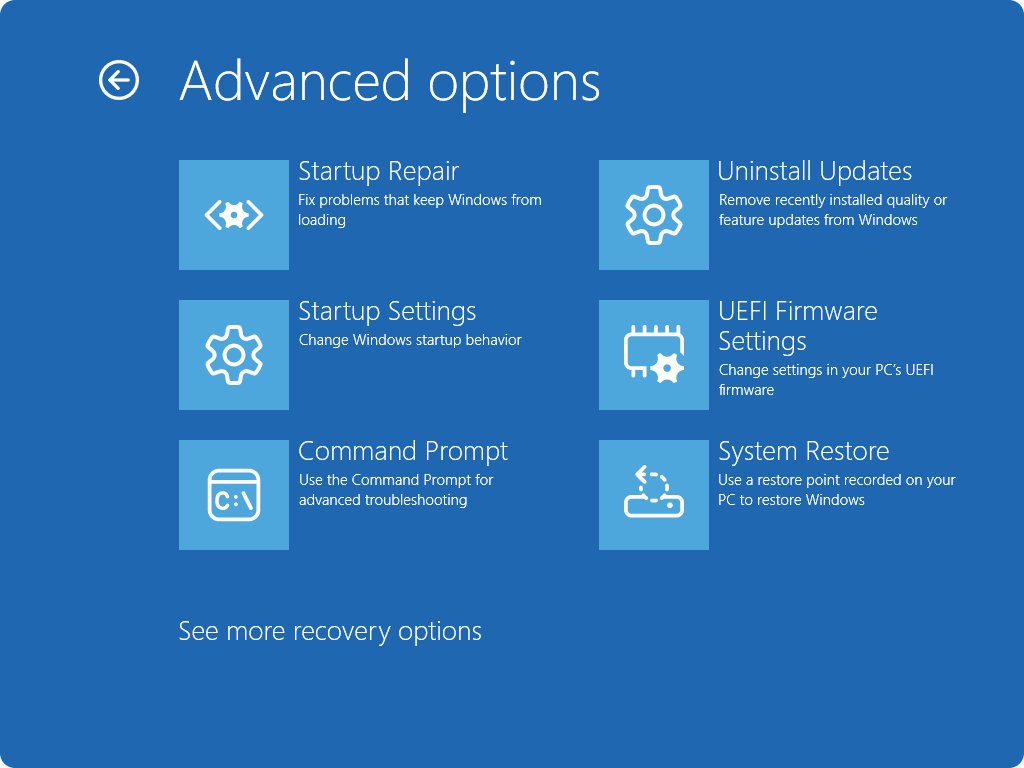
- Return to the firmware through Settings > System > Recovery > Advanced startup > Restart now > Troubleshoot > Advanced options > UEFI Firmware Settings.
- Set Secure Boot to Enabled, usually on the Security, Boot or Authentication tab, then save.
- Recheck the Windows 11 requirements; the firmware line now reads UEFI with Secure Boot.
If BitLocker was turned off, turn it back on with Turn on BitLocker after Windows boots in UEFI mode. If it was only suspended, Microsoft says the existing protectors must be deleted and recreated.
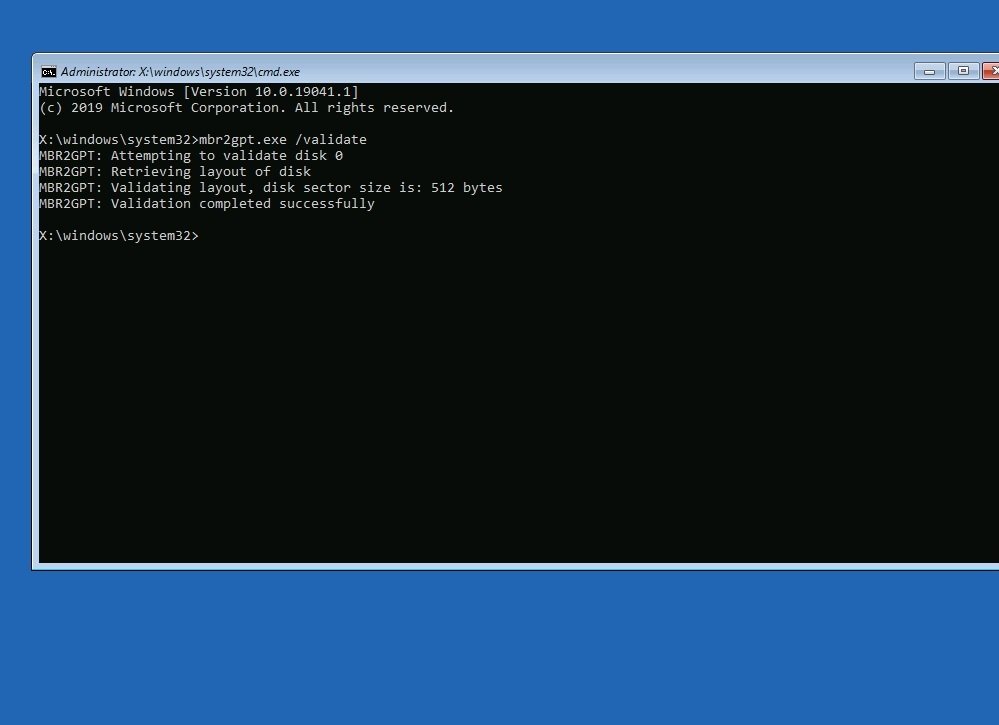
Step‑by‑step: Using MBR2GPT (concise commands and what they do)
mbr2gpt /validate /disk:0 /allowFullOSchecks disk 0 and reports whether it can convert, without changing anything.mbr2gpt /convert /disk:0 /allowFullOSvalidates again, then creates the EFI system partition, installs UEFI boot files, writes GPT and updates the BCD store.mbr2gpt /validate /disk:0andmbr2gpt /convert /disk:0are the same commands for a Windows PE prompt, where/allowFullOSis not needed./logs:D:\mbrlogswrites logs to an existing folder instead of%windir%; the folder must already exist./map:42={af9b60a0-1431-4f62-bc68-3311714a69ad}maps MBR type 42 to a GPT type GUID; repeat/mapfor each extra type.mbr2gpt /?lists every option.
Each MBR partition gets a GPT type during conversion: type 0x27 becomes a Microsoft recovery partition, and other recognized types become basic data partitions. Drive letters are remapped automatically and any that fail are reported.
Confirm the MBR to GPT conversion worked
- Check that MBR2GPT printed Conversion completed successfully and returned code
0. - Run
Get-Disk | ft -Autoand confirm Partition Style now reads GPT. - Open DiskPart, run
list disk, and confirm an asterisk in the Gpt column. - In Disk Management, look for a new 100 MB FAT32 partition (260 MB on 4K-sector disks) when MBR2GPT ran inside Windows.
- Confirm Windows boots with the firmware set to UEFI and Secure Boot enabled.
About “one‑click” converters and claims that conversion bypasses TPM
Treat any claim that converting MBR to GPT bypasses the TPM requirement as false. Partition style, UEFI boot, Secure Boot and TPM 2.0 are separate Windows 11 requirements. Converting the disk satisfies only the UEFI side; a PC without TPM 2.0 still fails. A one-click converter does the same layout change as MBR2GPT and still needs a backup and the firmware switch.
Troubleshooting and the safety net
MBR2GPT reports a return code after each run. Match the code or the symptom below, and keep the image backup and recovery drive ready until Windows boots in UEFI mode.
MBR2GPT returns 7: disk layout does not meet requirements
Too many primary partitions, a logical drive, an unknown partition type, or no free space for the GPT tables.
- Open
setupact.login%windir%and find the failed check. - Apply the matching fix from the layout table above.
- Run
mbr2gpt /validateagain before converting.
MBR2GPT returns 6: one or more volumes are encrypted
BitLocker protection is still active on a volume of the disk.
- Run
manage-bde -statusto find the protected volume. - Suspend it with
manage-bde -protectors -disable C:or turn BitLocker off. - Run the conversion again.
MBR2GPT is blocked inside Windows
The tool runs only from Windows PE unless told otherwise.
- Add
/allowFullOSto both the validate and convert commands. - Run the command from an elevated Command Prompt.
PC will not boot after conversion
The firmware is still set to Legacy BIOS or CSM.
- Open the firmware setup with the startup key.
- Set the boot mode to UEFI.
- Save and restart; if it still fails, boot the recovery drive and run Startup Repair.
Return code 100: some boot entries could not be restored
The GPT layout succeeded but part of the BCD store did not migrate.
- Switch the firmware to UEFI and try booting.
- If Windows does not start, boot recovery media and run Startup Repair.
Old System Reserved partition shows a drive letter
When MBR2GPT creates a new EFI partition, the old MBR system partition is no longer used and may get a letter.
- Open Disk Management.
- Right-click the small old partition and remove its drive letter so it stays hidden.
BitLocker asks for the recovery key after the firmware change
Changing the boot mode alters the boot measurements BitLocker checks.
- Enter the 48-digit recovery key you saved before converting.
- Once in Windows, delete and recreate the BitLocker protectors, or turn BitLocker off and on again.
Recommendations for converting MBR to GPT on your own PC
Pick the row that matches your PC; every route still starts with a full backup.
| If your PC is | Do this |
|---|---|
| A standard single-disk Windows 10 or 11 install that passes validation | Run MBR2GPT with /allowFullOS, then switch to UEFI |
| Failing validation because of an extra partition | Remove that partition after a backup, then run MBR2GPT |
| Dual-booting Linux or another OS from the same disk | Map or remove the foreign partitions first, or reinstall both systems in UEFI mode |
| Already heading for a clean install | Skip conversion; let Windows 11 setup partition the disk as GPT in UEFI mode |
| Without TPM 2.0 or a supported CPU | Fix that first; conversion alone does not make the PC eligible |
Strengths, risks, and final verdict
| Strengths of MBR2GPT | Risks to plan for |
|---|---|
| Built into Windows; nothing to download | Changes cannot be undone once the layout is written |
| Keeps partitions, apps and files | The PC will not boot until the firmware is switched to UEFI |
| Validates the disk before touching it | BitLocker must be suspended and protectors recreated afterwards |
| Return codes and logs explain failures | Unusual layouts fail validation and need manual work |
MBR to GPT quick reference commands (copy/paste)
| Task | Command |
|---|---|
| Show partition style | Get-Disk | ft -Auto |
| Check BitLocker status | manage-bde -status |
| Suspend BitLocker on C: | manage-bde -protectors -disable C: |
| Validate inside Windows | mbr2gpt /validate /disk:0 /allowFullOS |
| Convert inside Windows | mbr2gpt /convert /disk:0 /allowFullOS |
| Validate in Windows PE | mbr2gpt /validate /disk:0 |
| Convert in Windows PE | mbr2gpt /convert /disk:0 |
| Wipe and convert an empty disk (destructive) | diskpart > select disk 1 > clean > convert gpt |
MBR to GPT conversion FAQ
Does converting MBR to GPT delete data?
Not with MBR2GPT. Microsoft's tool converts the system disk without modifying or deleting the data on it. DiskPart's convert gpt is different: it only works on an empty disk, so the clean command must erase every partition first.
Can I convert MBR to GPT without reinstalling Windows?
Yes. Run mbr2gpt /convert with /allowFullOS from inside Windows, or without it from Windows PE. Windows, apps and files stay in place, and you then switch the firmware from Legacy BIOS to UEFI so the converted disk can boot.
Does Windows 11 need GPT?
Windows 11 needs UEFI firmware that is Secure Boot capable, and Windows boots in UEFI mode only from a GPT disk. In practice, a Windows 11 system disk must therefore be GPT once the PC boots the way Microsoft requires.
Can MBR2GPT convert a data disk?
No. MBR2GPT converts only system disks, the disk Windows boots from. For a second drive, back up its files, then use Disk Management or DiskPart to delete its partitions and convert the empty disk to GPT.
What happens if I do not switch the BIOS to UEFI after converting?
The PC will not start Windows. MBR2GPT replaces the MBR boot path with UEFI boot files on an EFI system partition, so firmware still set to Legacy or CSM finds nothing to boot until you change the boot mode to UEFI.
Can I convert GPT back to MBR?
Not without erasing the disk. MBR2GPT works only in one direction and warns that its changes cannot be undone. Going back means restoring the full disk image you took before converting, or wiping the disk and reinstalling.
Do I need to turn off BitLocker before running MBR2GPT?
Protection must at least be suspended, or MBR2GPT stops with return code 6. Suspend it with manage-bde -protectors -disable C:. After conversion, Microsoft says the existing protectors must be deleted and recreated before BitLocker protection resumes.
Does converting to GPT fix the TPM 2.0 requirement?
No. The disk conversion only lets the PC boot in UEFI mode with Secure Boot. TPM 2.0 is a separate hardware requirement, checked in Windows Security under Device security, and a disk conversion cannot add one.
Final verdict on converting MBR to GPT for Windows 11
Use MBR2GPT for a Windows system disk, after a full image backup, and switch the firmware to UEFI with Secure Boot right after it finishes. It is the only Microsoft-supported method that keeps your data, it refuses to run on layouts it cannot convert, and its logs and return codes show exactly what to fix. DiskPart's clean route is for empty disks and clean installs only.