A screen protector that covers the front speaker muffles call audio, and Apple's own fix is to remove the protector, check the receiver opening and clean it with a soft, dry brush.
This guide covers how to confirm the protector is the cause, how to clean the front speaker safely, how to fit a replacement that leaves the opening clear, and what to check when calls still sound quiet.
Fix a screen protector covering the front speaker
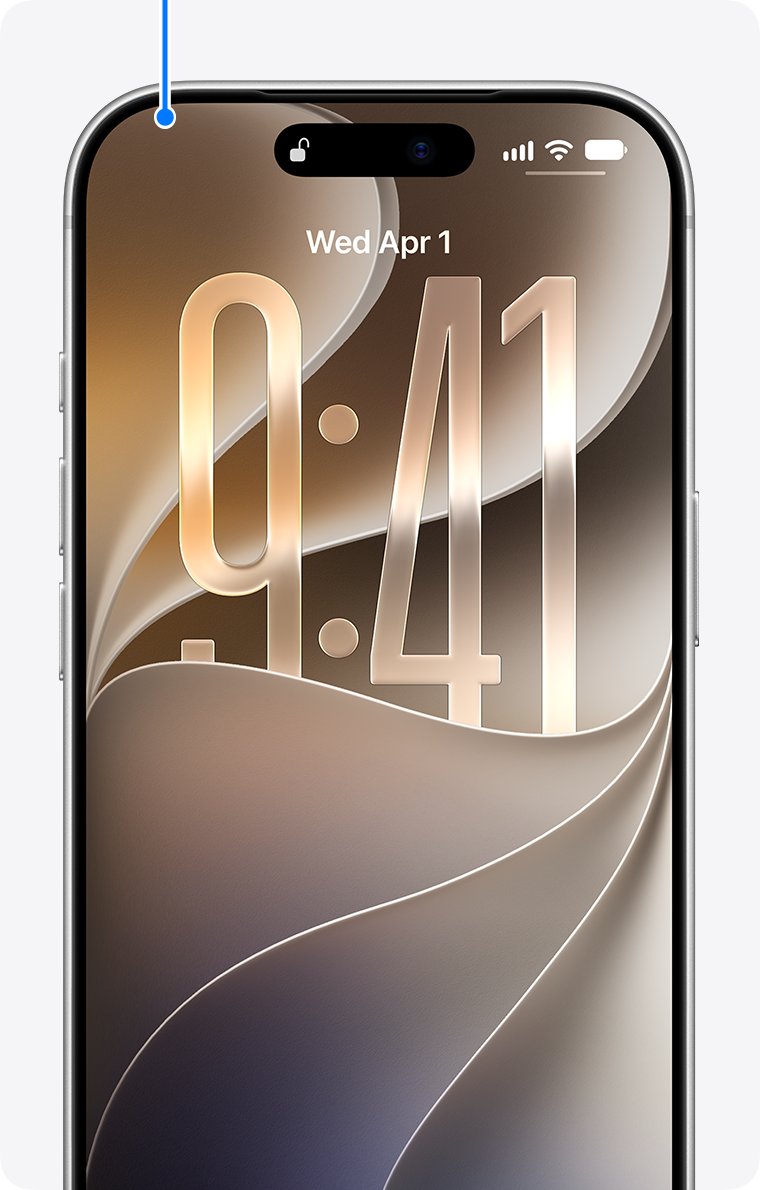
On iPhone, Apple calls the front speaker the receiver. It is the slot at the top of the display that you hold to your ear on a call.
- Take the iPhone out of its case.
- Peel the screen protector off, starting from a corner, and set it aside if you want to test it again.
- Look at the receiver opening at the top of the display and check that it is not blocked or dirty.
- Brush the opening gently with a small, soft-bristled brush that is clean and dry.
- Make a phone call and listen through the receiver.
- If the caller sounds clear now, fit a protector with a speaker cutout that lines up with the receiver.
Apple lists removing screen protectors, films and cases as one of the first steps for any iPhone sound problem, so do not skip it even if the protector looks well aligned.
Where the front speaker is on iPhone
Two openings handle call audio on iPhone, and a screen protector can only reach one of them.
| Opening | Where it is | What it plays | Can a screen protector cover it? |
|---|---|---|---|
| Receiver (front speaker) | Top edge of the display | The caller's voice when the iPhone is at your ear | Yes, if the protector has no cutout or sits too high |
| Bottom speaker | Bottom edge of the iPhone | Ringtones, alerts, media and speakerphone | No, but a case can |
| Microphones | Bottom and top of the iPhone | Your voice on calls and in recordings | Films and cases can block them |
| TrueDepth camera | Top of the display, next to the receiver | Face ID and selfies | Yes, and it stops Face ID working |
Test if the screen protector is blocking the earpiece
Run the same call twice, once with the protector and once without it, so you compare like with like.
- Turn off Silent mode and make sure Do Not Disturb is off in Settings > Focus.
- Call someone you can talk to for a minute, with the protector still on.
- Raise the call volume with the volume up button and note how the caller sounds.
- End the call and remove the screen protector and the case.
- Call the same person from the same spot and compare the sound.
- Turn on speakerphone during the call; if speakerphone is also faint or crackly, the problem is the network or reception, not the protector.
If the caller sounds clearer without the protector, the protector is the cause. If nothing changes, move on to cleaning the opening.
Clean the front speaker opening on iPhone
Adhesive dust, lint and skin oil collect around a protector's edge and can settle into the receiver mesh.
- Unplug all cables and turn the iPhone off.
- Brush across the receiver opening with a small, soft-bristled brush that is clean and dry.
- Wipe the glass around the opening with a soft, slightly damp, lint-free cloth such as a lens cloth.
- Keep moisture out of the opening, and do not use compressed air, aerosol sprays, solvents or abrasives.
- Turn the iPhone back on and make a test call.
The front glass has an oleophobic coating, and abrasive materials wear it down and can scratch the glass. A dry soft brush is the right tool for the speaker mesh.
Screen protector with speaker cutout: how to fit it
A protector made for your iPhone model should leave the receiver and the TrueDepth camera clear. One that covers them is the wrong model or is fitted off-centre.
- Buy a protector made for your exact iPhone model, because screen sizes and the receiver position differ between models.
- Check the product photos or packaging for a cutout or open strip over the receiver.
- Clean the display with a soft, lint-free cloth before you apply it.
- Line up the cutout with the receiver first, then lower the rest of the protector onto the glass.
- Press out bubbles from the centre towards the edges.
- Check from the side that no film or adhesive sits over the receiver slot, then make a test call.
If the protector shifts or lifts at the top edge over time, replace it, because a lifted or bubbled protector can also leave the iPhone touch screen unresponsive.
Does a screen protector affect the front camera and Face ID?
Yes. The TrueDepth camera sits beside the receiver, so a protector that blocks one often blocks both.
| What the protector covers | Effect | Fix |
|---|---|---|
| Receiver (front speaker) | Muffled or quiet caller voice | Remove it, clean the opening, fit a protector with a cutout |
| TrueDepth camera | Face ID fails or keeps asking for the passcode | Remove screen protectors that cover the TrueDepth camera |
| Front camera lens with smudged adhesive | Hazy selfies and video calls | Clean the glass with a lint-free cloth or replace the protector |
| Nothing at the top edge | No effect on sound or Face ID | Look for a case blocking the bottom speaker or microphones instead |
Test iPhone call audio after removing the screen protector
- Open Settings > Sounds & Haptics and drag the Ringtone and Alerts slider back and forth to confirm the bottom speaker plays sound.
- Make a normal call and hold the iPhone to your ear to test the receiver.
- Turn on speakerphone during the same call and confirm the caller is clear there too.
- Ask the caller whether they hear you clearly, which confirms the microphones are not blocked.
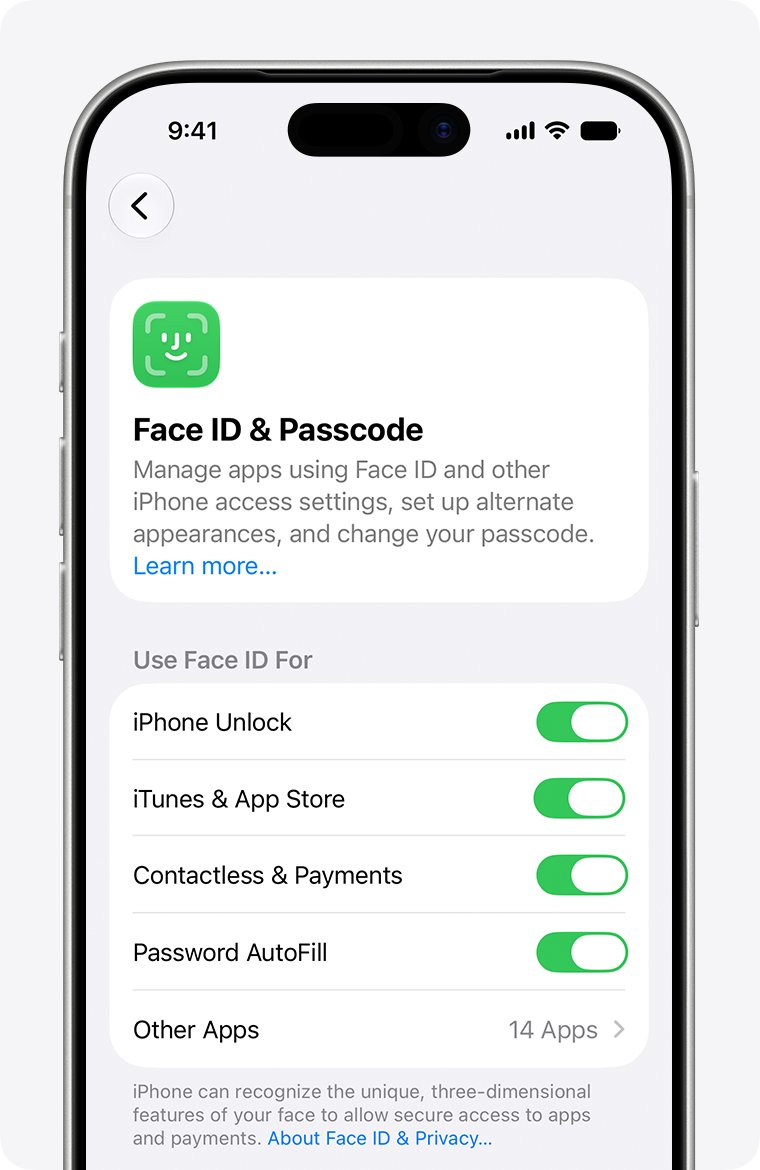
- Unlock with Face ID to confirm the TrueDepth camera is clear.
If the slider shows a dimmed speaker button or you hear nothing at all, the speaker needs service rather than cleaning.
iPhone front speaker quiet after a screen protector
Call audio is muffled after fitting a new screen protector
The protector has no receiver cutout or sits too high on the display.
- Remove the protector and make a test call.
- If the sound is clear, replace it with a model-specific protector that has a receiver cutout.
- Line the cutout up with the receiver before laying down the rest of the film.
The caller is still quiet with the screen protector removed
Debris or adhesive in the receiver opening, or a setting that silences sound.
- Turn off Silent mode and Do Not Disturb.
- Clean the receiver opening with a soft, dry brush.
- Raise the volume with the volume up button during a call.
- Restart the iPhone and call again.
Static or crackling on calls
Poor network reception, which a screen protector does not cause.
- Turn on speakerphone during the call to compare.
- If speakerphone also crackles, call again later or from a different location.
- If only the receiver crackles after cleaning, arrange service.
People cannot hear you after fitting a protector or case
A film or case is covering one of the microphones.
- Remove the screen protector, films and case.
- Clear debris from the openings at the top and bottom.
- Record a short memo in Voice Memos while speaking at the bottom of the iPhone and play it back.
Face ID stopped working after fitting a screen protector
The protector covers the TrueDepth camera next to the receiver.
- Remove anything covering the TrueDepth camera, including the protector and smudges.
- Hold the iPhone at arm's length or closer, about 10 to 20 inches from your face.
- Try Face ID again, and fit a protector that leaves the camera area clear.
Screen protector and iPhone front speaker FAQ
Can a screen protector cover the front speaker?
Yes. A protector without a receiver cutout, or one fitted too high, sits over the front speaker and muffles the caller's voice. Remove it and make a test call; if the sound clears, use a model-specific protector with a cutout.
Does a screen protector affect the front camera?
It can. On iPhone, a protector that covers the TrueDepth camera at the top of the display stops Face ID from working and can blur selfies. Apple's fix is to remove screen protectors that cover the TrueDepth camera.
Does my screen have speakers?
On iPhone, the front speaker, called the receiver, is the slot at the top edge of the display. It plays the caller's voice when you hold the iPhone to your ear. The bottom speaker handles ringtones, media and speakerphone.
What does a screen protector do?
A screen protector is a thin film or glass layer that sits on top of the display to take scratches and minor impacts instead of the screen. A good one leaves cutouts for the front speaker and the front camera.
What is a screen protector?
A screen protector is an add-on sheet of plastic film or tempered glass that sticks to a phone's display. It protects the glass surface, and model-specific versions are cut to match the phone's speaker, camera and sensor positions.
Do screen protectors work?
Screen protectors take surface scratches and some impacts in place of the display. They only cause problems when they cover the receiver or TrueDepth camera, so fit one made for your exact model with the cutouts aligned.
How do I clean the front speaker on my iPhone?
Turn off the iPhone and gently brush the receiver opening with a small, soft-bristled brush that is clean and dry. Keep moisture out of the opening and avoid compressed air, sprays, solvents and abrasives.
Should speaker covers stay on or off?
On an iPhone, nothing should cover the front speaker. A screen protector or film over the receiver reduces call volume, so keep the opening clear and remove any protector that blocks it.