To fix Windows 11 26H2 not detecting a USB drive, plug it into a port directly on the PC with a different cable, then open Disk Management, select Action > Rescan Disks, and give the drive a letter if it has none.
This guide covers what each symptom means, the Disk Management and Device Manager fixes, driver updates, and whether the Windows 11 26H2 update itself has a known USB storage problem.
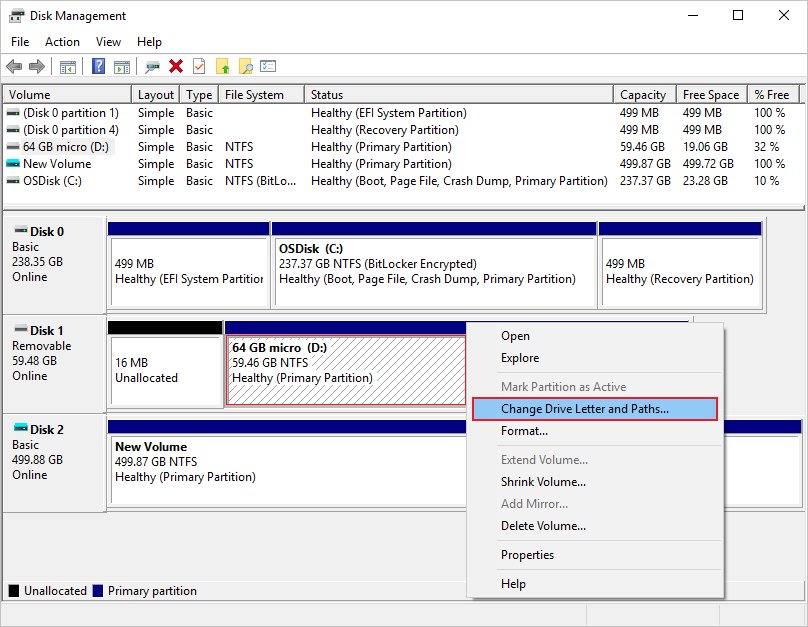
The fastest way to get a USB drive detected again
A USB stick that isn't recognized is usually down to the port, the cable, a missing drive letter or a driver, and it is often fixed in a few simple steps. Microsoft's own disk troubleshooting starts with the same physical checks, because USB hubs and some ports do not supply enough power.
- Unplug the USB drive and plug it into a port directly on the PC, not a hub, dock or keyboard port.
- Swap the cable if the drive uses a separate one.
- Right-click the Start button and select Disk Management.
- Select Action > Rescan Disks and look for the drive in the lower pane.
- If the drive shows a healthy partition with no letter, right-click it, select Change Drive Letter and Paths, select Add, pick a letter and select OK.
- Open File Explorer and check that the drive now appears under This PC.
If the drive does not appear in Disk Management at all, the problem sits below the file system: the device, its driver or the port. The sections below cover each case.
What happens when the USB drive doesn’t work?
Where the drive shows up, and with what status, tells you which fix to use. Check File Explorer, then Disk Management, then Device Manager, and match what you see to a row.
| What you see | What it means | Where to fix it |
|---|---|---|
| Nothing happens when you plug the drive in | The port, cable or drive is not making a connection, or the drive is failing | Another port and cable, then another PC |
| USB device not recognized notification | The device reported a problem, or its driver has one | Device Manager error code |
| USB device might need more power notification | The PC cannot supply enough power, often on battery or with other USB devices attached | External power, fewer devices, PC on mains power |
| Drive in Disk Management but not in File Explorer | The partition has no drive letter | Change Drive Letter and Paths |
| Disk shows Offline | Windows has taken the disk offline | Right-click the disk and select Online |
| Disk shows Not Initialized | No valid disk signature: a new disk, or corrupted formatting | Initialize only if the drive is empty |
| Partition shows RAW | No readable file system | Format only if you do not need the files |
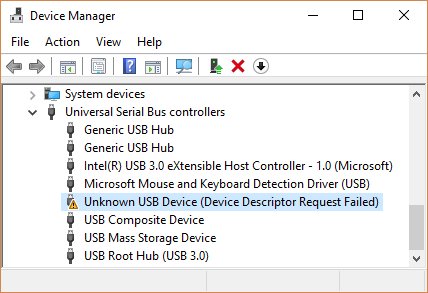
| Yellow exclamation mark in Device Manager | A driver or device error with a numbered code | Device status in the device's Properties |
| Drive blocked on a work or school PC | An IT policy can prevent USB storage devices from installing | Your IT department |
How to fix a USB drive not working in Windows 11
The drive appears in Disk Management but has no drive letter
The partition has a file system but Windows has not assigned it a letter, so File Explorer does not list it.
- Right-click the Start button and select Disk Management.
- Right-click the drive's partition and select Change Drive Letter and Paths.
- Select Add, choose a free letter, and select OK.
- Open File Explorer and check the drive under This PC.
The disk shows as Offline
Windows has set the disk offline, so none of its volumes are available.
- In Disk Management, right-click the disk label on the left, marked Offline.
- Select Online.
- Check that its partition now shows Healthy and has a drive letter.
The disk shows as Not Initialized
The disk has no valid signature, either because it is new or because its formatting is corrupted. Initializing erases everything on it.
- If the drive holds files you need, stop here and try another PC first; initializing erases all data.
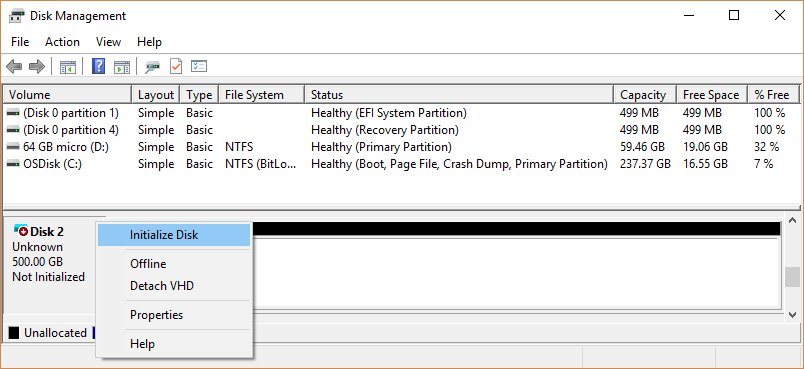
- If the drive is new or empty, right-click the disk and select Initialize Disk.
- Confirm the correct disk is selected, keep the default GPT partition style unless you need MBR, and select OK.
- Right-click the unallocated space, select New Simple Volume, and follow the wizard to format it and assign a letter.
The partition shows as RAW
Windows cannot read a file system on the partition, which points to corruption or a failing drive.
- If you need the files, do not format; try the drive on another PC first.
- If the drive is empty or the files are expendable, right-click the partition and select Format.
- Choose a file system such as NTFS or exFAT and select OK.
- Check that the drive appears in File Explorer.
"USB device not recognized" or a yellow mark in Device Manager
The USB device reported a problem, or there is a problem with its driver.
- Select Start, type
device managerand open Device Manager. - Find the device marked with a yellow exclamation point; a USB flash drive is listed under Disk drives.
- Right-click it, select Properties, and read the code under Device status.
- Right-click the device, select Uninstall device, and confirm.
- Select Action > Scan for hardware changes to let Windows reinstall it.
"USB device might need more power"
The PC is limiting power because it is on battery, is powering other devices, or the drive needs more than the port can give.
- Plug the PC into mains power instead of running on battery.
- Disconnect USB devices you are not using.
- Connect the drive's own power supply if it has one.
- Move the drive from a hub to a port directly on the PC.
The drive does not appear anywhere, on any port
The most common reason a disk goes missing is that the disk itself is failing.
- Shut down the PC, switch off the drive if it has a power switch, then turn both back on.
- Try the drive with a different cable.
- Plug the drive into a different PC.
- If it fails there too, the drive is at fault; contact the drive's maker rather than changing Windows settings.
USB drives are blocked on a work or school PC
Administrators can use Device Installation policies to prevent USB thumb drives and other removable storage from installing.
- Try the same drive on a personal PC to confirm the drive itself works.
- Ask your IT department whether removable storage is restricted on the managed PC.
- Do not try to work around the policy; administrators can allow approved devices that match specific device IDs.
Reinstall or roll back the USB driver in Device Manager
Most USB flash drives use the drivers built into Windows and need no maker's driver. Reinstalling the device clears a damaged driver setup, and rolling back undoes a driver update that arrived with or after the 26H2 update.
- Save your work and close open apps.
- Right-click the Start button and select Device Manager.
- Expand Disk drives, or the category showing a yellow exclamation point, and right-click the affected device.
- To roll back, select Properties, open the Driver tab, select Roll Back Driver, choose a reason and select Yes.
- To reinstall instead, select Uninstall device and confirm in the Uninstall Device window.
- Restart from Start > Shut down or sign out > Restart; Windows reinstalls the driver automatically.
Roll Back Driver applies only when a recent driver update was installed for that device; otherwise, you can update USB drivers on Windows 11 manually.
Install optional driver updates from Windows Update
Windows Update installs recommended drivers on its own, but optional driver updates are never installed automatically. They wait on a separate page until you choose them.
- Select Start > Settings > Windows Update > Advanced options.
- Turn on Receive updates for other Microsoft products.
- Under Additional options, select Optional updates.
- Select any driver updates listed and select Download and install.
- Restart the PC from Start > Shut down or sign out > Restart, even if no update asks for it.
- Plug the USB drive back in and check Disk Management.
If Windows Update has nothing for the device, get the driver from the PC or drive maker's own website. Microsoft advises against downloading drivers from any other site.
Is this a Windows 11 26H2 bug?
As of 30 September 2026, Microsoft's 26H2 release health page lists no known issue with USB flash drives or external disks. The one USB issue listed affects USB audio devices, not storage.
| Known 26H2 issue | What fails | Status (30 Sep 2026) |
|---|---|---|
| USB audio devices might fail to start or produce no sound | Some USB Audio Class 1.0 devices show Code 10 in Device Manager, or play no sound, after the 8 September update | Mitigated; Microsoft plans a fix in a future update |
| Domain-joined devices might lose their trust relationship | Sign-in with domain credentials on some Credential Guard machines | Mitigated, with a workaround |
| Black screen or desktop loading issues after sign-in | Desktop sessions, mainly on Azure Virtual Desktop | Mitigated, with a workaround |
A USB headset or audio interface showing Code 10 matches the audio issue, and the 26H2 audio driver fixes apply there. The USB audio problem traces back to the September 2026 update, so it also affects 25H2 and 24H2.
Microsoft updates the list as new reports arrive; the 26H2 known issues and fixes track each one.
How to check the USB drive is detected
- Open File Explorer and confirm the drive is listed under This PC with a drive letter.
- Open the drive and copy a small file to it, then open that file from the drive.
- In Disk Management, confirm the disk shows Online and its partition shows Healthy.
- In Device Manager, confirm the drive appears under Disk drives with no yellow exclamation point.
- Unplug the drive, plug it back in, and check that it reappears without any rescan.
Video guide and official Microsoft help pages
Microsoft publishes a video guide to reinstalling, rolling back and updating drivers on its Device Manager support page. The other pages below are the official references behind the fixes in this article.
- Update drivers through Device Manager in Windows — Includes Microsoft's video guide to reinstalling, rolling back and updating a driver.
- Troubleshoot Disk Management — Missing, Offline, Not Initialized and RAW disks, step by step.
- Error codes in Device Manager in Windows — What each numbered code means and how to clear it.
- Fix USB-C problems in Windows — Every USB notification Windows shows, with causes and fixes.
- Windows 11, version 26H2 known issues and notifications — Microsoft's live list of confirmed 26H2 problems.
Frequently asked questions
Why is Windows 11 26H2 not detecting my USB drive?
The usual causes are a port or hub that cannot power the drive, a faulty cable, a partition with no drive letter, an offline disk, or a driver error. Microsoft lists no 26H2 known issue with USB storage as of 30 September 2026, so check the hardware and Disk Management first.
Did the 26H2 update break USB drives?
Not according to Microsoft's release health page, which on 30 September 2026 listed no USB storage issue for 26H2. The only USB problem listed affects some USB Audio Class 1.0 devices, which can show Code 10 after the 8 September update on 26H2 and earlier versions.
Why does my USB drive show in Disk Management but not in File Explorer?
The partition most likely has no drive letter. Right-click it in Disk Management, select Change Drive Letter and Paths, select Add, pick a letter and select OK. The drive then appears under This PC in File Explorer.
Will initializing a USB drive erase my files?
Yes. Initializing a disk erases all data on it, so only initialize a drive that is new or empty. If a drive with files shows Not Initialized, try it on another PC first, because the disk signature or the drive itself may be damaged.
Why does my USB drive show as RAW?
RAW means Windows cannot read a file system on the partition, which usually points to corruption or a failing drive. Formatting fixes the RAW status but erases the data, so try the drive on another PC before you format it.
Can a USB hub stop Windows 11 from detecting a drive?
Yes. Microsoft notes that USB disks sometimes do not get enough power from some ports, and that this is especially common with USB hubs. Plug the drive into a port directly on the PC, and use the drive's own power supply if it has one.
What does Code 10 mean for a USB device after installing 26H2?
Code 10 means the device cannot start. On a USB audio device, it matches a known issue Microsoft has mitigated. On a USB drive, uninstall the device in Device Manager, then select Action > Scan for hardware changes so Windows reinstalls the driver.
Should I uninstall 26H2 if my USB drive stopped working?
Only after the drive fails on every port and cable but works on another PC or on a PC still running 25H2. Try Disk Management, a driver rollback and optional driver updates first. If you still need to go back, follow the steps to safely uninstall 26H2.



How to install Windows 11 26H2 without USB using ISO - Techdows
[…] Detection problems specific to this release are covered in 26H2 not detecting USB drives. […]
Windows 11 26H2 Ethernet driver problems: how to fix - Techdows
[…] a USB to Ethernet adapter never appears at all, the port may be the problem; the 26H2 USB detection fixes cover that […]
How to fix second monitor not detected in Windows - Techdows
[…] or a USB-C adapter that adds an output. If the dock's USB ports also stop seeing storage, fix USB drives not detected on the same PC before blaming the […]