A black cmd.exe window on startup means a startup app, Startup folder shortcut, scheduled task or service is launching Command Prompt, so turn off the entry that starts it.
This guide covers each of those locations, a clean boot to isolate the cause, a malware scan, and the related problems of a blank white window, a missing Startup tab and Discord launching at sign-in.
Command Prompt cmd.exe keeps popping up on startup
Start with the startup list, because it is the quickest place to check and the change is easy to reverse. You can also disable startup programs from Task Manager if you prefer.
- Select Start, then Settings, then Apps, then Startup.
- Note which apps are set to On, so you can restore them later.
- Set any app you do not recognize or need at sign-in to Off.
- Restart the PC and sign in.
- Wait a minute or two. If the window does not appear, the entry you turned off was the cause.
If the window still appears, the entry is somewhere this list does not show. Work through the sections below in order.
Why does my CMD randomly pop up on startup?
The window itself is the command interpreter, cmd.exe. It only opens because something else starts it, so the fix is always to find that something.
| What starts cmd.exe | When it runs | Where to check |
|---|---|---|
| Startup app | At sign-in | Settings > Apps > Startup, or the Startup apps tab in Task Manager |
| Startup folder shortcut | At sign-in | shell:startup and shell:common startup in the Run box |
| Run or RunOnce registry value | At sign-in | Autoruns, or the registry keys listed further down this page |
| Scheduled task | At sign-in or on a timer, which can look random | schtasks /query /fo LIST /v, or Task Scheduler |
| Non-Microsoft service | At boot | The Services tab in System Configuration |
| Malware | Any of the above | A Microsoft Defender scan |
Black window keeps popping up and disappearing in Windows 11
A window that flashes and closes is usually a command that finished. cmd /c carries out its command and then exits the command processor, so the window lasts only as long as the job.
Scheduled tasks can run that kind of command on a timer as well as at sign-in. List them with this command in Command Prompt, and you can use Task Scheduler to browse the same tasks in a window.
schtasks /query /fo LIST /v/query lists scheduled tasks, /fo LIST shows them as a readable list and /v adds each task's advanced properties, including the program it runs.
You should see: A long list of tasks. Look for any non-Microsoft task whose program is cmd.exe, or a .bat or .cmd file.
To turn off a task you found, run schtasks /change /tn "Task name" /DISABLE from an elevated Command Prompt. Put quotation marks around the name if it contains spaces.
How to find what opens cmd.exe at startup with Autoruns
Autoruns is Microsoft's own Sysinternals tool for this job. It shows startup folder items, Run and RunOnce keys, services and scheduled tasks in one window, and Task Manager cannot do that.
- Download Autoruns from the Sysinternals Autoruns page, extract the ZIP file and run Autoruns.
- Open the Options menu and turn on Hide Signed Microsoft Entries to focus on third-party items.
- Switch to the tab for logon entries, then to the tab for scheduled tasks.
- Look for entries that run
cmd.exe, or a.bator.cmdfile. - Select an entry and use Properties or Jump to Entry to see the file and where it is registered.
- Clear the entry's check box to disable it, then restart and test.
Clearing the check box is reversible, so use it first. Use the Delete menu item only after the PC has run normally without that entry.
How to remove cmd.exe from the Startup folder in Windows 11
A shortcut or batch file in a Startup folder runs every time someone signs in. Windows has one folder per user and one Startup folder for everyone on the PC.
- Right-click Start and select Run.
- Type
shell:startupand press Enter to open the folder for your account. - Delete any shortcut or script you do not recognize.
- Open Run again, type
shell:common startupand press Enter to open the folder for all users. - Delete anything unwanted there, then restart the PC.
Windows startup registry keys that can open Command Prompt
Each value under a Run key is a command line that Windows runs at sign-in. Back up the registry before you change it, because an incorrect edit can severely damage the system. Autoruns shows the same entries and is the safer route.
| Registry key | What it does |
|---|---|
HKEY_CURRENT_USER\Software\Microsoft\Windows\CurrentVersion\Run |
Runs the command every time this user signs in |
HKEY_CURRENT_USER\Software\Microsoft\Windows\CurrentVersion\RunOnce |
Runs the command once for this user, then the value is deleted |
HKEY_LOCAL_MACHINE\Software\Microsoft\Windows\CurrentVersion\Run |
Runs the command every time any user signs in |
HKEY_LOCAL_MACHINE\Software\Microsoft\Windows\CurrentVersion\RunOnce |
Runs the command once, when a member of the Administrators group signs in |
HKEY_CURRENT_USER\Software\Microsoft\Command Processor value AutoRun |
Runs before other commands each time cmd.exe starts, unless /d is used |
The same AutoRun value can also exist under HKEY_LOCAL_MACHINE\Software\Microsoft\Command Processor. It does not open a window by itself, but it can run unwanted commands whenever something else starts cmd.exe.
How to stop black Command Prompt popping up with a clean boot
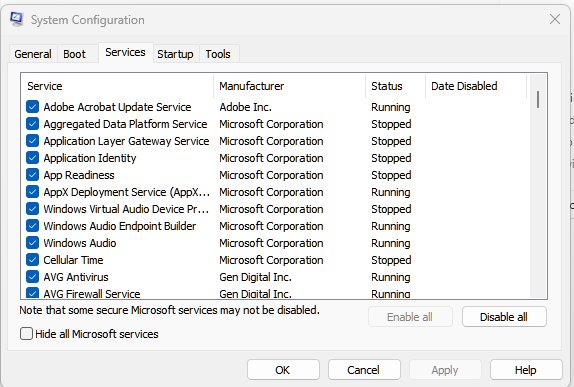
A clean boot starts Windows with only Microsoft services and no startup apps, which shows whether third-party software is responsible. You need an administrator account. Microsoft warns that System Configuration can leave a PC unusable if network policy settings interfere, so on a work PC ask your administrator first.
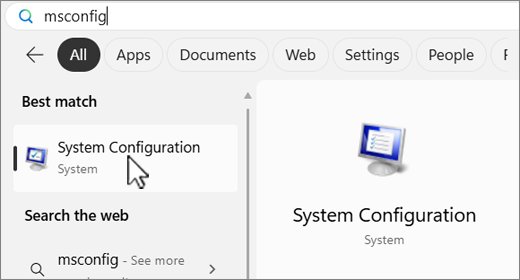
- Search for
msconfigand open System Configuration. - On the Services tab, select Hide all Microsoft services, select Disable all, then select Apply.
- On the Startup tab, select Open Task Manager.
- On the Startup apps tab, select each Enabled item and select Disable, writing down what you changed.
- Close Task Manager, select OK in System Configuration, then restart.
- If the window is gone, re-enable the upper half of the disabled services and restart.
- Keep halving the list until the window returns, then repeat the test with startup items.
Once you know the item, update or uninstall that program, or contact its maker. If the window appears even during a clean boot, the problem might be a Microsoft service, so repair the system files as shown further down.
Disable all turns off every non-Microsoft service, so do not stay in this state longer than the test takes.
How to undo a clean boot in Windows 11
- Search for
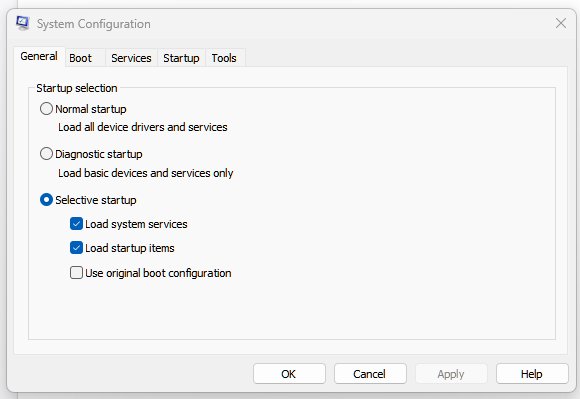
msconfigand open System Configuration. - On the General tab, select Normal Startup.
- On the Services tab, clear Hide all Microsoft services, select Enable all, then select Apply.
- On the Startup tab, select Open Task Manager and enable the startup apps you disabled earlier.
- Select OK, then select Restart when prompted.
Scan for malware when a black cmd window keeps popping up
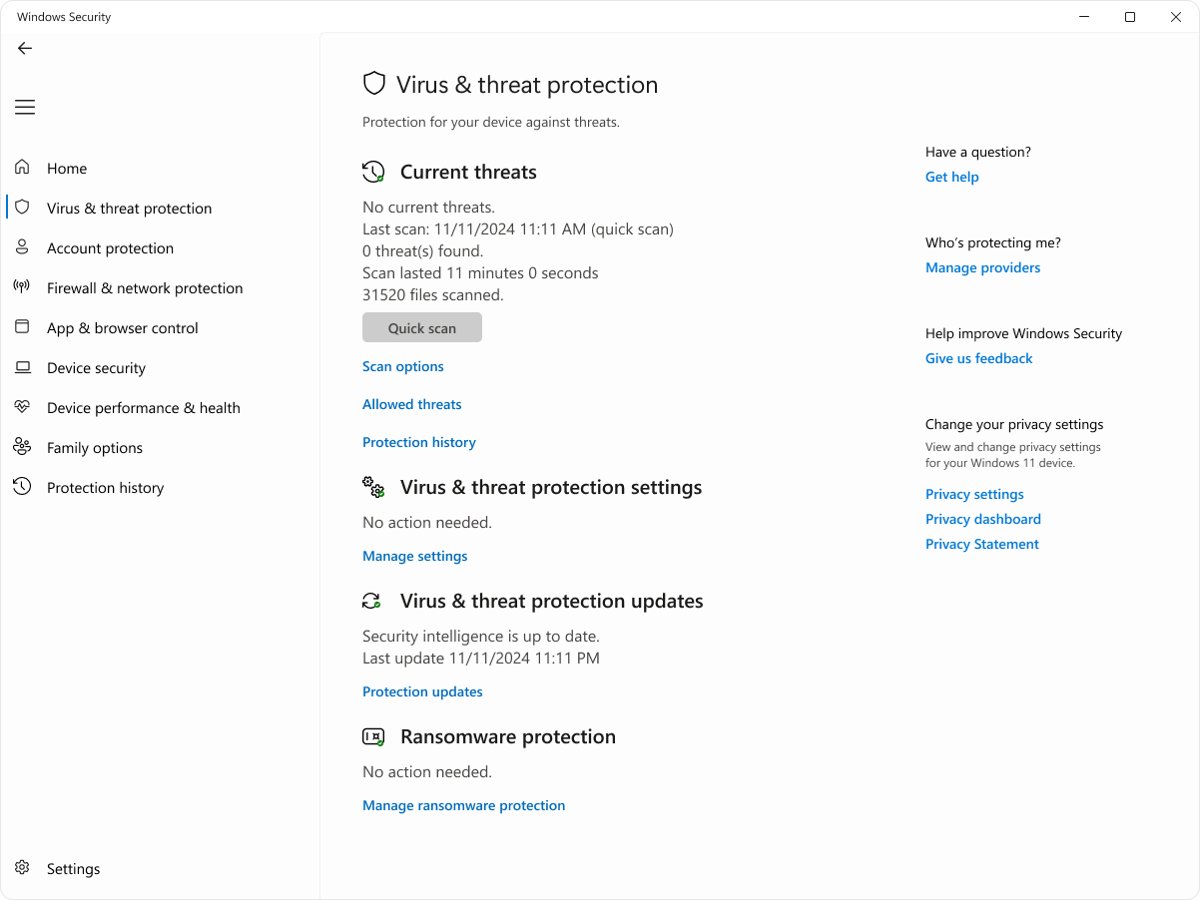
An unknown entry that keeps coming back deserves a scan. Run Microsoft Defender from the Windows Security app.
- Open Windows Security and select Virus & threat protection.
- Select Quick scan and wait for the result.
- Select Scan options, then run a Full scan if the quick scan finds nothing and the window continues.
- Save your open files, then select Microsoft Defender Offline scan under Scan options.
- Let the PC restart. The deep scan that follows can catch malware a regular scan misses.
A Microsoft Defender Offline scan restarts the PC, so run it when you can leave the machine alone for a while.
C:\Windows\System32\cmd.exe black window on startup
That path in the title bar is the Windows command processor, cmd.exe, and it shows whenever something starts that program. It does not tell you what launched it, so use the sections above to find the source.
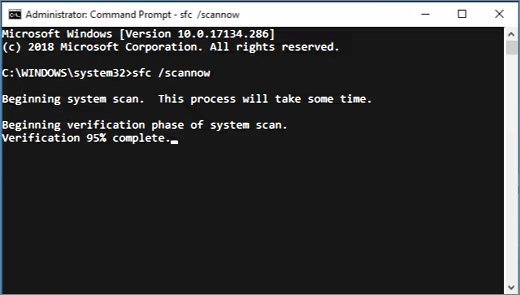
If no startup entry explains the window and scans come back clean, repair the system files. Run these in order from an elevated Command Prompt, starting with DISM.exe /Online /Cleanup-image /Restorehealth and then the command below.
sfc /scannowSystem File Checker scans protected Windows files and replaces damaged ones. DISM runs first because it repairs the files System File Checker relies on.
You should see: Windows Resource Protection did not find any integrity violations. or Windows Resource Protection found corrupt files and successfully repaired them.
Blank white window opens every time I log into Windows 11
A blank white window that opens by itself at every sign-in needs the same search, because something in the startup locations is launching it. Test startup apps in halves, which is faster than testing one at a time.
- Right-click Start and select Task Manager.
- Select the Startup apps tab and note every item marked Enabled.
- Disable the upper half of those items, then restart.
- If the window is gone, the cause is in the half you disabled. If it stays, the cause is in the other half.
- Repeat with the remaining half until one item is left.
- Update or uninstall that app, or contact its maker, then re-enable the others.
If no startup item is responsible, use the clean boot steps above to test services as well.
Startup tab missing from Task Manager in Windows 11
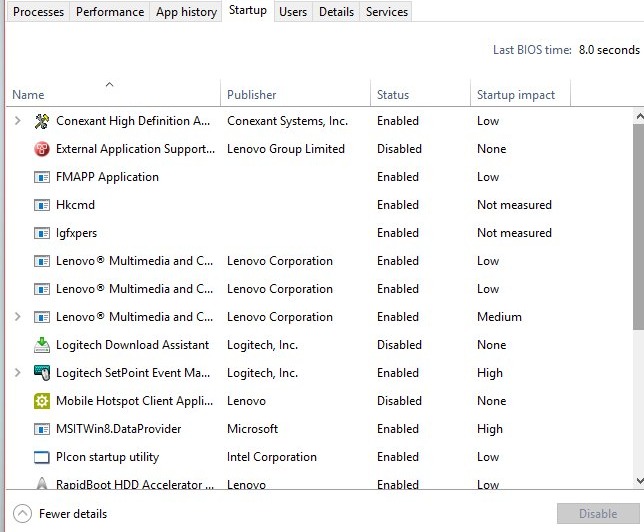
Task Manager in current Windows versions calls this tab Startup apps, so a search for a tab named Startup can come up empty. The Startup tab in System Configuration does not list apps either. It offers Open Task Manager instead.
- Right-click Start and select Task Manager.
- Select Startup apps to see the list.
- Select an app, then select Enable or Disable.
- If you cannot reach the tab, select Start > Settings > Apps > Startup for the same on and off control.
Stop Discord from launching at startup in Windows 11
Windows can stop Discord from starting automatically through its startup list, without changing anything inside Discord. You can still open Discord yourself whenever you want it.
- Select Start > Settings > Apps > Startup.
- Find Discord in the list and set it to Off.
- If it is not listed there, right-click Start, select Task Manager and open Startup apps.
- Select Discord, then select Disable.
- Restart the PC to test the change.
How to tell if a scheduled task still opens cmd.exe in Windows 11
A clean restart alone does not prove the fix, because a timer-based task can fire hours later. Check that the task is actually off.
Get-ScheduledTask -TaskName "Task name"Run this in PowerShell with the name of the task you disabled. It shows the task's folder, name and current state. Add -TaskPath "\Folder\" if the task sits in a subfolder, because the default is the root folder.
You should see: Disabled in the State column. If it says Ready or Running, the task can still open the window.
Black Command Prompt window on startup FAQ
Why does a black Command Prompt keep popping up?
Something on the PC is starting cmd.exe, usually a startup app, a Startup folder shortcut, a Run registry value or a scheduled task. Malware can use the same locations. Find the entry with Task Manager or Autoruns, then disable it.
Is the Windows black DOS window the same as Command Prompt?
Yes. The black text window people call a DOS window is Command Prompt, which runs the Windows command interpreter, cmd.exe. Other console programs can open a similar black window, so read the title bar to see which program it names.
Why does the black window keep popping up and disappearing?
The window closes as soon as its command finishes. A command run with cmd /c exits the command processor when it is done, so the window can vanish almost at once. Scheduled tasks and logon scripts can both run this way.
What does C:\Windows\System32\cmd.exe in the title bar mean?
It names the program that opened, which is the Windows command interpreter. The title does not show which app, task or script launched it. Use Autoruns or the scheduled task list to trace the source of the window.
Is a black cmd window on startup a virus?
Not always, because many legitimate apps and scheduled tasks run commands at sign-in. Treat an entry you cannot identify as suspicious, and run a Microsoft Defender quick scan followed by a Microsoft Defender Offline scan.
How do I find which program opens cmd.exe at startup?
Run Autoruns from Microsoft Sysinternals and hide signed Microsoft entries, then look for items that run cmd.exe or a batch file. Use Jump to Entry to see where each one is registered, and clear its check box to test.