To set up a WiFi network, connect a modem to your internet line, connect a wireless router to the modem, give the network a unique name and WPA3 password, then join it from each device.
The sections below cover the equipment, router placement, the exact security settings to choose, a setup without a router, and fixes for a network that will not connect.
How to set up a WiFi network at home
These six steps take a new home network from unboxed equipment to a working connection. Your router's documentation names the exact ports and setup app for your model.
- Connect the modem to your fiber, cable or phone line and wait for its status lights to stop blinking.
- Connect the router to the modem with a network cable, using the port your router's documentation marks for the internet. Skip this step on a modem/router combo.
- Turn on the router and open the configuration webpage or app from its manufacturer.
- Change the router's default username and password.
- Set a unique network name, choose WPA3 Personal and create a strong WiFi password.
- Join the new network from each device with that password.
What equipment do you need to set up a WiFi network
Before you begin, make sure you have an active internet plan and these three pieces of hardware. Internet service providers often supply the modem, and some supply a combined modem and wireless router.
| Equipment | What it does | Where to get it |
|---|---|---|
| Broadband internet connection and modem | Brings high-speed internet into your home over fiber, cable or a phone line | An internet service provider (ISP) |
| Wireless router | Sends data between your devices and the internet using radio signals instead of wires | Your ISP, a computer or electronics store, or online |
| Wireless network adapter | Lets a device join the network; most laptops and tablets have one built in, and some desktops do | Already in the device, or added separately |
To check a Windows PC for an adapter, select Start, type device manager, open Device Manager, and expand Network adapters. Look for a name that includes the word wireless.
Setup the internet connection
Your ISP may already have connected the modem for you. If it has not, use the row that matches your service and follow the instructions that came with the modem.
| Your connection | Connect the modem to | Using |
|---|---|---|
| Fiber | The fiber-optic outlet | Typically an SFP (Small Form-factor Pluggable) connector |
| Cable | The cable jack | A coaxial cable |
| DSL | The phone jack | A DSL filter and a phone cable |
Plug the modem into power and wait for the lights to stop blinking. If the lights never settle, contact your ISP before you move on, because the router cannot fix a modem that has no service.
Setup your router
Every router uses its own configuration webpage or app, so keep its documentation nearby. You can access and change your WiFi router settings the same way later on.
- Put the router in its permanent spot, then connect it to the modem and to power.
- Connect a device to the router and open the manufacturer's webpage or app. On a connected Windows PC, run
ipconfigin Command Prompt and use the Default gateway address, such as 192.168.1.1. - Sign in with the default username and password from the router's documentation or label.
- Replace that default username and password with your own.
- Back up the router's existing settings if it offers that option.
- Install any firmware update, then turn on automatic firmware updates if your router has them.
Changing the defaults matters because someone who knows them could access your router without you knowing.
Best place to put a WiFi router in your home
The layout of a home is one of the most overlooked causes of WiFi problems. The fewer obstacles between a device and the router, the closer it gets to the router's full signal strength.
| Do this | Why |
|---|---|
| Place it as close to the center of your home as possible | The signal reaches more of the house |
| Keep it off the floor and higher up if you can | A router in a corner or under a desk loses signal strength |
| Keep it away from walls and metal objects, such as filing cabinets | Physical obstructions weaken the signal |
| Keep distance from microwaves and cordless phones that use 2.4 GHz | They share the frequency and can briefly interrupt your WiFi |
Setup the wireless network (WiFi)
Open the wireless settings on the router's webpage or app and apply these values to every band. Labels vary by brand, so check the router's documentation if a setting has a different name.
| Router setting | Choose | Why |
|---|---|---|
| Security | WPA3 Personal, or WPA2/WPA3 Transitional if older devices cannot connect | WPA3 is the current standard; avoid WEP, TKIP, WPA and WPA/WPA2 mixed modes |
| Password | A strong password you do not use elsewhere | It is the key that keeps other people off your network |
| Network name (SSID) | A unique name, not a default such as linksys or netgear | Devices can try to join other networks that share a common name |
| Hidden network | Off | Hiding the name does not secure the network |
| MAC address filtering | Off | MAC addresses can be copied, so it is not reliable access control |
| Automatic firmware updates | On | Updates add security and stability fixes |
| Radio mode | All, or every mode offered | Each device can use the fastest mode it supports |
| Bands | Every band the router supports | Devices can use whichever band suits them |
| Channel | Auto | The router picks a channel; set one by hand if the area is crowded |
| Channel width | 20 MHz on 2.4 GHz; Auto on 5 GHz and 6 GHz | 20 MHz reduces interference and suits older adapters |
| DHCP | On, for one device only | More than one DHCP server causes address conflicts |
| NAT | On, on the router only | NAT on both a modem and a router creates double NAT, which can block some services |
| WMM | On | It prioritizes video and voice traffic |
Use one network name across all bands unless you need to pick a band by hand. Apple warns that separate names can make connections less reliable, while Microsoft notes that separate names show which band you are on.
After you change these settings, you might need to forget the network on each device that already joined it, then join again.
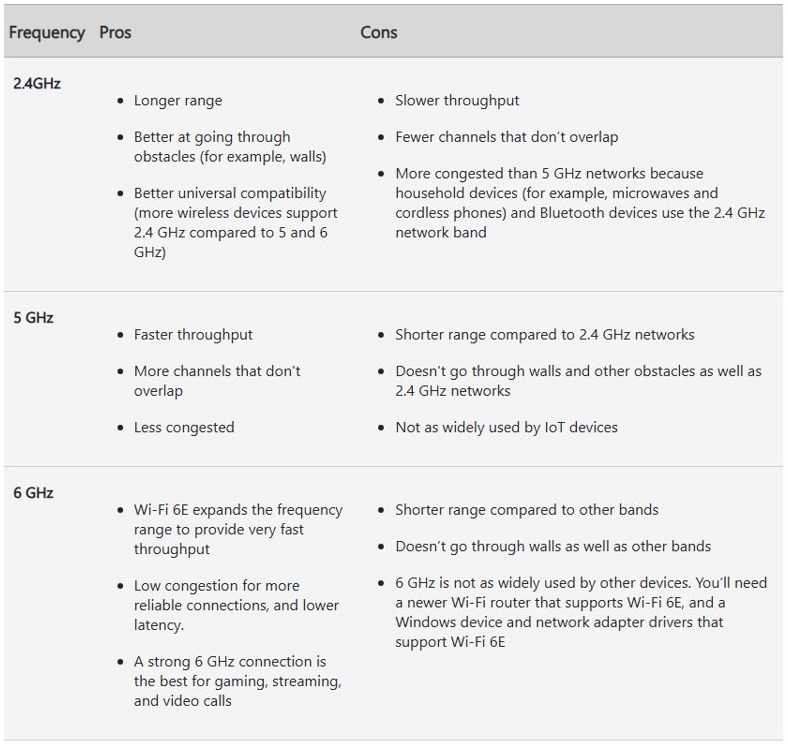
2.4 GHz vs 5 GHz vs 6 GHz for a home WiFi network
Most devices choose a band on their own. This table shows what each band gives you when you need to choose, or when a device will not connect.
| Band | Best for | Limits |
|---|---|---|
| 2.4 GHz | Longer range, getting through walls, older devices, web and email | Slower, more congested, fewer channels that do not overlap |
| 5 GHz | Faster streaming and gaming, with less congestion | Shorter range and weaker through walls |
| 6 GHz | The best performance close to the router, with low congestion | Shortest range; needs a Wi-Fi 6E router and a supported device and driver |
Connect to the WiFi
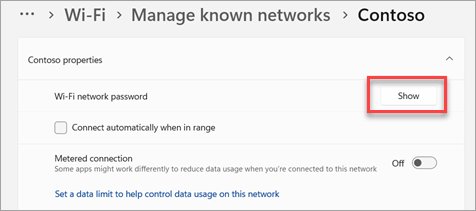
Once the network is running, each device joins it once and then reconnects automatically. If you lose track of the password, you can find your WiFi password on a PC that is already connected.
Windows 11 and Windows 10
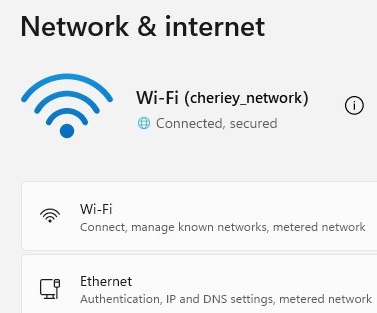
You can also connect a computer to a Wi-Fi network from Settings.
- Select the Network, Sound or Battery icons on the taskbar.
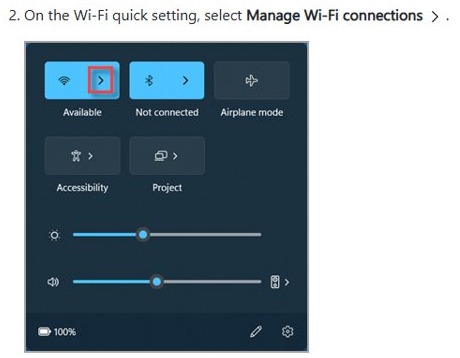
- On the Wi-Fi quick setting, select Manage Wi-Fi connections.
- Choose your network and select Connect.
- Type the network password and select Next.
iPhone
- Open the Settings app.
- Tap Wi-Fi and turn it on.
- Tap the name of your network.
- Enter the password if asked, and look for the blue checkmark next to the name.
Android
- Open the Settings app.
- Go to Network & internet > Internet.
- Select your network.
- Enter the password if the network shows a lock icon.
Mac
- Click the Wi-Fi status icon in the menu bar.
- Choose your network. If it is not listed, open Other Networks.
- Enter the password and click Join.
How to set up a new wireless network in Windows 11 and 10
If your router supports Wi-Fi Protected Setup, Windows has a wizard that creates the network name and security key for you. The router must already be connected to the network, and the WPS button on your router is part of the same feature.
- Select Start, type control panel, and open Control Panel.
- Go to Network and Internet > Network and Sharing Center.
- Select Set up a new connection or network.
- Select Set up a new network, then choose Next.
- Enter a network name and security key when the wizard asks, using WPA3 if it is offered.
- Write down the security key and keep it somewhere safe.
How to set up a WiFi network without a router
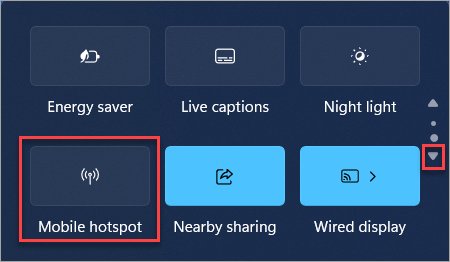
A Windows PC can act as a mobile hotspot and share its WiFi, Ethernet or cellular connection with other devices. It still needs an internet connection of its own, and a shared cellular connection uses your data plan.
- Open Settings and select Network & internet > Mobile hotspot.
- Under Share my internet connection from, choose the connection to share.
- Under Share over, choose Wi-Fi.
- Expand Properties, select Edit, enter a network name, password and band, and select Save.
- Turn on the Mobile hotspot toggle at the top of the page.
- On the other device, select that network name in its WiFi settings and enter the password, or scan the QR code.
How to test WiFi speed and signal strength at home
A device that connects next to the router tells you little about the rest of the house. Test from the rooms where you actually use WiFi.
- Get a network speed test app, such as one from the Microsoft Store.
- Run several tests in different places around your home and write down the results.
- On a Windows PC, go to Settings > Network & internet > Wi-Fi and open your network's properties.
- Check the value next to Network band (channel) to see which band you are on.
- After you move the router or change a setting, run the same tests again and compare.
Tips for setting up your home WiFi
These extras help once the basic network is running, especially in a larger home or a busy apartment building.
| Tip | What to do |
|---|---|
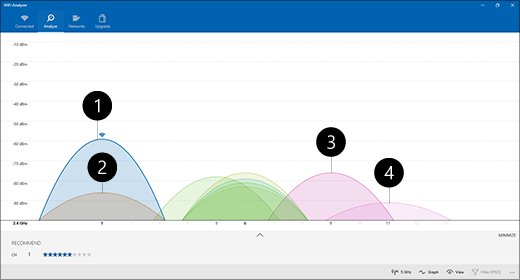
| Pick a clear channel in a crowded area | On 2.4 GHz use channel 1, 6 or 11, because they do not overlap. Choose the one with the fewest nearby access points. |
| Give nearby routers different channels | When you run more than one router, use the same name and security on each, with different channels. |
| Try an extender for a weak spot | An extender usually plugs into an outlet. Use one when you cannot move the router or your device. |
| Consider mesh for a large home | A mesh system uses several points that act as one network, so you are never far from one. |
| Turn on a firewall on each PC | A firewall helps control the spread of malicious software on your network. Windows Firewall is included with Windows. |
| Keep the router current | Newer firmware can change the security options available, so recheck the settings after a major update. |
Home WiFi network not working after setup
Connected to WiFi but no internet
The device reached the router, but the router or modem is not passing traffic, or the device did not get a valid address.
- Turn WiFi off and on, then reconnect.
- Open Command Prompt as administrator and run
ipconfig /release, thenipconfig /renew. - Run
ipconfig /flushdns. - Run
ipconfigand look at your IP address. If it starts with 169.254, Windows could not get an address, so make sure DHCP is on in the router.
WiFi says the password is wrong
The password on the device does not match the router, often after you change it.
- Check the password against the router's wireless settings.
- In Windows, go to Settings > Network & internet > Wi-Fi > Manage known networks, select the network and select Forget.
- Join the network again and type the new password.
- Restart the router and check for a firmware update if the error continues.
The new WiFi network does not show up
WiFi is off on the device, or its adapter does not support the band the network uses.
- Turn on the physical WiFi switch if your laptop has one, and make sure WiFi is on in Settings.
- Go to Settings > Network & internet > Airplane mode and make sure it is off.
- Select Refresh network list in the WiFi list.
- Turn on the 2.4 GHz band on the router if the device only supports that band.
No device can get online
The problem is likely the modem, the router or your ISP, not a single device.
- Unplug the router, then unplug the modem.
- Wait at least 30 seconds, then plug in the modem and wait for its lights to stop blinking.
- Plug in the router and wait a few minutes for both to fully start.
- On a PC, run
pingfollowed by your Default gateway address. If you get replies, the router is fine, so contact your ISP. - If there is no reply, connect the PC to the modem with a network cable. If that works, the router is the cause.
- As a last step on a single Windows PC, reset network settings.
Home WiFi network setup FAQ
Do I need both a modem and a router for WiFi?
You need both functions, but not always two boxes. The modem connects your home to your ISP, and the wireless router creates the WiFi network. Many ISPs offer a single combination modem and wireless router that does both jobs.
How do I secure my wireless network?
Change the router's default username and password, then use WPA3 Personal with a strong network password. Use WPA2/WPA3 Transitional if older devices cannot connect, and avoid WEP, TKIP and open networks. Turn on automatic firmware updates too.
Should I hide my WiFi network name?
No. Hiding the name does not secure a network, and both Apple and Microsoft advise against it. A hidden network can also expose identifying information about your network. Rely on WPA3 Personal and a strong password to control who joins.
Should 2.4 GHz and 5 GHz have different names?
Use a single name in most homes. Apple warns that different names can stop devices connecting reliably to every band. Microsoft notes that different names tell you which band you are using, which helps if you need to choose by hand.
What is the best WiFi channel for a home network?
Leave the channel on Auto first. If your 2.4 GHz network is slow in a crowded area, choose channel 1, 6 or 11, because those channels do not overlap. On 5 GHz, pick the channel with the fewest nearby access points.
Why does my router's default password need changing?
Most manufacturers ship routers with a default username, password and network name. Someone who knows those defaults could access your router without your knowledge, so replace them during setup. This is separate from the password devices use to join the WiFi.
Can I set up WiFi without an internet provider?
You can run a local wireless network with a router alone, but devices on it will not reach the internet. To get online you need a broadband connection from an ISP, or a device with its own connection acting as a mobile hotspot.