Download the free Office Deployment Tool from Microsoft, list ProPlus2024Volume and the PerpetualVL2024 channel in a configuration.xml file, run setup /configure configuration.xml from an elevated Command Prompt, then activate with KMS, MAK or Active Directory.
Office LTSC 2024 has no ordinary installer and no retail download page, because it is sold only through volume licensing. These steps cover the XML file, offline installs, removing older Office versions, all three activation methods and the errors that stop them.
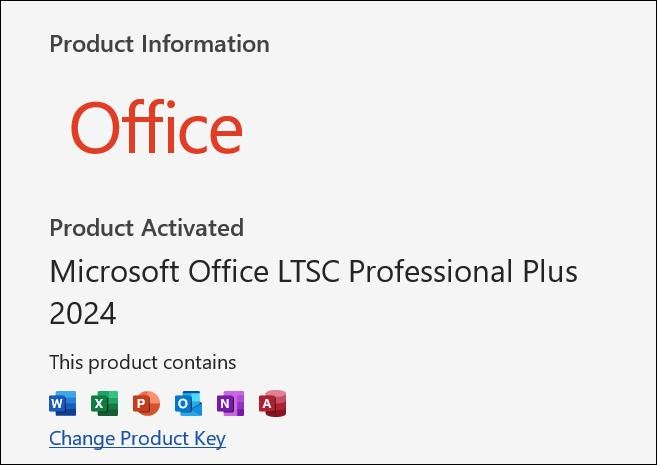
Download & install Microsoft Office 2024 LTSC with the Office Deployment Tool (ODT)
Installing straight from the Office Content Delivery Network (CDN) takes the least effort, and Microsoft recommends it when the device has internet access. Save the tool and the XML file in the same folder, such as C:\ODT.
- Download the Office Deployment Tool from the Microsoft Download Center. Always use the latest version.
- Double-click the officedeploymenttool .exe file and extract it to
C:\ODT. You getsetup.exeand a sampleconfiguration.xml. - Open
configuration.xmlin Notepad and replace its contents with the sample in the next section, or build the file in the Office Customization Tool. - Select Start, type cmd, right-click Command Prompt and select Run as administrator.
- Run
cd /d C:\ODTto move to the folder. - Run
setup /configure configuration.xmland wait for the prompt to return. - Open Word or Excel to confirm the apps launch, then activate Office with the method your licence uses.
Office always installs on the system drive, typically C:, and the location can't be changed. If you are new to the tool itself, you can also configure the Office Deployment Tool with its other switches.
What is Microsoft Office 2024 LTSC?
Office Long Term Service Channel (LTSC) 2024 is the volume-licensed edition of Microsoft's desktop apps for regulated or restricted environments that can't take feature updates. It is a different product from the Office in Microsoft 365 plans, and a personal or home subscriber should install Microsoft 365 and Office from their account instead.
| Item | Office LTSC 2024 |
|---|---|
| Windows editions | Office LTSC Professional Plus 2024, Office LTSC Standard 2024, Project Professional 2024, Project Standard 2024, Visio LTSC Professional 2024, Visio LTSC Standard 2024 |
| Apps in Professional Plus | Access, Excel, OneNote, Outlook, PowerPoint and Word, with Skype for Business as an optional install |
| Not included | Microsoft Publisher is gone, and the Teams app is a separate download |
| Mac version | Office LTSC Standard for Mac 2024, which has no Access |
| Architecture | 32-bit and 64-bit; Microsoft recommends 64-bit on devices with 4 GB of memory or more |
| Updates | Monthly security and quality updates, no new features after release |
| Support | Five years of Mainstream Support ending in October 2029, with no Extended Support |
| Changed defaults | ActiveX controls are disabled, and Publish to Power BI is removed from Excel |
Office LTSC 2024 system requirements
| Requirement | Minimum |
|---|---|
| Operating system | Windows 11, Windows 11 LTSC 2024, Windows 10 LTSC 2021, Windows 10 LTSC 2019, Windows Server 2025 or Windows Server 2022 |
| Arm-based devices | Windows 11 is the minimum |
| Processor | 1.1 GHz, two cores |
| Memory | 4 GB of RAM |
| Disk space | 4 GB available |
| Display | 1280 x 768; 64-bit Office is required for 4K and higher resolutions |
| Licence | A volume licensing agreement that covers Office LTSC 2024 |
| Permissions | An elevated Command Prompt to run the Office Deployment Tool and ospp.vbs |
Standard Windows 10 Home and Pro are not on Microsoft's list. Only the Windows 10 LTSC releases above are supported.
Office LTSC 2024 configuration.xml example
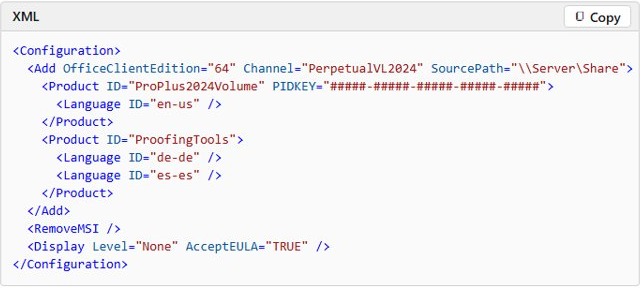
This file installs 64-bit Office LTSC Professional Plus 2024 in English from the Office CDN and removes older Windows Installer (MSI) versions of Office. Replace the hashes with your Multiple Activation Key (MAK), or delete the PIDKEY attribute to keep the preinstalled KMS key.
<Configuration>
  <Add OfficeClientEdition="64" Channel="PerpetualVL2024">
    <Product ID="ProPlus2024Volume" PIDKEY="#####-#####-#####-#####-#####">
      <Language ID="en-us" />
    </Product>
  </Add>
  <RemoveMSI />
  <Display Level="None" AcceptEULA="TRUE" />
</Configuration>
Display Level="None" runs setup with no interface, so nothing appears on screen until the prompt returns.
Use Standard2024Volume for Standard, ProjectPro2024Volume or ProjectStd2024Volume for Project, and VisioPro2024Volume or VisioStd2024Volume for Visio. Add <ExcludeApp ID="Access" /> inside the Product element to skip an app, and add SourcePath="\\Server\Share" to the Add element to install from a shared folder.
How to download Office LTSC 2024 offline installation files
Use this route for devices without internet access or with limited bandwidth. Add a SourcePath to configuration.xml first, then run the command from an elevated prompt in the ODT folder.
setup /download configuration.xmlThe files download to the SourcePath folder. Download 32-bit and 64-bit separately. Each download already includes the Visio and Project volume-licensed products.
You should see: An Office folder with a Data subfolder inside the SourcePath, holding a folder named after the version number. The prompt returns when the download ends.
How to install Office LTSC 2024 from a shared folder
Run this on each device after the download finishes, with the same SourcePath in configuration.xml. Internet access isn't needed to install once the files are local.
setup /configure configuration.xmlIf you leave out SourcePath, the tool looks in its own folder first and then goes to the Office CDN. Organizations with Microsoft Configuration Manager can use the Office 365 Client Installation wizard under Software Library > Overview > Office 365 Client Management instead.
You should see: The prompt returns, and the Office apps you chose appear in the Start menu.
How to uninstall older Office before installing Office LTSC 2024
Microsoft says to uninstall previous versions first. The right tool depends on how the old version was installed, and Office 2019 is handled differently from Office 2016.
| What is installed now | How to remove it | Why |
|---|---|---|
| Office, Visio or Project 2016 or earlier (MSI) | Add <RemoveMSI /> to configuration.xml |
The tool uninstalls MSI products as part of setup and can keep the language resources |
| Office, Visio or Project 2019 | Add a <Remove> element to configuration.xml |
2019 versions use Click-to-Run, so RemoveMSI doesn't apply |
| Microsoft 365 Apps | Stay on it unless your organization needs LTSC | Microsoft 365 Apps already includes every Office LTSC 2024 feature |
| 32-bit Office, when you are installing 64-bit | Uninstall all Office products first | All Office products on a device must use one architecture |
How to activate Microsoft Office 2024 LTSC in Windows
Volume-licensed Office activates in one of three ways, and you can mix them across devices. Every copy ships with a preinstalled Generic Volume License Key (GVLK), so KMS and Active Directory activation need no key on the client.
| Your situation | Use this | Why |
|---|---|---|
| Five or more devices on a network with a KMS host | Key Management Service (KMS) | Office activates on first run with no user action, and renews against the host |
| Domain-joined devices in Active Directory | Active Directory-based activation | No dedicated KMS host; the activation object replicates to every domain controller |
| Few devices, laptops off the network, or no KMS host | Multiple Activation Key (MAK) | One-time activation over the internet or by telephone, counted against your key's limit |
| Devices with no internet access at all | KMS, or MAK proxy activation through the Volume Activation Management Tool | One connected computer can process MAK requests for the others |
Office LTSC 2024 KMS activation steps
Install your KMS host key on the host first, using the Office LTSC 2024 Volume License Pack from the Microsoft Download Center. Clients then find the host through DNS service records and activate on their own once the host has its minimum count.
- Open an elevated Command Prompt on the client.
- Run
cd /d "C:\Program Files\Microsoft Office\root\Office16". For 32-bit Office on 64-bit Windows, useProgram Files (x86)in the path. - If DNS doesn't publish your host, run
cscript ospp.vbs /sethst:kms.example.comwith your own host name. - If the host doesn't use port 1688, run
cscript ospp.vbs /setprt:1750with your port number. - Run
cscript ospp.vbs /actto trigger activation. - Run
cscript ospp.vbs /dhistorykmsto confirm the client reached the host.
The host needs at least five requests before it activates clients. A KMS activation lasts 180 days, and the client tries to renew every seven days by default.
Office LTSC 2024 GVLK keys for KMS
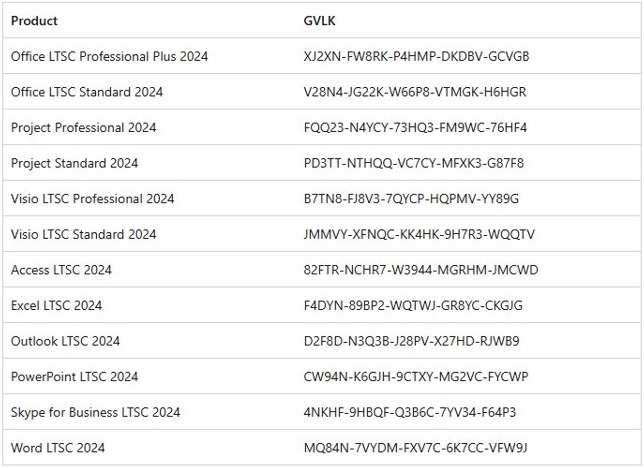
Microsoft publishes these keys, and you need one only if a device was switched to a MAK and must return to KMS. They work solely against your organization's own KMS host or Active Directory, and they can't activate a personal copy of Office.
| Product | GVLK |
|---|---|
| Office LTSC Professional Plus 2024 | XJ2XN-FW8RK-P4HMP-DKDBV-GCVGB |
| Office LTSC Standard 2024 | V28N4-JG22K-W66P8-VTMGK-H6HGR |
| Project Professional 2024 | FQQ23-N4YCY-73HQ3-FM9WC-76HF4 |
| Project Standard 2024 | PD3TT-NTHQQ-VC7CY-MFXK3-G87F8 |
| Visio LTSC Professional 2024 | B7TN8-FJ8V3-7QYCP-HQPMV-YY89G |
| Visio LTSC Standard 2024 | JMMVY-XFNQC-KK4HK-9H7R3-WQQTV |
Office LTSC 2024 MAK activation steps
Get your key from the volume licensing section of the Microsoft 365 admin center. Setting it in configuration.xml is the supported route during deployment, and ospp.vbs changes it afterwards.
- Open an elevated Command Prompt on the device.
- Run
cd /d "C:\Program Files\Microsoft Office\root\Office16". - Run
cscript ospp.vbs /inpkey:xxxxx-xxxxx-xxxxx-xxxxx-xxxxxwith your MAK. - Run
cscript ospp.vbs /actwhile connected to the internet. - Run
cscript ospp.vbs /dstatusand read the license status line.
Each activation counts toward the key's limit. Reactivation isn't needed unless the hardware changes significantly. To deploy with a key in the Office Customization Tool, expand Licensing and activation, select MAK next to the product and enter the key.
Office LTSC 2024 Active Directory-based activation steps
This needs Domain Administrator and Enterprise Administrator credentials. It uses the same key as KMS but no separate host computer.
- Sign in to a domain controller and use Server Manager to install the Volume Activation Services role.
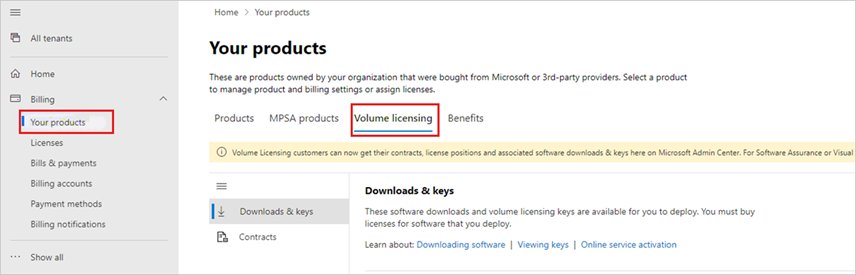
- In the Microsoft 365 admin center, go to Billing > Your products > Volume licensing and get the KMS key from Download and keys.
- Download and run the Office LTSC 2024 Volume License Pack from the Microsoft Download Center. The Volume Activation Tools wizard opens.
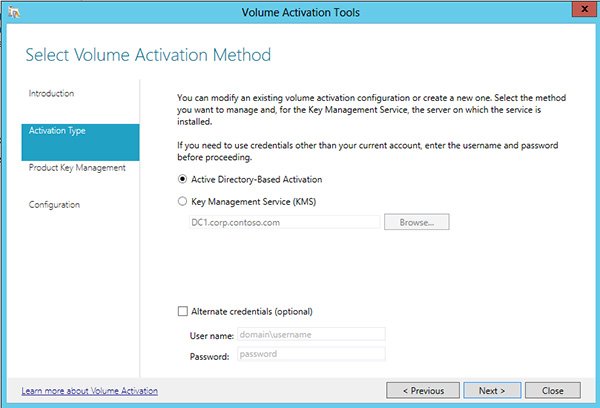
- Select Next, then choose Active Directory-Based Activation on the Select Volume Activation Method page.
- Enter the KMS host key on the Manage Activation Objects page and select Next.
- Activate the key online or by phone on the Activate Product page and finish the wizard. An Activation Succeeded page appears.
Clients need the GVLK and a domain join. Activation lasts up to 180 days and renews automatically. If Active Directory can't be reached, Office falls back to a discoverable KMS host.
How to check Office LTSC 2024 activation status
Run this from an elevated Command Prompt in the Office16 folder, using an account in the Administrators group.
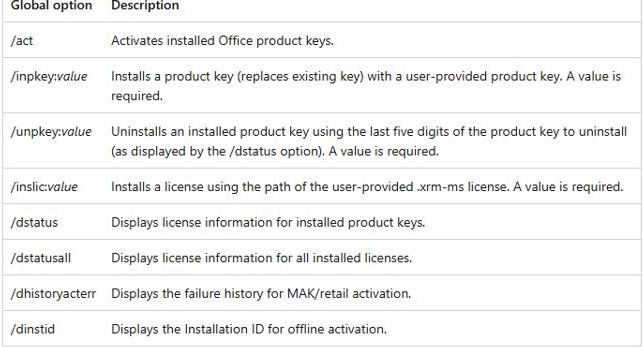
cscript ospp.vbs /dstatusUse /dstatusall to list every installed license and /dhistorykms to see KMS history. Microsoft 365 Apps doesn't work with this script.
You should see: The product name, the last five characters of its key and a license status of Licensed.
How to update Office LTSC 2024
Updates normally arrive once a month on the second Tuesday, and a scheduled task named Office Automatic Updates 2.0 fetches them from the Office CDN. PerpetualVL2024 is the only update channel for Office LTSC Professional Plus and Standard.
- Open any Office app, such as Word.
- Select File > Account.
- Select Update Options > Update Now.
- Save your work and close Office apps if prompted, so the update can install.
To update from a shared folder instead, set UpdatePath in configuration.xml or use the Update path Group Policy setting. Each new build is a full copy that you must download yourself every month.
Office LTSC 2024 activation not working
setup /download or /configure seems frozen
The tool works in the background and shows no progress, so a silent window is normal.
- Leave the Command Prompt window open.
- Check the
SourcePathfolder for a growing Office\Data folder during a download. - Wait for the prompt to return before you run anything else.
KMS activation fails on the first clients
The host starts activating only after it has received at least five requests.
- Run
cscript ospp.vbs /dstatusallto read the licensing state. - Run
cscript ospp.vbs /dhistorykmsto see whether the client contacted the host. - Point the client at the host with
cscript ospp.vbs /sethst:kms.example.comif DNS can't find it. - Run
cscript ospp.vbs /actagain once more clients have made requests.
Activation shows an error code such as 0xC004F042
The script can translate any activation code into a description.
- Run
cscript ospp.vbs /ddescr:0xC004F042with the code you received. - For MAK failures, run
cscript ospp.vbs /dhistoryacterrto read the failure history. - Fix the cause it names, then run
cscript ospp.vbs /act.
Notifications and a red title bar in Office apps
A KMS client that misses 180 days of activation enters a 30-day out-of-tolerance state, then an unlicensed notification state.
- Connect the device to the network that hosts your KMS server.
- Run
cscript ospp.vbs /actfrom an elevated prompt. - Run
cscript ospp.vbs /dstatusto confirm the status has returned to Licensed.
MAK activation fails on a device with no internet
MAK needs Microsoft's hosted activation services, reached by internet or telephone.
- Run
cscript ospp.vbs /dinstidto display the Installation ID for offline activation. - Get a Confirmation ID by telephone.
- Run
cscript ospp.vbs /actcid:valuewith the Confirmation ID in place of value.
Microsoft Office 2024 LTSC FAQ
Is Office LTSC 2024 a free download?
The Office Deployment Tool is free, and the installation files come from Microsoft's CDN, but using Office LTSC 2024 needs a volume licensing agreement. Without a KMS host, Active Directory activation or a MAK from that agreement, the copy has no valid way to activate.
Can I use Office LTSC 2024 at home?
Office LTSC 2024 is available to organizations through volume licensing agreements, and its GVLK keys can't activate a personal copy. For a home PC, buy a personal Office product or a Microsoft 365 plan, then activate it with the key or account tied to that purchase.
What is the difference between Office LTSC 2024 and Microsoft 365 Apps?
Office LTSC 2024 gets monthly security and quality updates but no new features after release. Microsoft 365 Apps includes all of its features and keeps adding more, along with cloud-backed capabilities such as real-time collaboration that Office LTSC 2024 leaves out.
How long is Office LTSC 2024 supported?
Office LTSC 2024 gets five years of Mainstream Support under Microsoft's Fixed Lifecycle Policy, ending in October 2029. There is no Extended Support, so organizations should plan a move to a newer version before that date to keep receiving security updates.
Does Office LTSC 2024 run on Windows 10?
Only Windows 10 LTSC 2021 and Windows 10 LTSC 2019 are on Microsoft's supported list. Other Windows 10 editions aren't listed, so move those devices to Windows 11 or a supported LTSC release before you deploy it.
Does Office LTSC 2024 need internet to activate?
KMS activation doesn't need internet access on the client, only a connection to the KMS host. MAK activation does need internet, or a telephone call to Microsoft. Installing also works offline once the files have been downloaded to a local or shared folder.
Does Office LTSC 2024 include Teams and Publisher?
Neither comes with it. Publisher was removed because Microsoft planned its retirement for October 2026, and Teams is a separate download from Microsoft. Skype for Business installs only if you turn it on in the Office Customization Tool or the Configuration Manager wizard.
Can I change where Office LTSC 2024 installs?
No. Office LTSC 2024 installs on the system drive, typically C:, and Microsoft says the location can't be changed. The SourcePath setting only controls where the installation files are read from, so it doesn't move the installed apps to another drive.