Smart card logon works on a domain-joined Windows 11 Pro, Enterprise or Education PC once the user has a smart card logon certificate on the card and a reader is connected; to make it mandatory, enable Interactive logon: Require Windows Hello for Business or smart card.
This guide covers the prerequisites, setting it up on one PC, enforcing it across a domain or for single users, turning it off again, and fixing the usual sign-in failures.
Step-by-Step Guide to Enable Smart Card Logon in Windows 11
These steps require a domain account and a card already issued with a smart card logon certificate by your organisation's certification authority.
- Connect the smart card reader and insert the card; Windows installs the card's driver through Smart Card Plug and Play.
- Open Command Prompt and run
certutil -scinfoto confirm Windows can read the certificate on the card. Press Esc if asked for a PIN. - Lock or sign out of Windows.
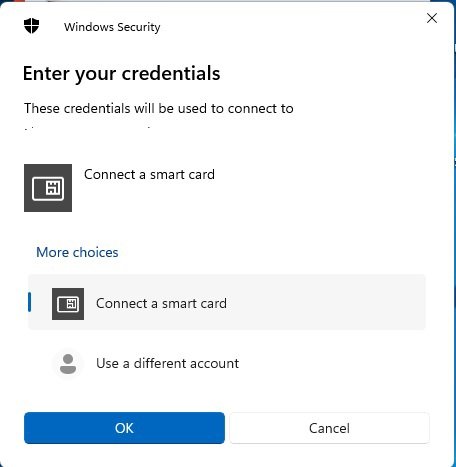
- On the sign-in screen, select Sign-in options and choose the smart card option.
- Enter the card's PIN and press Enter.
- To make the card mandatory on this PC, press Windows + R, type
secpol.msc, and press Enter. - Go to Local Policies > Security Options, open Interactive logon: Require Windows Hello for Business or smart card, select Enabled, and select OK.
The policy takes effect without a restart. Once it is on, every user of that PC must sign in with a smart card or a Windows Hello for Business method, so confirm the card works first.
Understanding Smart Card Logon
Smart card logon replaces a typed password with a certificate stored on a physical card. Windows reads the certificate, you prove you hold the card with a PIN, and a domain controller validates the certificate against your organisation's public key infrastructure (PKI).
| Component | Role |
|---|---|
| Smart card | Holds the private key and logon certificate; it never leaves the card |
| Smart card reader | Connects the card to the PC; Windows treats it as a device in Device Manager |
| PIN | Unlocks the card; possession plus PIN gives two-factor sign-in |
| Smart Card service (SCardSvr) | Windows' resource manager that talks to readers and cards |
| Certificate propagation service | Copies certificates from the inserted card into the user's store |
| Smart Card Removal Policy service | Applies the lock or sign-out action when the card is pulled out |
| Domain controller and PKI | Issue and validate the smart card logon certificates |
Benefits of Smart Card Logon
| Benefit | Why it matters |
|---|---|
| Two-factor by design | A user needs both the card and its PIN, so a stolen password alone is useless |
| Resistant to brute-force attacks | There is no password for an attacker to guess |
| Harder to impersonate | Microsoft notes that impersonating a smart card user is nearly impossible with current technology |
| New session keys each sign-in | Captured traffic cannot be replayed at the next sign-in |
| Walk-away protection | Removing the card can lock the PC or sign the user out |
Prerequisites
| Requirement | Detail |
|---|---|
| Windows edition | Windows 11 Pro, Enterprise, Pro Education/SE or Education; Smart Cards for Windows Service is not listed for Home |
| Account | A domain user account; the policy and certificate checks rely on Active Directory |
| PKI | A certification authority, such as Active Directory Certificate Services, that issues smart card logon certificates |
| Certificate on the card | Contains the smart card logon usage, unless policy allows certificates with no EKU, All Purpose or Client Authentication |
| Smart card and reader | Drivers come from Windows Update, or Windows uses its built-in PIV-compliant minidriver |
| Administrator rights | Needed to change local security policy or Group Policy |
Enforcing Smart Card Logon Across a Domain
Use a Group Policy Object to require smart cards on every PC in an organisational unit. Test with a pilot group first, because users without a working card cannot sign in.
- Open Group Policy Management on a management PC or domain controller.
- Create or edit a GPO linked to the organisational unit that holds the target computers.
- Go to Computer Configuration > Windows Settings > Security Settings > Local Policies > Security Options.
- Open Interactive logon: Require Windows Hello for Business or smart card, select Define this policy setting and Enabled, then OK.
- In the same list, set Interactive logon: Smart card removal behavior to Lock Workstation.
- Set the Smart Card Removal Policy service to start Automatic through the GPO's System Services settings, so the removal behaviour works.
- Run
gpupdate /forceon a pilot PC and test sign-in.
To require a card for specific people instead of whole PCs, open Active Directory Users and Computers, open the user's Properties > Account tab, and check Smart card is required for interactive logon. This sets the SMARTCARD_REQUIRED flag on the account.
Optional smart card policies to adjust
These settings are in Computer Configuration > Administrative Templates > Windows Components > Smart Card. All are off unless noted.
| If you need to | Turn on this policy |
|---|---|
| Use certificates without the smart card logon EKU | Allow certificates with no extended key usage certificate attribute |
| Sign in with ECC certificates | Allow ECC certificates to be used for logon and authentication |
| Let users type a username to pick the right certificate | Allow user name hint |
| Show a custom message when a card is blocked | Display string when smart card is blocked |
| Let users unblock a card at sign-in | Allow Integrated Unblock screen to be displayed at the time of logon, if the card supports it |
| Stop Windows installing card drivers automatically | Turn off Turn on Smart Card Plug and Play service (on by default) |
How to check smart card logon is working
- Sign out and confirm the sign-in screen offers the smart card option when the card is inserted.
- Sign in with the PIN and confirm you reach the desktop.
- Remove the card and confirm the PC locks, if you set Lock Workstation.
- Run
sc queryex scardsvrand confirm STATE shows RUNNING. - If you enforced the policy, try a password sign-in and confirm Windows refuses it.
How to disable smart card logon in Windows 11
- Press Windows + R, type
secpol.msc, and press Enter; for domain PCs, edit the GPO instead. - Go to Local Policies > Security Options.
- Open Interactive logon: Require Windows Hello for Business or smart card and select Disabled.
- For a single user, clear Smart card is required for interactive logon on their Account tab in Active Directory Users and Computers.
- On domain PCs, run
gpupdate /force, then sign in with the password.
A domain GPO overrides the local setting, so if the policy turns itself back on, ask your domain admin to change the GPO.
Troubleshooting Smart Card Logon Issues
Windows does not detect the card or reader
The reader driver is missing or the Smart Card service is stopped.
- Open Device Manager and check the reader under Smart card readers for a warning icon.
- Open an administrator Command Prompt and run
net stop SCardSvr, thennet start SCardSvr. - Reinsert the card and run
certutil -scinfoagain.
No certificate is offered on the sign-in screen
The certificate lacks the smart card logon usage, has expired, or uses a key type policy does not allow.
- Run
certutil -scinfoand check the certificate's validity dates. - Ask your PKI admin to reissue a smart card logon certificate.
- If your certificates are ECC or have no EKU, enable the matching Smart Card policy above.
The smart card is blocked
Too many wrong PIN attempts.
- Use the unblock option at sign-in if your organisation enabled the integrated unblock screen.
- Otherwise, contact your help desk to unblock or replace the card.
You cannot sign in after requiring smart cards
The policy requires a card or Windows Hello for Business for every user of the PC.
- Sign in with a working smart card or a Windows Hello for Business method.
- Ask an administrator to disable the policy or move the PC out of the enforcing GPO.
Removing the card does not lock the PC
The Smart Card Removal Policy service is not running.
- Open
services.msc. - Set Smart Card Removal Policy to Automatic and start it.
- Confirm Interactive logon: Smart card removal behavior is set to Lock Workstation.
Frequently asked questions
What is smart card logon?
Smart card logon is a way to sign in to Windows with a certificate stored on a physical card plus a PIN, instead of a password. The domain controller checks the certificate against your organisation's PKI.
How do I sign in with a smart card on Windows 11?
Insert the card in the reader, select Sign-in options on the sign-in screen, choose the smart card option, and enter your PIN. Your account must be a domain account with a smart card logon certificate on the card.
How do I set up smart card login for my users?
Issue smart card logon certificates from your certification authority, give users cards and readers, then enable Interactive logon: Require Windows Hello for Business or smart card in a GPO, or check Smart card is required for interactive logon per user.
How do I turn off smart card login in Windows 11?
Set Interactive logon: Require Windows Hello for Business or smart card to Disabled in secpol.msc or the domain GPO. For one user, clear Smart card is required for interactive logon on their Account tab in Active Directory Users and Computers.
Does smart card logon work on Windows 11 Home?
Microsoft lists Smart Cards for Windows Service for Pro, Enterprise, Pro Education/SE and Education editions. Home is not listed, and it has no Local Security Policy editor to enforce smart card sign-in.
Do I need to restart after enabling the smart card policy?
No. Microsoft states that changes to Interactive logon: Require Windows Hello for Business or smart card take effect without a restart when saved locally or delivered through Group Policy.
Can Windows Hello replace a smart card?
Yes, under the same policy. When the policy is enabled, users can sign in with either a smart card or a Windows Hello for Business method.
Advantages of Using Smart Card Logon in Windows 11
Enforce smart card logon with a domain GPO, pair it with Lock Workstation on card removal, and roll it out to a pilot group before the whole organisation. Card-plus-PIN sign-in removes the password as an attack target, and the removal policy protects unattended PCs. The rollout needs a working PKI, cards and readers for every user, so a pilot catches certificate and driver problems before anyone is locked out.