To add CTRL+ALT+DELETE to the Windows 10 sign-in screen, open Local Security Policy (secpol.msc), go to Local Policies > Security Options and set Interactive logon: Do not require CTRL+ALT+DEL to Disabled.
This guide covers that setting step by step, what the key combination does once you are signed in, alternatives when a keyboard or remote session cannot send it, and how to remove the requirement again.
How to require CTRL+ALT+DEL at the Windows 10 sign-in
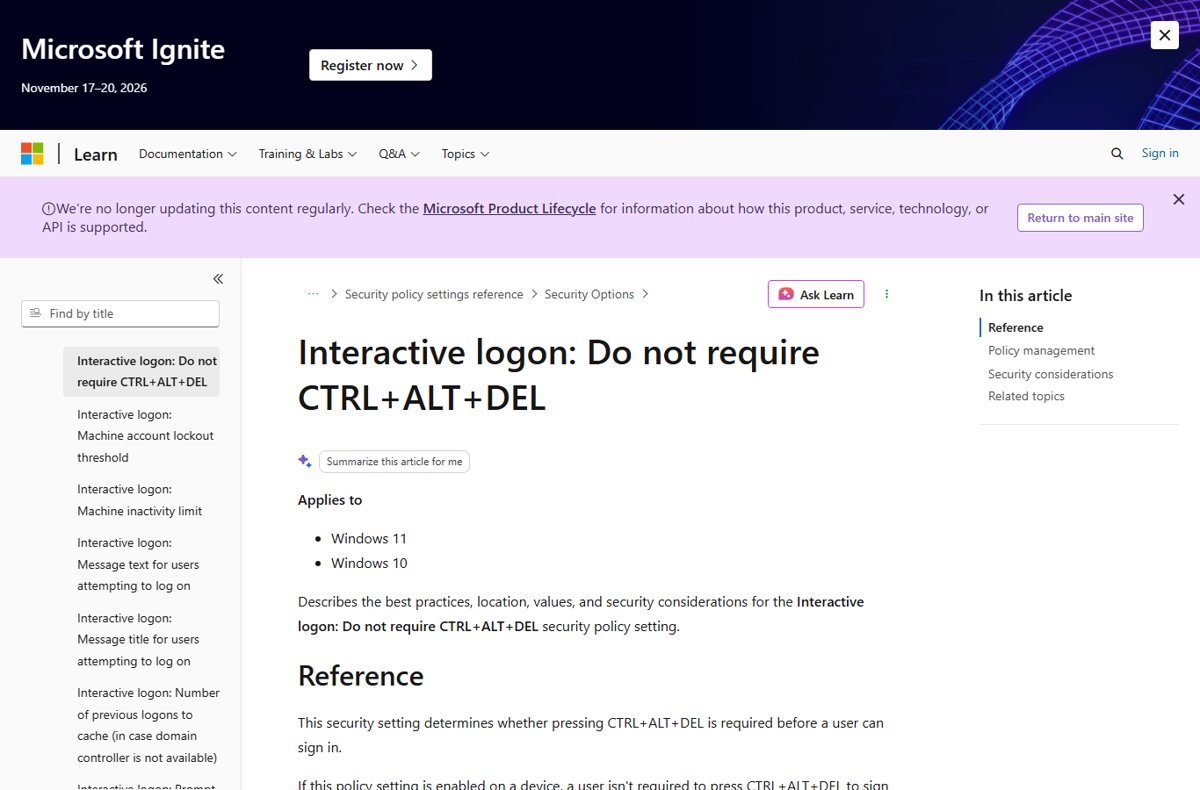
When this policy is disabled, every user must press CTRL+ALT+DEL before the sign-in box appears, unless they sign in with a smart card. Microsoft documents the policy for Windows 10 and 11 Pro, Enterprise and Education.
- Sign in with an administrator account.
- Press Windows key + R, type
secpol.mscand press Enter. - In the left pane, expand Local Policies and select Security Options.
- Double-click Interactive logon: Do not require CTRL+ALT+DEL.
- Select Disabled, then select OK.
- Lock the PC with Windows key + L to test; no restart is needed.
Understanding the CTRL + ALT + DEL Command
| Question | Answer |
|---|---|
| What is it? | A three-key combination that Windows reserves for its own security screen |
| Why require it at sign-in? | It ensures you type your password through a trusted path, not into fake sign-in malware |
| What does the policy control? | Whether CTRL+ALT+DEL must be pressed before signing in |
| Who is exempt? | Users who sign in with a smart card |
| Why is it off on many home PCs? | Microsoft added the option to skip it to help users with certain physical impairments |
| Does it need a restart? | No. The change applies as soon as it is saved |
Common Uses and Functions of CTRL + ALT + DEL
After you sign in, CTRL+ALT+DEL switches to the security screen. Microsoft lists five options there.
| Option | What it does | Direct shortcut |
|---|---|---|
| Lock | Locks the desktop; your apps keep running | Windows key + L |
| Switch user | Lets another account sign in without closing yours | None |
| Sign out | Closes your apps and signs you out | None |
| Change a password | Changes the current account's password | None |
| Task Manager | Opens Task Manager to end frozen apps and check performance | Ctrl + Shift + Esc |
How to Access CTRL + ALT + DEL in Windows 10
| Your situation | Use this | Why |
|---|---|---|
| Normal physical keyboard | Press Ctrl + Alt + Delete together | The standard method |
| Remote Desktop session | Ctrl + Alt + End | Sends the same command to the remote PC instead of your own |
| You only need Task Manager | Ctrl + Shift + Esc | Opens it directly |
| You only need to lock the PC | Windows key + L | Locks without the security screen |
| At the sign-in screen with no usable keyboard | On-Screen Keyboard from the Accessibility button | Lets you type with a mouse |
Method 1: Using the Keyboard Shortcut
This standard method works anywhere in Windows once you are signed in.
- Hold down Ctrl and Alt together.
- While holding them, press Delete (Del).
- Release all three keys; the security screen appears.
- Select the option you need on the security screen.
Method 2: Using the Ctrl + Alt + Del Button on the Login Screen
Once you have required CTRL+ALT+DEL, the lock and sign-in screens wait for it before showing the password box.
- Wake the PC or go to the lock screen.
- Press Ctrl + Alt + Delete together.
- Wait for the sign-in box to appear.
- Enter your password or PIN and sign in.
Users who sign in with a smart card skip this step, because the requirement does not apply to them.
Method 3: Using the Windows Security Screen
Accessing the security options is what CTRL+ALT+DEL is for once you are signed in.
- Press Ctrl + Alt + Delete.
- Choose Lock, Switch user, Sign out, Change a password or Task Manager.
- Follow the prompts for the option you chose, such as typing your old and new password for Change a password.
Step-by-Step Guide
Administrators managing several PCs set the same policy through Group Policy instead of on each machine.
- Open the Group Policy Management Console and edit the Group Policy Object that applies to the PCs.
- Go to Computer Configuration > Windows Settings > Security Settings > Local Policies > Security Options.
- Open Interactive logon: Do not require CTRL+ALT+DEL.
- Define the policy and select Disabled, then OK.
- Let Group Policy refresh, or run
gpupdate /forceon a PC to apply it now.
Defining the policy writes the DisableCAD value under HKEY_LOCAL_MACHINE\SOFTWARE\Microsoft\Windows\CurrentVersion\Policies\System.
How to check the requirement is working
- Press Windows key + L to lock the PC.
- Press a key or click the lock screen.
- Confirm the password box does not appear until you press Ctrl + Alt + Delete.
- Sign in, then open
secpol.mscagain and confirm the policy shows Disabled.
Alternative Methods If Keyboard Shortcut Fails
| Problem | Alternative |
|---|---|
| Working inside Remote Desktop | Press Ctrl + Alt + End; it brings up Windows Security on the remote PC |
| Only Task Manager is needed | Press Ctrl + Shift + Esc, or right-click Start and select Task Manager |
| Only locking is needed | Press Windows key + L |
| A key on the keyboard is broken | Connect another USB or Bluetooth keyboard |
| No keyboard at the sign-in screen | Use the On-Screen Keyboard (next section) to type your password |
Using the On-Screen Keyboard
The On-Screen Keyboard shows a full keyboard you can click with a mouse, with no touchscreen needed.
- At the sign-in screen, select the Accessibility button in the lower-right corner.
- Select On-Screen Keyboard.
- Click the keys with your mouse to type your password.
- After signing in, turn it on any time from Start > Settings > Accessibility > Keyboard > On-Screen Keyboard.
- If only arrow and Tab keys show, select the General key to switch from the Nav layout to the full keyboard.
Creating a Custom Shortcut for CTRL + ALT + DEL in Windows 10
| Steps to create a custom shortcut | Important notes |
|---|---|
| Want the whole security screen? | No custom shortcut replaces CTRL+ALT+DEL; Windows reserves it as the trusted path for sign-in |
| Want Task Manager? | Use the built-in Ctrl + Shift + Esc, or pin Task Manager to the taskbar |
| Want to lock quickly? | Use the built-in Windows key + L |
| In a remote session? | Use Ctrl + Alt + End rather than any custom key |
| Third-party key remappers | Avoid tools that ask to intercept sign-in keys; anything that captures them could capture passwords |
Using CTRL + ALT + DEL for Troubleshooting
| Situation | What to do from the security screen |
|---|---|
| An app is frozen | Open Task Manager, select the app and end the task |
| The desktop or taskbar stops responding | Open Task Manager to check CPU, memory and disk use |
| Someone else needs the PC briefly | Use Switch user so your apps stay open |
| You suspect someone saw your password | Use Change a password straight away |
| Nothing responds to the mouse | Use Sign out to close everything cleanly |
Security Considerations and Best Practices
| Consideration | Recommendation |
|---|---|
| Security and system management | Requiring CTRL+ALT+DEL protects passwords from fake sign-in screens; turn it on for shared, office or public PCs |
| Accessibility | Leave it off for users who struggle to press three keys at once |
| Domain PCs | Set it through Group Policy so every machine behaves the same |
| Note on usage | Microsoft's current best practice for the policy is Not configured; choose Disabled only when you want the requirement |
| Reverting | Setting the policy back to Not defined is not enough; the DisableCAD registry value must also be removed |
How to disable CTRL+ALT+DEL at sign-in
- Press Windows key + R, type
secpol.mscand press Enter. - Go to Local Policies > Security Options.
- Open Interactive logon: Do not require CTRL+ALT+DEL, select Enabled and select OK.
- To return the policy to unconfigured instead, also delete the DisableCAD value from
HKEY_LOCAL_MACHINE\SOFTWARE\Microsoft\Windows\CurrentVersion\Policies\System; back up the registry first.
Troubleshooting Issues with CTRL + ALT + DEL
The policy change does not stick on a work PC
A domain Group Policy Object defines the setting and overrides the local one.
- Ask your IT administrator to change it in Group Policy.
- Run
gpupdate /forceafter they change it.
CTRL+ALT+DEL opens your own PC's screen during Remote Desktop
Your local PC handles the key combination first.
- Press Ctrl + Alt + End inside the Remote Desktop window instead.
The requirement is still there after setting Not defined
The DisableCAD registry value remains in place.
- Set the policy to Enabled to stop requiring the keys, or
- Remove the DisableCAD value from the Policies\System key.
Smart card users are never asked for CTRL+ALT+DEL
Smart card sign-in is exempt from this policy.
- No fix is needed; this is expected behavior.
secpol.msc does not open
Microsoft documents this policy for Pro, Enterprise and Education editions.
- Check your edition under Settings > System > About.
- On a managed PC, ask the administrator to set the policy through Group Policy or MDM.
Additional Tips
| Tip | Detail |
|---|---|
| Same policy on Windows 11 | Microsoft documents the setting for both Windows 10 and Windows 11 |
| Lock instead of signing out | Windows key + L keeps your apps open |
| Use Task Manager directly | Ctrl + Shift + Esc skips the security screen |
| Change passwords safely | Use Change a password from the security screen rather than an emailed link |
Frequently asked questions
What is CTRL+ALT+DELETE?
CTRL+ALT+DELETE is a key combination Windows reserves for its security screen. Pressed after sign-in, it shows Lock, Switch user, Sign out, Change a password and Task Manager. Required at sign-in, it makes sure your password goes to the real Windows sign-in box.
What does CTRL+ALT+DELETE bring up?
It brings up the Windows security screen, where you can lock the desktop, switch user, sign out, change a password or open Task Manager. Microsoft lists these five options for the combination in its Windows keyboard shortcut reference.
How do I add CTRL+ALT+DELETE in Windows 11?
Use the same policy as Windows 10. Open secpol.msc, go to Local Policies > Security Options, open Interactive logon: Do not require CTRL+ALT+DEL and set it to Disabled. Microsoft documents this policy for both Windows 10 and Windows 11.
How do I disable CTRL+ALT+DELETE at sign-in?
Open secpol.msc, go to Local Policies > Security Options and set Interactive logon: Do not require CTRL+ALT+DEL to Enabled. If you set it to Not defined instead, also delete the DisableCAD registry value, or the requirement stays.
What does CTRL+ALT+DELETE then Enter do?
On the sign-in screen, CTRL+ALT+DELETE reveals the password box, and Enter submits what you typed. On the security screen after sign-in, Enter activates whichever option is highlighted, so check the selection before pressing it.
Why should I require CTRL+ALT+DELETE to sign in?
Microsoft explains that malware can imitate the Windows sign-in box to steal passwords. Requiring CTRL+ALT+DELETE first ensures passwords travel through a trusted path, because only Windows answers that key combination before sign-in.
How do I send CTRL+ALT+DELETE in Remote Desktop?
Press Ctrl + Alt + End inside the Remote Desktop window. Microsoft documents it as bringing up the Windows Security dialog on the remote PC, the same as pressing CTRL+ALT+DELETE on a local computer.