Go to Settings > System > Recovery and select Restart now next to Advanced startup to open the Windows 11 troubleshooting options. Windows 11 has no single switch called troubleshooting mode, so the term covers the recovery tools, Safe Mode and a clean boot.
This guide shows how to turn on each one, including when Windows will not start, and how to get back to a normal startup.
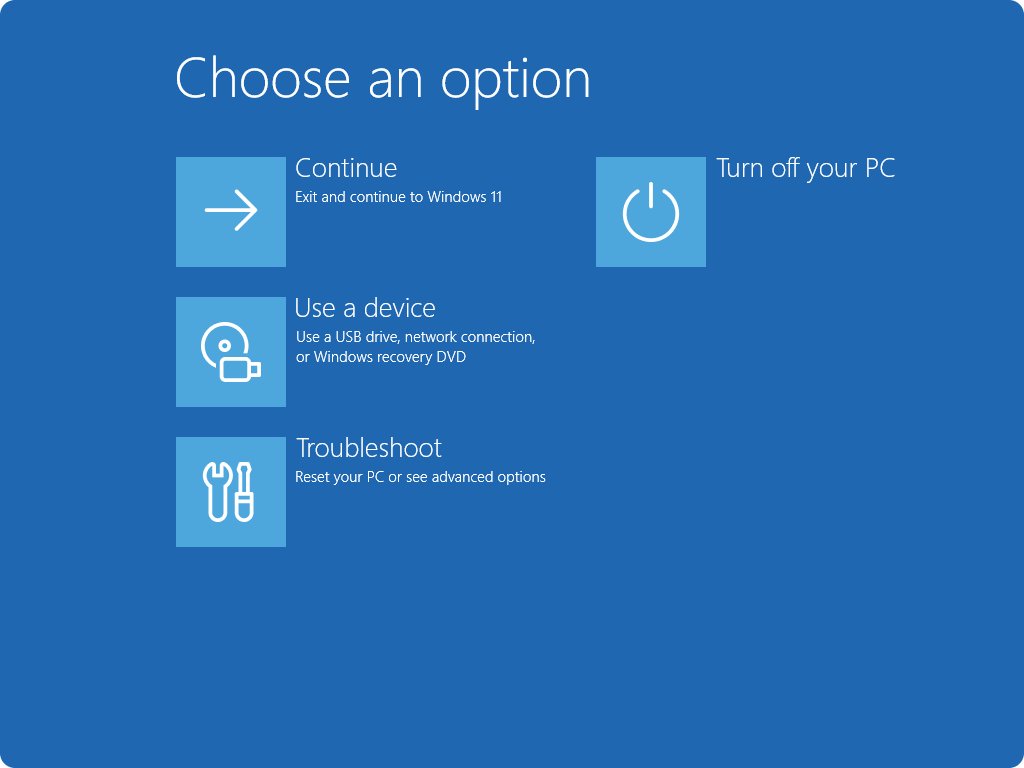
Method 1: Enable the mode using Advanced startup
Advanced startup opens the Windows Recovery Environment (Windows RE), the built-in set of tools for troubleshooting startup and system problems. Every other option on this page either starts here or works from inside Windows.
- Save your work and close your open apps.
- Select Start > Settings > System > Recovery.
- Next to Advanced startup, select Restart now.
- Confirm the restart if Windows asks.
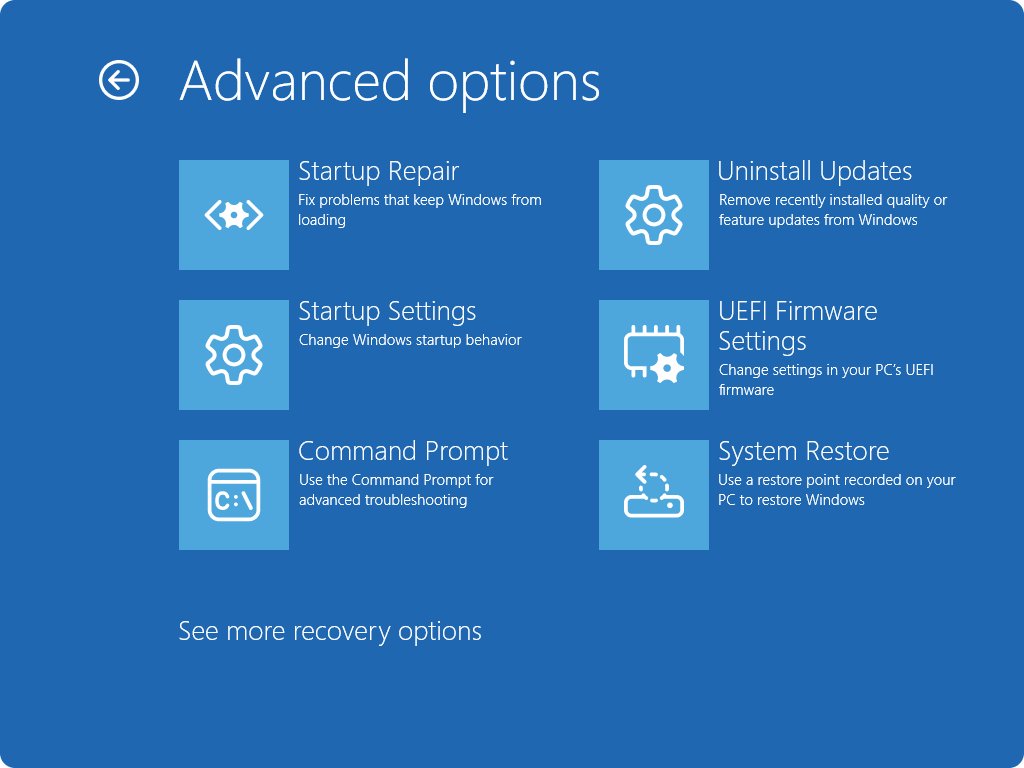
- On the Choose an option screen, select Troubleshoot.
- Select Advanced options to see the repair tools, or Reset this PC to reinstall Windows.
Faster still, hold Shift while you select Power > Restart. If your device is encrypted, keep your BitLocker recovery key handy, because some recovery tools ask for it.
When should you use troubleshooting mode?
Each option removes a different layer of Windows, so pick the one that matches your problem. Start with the row closest to what you see now.
| Your problem | Use this | Why |
|---|---|---|
| A driver, display change or new device causes crashes | Safe Mode | Windows starts with a limited set of files and drivers |
| You need to download a driver or tool while fixing Windows | Safe Mode with Networking | Adds the network drivers and services |
| An app or game conflicts with background software | Clean boot | Third-party services and startup apps stay off, and you re-enable them in groups |
| An app will not install or uninstall | Clean boot | Shows whether a background service is blocking the installer |
| The problem began after a Windows update | Uninstall Updates in Windows RE | Removes the recent update, and your files and apps stay |
| Windows will not start at all | Windows RE and Startup Repair | Works without loading the Windows desktop |
| A stop error flashes by and Windows restarts | Disable automatic restart on system failure | Holds the failure on screen instead of looping |
Method 2: Turn on Safe Mode
Safe Mode starts Windows in a basic state. If the problem does not happen there, the default settings and basic device drivers are not causing it, which points you towards other drivers and apps.
- Open Windows RE from Settings > System > Recovery > Restart now.
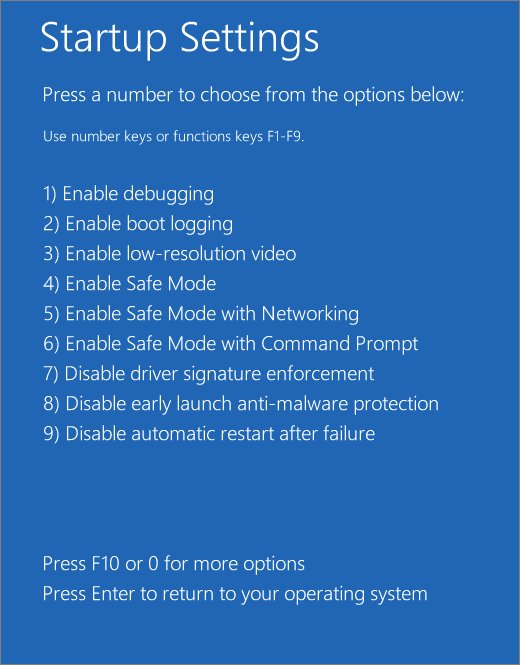
- Select Troubleshoot > Advanced options > Startup Settings > Restart.
- When the Startup Settings screen appears, press 4 or F4 for Enable Safe Mode.
- Sign in with your account.
- Test the problem, then remove the driver or app you suspect.
- Restart Windows to return to normal mode.
You can also start Safe Mode with the F8 key and other boot options if you set that up before the problem began.
Windows 11 Startup Settings options list
The Startup Settings screen offers nine choices. Use the number keys or F1 to F9 to pick one, or press Enter to start Windows normally.
| Key | Option | What it does |
|---|---|---|
| 1 | Enable debugging | Advanced troubleshooting mode for IT professionals and administrators |
| 2 | Enable boot logging | Creates ntbtlog.txt, a list of the drivers installed during startup |
| 3 | Enable low-resolution video | Uses your current video driver at low resolution, so you can reset display settings |
| 4 | Enable Safe Mode | Starts Windows with a limited set of files and drivers |
| 5 | Safe Mode with Networking | Adds the network drivers and services needed for the internet |
| 6 | Safe Mode with Command Prompt | Opens a command prompt window instead of the usual interface |
| 7 | Disable Driver Signature Enforcement | Allows drivers with improper signatures to install, so use it only for a driver you trust |
| 8 | Disable early launch anti-malware protection | Temporarily turns off a boot security feature, so leave it alone unless support asks |
| 9 | Disable automatic restart on system failure | For a loop where Windows fails, restarts and fails again |
Method 3: Turn on troubleshooting mode by using clean boot
A clean boot starts Windows with only essential drivers and startup programs. Unlike Safe Mode, it uses the regular Windows environment, so you can switch items back on in groups to find the conflict.
- Sign in to the PC as an administrator.
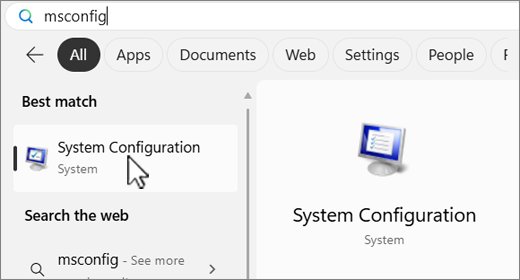
- Select Search, type
msconfig, and select System Configuration. - On the Services tab, select Hide all Microsoft services, select Disable all, and select Apply.
- On the Startup tab, select Open Task Manager.
- On the Startup apps tab, select each Enabled item and select Disable. Keep a note of each one.
- Close Task Manager, select OK in System Configuration, and restart.
- Try the app, install or update that failed before.
Microsoft warns that the PC may lose some functionality during a clean boot, and that misusing System Configuration can make a PC unusable. On a managed network, policy settings may block these steps.
If the problem disappears, test half of the services at a time with a restart after each change, then do the same with startup apps. That quickly isolates the single item at fault.
Method 4: Turn on troubleshooting mode when Windows does not start
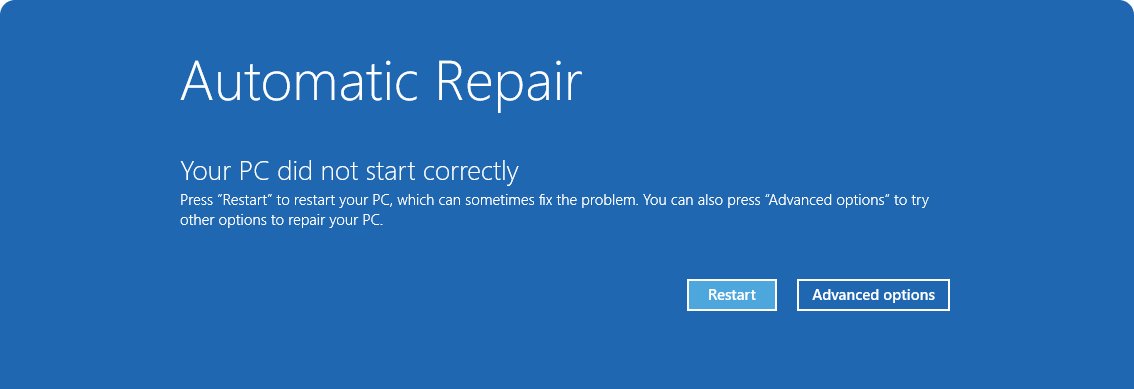
If Windows fails to start correctly several times, it opens Windows RE on its own. You can trigger that yourself by interrupting startup twice, so the third restart opens the Automatic Repair screen.
- Press and hold the power button until the PC turns off, while Windows is trying to start.
- Turn the PC on, and interrupt startup the same way once more.
- Turn the PC on a third time and wait for the Automatic Repair screen.
- Select Advanced options, then Troubleshoot.
- Select Advanced options > Startup Repair > Restart to let Windows scan for startup problems.
- If Startup Repair cannot fix it, return here and choose Startup Settings or Uninstall Updates.
Startup Repair targets broken or missing system files, damaged boot configuration data, a damaged master boot record, conflicting drivers and registry errors. If it fails, it produces a report of what it found. You can also repair Windows boot problems with Safe Mode and bootrec.
How to open Windows RE from a recovery drive or installation media
Use this route when the automatic screen never appears. Some PC makers also provide a dedicated recovery button or key combination, which is listed in the PC's manual.
- On a working PC, create a USB recovery drive or Windows installation media with the Media Creation Tool.
- Connect the drive to the PC that will not start.
- Start the PC and boot from the USB drive.
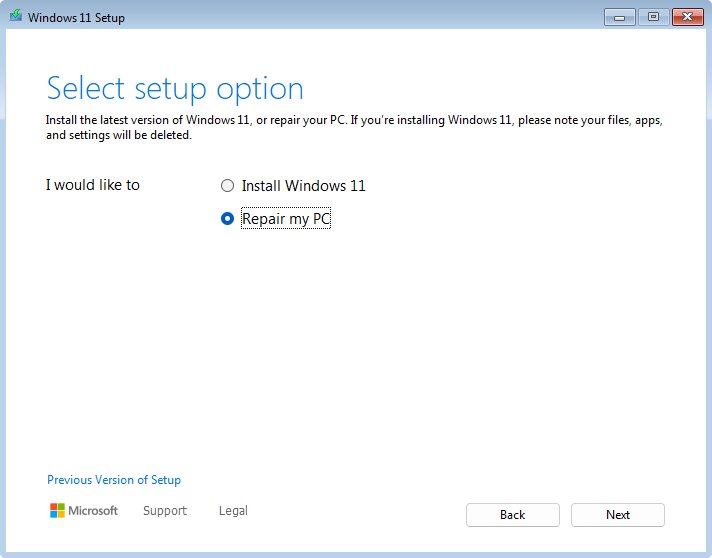
- A recovery drive opens Windows RE directly. On installation media, choose the repair option.
- Select Troubleshoot to reach the same tools.
How to boot to Advanced startup from Command Prompt in Windows 11
This command does the same job as the Settings route, and it suits a remote session or a script. Save your work first, because the restart happens immediately.
shutdown /r /o /f /t 0/r restarts the PC, /o goes to the Advanced boot options menu and must be used with /r, /f closes running apps without warning, and /t 0 sets no delay.
You should see: the PC restarts and opens the Choose an option screen.
How to tell if Windows RE is enabled in Windows 11
Run this when the recovery screen will not open at all, because you may need to enable or repair Windows RE. reagentc reports the status of Windows RE and any available recovery image. Open Command Prompt as an administrator first.
reagentc /infoThe output shows whether Windows RE is enabled. If it is disabled, reagentc /enable tries to turn it on with the default recovery image.
You should see: a Windows RE status line, along with the location of the recovery image.
How to turn off Safe Mode and clean boot in Windows 11
A plain restart should take you out of Safe Mode. A clean boot stays in place until you reverse it, so follow the longer list for that.
- To leave Safe Mode, restart the PC. If it keeps returning there, press Windows key + R, type
msconfig, and select OK. - Select the Boot tab and clear Safe boot under Boot options, then select OK and restart.
- To end a clean boot, open System Configuration and select Normal Startup on the General tab.
- Select the Services tab, clear Hide all Microsoft services, select Enable all, and select Apply.
- Select the Startup tab, select Open Task Manager, and enable the apps you disabled earlier.
- Select Restart when Windows prompts you.
Windows RE tools in Windows 11 explained
These are the tools you reach from Troubleshoot inside Windows RE. Start at the top, because the later entries change more of your system.
| Tool | What it does | Your files |
|---|---|---|
| Startup Repair | Diagnoses and fixes common startup problems | Not removed |
| Startup Settings | Changes startup options for troubleshooting | Not removed |
| Command Prompt | Advanced command-line troubleshooting | Depends on the commands you run |
| Uninstall Updates | Removes recently installed updates | Not removed |
| System Restore | Rolls back system files and settings | Not removed |
| Point-in-time restore | Rolls back the whole PC to a recent automatic restore point on Windows 11, version 24H2 or later | Changes made after that point are lost |
| System Image Recovery | Restores from a system image backup | Replaced by the backup |
| UEFI Firmware Settings | Restarts into firmware configuration | Not removed |
| Reset this PC | Reinstalls Windows | You choose to keep or remove them |
| Cloud rebuild | Reinstalls a fresh copy of Windows and drivers from Windows Update | All removed, along with apps and settings |
Windows also has separate problem solvers inside the Settings app, and you can run any Windows troubleshooter without restarting.
Windows 11 troubleshooting mode not working
Windows RE asks for a BitLocker recovery key
The device is encrypted, so some recovery tools need the key before they run.
- On another device, open Microsoft's Find your BitLocker recovery key page and follow it.
- Enter the key on the recovery screen.
- Continue to Startup Settings or the tool you chose.
The PC keeps booting into Safe Mode
Safe boot stays selected in System Configuration.
- Press Windows key + R, type
msconfig, and select OK. - Select the Boot tab.
- Clear Safe boot under Boot options.
- Select OK and restart.
An installer says the Windows Installer service could not be accessed
The Windows Installer service does not start in a clean boot when system services are off.
- Select Search, type computer management, and open Computer Management.
- Expand Services and Applications, then select Services.
- Right-click Windows Installer and select Start.
- Run the installer again.
Windows 11 troubleshooting mode FAQ
What is troubleshooting mode in Windows 11?
It is a common name rather than a Windows feature. People use it for the Windows Recovery Environment, Safe Mode and a clean boot, which each start Windows in a reduced or repair state so you can isolate a problem.
How do I boot into troubleshooting mode?
Go to Settings > System > Recovery and select Restart now next to Advanced startup. You can also hold Shift while you select Power > Restart. Both routes open Windows RE, where you select Troubleshoot to see the tools.
Does F8 open safe mode in Windows 11?
Not by default, so use the Startup Settings route instead. In Windows RE, select Troubleshoot > Advanced options > Startup Settings > Restart, then press 4 for Safe Mode or 5 for Safe Mode with Networking.
What is the difference between Safe Mode and a clean boot?
Safe Mode loads a limited, fixed set of files and drivers. A clean boot keeps the regular Windows environment with third-party services and startup apps turned off, so you can re-enable items in groups and find the conflict.
How do I get out of troubleshooting mode?
Restart the PC to leave Safe Mode or Windows RE. If the PC keeps entering Safe Mode, clear Safe boot on the Boot tab of msconfig. To end a clean boot, select Normal Startup and re-enable your services and startup apps.
Will troubleshooting mode delete my files?
Safe Mode, clean boot and Startup Repair are not designed to remove personal files. Reset this PC reinstalls Windows and lets you keep or remove them, and Cloud rebuild removes all files, apps and settings, so read each option first.
Can I enter troubleshooting mode if Windows 11 will not start?
Yes. Windows opens Windows RE after several failed starts, and interrupting startup twice brings up Automatic Repair on the third restart. You can also boot from a USB recovery drive or from Windows installation media.