To lock your Windows 11 PC automatically after a set time, turn on a screen saver, set its Wait time in minutes and tick On resume, display logon screen.
This guide also covers Dynamic lock, sleep timeouts, the machine inactivity limit policy, the registry value behind it, Task Scheduler's limits, instant lock shortcuts and fixes when the PC refuses to lock.
Method 1: Use screen saver settings to auto-lock PC
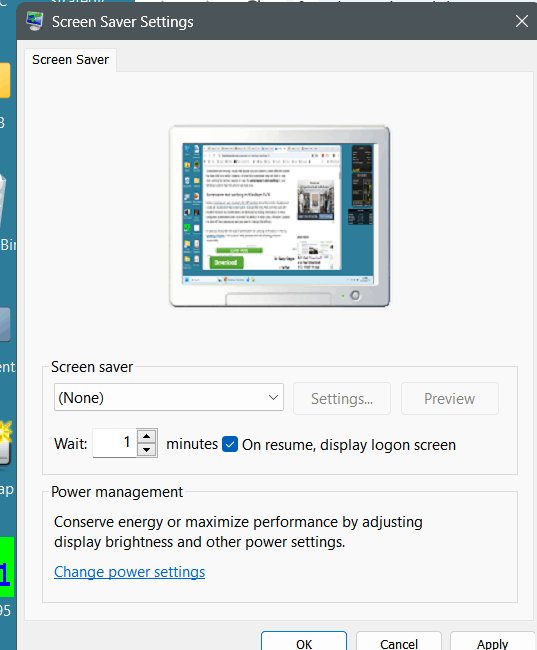
The screen saver route works on every Windows 11 edition, including Home, and lets you pick the idle time in minutes.
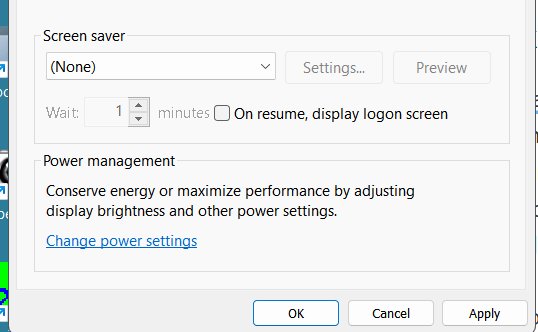
The lock comes from the On resume, display logon screen box, not from the screen saver itself.
- Select Start > Settings > Personalization > Lock screen.
- Under Related settings, select Screen saver.
- Pick any screen saver from the Screen saver list, such as Blank.
- Set Wait to the number of idle minutes before the PC locks, for example
5. - Tick On resume, display logon screen.
- Select Apply, then OK.
You can open the same dialog by running control desk.cpl,,1 from Command Prompt. If you also want a new screen saver style, you can change the screen saver in the same dialog.
Which Windows 11 auto-lock method should you use?
| Your situation | Use this | Why |
|---|---|---|
| Any edition, simple idle lock | Screen saver with On resume, display logon screen | Set in minutes, no admin tools |
| You carry your phone when you leave | Dynamic lock | Locks within about a minute of the phone leaving Bluetooth range |
| You want the screen off and power saved too | Sleep timeout in Power & battery | Waking from sleep brings back the sign-in screen |
| Pro, Enterprise or Education PC | Interactive logon: Machine inactivity limit | A device-wide policy measured in seconds |
| No policy editor available | InactivityTimeoutSecs registry value |
The value the policy writes |
| Laptop with a presence sensor | Presence sensing | Turns the screen off when you walk away |
Method 2: Use Dynamic Lock to lock PC when you walk away
Dynamic lock pairs Windows with your phone over Bluetooth and locks the PC when the signal drops below a set level.
It needs Bluetooth on the PC and the phone, but no internet or Wi-Fi connection.
- Pair your phone with the PC over Bluetooth in Settings > Bluetooth & devices.
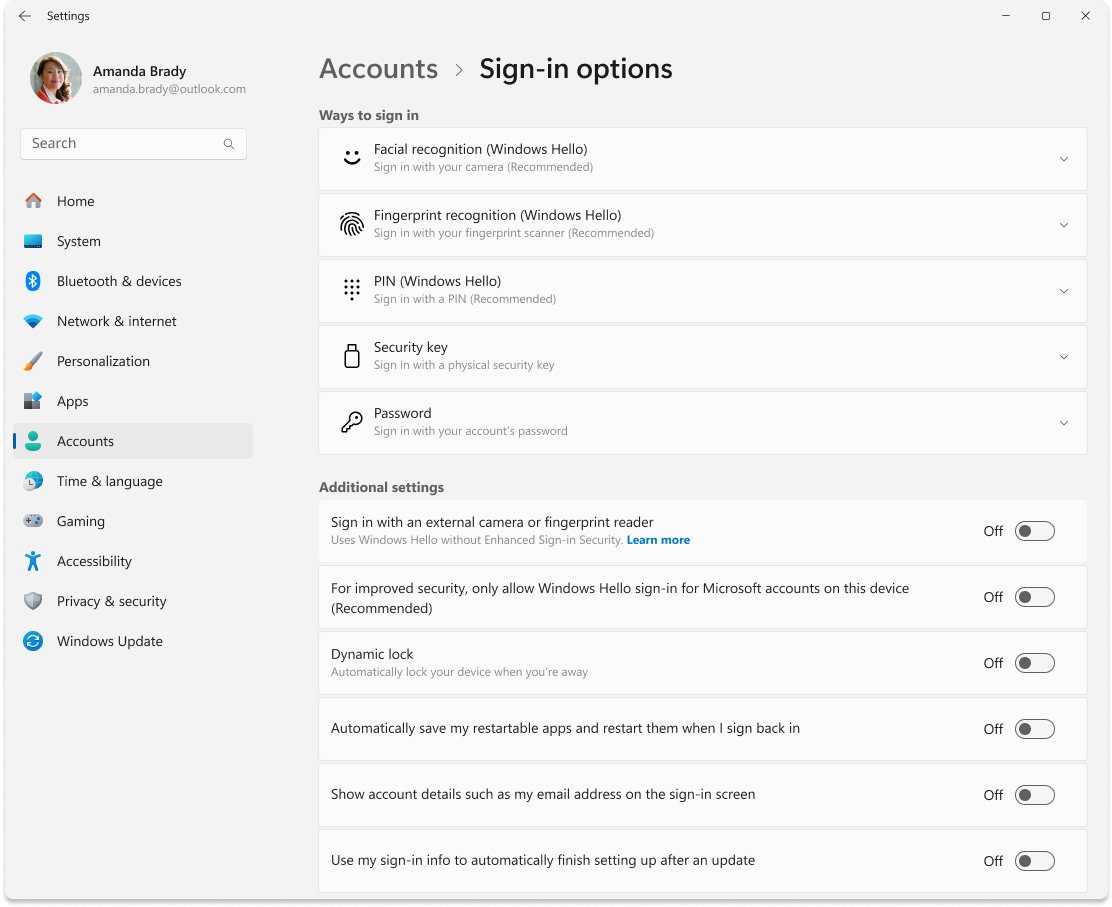
- Open Settings > Accounts > Sign-in options, or run
ms-settings:signinoptionsfrom the Run box. - Scroll to Additional settings and expand Dynamic lock.
- Turn on the option that lets Windows lock your device automatically when you are away.
- Take the phone with you when you leave; Windows locks within a minute after you are out of Bluetooth range.
Dynamic lock is a walk-away trigger, not a timer. Pair it with the screen saver method if you also want a lock while you sit at the desk idle.
Method 3: Lock automatically using power & sleep settings
Sleep ends the session's display and returns you to the sign-in screen on wake when your account has a password, PIN or Windows Hello.
Windows 11 holds separate values for plugged in and on battery.
- Select Start > Settings > System > Power & battery.
- Expand Screen, sleep, & hibernate timeouts.
- Set Turn my screen off after to a short time, such as 3 or 5 minutes.
- Set Make my device sleep after to the time frame you want before the PC sleeps.
- Repeat both values for battery power on a laptop.
On a PC with a presence sensor, the same page has Screen and sleep options such as Automatically turn off my screen when I leave. When the machine inactivity limit policy is set, Windows also locks when the display turns off because of these power settings.
Method 4: Lock automatically via Group Policy Editor (Windows 11 Pro & Enterprise)
Interactive logon: Machine inactivity limit locks the session after a number of idle seconds for every user on the PC.
It is off by default, and the policy applies to Pro, Enterprise and Education editions.
- Press Windows + R, type
secpol.mscand press Enter, or opengpedit.msc. - Go to Computer Configuration > Windows Settings > Security Settings > Local Policies > Security Options.
- Double-click Interactive logon: Machine inactivity limit.
- Enter the idle time in seconds, for example
300for 5 minutes. The range is 0 to 599940. - Select OK.
- Restart the PC so the new limit takes effect.
A value of 0 or a blank box disables the policy, so the session never locks from inactivity.
Method 5: Automatically lock using Registry Editor (advanced users)
The machine inactivity limit policy stores its value as InactivityTimeoutSecs, a REG_DWORD measured in seconds.
Back up the key before you edit it, because a wrong value change affects every account on the PC.
- Press Windows + R, type
regeditand press Enter, then select Yes at the UAC prompt. - Go to
HKEY_LOCAL_MACHINE\SOFTWARE\Microsoft\Windows\CurrentVersion\Policies\System. - Right-click System, select New > DWORD (32-bit) Value and name it
InactivityTimeoutSecs. - Double-click the value, select Decimal and enter the idle seconds, such as
600for 10 minutes. - Select OK, close Registry Editor and restart the PC.
To undo the change, delete InactivityTimeoutSecs or set it to 0 and restart. The per-user screen saver values ScreenSaveActive, ScreenSaverIsSecure and ScreenSaveTimeOut sit under HKEY_CURRENT_USER\Control Panel\Desktop and are what Method 1 writes.
Method 6: Use Task Scheduler to trigger automatic lock
Task Scheduler can start a task when the PC goes idle, but Windows ships no built-in Task Scheduler action that locks the session.
Locking is done by the LockWorkStation function, which only works for a signed-in user on the interactive desktop, so a task running in the background cannot lock the screen.
| What you want | Better tool | Why |
|---|---|---|
| Lock after a set idle time | Machine inactivity limit or screen saver | Both measure idle input directly and need no task |
| Lock when you leave the desk | Dynamic lock | Bluetooth distance is the trigger, not a clock |
| Lock at a fixed clock time each day | A task that runs your own lock script while you are signed in | LockWorkStation must run in your interactive session |
| Sleep or shut down on a schedule | Task Scheduler with shutdown or power settings |
These actions are built in and do not need the desktop |
Method 7: Third-party auto-lock utilities (optional)
Every common auto-lock need is covered by a built-in Windows 11 setting, so an extra utility adds software to maintain without adding a capability most readers need.
| Feature people look for in a utility | Built-in Windows 11 equivalent |
|---|---|
| Lock after X minutes idle | Screen saver Wait plus On resume, display logon screen |
| Lock when the phone leaves | Dynamic lock |
| Lock policy for all users | Interactive logon: Machine inactivity limit |
| Lock when the user walks away from a laptop | Presence sensing on supported hardware |
| One-key lock | Windows + L |
If you still choose a utility, download it only from the developer's own website or the Microsoft Store.
Bonus tip: lock PC instantly using shortcuts
An automatic lock is a safety net. Locking by hand as you stand up closes the gap before the timer runs out.
- Press Windows + L to lock the PC at once.
- Or press Ctrl + Alt + Delete and select Lock on the security screen.
Windows 11 also has other manual ways to lock the screen if you prefer the mouse.
How to check Windows 11 auto-lock is working
- Set a short test time, such as 1 minute for the screen saver or
60seconds for the policy. - Leave the keyboard and mouse untouched for longer than that time.
- Move the mouse and confirm Windows asks for your PIN, password or Windows Hello instead of returning to the desktop.
- For Dynamic lock, walk out of Bluetooth range with your phone and wait about a minute before checking.
- Set the time back to your normal value once the test passes.
Troubleshooting common issues with Windows 11 auto-lock
Auto lock not working
The screen saver runs without the resume box ticked, or the policy is still at 0 or waiting for a restart.
- Open the Screen saver dialog and confirm On resume, display logon screen is ticked.
- Check that a screen saver other than (None) is selected.
- In
secpol.msc, confirm Interactive logon: Machine inactivity limit holds a value above 0. - Restart the PC after changing the policy or the registry value.
Dynamic lock not responding
The phone is not paired, Bluetooth is off, or the phone is still within range.
- Open Settings > Bluetooth & devices and confirm Bluetooth is on and the phone is listed.
- Remove the phone and pair it again if it shows as disconnected.
- Recheck that Dynamic lock is on under Accounts > Sign-in options.
- Move far enough away and wait at least a minute before testing.
Power settings overriding lock timer
The screen turns off or the PC sleeps before your lock timer is reached.
- Open Settings > System > Power & battery > Screen, sleep, & hibernate timeouts.
- Set Turn my screen off after longer than the screen saver Wait time if you want the screen saver to show first.
- Remember that with the machine inactivity limit set, a display turning off also locks the PC.
Screen saver options are greyed out
A policy under User Configuration > Administrative Templates > Control Panel > Personalization controls the screen saver.
- On a work PC, ask your IT administrator; the policy is set centrally.
- On a personal Pro PC, open Group Policy Editor with
gpedit.mscand review Enable screen saver, Password protect the screen saver and Screen saver timeout under that path. - Set them to Not configured to control the screen saver from Settings again.
Why you should automatically lock your PC
An unlocked, unattended PC gives anyone nearby your open email, files and signed-in accounts.
| Security benefit of auto-locking | What it protects |
|---|---|
| Blocks access when you forget to lock | Open apps, documents and browser sessions |
| Protects signed-in accounts | Email, cloud storage and work tools that stay signed in |
| Limits shoulder-surfing in shared spaces | Whatever is on screen when you step away |
| Pairs with sleep timeouts | Battery life and screen wear as well as privacy |
Best practices for auto-lock settings in Windows 11
| Where the PC is used | Suggested idle time | Method |
|---|---|---|
| Public or shared area | 1 to 5 minutes | Machine inactivity limit or screen saver |
| Office desk | 5 to 10 minutes | Screen saver plus Dynamic lock |
| Home, trusted people only | 10 to 15 minutes | Screen saver or sleep timeout |
| Laptop on the move | 3 to 5 minutes on battery | Sleep timeout plus Windows + L habit |
Microsoft's guidance is to base the time on the device's location: shorter in public areas, longer where only trusted people have access. Always use a PIN or password, because a lock without one opens with a key press.
Windows 11 auto-lock frequently asked questions
What is the default lock timeout in Windows 11?
Windows 11 has no idle lock timer turned on by default; the machine inactivity limit policy is disabled out of the box. What locks most PCs is sleep: newer devices turn the screen off after 3 to 5 minutes and sleep after 3 to 15 minutes depending on hardware and power source.
Can I set different auto-lock times for battery and plugged-in modes?
Yes, through sleep and screen timeouts. Under Settings > System > Power & battery > Screen, sleep, & hibernate timeouts, a laptop shows separate plugged in and on battery values. The screen saver and the inactivity policy use one value for both.
Does Dynamic Lock require internet or Wi-Fi?
No. Dynamic lock uses a Bluetooth connection between the PC and a paired phone. When the Bluetooth signal drops below a set level, Windows locks within about a minute. Wi-Fi and internet access play no part in it.
Can I disable auto-lock later?
Yes. Untick On resume, display logon screen in the Screen saver dialog, turn off Dynamic lock in Sign-in options, and set the machine inactivity limit or the InactivityTimeoutSecs value to 0, then restart the PC.
Is auto-lock available in Windows 11 Home edition?
Yes. The screen saver lock, Dynamic lock and sleep timeouts all work on Home. Microsoft documents the machine inactivity limit policy for Pro, Enterprise and Education editions, so Home users should rely on the screen saver lock.
How do I lock my Windows 11 PC instantly?
Press Windows + L. You can also press Ctrl + Alt + Delete and select Lock on the security screen. Both return you to the lock screen without closing your apps.
What is the maximum machine inactivity limit?
The policy accepts 0 to 599,940 seconds, which is about 166.65 hours. A value of 0 or a blank box disables it. The change needs a restart before Windows applies it.