To lock your PC automatically after inactivity on Windows 10, set a screen saver with a Wait time and tick On resume, display logon screen, or set the Interactive logon: Machine inactivity limit policy in seconds.
This guide covers the Settings route, the sleep sign-in route, Dynamic lock, Group Policy and the registry, plus how to confirm the lock works and how to undo it.
Lock your PC automatically after inactivity using Settings
The screen saver is the built-in idle timer that every Windows 10 edition has. When it starts after the idle minutes you choose, Windows asks for your password, PIN or Windows Hello before you get back to the desktop.
- Open Settings and select Personalization > Lock screen, or press Windows key + R, type
ms-settings:lockscreenand press Enter. - Scroll down and select the Screen saver settings link.
- In the Screen Saver Settings window, pick any screen saver from the drop-down list.
- Set Wait to the number of idle minutes before the PC should lock.
- Tick On resume, display logon screen.
- Confirm the change to close the window.
You can also open the same window directly: press Windows key + R, type control desk.cpl,,1 and press Enter. If you want to pick a different screen saver style as well, the steps to change the screen saver on Windows 10 cover each option.
Which automatic lock method should you use on Windows 10?
| Your situation | Use this | Why |
|---|---|---|
| Home PC, you want a lock after a set number of idle minutes | Screen saver with On resume, display logon screen | Works on every edition and takes effect at once |
| Laptop where you also want to save battery | Power & sleep timeouts plus Require sign-in | The lock happens when the screen sleeps |
| You always carry your phone when you leave the desk | Dynamic lock | Locks within a minute after the phone is out of Bluetooth range |
| You want one machine-wide limit that users cannot change | Group Policy: Interactive logon: Machine inactivity limit | Applies to every account on the PC, set in seconds |
| Group Policy editor is not available on your PC | Registry value InactivityTimeoutSecs |
Writes the same setting the policy stores |
| You manage the screen saver for a user and want it enforced | Group Policy: Personalization screen saver policies | Turns the screen saver on, password-protects it and fixes the timeout |
Lock Windows 10 when the screen turns off or the PC sleeps
Microsoft's security guidance notes that sleeping the screen is enough to trigger the lock, and suggests 10 or 15 minutes of idle time as a good interval. This route needs two settings: an idle timeout and a sign-in requirement.
- Press Windows key + R, type
ms-settings:powersleepand press Enter to open Power & sleep. - Under Screen, choose how many minutes of inactivity before the display turns off.
- Under Sleep, choose when the PC should sleep, or leave it longer than the screen timeout.
- Open Settings > Accounts > Sign-in options.
- Under Require sign-in, pick the option that requires sign-in when the PC wakes from sleep.
The sign-in requirement drop-down can be greyed out when a device security policy controls it, which is common on work PCs.
Lock your PC automatically after inactivity using Group Policy
The Interactive logon: Machine inactivity limit policy locks the session after the number of idle seconds you set. It accepts 0 to 599,940 seconds (166.65 hours), and 0 or blank turns it off. If the Local Group Policy Editor is not on your PC, use the registry method below instead.
- Press Windows key + R, type
gpedit.mscand press Enter. - Go to Computer Configuration > Windows Settings > Security Settings > Local Policies > Security Options.
- Double-click Interactive logon: Machine inactivity limit.
- Enter the idle time in seconds, for example
600for 10 minutes or900for 15 minutes. - Select OK to save the value.
- Restart the PC so the policy takes effect.
Once this policy is set, the PC also locks whenever the screen saver starts or the display turns off through power settings, even before the limit is reached.
Lock your PC automatically after inactivity using Registry
The machine inactivity limit is stored as a DWORD value in the registry, so you can set it directly. Back up the key first by right-clicking System and choosing Export.
- Press Windows key + R, type
regeditand press Enter, then approve the User Account Control prompt. - Go to
HKEY_LOCAL_MACHINE\SOFTWARE\Microsoft\Windows\CurrentVersion\Policies\System. - Right-click System and select New > DWORD (32-bit) Value.
- Name the value
InactivityTimeoutSecsand press Enter. - Double-click
InactivityTimeoutSecs, select Decimal, and enter the idle time in seconds between 1 and 599940. - Select OK, close Registry Editor and restart the PC.
Use seconds, not minutes: a value of 1 locks the PC after one second of inactivity. Enter 600 for 10 minutes.
Lock Windows 10 when you walk away with Dynamic lock
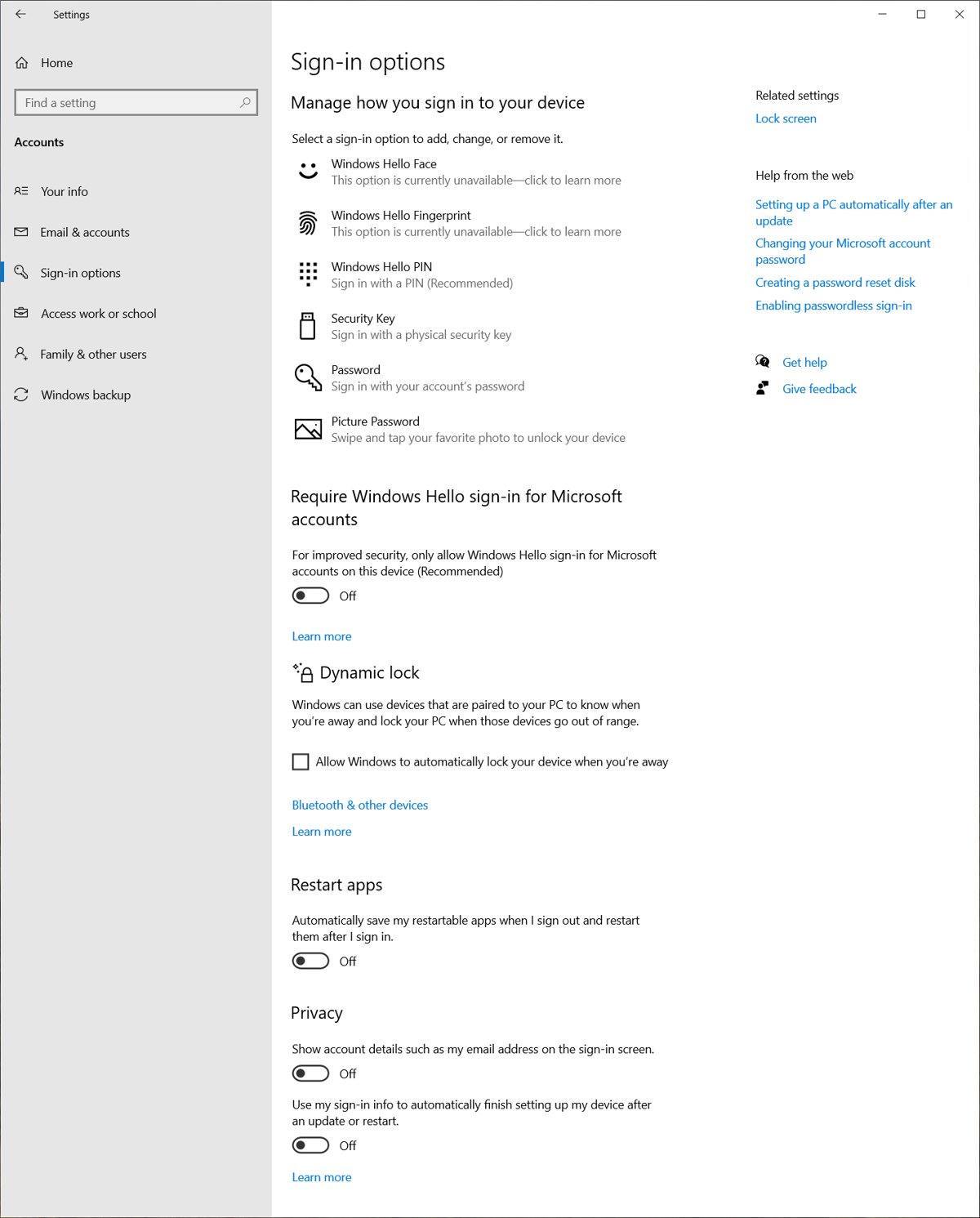
Dynamic lock is not an idle timer. It uses a phone paired over Bluetooth and locks Windows within a minute after the phone leaves Bluetooth range. Combine it with one of the timeout methods above if you also want a lock when you sit idle at the desk.
- Press Windows key + R, type
ms-settings:bluetooth, press Enter and pair your phone with the PC. - Press Windows key + R, type
ms-settings:signinoptions-dynamiclockand press Enter. - Under Dynamic lock, tick Allow Windows to lock your device automatically when you're away.
- Take the phone with you when you leave the desk.
Force a password-protected screen saver with Group Policy
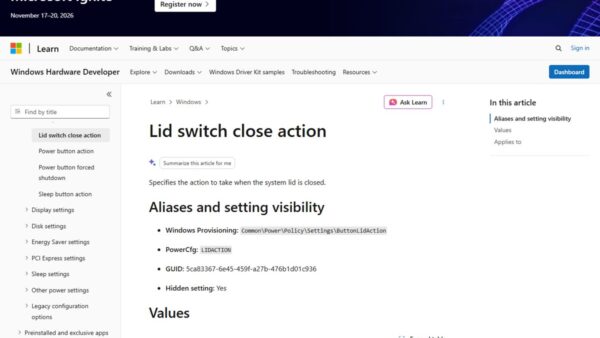
Microsoft documents that three user policies must all be configured to enforce a locking screen saver. They live under User Configuration > Administrative Templates > Control Panel > Personalization, and the Learn page notes the Machine inactivity limit depends on an active screen saver.
| Policy | Set it to | Registry value it controls |
|---|---|---|
| Enable screen saver | Enabled | ScreenSaveActive = 1 |
| Password protect the screen saver | Enabled | ScreenSaverIsSecure = 1 |
| Screen saver timeout | Enabled, with the idle time in seconds | ScreenSaveTimeOut = seconds |
The policy values are written to HKEY_CURRENT_USER\Software\Policies\Microsoft\Windows\Control Panel\Desktop. The Screen Saver Settings window writes the same three values to HKEY_CURRENT_USER\Control Panel\Desktop instead, and policies take precedence over it. A forced Group Policy update or signing out and back in applies the three policies.
How to check that Windows 10 locks after inactivity
- Temporarily set a short timeout, such as a Wait of 1 minute or
InactivityTimeoutSecsof60. - Save your work and leave the keyboard and mouse untouched for longer than that time.
- Move the mouse. You should see the lock screen and need your password, PIN or Windows Hello to get back in.
- If the screen saver only plays and you return straight to the desktop, On resume, display logon screen is not ticked.
- Set the timeout back to the interval you want to keep.
Turn off the automatic inactivity lock on Windows 10
- Screen saver: open
control desk.cpl,,1, clear On resume, display logon screen, or set the screen saver to (None). - Power & sleep sign-in: change the Require sign-in option in Sign-in options, if your account is allowed to.
- Dynamic lock: clear Allow Windows to lock your device automatically when you're away.
- Group Policy inactivity limit: set Interactive logon: Machine inactivity limit to
0, then restart. - Registry: set
InactivityTimeoutSecsto0or delete the value, then restart. - Personalization screen saver policies: set each of the three policies to Not Configured.
Windows 10 not locking automatically after inactivity: fixes
The PC never locks after the inactivity limit you set
The policy needs a restart, and Microsoft notes the lock works by invoking the screen saver.
- Restart the PC after setting the policy or
InactivityTimeoutSecs. - Check the value is in seconds and above 0.
- Turn on a screen saver, or enable the Enable screen saver policy under Personalization.
The screen saver starts but the desktop is not locked
The screen saver is not password-protected.
- Open the Screen Saver Settings window with
control desk.cpl,,1. - Tick On resume, display logon screen and save the change.
The PC locks sooner than the timeout you set
With the machine inactivity limit configured, Windows also locks when the screen saver starts or the display turns off.
- Open Power & sleep and raise the Screen timeout.
- Raise the screen saver Wait time, or set the screen saver to (None).
- Lower the machine inactivity limit so it is the shortest of the three timers.
The Require sign-in or screen saver options are greyed out
A device security policy, often from a work or school account, controls them.
- Check Settings > Accounts > Access work or school for a connected organisation.
- Ask the administrator who manages the PC to change the timeout.
Dynamic lock does not lock the PC
The phone is not paired, or it is still within Bluetooth range.
- Open
ms-settings:bluetoothand confirm the phone is listed as paired. - Wait a full minute after the phone is out of range before checking.
Windows 10 auto lock after inactivity FAQ
How do I make Windows 10 lock automatically after a few minutes?
Set a screen saver with a Wait time and tick On resume, display logon screen. Open it from Settings > Personalization > Lock screen. The PC then asks for your password, PIN or Windows Hello after that many idle minutes.
What is the maximum machine inactivity limit in Windows 10?
The Interactive logon: Machine inactivity limit policy accepts 0 to 599,940 seconds, which is 166.65 hours. A value of 0 or a blank value turns the automatic lock off.
Do I need to restart after changing the machine inactivity limit?
Yes. Microsoft states a restart is required before a change to this policy takes effect, whether you set it in Local Security Policy, Group Policy or the InactivityTimeoutSecs registry value.
Where is the inactivity lock stored in the registry?
It is the DWORD value InactivityTimeoutSecs under HKEY_LOCAL_MACHINE\SOFTWARE\Microsoft\Windows\CurrentVersion\Policies\System. The value is in seconds, and 0 disables the lock.
Does Dynamic lock lock Windows 10 after inactivity?
No. Dynamic lock locks the PC within a minute after your paired phone leaves Bluetooth range. It does not watch keyboard or mouse activity, so pair it with a screen saver or sleep timeout for idle locking.
Does turning off the screen lock Windows 10?
It locks the PC when Require sign-in is set to ask for sign-in after sleep, or when the machine inactivity limit policy is configured. Without either setting, the display can wake straight to the desktop.
How do I stop Windows 10 from locking automatically?
Undo the method you used: clear On resume, display logon screen, turn off Dynamic lock, or set the machine inactivity limit or InactivityTimeoutSecs to 0 and restart. Work PCs may have the lock enforced by policy.
Bottom line: the best way to auto lock a Windows 10 PC
Use a screen saver with On resume, display logon screen for a simple idle lock, and add the Machine inactivity limit policy when the timeout must apply to every account. The screen saver works on every edition without a restart, while the policy gives one machine-wide limit in seconds. Add Dynamic lock if you want the PC to lock the moment you walk away, and press Windows key + L to lock your computer screen manually when you leave in a hurry.