Fix the cannot verify server identity error by setting your iPhone's date and time automatically, installing the latest iOS update, and correcting the mail server name on the account that triggers the alert.
This guide covers what the alert means, how to find the account behind it, and what to do when the certificate belongs to your hosting company.
How to fix cannot verify server identity on iPhone
Work through these steps in order, and stop as soon as the alert stays away. None of them deletes mail stored on your provider's server.
- Open Settings, tap General, then tap Date & Time.
- Turn on Set Time Automatically.
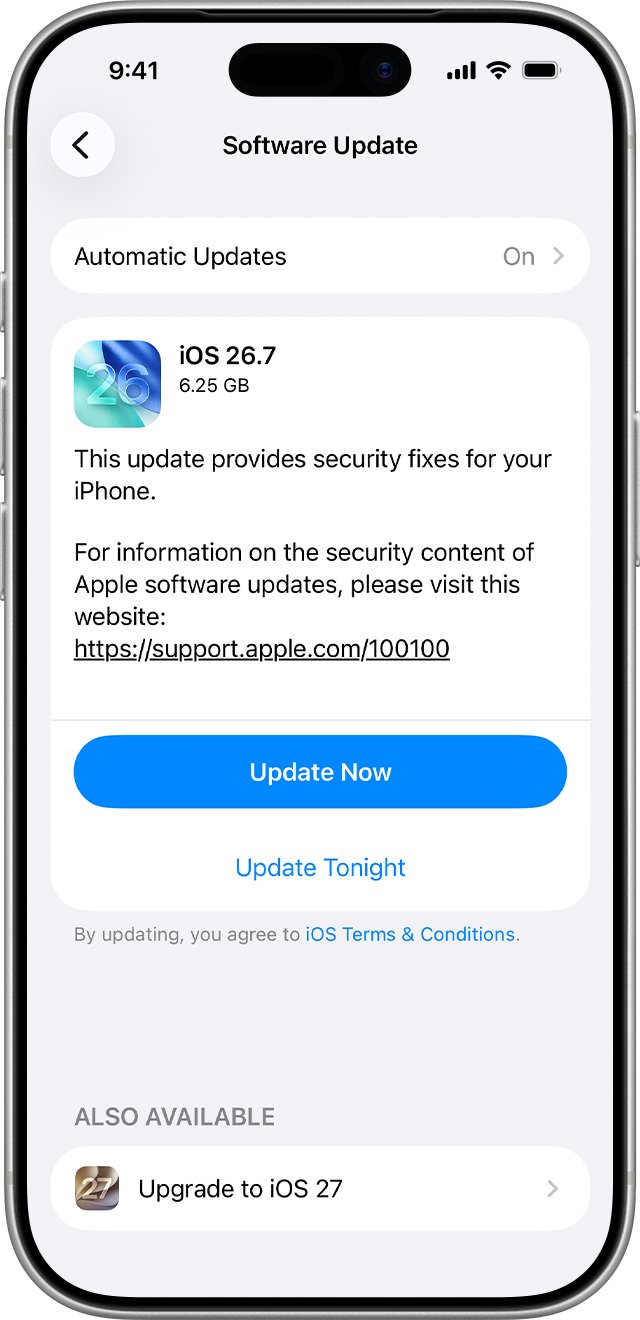
- Go back to General, tap Software Update, and install any update listed.
- Disconnect any VPN you use, then open the app that showed the alert again.
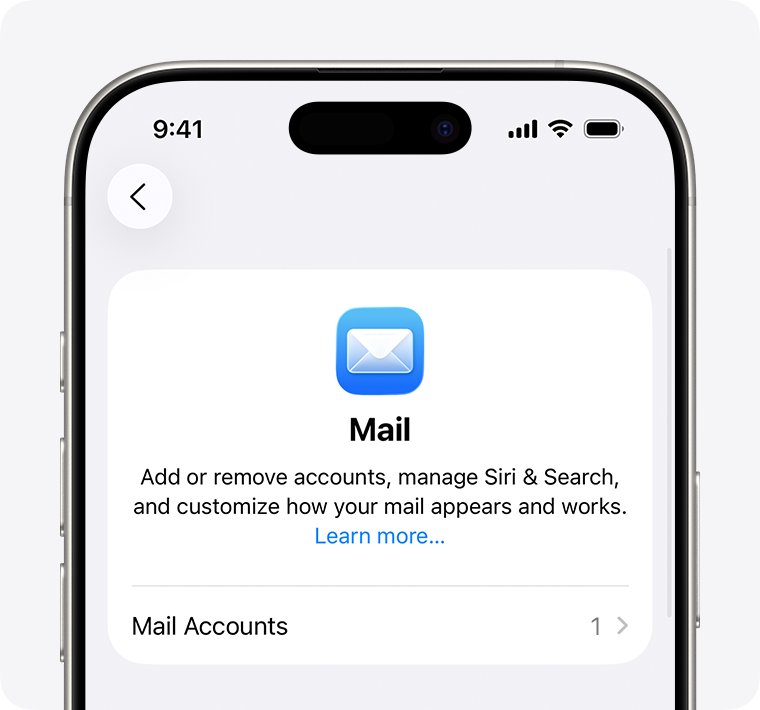
- Go to Settings > Apps > Mail > Mail Accounts and find the account that uses the server named in the alert.
- Ask that email provider for its correct incoming and outgoing server names.
- Delete the account from your iPhone, then add it again with those exact server names.
What does cannot verify server identity mean?
The alert means your iPhone could not link the server's certificate back to an authority it trusts. Apple states that a service encounters an error when iOS can't validate the trust chain of the signing certificate authority.
| Term | What it does | Why the alert appears |
|---|---|---|
| Server certificate | Identifies a server and carries its public key | It is expired, invalid or issued for a different name |
| Certificate authority (CA) | Signs the certificate to vouch for the server | Its root isn't on your iPhone's trusted list, which is common with company CAs |
| Trust chain | Connects the certificate through any intermediates to a root | A link is missing or can't be validated |
| Self-signed certificate | Is signed by its own server, not by a public CA | Apple says it can't be verified without user interaction |
Cannot verify server identity message causes on iPhone
| What you notice | Likely cause | Fix to try first |
|---|---|---|
| Date or time on the iPhone looks wrong | The clock falls outside the certificate's valid dates | Turn on Set Time Automatically |
| The iPhone has missed several iOS updates | The software may lack a newer trust list or security change | Install the latest iOS update |
| The alert started after you typed mail settings by hand | The server name doesn't match the certificate | Re-add the account with the provider's server names |
| The certificate names your hosting company, not your mail domain | The mail server name you use isn't on that certificate | Ask the host which server name its certificate covers |
| The alert appears only with a VPN connected | The VPN is interfering with the secure connection | Disconnect the VPN and contact its provider |
| You see a profile you don't recognize | A profile changed your network or certificate settings | Review it in VPN & Device Management |
| The alert appears only on a work or school network | The organization uses its own CA | Ask the administrator for its certificate |
How to find which app causes cannot verify server identity
The alert often names a server, not an app, so test your mail accounts one at a time. Turning an account off keeps the account on your iPhone, and you can turn it back on later.
- Write down the server name shown in the alert or its certificate details.
- Go to Settings > Apps > Mail > Mail Accounts.
- Tap the first account and turn off Mail. For an iCloud account, turn off Use on this iPhone.
- Open the Mail app and check whether the alert comes back.
- Turn the account back on if the alert still appears, then repeat with the next account.
- Check your VPN and profiles if the alert continues with every account turned off.
How to set the iPhone date and time automatically
Every certificate has a start date and an end date. A wrong clock can place the current date outside that window, even when the certificate is fine.
- Open the Settings app.
- Tap General, then tap Date & Time.
- Turn on Set Time Automatically.
- Turn on Set Time Zone Automatically if the time zone is also wrong.
- Open the app that showed the alert and try again.
How to update iOS to fix a server certificate that cannot be verified
Apple devices ship with a list of preinstalled root certificates, and each iOS release family has its own published list. An update brings your iPhone in line with Apple's current security requirements.
- Back up your iPhone with iCloud or a computer.
- Connect the iPhone to power and to Wi-Fi.
- Open Settings and tap General.
- Tap Software Update to see your installed version and any available update.
- Tap Download and Install if an update is listed, then follow the prompts.
Disconnect any VPN if no update appears, because Apple notes that VPN or proxy connections can block access to its update servers.
iPhone cannot verify server: correct mail server names
A server name that isn't on the certificate fails verification, so an old or misspelled name is a common cause on manually added accounts. Use these values only when you enter settings by hand.
| Email provider | Incoming server | Outgoing server | Security |
|---|---|---|---|
| iCloud Mail | imap.mail.me.com, port 993 | smtp.mail.me.com, port 587 | SSL required; authentication required for outgoing mail |
| Outlook.com | outlook.office365.com, port 993 | smtp-mail.outlook.com, port 587 | SSL/TLS incoming; STARTTLS outgoing |
| Google, Yahoo or Microsoft Exchange | Set up automatically | Set up automatically | Add the account with your address and password |
| Custom domain or web host | Ask your provider | Ask your provider | Ask which name the provider's certificate covers |
How to remove and re-add an email account on iPhone
Removing the account clears the old settings from your iPhone without closing the account itself. Check that your mail is stored on the provider's server before you start, because anything held only on the iPhone goes with the account.
- Go to Settings > Apps > Mail > Mail Accounts.
- Tap the email account you want to remove.
- Tap Sign Out or Delete Account.
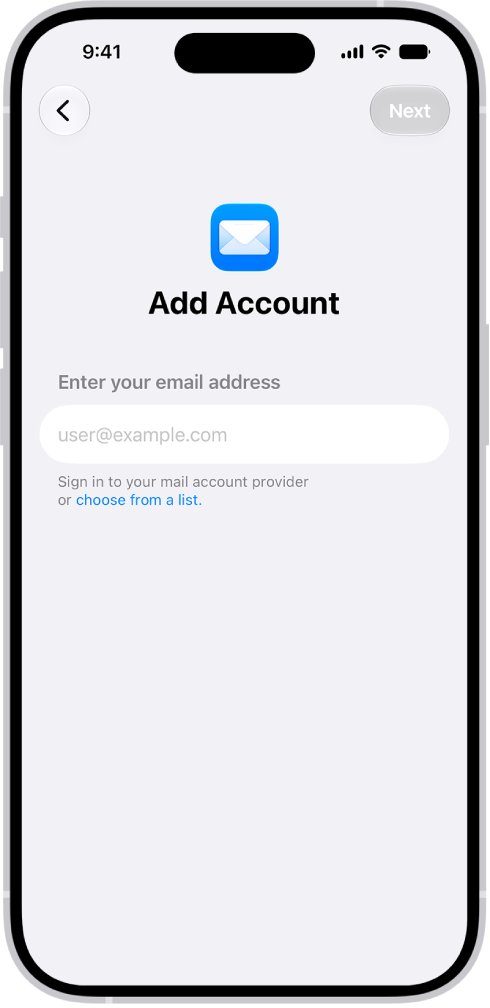
- Return to Mail Accounts and tap Add Account.
- Enter your email address and choose your provider from the list if it appears.
- Tap Add Other Account, then Mail Account, if your provider isn't listed.
- Enter the Incoming Mail Server and Outgoing Mail Server names from your provider, then tap Next.
- Tap Save when Mail accepts the settings.
VPN causing cannot verify server identity on iPhone
A VPN sends your traffic along a different route, so testing without it shows whether the VPN is involved. Keep any security app installed, and take a certificate problem to the app's provider.
- Open your VPN app and disconnect.
- Open the app that showed the alert and try again.
- Reconnect the VPN and check whether the alert returns.
- Contact the VPN provider or your VPN manager if the alert appears only while connected.
How to find a configuration profile on iPhone
Configuration profiles can define settings for corporate or school networks and accounts. Apple warns that deleting one also deletes its settings, apps and data, so ask your IT team before you remove a work or school profile.
- Go to Settings > General > VPN & Device Management.
- Review each profile listed and note who issued it.
- Tap any profile you don't recognize to read what it contains.
- Remove it only if you are sure you don't need it.
- Open the app that showed the alert and try again.
How to trust a certificate on iPhone for work or school
This applies only to a root certificate your employer or school gave you. A manually installed profile isn't automatically trusted for SSL, so you turn on trust yourself. Never do this for a certificate from an unknown website, email or pop-up.
- Confirm with your administrator that the installed certificate is genuine.
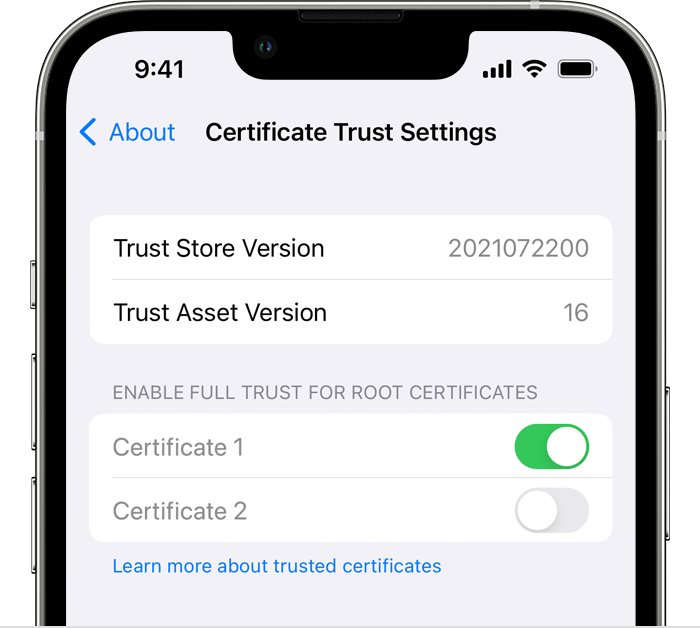
- Go to Settings > General > About > Certificate Trust Settings.
- Find Enable full trust for root certificates.
- Turn on trust for that certificate.
If that section doesn't appear, your iPhone has no additional certificates installed. Certificates deployed through device management are trusted automatically and can't be changed here.
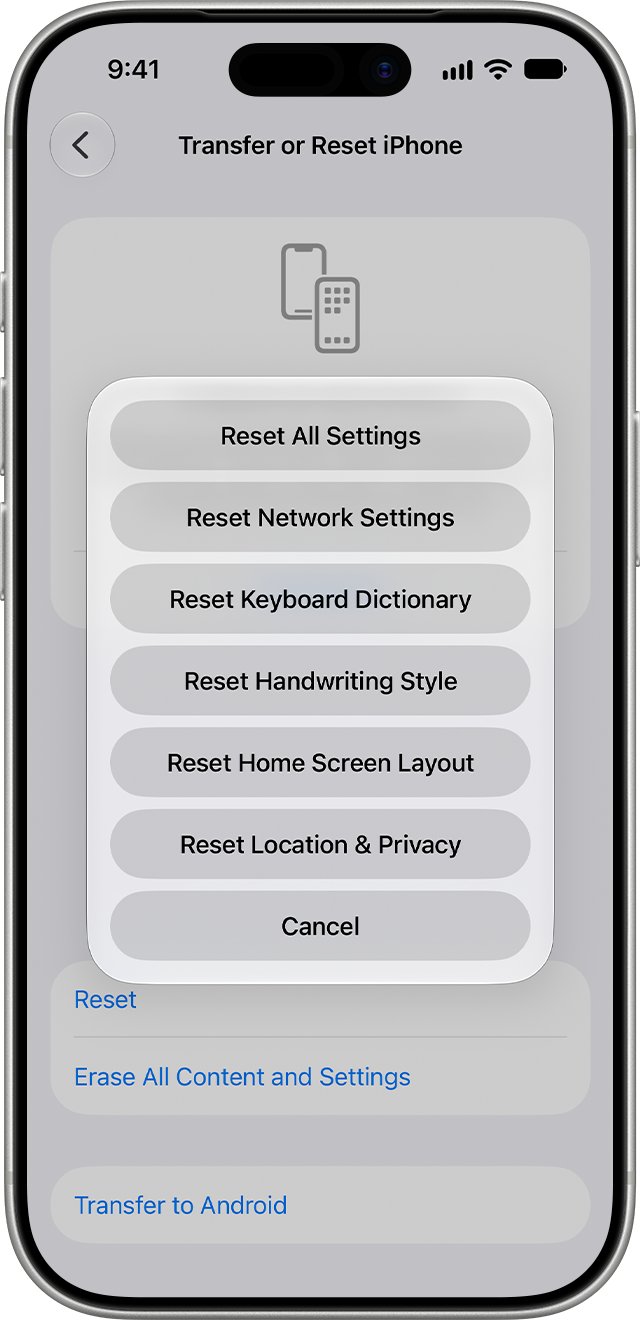
How to reset network settings on iPhone
Apple advises using this only when other solutions fail. It removes all Wi-Fi networks and passwords, cellular settings, and VPN and APN settings, so ask your IT team first if a school or business configures your network.
- Open the Settings app and tap General.
- Tap Transfer or Reset iPhone.
- Tap Reset, then tap Reset Network Settings.
- Rejoin your Wi-Fi network and try the app again.
Is it safe to ignore cannot verify server identity?
Don't accept the certificate unless your provider or administrator confirms that it is genuine. Certificates exist to confirm a server's identity and help prevent interception of confidential data. Your password and mail travel to that server, so accepting an unknown certificate removes the check protecting them.
Could not verify the server certificate on your own mail server
If you run the mail server or website, the fix belongs on the server and not on each iPhone. Apple says connections to TLS servers that break these rules fail, which can cause network failures, app failures and sites that won't load in Safari.
| Certificate property | Apple's requirement |
|---|---|
| RSA key size | At least 2048 bits, for the server certificate and issuing CAs |
| Signature hash | SHA-2 family; SHA-1 signatures aren't trusted for TLS |
| Server name | The server's DNS name must be in the Subject Alternative Name extension |
| Extended Key Usage | Must include id-kp-serverAuth for certificates issued after July 1, 2019 |
| Validity period | 825 days or fewer for certificates issued after July 1, 2019 |
| Chain of trust | Must validate to a trusted root, including any intermediates for multitier setups |
How to check a server certificate in Keychain Access on Mac
Mail on a Mac relies on the same certificate trust system. Keychain Access can evaluate a server's certificate, which helps you separate a server problem from a settings problem.
- Search for Keychain Access in Spotlight and press Return.
- Click Certificates in the Category list, then double-click the certificate.
- Choose Keychain Access > Certificate Assistant > Evaluate with the certificate's name.
- Select SSL, then type the host server's URL.
- Select Ask Host For Certificates, then click Continue.
On macOS 13 or later, a root certificate you install manually with a profile isn't trusted for TLS by default. Change that only for a certificate your administrator supplied.
How to remove cannot verify server identity when it keeps coming back
Cannot verify server identity message returns on every mail check
An account on the iPhone still uses a server name its certificate doesn't cover.
- Turn off Mail for each account in turn to find the one involved.
- Delete that account from Mail Accounts.
- Add it again with the server names your provider gives you.
Server certificate cannot be verified and shows another company's domain
The server is presenting the host's certificate, and your own mail domain isn't listed on it.
- Read the domain shown in the certificate details.
- Ask your host which mail server name that certificate covers, or ask it to install a certificate for your domain.
- Re-add the account using the name the host confirms.
Cannot connect to server or can't find the server
The iPhone isn't reaching the server at all, so this is a network or server name problem.
- Check the server name for typing errors.
- Try another Wi-Fi network or cellular data.
- Restart your router and cable modem by unplugging them and plugging them back in.
- Contact your ISP if other devices on the same network can't get online.
Could not verify the server certificate after trying every fix
The remaining suspect is the certificate itself, which only the server's operator can change.
- Open the same account on another device to compare the result.
- Send your email provider the server name and the certificate details.
- Ask the provider whether the certificate has expired or was issued for another name.
Cannot verify server identity FAQ
How do I fix cannot verify server identity?
Set your iPhone's date and time automatically, install the latest iOS update, and disconnect any VPN. If the alert continues, delete the affected email account and add it again using the exact server names your email provider gives you.
How do I remove cannot verify server identity?
Remove the cause, not just the alert. Find the account or profile using the rejected server, then correct its server name or delete it. Accepting an unconfirmed certificate may quiet the message, but it also removes the identity check protecting your password.
Why does my iPhone say cannot verify server?
Your iPhone could not validate the server's certificate against a trusted root. The usual reasons are a wrong date, an outdated iOS version, a mail server name missing from the certificate, a company certificate authority, or a certificate that has expired.
What does could not verify the server certificate mean?
It means a device or app checked the certificate a server presented and could not confirm that it is valid for that server. The connection stops or asks for your decision because the server's identity remains unconfirmed.
How do I fix cannot connect to server on iPhone?
That message points to a connection problem instead of a certificate problem. Check the address, try another network, and restart your router. Safari users can work through these cannot connect to server fixes for iPhone, iPad and Mac.
How do I fix can't find the server?
Check the server name for typing errors, then test another Wi-Fi network or cellular data. If other devices on the same network also fail, restart the router and modem. Contact your internet provider when every device on that network stays offline.
How do I fix a server error on a website?
A website's server error usually needs a fix from the site's owner, and it differs from a certificate alert. Reload the page later, or ask the site's support team. Owners can trace a 500 internal server error through its common causes.