Press Windows logo key + L to lock your Windows 10 or Windows 11 screen instantly; your apps stay open, and getting back in needs your password, PIN or Windows Hello.
This guide covers every built-in way to lock the PC by hand, the settings that lock it automatically when you walk away, and fixes for a PC that will not lock.
Method 1: Lock Windows With the Keyboard Shortcut
This is the route Microsoft names first on both Windows 10 and Windows 11.
- Save anything you would hate to lose, as a habit. Locking does not close apps, but a power cut still would.
- Hold the Windows logo key and press L.
- The lock screen appears at once. Your apps and files keep running in the background.
- To get back in, press a key or click, then sign in with your password, PIN or Windows Hello.
What Happens When You Lock a Windows PC?
Locking and signing out look alike from across the room, but they do different things to your open work.
| Action | Your open apps | What someone at the PC can do | Use it when |
|---|---|---|---|
| Lock | Stay open, exactly where you left them | Sign in only with your password, PIN or Windows Hello, or sign in to their own account | You step away for minutes or hours |
| Sign out | Close; unsaved work may be lost | Sign in to any account on the PC | You are done for the day on a shared PC |
| Switch user | Stay open in your session | Use their own account while yours stays locked | Someone else needs the PC briefly |
| Sleep | Stay open; the PC drops to low power | Nothing until it wakes, then sign-in if you require it | A coffee break on a laptop |
Microsoft's developer documentation says the lock command has the same result as pressing Ctrl + Alt + Del and selecting Lock. Every manual method in this guide ends on that same lock screen, whose background you can change, for example with Windows Spotlight pictures.
Method 2: Lock From the Start Menu
Use this when you prefer the mouse or a touch screen. Where the Lock button sits depends on your Windows build.
- Select Start on the taskbar.
- Current Windows 11: select the Power icon, then select Lock.
- Earlier Windows 11 builds: select your user picture or the Accounts icon, then select Lock.
- Windows 10: select your account picture in the lower-left corner of the Start menu, then select Lock.
- The lock screen appears and your apps stay open.
Microsoft notes that earlier versions of Windows 11 showed Lock under the Accounts menu rather than the Power menu, so check both if one is missing.
Method 3: Lock Using Ctrl + Alt + Delete
The Ctrl + Alt + Del screen is a good fallback when the Windows key is dead, missing or remapped. It also offers Sign out.
There is no documented Lock command inside Task Manager or its user menu. If you opened Task Manager to lock the PC, use this screen instead; it is one keystroke away and does the same job.
- Press Ctrl + Alt + Del together.
- Select Lock from the list of options.
- To unlock later, press Ctrl + Alt + Del if prompted, then sign in.
Method 4: Create a Desktop Shortcut to Lock the Screen
A shortcut gives you a one-click lock button for the desktop. It runs the same Windows lock function that the keyboard shortcut triggers.
rundll32.exe user32.dll,LockWorkStationRight-click an empty part of the desktop and select New > Shortcut. Paste the line above as the item location, name it Lock PC, and finish the wizard. rundll32.exe calls the LockWorkStation function inside user32.dll. Type it exactly, with no space after the comma.
You should see: Double-clicking the Lock PC shortcut takes you straight to the lock screen with your apps still open.
Method 5: Lock Windows Automatically With Dynamic Lock
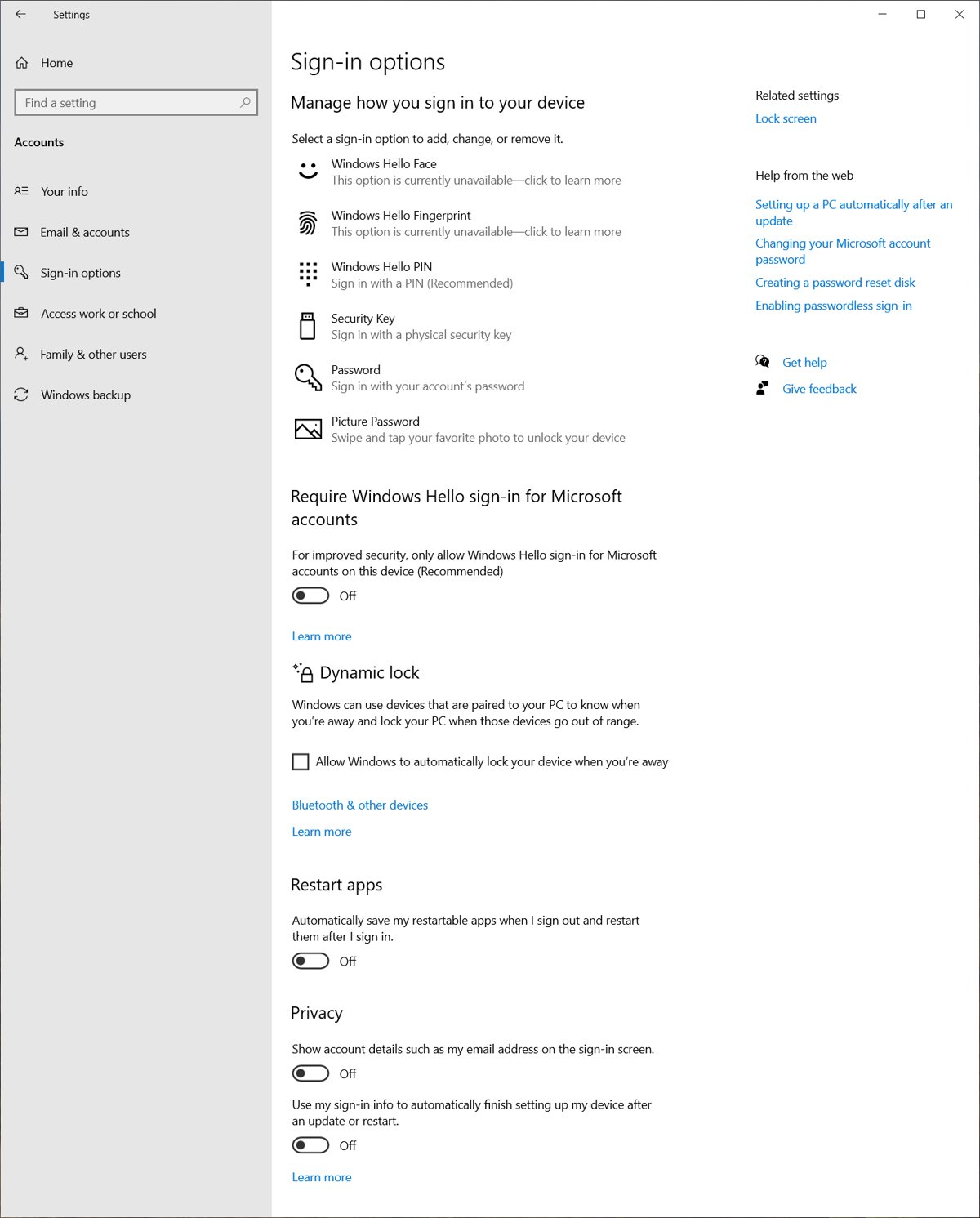
Dynamic lock pairs Windows with your phone over Bluetooth. When the signal drops because you walked away with the phone, Windows locks within about a minute.
- Turn on Bluetooth on your phone and make it discoverable.
- On the PC, open Settings > Bluetooth & devices and make sure Bluetooth is On.
- Pair the phone: select the Network, Sound or Battery icon on the taskbar, select the chevron on the Bluetooth tile, pick your phone under New devices, and select Done when pairing finishes.
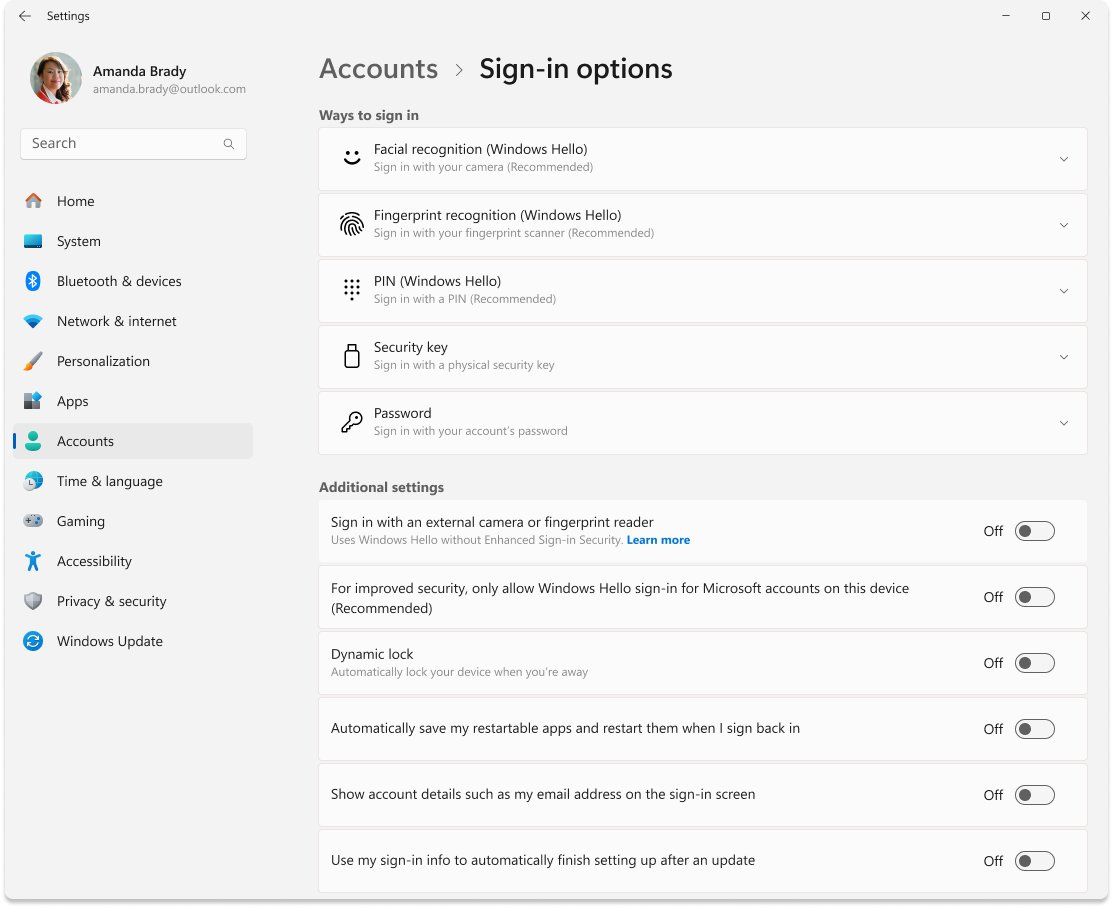
- Open Settings > Accounts > Sign-in options.
- Expand Dynamic lock.
- Check Allow Windows to lock your device automatically when you're away.
- Walk out of Bluetooth range with your phone; the PC locks within about a minute.
Dynamic lock is a backup, not a replacement for Windows logo key + L. Someone can still use the PC in the minute before it locks, and it does nothing if you leave the phone on your desk.
Method 6: Lock Automatically After Sleep
Windows locks itself if you tell it to ask for sign-in after sleep and then let the PC sleep when idle. Both settings are needed.
- Open Settings > Accounts > Sign-in options.
- Find If you've been away, when should Windows require you to sign in again? (called Require sign-in on Windows 10).
- Open the drop-down list and choose the option that requires sign-in when the PC wakes from sleep.
- Windows 11: open Settings > System > Power & battery > Screen, sleep & hibernate timeouts.
- Set Make my device sleep after for On battery and Plugged in; 10 or 15 minutes of idle time suits most people.
- Windows 10: press the Windows logo key, type
sleep, open the sleep settings result, and set the same timers.
Microsoft's newer Windows 11 defaults are already short on modern standby PCs: 3 minutes on battery and 5 minutes plugged in for both screen-off and sleep. Energy saver also dims the screen; if it looks too dark after waking, adjust it with these brightness controls.
Method 7: Lock With a Screen Saver
The classic screen saver still has a lock switch. It is useful on a desktop that you never want to sleep, such as one running long downloads. With a Wait time set, it is the simplest way to auto-lock a Windows 11 PC after a set number of idle minutes.
- Open Settings > Personalization > Lock screen.
- Under Related settings, select Screen saver.
- In Screen Saver Settings, pick a screen saver from the drop-down list.
- Set Wait to the number of idle minutes before it starts.
- Check On resume, display logon screen and save the change.
Without On resume, display logon screen checked, the screen saver hides the desktop but anyone can dismiss it with a key press. Microsoft recommends sleeping the display instead when energy use matters.
Method 8: Lock Windows Remotely With Your Microsoft Account
Find My Device can lock a lost or stolen Windows 10 or 11 PC from any browser. It must be turned on before the PC goes missing.
- Before you need it: sign in to the PC with a Microsoft account that is an Administrator, turn on location, and turn on Find my device (search for it in Settings).
- When the PC is missing, go to
account.microsoft.com/devicesand sign in with the same Microsoft account. - Select the Find My Device tab and choose the PC.
- Select Find to see it on a map.
- Select Lock, then Next.
- Once it is locked, change your Microsoft account password for extra safety.
People using the PC see a notification whenever you try to locate it. Microsoft also advises reporting a stolen device to police and your insurer; the serial number is under Info and support on the same devices page.
Method 9: Lock Windows From Command Prompt, PowerShell, or Run
Microsoft's PowerShell documentation calls this the only way to lock a computer directly with the standard tools. It is handy in scripts and scheduled tasks.
rundll32.exe user32.dll,LockWorkStationType it in Command Prompt, PowerShell or Windows Terminal and press Enter, or press Windows logo key + R, paste it into the Run box and select OK. It calls the LockWorkStation function. It only works in the signed-in user's own desktop session, and not when the PC is already locked.
You should see: The lock screen appears immediately, with your apps still open behind it.
Related commands from the same Microsoft page: shutdown.exe -l signs you out, which closes your apps, so do not confuse it with locking.
Method 10: Lock When Closing the Laptop Lid
Windows has no separate lock-on-lid action. The lid puts the laptop to sleep, and the sleep sign-in setting from Method 6 turns that into a lock. If yours does something else, change the lid close action back to Sleep first.
- Select Search on the taskbar, type
control panel, and open Control Panel. - Select System and Security, then under Power Options select Choose what the power buttons do.
- Select Change settings that are currently unavailable.
- Set When I close the lid to Sleep in the On battery column, and in the Plugged in column if you want it there too.
- Select Save changes.
- Confirm the sign-in-after-sleep setting from Method 6 is on, so opening the lid shows the lock screen.
Method 11: Use Windows Hello for Faster Unlocking After Locking
People skip locking when unlocking is a chore. A face, a fingerprint or a short PIN tied to that one PC makes unlocking quick with Windows Hello.
- Open Settings > Accounts > Sign-in options.
- Under Ways to sign in, pick Facial recognition (Windows Hello), Fingerprint recognition (Windows Hello) or PIN (Windows Hello).
- Select Set up and follow the prompts.
- Press Windows logo key + L and unlock with the new method to test it.
Face sign-in needs a Hello-compatible infrared camera, and fingerprint sign-in needs a reader. A PIN works on every PC.
How to Make Sure Windows Always Asks for a Password, PIN, or Hello Sign-In
A lock only protects you if getting past it takes a credential. Check each setting below once.
| Setting | Where it lives | Set it to |
|---|---|---|
| Account password or Windows Hello | Settings > Accounts > Sign-in options | A strong password, plus a PIN, face or fingerprint |
| Sign-in after being away | Sign-in options > If you've been away, when should Windows require you to sign in again? | Require sign-in when the PC wakes from sleep |
| Idle sleep timer (Windows 11) | Settings > System > Power & battery > Screen, sleep & hibernate timeouts | 10 to 15 minutes, or shorter |
| Screen saver lock | Personalization > Lock screen > Screen saver | On resume, display logon screen checked |
| Dynamic lock | Sign-in options > Dynamic lock | On, with your phone paired |
If the sign-in drop-down is greyed out, a security policy on the PC controls it. On a work PC, ask your IT administrator.
Best Locking Method for Each Situation
| Your situation | Use this | Why |
|---|---|---|
| Stepping away right now with a keyboard | Windows logo key + L | One keystroke, works in every app |
| Windows key broken or remapped | Ctrl + Alt + Del > Lock | Needs no Windows key |
| Touch screen or mouse only | Start > Power or account picture > Lock | No keyboard needed |
| You often forget to lock | Dynamic lock plus sign-in after sleep | Two automatic safety nets |
| Desktop that must never sleep | Screen saver with On resume, display logon screen | Locks without stopping downloads |
| Laptop in a bag | Close the lid with sleep and sign-in after sleep on | Locks every time, saves battery |
| Script, scheduled task or one-click button | rundll32.exe user32.dll,LockWorkStation |
Same lock, callable from anywhere |
| PC lost or stolen | Find My Device > Lock | Works from any browser |
How to check your PC actually locked
- Lock the PC with any method above.
- Look at the screen: you should see the lock screen with the clock, not your desktop.
- Press a key. Windows should ask for your password, PIN or Windows Hello, never drop you straight back into the desktop.
- Sign in. Your apps and documents should be exactly as you left them, which proves you locked rather than signed out.
- To test automatic locking, leave the PC idle past your sleep timer, then wake it and confirm the sign-in prompt appears.
Troubleshooting: Why Your Windows PC Is Not Locking Properly
The PC wakes from sleep straight to the desktop
Sign-in after being away is not required.
- Open Settings > Accounts > Sign-in options.
- Under If you've been away, when should Windows require you to sign in again?, choose the option that requires sign-in on wake.
- If the list is greyed out, a device security policy sets it; ask the PC's administrator.
Windows never locks automatically
The PC never goes to sleep, so the sign-in rule never triggers.
- Open Settings > System > Power & battery > Screen, sleep & hibernate timeouts on Windows 11.
- Set Make my device sleep after to a set number of minutes.
- On a desktop that must stay awake, use the screen saver lock from Method 7 instead.
Windows 10 or 11 locks automatically too soon
Short screen and sleep timers, or Dynamic lock firing when the phone moves away.
- Lengthen Turn my screen off after and Make my device sleep after in Screen, sleep & hibernate timeouts.
- If you use a screen saver lock, raise its Wait value.
- If locks happen when your phone leaves the desk, turn off Dynamic lock in Sign-in options.
Dynamic lock does not lock the PC
The phone is not paired, Bluetooth is off, or the checkbox is cleared.
- Confirm Bluetooth is On in Settings > Bluetooth & devices.
- Check that your phone appears in the paired devices list; pair it again if not.
- Recheck Allow Windows to lock your device automatically when you're away under Dynamic lock.
- Allow about a minute after you leave Bluetooth range before judging it.
The screen saver starts but no password is asked
On resume, display logon screen is unchecked.
- Open Settings > Personalization > Lock screen > Screen saver.
- Check On resume, display logon screen and save the change.
Lock is missing from the Start menu
Its position changed between Windows 11 builds.
- Select Start and look under the Power icon.
- If it is not there, select your user picture or the Accounts icon and look there.
- Use Windows logo key + L or Ctrl + Alt + Del > Lock, which work on every build.
Security Tips for Locking Your Windows PC
A lock screen is only as strong as the habits around it. These come from Microsoft's own device-security advice.
| Tip | Why it matters |
|---|---|
| Use a strong password, or go passwordless with Windows Hello | A lock with a weak or empty password stops nobody |
| Lock by hand every time you stand up | Automatic locks leave a gap of several minutes |
| Turn on sign-in after sleep and a short sleep timer | Covers the times you forget |
| Give other people their own account instead of sharing yours | They cannot open your files, and your session stays locked |
| Turn on Find my device now | Remote lock only works if it was on before the loss |
| Sit where nobody can read your screen over your shoulder | Locking does nothing while the screen is unlocked and visible |
How to Hide Notifications on the Lock Screen
Message previews can show on the lock screen even while the PC is locked. Hide them per app.
- Open Settings > System > Notifications.
- Under Notifications from apps and other senders, select the app, such as your mail or chat app.
- Turn on Hide content when notifications are on lock screen.
- To silence an app completely, turn off its notifications on the same page.
- Repeat for each app whose messages you want kept private, then press Windows logo key + L to check.
Frequently Asked Questions
How do I lock my Windows 11 screen?
Press Windows logo key + L. You can also select Start > Power > Lock, or press Ctrl + Alt + Del and select Lock. Your apps stay open, and you unlock with your password, PIN or Windows Hello.
How do I lock my computer on Windows 10?
Press Windows logo key + L, or press Ctrl + Alt + Del and select Lock. From the mouse, select Start, select your account picture in the lower-left corner, and select Lock. All three reach the same lock screen.
How do I lock a laptop on Windows 10?
Press Windows logo key + L before you walk away. To lock by closing the lid, set When I close the lid to Sleep under Choose what the power buttons do, and require sign-in after sleep in Settings > Accounts > Sign-in options.
How do I set my Windows PC to lock automatically?
Require sign-in after sleep in Settings > Accounts > Sign-in options, then set a sleep timer in the power settings. Add Dynamic lock to lock when your paired phone leaves Bluetooth range, or a screen saver with On resume, display logon screen checked.
How do I lock my keyboard on Windows 10?
Press Windows logo key + L. Locking stops the keyboard and mouse from reaching your session and apps until you sign in again. Microsoft documents no separate built-in keyboard-only lock in Windows 10 or 11.
What is the difference between locking and signing out?
Locking keeps your apps open and protects your session until you sign in again. Signing out closes your apps, so unsaved work may be lost. Lock when you step away; sign out when you are finished on a shared PC.
Is there a command to lock Windows?
Yes. Run rundll32.exe user32.dll,LockWorkStation in Command Prompt, PowerShell or the Run box. It calls the Windows LockWorkStation function and locks the PC immediately. The same line works as the target of a desktop shortcut.
Can I lock my Windows PC remotely?
Yes, if Find my device was turned on beforehand with an administrator Microsoft account. Go to account.microsoft.com/devices, open Find My Device, choose the PC, and select Lock > Next. Change your password afterwards.
Why is my Windows PC not locking after sleep?
The If you've been away setting in Sign-in options is probably not set to require sign-in on wake. Change it there. If the drop-down is greyed out, a security policy controls it, and the PC's administrator has to change it.







How To Add User Account In Windows 11 – Full Guide - Techdows
[…] on Dynamic lock to lock the PC automatically when their paired phone moves out of Bluetooth […]