To change the lockscreen timeout in Windows 11, run powercfg.exe /setacvalueindex SCHEME_CURRENT SUB_VIDEO VIDEOCONLOCK 300 and then powercfg.exe /setactive SCHEME_CURRENT in an administrator terminal, which keeps the locked screen on for 300 seconds.
This guide covers that command, the hidden Console lock display off timeout option in Power Options, the battery value, and the Settings timeouts that decide when the PC locks in the first place.
Change the Windows 11 lockscreen timeout duration
By default, Windows turns the display off after 60 seconds of inactivity on the lock screen. No page in Settings changes that value, so set it with powercfg. Values are in seconds.
- Right-click Start and select Terminal (Admin), then select Yes at the prompt.
- Type
powercfg.exe /setacvalueindex SCHEME_CURRENT SUB_VIDEO VIDEOCONLOCK 300and press Enter to set 5 minutes while plugged in. - On a laptop, type
powercfg.exe /setdcvalueindex SCHEME_CURRENT SUB_VIDEO VIDEOCONLOCK 300and press Enter to set the battery value. - Type
powercfg.exe /setactive SCHEME_CURRENTand press Enter to apply the change. - Press Windows + L to lock the PC and leave it idle to test the new timeout.
Replace 300 with any number of seconds: 120 for 2 minutes, 600 for 10 minutes.
What is lockscreen timeout?
Lockscreen timeout is how long the display stays on while the PC sits locked. It is a different value from the screen timeout you set in Settings, which applies only while you are signed in and idle.
| Timeout | When it applies | Default | Where to change it |
|---|---|---|---|
| Lockscreen timeout (VIDEOCONLOCK) | PC is locked, nobody touches it | 60 seconds | powercfg or Power Options after unhiding |
| Screen timeout (VIDEOIDLE) | Signed in and idle | 5 minutes plugged in, 3 on battery on new installs | Settings > System > Power & battery |
| Sleep timeout | Signed in and idle, after the screen turns off | Varies by device | Settings > System > Power & battery |
| Screen saver wait | Signed in and idle | Off | Personalization > Lock screen > Screen saver |
Changing Choose when to turn off the display in Control Panel does not affect the locked-screen value, which is why many people think their lockscreen setting is ignored.
Lockscreen timeout: powercfg or Power Options
| Your situation | Use this | Why |
|---|---|---|
| You want it changed in one minute | powercfg command | Two commands, no menus |
| You prefer a menu you can revisit | Unhide Console lock display off timeout | Shows the value in Power Options for plugged in and battery |
| You want the PC to lock sooner or later | Screen and sleep timeouts in Settings | These decide when the lock happens |
| You want a lock every time you walk away | Dynamic lock or screen saver sign-in | Locks the PC when you leave |
Show Console lock display off timeout in Power Options
Windows 11 hides this option by default. One command adds it under the Display group of the advanced power plan settings.
powercfg.exe -attributes SUB_VIDEO 8EC4B3A5-6868-48c2-BE75-4F3044BE88A7 -ATTRIB_HIDERun it in an administrator terminal. It removes the hidden flag from the Console lock display off timeout setting so it appears in Control Panel.
You should see: Open Control Panel > Power Options > Change plan settings > Change advanced power settings, expand Display, and Console lock display off timeout is listed with On battery and Plugged in values.
Set the minutes there and select OK. To hide the option again, run the same command with +ATTRIB_HIDE in place of -ATTRIB_HIDE.
Change screen and sleep timeouts in Windows 11 Settings
These timeouts control when the display turns off and the PC sleeps while you are signed in. Open Start > Settings > System > Power & battery > Screen, sleep, & hibernate timeouts.
| Setting | What it does | New default (modern standby) |
|---|---|---|
| When plugged in, turn my screen off after | Turns the display off when idle on AC power | 5 minutes |
| On battery, turn my screen off after | Turns the display off when idle on battery | 3 minutes |
| When plugged in, make my device sleep after | Puts the PC to sleep on AC power | 5 minutes |
| On battery, make my device sleep after | Puts the PC to sleep on battery | 3 minutes |
On older S3-sleep PCs the new sleep defaults are 15 minutes plugged in and 10 on battery.
Lock Windows 11 with a screen saver timeout
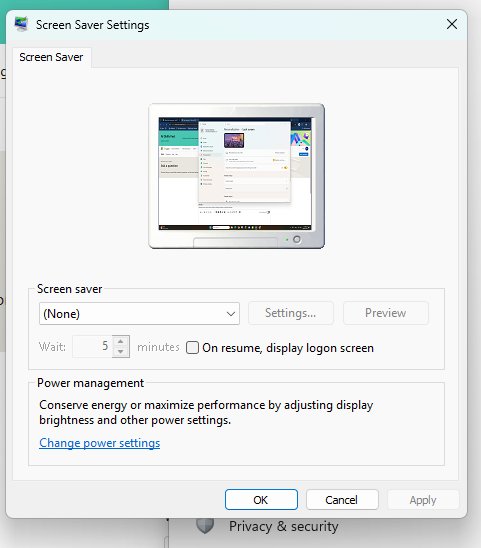
A screen saver with sign-in on resume locks the PC after a set number of idle minutes. You can also change the screen saver itself from the same window.
- Open Settings > Personalization > Lock screen.
- Under Related settings, select Screen saver.
- Pick a screen saver from the drop-down list.
- Set the idle minutes in Wait.
- Tick On resume, display logon screen.
- Select OK.
Give your Windows 11 PC a timeout tune-up
Line the timeouts up so the PC locks when you want and the locked screen does not stay lit for long. Dynamic lock adds a lock when you walk away with your paired phone.
- Set the screen saver Wait time to how long the PC may sit idle before it locks.
- Set When plugged in, turn my screen off after to the same or a longer value.
- Set the lockscreen timeout with powercfg to a short value such as 60 or 120 seconds.
- Open Settings > Accounts > Sign-in options.
- Under Dynamic lock, turn the toggle On so Windows locks within a minute after your paired phone is out of Bluetooth range.
On PCs with a presence sensor, the more aggressive of lock on leave and the screen timeout wins.
How to confirm the lockscreen timeout changed
- In an administrator terminal, run
powercfg /query SCHEME_CURRENT SUB_VIDEO VIDEOCONLOCK. - Read the current AC and DC values in the output: they are seconds shown in hexadecimal, so
0x0000012cequals 300. - Press Windows + L and time how long the display stays on without touching the mouse or keyboard.
Windows 11 lock screen timeout not working
Display still turns off after 1 minute when locked
The value was set for the other power source, or the scheme was not reapplied.
- Run the
/setacvalueindexcommand for plugged in and/setdcvalueindexfor battery. - Run
powercfg.exe /setactive SCHEME_CURRENTagain. - Check that you changed the plan that is active, since the commands target the current scheme only.
Screen turns off sooner than the lockscreen timeout
Lock on leave or a shorter screen timeout wins.
- Open Settings > System > Power & battery and raise the screen timeout.
- On a PC with presence sensing, raise or turn off the lock on leave timeout too.
Console lock display off timeout missing from Power Options
The setting is hidden by default.
- Run
powercfg.exe -attributes SUB_VIDEO 8EC4B3A5-6868-48c2-BE75-4F3044BE88A7 -ATTRIB_HIDEas administrator. - Close and reopen Change advanced power settings.
Windows 11 lockscreen timeout FAQ
What is the default lockscreen timeout in Windows 11?
60 seconds. When the PC is locked, Windows waits one minute of inactivity before it turns the display off. The value is not exposed in Settings by default.
Why does my Windows 11 screen turn off after 1 minute when locked?
That is by design. The locked-screen display timeout is separate from the screen timeout in Settings. Change it with the powercfg VIDEOCONLOCK value or the Console lock display off timeout option.
Is lockscreen timeout the same as screen timeout?
No. Screen timeout applies while you are signed in and idle. Lockscreen timeout applies only after the PC is locked.
How do I stop Windows 11 from locking so quickly?
Raise the screen and sleep timeouts in Settings > System > Power & battery, and lengthen or clear the screen saver Wait time with On resume, display logon screen.
How do I set the lockscreen timeout on battery?
Use /setdcvalueindex in place of /setacvalueindex in the powercfg command, then run powercfg.exe /setactive SCHEME_CURRENT.
Can I set the lockscreen timeout without the command line?
Only after unhiding it. Run the powercfg attributes command once, then change Console lock display off timeout under Display in the advanced power settings.