To permanently set CPU affinity for a program in Windows 11 or 10, launch it through a shortcut that runs cmd.exe /c start "" /affinity <mask> "<program path>", because Windows itself never remembers an affinity you pick in Task Manager.
This guide shows how to build that shortcut, how to work out the hex mask for the cores you want, how to apply the same rule at sign-in through the Run registry key or with PowerShell, and when pinning a program to cores is a bad idea.
Method 1: Using Windows shortcuts with start parameters
The built-in start command has an /affinity switch that applies a processor affinity mask, written as a hexadecimal number, to the program it launches. Put that command inside a shortcut and every launch from the shortcut gets the same cores.
The example below limits a program to the first two logical processors (mask 3). Swap in your own program path and mask from the table further down.
- Find the program's .exe file: right-click its existing shortcut, select Properties, and copy the path in the Target box.
- Right-click an empty part of the desktop and select New > Shortcut.
- In Type the location of the item, enter
C:\Windows\System32\cmd.exe /c start "" /affinity 3 "C:\Program Files\App\app.exe"with your own path in place of the last quoted part. - Select Next, type a name such as App (cores 0-1), and select Finish.
- Right-click the new shortcut, select Properties, and set Run to Minimized so the Command Prompt window does not flash on screen.
- Select Change Icon, select Browse, pick the program's .exe file, choose its icon, and select OK twice.
- Double-click the shortcut to start the program on the cores in the mask.
The empty pair of quotes fills the start command's optional window title, so Windows reads the quoted program path as the program and not as a title.
To launch it from the Start menu or taskbar, right-click the new shortcut and pin it there, then stop using the program's original shortcut. Only launches through this shortcut get the affinity.
What exactly is CPU affinity?
CPU affinity, also called processor affinity, is the set of logical processors a program's threads are allowed to run on. Windows normally lets the scheduler move threads to any free processor; an affinity mask restricts that choice.
| Term | What it means in Windows |
|---|---|
| Processor affinity mask | A bit vector with one bit per logical processor. A bit set to 1 lets the process run on that processor. |
| Logical processor | One computing engine as Windows sees it. A core can hold one or more logical processors. |
| Default affinity | Every processor the process can use. For a program on an eight-processor PC that is mask FF (255 in decimal). |
| Inheritance | A child process, or a program started by another program, inherits the parent's affinity. That is why start /affinity works. |
| Processor group | A set of up to 64 logical processors. PCs with 64 or fewer logical processors have a single group, Group 0. |
| Thread affinity | The same restriction for a single thread. A thread's affinity must be a subset of its process's affinity. |
Affinity is a property of a running process, not of the .exe file. When the program closes, the setting closes with it.
Why would you want to set CPU affinity permanently?
A permanent rule matters when you want the same limit every time a program runs, without repeating Task Manager clicks after each launch or restart.
| Reason | What affinity does | Better option to try first |
|---|---|---|
| Keep a heavy background job, such as an encoder or a compile, off the cores a game or meeting app needs | Caps the job to a few logical processors so the rest stay free | Lower the job's priority with start /belownormal |
| An older program misbehaves when it sees many processors | Shows the program fewer processors to run its threads on | Check the vendor's own compatibility notes for the program |
| Testing each processor or comparing per-core CPU load | Pins the test to the exact processor you want to watch | None; this is a use Microsoft names as appropriate |
| Reducing cache reloads for one busy process | Stops its threads moving between processors under heavy load | Leave Windows in charge unless you can measure a gain |
Traditional method: Using Task Manager (and why it's not enough)
Task Manager can change the affinity of a process that is already running. The change lasts only until that process exits, so the next launch runs on every processor again.
- Press Ctrl + Shift + Esc to open Task Manager.
- Select More details if Task Manager opens in its compact view.
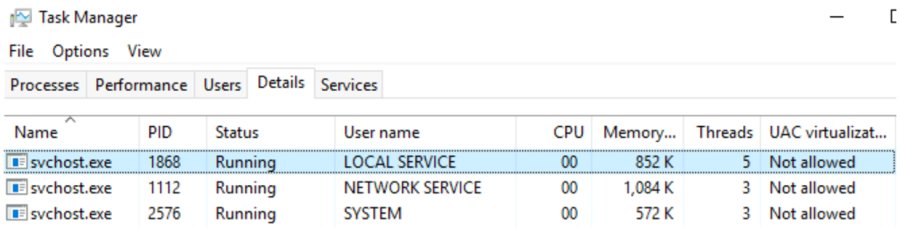
- Select the Details tab.
- Right-click the program's process and open its processor affinity option from the menu.
- Clear the processors you do not want the program to use, keep at least one selected, and confirm the change.
- Close and reopen the program, then check its affinity again: it is back to every processor.
That reset is why this route is not enough on its own. Use it to test which cores give the result you want, then make the setting stick with one of the methods below.
CPU affinity mask table (cores 0 to 15)
Each logical processor is one bit, starting with bit 0. Add the values of the processors you want and write the total in hex for start /affinity, or in hex with 0x or decimal for PowerShell.
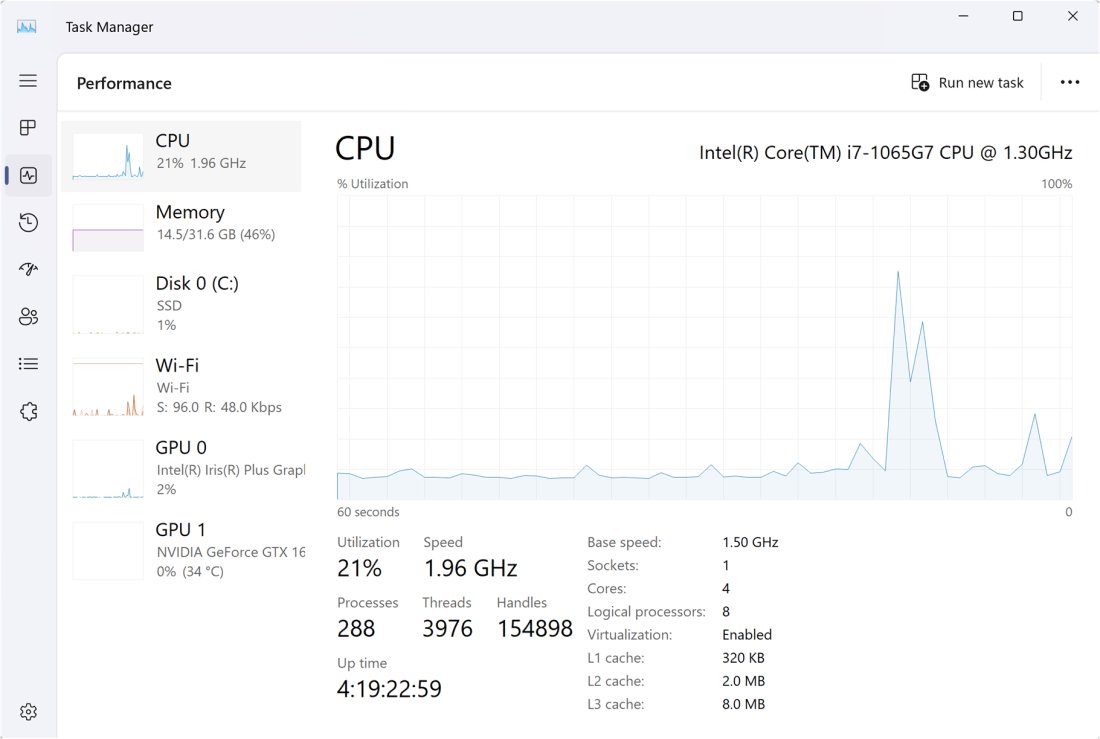
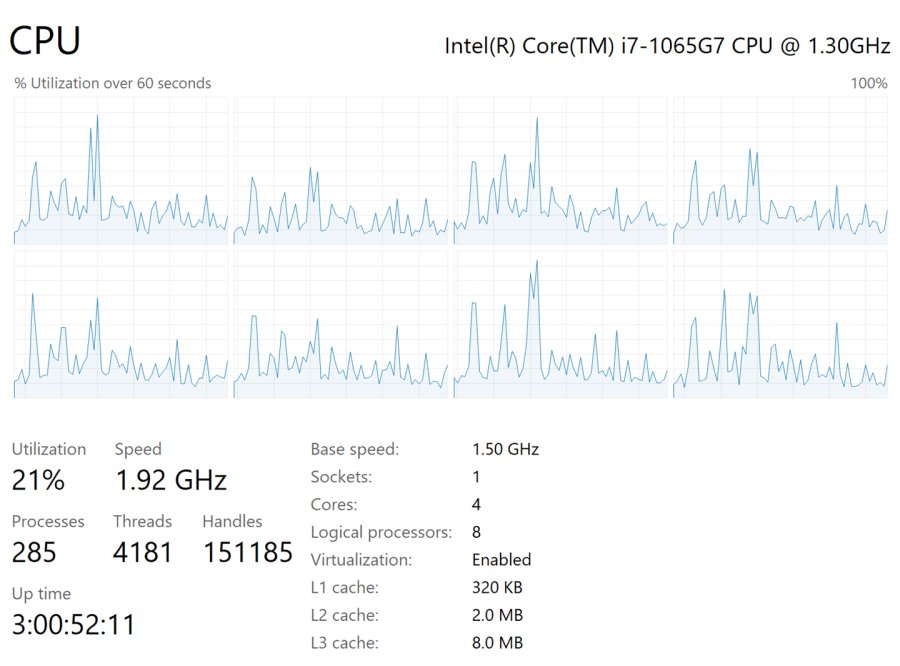
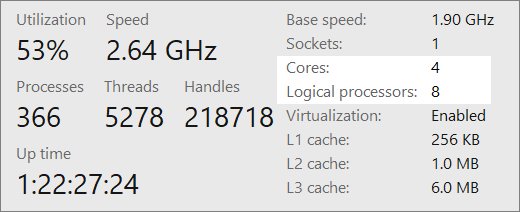
To see how many logical processors you have, open Task Manager, select Performance, then CPU, and read Logical processors.
| Logical processor (bit) | That processor only (hex) | Processors 0 up to this one (hex) | Processors 0 up to this one (decimal) |
|---|---|---|---|
| 0 | 1 | 1 | 1 |
| 1 | 2 | 3 | 3 |
| 2 | 4 | 7 | 7 |
| 3 | 8 | F | 15 |
| 4 | 10 | 1F | 31 |
| 5 | 20 | 3F | 63 |
| 6 | 40 | 7F | 127 |
| 7 | 80 | FF | 255 |
| 8 | 100 | 1FF | 511 |
| 9 | 200 | 3FF | 1023 |
| 10 | 400 | 7FF | 2047 |
| 11 | 800 | FFF | 4095 |
| 12 | 1000 | 1FFF | 8191 |
| 13 | 2000 | 3FFF | 16383 |
| 14 | 4000 | 7FFF | 32767 |
| 15 | 8000 | FFFF | 65535 |
Mixed sets work the same way: processors 2 and 3 only are 4 + 8 = C in hex (12 in decimal), and processors 0, 2, 4 and 6 are 1 + 4 + 10 + 40 = 55 in hex (85 in decimal).
Never set a bit for a processor your PC does not have. Windows rejects a mask that asks for a processor that is not configured in the system.
Method 2: Using third-party tools such as Process Lasso
Every built-in route applies affinity at launch, so a program started any other way (an updater, another launcher, a file you double-click) runs on all processors. A background process manager such as Bitsum's Process Lasso is the kind of tool that watches for a program and applies a saved affinity whenever it starts, whichever way it was launched.
| Your situation | Use this | Why |
|---|---|---|
| You always open the program from one icon | Method 1 shortcut | No extra software, nothing running in the background |
| The program should start limited every time you sign in | Method 3 Run registry entry | Windows runs it at each sign-in with the mask applied |
| You want to limit a program that is already running, from a script | Method 4 PowerShell | Changes the live process without restarting it |
| The program is often started by other apps, links or file types | A third-party process manager | Only a tool that runs in the background can catch launches you do not control |
Install any such tool only from its publisher's own website, and treat it like any other startup program that runs all the time. Its menus change between versions, so follow the publisher's own help pages for the exact steps.
Method 3: Registry modifications for power users
Windows has no registry value that stores a CPU affinity for a program. What the registry can do is run the same start /affinity command every time you sign in, through the documented Run key.
The Run key runs its entries at every sign-in, takes a command line of up to 260 characters per entry, and runs several entries in no fixed order. Back up the key first: right-click Run and select Export.
- Press Win + R, type
regedit, and press Enter. Select Yes at the User Account Control prompt. - Go to
HKEY_CURRENT_USER\Software\Microsoft\Windows\CurrentVersion\Runfor your account only, orHKEY_LOCAL_MACHINE\Software\Microsoft\Windows\CurrentVersion\Runfor every user. - Right-click an empty part of the right pane and select New > String Value.
- Name the value after the program, for example AppAffinity, and press Enter.
- Double-click the new value and paste
cmd.exe /c start "" /affinity 3 "C:\Program Files\App\app.exe"into Value data, with your own mask and path. - Select OK, close Registry Editor, then sign out and sign back in.
- If the program already starts at sign-in by itself, turn off its own startup entry so it does not open twice.
Windows may delay Run key programs after sign-in so they do not slow the desktop, so expect the program to appear a little later than a normal startup app. To undo the change, delete the value you created.
Method 4: Using PowerShell scripts (command line)
PowerShell sets affinity through the ProcessorAffinity property of a process object. It takes the mask in decimal or as hex with a 0x prefix, and it works on a program that is already running.
To start a program and limit it straight away, use Start-Process with -PassThru, which returns the new process object. You can paste the line below into a shortcut's target as powershell.exe -NoProfile -WindowStyle Hidden -Command "..." to reuse it.
$p = Start-Process -FilePath 'C:\Program Files\App\app.exe' -PassThru; $p.ProcessorAffinity = 0x3Start-Process launches the program and -PassThru hands back its process object in $p. Setting ProcessorAffinity to 0x3 limits that process to logical processors 0 and 1. For a program that is already open, run Get-Process -Name app | ForEach-Object { $_.ProcessorAffinity = 3 } instead, with the process name shown in Task Manager without .exe.
You should see: The command returns no output. Run (Get-Process -Name app).ProcessorAffinity and PowerShell prints 3.
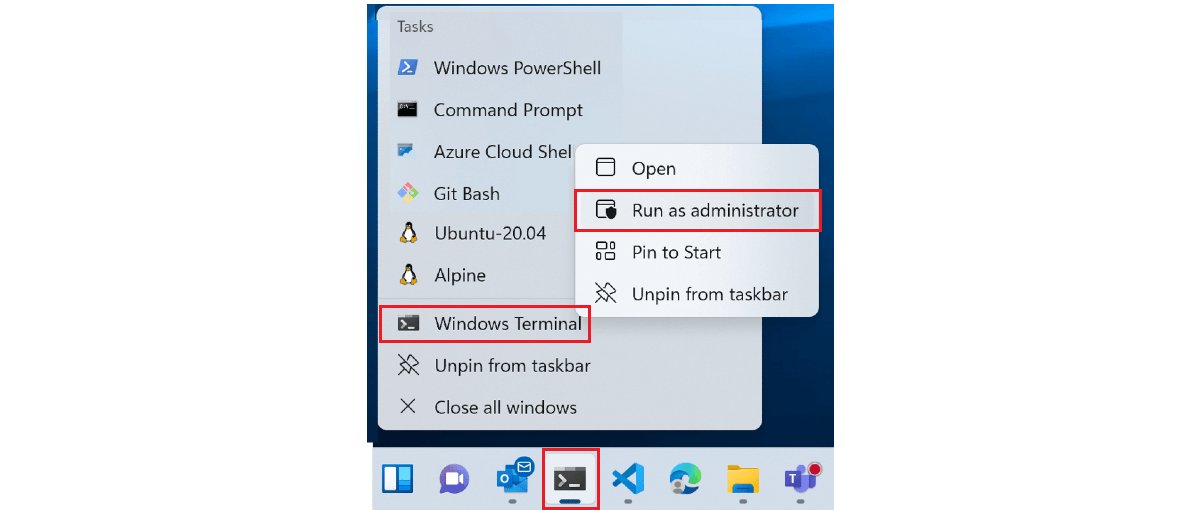
A process that runs as administrator needs an elevated PowerShell window: right-click Windows PowerShell or Terminal and select Run as administrator.
Because PowerShell sets the mask a moment after the program starts, the shortcut method in Method 1 is cleaner when a program must never touch the other processors.
What is the easiest way to set permanent CPU affinity?
For most people the shortcut in Method 1 is the easiest permanent option: one shortcut, no scripts, no registry edits, and no extra software.
| Method | Permanent? | Needs admin? | Best for |
|---|---|---|---|
| Task Manager | No, resets when the program closes | Only for elevated processes | Testing which cores to use |
| Shortcut with start /affinity | Yes, for launches from that shortcut | No | Apps and games you open from one icon |
| Run registry key | Yes, at every sign-in | HKLM needs admin; HKCU does not | Programs that should start at sign-in |
| PowerShell script | Yes, whenever the script runs | Only for elevated processes | Already-running programs and automation |
| Third-party process manager | Yes, while the tool runs | Depends on the tool | Programs started by other apps or links |
How to check CPU affinity of a process in Windows
Check the affinity after the program is running, launched the same way you will launch it every day. This also confirms CPU affinity is working via the shortcut.
Get-Process -Name app | Select-Object Name, Id, ProcessorAffinityLists every running process named app with its process ID and its current affinity mask in decimal. Replace app with the process name from Task Manager's Details tab, without .exe.
You should see: Each line shows the decimal value of the mask you set, for example 3 for processors 0 and 1. A value equal to every processor on the PC (such as 255 on eight logical processors) means the rule did not apply.
You can also open Task Manager, select Details, and open the processor affinity option for the process: only the processors in your mask stay selected.
CPU affinity not saving in Windows 11 or 10
Affinity resets every time the program restarts
Affinity belongs to the running process, so a change made in Task Manager or PowerShell ends when the process exits.
- Build the Method 1 shortcut or the Method 3 Run entry for the program.
- Replace or unpin the program's original shortcuts so you always start it the new way.
- Restart the program and check the value with
Get-Process.
The shortcut opens the program but it still uses every core
The program was already running, or the shortcut starts a launcher that hands off to a process the mask did not reach.
- Close every copy of the program, including any icon in the notification area.
- Start it from the affinity shortcut, then run
Get-Processagainst each process name the program uses. - If a separate main process still shows every processor, point the shortcut at that main .exe instead of the launcher, or limit it with the PowerShell command after it opens.
Windows rejects the mask or nothing happens
The mask asks for a processor the PC does not have, or it is written in decimal where start expects hex.
- Open Task Manager, select Performance > CPU, and read Logical processors.
- Rebuild the mask from the table so it only sets bits below that number.
- Write it in hex for
start /affinity, for exampleCand not12.
PowerShell will not change a program's affinity
Changing a process's affinity needs set-information access to it, which a standard PowerShell window does not have for a program running as administrator.
- Open PowerShell or Terminal with Run as administrator.
- Run the
Get-Process ... ForEach-Objectcommand again. - Check the new value with
(Get-Process -Name app).ProcessorAffinity.
When NOT to use CPU affinity
Leave affinity alone for normal apps and games unless you can measure a problem it fixes, and never limit Windows system processes. Microsoft's own guidance says affinity should generally be avoided because it stops the scheduler spreading threads across processors, which can cut the performance a multi-core CPU gives you. A program limited to two logical processors cannot use the rest even when they sit idle.
Skip it for anything you run as a 32-bit program on a PC with more than 32 logical processors: 32-bit code only sees the first 32 processors, so masks above that range do not apply as written.
On PCs with more than 64 logical processors, a mask covers only one processor group, so it cannot spread one program across groups.
If Task Manager shows fewer logical processors than your CPU has, enable all CPU cores first; an affinity mask cannot reach processors Windows is not using.
CPU affinity in Windows FAQ
What is processor affinity in an OS?
Processor affinity is the set of processors an operating system lets a process or thread run on. In Windows it is stored as a bitmask with one bit per logical processor. By default every processor is allowed, and the scheduler moves threads between them as load changes.
How do I change CPU affinity in Windows 11?
For the current session, open Task Manager, select the Details tab, right-click the process and change its processor affinity. For a change that survives restarts, launch the program through a shortcut that runs cmd.exe /c start "" /affinity with a hex mask and the program's path.
How do I save a process's CPU affinity?
Windows cannot save an affinity you set in Task Manager. Save the rule outside the process instead: a shortcut that uses start /affinity, a Run registry entry that runs that command at sign-in, or a PowerShell script that sets ProcessorAffinity after starting the program.
How do I set processor affinity permanently in Windows 10?
Windows 10 uses the same methods as Windows 11. Create a desktop shortcut whose target is cmd.exe /c start "" /affinity 3 followed by the quoted program path, then open the program only from that shortcut. Replace 3 with the hex mask for your cores.
How do I set CPU core affinity for specific cores?
Add the bit values of the cores you want and use the total as the mask. Logical processor 0 is 1, processor 1 is 2, processor 2 is 4, and processor 3 is 8, so processors 2 and 3 together are C in hex or 12 in decimal.
Does start /affinity need administrator rights?
No. The start command runs from a standard Command Prompt or shortcut, and the program it launches inherits the mask. You only need administrator rights to change the affinity of a program that is already running as administrator, or to write a Run entry under HKEY_LOCAL_MACHINE.
Can I permanently set affinity for a program without software?
Yes. The start /affinity shortcut, the Run registry key and PowerShell are all built into Windows 11 and Windows 10. A third-party process manager is only needed when the program is started by other apps or links you do not control.
What is the PowerShell command to set CPU affinity?
Run Get-Process -Name app | ForEach-Object { $_.ProcessorAffinity = 3 } to limit a running program to processors 0 and 1. Replace app with the process name and 3 with your mask in decimal, or write the mask in hex with a 0x prefix.